1
BASIC IMAGE RECORDING
Specifying Image Size
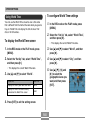
“Image size” is the size of the image, expressed as the
number of vertical and horizontal pixels. A “pixel” is one of
the many tiny dots that make up the image. More pixels
provide finer detail when an image is printed, but a higher
pixel count also causes the image’s file size of to be larger.
You can select an image size to suit your needs for greater
detail or smaller file size.
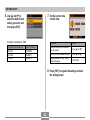
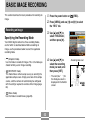
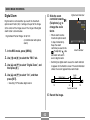
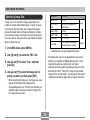
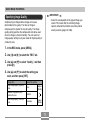
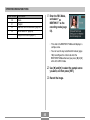
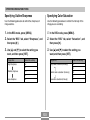
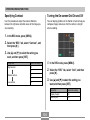
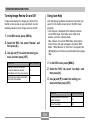
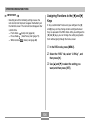
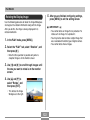
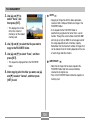
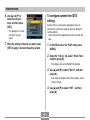
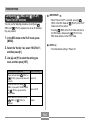
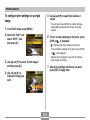
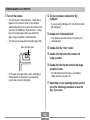
1. In the REC mode, press [MENU].
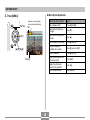
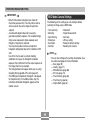
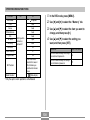
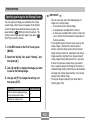
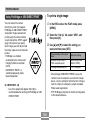
Image Size
Print Size
2816 × 2112
A3 Print
2816 × 1872
(3:2)
A3 Print (3:2 horizontal-tovertical ratio)
2048 × 1536
A4 Print
1600 × 1200
5˝ × 7˝ Print
1280 × 960
3.5˝ × 5˝ Print
640 × 480
E-mail (optimum size when
attaching image to e-mail)
Larger
Smaller
• Indicated sizes are rough approximates only.
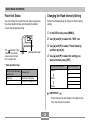
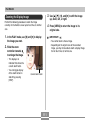
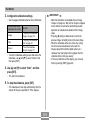
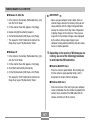
2. Use [] and [] to select the “REC” tab.
• The above print sizes are all approximate values when
printing at a resolution of 200 dpi (dots per inch). Use a
larger setting when you want to print at a higher
resolution or when you plan to produce a larger size print.
• Selecting the “2816 × 1872 (3:2)” image size will record
images with a 3:2 (horizontal : vertical) aspect ratio, which
is optimal for printing on paper with an aspect ratio of 3:2.
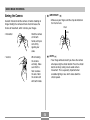
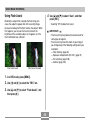
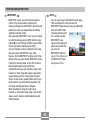
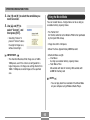
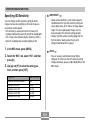
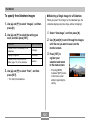
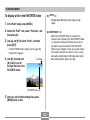
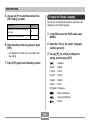
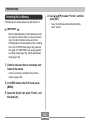
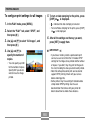
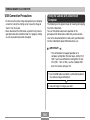
3. Use [] and [] to select “Size”, and then
press [].
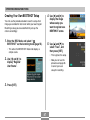
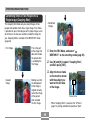
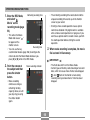
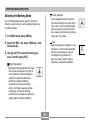
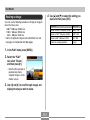
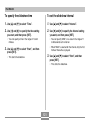
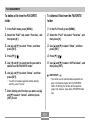
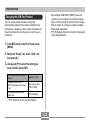
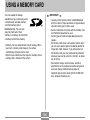
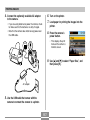
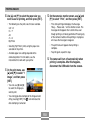
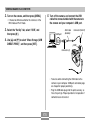
4. Use [] and [] to select the image size (in
pixels) you want, and then press [SET].
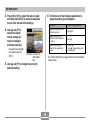
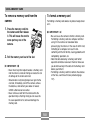
• When selecting the image size, the image size value
(pixels) will alternate on the display with a
corresponding print size. The print size indicates the
optimum paper size when you print an image that is
the image size you select.
70