1
16
CHAPTER 2: INSTALLING THE WIRELESS CLIENT
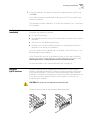
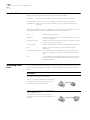
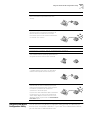
To get the best reception:
Custom Installation
Options
■
Clear the area around the antenna of items that could block radio
transmission, such as metal objects, electronic devices, and cordless
telephones.
■
Even a slight change in antenna orientation can affect the network association.
If necessary, move your computer a few inches to find a better signal.
If you want to set up a custom configuration during installation, when the
installation program asks for the Setup Type, select Custom and click Next.
You can change the WLAN Service Area and Security settings.
WLAN Service Area
Attach to any WLAN Service Area automatically—This option associates the client
automatically to the WLAN service area with the best signal strength.
Specify a WLAN Service Area—Select this option and enter the name of a WLAN
service area. The name must match the name of the access point WLAN Service
Area exactly.
For more information on these settings, see “Changing Network and Security
Settings” on page 23.
Security Settings
In the Security settings window, select one of the options and click Next.
If you select No Security for no encryption, no further configuration is necessary.
The other options require you to configure encryption keys or authentication
settings in the next window. The settings must match those on the access point.
For more information on these settings, see “Security Settings” on page 24.
40-bit Shared Key (Wi-Fi) Encryption
40-bit Shared Key (Wi-Fi) security requires you to set up encryption keys using one
of the following:
■
An encryption string, which is a string of characters between 8 and 64
characters long. The string is a combination of letters and numbers and is case
sensitive. The encryption string can be used only with other 3Com 11 Mbps
Wireless LAN PC Cards and access points, and must match exactly across all
devices in the wireless network.
■
Hexadecimal keys (for use with compatible equipment from other
manufacturers). The key sequences must match exactly across all devices in the
wireless network.
Ask your system administrator for the encryption string or hexadecimal keys.
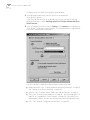
To enter an encryption string:
1 In the Security settings window, select 40-bit Shared Key (Wi-Fi) and click Next.
2 In the Encryptions Settings window, select Text Message.
3 Type the encryption string in the spaces provided.
4 Click Next when finished.