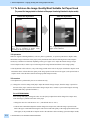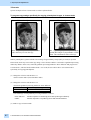
1
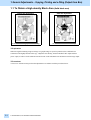
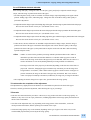
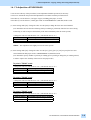
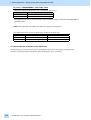
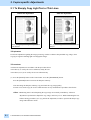
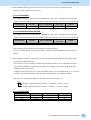
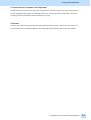
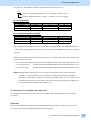
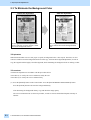
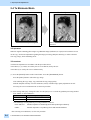
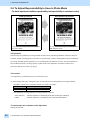
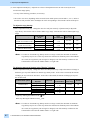
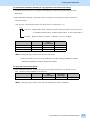
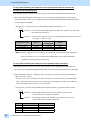
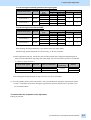
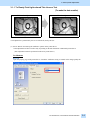
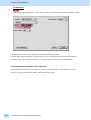
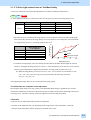
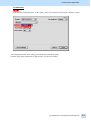
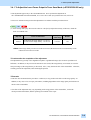
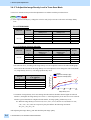
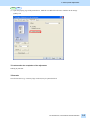
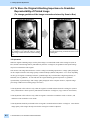
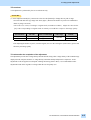
2. Copier-specific Adjustments (3) Press the [BASIC] button on the Control Panel and select "PHOTO" from among the original mode options: * To have "PHOTO" selected from among the original options by default, use the following procedures: To change default original mode on the Control Panel • Use steps (a) to (d) to change default original mode. (a) Press the [USER FUNCTIONS] button on the Control Panel to enter the "User Functions" menu. (b) Press the [USER] button. (c) Press the [COPY] button. (d) In the "ORIGINAL MODE" option, press the [PHOTO] button. To change default original mode in setting mode [08] • Enter setting mode [08]. Change the value for code [550] to switch the original mode option from "TEXT/PHOTO" to "PHOTO." • Change the value for code 08-550 to "1." Value for 08-550 Default original mode at power-on 0 Text/Photo (default) 1 Photo 2 Text 3 Custom * Custom mode can be selected, if it has already been enabled using code 08-508. For further information regarding the Custom mode setting, refer to 2.7 To Program Frequently Used Copy Settings. After selecting Photo mode, copy and check the copy image quality. If further image quality adjustments are still necessary, use the next procedure. (4) With "PHOTO" selected from among the original mode options, press the [IMAGE] button on the Control Panel. Press the [SHARPNESS] button. Press the [SOFT] button to soften the copy image. Cautions after the completion of the adjustment The adjustment may possibly cause the image to be generally blurred (decreased resolving power). Therefore, carefully perform the adjustment, while checking the copy image. e-STUDIO350/450, e-STUDIO200L/230/230L/280/280S 2.4