1
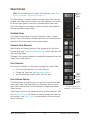
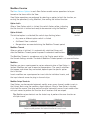
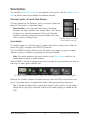
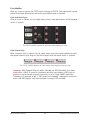
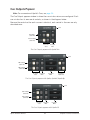
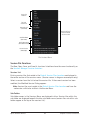
HIGH-RESOLUTION INTERFACE
with Realtime UAD Processing
Apollo Thunderbolt Software Manual
Software Version 8
Manual Version 150428
Customer Service & Technical Support:
USA Toll-Free: +1-877-698-2834
International: +1-831-440-1176
www.uaudio.com
Table Of Contents
Tip: Click any section or
page number to jump
directly to that page.
Chapter 1: Introduction.......................................................................... 6
Welcome To The Apollo Family............................................................................. 6
Apollo Software Features..................................................................................... 7
Apollo Documentation Overview........................................................................... 9
Apollo Software Overview................................................................................... 11
Additional Resources........................................................................................ 13
Chapter 2: Installation & Setup............................................................. 14
Installation & Setup Overview............................................................................ 14
Software Installation......................................................................................... 15
Chapter 3: Console Overview................................................................. 16
What is Console?.............................................................................................. 16
Console Functions............................................................................................ 17
Global Settings................................................................................................. 17
When To Use Console........................................................................................ 18
Interactions Between Console and Apollo ........................................................... 18
Accessing Console............................................................................................ 19
Console Layout................................................................................................. 20
Global Window Elements................................................................................... 22
Meter Bridge Overview....................................................................................... 23
Current Bank Overview...................................................................................... 24
View Column Overview....................................................................................... 25
Monitor Column Overview.................................................................................. 27
Info Bar Overview............................................................................................. 28
UAD Plug-In Inserts Overview............................................................................ 31
Console Settings Overview................................................................................. 32
Insert Effects Overview...................................................................................... 33
Cues Overview.................................................................................................. 34
Sends Overview................................................................................................ 35
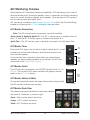
ALT Monitoring Overview................................................................................... 38
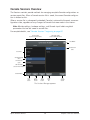
Console Sessions Overview................................................................................. 39
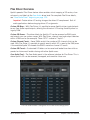
Flex Driver Overview.......................................................................................... 40
Apollo Software Manual
2
Table Of Contents
Popover Windows.............................................................................................. 41
Multiple Undo/Redo.......................................................................................... 41
Keyboard Focus & Control.................................................................................. 42
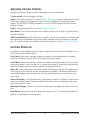
Adjusting Console Controls................................................................................ 43
Controls Shortcuts............................................................................................ 43
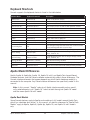
Keyboard Shortcuts........................................................................................... 44
Apollo Model Differences................................................................................... 44
Chapter 4: Console Reference............................................................... 45
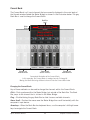
Meter Bridge.................................................................................................... 45
View Column.................................................................................................... 48
View Options.................................................................................................... 51
Info Bar........................................................................................................... 57
Channel Input Controls...................................................................................... 62
UAD Plug-In Inserts.......................................................................................... 65
Sends Popover.................................................................................................. 66
Flex Routing..................................................................................................... 67
Monitor Mix Controls......................................................................................... 69
Aux Returns..................................................................................................... 75
Monitor Column................................................................................................ 78
Cue Outputs Popover......................................................................................... 82
Control Room Column....................................................................................... 85
Console Sessions.............................................................................................. 87
Sessions Manager Popover................................................................................. 89
Window Title Bar............................................................................................... 94
Application Menus............................................................................................ 95
Chapter 5: UAD Plug-In Inserts............................................................. 99
Inserts Display.................................................................................................. 99
Unison Insert................................................................................................. 100
Insert Assign Popover...................................................................................... 100
Insert State Indicators..................................................................................... 101
Insert Hover Options....................................................................................... 101
Insert Options Menu....................................................................................... 102
Channel Insert Effects..................................................................................... 103
Plug-In Editor Window..................................................................................... 104
Apollo Software Manual
3
Table Of Contents
Channel Strips................................................................................................ 107
Presets Manager............................................................................................. 109
Presets Manager Popover................................................................................. 112
Save Preset Popover........................................................................................ 114
Chapter 6: Console Settings................................................................ 115
Console Settings Overview............................................................................... 115
Hardware Settings Panel................................................................................. 117
Core Audio Panel............................................................................................ 125
Core Audio Panel Elements.............................................................................. 126
Route Assign Popover...................................................................................... 132
Display Panel................................................................................................. 134
Plug-Ins Panel................................................................................................ 136
MIDI Panel.................................................................................................... 138
Chapter 7: Console Recall Plug-In....................................................... 140
Console Recall Overview.................................................................................. 140
Console Recall Controls................................................................................... 141
How To Use Console Recall.............................................................................. 142
Chapter 8: Unison............................................................................. 144
What is Unison?............................................................................................. 144
Activating Unison........................................................................................... 146
Unique Behavior of Unison Inserts................................................................... 147
Controlling Unison Plug-Ins with Apollo............................................................ 148
Unison Load/Save Behaviors............................................................................ 154
Unison Operation Notes................................................................................... 155
Chapter 9: Working With Apollo........................................................... 157
Apollo Setups Overview................................................................................... 157
About UAD Powered Plug-Ins Processing.......................................................... 158
Using Apollo as an Audio Interface................................................................... 160
Using Apollo with Console (without a DAW)....................................................... 162
Using Apollo Without A Computer..................................................................... 163
Using Apollo with a DAW (without Console)....................................................... 164
Using Apollo Concurrently with a DAW and Console............................................ 167
Virtual I/O...................................................................................................... 169
Apollo Software Manual
4
Table Of Contents
Chapter 10: Multi-Unit Cascading....................................................... 171
Apollo Expanded Overview............................................................................... 171
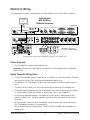
Multi-Unit Wiring............................................................................................ 172
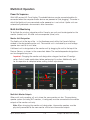
Multi-Unit Operation....................................................................................... 173
Console Session Management.......................................................................... 177
Multi-Unit Constraints..................................................................................... 177
Chapter 11: Latency & Apollo............................................................. 178
Delay Compensation with Apollo....................................................................... 178
Input Delay Compensation in Console............................................................... 178
Latency Basics............................................................................................... 181
Chapter 12: Device Drivers................................................................. 184
Apollo Drivers Overview................................................................................... 184
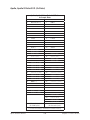
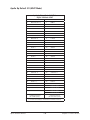
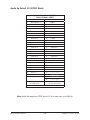
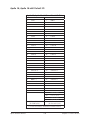
Driver I/O Tables............................................................................................. 185
Chapter 13: Glossary.......................................................................... 195
Chapter 14: Index.............................................................................. 202
Chapter 15: Notices........................................................................... 205
Apollo Software Manual
5
Table Of Contents
Chapter 1: Introduction
Welcome To The Apollo Family
High-Resolution Music Production with Classic Analog Sound
Designed to play a central role in modern studios, Apollo audio interfaces incorporate a
true “no compromise” approach to audio quality. Building upon decades of UA’s analog
hardware heritage, they offer extremely high-resolution sonics, with the lowest THD and
highest dynamic range in their class. Apollo’s top-end converters — and UA’s meticulous
attention to circuit design — translate into greater accuracy and depth in your recordings, from tracking and overdubbing, to mixing and mastering.
Note: Throughout this manual,“Apollo” refers to the entire Apollo family of audio
interfaces (Apollo, Apollo 8, Apollo 8p, Apollo 16, Apollo 16 mkII, and Apollo
Twin) unless specifically noted otherwise.
Realtime UAD Plug-In Processing for Monitoring and Tracking
While Apollo’s “natural” sound is exceedingly open and transparent, it can quickly deliver a wide range of classic analog tones and color via its Realtime UAD Processing. Available with SOLO, DUO, or QUAD Core processing onboard, this onboard DSP Acceleration
allows for recording and mixing through UAD Powered Plug-Ins — with as low as sub2ms latency — so producers can quickly monitor, audition, and optionally “print” audio
using classic analog emulations from API, Ampex, Lexicon, Manley, Neve, Roland, SSL,
Studer, and more.*
Important Fundamental Concept: The primary function of Console is to control
Apollo’s hardware input monitoring, Unison plug-ins, and Realtime UAD Processing. Console MUST be used to take advantage of these features. Console replaces
the software input monitoring feature of the DAW mixer.
* All trademarks are recognized as property of their respective owners. Individual UAD Powered Plug-Ins
sold separately.
Apollo Software Manual
6
Chapter 1: Introduction
Apollo Software Features
Note: For a list of hardware features, see the Apollo Hardware Manuals.
Console Application
General:
•
•
•
•
•
Enables Realtime UAD Processing on Apollo inputs with indiscernible latency
Analog-style mixer for low-latency monitoring and tracking with UAD plug-ins
Remote control of Apollo hardware features and functionality
Console sessions can be saved/loaded for instant recall of any configuration
Multiple Undo/Redo for edit operations
Realtime UAD Processing:
• Up to four UAD plug-ins can be serially chained on each input and aux return
• UAD insert processing can be monitored “wet” while recording wet or dry
• Sub-2ms round-trip latency with four serial UAD plug-ins at 96 kHz sample rate
Channel Inputs:
•
•
•
•
•
•
•
•
•
•
Input channels for all interface hardware inputs (except MADI with Apollo 16)
Level, pan, solo, and mute controls on all inputs
Four plug-in insert slots per input for Realtime UAD Processing
Two stereo auxiliary sends with level and pan controls on all inputs
Virtual inputs accept any outputs from DAW via device drivers
Stereo headphone sends with level and pan controls on all inputs*
Up to four stereo cue mix sends with level and pan controls on all inputs*
Adjacent input pairs can be linked for convenient stereo control
Sample rate conversion is available on S/PDIF and AES/EBU inputs*
Any input can be routed to any output (except Apollo Twin)
Monitoring:
•
•
•
•
•
Stereo monitor mix bus with level, mute, solo, ALT, dim, and source select controls
Up to four independent stereo cue mix buses
Flexible routing matrix for assigning cues to any available headphone and line outputs
Independent monophonic sum controls for all mix buses
S/PDIF and AES/EBU outputs can optionally mirror the post-fader monitor mix*
Auxiliary Buses:
•
•
•
•
Two stereo auxiliary sends/returns with independent level, mute, and mono sum controls
Four plug-in inserts per auxiliary return for Realtime UAD Processing
Auxiliary buses can be routed to main monitor mix and/or cue outputs
Independent pre/post switching on each auxiliary bus
*Specific software features depend on hardware functionality not available with all Apollo devices. Details within.
Apollo Software Manual
7
Chapter 1: Introduction
Metering:
•
•
•
•
Signal level meters with peak hold and clip indicators on all inputs
Dual peak hold meters with signal peak LEDs display monitor bus levels
Input meters are globally switchable to display pre or post fader signal levels
Independently selectable peak/clip hold times and global clear clips button
Console Recall plug-in
• Convenient access to Console’s monitor controls via DAW plug-in
• Saves complete Apollo configurations inside DAW projects for easy recall of settings
• VST, RTAS, AAX 64, and Audio Units plug-in formats
UAD Powered Plug-Ins
•
•
•
•
Award-winning audio plug-ins for monitoring, tracking, mixing, and mastering
UAD plug-ins can be used simultaneously within Console and/or DAW
All UAD plug-ins include fully-functional 14-day demo period
Complete UAD plug-ins library is available online at www.uaudio.com
UAD Meter & Control Panel application
• Configures global UAD-2 and UAD Powered Plug-Ins settings
• Facilitates automatic authorization of UAD plug-in licenses and UAD-2 devices
Device Drivers
•
•
•
•
•
64-bit device drivers, UAD plug-ins, and Console application
Multi-unit cascading of up to four Apollo interfaces via Thunderbolt 1 or 2
All hardware inputs and outputs can be individually addressed by DAW
All of Console’s mix buses can be routed to DAW inputs for recording
Flex Driver feature for customizing Core Audio I/O routes and names
Apollo Software Manual
8
Chapter 1: Introduction
Apollo Documentation Overview
Documentation for all Apollo components is extensive, so instructions are separated by
areas of functionality. Each functional area has a separate manual file. An overview of
each file, and how they are accessed, is provided in this section.
Note: Extensive Additional Resources, including technical information not available in other publications, is also available.
Apollo Manual Files
Note: All manual files are in PDF format. PDF files require a free PDF reader application such as Preview (included with Mac OS X) or Adobe Reader.
Apollo Hardware Manuals
Each Apollo model has a unique hardware manual. The Apollo hardware manuals contain
complete hardware-related details about one specific Apollo model. Included are detailed
descriptions of all hardware features, controls, connectors, and specifications.
Note: Each hardware manual contains the unique Apollo model in the file name.
Apollo Software Manual
The Apollo Software Manual is the companion guide to the Apollo hardware manuals. It
contains detailed information about how to configure and control all Apollo software features for all Apollo models using the Console application, Console Settings window, and
Console Recall plug-in. Refer to the Apollo Software Manual to learn how to operate the
software tools and integrate Apollo’s functionality into the DAW environment.
Note: All Apollo models have the same software manual.
UAD System Manual
The UAD System Manual is the complete operation manual for Apollo’s UAD-2 functionality and applies to the entire UAD-2 product family. It contains detailed information
about installing and configuring UAD devices, the UAD Meter & Control Panel application, buying optional plug-ins at the UA online store, and more. It includes everything
about UAD except Apollo-specific information and individual UAD plug-in descriptions.
UAD Plug-Ins Manual
The features and functionality of all individual UAD Powered Plug-Ins is detailed in the
UAD Plug-Ins Manual. Refer to this document to learn about the operation, controls, and
user interface of each UAD plug-in that is developed by Universal Audio.
Direct Developer Plug-Ins
UAD Powered Plug-Ins includes plug-ins created by our Direct Developer partners. Documentation for these 3rd-party plug-ins are separate files written and provided by the
plug-in developers. The file names for these plug-in manuals are the same as the plug-in
titles.
Apollo Software Manual
9
Chapter 1: Introduction
Installed Documentation Location
All documentation is copied to the startup disk during software installation:
• Macintosh HD/Applications/Universal Audio
Accessing Installed Documentation
Any of these methods can be used to access installed documentation:
• Choose “Documentation” from the Help menu within the Console application
• Click the “View Documentation” button in the Help panel within the UAD Meter &
Control Panel application
• Navigate the file system within the Mac OS X Finder
• Manuals are also available online: www.uaudio.com/support/manuals.html
Host DAW Documentation
Each host DAW application has its own particular methods for configuring audio interfaces and using plug-ins. Refer to the host DAW’s documentation for specific instructions
about using audio interface and plug-in features within the DAW.
Hyperlinks
Links to other manual sections and web pages are highlighted in blue text. Click a hyperlink to jump directly to the linked item.
Tip: Use the “back” button in the PDF reader application to return to the previous
page after clicking a hyperlink.
Glossary
This manual uses technical terms and acronyms that may be unfamiliar. Refer to
“Chapter 13: Glossary” for the definitions of many of these terms.
Apollo Software Manual
10
Chapter 1: Introduction
Apollo Software Overview
Apollo has several software components that comprise the complete Apollo system. A
brief description of each component is provided below, along with a link to complete
details about the component.
Console Application
The Console application is Apollo’s primary software interface. Its main function is to
control the hardware unit and its digital mixing and monitoring capabilities. The Console
mixer is where Realtime UAD Processing using UAD Powered Plug-Ins is configured.
Important Fundamental Concept: The primary function of Console is to control
Apollo’s hardware input monitoring, Unison plug-ins, and Realtime UAD Processing. Console MUST be used to take advantage of these features. Console replaces
the software input monitoring feature of the DAW mixer.
For an overview of the application, see “Chapter 3: Console Overview”. For complete
details, see “Chapter 4: Console Reference”.
Console Recall Plug-In
Console Recall is a DAW plug-in supplied in VST,
RTAS, AAX 64, and Audio Units formats. Console
Recall offers additional convenience when using Apollo
and/or the Console application in conjunction with a
DAW. Its primary function is to store complete Console
configurations within the DAW project file.
For complete details, see “Chapter 7: Console Recall Plug-In”.
UAD Powered Plug-Ins
UAD Powered Plug-Ins are the software plug-in titles containing the DSP algorithms.
UAD plug-ins are loaded within a host application for audio processing on Apollo’s integrated UAD-2 DSP accelerator (Console and DAWs are host applications). Each UAD
plug-in contains a graphical user interface (GUI) and various control parameters that can
be manipulated to achieve the desired sonic results.
Typical UAD plug-in window
Apollo includes numerous UAD Powered Plug-Ins that are bundled with the device. Optional UAD plug-ins can be evaluated without functional limitations for 14 days in demo
mode. Optional plug-in licenses can be purchased at the UA online store.
Apollo Software Manual
11
Chapter 1: Introduction
For additional details about how UAD Powered Plug-Ins are used with Console and
DAWs, see “About UAD Powered Plug-Ins Processing”. For general UAD Powered PlugIns usage instructions, see the UAD System Manual. For complete details of individual
UAD Powered Plug-Ins, see the UAD Plug-Ins Manual.
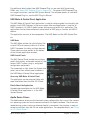
UAD Meter & Control Panel Application
The UAD Meter & Control Panel application is used to configure global functionality that
pertains to all UAD-2 devices in the same system (the same application is used for all
UAD-2 products). All UAD-2 global system settings are set within this application. The
application also facilitates automatic authorization of UAD plug-in licenses and UAD-2
devices.
The application consists of two components: The UAD Meter and the UAD Control Panels.
UAD Meter
The UAD Meter window (at right) displays the
current DSP and memory status of all active
UAD-2 hardware (including multiple devices).
These meters are also present at the bottom
of the Console application window.
UAD Control Panels
The UAD Control Panel window has multiple
panels that display, and enable control of, the
various UAD-2 system, plug-in, and global
configuration parameters.
The screenshot at right shows the System Info
panel, one of four control panel windows in
the UAD Meter & Control Panel application.
Accessing UAD Meter & Control Panel
The application can be accessed (after software installation) from the Mac OS X Dock.
Details About the Application
Complete documentation for the UAD Meter
& Control Panel application is in the UAD
System Manual.
Apollo Device Drivers
The Apollo device drivers are the low-level system software files that instruct the computer’s operating system on how to communicate with the Apollo hardware. The drivers are
loaded during system startup so whenever Apollo is connected, the interface is ready to
accept instructions from the OS and audio applications. For complete details, see “Chapter 12: Device Drivers”.
Apollo Software Manual
12
Chapter 1: Introduction
Technical Support
Universal Audio provides free customer support to all registered Apollo users. Support
specialists are available to assist you via email and telephone during normal business
hours, which are from 9 AM to 5 PM, Monday through Friday, Pacific Standard Time.
Email Support
To request online support via email, click the link below for a direct link to the help
ticket form:
• https://www.uaudio.com/my/support/create/
Alternately, visit the main support page at www.uaudio.com/support, then click the blue
“Submit Support Ticket” button on the right side of the web page to create a help ticket.
Telephone Support
USA toll-free: +1-877-698-2834 (1-877-MY-UAUDIO)
International: +1-831-440-1176
Germany, Austria, Switzerland: +3-120-800-4912
Additional Resources
UA Support Videos
Many informational videos are available online to help you get started with Apollo:
• www.uaudio.com/support/thunderbolt
Apollo Support Page
The latest technical information for Apollo is posted on the Universal Audio website. The
Apollo Thunderbolt support page contains updated, late-breaking information that is not
available in other publications. Please visit this page for the latest news:
• www.uaudio.com/support/thunderbolt
UAD Users Forum
The unofficial UAD users forum, for the exchange of tips and information, is online at:
• www.uadforum.com
Apollo Software Manual
13
Chapter 1: Introduction
Chapter 2: Installation & Setup
Installation & Setup Overview
Simplified procedures for software installation, registration, and authorization are in this chapter. For complete and detailed procedures, refer to the UAD System Manual. For hardware
installation notes and wiring diagrams, refer to the Apollo Hardware Manuals.
The UAD Installer places all the software necessary to configure and use Apollo and UAD Powered Plug-Ins onto the computer’s startup drive. It also installs the Apollo hardware device drivers so the audio interface can communicate with the host computer. Therefore the UAD Installer
must be run even if you intend to use Apollo's audio interface functionality without the use of
Console or UAD Powered Plug-Ins.
System Requirements
•
•
•
•
•
Apple Mac computer with available Thunderbolt or Thunderbolt 2 port
Mac OS X 10.8.5 Mountain Lion, 10.9 Mavericks, or 10.10 Yosemite
Four gigabytes available disk space
Internet connection to download software and authorize UAD plug-ins
Thunderbolt cable (sold separately)
Software Updates
The most recent UAD Powered Plug-Ins software version is always recommended so you'll have
access to the latest UAD plug-ins and stability updates. The most recent software is available at
the UA website: www.uaudio.com/downloads
Firmware Updates
For optimum results, always update the firmware if prompted by the software. The "Power Off
UAD Device" dialog will appear after a firmware update is complete. Follow the instructions in
the dialog to complete the process before attempting to use the software.
Preparation
Close all open files and applications before starting the software installation procedure. The
installer requires a restart after installation.
If you are updating to a newer version of Apollo software or installing additional UAD devices, it
is not necessary to remove the previous UAD software or hardware from the system.
Automatic Authorization
As of UAD v8.0, authorization is fully automatic. Simply restart the computer and authorization
is accomplished automatically in the background.
Important: Registration and authorization can only be accomplished after successful
software installation.
Apollo Software Manual
14
Chapter 2: Installation & Setup
Software Installation
Software for Apollo and other UAD-2 devices (if any) must be installed at the same time.
Software for UAD-2 devices cannot be installed separately.
Important: For optimum results, connect and power the Apollo hardware before
installing the UAD software.
To install, register, and authorize the Apollo hardware and UAD plug-ins:
1. Connect Apollo to an available Thunderbolt 1 or Thunderbolt 2 port
on the computer with a Thunderbolt cable.
2. Connect Apollo to AC power with the included power cable, then
power on the device with the power switch.
3. Open the UAD Powered Plug-Ins software installer downloaded
from the UA website:
www.uaudio.com/download
4. The UAD software installer will guide you. Restart the computer when prompted
by the installer.
Note: If prompted to update the firmware, see the procedure below.
5. After restart, the default web browser launches and connects to the UA online
store. Follow the instructions in the web browser to create an account, register the
hardware, and authorize bundled UAD plug-ins.
• After registration is complete, the UAD device is automatically authorized and the
system is ready for use.
• If the device was already registered, when the computer restarts the UAD Meter &
Control panel automatically opens and UAD plug-ins are automatically authorized
in the background.
Firmware Update Procedure
If prompted by the "Firmware Update" dialog window to update the Apollo firmware:
1. Click "Load" to begin the process. The "firmware is updating" window appears.
2. Wait for the "Power Off UAD Device" dialog window, which appears after the firmware is updated.
3. Power OFF Apollo, then power ON Apollo. The firmware update is complete.
Firmware Update Details
For complete details about Apollo firmware updates, visit the firmware support page.
Apollo Software Manual
15
Chapter 2: Installation & Setup
Chapter 3: Console Overview
Console’s
application
icon
What is Console?
The included Console application is the software interface for Apollo audio interface hardware. Console’s analog-style workflow is designed to provide quick access to the
most commonly needed features in a familiar, easy-to-use application.
Console’s function is to control up to four Apollo hardware units and their digital mixing
and low-latency monitoring capabilities. Console is where Realtime UAD Processing and
Unison with UAD plug-ins is configured and operated.
Important Fundamental Concept: The primary function of Console is to control
Apollo’s hardware input monitoring, Unison plug-ins, and Realtime UAD Processing. Console MUST be used to take advantage of these features. Console replaces
the software input monitoring feature of the DAW mixer.
Console can be used simultaneously with a DAW for front-end signal processing and lowlatency monitoring and/or tracking. Complete Console sessions can be saved as presets
for easy recall of the entire configuration, or single channel strips can be saved/recalled
using Channel Strip Presets. Console can also be used to configure Apollo’s audio interface I/O settings such as sample rate, clock source, and reference levels.
The Console application is a remote interface to the digital mixing and signal processing
functions that are performed within the Apollo hardware. Although Console runs on the
host computer, the computer’s CPU is not performing these audio functions. All signal
processing occurs on the SHARC DSPs inside the hardware unit(s).
Note: Apollo interfaces use UAD DSP and memory resources for its internal DSP
mixer. Therefore, the UAD Meters will show DSP and memory usage when Apollo
is connected, even if Console and/or UAD plug-ins are not currently loaded.
The Console application’s main window
Apollo Software Manual
16
Chapter 3: Console Overview
Console Functions
Console enables the following functionality when used with Apollo:
• Hardware control. All of Apollo’s front panel hardware controls (except headphone
volume) can be controlled using Console, facilitating easy hardware manipulation
even if Apollo is installed in a location out of reach of the computer operator.
• Buffer-free monitoring. Using Console eliminates the latency associated with DAW
I/O buffering that makes monitoring problematic for the performer. By removing
the DAW’s “software input monitoring” feature from the monitoring signal flow
altogether, the need to adjust I/O buffer sizes and latency is no longer an issue.
• Realtime UAD Processing. UAD Powered Plug-Ins can be inserted into all Console
inputs and/or auxiliary returns (within available DSP resources), for the ultimate
latency-free sonic experience while monitoring and/or tracking live performances.
All processed (or unprocessed) mix buses, including the monitor, auxiliary, and
cue buses, can be optionally routed into the DAW for recording.
• Unison. Apollo’s Unison™ technology gives you the tone of the world’s most
sought-after tube and solid state mic preamps — including their all-important
impedance, gain stage “sweet spots,” and component-level circuit behaviors.
• Send/Return Auxiliary buses. Console has two pre/post stereo aux buses, with
independent send levels per input, for grouped signal processing (conserving UAD
DSP resources) or routing to the DAW.
• Flexible cue monitor mixing. Up to four independent stereo cue mix buses are
available (two with Apollo Twin) with per-input sends to ensure individual performers are able to hear “more me” if desired. Cue mixes can be easily routed to any
available headphone or line outputs.
• Flexible signal routing. Using Console, any hardware input can be routed to available hardware outputs (Apollo & Apollo 16 only). Additionally, cue mix buses can
be optionally mirrored to available hardware outputs.
• Session management. Complete Console configurations can be saved and loaded
to/from disk as presets, for convenient and unlimited session management. Sessions can also be stored/recalled within the DAW project using the Console Recall
plug-in.
Global Settings
Parameters within the Console Settings Window are available for configuring various
global behaviors:
• Hardware. Global interface settings such as sample rate, clock source, reference
levels, and digital output mirroring.
• Software. Global software settings for Console such as metering and plug-in window behaviors.
• Flex Driver. This powerful feature enables customized signal routing and I/O naming at the Core Audio driver level. Custom driver routing tables can be saved and
recalled as presets.
Apollo Software Manual
17
Chapter 3: Console Overview
When To Use Console
The Console application can be used without a DAW, simultaneously in conjunction with
a DAW, or not at all. These scenarios are covered in greater detail in “Chapter 9: Working
With Apollo” beginning on page 157.
Console without DAW.Console can be used by itself without the use of a DAW or any
other audio software. Using Console without a DAW provides access to all Apollo functionality and simplifies the use of Apollo’s digital mixing, monitoring, and Realtime UAD
Processing features when a DAW’s recording and playback features are not needed.
Console with DAW.Console is used at the same time as a DAW when low-latency monitoring and/or recording of Apollo’s inputs with (or without) Realtime UAD Processing is
desired. In this scenario, Console is used as a “front end” to control input monitoring
when recording, and the DAW’s software input monitoring feature is disabled. This workflow completely eliminates the I/O buffering latencies associated with using software
monitoring via the DAW.
Important: To eliminate doubled signals, software monitoring in the DAW must be
disabled when Console is used for input monitoring. Conversely, Console inputs
must be muted if the DAW’s software monitoring feature is enabled.
UAD plug-ins can be used within Console and a DAW simultaneously. In this scenario,
Apollo’s DSP resources are shared between the two applications. Realtime UAD Processing is available via Console, and buffered (non-realtime) UAD processing is available via
VST, RTAS, AAX 64, or Audio Units plug-ins within the DAW. See “UAD Powered PlugIns: Console versus DAW” on page 157 for more details about this scenario.
Tip: Console can be opened or quit at any time, whether or not a DAW is already
running.
Interactions Between Console and Apollo
Console’s settings mirror the Apollo hardware. Changes made to one are also made on the
other, and vice versa. If changes are made to Console when Apollo is not connected, then
Apollo is subsequently connected, the Console settings are sent to the hardware.
Important: If Console is launched after changes are made to Apollo using the front
panel hardware controls, the current Console settings will overwrite the changes
made using the hardware controls.
Apollo Software Manual
18
Chapter 3: Console Overview
Accessing Console
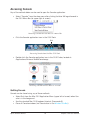
Any of the methods below can be used to open the Console application.
• Select “Console” from the drop menu after clicking the blue UA logo diamond in
the OS X Menu Bar (at upper right of screen).
Accessing Console from the Mac OS X Menu Bar
• Click the Console application icon in the OS X Dock.
Click
Accessing Console from the Mac OS X Dock
• Double-click the Console application icon in the OS X Finder, located at:
/Applications/Universal Audio/Console.app
Accessing Console from the Mac OS X Finder
Quitting Console
Console can be closed using any of these methods:
• Select Quit from the Mac OS X Application Menu (upper left of screen) when Console is in the foreground
• Use the standard Mac OS X keyboard shortcut (Command+Q)
• Close all Console windows (via Close button in the Window Title Bar)
Apollo Software Manual
19
Chapter 3: Console Overview
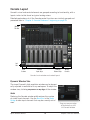
Console Layout
Console’s visual and control elements are grouped according to functionality, with a
layout similar to that found on typical analog mixers.
Detailed explanations of all the Console control functions are similarly grouped and
presented later in “Chapter 4: Console Reference” beginning on page 45.
Window
Title Bar
Info
Bar
View
Column
Channel
Input Strips
Auxiliary
Return Strips
Monitor
Controls
Console’s main window and controls layout
Dynamic Window Size
The size of Console’s high-resolution window can be dynamically adjusted in realtime to fit any workspace. To adjust the
window size, clickdrag any corner or any edge of the window.
Width
Reducing the Console window width reduces the number
of visible input channels. Use the Bank Bar in the Meter
Bridge to view input channels that may be currently out of
view.
Apollo Software Manual
20
Drag any corner or edge
to dynamically re-size
the Console window
Chapter 3: Console Overview
Height
When Console’s window size is vertically adjusted, displayed elements are dynamically
modified to fit available space. As the height is increased, some elements are enlarged
for easier viewing and manipulation. As height is decreased, some elements are reduced.
Tip: All display and control elements are available regardless of window size.
Partial screenshots showing how control and
display elements are changed with window
size adjustments.
Above: The elements shown at left are more
compact when vertical size is reduced.
Multiple Windows
More than one Console window can be open
simultaneously and each open window can have
unique views and sizes. Multiple displays are supported.
To open another window, choose “New Console
Window” from the drop menu under the UA icon
in the OS X Menu Bar at upper right of screen.
Apollo Software Manual
21
Opening an additional
Console window
Chapter 3: Console Overview
Global Window Elements
Some visual and control elements are always displayed in the Console window, while
others depend on the current selection(s) in the View Column and Monitor Column, as
illustrated below.
An brief overview of each global element is provided in this chapter. Detailed descriptions of all functions are provided in a later chapter.
The following elements are always visible in the Console window:
View
Column
View Column
Meter Bridge
Monitor Column
Current Bank
Info Bar
Bank Bar (if channels out of view)
Bank Bar
(gray)
Current Bank
(visible channels)
Meter Bridge
(all unhidden channels)
Monitor
Column
VIEW settings
Elements in this area
depend on current VIEW
settings
Auxiliary &
Control Room
columns appear
here when SHOW
button(s) are
enabled
Info
Bar
Console elements that are always visible
Apollo Software Manual
22
Chapter 3: Console Overview
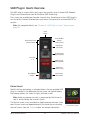
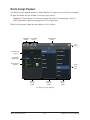
Meter Bridge Overview
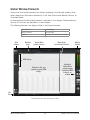
The Meter Bridge (illustrated below) is always visible at the top of the Console window. It
displays all non-hidden input channels, signal activity at these inputs, and the Bank Bar,
which is used to scroll inputs that are out of horizontal view.
For detailed descriptions of all Meter Bridge elements, see “Meter Bridge” beginning on
page 45.
Mono
Meter
(single)
Stereo
Meter
(dual)
Bank Bar
(gray)
Signal
Present
(green)
No
Signal
(black)
Device Name
(optional via right-click)
Channel
Input
Meters
Channels not in
Current Bank (black)
Non-Hidden Input Channels
The Meter Bridge elements
Apollo Software Manual
23
Chapter 3: Console Overview
Current Bank Overview
An important navigational concept in Console is the Current Bank. The Current Bank is
all input channels that are currently displayed in the main body of the Console window
(below the Meter Bridge) as shown in the illustration on the next page.
The gray Bank Bar is used to change the Current Bank. For complete details, see “Current Bank” beginning on page 46.
Bank Bar
(gray)
Meter
Bridge
Move gray Bank Bar
to change Current Bank
Channels not
within Bank Bar
Current Bank
(visible channels)
Channels not
within Bank Bar
Conceptual illustration of the Current Bank.
In this example, the Current Bank is analog channels 3 through 6.
Moving the Bank Bar brings different channels into the Current Bank view.
Apollo Software Manual
24
Chapter 3: Console Overview
View Column Overview
The View Column (illustrated at right) is always visible at the left
side of the Console window. The View Column contains the Application Menu, View selectors, View Options, Clear switches, and
Settings switch, as shown at right.
Application
Menus
(global)
For detailed descriptions, see View Column.
View
Selectors
Views
Four Views are available in Console: Overview, Inputs, Inserts,
and Sends. Each View displays related elements and associated
functionality in the main area of the Console window.
View Selectors
To change the current View: Click the View Selectors in the View
Column, select the View from the Application Menu, or use the
Keyboard Shortcuts.
View Options
The View Options activate various control functions within each
View. The displayed View Options are contextual; some options
change when a different View is selected.
View
Options
Application Menus
Clicking the Menu switch presents the Application Menus, where
various Console functions are accessed.
The Application Menus
Clear
The Clear Switches are used to reset all signal clipping indicators
and turn off/on the solo function on all channels.
Settings
The Settings switch opens the Console Settings Window, where
various global functions are defined. Related functions are
grouped within one of five available tabs in the window.
Apollo Software Manual
25
Clear
Switches
(global)
Settings
Switch
(global)
The View Column
as it appears
in Sends View
Chapter 3: Console Overview
View Elements
Each View displays related elements and associated functionality in channel input strips
within the main area of the Console window.
Note: The main monitor mix controls are the same in all views unless specifically
hidden in Sends view.
The channel input elements of each view are shown below. Complete details for all elements are described in “Chapter 4: Console Reference” beginning on page 45.
Each View displays different elements in the input channel strips
Apollo Software Manual
26
Chapter 3: Console Overview
Monitor Column Overview
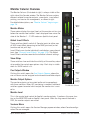
The Monitor Column (illustrated at right) is always visible at the
right side of the Console window. The Monitor Column contains
elements related to monitor outputs, cue outputs, insert effect
printing, and session file management, as shown at right.
For detailed descriptions, see “Monitor Column” beginning on
page 78.
Monitor Meters
Monitor
Meters
These meters display the signal levels of the monitor mix bus just
before the monitor level control. Levels displayed here mirror the
state of the Monitor 1 – 2 LED meters on Apollo’s front panel.
Global
Insert Effects
Global Insert Effects
These switches globally switch all Console inputs to either pass
all UAD insert effect processing to the DAW (print wet) or not
(monitor wet but print dry).
Insert Effects can also be individually switched on a per-channel
basis (see “Channel Insert Effects” on page 103). The Global
Insert Effects switches override the individual channel settings.
Show Strips
These switches show and hide the visibility of the auxiliary return
strips and/or the control room options strip. Each strip is visible
when its SHOW switch is lit.
Show/Hide
Strips
Open
Cue Outputs
Window
Monitor
Output
Options
Cue Outputs Window
Clicking this switch opens the Cue Outputs Popover, where the
cue mix buses can be assigned and mirrored to available outputs.
Monitor
Level
Monitor Output Options
Open
Sessions
Manager
The monitor outputs can be muted and/or set to monophonic
with these switches. When ALT monitoring is enabled, additional
switches appear to control which output the monitor mix is routed to.
The Monitor Column
Monitor Level
This is the master level control for Apollo’s monitor outputs. It performs the same function as the MONITOR knob on Apollo’s front panel. When the ring around the knob is
RED, the monitor outputs are muted.
Sessions Menu
Clicking this switch opens the Session Manager popover window, where Console configuration files are managed.
Apollo Software Manual
27
Chapter 3: Console Overview
Info Bar Overview
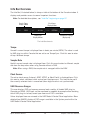
The Info Bar (illustrated below) is always visible at the bottom of the Console window. It
displays and provides access to several important functions.
Note: For detailed descriptions, see “Info Bar” beginning on page 57.
Console Tempo
Display & Menu
Clock Source
Display & Menu
Sample Rate
Display & Menu
UAD Resource Gauges
(Display only)
The Info Bar elements
Tempo
Console’s current tempo is displayed here in beats per minute (BPM). The value is used
by UAD plug-ins within Console that are set to use Tempo Sync. Click this area to enter
or tap a different tempo.
Sample Rate
Apollo’s current sample rate is displayed here. Click this area to select a different sample
rate from the drop menu when using Console without a DAW.
Note: When using a DAW, the sample rate is managed within the DAW.
Clock Source
The active clock source (Internal, ADAT, S/PDIF, or Word Clock) is displayed here. Click
this area to select a different clock source from the drop menu. This area flashes red if
the currently selected clock is unresolved (when digital audio is not synchronized).
UAD Resource Gauges
This area displays DSP and memory resource loads used by all loaded UAD plug-ins
(Console and DAW). UAD loads can be monitored as needed, for example when deciding
which UAD plug-ins to load, based upon how much DSP is available.
Values displayed here are mirrored in the UAD Meter & Control Panel application. More
detailed (per-SHARC) display of DSP usage is available in the System panel within the
UAD Meter & Control Panel application.
Apollo Software Manual
28
Chapter 3: Console Overview
Channel Strips Overview
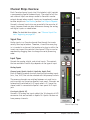
Each Console channel input strip (illustrated at right) controls
a corresponding Apollo hardware input. The output of all Console channel inputs are always routed to Console’s monitor
outputs (except when muted). Inputs can be optionally routed
to other outputs via Flex Routing or the Cue Outputs Popover.
Console’s channel input strips are essentially the same for all
inputs, however there are some differences among the analog
and digital inputs as noted below.
Note: For detailed descriptions, see “Channel Input Controls” beginning on page 62.
Signal Flow
Audio signals in a Console channel flow through the inserts
serially from top to bottom. Therefore, if more than one plugin is inserted in a channel, the location of a plug-in within the
inserts can impact the sound of the channel. Plug-ins can be
reordered by dragging them to change the serial processing
order.
Preamp
Controls
Channel
Inserts
Aux & Cue
Sends
Flex Route
Assign
Input Types
Console has analog, digital, and virtual inputs. The controls
that are available in each strip depends on the type of input.
Analog Inputs
Preamp Inputs (Apollo, Apollo 8, Apollo 8p, Apollo Twin)
Each of Apollo’s preamp channels have multiple analog inputs
(mic, line, Hi-Z) that can be selected with the preamp controls.
Monitor Mix
Controls
The preamp channels are switched between mic and line inputs manually via Console or Apollo’s front panel. Channels are
automatically switched to Hi-Z inputs when a ¼” mono (tipsleeve) cable is connected to Apollo’s front panel Hi-Z input
jack.
Line Inputs (Apollo 16)
Console’s 16 analog line inputs reflect the 16 channels of A/D
conversion that are available in Apollo 16. Apollo 16 does not
have preamp channels.
Input
Label
Channel Input Strip
Apollo Software Manual
29
Chapter 3: Console Overview
Digital Inputs
Apollo, Apollo 8
Console’s eight ADAT and two S/PDIF (stereo left and right) inputs work just like the analog inputs, except they don’t have the extra preamp and reference level settings that are
only available on the analog inputs.
Apollo 8p, Apollo Twin
Apollo Twin’s digital TOSLink input can accept ADAT or S/PDIF. Console’s inputs switch
to reflect the digital input type currently in use (the digital input preference is set in the
Console Settings window). The digital inputs work just like the analog inputs, except they
don’t have the extra the preamp and reference level settings that are only available on
the analog inputs.
Apollo 16
Console has two AES/EBU inputs (left and right). MADI inputs are not available in Console.
Virtual Inputs
The virtual input channels in Console do not reflect Apollo’s hardware inputs. Instead,
they receive signals from DAW outputs via Apollo’s device drivers, enabling Realtime
UAD Processing on any DAW output. This feature is especially useful when playing
virtual software instruments live through UAD plug-ins because it reduces I/O buffering
latency. For complete details about this feature, see “Virtual I/O” on page 169.
Apollo Software Manual
30
Chapter 3: Console Overview
UAD Plug-In Inserts Overview
The UAD plug-in inserts within each input and auxiliary strip is where UAD Powered
Plug-Ins are selected and used for Realtime UAD Processing.
Four inserts are available per Console channel strip; therefore up to four UAD plug-ins
can be serially chained (stacked) per input within the constraints of available DSP resources.
Note: For complete details, see “Chapter 5: UAD Plug-In Inserts” beginning on
page 99.
Inserts
Display
Inserts Rec/Mon
Indicator
(click to switch)
Channel Strip Presets
(click for popover)
Active Plug-In
(click to edit)
Disabled Plug-In
(gray background)
Insert Slots
1–4
Offline Plug-In
(red background)
Empty Insert
(click to assign)
Record/Monitor
Indicator
Channel Insert
Effects Switch
The Channel Inserts
Unison Insert
Apollo’s Unison technology is activated when a Unison-enabled UAD
plug-in is loaded in the dedicated Unison insert slot located above
the preamp options (as shown at right, outlined in red).
Note: Audio on preamp channels is processed by the Unison insert (if active) before the channel inserts.
The Unison insert is only available on Apollo preamp channels. However, Unison inserts are operated exactly the same way as standard
channel inserts. See the Unison chapter for related information.
Apollo Software Manual
31
The Unison Insert
Chapter 3: Console Overview
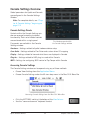
Console Settings Overview
Global parameters for Apollo and Console
are configured in the Console Settings
Window.
Note: For complete details, see “Chapter 6: Console Settings” beginning on
page 115.
Console Settings Panels
Controls within the Console Settings window are arranged according to related
functionality. Each set of related controls
are contained within a single panel.
The Hardware panel within
the Console Settings window
Five panels are available in the Console
Settings window:
Hardware – Settings related to Apollo hardware device setup
Core Audio – Settings related to Flex Driver and custom driver I/O mapping
Display – Settings related to how and what items are displayed in Console
Plug-Ins – Settings related to UAD plug-ins used within Console
MIDI – Settings for configuring MIDI control of Tap Tempo within Console
Accessing Console Settings
The Console Settings window can be opened using any of these methods:
• Choose View>Settings from the Application Menus
• Choose Console Settings under the UA icon drop menu in the Mac OS X Menu Bar
Accessing Console Settings from the Mac OS X Menu Bar
• Click the SETTINGS switch at the bottom of the View Column
• Use the “command-comma” keyboard shortcut
Apollo Software Manual
32
Chapter 3: Console Overview
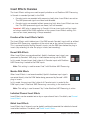
Insert Effects Overview
The Insert Effects settings are used to specify whether or not Realtime UAD Processing
in Console is recorded (printed) in the DAW.
• Console inputs are recorded with processing (wet) when Insert Effects are active.
The UAD-processed signals are heard and recorded.
• Console inputs are recorded without processing (dry) when Insert Effects are inactive. The UAD-processed signals are heard, but not recorded.
Important: UAD plug-in processing in Console’s Unison insert and auxiliary inserts
are always routed to the DAW, regardless of the current Insert Effects setting (Unison and aux insert processing is always recorded).
Function of the Insert Effects Switch
The Insert Effects switch determines if the DAW records Console’s inputs with or without
Realtime UAD Processing, regardless of the actual wet or dry state of the monitor mix.
This is accomplished by routing Console’s inputs into the DAW from before the plug-in
inserts (dry recording) or after the plug-in inserts (wet recording).
Record With Effects
When Insert Effects are record-enabled, Apollo’s hardware input signals are
processed by Console’s UAD plug-in inserts before routing into the DAW.
In this mode, the post-insert (wet) state of all Console inputs with Realtime
UAD Processing is routed to the DAW inputs.
Note: This setting is used to record “wet” with Realtime UAD Processing.
Monitor With Effects
When Insert Effects is not record-enabled, Apollo’s hardware input signals
are routed directly into the DAW before being processed by Console’s UAD
plug-in inserts.
In this mode, the pre-insert (dry) state of all Console inputs is routed to the
DAW inputs, even if Realtime UAD Processing is occurring in the monitor mix.
Note: This setting is used to record “dry” when Realtime UAD Processing is active.
Individual Channel Insert Effects
Insert Effects can be recorded wet or dry on a per-channel basis. For details, see Channel
Insert Effects.
Global Insert Effects
Insert Effects for all channels can be globally switched to override the individual channel
insert effect switches. For details, see Global Insert Effects.
Apollo Software Manual
33
Chapter 3: Console Overview
Cues Overview
The cue mix buses are used to create unique mixes that are separate from the main
monitor mix. Cues are typically used for performers that want to hear a headphone mix
that is different from the main monitor mix, sending separate mixes to other rooms or
audio equipment, and similar applications.
In addition to the main monitor stereo mix bus and the two auxiliary stereo mix buses,
Apollo features up to four stereo cue mix buses (two with Apollo Twin) that can be used
for a variety of signal routing purposes.
Cue Labels
The cue labels vary per Apollo device model, as described below.
Apollo, Apollo 8, Apollo 8p, Apollo 16 – The cues are labeled CUE 1, CUE 2, CUE 3,
and CUE 4 respectively.
Apollo Twin – With Apollo Twin, the two cues are labeled HP (headphone) and LINE 3/4
(line outputs 3 and 4) to reflect the available hardware outputs on the device.
Cue Components
The complete cue system is comprised of the cue mix buses, the cue sends, and the cue
outputs.
Cue Mix Buses – A cue mix bus is the summed stereo mix of individual audio signals.
Signals are routed into the cue mix buses via the cue send controls, and returned from
the cue mix bus via the cue outputs controls.
Cue Sends – The cue sends adjust the individual channel signals going into the cue mix
bus. Each input channel and aux return contains individual level, pan,* and mute controls for each active cue mix bus. All cue sends are pre-fader and pre-mute so they are
not affected by adjustments to the main monitor mix.
*Note: If two input channels are stereo-linked, the cue sends on the stereo pair
cannot be panned. Sends for stereo channels are hard-panned left and right.
Cue Outputs – Cue mix buses are returned via the Cue Outputs window, which is a matrix
for routing the cues to Apollo’s available hardware outputs.
Cue Monitoring – Available cue outputs also can be selected as a source for the main
monitor outs via the Monitor Output Options, enabling any cue mix bus to be heard in
the main monitor speakers.
Cue Count
By default, two cues are displayed in Console (four with Apollo 16). Up to four cues are
available with Apollo by increasing the Cue Bus Count in the Hardware panel within the
Console Settings window.
Apollo Software Manual
34
Chapter 3: Console Overview
Sends Overview
Apollo has a maximum of seven stereo mix buses (five with Apollo Twin) that are configured and adjusted within Console.
The stereo buses are used for the monitor, auxiliary, and cue mixes. Each Apollo input
has independent level, pan, and mute controls for each of the stereo mix buses.
Stereo Mix Buses
In addition to the main monitor mix, the following stereo mix buses are available:
Auxiliary
The two aux buses are typically used for shared effect processing (to reduce UAD resource usage) for realtime monitoring with time-based effects such as reverb and/or
delay. The aux mixes are adjusted via each input’s two aux send controls.
By default, the aux sends are post-fader and post-mute. The aux sends can be switched
to be pre-fader and pre-mute. The Aux Pre / Aux Post function switch for each aux is
located in its respective auxiliary bus return strip.
Cues
The cue buses are for creating mixes that are different from the main monitor mix. Cues
are typically used for performers that want to hear a headphone mix that is different from
the main monitor mix, or for routing individual channels or mixes to other equipment.
The cue mixes are adjusted via the cue sends on each input and aux strip. All cue sends
are pre-fader and pre-mute so they are not affected by adjustments to the main monitor
mix.
Note: By default, two cues are displayed in Console (four with Apollo 16). Up to
four cues are available with Apollo by increasing the Cue Bus Count in the Hardware panel within the Console Settings window.
Apollo Software Manual
35
Chapter 3: Console Overview
Mix Bus Returns
The stereo mix bus returns are used to route the mix to available outputs.
Auxiliary
The aux mixes are routed to the aux return strips. Cue sends are available on the aux
returns for routing aux effects to the cue mix buses.
See “Aux Returns” beginning on page 75 for details.
Cues
The cue mixes are heard via the selections in the monitor controls section. Cues are
routed to available Apollo outputs via a matrix in the Cue Outputs window. The Monitor
outputs can be switched to output any cue mix instead of the monitor mix.
For cue return details, see “Cue Outputs Popover” beginning on page 82.
Sends Access
The Sends can be accessed and adjusted in the Overview and Sends views.
Note: Sends are not visible in the Inputs and Inserts views.
Overview View
An overview of an input’s sends state is shown in each input channel strip, as shown
below. Clicking this overview opens the Sends Popover, where the sends can be adjusted.
If the Console window is vertically re-sized tall enough, individual send knobs appear in
place of the sends overview.
Click to open Sends popover
Channel Send Level Indicators
Channel Send Fader Indicators
Channel Send Mute Indicators
(square above bus name)
Send Bus Name & Colors
The Sends Display within each input channel strip in Overview view
Apollo Software Manual
36
Chapter 3: Console Overview
Sends View
A single send is displayed for all channels simultaneously in Sends View. The displayed
send is selected with the SHOW buttons in the View column. Sends view offers longthrow faders for finer control resolution.
Tip: To increase the Send control’s resolution when in Sends view, increase the
vertical size of the Console window and/or deactivate the SHOW MONITOR button
in the View column.
In Sends view, the same send is visible on all inputs.
Clicking the available SHOW switches displays the different sends.
Show All Sends Option
All sends can be viewed simultaneously by holding the Option key (on computer keyboard) while clicking any SHOW switch in Sends View.
All sends are visible when a SHOW switch is option-clicked
Apollo Software Manual
37
Chapter 3: Console Overview
ALT Monitoring Overview
Apollo features ALT (alternate) monitoring capabilities. ALT monitoring can be used to
control alternate pair(s) of monitor speakers, which is convenient for quickly comparing
how a mix sounds through a different set of speakers. Up to two pairs of ALT monitors
can be used (one pair with Apollo Twin).
ALT monitoring is enabled in the Hardware Settings Panel within the Console Settings
window by increasing the ALT Count setting to a non-zero value.
ALT Monitor Connections
Note: The ALT channel output assignments cannot be modified.
Apollo, Apollo 8, Apollo 8p Apollo 16 – The ALT 1 monitor signal is routed to line outputs 1-2, and the ALT 2 monitor signal is routed to line outputs 3-4.
Apollo Twin – The ALT monitor signal is routed to line outputs 3-4 with Apollo Twin.
ALT Monitor Trims
Monitor
ALT
Meters
Level
Each pair of ALT outputs has its own trim (gain) setting, which is used
to offset any volume level differences with the volume level of the
main monitor speakers.
ALT
Value
As the monitor level is adjusted, these offsets are maintained so
speakers can be accurately compared at any volume. The ALT trims
are located in the Control Room Column.
ALT 2
Global
Insert
Effects
(Apollo
rack
models)
ALT trims
ALT Monitor Select
The ALT monitors are selected in the OUTPUT section of the Monitor
Column. The number of ALT output switches that appears here depends on the ALT Count setting.
Show/Hide
Strips
Open
Cue Outputs
Window
DIM
Level
Monitor
Output
DIM
Options
Value
ALT Monitor Volume & Mute
The monitor level knob adjusts the output volume and muting of both
the ALT monitors and the main monitors.
ALT Monitor Knob Color
The colored ring around the Monitor Level knob indicates
the active ALT selection, as shown at right.
DIM
Enable
ALT selector
Monitor
Level
Monitor
Source
Open
Select
Sessions
Manager
Green – Main monitor outputs are active
Orange – ALT 1 outputs are active
Yellow – ALT 2 outputs are active
Apollo Software Manual
38
Chapter 3: Console Overview
Console Sessions Overview
The Sessions controls provide methods for managing complete Console configurations as
session preset files. When a Console session file is saved, the current Console configuration is written to disk.
When a session file is subsequently reloaded, Console is returned to the exact same configuration state, regardless of any changes to Console that were made in the interim.
Note: Monitor settings, hardware settings, and Console input labels are global
parameters that are not saved in session files.
For complete details, see “Console Sessions” beginning on page 87.
Session Column
(top-level sessions & folders)
Sub-Folder Column
(sessions within sub-folders)
Close Window
Selected Session
(blue)
Session Files
Selected Sub-Folder
(blue)
Current Session
(gray)
Other Sub-Folder
(select to reveal contents)
Function Buttons
Load
New
Session
Load
Existing
Session
Save
Current
Session
Create
New
File
Load
Selected
Session
The Sessions Manager popover
Apollo Software Manual
39
Chapter 3: Console Overview
Flex Driver Overview
Apollo’s powerful Flex Driver feature allows enables virtual mapping of I/O routes, channel counts, and labels at the Core Audio driver level. For complete Flex Driver details,
see “Core Audio Panel” beginning on page 125.
Important: Custom driver I/O routing changes the driver I/O complement. Quit all
audio applications before changing driver I/O assignments.
Custom I/O Maps – With Flex Driver, it’s possible to remap Apollo’s driver inputs/outputs
to any Core Audio inputs/outputs, offering the ultimate in I/O routing flexibility when using any DAW.
Custom I/O Names – The driver labels for Apollo’s I/O can be renamed so DAW inputs
and outputs can use custom names. With Flex Driver, channel input and output selectors
within a DAW can be (for example) “Neve 1073” instead of “Input 1.”
Custom Channel Counts – Some DAWs restrict the number of I/O channels that can be
used. With Flex Driver, it’s possible to specify exactly which I/O is seen by the DAW, even
if the available Apollo I/O exceeds the DAW’s maximum channel I/O count.
Custom I/O Presets – Customized I/O tables can be saved and loaded to or from disk as
presets for future recall and/or sharing with other Apollo users.
Core Audio Panel – The Core Audio panel is the software interface for Flex Driver. This is
where Apollo’s I/O can be renamed, remapped, and saved for future use.
The Flex Driver feature is configured in the Core Audio settings panel
Apollo Software Manual
40
Chapter 3: Console Overview
Popover Windows
Some Console functions that are not visible in the
main window are accessed in popover windows.
Popovers are a special type of window that automatically close when any area outside of the popover is
clicked.
Note: The size of popover windows cannot be
adjusted.
To close any popover, click anywhere outside of the popover, press the “X” switch at upper right of the window, or type the “esc” (escape) key on the computer’s keyboard.
The following functions are accessed via popover windows:
Cue output assign
Channel presets
Rename/link channel inputs
Console session presets
Sends (Aux & Cue)
Flex Route assign
Insert assign
Flex Driver assign
Plug-in presets
Flex Driver I/O presets
Multiple Undo/Redo
Console supports multiple levels of Undo and Redo for all edit operations. Undo and
Redo operations can be performed repeatedly to step backwards and forwards through
edit operations as long as the current session is open.
• To step backwards and undo (revert) edit operations, choose Undo from the Edit
Menu or type command-z.
• To step forwards and re-execute the edit, choose Redo from the Edit Menu or type
command-shift-z.
Undo/Redo Cache
Edits are stored in the Undo/Redo cache. Edits within a particular session can be reverted with Undo/Redo until the cache is cleared. Both of these operations will clear the
Undo/Redo cache:
• Console is quit
• A different Console session is loaded
Important: Prior Undo/Redo operations cannot be performed after the Undo/Redo
cache is cleared.
Apollo Software Manual
41
Chapter 3: Console Overview
Keyboard Focus & Control
Many Console functions can be controlled without using a mouse. When elements on the
screen have keyboard focus, they can be quickly navigated with the computer’s QWERTY
keyboard.
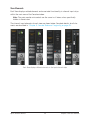
Focus Indication
Keyboard focus in Console is indicated by a orange-colored highlight box outlining the
screen elements that are targeted for keyboard control.
Focus Navigation
Focus between elements can be changed with the computer’s TAB key, or by clicking
another area of the screen with the mouse.
Focus Control
Focused items can be selected by using the up/down/left/right arrow keys and/or the Return/Enter keys.
Typical focus indication. The PRESET column on the left has focus (orange outline)
and can be navigated with the up/down arrow keys on the keyboard.
The tab key alternates focus between the two columns.
Apollo Software Manual
42
Chapter 3: Console Overview
Adjusting Console Controls
Console uses typical software control techniques to adjust parameters.
2-state switches:Click to toggle the state.
Knobs:Click+drag to adjust, or use the Controls Shortcuts. Console’s rotary controls (and
UAD plug-in knobs) can respond to Linear, Circular, or Relative Circular adjustments
modes. The CONTROL MODES preference is set in DISPLAY panel within the Console
Settings window.
Faders:Click+drag to adjust, or use the Controls Shortcuts.
Drop Menus:Click to view the drop menu contents, then click an item in the drop menu
to select the item.
UAD Powered Plug-Ins:Most UAD plug-in controls use the same methods as above. However, some plug-in parameters may have custom controls that are unfamiliar or not obvious. All custom controls are detailed for individual plug-ins in the UAD Plug-Ins Manual.
Controls Shortcuts
In addition to the keyboard shortcuts below, several other shortcuts are available to simplify Console control adjustments:
Fine Control:Continuous controls (knobs and faders) can be adjusted with increased
resolution by depressing the SHIFT while adjusting these controls.
Scroll Wheel:Continuous controls (knobs and faders) can be adjusted by using the computer input device’s scroll function (e.g., mouse scroll wheel). Hover the cursor over the
control and adjust the scroll wheel to modify the parameter value.
Adjust All:If the Option key is held down while modifying any control, the same control
on all inputs (or aux returns) will be simultaneously adjusted. The relative difference is
maintained between the same controls until any control reaches its minimum or maximum value.
Return To Default:If the Command key is held when a control is clicked, the control will
return to its default value. Command+Option+Click will return all controls of the same
type to their default value.
Mute/Solo All Toggle:Option-click a Mute or Solo switch to toggle the state on all channels.
Drop Menus:Menus continue to display after a single click. The mouse button does not
need to be held down to view the menu.
Apollo Software Manual
43
Chapter 3: Console Overview
Keyboard Shortcuts
Console supports the keyboard shortcuts listed in the table below.
Shortcut Name
Keyboard Command
Description
New Session
Command-N
Create a new default session
Open Session
Command-O
Load an existing session file from disk
Save Session
Command-S
Save current session file to disk
Save Session As...
Command-Shift-S
Save current session as new file with optional rename
Hide Application
Command-H
Hide application from view
Quit Application
Command-Q
Quit Console application
Overview
Command-1
Switch main view to OVERVIEW
Inputs
Command-2
Switch main view to INPUTS
Inserts
Command-3
Switch main view to INSERTS
Sends
Command-4
Switch main view to SENDS
Show/Hide Inputs
Command-I (the letter i)
Activate Show/Hide Inputs modifiers
Focus Navigation
Tab
Cycle through orange-outlined areas that can be focused/
controlled/navigated with the arrow keys
Element Navigation
Left/Right/Up/Down (arrows) Select focused elements with the arrow keys
Cancel Dialog
ESC (escape)
Cancel dialog functions such as Plug-In Assign, Preset
Select, Save As, etc.
Confirm Dialog
Return or Enter
Accept dialog functions such as Plug-In Assign, Preset
Select, Save As, etc.
Settings Window
Command-, (comma)
Open Console Settings window
Undo Edit
Command-z
Revert the last executed function (multiple Undo possible)
Redo Edit
Command-shift-Z
Revert the last executed Undo (multiple Redo possible)
Apollo Model Differences
Apollo, Apollo 8, Apollo 8p, Apollo 16, Apollo 16 mkII, and Apollo Twin have different
hardware features, and the Console software automatically reflects these differences. The
Console interface elements that appear depends on which Apollo hardware model(s) is
connected to the computer. Any Console feature differences are specifically noted in this
manual.
Note: In this manual, “Apollo” refers to all Apollo interface models unless specifically noted otherwise, and “Apollo 16” refers to both the original Apollo 16 model
and the newer Apollo 16 mkII model.
Apollo Rack Models
Some Console features apply to Apollo rack models only (all models except Apollo Twin,
which has a desktop form factor). In this manual, all specific references to “Apollo Rack
Models” apply to Apollo, Apollo 8, Apollo 8p, Apollo 16, and Apollo 16 mkII models
only.
Apollo Software Manual
44
Chapter 3: Console Overview
Chapter 4: Console Reference
This chapter provides in-depth descriptions of all controls within Console. For a general
operational overview, see “Chapter 3: Console Overview” beginning on page 16.
Meter Bridge
The Meter Bridge is always visible at the top of the Console window. It displays all visible
input channels, signal activity at these inputs, and the Bank Bar, which is used to scroll
inputs that are out of horizontal view.
Refer to the diagram below for descriptions in this section.
Mono
Meter
(single)
Stereo
Meter
(dual)
Bank Bar
(gray)
Signal
Present
(green)
No
Signal
(black)
Device Name
(optional via right-click)
Channel
Input
Meters
Channels not in
Current Bank (black)
Non-Hidden Input Channels
The Meter Bridge elements
Input Channels
The Meter Bridge represents all Apollo input channels. When an input channel is hidden
with the Show/Hide Inputs function, that channel is not displayed in the Meter Bridge.
Channel Meters
Each vertical green meter represents input signal activity in the channel. These small
meters mirror the activity of each high-resolution Input Meter that is displayed next to
each channel’s Input Fader.
Bank Bar
When the Console window does not have enough available horizontal space to display all
available input channels, the gray Bank Bar appears within the Meter Bridge.
The Bank Bar “floats” on top of all input channels in the Meter Bridge. The Bank Bar is
used to change the channels that are visible within the Current Bank.
Note: The Bank Bar is not displayed when all available input channels are visible
within the Console window.
Apollo Software Manual
45
Chapter 4: Console Reference
Current Bank
The Current Bank is all input channels that are currently displayed in the main body of
the Console window (below the Meter Bridge) as shown in the illustration below. The gray
Bank Bar is used to change the Current Bank.
Bank Bar
(gray)
Meter
Bridge
Move gray Bank Bar
to change Current Bank
Channels not
within Bank Bar
Current Bank
(visible channels)
Channels not
within Bank Bar
Conceptual illustration of the Current Bank.
In this example, the Current Bank is analog channels 3 through 6.
Moving the Bank Bar brings different channels into the Current Bank view.
Changing the Current Bank
Any of these methods can be used to change the channels within the Current Bank:
Click – Click anywhere within the Meter Bridge, but outside of the Bank Bar. The Bank
Bar jumps to the channel that is clicked in the Meter Bridge.
Drag – Click-hold-drag the gray Bank Bar to slide it across available channels.
Hover Scroll – Position the mouse over the Meter Bridge then scroll horizontally with the
computer’s input device.
Arrow keys – When the Bank Bar has keyboard focus, use the computer’s left/right arrow
keys to navigate the Current Bank.
Apollo Software Manual
46
Chapter 4: Console Reference
Meter Bridge Menu
The Meter Bridge menu provides access to various functions related to the Meter Bridge. To view the menu, right-click (or controlclick within the Meter Bridge.
Most functions in the menu are available elsewhere within Console. Show/Hide Offline Devices is available exclusively within this
menu.
Show/Hide Device Names – See Show Device Names.
Show/Hide Offline Devices – Devices in the Hardware panel within the Console Settings
window that are not currently connected are displayed in the Meter Bridge by default. To
show/hide offline devices, choose this item from the menu.
Identify – See Identify.
Rename – See Device Name.
Apollo Software Manual
47
Chapter 4: Console Reference
View Column
Note: For an overview of Console’s View Columns, see “View
Column Overview” beginning on page 25.
Application
Menus
(global)
The View Column is always visible at the left side of the Console
window. The View Column contains the View Selectors and switches for the View Options (functions) available within each view.
Each View Column also contains several common view elements
that are available in every View.
View
Selectors
Available Views
Four Views are available in Console (Overview, Inputs, Inserts,
Sends). Each View displays related elements and associated functionality in the main area of the Console window.
Common View Elements
Most display and control elements that appear within the main
Console area (see Global Window Elements) in each View are common to all the Views.
Therefore, the common elements are detailed separately from the
View Column descriptions.
View
Options
View Selectors
Any of these methods can be used to change the current View:
• Click any View Selector in the View Column
• Choose the View from the Application Menus
• Use the keyboard shortcuts (⌘1, ⌘2, ⌘3, ⌘4)
Clear
Switches
(global)
View Column Options
Settings
Switch
(global)
The View Options activate the various control functions available
within each view. The View Options in Overview, Inputs, and Inserts Views are identical; the View Options change when Sends
View is active.
The View Column as it
appears in SENDS View
View Option functions are performed using latched modifiers. See
the Modifiers Overview for details on how to operate the View Option controls. See View Options for descriptions of the individual
option functions.
Apollo Software Manual
48
Chapter 4: Console Reference
Global View Column Controls
Several controls appear in all View Columns. These controls (detailed below) have identical functionality in all Views.
Menu Switch
The MENU switch is located at the top of the View Column. Clicking the
switch reveals the Application Menus, where various Console functions
can be accessed.
Default Switch
When Option Latch is active with the parameters DEFAULT switch, clicking any control returns the parameter to its default value.
Note: The DEFAULT function is primarily for knob and fader values. It
does not apply to any preamp settings, plug-in inserts, SOLO/MUTE
switches, monitor levels, customized input names, and similar functions.
Clear Switches
The CLEAR switches are located near the bottom of all View columns.
Clear Clips
This switch clears all clip indicators and peak hold indicators on all meters.
Tip: Clip and peak hold indicators can be individually cleared by clicking any individual meter.
Clear Solo
Whenever Solo is engaged on any channel input, the Clear Solo switch flashes yellow.
Clicking the Clear Solo switch deactivates the Solo function of any/all channel inputs.
Tip: Click Clear Solo again to return all channels to their previous Solo states.
Settings Switch
The SETTINGS switch is located at the bottom of all View columns. It
opens the Console Settings window, where many global functions are defined. For complete details, see “Chapter 6: Console Settings” beginning
on page 115.
Apollo Software Manual
49
Chapter 4: Console Reference
Modifiers Overview
The View Column Options in each View Column enable various operations to be performed on the items within the View.
View Option operations are performed by selecting an option to latch the function, executing the operation(s) using Modifiers, then exiting the latched function.
Option Latch
When a View Option switch is clicked, the switch flashes yellow, indicating
that the function is latched and ready to be executed using the Modifiers.
Option Unlatch
Power option
latched
The latched option is unlatched (the switch stops flashing) when:
• Any same or different option switch is clicked
• A different View is selected
• No operations are executed during the Modifiers Timeout period
Modifiers Timeout
When an option is latched, it is automatically unlatched (times out)
after the Modifiers Timeout period to prevent inadvertent modifications.
Timeout preference
The Modifiers Timeout is a preference set in the Display panel within
the Console Settings window. The default Modifiers Timeout period is six seconds/flashes.
Modifiers
Modifiers are icons superimposed on various elements when a View Option is
latched. Modifiers are used to execute the operations. The specific modifiers
that appear, and where they are located, depend upon the specific option
that is latched.
Inserts modifiers are superimposed on insert slots for individual inserts, and
the input channel names for plug-in channel strips.
Paste Modifiers
Modifier Swipe Shortcuts
View Options can be executed extremely rapidly across many channels and/or inserts in
the Current Bank using the modifiers swipe shortcuts. When a View Option is latched,
click+hold the mouse, then drag vertically and/or horizontally across inserts and/or channel input names to perform the function on all locations that are swiped.
Tip: Modifier swipe shortcuts are the fastest way to perform the same function on
multiple inserts.
2. Swipe Across
1. Click+Hold
Click
Swipe
Swipe to rapidly perform the latched function on many inserts
Apollo Software Manual
50
Chapter 4: Console Reference
View Options
The individual View Column Options are detailed in this section. See the Modifiers Overview for details about how to operate the Modifier controls.
Overview, Inputs, & Inserts View Options
The View Options for the Overview, Inputs, and Inserts Views are
identical. Each option is described below.
Overview Note: In the Overview View Column, the Power,
Remove, and Copy modifiers may not be visible if the Console
window size is vertically condensed. To bring all Overview
modifiers into view, increase the vertical window size if possible, or select a different View.
View
Options
Overview, Inputs, & Inserts
View modifier switches
Power Modifier
This option toggles an individual plug-in’s power state within a single insert. When disabled, the plug-in no longer uses UAD DSP resources.
Click the POWER modifier switch to latch the option, then toggle any plug-in’s power
state by clicking its modifier, or swipe across multiple modifiers.
Note: This option performs the same function as the Plug-In Power switch in the
header within the plug-in editor window.
When POWER is latched, disabled plug-ins are indicated by a gray modifier icon, and active plug-ins have a green modifier icon.
The POWER modifier when latched. Plug-ins are shown powered (left) and disabled (right).
Because this function unloads and loads the plug-in from the DSP, audio artifacts can
occur if the power state is changed while audio is being processed by the plug-in.
Tip: To disable individual plug-in processing without audio artifacts, use the power
control within the plug-in interface instead, which keeps the plug-in loaded on the
DSP.
Apollo Software Manual
51
Chapter 4: Console Reference
Remove Modifier
This option deletes the plug-in from the insert slot. When the REMOVE switch is latched,
click any insert’s modifier to delete the plug-in, or swipe across multiple modifiers.
The REMOVE modifier when latched. Plug-ins are removed by clicking/swiping its modifier.
Note: Because this function unloads the plug-in from the DSP, audio artifacts can
occur if a plug-in is removed while audio is being processed by the plug-in.
Copy/Paste Modifier
This option is used to duplicate individual plug-ins or channel strips, and their current
settings, from one insert(s) to any other insert(s).
Copy/Paste is a two step process. First the insert or channel strip is copied with the
COPY modifier, then the copied data is pasted to the destination insert or channel.
Copy Individual Plug-In
When COPY is latched, click any insert modifier to copy the insert’s plug-in.
The insert COPY modifier when latched
Copy Channel Strip
When Copy is latched, click any input name modifier (at the bottom of the input strips)
to copy all plug-ins in the channel inserts.
The channel strip COPY modifier when latched
Apollo Software Manual
52
Chapter 4: Console Reference
Paste Modifier
After any insert is copied, the COPY switch changes to PASTE. The copied data can be
pasted to multiple destinations while the paste option remains latched.
Paste Individual Plug-In
After an insert is copied, click or swipe across one or more destinations while the paste
switch is latched.
The PASTE modifiers appear on all inserts after copying an insert
Paste Channel Strip
After a channel strip is copied, click or swipe across any input name modifier to paste
the copied channel strip plug-ins into the channel while the paste switch is latched.
The PASTE modifier appears on input names after copying a channel strip
Important:UAD Powered Plug-Ins within Console use DSP differently than when
used within a DAW. To maintain the lowest possible input latency, UAD plug-ins
used on a single Console channel strip must run on a single SHARC processor.
Therefore, it is possible to get a “DSP load limit exceeded” message on a channel
even if the UAD gauges may indicate there is enough DSP available.
Apollo Software Manual
53
Chapter 4: Console Reference
Sends View Options
All View Options within Sends View are described below. See the Sends Overview for
related information.
View
Options
Sends View
Options
(Apollo Twin)
Sends View
Options
(Apollo rack
models)
Sends View Options as they appear with Apollo
rack models (left) and Apollo Twin (above)
Available Sends
Two SHOW AUX switches are always visible. The SHOW CUE switches that are visible
depend upon the Apollo hardware model:
Apollo Rack Models – Between two and four SHOW CUE switches are visible. This
number is determined by the CUE BUS COUNT preference in Hardware panel within the
Console Settings window.
Apollo Twin – The two SHOW switches are labeled HP (headphone) and LINE 3-4 (line
outputs 3 and 4) to reflect the available hardware outputs on this device.
Apollo Software Manual
54
Chapter 4: Console Reference
Show Sends
In Sends View, all mix controls for a single send mix bus, and/or the monitor mix bus, are
displayed for all Console inputs simultaneously (see screenshots below).
Note: One send mix can be displayed at a time (the SHOW SEND switches are
mutually exclusive).
The displayed mixes are determined by the state of the send and monitor SHOW switches in the Sends View column. The mix is visible when its switch is engaged (lit).
• If the SHOW MONITOR switch is engaged, the send’s mix controls are displayed
above the monitor mix controls (left screenshot).
• If the SHOW MONITOR switch is disengaged, only the send’s mix controls are visible, offering maximum send fader resolution (center screenshot).
• If the SHOW MONITOR switch is engaged and all SHOW SEND switches are disengaged, only monitor mix controls are visible, offering maximum monitor fader
resolution (right screenshot).
Tip: Sends View offers long-throw faders and meters for finer control resolution. To
increase the control resolution of the mix faders in Sends View, increase the vertical size of the Console window.
Example screenshots of interaction between the send and monitor SHOW switches.
By showing only one type of fader (Send or Monitor), the faders are taller,
offering finer control resolution.
Apollo Software Manual
55
Chapter 4: Console Reference
Show All Sends Option
All sends can be viewed simultaneously by holding the Option key (on computer keyboard) while clicking any SHOW switch in Sends View.
All sends are visible when a SHOW switch is option-clicked
Sends COPY TO Modifier
This switch instantly copies the current monitor mix to the send mix
that is currently selected with the Available Sends switches.
Tip: The COPY TO function is typically used when a cue mix that
is similar to the monitor mix is needed, but with minor adjustments (e.g., creating a “more me” cue mix).
COPY TO modifier
The text label within the COPY TO switch changes to the send mix
that is currently selected with the Available Sends switches, indicating the destination of
the pasted monitor mix.
Caution: Use the COPY TO function carefully. Depending on the states of the monitor mix and the destination send mix, cue output routings, and the volume setting
of monitoring systems (e.g., headphones) attached the cue outputs, this function
could cause an extreme increase in volume at the destination outputs.
COPY TO Menu
Right-clicking (or control-clicking) the main (silver) monitor faders
presents the COPY TO menu. Selecting a destination performs the
same function as the COPY TO modifier described above.
COPY TO menu
Apollo Software Manual
56
Chapter 4: Console Reference
Info Bar
The Info Bar is always visible at the bottom of the Console window. It displays and provides access to several important functions.
The Tempo controls are only available in the Info Bar. The Sample Rate and Clock Source
controls are also available in the Console Settings window. The UAD Resource Gauges
have no controls; they are visual indicators only.
Refer to the diagram below for descriptions in this section.
Console Tempo
Display & Menu
Clock Source
Display & Menu
Sample Rate
Display & Menu
UAD Resource Gauges
(Display only)
The Info Bar
Offline Hardware Display
If the Apollo hardware unit(s) is not properly connected, the sample rate and clock
source will display OFFLINE as shown below.
Sample Rate and Clock when Apollo is offline
Tempo Display
This area displays the Console tempo in beats per minute (BPM).
Clicking the tempo display opens the Tempo popover window,
where a new tempo can be typed or tapped.
About Console Tempo
Console Tempo is used for time-based UAD plug-ins (such as delays and modulations)
within Console that are set to use Tempo Sync. Console Tempo can be modified by typing
a text value, tapping a tempo, or via MIDI.
Note: Console does not receive tempo information from the DAW.
The tempo value is saved within Console session files, and also within DAW files when
the Console Recall plug-in is used within the DAW.
For details about how to use the Tempo Sync feature with UAD plug-ins, see the UAD
System Manual.
Apollo Software Manual
57
Chapter 4: Console Reference
Tempo Window
To display the Tempo window, click anywhere in the Tempo
Display within the Info Bar.
The available tempo range is from 1.00 BPM to 999.00
BPM. The default tempo of a new session is 120 BPM.
Adjusting Tempo
Text Entry
1. Open the Tempo window by clicking the Tempo Display in the Info Bar
2. Click the tempo text field, then type a numeric tempo value
3. Press Return or Enter, or click the close button with the mouse.
Tip: To leave the tempo unchanged after entering an (unwanted) value in the
Tempo window, press the ESC key or close the window with the mouse.
Tap Tempo
1. Open the Tempo window by clicking the Tempo Display in the Info Bar
2. With the mouse, click the TAP button at least four times to establish the tempo
3. Press Return or Enter, or click the close button with the mouse.
Changing tempo via MIDI
Tap tempo can be used to set a new tempo from incoming MIDI that is received via the
Mac OS X operating system. This method requires any external MIDI hardware and/or
MIDI software that is recognized by Audio MIDI Setup (Mac OS X’s MIDI routing utility
application, located in /Applications/Utilities).
About external MIDI tap tempo control
• Audio MIDI Setup must be properly configured. After proper configuration, Audio
MIDI Setup does not need to remain open.
• MIDI note values or MIDI controller values can be used as the data source.
• Console cannot synchronize the tempo to incoming MIDI beat clock.
MIDI configuration/setup
1. Verify the MIDI output device and/or MIDI software is configured properly and active in Audio MIDI Setup.
2. In the MIDI panel within the Console Settings window, set the values for DEVICE,
TAP TEMPO CHANNEL, and TAP TEMPO EVENT to match the transmitted MIDI
data.
3. Transmit the MIDI note or controller (as specified in the previous step) at least
four times to establish the tempo. The Tempo Display is RED during this period.
4. After a new tempo value is established, the new tempo is used and the Tempo
Display changes back to BLACK. Simply retransmit the MIDI data to apply further
tempo updates.
Apollo Software Manual
58
Chapter 4: Console Reference
Sample Rate Display
This area displays the current sample rate used for Apollo’s A/DD/A conversion and UAD Powered Plug-Ins processing. When
using UAD Powered Plug-Ins, higher sample rates require more
UAD DSP resources.
Important: When the Clock Source parameter is set to use any external clock
source, the sample rate must be manually set to match the sample rate of the
external clock.
Sample Rate Menu
Clicking the Sample Rate Display presents the Sample Rate Menu,
where the current sample rate can be changed.
Important: When a DAW is used with Apollo, the sample rate is
typically changed within the DAW settings. If the sample rate is
changed to a different value within Console when a DAW is active,
digital artifacts could occur due to a sample rate mismatch.
Apollo Twin Note: If the current digital input setting is S/PDIF and
the sample rate is changed to a rate higher than 96 kHz, the clock
source is changed to Internal and the S/PDIF inputs are no longer
unavailable.
Clock Display
The Clock Display has three functions: It shows the currently
selected clock source, facilitates selection of a different clock
source, and indicates when the selected clock source signal is
not detected.
Clock Source Menu
Apollo can synchronize to its internal clock or an external clock
(word clock, ADAT, or S/PDIF). To select a clock source, click anywhere in the clock display area to view the Clock Source Menu,
then select a clock source from the menu.
Tip: The clock source can also be specified in the Hardware
panel within the Console Settings window.
Apollo Software Manual
59
Chapter 4: Console Reference
No External Clock
If the Clock Source setting in not set to Internal and the external
clock signal cannot be detected and/or resolved, then the text in
the Clock Display display flashes RED (as shown at right) until a
valid clock is detected and/or an alternate clock source is selected. If this occurs, verify connections and external device settings.
Important: Only one device in a digital audio system can be the master clock
source. The Apollo clock setting, and the sample rate, must match the master
device settings or audio artifacts could occur.
UAD Resource Display
UAD plug-in loads are shown in the Resource Display at the far
right of the Info Bar. These three gauges (DSP, PGM, and MEM)
provide important visual feedback in realtime, by helping to
determine which plug-ins to load if available UAD resources are
limited.
The UAD resources are displayed as blue bar graphs and as percentages. These gauges
have no controls; they are visual indicators only.
Tip: The Resource Display mirrors the meters within the UAD Meter & Control
Panel application.
Averaged Loads
The load for each gauge represents the average for all UAD devices in use. For example,
if one Apollo QUAD unit is installed, the UAD DSP load is an average of the four SHARC
DSP processors in the unit. If two QUAD units are installed, then the eight processors
are averaged, and so on.
Individual Loads
Individual DSP loads within a single unit, and the loads of individual devices in a multidevice setup, can be viewed in the System Information panel within the included UAD
Meter & Control Panel application.
UAD Plug-In Loads
The amount of UAD resources used by UAD plug-ins vary with each individual plug-in;
more complex algorithms require more resources.
Instance Chart
The amount of DSP used by each individual UAD plug-in is available in the UAD instance count chart. The chart can help determine which to plug-ins to assign with available resources. The chart is published online at:
• www.uaudio.com/support/uad/compatibility/instance-chart.html
Apollo Software Manual
60
Chapter 4: Console Reference
Static Loads
Apollo uses UAD DSP and memory for its internal DSP mixer, therefore the meters will
indicate loads (when the hardware is connected) even if UAD plug-ins are not inserted.
DSP
The DSP gauge indicates the amount of digital signal processing resources that are being
used by all UAD devices in the system.
DSP is the primary hardware resource that powers the UAD Powered Plug-Ins algorithms.
When UAD plug-ins are disabled, DSP requirements are decreased.
Note: When UAD plug-ins are disabled, DSP requirements are decreased EXCEPT
when the plug-in is disabled using the Power control within the plug-in interface.
Program
The Program (PGM) gauge indicates how much UAD program memory (PGM) is in use.
Program memory is an on-chip memory that is specific to the UAD-2 DSP processor(s)
and is used for certain UAD plug-in resources.
Each unique UAD plug-in uses a bit of program memory. If many different UAD plug-ins
are loaded simultaneously, it is possible for this resource to run out before a DSP overload occurs. This point is considered and factored in by the automatic UAD load balancing routines.
Memory
The Memory (MEM) gauge indicates the percentage of UAD RAM that is currently in use.
It indicates the total available UAD memory available, regardless of the number of DSP
processors that are installed.
Memory is used for echo, delay lines, reverb, and similar spatial processing. When UAD
plug-ins are disabled but not unloaded, memory requirements are not decreased. In this
case, the memory remains loaded so that reverb tails and delay lines are not cut off when
the plug-in is disabled.
Apollo Software Manual
61
Chapter 4: Console Reference
Channel Input Controls
Note: For related information, see the Channel Strips Overview.
Preamp Controls
Note: The preamp controls do not apply to Apollo 16, which does not feature mic
preamps.
Console’s preamp controls correspond to the equivalent preamp controls on the Apollo
front panel. Adjusting Apollo’s front panel will update Console (and vice versa); see Interactions Between Console and Apollo for details.
Unison Controls
Some preamp hardware controls (Gain, Low Cut, 48V, Pad, Polarity) are Unison
parameters that interact with Unison plug-ins placed in the Unison insert slot.
Unison preamp controls in this section are indicated by the Unison icon in the above
paragraph. For complete Unison details, see “Chapter 8: Unison” beginning on page
144.
Refer to the illustrations below for element descriptions in this section.
vv
Preamp
Controls
Preamp Preamp
Gain Knob Gain Knob
Gain
Gain
Value
Value
Unison
Insert
Unison
Insert
Input
Display
Input
Display
Input
Select
Switch
Input
Select
Switch
Preamp
Option
Switches
Preamp
Option
Switches
Apollo Software Manual
Preamp
Controls
Preamp
Controls
Input
Select
Switch
Input
Select
Switch
Preamp
Controls
Preamp
Gain
Preamp
Gain
Unison
Insert
Unison
Insert
Preamp Option
Switches
Preamp
Option Switches
Console’s preamp controls as they
appear in vertically expanded (left)
and condensed (above) views.
Both views access and display
the same functions.
62
Chapter 4: Console Reference
Preamp Gain
The channel’s preamp gain is adjusted with this knob. The input to be
adjusted (Mic, Line, or Hi-Z) is determined by the state of the channel’s
Mic/Line switch or the Hi-Z input (if connected).
Rotating the knob clockwise increases the preamp gain for the channel. The
available gain range for all preamp channels is 10 dB to 65 dB for the Mic,
Line, and Hi-Z inputs.
Gain Value
The specific amount of preamp gain in decibels is displayed in gray text near the gain
control. The relative amount of preamp gain is indicated by the green “LED ring” surrounding the gain control. The LED ring is a different color when Unison is active in the
channel.
Line Input Gain Bypass (Apollo 8, Apollo 8p)
When a preamp channel’s line input is selected and its Line Input Gain is
bypassed, the Gain Value field displays BYP, its gain cannot be adjusted, and
the Unison plug-in (if inserted) is disabled. For related details, see Line Input
Line Input Gain
Gain (Apollo 8, Apollo 8p).
bypassed
Front Panel Channel Selection Indicator Dot
Apollo’s channel selection can be changed using the front panel hardware.
The small colored dot that appears next to the gain control (as shown at
right, outlined in red) indicates the preamp channel that is currently selected with Apollo’s front panel.
Note: The indicator dot in Console changes channels when the channel selection is changed with Apollo’s front panel.
Unison Insert
Unison is an exclusive analog/digital integration technology that’s
built into every Apollo microphone preamplifier. The preamp controls in Console interact extensively with Unison plug-in parameters.
To add a Unison plug-in to the preamp channel, click the unique Unison
insert slot located below the Gain control (as shown at right, outlined in
red). For complete Unison details, see “Chapter 8: Unison” beginning on page 144.
Input Select
This switch switches between the mic and line inputs on Apollo’s
rear panel. Click the Input Select switch or Input Select display to
change the input type. The currently selected input type is highlighted. To switch the input type in condensed views, click the currently
displayed input type (as shown at right, outlined in red).
Apollo Software Manual
63
Chapter 4: Console Reference
Note: Input Select has no effect if the channel’s Hi–Z input is connected, because preamp channels are automatically switched to the Hi-Z input when a ¼”
mono (tip-sleeve only) cable is connected to Apollo’s front panel Hi-Z input jack.
Low Cut Filter
When enabled, the channel’s input signal passes through a low cut (high
pass) filter. This 2nd-order coincident-pole filter has a cutoff frequency of
75 Hz with a slope of 12 dB per octave by default (the filter can change
when Unison is active in the channel).
The Low Cut filter effects the Mic, Line, and Hi-Z inputs. Low Cut is typically used
to eliminate rumble and other unwanted low frequencies from the input signal.
48V
When enabled, the 48V switch is red and 48 volts of phantom power is
supplied to the Apollo channel’s rear panel Mic input. Most modern condenser microphones require 48V phantom power to operate. This option
can only be activated when the Mic/Line switch is set to Mic.
Caution: Activate 48V only with compatible equipment such as phantom powered
microphones. Incompatible equipment may be damaged by the applied voltage.
Depending on the current configuration of the Apollo and Console, there may be a delay
when changing the 48V state to minimize the clicks/pops that are inherent when engaging phantom power. The +48V LED on Apollo’s front panel will flash during any delay.
Pad
When enabled, the PAD switch is yellow and the channel’s microphone
input signal level is attenuated by 20 dB. Pad does not effect the Line or
Hi-Z inputs.
Pad is used to reduce signal levels when overload distortion is present at low
preamp gain levels, such as when particularly sensitive microphones are used on loud
instruments, and/or if the A/D converter is clipping.
Polarity
When enabled, the polarity (aka “phase”) switch is yellow and the input
channel’s signal is inverted. Polarity affects the Mic, Line, and Hi-Z inputs.
Polarity inversion can help reduce phase cancellations when more than one microphone is used to record a single source.
Reference Level (Apollo, Apollo 8, Apollo 16)
The signal reference level for analog line inputs
without preamps can be switched between -10 dBV
and +4 dBu. Click the display to toggle the setting.
Apollo Software Manual
64
Chapter 4: Console Reference
The setting controls an attenuation pad for the input channel. When set to +4 dBu, the
pad is engaged and the channel can accept a higher signal level before the A/D converter
clips. Select -10 dBV when lower input signal levels are used.
Tip: To adjust signal incoming levels for Apollo’s analog inputs that don’t have
preamps, use the output level controls of the devices that are connected to those
inputs.
Tip: Additional gain can be added to input signals by inserting UAD plug-ins and
adjusting the gain structure within the plug-ins.
The availability and behavior of the reference level control depends on the hardware
model, as described below.
Apollo & Apollo 8 – The reference level for analog input channels 5 & 6 and 7 & 8
are linked in Apollo’s hardware. Therefore, the reference level in Console can only be
switched according to these stereo pairs.
Apollo 16 – The reference level for all analog input channels 1 – 16 can be individually
switched.
Sample Rate Convert
Realtime sample rate conversion (“SR CONVERT”) is available on
S/PDIF and AES/EBU inputs. This feature eliminates audio artifacts
(clicks, distortion, etc) that can occur when the sample rate of external digital devices connected to the S/PDIF or AES/EBU inputs do
not match Apollo’s internal sample rate.
To enable realtime sample rate conversion on Apollo’s S/PDIF or AES/EBU inputs, click
the SR Convert switch in Console’s associated channel strip. Click again to disable the
feature.
Sample Rate Conversion notes:
•
•
•
•
•
SR
SR
SR
SR
SR
Convert
Convert
Convert
Convert
Convert
is available on S/PDIF or AES/EBU inputs only
applies to both L/R inputs (they can’t be individually enabled)
functions on both L/R inputs whether or not they are stereo linked
is unavailable when Apollo’s clock source is set to S/PDIF or AES/EBU
is unavailable on digital outputs
UAD Plug-In Inserts
All Console plug-in insert slots operate the same way. For complete details
on all insert functionality and operations, see “Chapter 5: UAD Plug-In
Inserts” beginning on page 99.
UAD plug-in
inserts
Apollo Software Manual
65
Chapter 4: Console Reference
Sends Popover
Note: See “Sends Overview” beginning on page 35 for related information.
The Sends popover window is where all available sends for an individual channel can be
adjusted. To access the Sends window, click the Sends display when Overview is active.
Console Default Input Name
Close Window
Previous/Next Channel
Bus Name & Color
Send Mute
Send Pan
Send Level & Meter
The Sends popover
Sends Popover Window Descriptions
Input Name –The name of the Apollo input is displayed as the window’s title. If the input name is customized in Console, the customer name is displayed here.
Previous/Next Channel –These buttons switch the window to display the sends of adjacent channels. The “Command+Left/Right Arrow” keyboard shortcut can also be used to
navigate channels.
Tip: To prevent the window from moving when these buttons are used, drag the
Sends window to any location other than its default position.
Bus Name & Color –The bus name and its color are displayed above each send.
Send Pan –Adjusts the input’s position in the stereo field of the send bus. The pan
knobs are not displayed when the input is in stereo linked mode, which forces the stereo
channels to automatically pan hard left/right.
Send Mute –The Mute button can be used to disable/re-enable the bus send. When the
send is active, the button is lit.
Send Level –This fader adjusts the input channel’s signal level sent to the bus.
Send Meter –The post-fader signal level of the Send is displayed here.
Apollo Software Manual
66
Chapter 4: Console Reference
Flex Routing
By default, Apollo’s input channels are routed to the monitor outputs only. However,
Apollo’s inputs can be optionally routed to any available Apollo hardware output. A maximum of eight channel output route assignments are available. This feature is available
with Apollo rack models only (Flex Routing is unavailable with Apollo Twin).
Important: If an output is in use by Flex Routing, it is no longer available to be
assigned as an output within the DAW. The Flex channel output(s) route overrides
the DAW output channels assigned to the same hardware output(s).
Multiple input signals cannot be merged to the same output(s) with Flex Routing because this feature is not a mix bus. However, the cue mix buses can be used for this
purpose.
Note: Flex Routing is unavailable at sample rates of 176.4 kHz and 192 kHz.
Output Route Display
The Output Route display is located above the each channel’s main
input mix controls, as shown at right. The active output assignment is
displayed here. Clicking the display opens the Output Route window.
Output Route Display
Output Route Popover
The Output Route popover window is where the hardware output assignment for the input
channel can be changed.
Console Default Input Name
Previous/Next Channel
Close Window
Scroll Bar
Available Output Routes
Selected Hardware
Output Route
(blue)
Routes
Available
Count
Mirror to Monitor Button
(orange color = mirrored)
The Output Route popover
Apollo Software Manual
67
Chapter 4: Console Reference
To change the output route:
1. Click anywhere in the Output Route display to reveal the Output
Route window.
2. Select an output (or output pair, for stereo linked channels) in
the window.
Note: If an output does not appear in the window, the output is already in use by another input channel, cue output, or ALT output.
Channel is routed to
line output 5
Routes Available Count
The number of currently available mono and stereo channel output routes is displayed in
gray text at the bottom of the menu. The number is decremented with each assignment.
Up to eight outputs can be assigned with Flex Routing.
Mirror to Monitor
When a channel is routed to an output other than the monitor outputs, the channel is simultaneously routed to the monitor outputs (mirrored) by default. Mirroring to the monitor outputs can be disabled so the channel is routed only to the output selected in the
Output Route menu.
To toggle monitor mirroring, click the “Mirror to Monitor” button in Output Route menu.
Monitor mirroring is active when the button is orange colored. Mirroring is off when the
button is gray.
Apollo Software Manual
68
Chapter 4: Console Reference
Monitor Mix Controls
The monitor mix controls within the input channel
strips are for adjusting the signals at Apollo’s monitor outputs.
Input
Pan
Refer to the illustration at right for descriptions in
this section
Input
Solo
Input
Mute
Input Pan
This control adjusts the input’s position in the stereo panorama of the monitor mix bus.
Stereo Input Pan
Input
Fader
When the input is stereo linked, two pan knobs appear for the channel enabling independent panning
for both the left and right channels. When stereo
link is activated, the default position of the dual
pan knobs are hard left/right.
Pan with channels unlinked
(left) and linked (right)
Input
Meter
Fader
Value
Input
Label
(click to
rename
& LINK)
Input Solo
Solo mutes all input signals, except for any inputs
in solo mode. Solo is used to hear individual channels in the monitor mix without having to modify
other channels.
The Monitor Mix Controls
Note: Input solo does not effect the channel’s cue sends, which are pre-fader.
Click the switch to toggle the solo state. The channel is in solo mode when its solo
switch is highlighted in yellow. Note that activating mute has no effect if the channel is
in solo mode.
Tip: Option-click the solo button to toggle solo on all input channels.
Inactive solo and mute switches
Apollo Software Manual
69
Chapter 4: Console Reference
Input Mute
Mute prevents the input channel’s signal from being routed to the monitor mix bus (and
aux buses that are in POST mode), but not the cue mix buses.
Click the button to toggle the mute state. The channel is muted when its mute switch is
highlighted in red.
Tip: Option-click the mute button to toggle mute on all input channels.
The input meter is still active when the channel is muted for a visual reference that there
is still a signal coming into the channel even though it isn’t
Input heard in the monitor mix.
Pan
Note: Input mute does not affect the channel’s cue sends, which are pre-fader. All
cue sends have their own mute switch.
Input
Input
Mute
Solo
If Solo is activated on the same channel when muted, the mute state is overridden and
the channel is heard in the monitor mix.
Input Fader
Input mix. Changes to this conThis is the channel’s main signal level control for the monitor
Fader
trol are reflected in the channel’s level meter.
The input fader adjusts the channel’s level in the monitor mix bus (the monitor outputs)
and the aux mix buses (when set to POST mode), but not the cue mix buses.
Input
Meter
Fader Scale
The numerical labels next to the fader represent the amount of attenuation applied by
the fader. A value of “0” represents 0 db of attenuation.
Fader Value
The input fader’s current setting is displayed beneath the
Input
input meter.
Label
Fader
Value
(click to
rename
& LINK)
Copy Mix
All channel fader and pan values for all inputs (the entire
monitor mix) can be copied simultaneously to any send mix
bus.
To copy the monitor mix to a send mix bus, right-click (or
Ctrl-click) any channel fader to display the copy mix menu,
then select a destination bus for the mix.
Tip: This is the same function as the Sends COPY TO
Modifier within the Sends View column.
Apollo Software Manual
70
The Copy Mix menu
Chapter 4: Console Reference
Input Meter
The input meter displays the signal level of the channel after UAD
plug-in processing in the inserts. Depending on the state of the
METERING option in the Display panel within the Console Settings
window, (either pre-fader or post-fader), this meter will display the
level going into the monitor mix bus (post-fader/post-inserts), or the
level at the channel’s hardware input (pre-fader/post inserts).
Tip: When recording into a DAW, it’s typically best to keep metering set to pre-fader so they accurately represent the signal level at
the DAW inputs.
Pre/Post metering
preference
Input Level Scale
The numerical labels represent digital signal levels. “0” represents 0 dBFS (digital full
scale, the maximum level before undesirable A/D clipping). If the level at the Apollo
input exceeds 0 dBFS, the meter’s clip indicator illuminates. If clipping occurs, reduce
the preamp gain, the output level of the device feeding the input, or the output gain(s) of
UAD plug-in processing in the inserts.
Peak Hold
The input meters also have a peak hold feature, which “holds” signal peak values for a
specified period of time. The clip and peak hold times can be adjusted in the Display
panel within the Console Settings window.
Apollo Software Manual
71
Chapter 4: Console Reference
Rename/Link Popover
The Rename/Link popover window is used for customizing input labels and stereo linking
adjacent channels.
Console Default Input Name
Previous/Next Channel
Close Window
Rename Field
Stereo Link Switch
The Rename/Link popover
Input Label
By default, the name of the Apollo hardware input is displayed beneath the channel’s
fader and meter. The input labels can be customized for convenient input identification.
Input labels showing several customized input names
Input Label Menu
The Input Label Menu contains the same functions as the Rename/Link
window, and also the ability to hide the input from view. To display the
Input Label Menu, right-click any Input Label.
Tip: To re-show an input hidden via this menu, use the Show/Hide
Inputs function.
To customize a channel input name:
1. Click an input label or choose “Rename” from the Input Label Menu. The Rename/Link popover window appears.
2. Type a custom name for the input.
3. Press Return/Enter or click the close button.
To return to the default name:
1. Click an input label or choose “Rename” from the Input Label Menu. The Rename/Link popover window appears.
2. Press the Delete key to remove the customized text from the NAME field.
3. Press Return/Enter or click the close button.
Apollo Software Manual
72
Chapter 4: Console Reference
Input label Notes
• To identify the hardware input when an input name is customized, click the input
label. The hardware input name appears at the top of the popover window.
• Custom input labels are a global function; they are not stored in Console session files.
• Auxiliary return labels cannot be customized.
• Custom input labels are visible within Console only.
Tip: Driver I/O labels, which are displayed within a DAW, can be customized separately in the Core Audio panel within the Console Settings window.
Show/Hide Inputs
Console can hide any input channel strip from view. This feature reduces the need for
horizontal scrolling and/or simply reduces visual distractions when there is no need to
see or manipulate a particular input.
How To Use Show/Hide Inputs
1. Either choose “Show/Hide Inputs” from the View Menu, use the keyboard shortcut
(⌘I), or right-click (control-click) the Input Label Menu. Modifier icons appear on
all Input Labels (see the Modifiers Overview for related details).
2. Click or swipe across the Input Labels. The modifier toggles between green and
gray. The input will be shown when its modifier is green, and hidden when gray.
3. Click the DONE switch in the View Column. The inputs with gray modifiers are
hidden. To bring hidden inputs back into view, repeat the procudure.
Show/Hide Input Notes:
• A minimum of one input channel must be shown.
• All input channels remain active even if they are hidden from view.
• The Show Aux Returns switch is available to show/hide the aux return strips.
Apollo Software Manual
73
Chapter 4: Console Reference
Stereo Link
Adjacent channels (1+2, 3+4, etc) can be linked to create stereo input
pairs. When channels are linked as a stereo pair, any control adjustments will affect both channels of the stereo signal identically.
Note: Only the same type of inputs can be linked (Mic/Mic or Line/
Line), and the Hi-Z inputs cannot be linked.
Activation
Stereo pairs are created by activating LINK within the Rename/Link
Popover. For preamp channels (Apollo and Apollo Twin), activating
LINK performs the exact same function pressing the LINK button on
Apollo’s front panel. To stereo link all channels in Console, optionclick the LINK button.
Tip: Option-click the LINK button to stereo link all channels.
When Link is activated:
•The LINK switch is lit instead of gray
•One set of controls is available for the stereo channel (except pan,
as noted below)
•All current control settings of the left channel are copied to the
right channel (except pan, as noted below)
•All inserted plug-ins in the left channel are converted to stereo
(parameter values are retained)
•The input pan knob changes to dual pan knobs
•Pan values are forced to hard left and hard right
•The send pan knobs are hidden from the interface (pans are
forced to hard left/right with stereo sends)
•The input level meter changes to a stereo meter
•The custom input names revert to default input names
Before and after
engaging stereo LINK
Deactivation
A stereo pair is separated back into individual channels by clicking the LINK switch when it is
active (the LINK switch is gray when deactivated). When LINK is deactivated, all current control
settings and inserted plug-ins for the stereo channel are copied to both channels (except pan,
which is centered for both channels).
Link Constraints
•Odd-numbered channels can only be linked to the next even-numbered channel. For example,
Analog 1 can be linked to Analog 2, but Analog 2 cannot be linked to Analog 3.
•Only the same type of inputs can be linked (for example, an analog input can only be linked
to an analog input).
•For preamp channels (Apollo & Apollo Twin), only the same input jacks can be linked (for
example, a Mic input cannot be linked to a Line input).
•The Hi-Z inputs cannot be linked.
Apollo Software Manual
74
Chapter 4: Console Reference
Aux Returns
Aux Overview
Console has two stereo aux (auxiliary) mix buses. Signals are sent
to the aux buses via the aux sends in Console’s channel input
strips. Console’s aux returns are used to control and process the
signals that are received from those sends.
The controls in Console’s aux return strips are similar to the channel input strips, but instead of controlling a channel input, they
control the output of the aux mix bus. Both stereo aux returns
have four plug-in inserts for Realtime UAD Processing.
The aux sends can be post-fader and post-mute (channel faders
must be raised and un-muted to be routed to the aux bus, and the
send levels will reflect channel fader changes), or pre-fader and
pre-mute (channel faders and mutes do not affect the aux bus).
The aux buses in Console are designed primarily for send/return
processing using UAD plug-ins. Using aux buses for effects is a
great way to conserve UAD resources. For example, by using an
aux for reverb processing, only one reverb plug-in is needed on the
aux return instead of putting a reverb plug-in on each individual
channel.
Show Aux Returns
By default, the aux returns are not visible. To show the aux returns, enable the AUX switch in the SHOW section of the monitor
column.
The Show Aux switch in the monitor column
Console’s Aux returns
Aux Notes
• Aux 2 is unavailable at sample rates of 176.4 kHz and 192 kHz.
• The outputs of the aux buses have 32 samples of additional latency compared to
the monitor outputs. This is necessary to maintain the lowest possible latency for
the dry signals.
Apollo Software Manual
75
Chapter 4: Console Reference
Aux Return Strips
Both of Console’s aux return strips are identical. Most of the
controls have identical functionality as their equivalent control
in the channel input strips.
Refer to the diagram at right for descriptions in this section.
Aux
Inserts
Aux Inserts
The aux inserts are operated using the same methods as the
insert controls in the channel input strips. See “Chapter 5:
UAD Plug-In Inserts” beginning on page 99 for complete
descriptions of the aux insert controls.
Important: UAD plug-in processing in the auxiliary inserts
are always routed to the DAW, regardless of the Insert Effects setting (aux insert processing is always recorded).
Cue
Sends
Pre & Post
Switches
Mono & Mute
Switches
Aux Cue Sends
The aux returns can be routed to any available cue mix buses
using the cue sends on the aux returns. There is no cue pan
control on the aux returns, because the aux returns are stereo.
The aux cue sends are operated using the same methods as
the send controls in the channel input strips. See Sends Popover for complete descriptions of the aux send controls.
Note: When a Cue Source is set to cue, aux returns must
be sent to the cue mix bus via these controls for the aux to
be heard in the cue mix.
Level Fader
& Meter
Aux Pre
When the PRE switch is engaged (lit), the aux mix bus is prefader and pre-mute. In PRE mode, the channel faders and
mutes do not affect the aux bus.
Tip: Pre-fader mode is useful for configuring a mix bus that
is independent of the monitor mix controls (for example,
when creating a cue mix).
Aux Name
& Color
The Aux Return Strip
Aux Post
Post-fader is the default setting for Aux 1 and Aux 2. When the POST switch is engaged
(lit), the aux mix bus is post-fader and post-mute. In POST mode, the channel faders
must be up and un-muted to be routed to the aux bus, and the aux send levels will reflect channel fader changes.
Tip: Post-fader mode is typically used when configuring an effect send mix so the
effect sends will interact with the main channel controls.
Apollo Software Manual
76
Chapter 4: Console Reference
Aux Mono
This switch sums the left and right channels of the stereo aux mix bus output into a
monophonic signal. The aux return output is stereo when the button is gray and mono
when the button is lit.
Aux Mute
The aux mute switch stops the aux return’s signal from being routed to the monitor mix.
The aux return output is active when the button is gray and muted when the button is lit.
Note: Aux mute does not mute the aux cue sends.
Aux Fader
This is the master signal level control for the aux bus return to the main monitor mix. It
does not affect the aux bus return’s cue sends.
Aux Meter
The aux meter displays the signal level of the aux return after UAD plug-in processing
in the aux inserts. Depending on the state of the METERING option in the Display panel
within the Console Settings window, (either pre-fader or post-fader), this meter will display the aux bus output level routed into the monitor mix bus (post-fader/post-inserts), or
the level of the aux mix bus itself (pre-fader/post inserts).
Input Level Scale
The numerical labels represent digital signal levels. “0” represents 0 dBFS (digital full
scale, the maximum level before undesirable A/D clipping). If the level of the aux bus
exceeds 0 dBFS, the meter’s clip indicator illuminates. If clipping occurs, reduce the aux
sends from the input channels and/or the output gain(s) of UAD plug-in processing in the
aux inserts.
Peak Hold
The aux meters also have a peak hold feature, which “holds” signal peak values for a
specified period of time. The clip and peak hold times can be adjusted in the Display
panel within the Console Settings window.
Tip: When recording into a DAW, it’s typically best to keep metering set to prefader so they accurately represent the signal level at the DAW inputs.
Apollo Software Manual
77
Chapter 4: Console Reference
Monitor Column
The Monitor Column is always visible at the right side of the
Console window. The Monitor Column contains elements related to monitor outputs, cue outputs, insert effect printing,
and session file management, as shown at right.
Note: Settings in the Monitor Column are global functions. They are not saved with individual Console sessions files.
Monitor
Meters
Monitor Meters
The Monitor Meters display the levels of Apollo’s monitor
mix bus. Levels displayed here mirror the state of the Monitor 1 – 2 LED meters on Apollo’s front panel.
These meters are before the monitor output level control
(pre-fader) and reflect the level of the D/A converters at the
monitor outputs.
Important: If clipping occurs, reduce levels feeding the
monitor bus by lowering the channel faders and/or output gain(s) of UAD plug-ins within Console to eliminate
undesirable D/A clipping distortion.
Meter Source
When the monitor output signals are changed with the
Monitor Output Options, the levels displayed by the monitor
meters reflect the changed monitor outputs source signal.
Global
Insert Effects
Show/Hide
Strips
Open
Cue Outputs
Window
Monitor
Output
Options
Monitor Level Scale
The numerical labels represent digital signal levels. “0” represents 0 dBFS (digital full scale, the maximum level before
undesirable A/D clipping). If the level of the monitor bus
exceeds 0 dBFS, the meter’s clip indicator(s) illuminates.
Peak Hold
The monitor meters also have a peak hold feature, which
“holds” signal peak values for a specified period of time.
The clip and peak hold times can be adjusted in the Display
panel within the Console Settings window.
Apollo Software Manual
78
Monitor
Level
Open
Sessions
Manager
The Monitor Column
Chapter 4: Console Reference
Global Insert Effects
These buttons globally switch all Console’s inserts to either pass all UAD insert effect
processing to the DAW (print wet) or not (monitor wet but print dry).
Insert Effects can also be individually switched on a per-channel basis (see Channel Insert Effects). The Global Insert Effects switches override all the individual Channel Insert
Effects settings. See Insert Effects Overview additional details.
Important: UAD plug-in processing in Console’s Unison and auxiliary inserts is
always routed to the DAW (when recording the AUX channels), regardless of the
current Insert Effects setting (Unison & aux insert processing is always recorded).
UAD REC (print all wet)
When this switch is lit RED and the UAD MON switch is off, all insert effects on all channels are routed to the DAW.
UAD MON (print all dry)
When this switch is lit BLUE and the UAD REC switch is off, no insert effects on any input channels are routed to the DAW (except Unison and aux
processing, which is always recorded).
Both UAD REC and UAD MON (print wet and dry)
When both switches are lit YELLOW, some individual channels are recorded
with insert processing and some are recorded dry, as determined by the
Channel Insert Effects switches. Clicking one of the global insert effects
switches will override the individual channel insert effects settings.
Show Strips
These switches show and hide the visibility of the auxiliary return strips and/or the control room options strip. By default, these strips are not visible. The strips are visible when
its SHOW switch is engaged (lit).
The SHOW buttons disengaged (left) and engaged (right)
Apollo Software Manual
79
Chapter 4: Console Reference
Cue Outputs Menu
Clicking this menu opens the Cue Outputs popover window, where the cue
mix buses can be routed and mirrored to various outputs.
For complete details, see Cue Outputs Popover.
Monitor Output Options
Various monitor options are controlled with the switches in the OUTPUT
section.
ALT 1, ALT 2
When ALT monitoring is enabled in the Hardware panel within the Console Settings window, ALT switches appear here to control which hardware
outputs the monitor mix is routed to.
See the ALT Monitoring Overview for details about this feature.
Monitor Mono
This switch sums the left and right channels of the stereo monitor mix into a
monophonic signal. The monitor output is stereo when the button is gray and
mono when the button is lit.
Monitor Mute
This switch mutes Apollo’s monitor outputs. The monitor outputs are muted
when the switch is lit. This switch performs the same function as pressing the
MONITOR knob on Apollo’s front panel. The Monitor Level Indicator (the ring
around the level knob) is red when the monitor outputs are muted.
Monitor Level
This is the master level control for Apollo’s monitor outputs. It performs the
same function as the MONITOR hardware knob on Apollo’s front panel.
Monitor Level Value
The specific monitor output attenuation value in dB is displayed beneath
the Monitor Level control. The relative monitor output level is indicated
by the colored ring around the Level control (as with the MONITOR knob’s
LED ring on Apollo’s front panel).
Monitor Output Gain Bypass (Apollo 8, Apollo 8p, Apollo 16 mkII)
When Monitor Output Gain in the hardware panel within Console Settings
is set to BYPASS, the Monitor Level Value field displays BYP, the monitor
level cannot be adjusted, and ALT monitoring and assignable FCN switch
features are disabled. For related details, see Monitor Output Gain (Apollo
Monitor Output
8, Apollo 8p, Apollo 16 mkII).
Gain bypassed
Apollo Software Manual
80
Chapter 4: Console Reference
Monitor Level Indicator
In addition to indicating the relative signal level of the monitor outputs, the state of several other functions is indicated by the color of the ring around the monitor level control:
Green – The main monitor outputs are active with variable level control (normal)
Green (fixed at maximum) – Monitoring is bypassed in Console Settings
Red – The main monitor outputs (and ALT monitor outputs, if configured) are muted
Orange – The ALT 1 monitor outputs are active
Yellow – The ALT 2 monitor outputs avre active
Flashing – The monitor DIM and/or MONO functions are active
Monitor level indications (from left to right): Normal, Bypass, Mute, ALT 1, ALT 2, and DIM/MONO
Apollo Twin Dot (Apollo Twin only)
When the Monitor Level function is active on Apollo Twin’s hardware
(when its white MONITOR indicator is lit), a green dot is visible in
Console adjacent to the MONITOR text label, as circled in red at right.
The dot provides a visual indication that the MONITOR level adjust
function is active on the Apollo Twin hardware. When the dot is not
visible, adjusting Apollo Twin’s hardware level knob will not adjust the
monitor level.
Apollo Twin’s
MONITOR dot
Sessions Switch
This switch is used to access the Sessions Manager Popover (single-click)
or the Sessions Menu (right-click), where Console configuration preset
files are managed. For complete details about these features, see Console
Sessions.
Apollo Software Manual
81
Chapter 4: Console Reference
Cue Outputs Popover
Note: For an overview of Apollo’s Cues, see page 34.
The Cue Outputs popover window is where the cue mix bus returns are configured. Each
cue mix bus has its own row of controls, as shown in the diagrams below.
Because the control set for each cue row is identical, each control in the rows are only
described once.
Close
HP Settings
(entire row)
Line 3/4 Settings
(entire row)
Cue Source
Select
Cue Output
Mono
The Cue Outputs popover with Apollo Twin
Close
CUE 1 Settings
(entire row)
CUE 2 Settings
(entire row)
Cue Source
Select
Cue Output
Mono
Cue Output
Menu
Headphone
Output Select
The Cue Outputs popover with Apollo, Apollo 8, Apollo 8p
Close
CUE 1 Settings
(entire row)
CUE 2 Settings
(entire row)
Cue Source
Select
Cue Output
Mono
Cue Output
Menu
The Cue Outputs popover with Apollo 16
Apollo Software Manual
82
Chapter 4: Console Reference
Cue Source Select
These two switches determine the input source for the cue output. The source for the
cue is active when its switch is lit.
The source for each cue can be either the associated cue mix or the main monitor mix.
The cue sources for each cue are mutually exclusive (both sources cannot be simultaneously active).
Note: To enable the ability to select the cue for the monitor outputs (via the control room Monitor Source Select switches), the cue’s source must not be set to
MON.
MON
When set to MON (the default), the cue source is Console’s main monitor mix, summed
with all DAW outputs that are routed to the monitor outs (if applicable). Console’s main
monitor mix faders, mutes and solos are reflected in the cue output in this mode.
CUE (Apollo Rack Models)
When set to CUE, the cue source is the dedicated cue mix, summed
with all DAW outputs that are routed to the same cue outputs (if
applicable). In this mode, the mix of the cue bus is determined by
the cue send controls in the input channel strips and the aux return
strips.
Console’s faders, mutes, and solos are not reflected in the cue outputs in when CUE is selected (Console’s cue sends are pre-fader).
Cue Source select
(Apollo rack models)
Note: When CUE is the selected cue source, signals must be sent to that cue’s
mix bus (via the cue sends) for the cue mix to be heard in the selected outputs.
HP & LINE 3/4 (Apollo Twin)
When set to HP, the headphone cue source is the dedicated HP mix,
summed with all DAW outputs that are routed to the HP outputs (if
applicable).
When set to LINE 3/4, the line outputs source is the dedicated LINE
3/4 mix, summed with all DAW outputs that are routed to the same
cue outputs (if applicable).
In this mode, the mix of the cue bus is determined by the cue send
controls in the input channel strips and the aux return strips.
Cue Source select
(Apollo Twin)
Console’s faders, mutes, and solos are not reflected in the cue outputs in when HP or
LINE 3/4 is selected (Console’s cue sends are pre-fader).
Note: When HP or LINE 3/4 is the selected cue source, signals must be sent to
that cue’s mix bus (via the cue sends) for the cue mix to be heard in the selected
outputs.
Apollo Software Manual
83
Chapter 4: Console Reference
Cue Output Mono
This switch sums the left and right channels of the stereo cue mix bus into a monophonic signal. The cue output is stereo when the switch is gray and mono when it is lit.
Note: This switch only controls the cue’s outputs. To hear the cue mix in mono
when it is routed to the monitor outputs (via the Control Room Source switches),
use the Monitor Mono switch instead.
Cue Output Menu (Apollo rack models)
This menu is used to optionally route the cue to Apollo’s available
hardware outputs. To select a hardware output pair for the stereo cue,
click NONE and select an available output pair from the drop menu.
Important: The cue output route overrides the DAW output channels assigned to the same hardware output(s). In other words, if
an output is in use by a cue output, it is no longer available to be
assigned as an output within the DAW.
Tip: To route signals to both the cue and the desired stereo output,
route to a dedicated cue bus via the Core Audio panel within the
Console Settings window, then assign the cue to the desired stereo
output via the Cue Output menu.
Cue output assignments are mutually exclusive. When a cue output
route is assigned, that output becomes unavailable for routing from
a different cue bus (cue mix buses cannot be merged to the same
outputs).
Cue Output menu
Note: If an output does not appear in the menu, the output is already in use by another input channel (Flex route), cue output, or ALT output.
Headphone Output Select (Apollo, Apollo 8, Apollo 8p)
These switches determine which Apollo headphone output the cue is
routed to. The headphone outputs are mutually exclusive (each headphone output can have only one source).
Apollo Software Manual
84
Chapter 4: Console Reference
Control Room Column
The control room column is where various options for the monitor
outputs are configured and selected.
ALT
Level
Show Column
ALT
Value
By default, the control room column is not visible. To show the
column, enable the CTRL ROOM switch in the SHOW section of
the monitor column.
ALT 2
(Apollo
rack
models)
The Show CTRL ROOM switch in the monitor column
DIM
Level
ALT Trim Controls
The ALT trim controls are typically used to compensate for different levels of the alternate monitor speakers so they have the same
apparent volume as the main monitor speakers.
Note: ALT controls are only visible when the ALT COUNT menu
in the Hardware panel within the Console Settings window is
set to a non-zero value.
See “ALT Monitoring Overview” on page 38 for more details.
ALT Level – Adjusts the output level of the main monitor mix when
it is routed to a different pair of Apollo line outputs via the ALT
monitoring function. The default value is 0 dB with an available
range of ±30 dB.
DIM
Value
DIM
Enable
Monitor
Source
Select
Control Room column
ALT Value – The current ALT level value in dB is displayed.
DIM Controls
DIM is used to quickly reduce the listening volume in the control room by a set amount
and quickly return to the prior volume.
DIM Amount – This control adjusts the amount of attenuation level that is applied to the
main monitor mix when the DIM switch is engaged. The default value is -20 dB with an
available range of 0 dB to -60 dB.
DIM Enable – When engaged (lit), the monitor outputs (and ALT outputs, when active)
are attenuated by the DIM Amount value.
Apollo Software Manual
85
Chapter 4: Console Reference
Monitor Source Select
These switches select the mix bus that is sent to Apollo’s
monitor outputs. The source is selected when its switch is lit.
Monitor
When MONITOR is selected, the main monitor mix, summed
with any DAW outputs assigned monitor outputs (if applicable),
is routed to the monitor outputs.
Monitor source select switches
with Apollo rack models (left)
and Apollo Twin (right)
Cue 1, 2, 3, 4 (Apollo rack models)
When a CUE is selected, that cue mix (the mix created from
cue sends in Console), summed with any DAW outputs assigned to the cue (if applicable), is routed to the monitor outputs.
HP, LINE 3/4 (Apollo Twin)
When HP or LINE 3/4 is selected, the respective cue mix, summed with any DAW outputs assigned to the respective HP or LINE 3/4 outputs (if applicable), is routed to the
monitor outputs.
CUE INACTIVE Dialog
CUE, HP, or LINE 3/4 can be selected as a monitor
source only if its respective source in the Cue Outputs
Popover is not set to MON.
Allowing those settings would be the same as simply
selecting MONITOR as the source with the monitor
source select, except that you wouldn’t be able to
determine the current route without opening the cue
outputs window.
If the CUE INACTIVE dialog appears when attempting to enable a cue as the monitor source, close the dialog then open the CUE OUTPUTS
window and switch that cue’s source from MON to the cue mix.
Apollo Software Manual
86
Chapter 4: Console Reference
Console Sessions
The Sessions controls provide methods for managing complete Console configurations as
session preset files. When a Console session file is saved, the current Console configuration is written to disk.
When a session file is subsequently reloaded, Console is returned to the exact same configuration state, regardless of any changes to Console that were made in the interim.
Content of Session Files
Console session files contain most, but not all, Console settings. The specific parameters
saved and not saved are listed below:
Saved – All knob, slider, and menu values, all inserted UAD plug-ins, settings contained
within the plug-ins, and settings in Console Settings window (except those listed below).
Not saved – All Monitor Gain, Line Output Reference Levels, Clock Source, Sample Rate,
Monitor Outputs Digital Mirror, Cue Outputs, and Core Audio settings are global parameters that are not session-specific. Most of these settings are managed in the Console
Settings window.
Tip: Core Audio settings can be saved separately in the I/O Presets Popover.
Default Session Files Location
By default, session files are saved to, and loaded from, the user’s home folder at:
• ~/Documents/Universal Audio/Sessions/
Although session files can be saved to (and loaded from) any location on disk, using the
default location enables the most convenience because Console always uses this location
for the Sessions Manager window and also Open/Save dialogs presented by the OS.
Note: Session files must reside in the default location to appear in session lists
within Console.
Sessions Sub-Folders
The Session Files folder can contain one level of sub-folders for additional session organization capability. The contents of sub-folders (if any) are displayed in the SUB-FOLDER column when a folder in the SESSION column is selected.
Session Files Suffix
Console’s session files have the “.uadmix” suffix. The suffix is added to session files
automatically when saving to disk; however, the suffix is not displayed in the file save
dialog (the suffix should not be manually typed when saving a session file).
Note: Without the .uadmix suffix, the session files will not be visible in the
“Open” file dialogs or the Sessions menu, and they won’t be opened when they
are double-clicked in the OS file system.
Apollo Software Manual
87
Chapter 4: Console Reference
Session Files Access
Session files can be saved and loaded via several methods: The Modified Session Dialog,
the File menu in the Application Menus, and/or the Sessions Menu.
Session Name
Session names are displayed in the Meter
Bridge at the top of the main Console window
(“My Session” in the screenshot below), below the word SESSIONS within the Settings
Switch, and at the top of the Sessions Manager window. Session names are created when
the file is saved; they can also be renamed via the OS file system.
Modified Session Name
When any Console setting is changed after
the session was saved, an asterisk (*) appears
after the session name, as shown at right. This is a convenient visual reminder that the
session is modified and may need to be saved for future use. To clear the asterisk, save
the session.
SYNC Session Name
When a DAW project containing the Console
Recall plug-in is opened that has the SYNC
function in the plug-in enabled, the session name changes to “- Sync Session -” indicating that the DAW has sent session settings to Console. See SYNC for related details.
Modified Session Dialog
If the current Console session has been modified and
a new Console session is loaded, a dialog displaying the current session name in quotes appears with
option switches (the session name in quotes does
not appear if the session has never been saved). The
behavior of the option switches in this dialog are detailed below.
Important: This dialog does not appear when a Console session is loaded via the
Console Recall plug-in’s SYNC function. See SYNC for details.
Don’t Save – All modifications to the current Console session are discarded and the session is loaded (or created, if new session).
Cancel – The current Console session remains active and the attempt to load the Console
session file is canceled.
Save – The current session is saved to disk and the session is loaded. If the session has
never been saved to disk, this switch displays “Save As...” which opens the file save
dialog.
Apollo Software Manual
88
Chapter 4: Console Reference
Sessions Manager Popover
The Sessions Manager popover window is where Console session preset files are managed. The Sessions Manager window contains the SESSION and SUB-FOLDER columns
and several function switches. The columns and switches are used to navigate and manage the session files.
Refer to the illustration below for descriptions in this section.
Session Column
(top-level sessions & folders)
Sub-Folder Column
(sessions within sub-folders)
Close Window
Selected Session
(blue)
Session Files
Selected Sub-Folder
(blue)
Current Session
(gray)
Other Sub-Folder
(select to reveal contents)
Function Buttons
Load
New
Session
Load
Existing
Session
Save
Current
Session
Create
New
File
Load
Selected
Session
The Sessions Manager popover
Sessions Switch
To access the Sessions Manager window, single-click the Sessions Menu
located at the bottom of the Monitor Column.
Click to open
the Sessions
Manager
Apollo Software Manual
89
Chapter 4: Console Reference
Sessions Manager Contents
Session folder contents can be organized via the OS X Finder.
File locations in the Finder are reflected within the Sessions
Manager.
SESSION Column
All items within the Default Session Files Location are displayed in the SESSION column. If more sessions or folders
reside in the column than are currently within view, a scroll bar
appears.
Double-click any session in the SESSION column to load it, or
click a sub-folder (if any) to display sessions within the subfolder in the SUB-FOLDER column.
Sessions Manager contents
shown in OS X Finder
Note: Sub-folders are indicated in the SESSION column by small disclosure triangles near the right side of the SESSION column.
SUB-FOLDER Column
If the SESSION column contains one or more folders, selecting the folder will display
its contents in the SUB-FOLDER column. Double-click any session in the SUB-FOLDER
column to load it.
Sessions Manager Function Switches
The Sessions Manager contains switches that perform file management tasks. Click a
switch to perform the operation on the currently selected preset or sub-folder.
New
Creates a new Console session with default settings (default settings cannot be changed).
If the current session has been modified, a dialog appears allowing you to save it first.
Open...
Opens the operating system’s standard “Open File” dialog for loading existing session
files from disk.
Tip: Session files can also be opened by double-clicking .uadmix files from within
the OS’s file system.
Save
Saves the current modified preset file in place. If the preset was not previously saved (if
the file doesn’t exist), the Save As window appears.
Apollo Software Manual
90
Chapter 4: Console Reference
Save As...
This option opens the operating system’s standard file save dialog window so the current
session can be named and saved to disk as a new session file.
Important: Session settings will not be properly saved if the “/” (forward slash) or
“?” (question mark) characters are in the filename. Avoid these and other special
characters when saving session files.
Load
Loads the session that is currently selected within the Presets Manager window (a session is selected when highlighted in blue).
Tip: A session can also be loaded by double-clicking the session or typing Return
(or Enter) when the session is selected.
Sessions Menu
The Sessions Menu provides quick access to sessions functions without opening the Sessions Manager. Click any item in the menu to perform the function.
Items in the menu are divided into three sections. File management options are in the
top section, existing session files and folders that reside on disk are listed in the center
section, and cached (overwritten) sessions are listed in the bottom section.
Display Sessions Menu
To access the Sessions Menu, right-click the Sessions Switch located at
the bottom of the Monitor Column. When the menu is displayed, clicking
an item in the menu chooses that item.
Refer to the diagram on the next page for Sessions Menu descriptions.
Right-click to
show the Sessions Menu
Apollo Software Manual
91
Chapter 4: Console Reference
Session File
Functions
Top-Level
Session Files
Current Session
(check mark)
All Session Files &
Folders in Default
Session Location
Sub-Folder Name
(blue names)
Sub-Folder Contents
(beneath blue names)
Cached Sessions
(timestamps)
The Sessions Menu
Session File Functions
The New, Open, Save, and Save As functions listed here have the same functionality as
the Sessions Manager Function Switches.
Sessions List
Existing session files that reside in the Default Session Files Location are displayed in
the center section of the sessions menu. (Session names in diagram are examples only.)
Select a session from the list to load the session file. If the current session has been
modified, the Modified Session Dialog appears.
Note: Session files must reside in the Default Session Files Location and have the
.uadsession suffix to be visible in the Session Menu.
Sub-Folders
Sub-folder names in the Sessions Menu are displayed in blue. Session files within the
sub-folder are displayed beneath the blue sub-folder name (session files not within subfolders appear at the top of the sessions list).
Apollo Software Manual
92
Chapter 4: Console Reference
Cached Sessions
Cached sessions appear in the bottom section of the Sessions Menu. Cached sessions
are the same as session files, except they don’t reside in session files on disk. Instead,
these sessions are automatically created and stored in a temporary cache.
Why Cached Sessions Exist
When a DAW project containing the Console Recall plug-in is opened and the plug-in’s
SYNC function is enabled, the Console settings contained in the DAW project overwrite
the current Console settings. The cached sessions are used to recover the overwritten
data if desired. See SYNC for details about the feature.
When Cached Sessions Appear
A cached session is automatically created every time a DAW project containing the Console Recall plug-in is opened and the plug-in’s SYNC function is enabled. In this scenario, the SYNC function loads the Console session contained in the DAW project, and the
previously-active Console settings are moved into the cached sessions menu.
The previously-saved Console session’s filename is retained in the cached session, and
a timestamp is prefixed so it can be easily distinguished from other sessions. The five
most-recently cached sessions appear in the list.
Apollo Software Manual
93
Chapter 4: Console Reference
Window Title Bar
The Window Title Bar is the topmost strip in the Console and Console Settings windows,
as shown below.
The Window Title Bar
Window Name – In the main Console window, the current session filename is displayed
in the title bar. If the session has not yet been saved to disk, “Console” is displayed
here.
Close – Clicking the “x” button closes the Console or Console Sessions window. If
the window is the last open window, the Console application is quit.
Note: Console’s current settings are saved to disk when quit; when Console is
subsequently launched, those settings are transferred to Apollo.
Minimize – Clicking the “-” button reduces the window to the OS X Dock. The
window can be restored by clicking the minimized window, or any Accessing Console method detailed on page 19.
Zoom – Clicking the “+” button expands the Console window to the maximum size
available on the screen where the window currently resides.
Apollo Software Manual
94
Chapter 4: Console Reference
Application Menus
Various Console functions can be accessed from the Application Menus. Selecting an
item from the drop menus performs the function.
Console’s Application Menus
Tip: Many menu functions can also be accessed using the keyboard shortcuts
shown next to the item in the menu.
Menu Button
The Menu button displays the application menus. The button is located
at the upper left of the main Console window, at the top of every View
Column.
File Menu
Session Files Location
By default, all Console session files are stored at the following location within the Mac OS X file system (the same location used by
the Sessions Manager Popover):
• ~/Documents/Universal Audio/Sessions
Tip: Console sessions can be organized via the OS X Finder.
File locations in the Finder are reflected within the Sessions
Manager.
New
Creates a new Console session with default settings (default settings cannot be changed).
If the current session has been modified, a dialog appears allowing you to save it first.
Open...
Opens the operating system’s standard “Open File” dialog for loading existing session
files from disk.
Session files can also be opened by double-clicking .uadmix files from within the OS’s
file system.
Apollo Software Manual
95
Chapter 4: Console Reference
Save
If a session file was previously saved, selecting this option writes the current settings to
the file with the same name, overwriting the previously saved file.
If the current session has never been saved, the operating system’s standard “Save File”
dialog appears so a new session file can be named and saved to disk.
Save As...
This option opens the operating system’s standard “Save File” dialog so the current session can be named and saved to disk as a new session file.
Important: Session settings will not be saved if the “/” (forward slash) or “?”
(question mark) characters are in the filename. Avoid these and other special
characters when saving session files.
Edit Menu
Note: See Multiple Undo/Redo for an overview of Undo/Redo.
Undo
When a parameter value in the Console window is edited, the change
can be reverted with the Undo command. By executing Undo again,
edits can be stepped backwards repeatedly.
The number of Undo steps is essentially unlimited. The Undo cache is
active until a new or different session is loaded or Console is quit.
Redo
When the Undo function (above) is executed, the original edit can be
restored with the Redo command. By executing Redo again, previous
Undo’s can be restored repeatedly.
The number of Redo steps is essentially unlimited. The Redo cache is active until a new
or different session is loaded.
Remove All
All plug-ins can be categorically deleted from Console by selecting an item from the sub
menu.
Enable All
All plug-ins can be categorically enabled from Console by selecting an item from the sub
menu.
Disable All
All plug-ins can be categorically enabled from Console by selecting an item from the sub
menu.
Apollo Software Manual
96
Chapter 4: Console Reference
Remove/Enable/Disable Sub-Menu
Plug-Ins – The function is performed on all Console plug-ins.
Insert Plug-Ins – The function is performed on all channel insert plugins. Aux and Unison plug-ins remain inserted.
Aux Plug-Ins– The function is performed on all auxiliary plug-ins. Channel and Unison plug-ins remain inserted.
Unison Plug-Ins– The function is performed on all Unison plug-ins.
Channel and aux plug-ins remain inserted.
View Menu
Show/Hide Items
Show/Hide Aux Returns
Shows the aux returns when they are hidden, and hides
them when they are visible. This item performs the same
function as the Show Aux Returns switch in the monitor
column.
Show/Hide Inputs
Allows unused Console inputs to be
hidden from view. For details, see
page 73.
Show/Hide Offline Devices
Shows offline devices when they are hidden, and hides
them when they are visible. This feature is typically used
for adjusting Console sessions in multi-unit configurations
when all Apollo devices are not currently connected.
View Items
Note: Items in this section perform the same function
as clicking the View switches in the View column.
Overview – Switches Console to Overview view.
Inputs – Switches Console to Inputs view.
Inserts – Switches Console to Inserts view.
Sends – Switches Console to Sends view.
Apollo Software Manual
97
Chapter 4: Console Reference
Show Plug-In Editor Windows
Brings all open UAD plug-in editor windows to the foreground (if any). If ALWAYS ON
TOP in the Display panel within the Console Settings window is set to PLUG-INS, this
function has no effect (plug-in editors are always in the foreground in this mode).
Note: This item applies only to UAD plug-ins used within Console, not those used
within a DAW.
Close All Plug-In Editor Windows
Closes all open UAD plug-in editor windows (if any).
Settings
Opens the Console Settings window, where various global parameters are configured. See
Sessions Manager Popover for details about the window.
Help Menu
Documentation
This item opens the folder containing all Apollo product user documentation files. Consult the documentation when you need specific operational information.
After opening the folder, double-click a documentation file to open it.
Tip: Use the search function within the PDF reader application to
quickly find information about a particular topic.
Contents of the documentation folder:
•
•
•
•
•
Apollo Software Manual (this file)
Apollo Hardware Manuals for each unique model
UAD System Manual
UAD Plug-Ins Manual
Direct Developer (3rd-party) plug-in manuals
Note: For related information, see the Apollo Documentation Overview.
Apollo Software Manual
98
Chapter 4: Console Reference
Chapter 5: UAD Plug-In Inserts
The Inserts section of each input strip is where UAD Powered Plug-Ins are selected and
used for Realtime UAD Processing. Four insert slots are available per Console channel
strip; therefore up to four UAD plug-ins can be serially chained (stacked) per input within
the constraints of available DSP resources.
Note: Only UAD Powered Plug-Ins can be loaded in Console. However, tracks with
non-UAD plug-ins used within a DAW can be routed into Console via Virtual I/O.
Inserts Display
The inserts display shows the name of currently loaded plug-ins (if any). An abbreviated
name is shown for longer plug-in names due to space constraints. In expanded views, an
icon representing the plug-in is also displayed.
Refer to the illustration below for element descriptions in this section.
Inserts
Display
Inserts Rec/Mon
Indicator
(click to switch)
Channel Strip Presets
(click for popover)
Active Plug-In
(click to edit)
Disabled Plug-In
(gray background)
Insert Slots
1–4
Offline Plug-In
(red background)
Empty Insert
(click to assign)
Record/Monitor
Indicator
Channel Insert
Effects Switch
The Channel Inserts
Apollo Software Manual
99
Chapter 5: UAD Plug-In Inserts
Signal Flow
Audio signals in a Console channel flow through the inserts serially from top to bottom.
Therefore, if more than one plug-in is inserted in a channel, the location of a plug-in
within the inserts can impact the sound of the channel. Plug-ins can be reordered by
dragging them to change the serial processing order.
Unison Insert
Apollo’s Unison technology is activated when a Unison-enabled UAD
plug-in is loaded in the dedicated Unison insert located above the
preamp options (as shown at right, outlined in red).
Note: Audio on preamp channels is processed by the Unison insert (if active) before the channel inserts.
The Unison insert is only available on Apollo preamp channels. However, Unison inserts are operated exactly the same way as standard
channel inserts. See Chapter 8: Unison for related information.
Click area outlined
in red to insert a
Unison plug-in
Insert Assign Popover
Clicking any empty insert slot displays the Plug-Ins Manager popover window. Click any
UAD plug-in from any category in the popover to load the plug-in into the insert.
The Insert Assign popover
Apollo Software Manual
100
Chapter 5: UAD Plug-In Inserts
Important:UAD Powered Plug-Ins within Console use DSP differently than when
used within a DAW. To maintain the lowest possible input latency, UAD plug-ins
used on a single Console channel strip must run on a single SHARC processor.
Therefore, it is possible to get a “DSP load limit exceeded” message on a channel
even though the UAD gauges may indicate there is enough DSP available.
Edit Plug-In
If the insert already contains an assigned plug-in, clicking the insert opens the Plug-In
Editor Window, where plug-ins can be adjusted and/or plug-in presets can be managed.
Insert State Indicators
The state of loaded plug-ins within each insert can be determined by the background
color of the slot:
Active (dark gray) – The plug-in is active and processing audio. The
Studer A800 insert at right indicates this state.
Disabled (light gray) – The plug-in has been disabled via the power
switch in the header of the plug-in edit window (or via the disable
function in the insert options menu). The Fairchild 670 plug-in at
right indicates this state.
Note: Disabling a plug-in via the power control within its editor
window (versus the Power switch in editor view) does not change
the background color.
State Indications
Offline (red) – The plug-in is disabled because there is not enough UAD resources, it is
unlicensed and the demo has expired, and/or the UAD authorization needs updating. The
Harrison 32C insert at right indicates this state.
Empty (+) – The insert is not populated with a plug-in. Click the”+” symbol to open the
Assign window for loading a plug-in into the insert.
Insert Hover Options
Three commonly-used plug-in functions become available when the
mouse cursor is hovered over any insert containing a plug-in.
The function icons appear on top of the plug-in name, as shown at
right. To perform the function, click the associated hover switch.
Remove –Unloads the plug-in from the insert.
Remove Assign Power
Assign –Opens the Assign popover window to replace the current
plug-in with a different plug-in.
Power –Disables/Enables plug-in processing and conserves UAD resources. The plug-in
remains in the insert.
Apollo Software Manual
101
Chapter 5: UAD Plug-In Inserts
Insert Options Menu
To display the Insert Options menu, right-click (or
control+click) any insert.
The options available in the menu vary depending on the
state of the insert (e.g., empty or loaded) and contents of
the copy/paste clipboard. Each insert option is described
below.
The menu has two sections under blue headings: Plug-in
options that apply to the individual insert, and Channel
options that apply to all channel inserts in the strip.
Plug-In Options
Copy –Copies the plug-in that is in the insert so it can
be pasted into another insert. This option does not appear if a plug-in is not loaded in the slot.
Paste –Pastes a plug-in that was previously copied into
the insert. This option does not appear if a plug-in was
not previously copied.
Insert Options Menu
Note: All copy/paste functions also copy/paste the current settings of the plug-in.
Assign –Opens the Assign popover window for selecting an insert plug-in. If the insert already contains a plug-in, the loaded plug-in is replaced with the newly-assigned plug-in.
Remove –Unloads the plug-in from the insert.
Disable –Disables plug-in processing and conserves UAD resources, but the plug-in
remains in the insert.
Channel Options
Presets –Opens the channel presets popover window for managing channel presets.
Open Channel Strip –Opens the channel strip editor, where all plug-ins in the channel
inserts can be viewed and managed within a single window.
Remove All– Unloads all plug-ins from all channel inserts in the channel.
Disable All –Disables plug-in processing and conserves UAD resources for all plug-ins in
the channel inserts, but the plug-ins remain in the inserts.
Enable All –Resumes plug-in processing for all disabled plug-ins in the channel inserts,.
Open Channel Strip – This feature groups and displays the interfaces of all plug-ins currently loaded in the inserts of a strip in a single window, offering a convenient method
of organizing channel plug-in windows. The single window, containing up to four plug-in
GUIs, can be moved and arranged on screen as desired in a single motion. See Channel
Strips for details.
Apollo Software Manual
102
Chapter 5: UAD Plug-In Inserts
Channel Insert Effects
Note: For an overview of Insert Effects, see page 33.
Channel Insert Effects Switch
This switch determines whether or not Realtime UAD Processing occurring within an individual Console input is routed to the associated DAW input. For additional details, see
Global Insert Effects.
Tip: Insert Effects can be switched for all channels simultaneously with the Global
Insert Effects switch.
Channel Insert Effects Switch
(OVERVIEW & INPUTS display)
Channel Insert Effects Switch
(INPUTS display only)
The large channel insert effects switch (above left) is visible when the INPUTS display
is active. A smaller switch is available in both the INPUTS and OVERVIEW displays. In
either view, click the INS switch (or a colored indicator) to change the state.
REC (print wet) –The indicator is RED and UAD processing in all inserts in the channel
is routed to the associated DAW input for recording.
MON (print dry) –The indicator is BLUE and the unprocessed signal is routed to the
DAW input. UAD processing is heard in monitor outputs only.
Important: UAD plug-in processing in Console’s Unison and auxiliary inserts is
always routed to the DAW (when recording the AUX channels), regardless of the
current Insert Effects setting (Unison & aux insert processing is always recorded).
Apollo Software Manual
103
Chapter 5: UAD Plug-In Inserts
Plug-In Editor Window
Clicking any insert that contains a plug-in opens the editor window, where UAD plug-in
parameters can be adjusted and/or plug-in presets are managed.
Multiple editor windows can be open simultaneously. By default, each opened editor window is offset so one window doesn’t completely cover another.
Tip: To open each editor window at the same screen location, shift+click the insert.
Refer to the illustration below for element descriptions in this section.
Close Minimize
Console Input Console Insert Slot
Title
Bar
Function
Buttons
Channel Strip
Enable/Disable
Insert
Select/Assign
Menu
Presets
Manager
Popover
Plug-In
Controls
Plug-In
Power
Copy
Plug-In
Settings
Paste
Plug-In
Settings
(controls displayed in the main
window area vary per UAD plug-in)
Preset Manager Menu
(use within DAW)
Information Menu
(manual & web page)
UAD
Toolbar
The Plug-In Editor Window
Title Bar
The editor window’s title bar is displayed at the top of each editor window.
Console Input –The Console input containing the insert is displayed.
Console Insert –The insert slot number (1 – 4) or “Unison” is displayed.
Close –Closes the editor window.
Minimize –Minimizes the editor window by placing it in the OS X Dock. Click the minimized window in the Dock to restore it.
Apollo Software Manual
104
Chapter 5: UAD Plug-In Inserts
Function Switches
The function switches appear between the title bar and the plug-in controls.
Channel Strip Enable/Disable
This switch engages Channel Strip mode, all UAD plug-ins within the channel inserts can
be controlled within a single window. For details, see Channel Strips.
Insert Select/Assign Menu
This switch presents the Select/Assign drop menu, where different inserts can be selected for editing, or a different plug-in can
be assigned to the current insert.
Select
When more than one insert is populated in the channel, choosing a different plug-in from the menu selects that plug-in for
editing. In the example at right, three of the channel’s inserts
are populated. If only one insert is populated, only the current
plug-in is displayed.
Assign
Choosing this menu item opens the plug-in assign popover window, for replacing the plug-in currently in the insert.
Note: When a plug-in is replaced via the assign function,
any customized settings in the replaced plug-in are lost (if
they weren’t saved as a preset). However, they can be recovered until a different Console session is loaded by using the
Undo function.
The Select/Assign menu
Presets Manager Popover
This switch presents the Presets Manager popover window, where plug-in settings can be
saved and loaded. For details, see Presets Manager.
Note: With narrow plug-ins, the switch icon at right is displayed instead of
the word “PRESETS.”
Plug-In Power
This switch deactivates the insert’s plug-in by unloading it from the SHARC processor.
When deactivated, the plug-in no longer uses UAD resources.
Click the switch to change the state. The plug-in is enabled when the switch is orange in
color, and deactivated when the switch is gray. Deactivated plug-ins are indicated in the
channel inserts by a light gray background.
Apollo Software Manual
105
Chapter 5: UAD Plug-In Inserts
Important: Because this function unloads and loads the plug-in from the DSP,
audio artifacts can occur if the enable state is changed while audio is being
processed by the plug-in. To disable individual plug-in processing without audio
artifacts, use the power control within the plug-in interface instead, which keeps
the plug-in loaded on the DSP.
Copy Plug-In Settings
This switch copies the parameter settings of the plug-in to the clipboard so they can be
pasted into another instance of the same plug-in.
Paste Plug-In Settings
This switch pastes plug-in parameter settings, that were previously copied to the clipboard, into the current plug-in. If the switch is unavailable (gray), no settings are available in the clipboard or the plug-in title is different.
Note: Copied plug-in settings can only be pasted into the same plug-in title.
UAD Toolbar
The UAD Toolbar is displayed at the bottom of each UAD plug-in, including when the
plug-in is used within a DAW (outside of Console).
For complete UAD Toolbar details, see the UAD System Manual.
Preset Manager Menu
This drop menu can be used to manage UAD presets within a DAW. To
manage presets within Console, the Presets Manager instead.
Note: The Presets Manager is recommended for managing presets
within Console (instead of the UAD Toolbar) because of its superior
functionality.
Information Menu
This drop-menu contains two shortcuts for accessing information about the
UAD plug-in.
Manual –Opens the UAD Plug-Ins Manual for for UA-developed plug-ins, or
the manual provided by the developer of 3rd-party plug-ins.
Web Info –Opens the default web browser and goes to the plug-in product page on the
Universal Audio website (internet connection required).
Apollo Software Manual
106
Chapter 5: UAD Plug-In Inserts
Channel Strips
Channel Strips are where all UAD plug-ins within the four channel inserts are displayed
and controlled within a single editor window.
Note: Unison plug-in editors in preamp channels are not included within Channel
Strips. However, Unison preamp settings are stored within Channel Strip Presets.
Open Channel Strip Presets Manager
Apollo Hardware Input
Channel Strip
Enable/Disable
All Plug-Ins in
Channel Inserts
The Channel Strip editor window
Channel Strip Enable
To merge all of a channel’s plug-ins into a single window, click the Channel Strip Enable switch within any
plug-in in any channel insert.
To disable Channel Strip mode and return to viewing the channel plug-ins individually, click the switch
again.
Click the Enable switch to activate
Channel Strip view
Apollo Software Manual
107
Chapter 5: UAD Plug-In Inserts
Channel Strip Presets
A Channel Strip preset contains all settings for all plug-ins within the channel strip.
Channel strips presets are saved and/or loaded via the Presets Manager.
Accessing Channel Strip Presets
The Presets Manager for Channel Strips can be accessed with these two methods:
• Click the Presets Manager button within the Channel Strip edit window.
• Click the word “INSERTS” in the area above the channel inserts
in OVERVIEW or INSERTS views (as shown at right). This method can be used to load Channel Strip presets when plug-ins are
not already loaded in the channel inserts.
Click “INSERTS” to
access Channel Strip
presets
Apollo Software Manual
108
Chapter 5: UAD Plug-In Inserts
Presets Manager
The Presets Manager is where individual UAD plug-in settings and Channel Strip settings
are managed after a plug-in is assigned to an Insert. Preset tasks are performed in the
Presets Manager popovers, which are accessed from the Plug-In Editor Window.
The Presets Manager popovers
Presets Overview
A preset is a complete collection of settings for an individual plug-in that is saved as a
disk file so the settings can be subsequently recalled. Presets are typically used to save
and recall favorite plug-in settings. Thousands of factory presets are installed with the
software, or they can be user-created.
Preset files have the “.fxp” suffix (file suffixes are only visible in the OS X Finder when
the “Show all filename extensions” option is checked in the OS X Finder’s Preferences
window).
Factory Presets
Factory presets are plug-in settings created by the plug-in developers for typical use case scenarios. All UAD plug-ins developed by
Universal Audio include a batch of factory presets. They can be
used as-is, or modified as desired.
All factory presets, and factory preset folders, are read-only. They
cannot be overwritten, renamed, deleted, or moved. However, factory presets/folders can be saved under a different name or in a
different file location.
Factory presets/folders are indicated by a lock icon at the left of a
preset or folder icon. User presets/folders do not have the icon.
Factory preset & folder
icons (indicated by
lock) as they appear in
the Presets Manager
Note: Not all UA Direct Developer (3rd-party) plug-ins include factory presets.
Apollo Software Manual
109
Chapter 5: UAD Plug-In Inserts
Presets Folder Location
All factory and user preset files for UAD plug-ins are stored at the following location
within the Mac OS X file system:
• /Library/Application Support/Universal Audio/Presets
Tip: User presets and folders can be organized via the OS X Finder. File locations
in the Finder are reflected within the Presets Manager.
Plug-In’s Presets Folder
Inside the Presets folder above are folders named with the title of each UAD plug-in.
Each of these folders contain all factory and user presets for that particular plug-in. This
is the plug-in’s presets folder. The contents of this folder is displayed in the PRESET
column within the Presets Manager.
Note: User presets can only be saved to the plug-in’s presets folder.
Presets Sub-Folders
Each plug-in’s presets folder can contain one level of sub-folders for additional preset
organization capability. The contents of sub-folders (if any) are displayed in the SUBFOLDER column when a folder in the PRESET column is selected.
Channel Strip Presets
A Channel Strip preset is a complete collection of plug-ins within a single channel, and
all parameter settings within those plug-ins, that is saved as a disk file so the channel
strip preset can be subsequently recalled into the same or a different channel.
Tip: To activate Channel Strip view, click the Channel Strip icon in the Edit
Window. Channel Strip mode is active when the switch is orange colored.
Channel strip preset files have the “.uadchannel” suffix (file suffixes are only
visible in the OS X Finder when the “Show all filename extensions” option is checked in
the OS X Finder’s Preferences window).
Channel Strip Presets Folder
All Channel Strip presets reside in the Channel Strips presets folder. The contents of this
folder is displayed in the PRESET column within the Presets Manager.
Note: Channel Strip presets can only be saved to the Channel Strip presets folder.
Channel Strip Presets Folder Location
All Channel Strip files are stored at the following location within the Mac OS X file system:
• /Library/Application Support/Universal Audio/Presets/Channel Strip
Tip: User Channel Strip presets and folders can be organized via the OS X Finder.
File locations in the Finder are reflected within the Presets Manager.
Apollo Software Manual
110
Chapter 5: UAD Plug-In Inserts
Channel Strip Presets Sub-Folders
The Channel Strip presets folder can contain one level of sub-folders for additional channel strip preset organization capability. The contents of sub-folders (if any) is displayed
in the SUB-FOLDER column when a folder in the CHANNEL PRESET column is selected.
Apollo Software Manual
111
Chapter 5: UAD Plug-In Inserts
Presets Manager Popover
The Presets Manager popover window contains the PRESET and SUB-FOLDER columns
and several function switches. The columns and switches are used to navigate and manage the preset files.
Tip: Plug-in settings are loaded instantly as they are selected in the columns.
Refer to the illustration below for descriptions in this section.
Sub-Folder Column
(presets within sub-folder)
Preset Column
(top-level presets & folders)
Close Popover
Plug-In Assign
User Folder
(no lock icon)
Factory Folder
(lock icon)
Selected Preset
(blue)
Default Preset
(lock icon)
Scroll Bar
Selected Folder
(blue)
User Preset
(no lock icon)
Function
Buttons
Open
Save
Window
Create
User
Folder
Move User
Preset or
Folder
Delete User
Preset or
Folder
The Presets Manager popover
PRESET Column
All items within the plug-in’s preset folder are displayed in the PRESET column.
Click any preset in the PRESET column to instantly load it, or click a sub-folder (if any)
to display presets within the sub-folder in the SUB-FOLDER column.
If more presets or folders reside in the column than are currently within view, a scroll bar
appears.
Apollo Software Manual
112
Chapter 5: UAD Plug-In Inserts
SUB-FOLDER Column
If the PRESET column contains one or more folders, selecting the folder will display its
contents in the SUB-FOLDER column. Click any preset in the SUB-FOLDER column to
instantly load it.
If more presets reside in the column than are currently within view, a scroll bar appears.
Presets Manager Function Buttons
The Presets Manager contains switches to name, save, and perform other file management tasks. Click a switch to perform the operation on the currently selected preset or
sub-folder.
Save –Saves the current modified preset file in place. If the preset was not previously
saved (if the file doesn’t exist), the Save window appears.
New Folder –Creates a new sub-folder. Sub-folders appear in the left column of the Presets Manager.
Move –Opens the Save window where the selected preset can be moved to a different
location within the presets folder, with the option to rename the preset.
Delete –Deletes the selected preset file from disk and removes it from the presets list. A
confirmation dialog appears before the file is deleted.
Apollo Software Manual
113
Chapter 5: UAD Plug-In Inserts
Save Preset Popover
The Save Preset popover window is where presets and sub-folders can be named and
moved. It appears when the Save or Move switches within the Presets Manager window
are clicked.
Refer to the illustration below for descriptions in this section.
Return
Close
Name Field
Save Button
Cancel Operation
Top-Level Folder
User Sub-Folder
Selected User
Sub-Folder
User Sub-Folders
within Plug-In’s
Presets Folder
The Save Preset popover
Save Preset Popover Functions
Return –Returns to the main Presets Manager popover.
Close –Exits the Preset Manager and returns to the Plug-In Editor window.
Name Field –When creating a new preset or sub-folder, enter a unique name here.
Cancel –Cancels the operation and returns to the main Presets Manager popover.
Save –Creates the disk file or sub-folder.
Apollo Software Manual
114
Chapter 5: UAD Plug-In Inserts
Chapter 6: Console Settings
Console Settings Overview
Global parameters for Apollo and Console are configured in Console Settings. All Console
Settings are detailed in this chapter.
The Hardware panel within the Console Settings window
Console Settings Window
Console Settings are within the Console Settings window. The Console settings window is
available from within the Console application.
The Console Settings window can be opened using any of these methods:
• Choose View>Settings from the Application Menus
• Choose Console Settings under the UA icon drop menu in the Mac OS X Menu Bar
Accessing Console Settings from the Mac OS X Menu Bar
• Click the SETTINGS switch at the bottom of the Meter Bridge
• Use the “command+comma” keyboard shortcut
Apollo Software Manual
115
Settings switch in
View Columns
Chapter 6: Console Settings
Console Settings Panels
Controls within the Console Settings window are arranged according to related functionality. Each set of related settings are contained within a single panel. Five panels are
available in the Console Settings window:
Hardware – Settings related to Apollo hardware device setup
Core Audio – Settings related to Flex Driver and custom driver I/O mapping
Display – Settings related to how and what items are displayed in Console
Plug-Ins – Settings related to UAD plug-ins used within Console
MIDI – Settings for setting up MIDI control of Tap Tempo within Console
Accessing Settings Panels
Each of the five Console Settings panels is accessed by clicking the panel’s name at the
top of the Console Settings window. The panel is selected and displayed when its name
is illuminated.
Panel names at the top of the Console Settings window with the HARDWARE panel selected
Changing Settings
Unless otherwise noted, all values within the Console settings window are
changed by either choosing a different value from a drop menu, or entering
a new values directly.
Drop Menus – Values with drop menus are indicated by a disclosure triangle
at the lower right of the value field. To change these settings, click the item
and choose a different value from its drop menu.
Typical
disclosure
triangle
Direct Entry – Values with direct text or numerical entry have a lighter gray background
and do not have a disclosure triangle at the lower right of the value field. To change these
settings, click the field and type a new value with the keyboard, then type the Return/
Enter key.
Available Settings
The parameters that are displayed in the Console Settings window can vary depending on
the particular Apollo hardware model(s) that are currently connected to the system.
Only settings that apply to the currently connected hardware are displayed. Any settings
that are unique to a particular hardware model are noted in the descriptions.
Apollo Software Manual
116
Chapter 6: Console Settings
Hardware Settings Panel
The Hardware panel is where Apollo’s system-level audio interface I/O settings such as
sample rate, clock source, and output reference levels are configured. These settings are
used by DAW applications when they are configured to use Apollo as the audio interface.
Even when Console is not open, these settings are stored by the Apollo drivers for use by
other host applications.
The Hardware panel as displayed with multiple Apollo devices
Sample Rate & Clock Settings
Behavior and control of these two settings depend on the operating environment:
Without a DAW – Sample Rate and Clock Source settings define the active sample rate
and clock source for Apollo when a DAW is not used (when Console is the only host application).
With a DAW – These settings are usually changed within the DAW application’s audio
preferences.
Tip: These settings can also be viewed and changed via Console’s Info Bar.
Apollo Software Manual
117
Chapter 6: Console Settings
Sample Rate
This setting defines the sample rate that is used for Apollo A/D and D/A conversion and
UAD Powered Plug-Ins processing. When using UAD Powered Plug-Ins, higher sample
rates require more UAD DSP resources.
Important: When the Clock Source parameter is set to use any external clock
source, the sample rate must be manually set to match the sample rate of the
external clock.
Note (Apollo Twin and Apollo 8p): If the current digital input setting is S/PDIF
and the sample rate is changed to a rate higher than 96 kHz, the clock source is
changed to Internal and the S/PDIF inputs are no longer unavailable.
Clock Source
This setting determines the master clock source for A/D and D/A conversion. The available values are:
Apollo, Apollo 8, Apollo 8p – Internal clock or external clock from S/PDIF, ADAT, or Word
Clock
Apollo 16 – Internal clock or external clock from AES/EBU or Word Clock
Apollo Twin – Internal clock or external clock from S/PDIF or ADAT
If the Clock Source setting is not set to Internal and the external clock signal is not
detected, then the text in the Clock Source display is RED (if this occurs, verify connections and external clock device settings).
Note: Only one device in a system can be the master clock. This setting must
match the host DAW setting or audio glitches and/or distortion could occur.
Digital Mirror
This setting configures the S/PDIF outputs (Apollo, Apollo 8, Apollo 8p) or AES/EBU outputs (Apollo 16) to mirror the Monitor 1 & 2 outputs. This feature is typically used when
connecting to the stereo inputs of other devices with digital inputs such as a speaker
system, stereo recorder, or external D/A converter.
When Mirror mode is ON, the Monitor Level knob controls both the digital output level
and the analog monitor output level (these digital outputs are post-fader when mirrored).
This setting is unavailable with Apollo Twin, which does not feature digital outputs.
Note: When set to ON, any DAW outputs and/or Console aux outputs that are routed to these digital ports will not be heard, because the digital ports are switched
to output the monitor bus instead.
Apollo Software Manual
118
Chapter 6: Console Settings
Monitor Operating Level
This menu switches the operating level of the monitor outputs. Available selections are
20 dBu and 14 dBu.
Note: This setting is unavailable with the original (silver) Apollo, which does not
feature an adjustable operating level.
Input Delay Compensation
Input Delay Compensation maintains phase alignment
Input Delay Compensation Values
across Console’s analog and digital inputs when certain Setting Name Extra Delay (samples)
UAD plug-ins are used. See “Input Delay CompensaOff
0
tion in Console” on page 178 for a complete explanaShort
100
tion of this feature.
When enabling Input Delay Compensation, it’s usually best to start with the Short value (100 samples) to
minimize latency. The default value is Medium.
Medium
200
Long
1000
Note: Changes to this setting do not take effect until the DAW is quit.
Input Delay Compensation Exceeded Dialog
A dialog will appear in Console if the compensation amount is exceeded on a channel. If this
occurs, either increase the IDC value or reduce
upsampled plug-ins usage on the channel to maintain phase alignment.
Tip: Input Delay Compensation and phase alignment is only important when multiple Console inputs are used for a single source (such as a drum kit using multiple microphones). For the lowest possible latency if not using multiple inputs for
a single source, turn Input Delay Compensation OFF.
Cue Bus Count
The number of active cue mix buses is changed with this setting. Increasing the Cue Bus
Count increases the number of cue mix buses (and associated cue sends and returns)
available within Console and the DAW.
Between two and four cue buses can be set. The default value is two with Apollo and
four with Apollo 16. This setting is unavailable with Apollo Twin, which always features
two cue mix buses (HP and Line 3/4).
Note: Cue buses 3 and 4 are unavailable at sample rates of 176.4 kHz
and 192 kHz.
Apollo Software Manual
119
Chapter 6: Console Settings
ALT Count
This setting determines the number of ALT (alternate) monitor outputs that are available
within Console. Between zero and two ALT outputs can be set. The default value is zero.
For an overview of this feature, see the ALT Monitoring Overview.
Important: Increasing the ALT count overrides any other assignments using Line
outputs 1, 2 (ALT count of 1) and Line outputs 1, 2, 3, 4 (ALT count of 2)
FCN Switch Assign (Apollo 8, Apollo 8p)
Apollo 8 and Apollo 8p feature an assignable function (FCN) switch on the hardware
front panel that can be configured to control one of three monitoring functions.
The function of the switch is configured with this menu. The available functions are:
ALT 2 – Selects the Alternate 2 monitor speakers. The monitor signals are routed to outputs 3 & 4 instead of the main monitor outputs, and the monitor level indicator ring is
yellow instead of green when ALT 2 is active.
MONO – Sums the left and right channels of the stereo monitor mix into a monophonic
signal. The monitor level indicator ring flashes when MONO is active.
DIM – Attenuates the signal level at the monitor outputs by the dB amount set in Console’s Control Room strip. The monitor level indicator ring flashes when DIM is active.
NONE – The FCN switch is unassigned.
Note: When more than one Apollo interface is connected in a multi-unit configuration, the FCN switch is operable on the designated monitor unit only.
Apollo Software Manual
120
Chapter 6: Console Settings
Devices Column
This column lists all Apollo devices in the system. It has
four primary functions:
1. Selects current unit to see device-specific options
2. Designates the monitor unit in multi-unit setups
3. Indicates which unit(s) are currently online
4. Adds devices for offline configuration
Select Device
Clicking a unit in the column reveals its device-specific
settings in the Options Column.
Device Letter
Each unit in the Devices list is designated with a sequential letter. These letters are used
in the Core Audio Panel when multi-unit cascading to differentiate between Apollo devices. The device letters cannot be modified.
Device Color
Each unit in the Devices list is color coded for enhanced identification. These colors are
used in the Meter Bridge and the Core Audio Panel when multi-unit cascading to differentiate between devices. The device colors cannot be modified.
Designate Monitor Unit
In multi-device configurations, the device at the top of the column is the designated
monitor (master) unit. The monitor unit indicated by a speaker icon between the device
letter and the device name. To change the monitor unit, drag a unit to the top of the
device column.
For related details, see Chapter 10: Multi-Unit Cascading.
Note: This operation reconfigures the system. There may be a delay before the
operation is completed.
Add Device
Unit(s) can be manually added for offline configuration by clicking the “+” switch (below the devices in the column) to present
the Add Device menu.
Note: When a device is properly connected and powered, it is
automatically detected and added to the device list.
Apollo Software Manual
121
Chapter 6: Console Settings
Options Column
Selecting a unit in the Devices column reveals its device-specific settings in the Options
column. A device is currently selected when its text is not dim.
Note: Settings in the Options Column apply only to the specific unit currently
selected in the Devices Column.
Device options as displayed for Apollo 8p (top) and Apollo Twin (bottom)
Device Name
Apollo’s default device name can be changed. The device name is displayed in the “Connecting to Apollo” window that appears briefly during system connection, in the Core
Audio panel settings, and optionally in the Meter Bridge.
Note: Text in this field cannot be modified when the device is offline.
Apollo Software Manual
122
Chapter 6: Console Settings
Identify
Clicking the Identify switch will cause the currently selected unit’s front panel LEDs to
flash in a pattern. This feature is typically used with multi-unit systems to distinguish
units when making I/O connections.
Note: If the device is offline, this switch displays REMOVE instead.
Remove
When a device is offline, it can be removed from the devices list. To remove an offline
device, select the unit in the DEVICES column, then click the REMOVE switch in the
OPTIONS column.
Note: If an expander unit is powered down or disconnected from the system, the
expander unit must be removed before the sample rate can be changed to 176.4
kHz or 192 kHz.
Output Reference Levels
These drop menus set the reference level for the line outputs. The number of menus
displayed depends on the currently connected Apollo hardware (for example, Apollo 16,
which features more outputs, will display more output menus).
The line output reference levels can be set to –10 dBV or +4 dBu in adjacent pairs. The
value is usually set to match the nominal input level of devices connected to these outputs (a setting of +4 dBu outputs a higher signal level than –10 dBV).
Note: Input reference levels for the analog line inputs are set in Console’s channel
input strips.
Digital Input (Apollo 8p, Apollo Twin)
This menu selects the digital input type (ADAT or S/PDIF) to be used by the TOSLINK
optical connector and Console’s digital input channels.
Apollo 8p and Apollo Twin supports S/PDIF digital input at sample rates up to 96 kHz.
If the current setting is ADAT and the sample rate is higher than 96 kHz, when S/PDIF
input is selected, the clock source is changed to Internal and the S/PDIF inputs are no
longer unavailable.
Apollo Software Manual
123
Chapter 6: Console Settings
Digital Output (Apollo 8p)
This menu selects the digital output type (ADAT or S/PDIF) to be used by the TOSLINK
optical connector and Console’s digital outputs channels.
Apollo 8p supports S/PDIF digital output at sample rates up to 96 kHz. If the current
setting is ADAT and the sample rate is higher than 96 kHz, when S/PDIF input is selected, the clock source is changed to Internal and the S/PDIF outputs are no longer unavailable.
Monitor Output Gain (Apollo 8, Apollo 8p, Apollo 16 mkII)
Note: In multi-unit configurations, this setting is available for the designated
monitor unit only.
By default, monitor output levels are continuously variable. However, the monitor outputs
can be set to completely bypass the monitor level circuitry and operate at a fixed reference level.
This feature routes the signal directly from the D/A converters to the monitor outputs
for the purest path when level control is not needed (for example, when connecting the
monitor outputs to an external monitor controller). Two settings are available:
On – The monitor controls operate normally
Bypass – The monitor controls and associated circuitry are bypassed, and:
•
•
•
•
•
The Monitor Level cannot be adjusted
The Monitor Level Indicator ring is solid green
The Monitor Level Value display changes to “BYP”
ALT monitoring and assignable FCN switch features are unavailable
Signals at the Monitor Outputs are output at line level (without attenuation)
Line Input Gain (Apollo 8, Apollo 8p)
By default, line inputs on preamp channels are routed through the channel’s preamp so
the line input level can be adjusted with the Gain knob. However, preamp channel line
inputs can be individually set to completely bypass the channel’s preamp circuitry and
instead operate at a fixed reference level.
This feature routes the preamp channel’s line input signal directly into the D/A converter
for the purest path when additional gain is not needed (for example, when connecting
external mic preamps to preamp channel line inputs). Two settings are available:
On – The line input is routed through the channel’s preamp
Bypass – The preamp and associated circuitry are bypassed, and:
• The Preamp Gain Indicator ring for the channel is solid green
• If a Unison plug-in is in the channel’s dedicated Unison insert, the Unison plug-in
is bypassed
Apollo Software Manual
124
Chapter 6: Console Settings
Core Audio Panel
Flex Driver
The Core Audio panel is where Apollo’s Flex Driver features are managed. For an overview
of Flex Driver features, see “Flex Driver Overview” on page 40.
Core Audio Columns
In addition to the switches at the top of the panel, two columns are displayed. The INPUTS column on the left displays all available Apollo inputs. The OUTPUTS column on
the right displays all available Apollo outputs.
Core Audio Rows
Each row in the panel represents a single Apollo audio channel. The currently assigned
input and output route for each channel is displayed within a single row. By clicking any
assign switch, a different route can be mapped to the channel.
Tip: To view more channels simultaneously, increase the vertical size of the Console Settings window.
The Core Audio Panel
Apollo Software Manual
125
Chapter 6: Console Settings
Core Audio Panel Elements
Refer to the diagram below for descriptions in this section.
Mode
Menu
I/O Preset
Menu
I/O Preset
Save Switch
Input Count
Menu
Output Count
Menu
Cascade Switch
(quick assign)
Single Apollo Channel
(input row + output row)
Scroll
Bar
Input
Channel
Display
Device
Name
Display
Input
Assign
Menu
Custom
Name
Field
Output
Channel
Display
Device
Name
Display
INPUTS
Column
Output
Assign
Menu
Custom
Name
Field
OUTPUTS
Column
The main Core Audio panel elements
Mode Menu
This menu provides a quick way to return to Apollo’s default Core Audio
driver settings. When any settings within the Core Audio panel are not the
default value, this menu displays “Custom.”
To return to the factory default settings, choose “Default” from the MODE
drop menu.
Important: Any customized settings within the Core Audio panel will be
Mode menu
lost when the mode is changed to Default unless the custom settings are
saved first via the I/O Preset controls.
If the mode is switched from Default to Custom, the I/O Preset Display shows “(Untitled)” indicating the current settings have not yet been saved.
Apollo Software Manual
126
Chapter 6: Console Settings
I/O Presets Overview
The I/O presets controls provide methods for managing complete Core Audio panel configurations as I/O preset files. When an I/O preset file is saved, the current Core Audio
panel configuration is written to disk.
When an I/O preset file is subsequently reloaded, the Core Audio panel is returned to
the exact same routing state, regardless of any changes to Core Audio settings that were
made in the interim.
I/O Preset Files Location
I/O preset files are saved to, and loaded from, the user’s home folder at:
• ~/Documents/Universal Audio/IOPresets/
Note: I/O preset files must reside in the default location to appear in the Route
Presets popover window within Console.
Session Files Suffix
I/O preset files have the “.uadio” suffix. The suffix is added to session files automatically
when saving to disk; however, the suffix is not displayed in the file save dialog (the suffix
should not be manually typed when saving a I/O preset file).
Note: Without the .uadio suffix, the session files will not be visible in the load
preset window.
Factory I/O Presets
A variety of I/O presets are pre-installed with the software. The factory I/O presets are
provided for backwards compatibility with Apollo sessions created with Console v1.
To take advantage of all of the new features in Flex Driver and Console 2.0, the new
“Default” mode “Custom” modes may prove more appropriate in order to take advantage
of the new features (such as limiting the driver to 32 I/O channels, arranging the I/O in
any desired order, using up to 4 CUE mixes, or using up to 8 Virtual I/O channels). Note
if older DAW sessions were saved using previous versions of Apollo’s driver and the new
Flex Driver features are used upon reload, the Input/Output configuration tools in the
DAW software may need to be modified.
I/O Presets Menu
The currently loaded I/O preset name is displayed on top of the menu
switch, as shown at right. If the I/O preset has not yet been saved,
then “(Untitled)” appears in the display.
If a loaded I/O preset has been modified since it was saved, the I/O
preset name is displayed in italics, as shown at right.
Clicking the I/O Presets display opens the I/O Presets Popover, where
various I/O preset functions can be performed.
Apollo Software Manual
127
Chapter 6: Console Settings
Save Switch
This switch saves the current state of the Core Audio panel to disk as an I/O preset file. If the I/O preset already
exists, the existing I/O preset file is overwritten with the
current settings. If the I/O preset has never been saved,
the Save I/O preset window (shown at right) appears so
the preset can be named.
Save I/O preset window
Important: Settings will not be properly saved if the “/” (forward slash) or “?”
(question mark) characters are in the filename. Avoid these and other special
characters when saving I/O preset files.
I/O Presets Popover
The I/O Presets popover window is where various functions can be performed on I/O preset files. To open the I/O Presets window, click the I/O Presets Menu.
Close Popover
Selected I/O Preset
(blue)
All I/O Presets
I/O Preset
Functions
The I/O Presets popover
All existing I/O preset files at the I/O Preset Files Location are displayed in a list within
the I/O Presets window. Available functions at the bottom of the window can be performed on the selected I/O preset (a preset is selected when it is highlighted in blue).
Apollo Software Manual
128
Chapter 6: Console Settings
I/O Presets Functions
The following I/O preset functions are available:
Open – Opens the operating system’s standard “Open File” dialog for loading existing I/O
preset files from disk.
Save – Saves the current modified I/O preset file in place. If the preset was not previously
saved (if the file doesn’t exist), the Save window appears so it can be named.
Save As – Opens the Save window so the current settings can be named and saved to
disk as a new I/O preset file.
Load – Loads the I/O preset that is currently selected within the I/O Presets window (a
preset is selected when highlighted in blue).
Tip: An I/O preset can also be loaded by double-clicking the preset or typing Return (or Enter) when the preset is selected.
Channel Count Menus
The Channel Count menus (one each for number of inputs and number
of outputs) are used to change the number of Apollo I/O channels used
by Core Audio.
By default, the total number of available input and output channels, for
all detected Apollo devices, are displayed.
The primary reason to change the channel counts is to accommodate the
32 I/O channels available within Pro Tools. When 32 channels are selected for Apollo I/O (PT Mode), any Apollo I/O can still be used by virtually
remapping the I/O so the desired channels fit within the available channel count.
Important: These menus change the driver I/O complement. Quit all
DAW applications before changing the Channel Count settings.
Channel Count
menus
# Inputs – The number of active Apollo input channels used by Core
Audio is displayed here. Click the display to select a different input channel count from
the menu.
# Outputs – The number of active Apollo output channels used by Core Audio is displayed here. Click the display to select a different output channel count from the menu.
Note: Each Core Audio stream uses host computer CPU resources. To maximize
CPU performance, do not set the channel counts higher than the number of channels actually needed.
Device Name Display
The Device Name of the Apollo device is displayed in the INPUT and OUTPUT columns
so each Apollo unit can be readily identified in multi-unit setups. Each device is colorcoded for easier identification.
Apollo Software Manual
129
Chapter 6: Console Settings
Cascade Switch
The Cascade switch is used to quickly assign continuous I/O channels if routings have
been changed from default values.
Note: Cascade doesn’t do anything when the Mode Menu displays “Default” because all channels are already continuous in default mode.
When Cascade is clicked, the Cascade switch and all channel numbers are illuminated.
Click+hold any channel number, then swipe down adjacent channel numbers to quickly
assign the channel(s) to the next available channel(s) in the device.
Tip: Increase the vertical size the Console Settings window to view more channels
simultaneously, so more channels can be swiped.
1. Click+Hold
channel
number
2. Swipe Down
channel
numbers
Using Cascade to quickly assign multiple channels. In this example, ADAT 1 was previously
assigned to LINE 1 (left screenshot). With Cascade engaged (right screenshot), swiping the
ADAT output across the LINE outputs quickly reassigns the LINE outputs to ADAT outputs.
Apollo Software Manual
130
Chapter 6: Console Settings
Assign Switches
Each input and output channel has an assign switch. The assign switches
are indicated by disclosure triangles at the lower right of each switch. The
currently assigned route is displayed in the switch.
Default input and output routes can be remapped using the assign switches.
Clicking an assign switch opens the Route Assign Popover for mapping a different route to the channel.
Two assign
switches
Custom Name Field
Each Core Audio channel includes a name. This name is displayed wherever Core Audio channel names are shown, such
as I/O channel assignments within a DAW and the Audio
MIDI Setup application included with Mac OS X.
Apollo’s Core Audio channel names can be customized by
simply entering a different name in the Custom Name field.
All custom name changes are instantly reflected in the application that displays channel names.
To return to the default driver name:
1. Click a customized name in the CUSTOM NAME column.
The custom name text is highlighted.
Example of customized
driver names
2. Press the Delete key to remove the customized text from
the field.
3. Press Return/Enter.
Apollo Software Manual
131
Chapter 6: Console Settings
Route Assign Popover
The Route Assign popover window is where Apollo I/O routes can be virtually re-mapped.
To open the Route Assign window, click any assign switch.
Important: Custom driver I/O routing changes the driver I/O complement. Quit all
audio applications before changing driver I/O assignments.
Refer to the diagram below for descriptions in this section.
Input/Output
Channel
Previous/Next
Channel
Apollo Hardware
Channel
Close
Popover
Disable Channel
Switch
Selected Device
(brighter text)
Unselected Device
(dim text)
Selected
Route
(blue)
Available
Devices
Column
Available
Route Types
Column
Available
Routes
Column
The Route Assign popover
Apollo Software Manual
132
Chapter 6: Console Settings
Window Title Bar
Navigation Switches
Input/Output Channel
Switches the window to display the input or output of the same Apollo channel.
Previous/Next Channel
Switches the window to display the previous or next Apollo channel.
Tip: The popover moves from channel to channel with these switches. To prevent
the popover from moving when these switches are used, drag the window to any
location other than its default position.
Apollo Hardware Channel
The name of the Apollo hardware channel that is being re-assigned is displayed at the
top of the window.
Route Assign Columns
The Device, Inputs, and Outputs columns are displayed in the Route Assign window.
Apollo Device
The DEVICE column on the left displays all detected Apollo devices and the NONE
switch. Click a device to select it for channel assignments in the other two columns.
Click NONE to remove all I/O assignments from the channel.
Channel Type
The TYPE column in the middle displays all available channel types for the selected
Apollo device. Click a channel type to select it and display all channels available for assignment in the INPUT/OUTPUT column.
Available Routes
The column on the right displays all available routes for the selected channel type. Click
an available route to assign the input or output. The assigned route is highlighted in
blue.
Note: If an output is gray in the output column and cannot be selected, the output is already in use by an input channel (Flex Route), cue output, or ALT output.
Apollo Software Manual
133
Chapter 6: Console Settings
Display Panel
Various Console display options are set within the Display panel.
The Display panel
Metering
Pre-Fader
When set to Pre-Fader, an input’s Channel Meter indicates the level at the Apollo input,
regardless of the Channel Fader setting. With this setting, changing the fader level will
not change the Channel Meter.
Post-Fader
When set to Post-Fader, changing an input’s Channel Fader will change the Channel
Meter.
Note: The Metering Menu affects the Channel Meters of Console’s channel inputs
only. It does not affect the Aux Meters or the Monitor Meters.
Clip/Peak Hold
Tip: The Clip and Peak indicators can be cleared at any time with the Clear Clips
button.
Clip Hold Time
This drop menu sets the duration that the red signal clip indicators in the input, send,
and monitor meters are displayed before turning off. The available values are None, 1
second, 3 seconds (default), 5 seconds, 10 seconds, or Infinite.
Peak Hold Time
This drop menu sets the duration that the signal peak indicators in the input and send
meters are displayed before turning off. The available values are None, 1 second, 3 seconds (default), 5 seconds, and 10 seconds.
Apollo Software Manual
134
Chapter 6: Console Settings
Always On Top
When set to NONE (the default value), a UAD plug-in editor window can be covered by
the Console window when Console is the foreground application.
When set to PLUG-INS, UAD plug-in editor windows always float on top of the Console
and Console Settings windows (when Console is the foreground application), so they can
always be seen and adjusted.
Note: This setting only affects UAD plug-in window behavior within Console. It
does not apply to UAD plug-ins when they are used in other host applications.
Show Device Names
When set to ON, Apollo’s Device Name is displayed in the Meter Bridge.
This feature is intended primarily for use with multi-unit systems. When the Meter Bridge
contains the inputs for more than one Apollo unit, this feature groups the input channels
by device name for easier input identification.
Tip: This feature can also be accessed from the Remove.
The Meter Bridge with Show Device Names OFF (left) and ON (right)
Modifiers Timeout
This option sets the period, in seconds, used for Option Latch operations.
Apollo Software Manual
135
Chapter 6: Console Settings
Plug-Ins Panel
Various UAD plug-in options are set within the Display panel.
The Plug-Ins panel
Controls Mode
This setting determines how UAD plug-in parameter knobs respond to adjustment. Three
control modes are offered: Circular, Relative Circular, and Linear. The behavior of each
mode is described below.
Linear (slider) – In Linear mode, the knob is adjusted by dragging horizontally or vertically instead of by rotating. This behavior is similar to moving a physical fader.
Circular (jump) – In Circular mode, the software knobs behave similar to physical rotary
knobs. Values are changed by clicking on the knob then rotating in a circular direction.
When the edge of the knob is clicked, the parameter value jumps to the mouse position.
Relative Circular (grab) – Relative Circular mode operates similar to Circular mode, but
the knob value does not jump to the mouse position when clicked. Instead, the knob
value is modified relative to its original value.
In Relative Circular mode, click anywhere on the knob to make an adjustment originating
at the original value (it’s not necessary to click on the current knob position).
Apollo Software Manual
136
Chapter 6: Console Settings
Tip: To increase resolution when in adjusting rotary controls in circular and relative circular modes, increase the radius of the mouse relative to the knob while
dragging (move the mouse farther away from the knob while dragging in a circular
motion).
Plug-In Column
All installed UAD plug-ins are displayed in the list in alphabetical order. Settings for
each UAD plug-in are contained within its row. Vertically scroll the list to see plug-ins
that are not currently in view.
Status Column
The authorization status and/or demo state of the plug-in is displayed here. The info
shown mirrors the status shown in the Plug-Ins panel within the UAD Meter & Control
Panel application.
Tip: To start a plug-in demo, click START DEMO in the Plug-Ins panel within the
UAD Meter & Control Panel application, or in the UAD Toolbar at the bottom of
each UAD plug-in editor.
Hide Column
These switches prevent UAD plug-ins from being visible from within Console. Click a
plug-in’s HIDE switch to toggle the state. The plug-in is hidden when HIDE is yellow and
its title and icon are dim.
This function is used to restrict the availability of assignable plug-ins in plug-in lists. By
default, all plug-ins are visible, even if they are unlicensed or the demo period is expired.
By hiding plug-ins that are unlicensed or expired, only plug-ins that can process audio
are exposed, which can be convenient for more rapid assignments.
Info Column
These switches open the plug-in’s product pages at uaudio.com in the default web
browser, providing a general overview the plug-in.
Tip: For detailed operational info for each plug-in, see the UAD Plug-Ins Manual.
Buy Column
Adds an unlicensed plug-in to the shopping cart at the UA online store. Confirm you are
logged in to the desired account at uaudio.com when purchasing the plug-in.
Apollo Software Manual
137
Chapter 6: Console Settings
MIDI Panel
Console supports the ability to use MIDI to remotely set the tempo used for the Tempo
Sync feature. The MIDI panel is where the specific MIDI controls are set.
The MIDI panel
MIDI data is received by Console via the Mac OS X operating system. To verify and/or
configure MIDI devices, use the Audio MIDI Setup application (included with OS X):
• /Applications/Utilities/Audio MIDI Setup.app>MIDI Window
MIDI Device
Sets the MIDI device to be used as the source for MIDI control. To set the device, click
the MIDI DEVICE menu and choose a new device from the drop menu.
Note: Only devices configured in Audio MIDI Setup.app are available for selection
in this menu.
Tap Tempo Channel
Specifies the MIDI channel to be used for MIDI control. To set the channel, click the
field and enter a numerical value between 1 – 16.
Tap Tempo Event
Console can receive note or controller data for MIDI control of Tap Tempo. These two
settings define the MIDI data type and value used for MIDI control. For instructions, see
“Changing tempo via MIDI” on page 58.
MIDI Type Menu
Sets the MIDI data type to be used as the source for MIDI control. To set the data type,
first click the drop menu then choose CONTROLLER or NOTE from the menu, or send
the value from the MIDI controller.
MIDI Value Field
Sets the MIDI data value to be used as the source for MIDI control. To set the data value,
first click the field then enter a numerical value between 0 – 127, or send the value from
the MIDI controller.
Apollo Software Manual
138
Chapter 6: Console Settings
MIDI Note Table
When NOTE is used as the MIDI type, the table below can be used as a reference for
MIDI note values.
MIDI note numbers by note name and octave
Apollo Software Manual
139
Chapter 6: Console Settings
Chapter 7: Console Recall Plug-In
Console Recall Overview
Console Recall is a DAW plug-in supplied in VST, RTAS, AAX 64, and Audio Units formats. It is inserted and used within host DAWs as with any other plug-in.
Note: The Console Recall plug-in is not required to use the Apollo interface hardware, the Console application, or a DAW.
The primary function of the Console Recall plug-in is to store the current Console configuration within the DAW via the SYNC (synchronize) switch in the plug-in. It can also
be used to view and adjust Apollo’s monitor output level, mono, and mute states without
having to leave the DAW.
SYNC
The SYNC switch is not present within the Console application. When a DAW project
containing the Console Recall plug-in is saved and the SYNC switch is enabled in the
plug-in, the current state of the Console application is stored within the Console Recall
plug-in.
When the DAW project file is subsequently reloaded, Console is automatically restored
to the previous settings state, regardless of any changes to Console or Apollo that were
made in the interim.
Since plug-in settings are saved within DAW project files, using SYNC enables Console’s
current state to be stored within the DAW project file without saving or loading Console
sessions presets via the Console Sessions functions.
This feature ensures the DAW project will sound exactly the same when reloaded at a
later date, even if Console contains customized settings that might affect the audio, such
as send mixes, signal routings, and/or Realtime UAD Processing.
The Console Recall plug-in window
Apollo Software Manual
140
Chapter 7: Console Recall Plug-In
Console Recall Controls
Most Console Recall plug-in controls are duplicates of those found in the Console application. The exceptions are the SYNC switch, which is detailed beginning on page 140,
and the CONSOLE switch, which opens the Console application.
SYNC
Switch
Open
Console
Monitor
Meters
Monitor
Level
Monitor
Options
Console Recall plug-In controls
Monitor Controls
The exact same control descriptions in the Console application apply to the Console
Recall plug-in controls. Refer to the Console Reference chapter for descriptions of the
duplicated controls:
• Monitor Meters – Refer to page 78
• Monitor Level – Refer to page 80
• Monitor Options – Refer to page 80
Console Switch
The Console application can be opened by clicking the CONSOLE switch. Note that the
Console application does not need to be open when using the DAW with the Console Recall plug-in; Console settings are always captured by the Console Recall plug-in as long
as the SYNC switch is engaged.
Apollo Software Manual
141
Chapter 7: Console Recall Plug-In
How To Use Console Recall
To use Console Recall, simply place one instance of the Console Recall plug-in into any
insert slot in the DAW project.
Important: Do not insert more than one occurrence of the Console Recall plug-in
within any single DAW project. Doing so could cause unpredictable results.
Because the plug-in does not process audio in any way, the insert location isn’t critical.
Although it can be placed on any audio track, virtual instrument track, aux bus, output,
etc, placing it on the master output is recommended for consistency since projects usually contain an output channel.
Upon instantiation, the plug-in’s Monitor Level, Mono, and Mute controls mirror the
equivalent controls in the Console application. Enabling SYNC causes the current Console settings to be stored within the DAW project.
Enabling SYNC
When Console Recall is first loaded, the SYNC switch is disabled (gray). To activate
SYNC, click the switch so it is engaged (lit).
SYNC switch when disabled (left) and enabled (right)
Enabling SYNC does not change the Console settings; SYNC doesn’t do anything until
the DAW project file is saved and subsequently reloaded.
Important: SYNC saves the Console settings within the DAW file, not the Console
application. Therefore the DAW project file must be saved to disk to retain the
Console settings in the project.
Effect on Session Name in Console
When a DAW project is loaded that contains the Console Recall plug-in with SYNC enabled, the Session Name in the Console application displays “- Sync Session -” and the
display is dimmed.
Console session name when SYNC is enabled in DAW
Apollo Software Manual
142
Chapter 7: Console Recall Plug-In
Loading Synchronized DAW Projects
If SYNC was active when a DAW project file containing Console Recall was saved, then
loading that DAW project will load the Console settings saved in the plug-in, and the
Console settings that were active before the DAW project was loaded are overwritten.
Note: The Console settings that were active before the DAW project was loaded
can be easily recovered if desired using the Cached Sessions feature in the Sessions Menu within the Console Application.
If SYNC was inactive when a DAW project file containing Console Recall was saved, then
loading that project will not change the Console settings that were active before the DAW
project was loaded.
Session State Parameter
The Console Recall plug-in has a parameter called “Session State” that is exposed for
DAW automation but is not in the plug-in interface. Session State ensures all changes
to Console settings and the DAW session are captured by the Console Recall plug-in. If
something related to Session State appears in the DAW, it’s best to just ignore it.
Important: To ensure proper functionality when SYNC is enabled in Console Recall, do not create or edit DAW automations with the Session State parameter.
Apollo Software Manual
143
Chapter 7: Console Recall Plug-In
Chapter 8: Unison
What is Unison?
Unison is an exclusive analog/digital integration system that’s built into every
Apollo microphone preamplifier. It’s the first and only way to truly emulate
classic analog mic preamp and pedal behaviors in an audio interface.
Unison is an audio processing breakthrough that starts right at the source, the input
stage, allowing Apollo’s mic preamps to sound and behave like the world’s most soughtafter tube and solid state preamps — including their all-important impedance, gain stage
“sweet spots,” and component-level circuit behaviors.
Apollo’s mic preamps are designed for high resolution, ultra-transparent translation from
microphone to converter. This clean hardware design is the foundation for adding software color with UAD plug-in processing.
Unison-enabled UAD preamp and pedal plug-ins reconfigure the physical input impedance, gain staging response, and other parameters of Apollo’s mic preamp hardware to
match the emulated preamp’s hardware design characteristics.
Because the hardware and software are intricately unified, Unison provides continuous,
realtime, bi-directional control and interplay between Apollo’s physical mic preamp controls and the software settings in the Unison plug-in interface.
Controls on Apollo’s front panel dynamically adjust the Unison plug-in’s parameters to
match the target preamp/pedal behavior. Correspondingly, changing a setting in the Unison plug-in interface will modify Apollo’s front panel settings.
Because Unison can be active on more than one mic channel, a complement of premium
mic preamps is available concurrently.
Dedicated Unison Inserts
(preamp channels only)
Unison is enabled by loading a UAD preamp or pedal
plug-in into Console’s dedicated Unison inserts
Apollo Software Manual
144
Chapter 8: Unison
Unison Features
Unison technology enables these Apollo features, all with Realtime UAD Processing:
• Alternate microphone preamplifier sound – Apollo’s ultra-transparent mic preamps
inherit all the unique sonic and input characteristics of the emulated hardware
preamp or pedal, including the mic, line, and Hi-Z inputs.
• Realistic tandem control – Unison facilitates seamless interactive control of Unison preamp plug-in settings using Apollo’s digitally-controlled hardware and/or
the plug-in interface. All equivalent preamp controls (gain, pad, polarity, etc) are
mirrored and bi-directional. The preamp controls respond to adjustments with precisely the same interplay behavior as the emulated hardware, including gain levels
and clipping points.
• Hardware input impedance – All Apollo mic preamps feature variable input impedance in analog hardware that can be physically switched by Unison plug-ins
for physical, microphone-to-preamp resistive interaction. This impedance switching enables Apollo’s preamps to physically match the emulated unit’s input impedance, which can significantly impact the sound of a microphone. Because the
electrical loading occurs on input, prior to A/D conversion, the realism is faithful
to the original target hardware preamp.
• Tactile gain staging – Apollo’s front panel preamp knob can independently adjust
all gain and level parameters available within the Unison plug-in via Gain Stage
Mode. The gain stage being adjusted can be remotely switched via Apollo, so multiple gain levels and their associated colorations can be tuned from the hardware
knob for precise physical tactile control, all without using the Unison plug-in’s
software interface.
Unison Plug-Ins
Note: In all descriptive text, “Unison plug-in” is defined as any Unison-enabled
UAD preamp or UAD pedal plug-in.
Unison-enabled UAD preamplifier and guitar pedal plug-ins are uniquely coded for Unison integration. Only UAD preamp and pedal plug-ins that are Unison-enabled can be
loaded in Console’s Unison Insert Location. The available Unison plug-ins are listed in
the table below.
Unison-Enabled UAD Plug-Ins
Unison Preamp Plug-Ins
Unison Pedal Plug-Ins
• API Vision Channel Strip
• Bermuda Triangle
• Neve 1073 Preamp & EQ
• Ibanez Tube Screamer TS808
• Neve 88RS Channel Strip
• Raw Distortion
• UA 610-A Tube Preamp & EQ
• UA 610-B Tube Preamp & EQ
Unison plug-ins that can be placed in Console’s Unison inserts
Apollo Software Manual
145
Chapter 8: Unison
Activating Unison
Unison is activated by inserting any Unison-enabled plug-in into the special
Unison insert available on all mic preamp channels.
Tip: Unison can be active on more than one preamp channel concurrently.
Dedicated Unison
(preamp channe
Unison Insert Location
The Unison insert is located between the preamp gain knob and the standard channel inserts.
Unison Availability
Unison inserts are available on Apollo devices that feature mic preamps:
Apollo, Apollo 8 – Preamp input channels 1 – 4
Apollo 8p – Preamp input channels 1 – 8
Apollo Twin – Preamp input channels 1 & 2
Click this area to
insert a Unison
plug-in
Apollo 16 – Unison is unavailable (Apollo 16 does not feature preamps)
Unison Processing
Important: Unison processing in Console’s Unison insert is always active on the
channel’s input signal, regardless of any subsequent channel routing options (Console Flex Routing, DAW I/O, etc). Therefore Unison processing is always recorded
in the DAW, even if Console’s Insert Effects switches are set to MON.
Unison plug-ins in channel inserts
UAD plug-ins that support Unison can also be loaded and used in any standard inserts
available on all Console input channels and/or within a DAW via VST/AU/RTAS/AAX 64
(as with any UAD plug-in). However, there is no physical or electrical hardware interaction with channel inserts, so Unison plug-ins operate like other (non-Unison) UAD plugins in this configuration.
Important: Unison features are available only when Unison-enabled UAD preamp
or pedal plug-ins are loaded within Console in the dedicated Unison inserts.
Apollo Software Manual
146
Chapter 8: Unison
Unique Behavior of Unison Inserts
Console’s Unison inserts have some operational differences compared to standard channel inserts, as described below.
Available UAD plug-ins
Only Unison plug-ins are available for selection from the Insert Assign Popover window
when inserting UAD plug-ins into the Unison insert (non-Unison plug-ins are not visible
in the Insert Assign window).
Note: All available Unison plug-ins are installed during the normal UAD Powered
Plug-Ins software installation process (they are not separately installed).
Linked insert enable and plug-in enable controls
Console’s Unison insert enable/disable switch and the Unison plug-in’s on/off
switch in the plug-in interface are linked. Changing either on/off setting
will also change the other setting.
Disabled Unison plug-ins
When a Unison plug-in is unintentionally disabled (for example, when UAD-2 DSP resources are exceeded upon insertion), the red disabled indicator (see Insert State Indicators) does not appear as it does with non-Unison plug-ins. However, in this situation
(unlike standard UAD plug-ins) the following indications do occur:
• The power switch within the Unison plug-in window is switched off
• The Unison insert’s enable button is switched off
• Apollo’s front panel preamp gain level indicator color reverts to green.
Note: The above functions can be re-enabled after adequate UAD resources are
made available.
Line Input Gain Bypass (Apollo 8, Apollo 8p)
When a Unison plug-in is active on a line input and Line Input Gain for
the preamp channel is set to BYPASS in Console Settings, the Unison
plug-in is disabled. All preamp functionality is disabled with Line Input Gain Bypass. For related information, see Line Input Gain (Apollo
8, Apollo 8p).
Apollo Software Manual
147
Chapter 8: Unison
Controlling Unison Plug-Ins with Apollo
When a Unison plug-in is inserted in Console’s Unison insert, Apollo’s front panel preamp controls and the Unison plug-in’s equivalent preamp controls are mirrored. Adjusting Apollo’s front panel preamp controls will adjust the Unison plug-in’s preamp controls,
and vice versa.
Apollo Front Panel Indication
Unison Active
When a Unison plug-in is inserted in a Console Unison insert and Apollo’s front panel
channel select function is set to the same channel, the color of Apollo’s front panel preamp gain level indicator (the LED ring around the knob) is orange instead of green.
Note: Apollo’s front panel channel selection indicator must match the Unisonenabled channel to see the front panel Unison indication.
The orange-colored ring indicates that the currently selected preamp channel is using a
Unison plug-in within Console, and that Apollo’s front panel knob is controlling the first
gain stage of the preamp plug-in (with pedal plug-ins, the knob is controlling the primary
effect parameter, e.g., distortion).
Apollo’s front panel preamp knob during normal operation (left) and when a
Unison plug-in is in the Unison insert of Apollo’s selected channel (right)
Additional Gain Stages
More than one gain parameter within the Unison plug-in can be adjusted using Apollo’s
front panel knob by activating Gain Stage Mode. When Gain Stage Mode is active, the
color of Apollo’s gain level indicator, and the target parameter within the Unison plugin’s interface, changes depending on which parameter is currently being controlled by
the knob, and the parameter being controlled can be navigated remotely by pushing the
knob’s switch. See Gain Stage Mode for details.
Plug-In Parameters
Unison plug-ins may contain parameters that are unavailable for hardware control via
Apollo. For example, the UA 610-B has EQ settings, but there are no EQ controls on
Apollo’s hardware. To adjust these extra parameters, the Unison plug-in interface must
be used.
Apollo Software Manual
148
Chapter 8: Unison
Console Indications
Gain Level Indicator
The color of Console’s preamp gain level indicator (the
colored ring around the gain knob), and the channel selection dot on the gain knob, is orange instead of green when
Unison is active in the channel.
If the Unison plug-in is inactive (either via the insert disable switch or the power switch in the plug-in interface), the
color reverts to green.
Note: Console’s preamp gain control only adjusts the first gain stage of any Unison
preamp plug-in, even when Apollo is in Gain Stage Mode.
Gain Level Display
The preamp gain level display (the gain value readout under
the knob) always shows the current value of the main parameter within the Unison plug-in. Additionally, the display
is adapted to the parameter value and range of the first gain
stage within the plug-in.
For example, when the UA 610-A Tube Preamp plug-in is in
the Unison insert, this field displays either “Hi” or “Low” because these are the only two
values available in the first gain stage of this plug-in.
Note: This display shows “---” if the Apollo hardware is not detected when a Unison plug-in is in the Unison insert and the insert is not disabled.
Front Panel Channel Selection
Level Knob Switch
In addition to the rotary control, Apollo’s front panel preamp level knob has a switch
function when the knob is pressed. The function of this switch varies depending on the
active mode (either Channel Select Mode or Gain Stage Mode), as described below.
Channel Select Mode (standard operation)
Channel selection determines which input channel can being adjusted with Apollo’s front
panel preamp controls. This is the standard behavior when a channel is not in Unison
mode; front panel channel selection is not related to Unison functionality.
The method used for front panel channel selection depends on the specific Apollo hardware model (Apollo or Apollo Twin). The method for each model is described briefly
below, in order to differentiate the standard behavior from the Unison behavior.
Note: Standard channel selection is also explained in the hardware manual for
each Apollo model (the channel selection methods are used without Unison).
Apollo Software Manual
149
Chapter 8: Unison
Apollo, Apollo 8, Apollo 8p
Pressing the Preamp knob cycles the selection of Apollo’s available preamp channels. A
channel is selected for adjustment when its channel select indicator LED (located above
the channel input meters) is lit. If stereo linking is active, the stereo pair LEDs are lit.
Apollo Twin
Either of these methods can be used for channel selection with Apollo Twin:
• Level Knob – After the Preamp switch has been pressed at least once to switch
the unit to Input mode, pressing the Level knob alternates the currently selected
input channel (CH1 or CH2).
• Preamp Switch – After the Preamp switch has been pressed at least once to
switch the unit to Input mode, pressing the Preamp switch alternates the currently
selected input channel (CH1 or CH2).
An Apollo Twin channel is selected for adjustment when its channel selection indicator
LED (CH1 or CH2, above the input meters) is lit. If stereo linking is active, both indicators LEDs (CH1 and CH2) are lit.
Gain Stage Select (Unison operation only)
When the currently selected Apollo channel is in Gain Stage Mode, pushing the level
knob changes the Unison plug-in’s parameter that is being controlled.
The color of Apollo’s front panel preamp gain level indicator (the LED ring around the
knob) changes to reflect the gain stage being controlled, and the gain stage is also indicated by the matching color of the indicator dot within the Unison plug-in’s interface.
For complete details, see Gain Stage Mode.
Apollo Software Manual
150
Chapter 8: Unison
Gain Stage Mode
Unison plug-ins have either two or three gain parameters. By activating Gain Stage Mode,
each of these preamp plug-in gain stages can be independently adjusted using Apollo’s
front panel gain knob.
Note: Gain Stage Mode can only be active on one preamp channel at a time.
Initially, when Unison is activated (before entering Gain Stage Mode), Apollo’s gain knob
controls the first gain parameter within the Unison plug-in. However, when Gain Stage
Mode is active, pressing Apollo’s front panel preamp knob cycles through the available
gain parameters in the plug-in.
Activating Gain Stage Mode
To enable Apollo’s Gain Stage Mode when using a Unison plug-in:
1. In Console, confirm a Unison plug-in is inserted in the Unison insert of the Apollo
preamp channel to be controlled.
2. On Apollo’s front panel, select the preamp channel to be controlled using the
standard method for your hardware model (for methods, see page 149).
3. Press AND HOLD Apollo’s front panel preamp level knob for at least two seconds.
Apollo
Flashing
The state of Gain Stage Mode is indicated on Apollo and in the Unison plug-in,
asChannel
de- Selection
tailed below.
MIC/LINE
MIC
Gain Stage Mode – Apollo Panel Indication
+48V
Apollo’s panel channel selection indicator LED flashes when
Ø
Gain Stage Mode is active for the currently selected preamp
channel. The indication varies with the specific Apollo
model:
MIC/LINE
Apollo Twin
The channel selection number LED (CH1 or CH2) above the
input meters flashes when Gain Stage Mode is active, as
shown at right.
2
3
+48
PAD
Apollo
Ø
LINK
Flashing
Channel
Selection
LINK
1
LINE
+48
PAD
Ø
LINK
2
3
4
CLIP
0
-3
-6
-9
-12
-15
-18
-21
-27
Apollo Twin
Flashing Channel Selection
Apollo Twin
Flashing Channel Selection
See Gain Stage Colors for related information.
Apollo Software Manual
151
CLIP
5
6
7
8
0
-3
-6
-9
-12
-15
-18
-21
-27
Gain Stage Mode – Unison Plug-In Indication
A colored dot appears within
the Unison plug-in interface
on the target parameter being
controlled, as shown at left.
4
PAD
MIC
Apollo, Apollo 8, Apollo 8p
+48V
PAD
The channel selection number LED above its input meter
Ø
LINK
flashes when Gain Stage Mode is active, as shown at right.
1
LINE
Chapter 8: Unison
5
6
Deactivating Gain Stage Mode
Gain Stage Mode can be deactivated with any of these methods:
• Press and hold Apollo’s front panel gain level knob for at least two seconds
(Apollo Twin must be in Input mode by pressing the Preamp button at least once)
• Disable the Unison plug-in via the plug-in editor window within Console
• Disable the Unison plug-in via the on/off parameter within the plug-in interface
• Remove the Unison plug-in from Console’s Unison insert
• (Apollo Twin only) Change the selected channel by pressing the INPUT switch on
Apollo Twin’s top panel
When Gain Stage Mode is deactivated, the following changes occur:
1. The gain stage select function (pushing the gain level knob) reverts to the channel
select function
2. The channel selection indicator on Apollo’s front panel stops flashing
3. If a gain stage other than the first gain stage was being controlled, Apollo’s gain
level knob reverts to control of the first gain stage of the Unison plug-in, and the
level indicator color reverts to orange.
Controlling Individual Gain Stages
Selecting Gain Parameters For Control
When the currently selected Unison plug-in channel is in Gain Stage Mode (when its
channel selection indicator is flashing), push Apollo’s gain level knob to cycle through
the available gain parameters within the Unison plug-in.
Note: Unlike Apollo’s front panel knob, Console’s preamp gain control only adjusts
the first gain stage of any Unison plug-in when Apollo is in Gain Stage Mode. To
adjust other gain stages from within Console, use Apollo’s gain knob or the Unison
plug-in interface.
Gain Stage Colors
The gain stage being controlled is indicated by unique, matching indicator colors on
Apollo’s front panel and within the Unison plug-in’s interface.
The color of the gain level indicator on Apollo’s front panel (the LED ring around the
knob) changes with each gain stage, and the matching color dot within the Unison plugin’s interface moves to the target gain parameter being controlled.
The gain stages available for control, and their associated colors, are:
• Orange – Gain stage one; the Gain parameter
• Amber – Gain stage two; the Level parameter
• Green – Gain stage three, the clean (non-modeled) output control
Apollo Software Manual
152
Chapter 8: Unison
Matching Gain Stage Indicators
In Gain Stage Mode, Apollo’s preamp level indicator (the colored ring around the knob)
matches the colored dot on the target gain parameter in the Unison plug-in’s interface,
as shown below. The hardware and software controls are mirrored and the gain stage can
be adjusted using either control.
The color of Apollo’s preamp gain level indicator
changes to reflect the gain stage being controlled
The matching color dot on the parameter in the Unison plug-in interface indicates
which gain stage is being controlled by Apollo’s front panel preamp knob
Available Gain Stages
Unison plug-ins have up to three gain stage parameters. With Unison plug-ins that contain two gain parameters, only the available gain parameters are cycled and controlled in
Gain Stage Mode.
Note: For details about the unique gain stage parameters available within individual Unison plug-in titles, refer to the UAD Plug-Ins Manual.
Apollo Software Manual
153
Chapter 8: Unison
Unison Load/Save Behaviors
Caution: Apollo hardware preamp settings (including +48V phantom power) may change
when Console sessions are loaded. Details are explained in this section.
Loading Unison Plug-In Settings
When Unison plug-in settings are loaded in Console, the effect upon the currently active Unison
plug-in settings varies depending on how the settings are loaded. Its important to understand
the distinction, because critical preamp settings can be affected.
Note: When Unison plug-ins are used in Console’s standard inserts and/or within a DAW,
this section does not apply. Settings load behavior outside of the Unison insert is like all
other (non-Unison) UAD plug-ins.
There are two ways Unison (and non-Unison) plug-in settings can be loaded in Console:
• Plug-In Presets – UAD Presets are loaded whenever a UAD plug-in is inserted (the default preset loads). Presets can be loaded from disk files via the Presets Manager or the
UAD Toolbar. Preset files are used to save & load all settings of individual plug-in titles.
• Console Sessions – Console sessions are loaded from disk via the Sessions Manager Popover, the Console Recall plug-in in a DAW, or by double-clicking Console session files on
disk. Console sessions are complete Apollo configurations, containing all hardware and
plug-in settings (i.e., Console sessions are Console presets).
Loading Presets: Hardware settings are inherited
When a Unison plug-in is assigned to the Unison insert and a preset is loaded into the plug-in,
the plug-in inherits the current equivalent hardware settings of the Apollo preamp, if those settings are available in the plug-in.
In simpler terms, Apollo’s preamp settings always override a Unison plug-in’s settings when a
preset is loaded or the plug-in is inserted. This is done to prevent the plug-in’s settings from
switching the hardware to values that could cause extreme level changes and/or other unwanted
circuit changes such as +48V phantom power.
For example, if the PAD is ON in the Apollo preamp, when the Unison preset is loaded, the pad
setting in the plug-in is enabled to prevent unexpected level increases.
Loading Sessions: Hardware settings are overridden
When a Console session is loaded (via Console Recall menu, DAW sessions containing the Console Recall plug-in, or double-clicking Console files on disk), ALL Console settings are overridden (changed) by the saved session, INCLUDING ALL APOLLO HARDWARE INPUT SETTINGS.
In simpler terms, Console sessions always override Apollo’s preamp settings, even if potentially
harmful preamp settings are contained in the session file. This is done because the very concept of Console session recall is to reproduce all settings in the session.
For example, if the PAD is OFF in the Apollo preamp, when the Console session is loaded, the
pad setting in the plug-in is disabled and sensitive equipment could be affected, such as speakers (level increases) and/or ribbon mics (+48V phantom power).
Apollo Software Manual
154
Chapter 8: Unison
Unison Operation Notes
The operating notes in this section only apply to Unison functionality (when Unison plugins are loaded in Console’s Unison insert).
The notes do NOT apply to Unison plug-ins that are used in Console’s standard inserts,
nor via VST/AU/RTAS/AAX64 within a DAW, even when a Unison plug-in title is used. In
this scenario, Unison plug-ins function the same as all standard (non-Unison) UAD plugin titles and there is no physical or electrical hardware interaction.
Important: Unison functionality is available only when Unison-enabled UAD plugins are loaded within Console in the unique Unison inserts.
• Unison insert processing is always recorded in the DAW (regardless of the current
Insert Effects setting) because Unison plug-ins process the physical inputs.
• A microphone, line input, or Hi-Z instrument source must be attached to the Apollo input channel for Unison plug-in processing in the Unison insert to be audible.
• Apollo’s hardware preamp controls remain active even if the Unison plug-in is
disabled.
• Because Apollo’s front panel preamp controls are always current and inherited by
the Unison plug-in, changes made to a Unison plug-in when the plug-in is bypassed are not retained when the plug-in is reactivated.
• A Unison plug-in’s modeled behaviors and parameter ranges are used by the hardware controls whenever possible, even if the attribute is different than Apollo’s
stock preamps. For example, if the Unison plug-in has a 15 dB pad, then Apollo’s
front panel PAD button value will use the Unison plug-in’s 15 dB value instead of
Apollo’s stock 20 dB value.
• Default gain levels when a Unison plug-in is inserted can vary from Apollo’s default (non-Unison) preamp levels, and also between various Unison plug-in titles.
This is a by-product of accurate preamp modeling. Because hardware preamp
designs from each manufacturer vary, they all have different total gain amounts,
control ranges, and control response curves, whether Mic, Line, or Hi-Z.
• If a Unison plug-in does not contain settings that are available on Apollo (pad, low
cut filter, etc), the Apollo settings are not changed when the Unison plug-in settings are loaded, and the Apollo settings are still available for control via Apollo’s
front panel and/or Console channel.
• When a Unison plug-in is removed from the Unison insert, Apollo’s mic input impedance reverts to its default value of 5.4K Ohms.
• When the original hardware preamp being emulated by the Unison plug-in has a
Hi-Z (instrument) input and associated Hi-Z input switch, this switch is unavailable in the Unison plug-in interface. Instead, the Unison plug-in’s Hi-Z input is
automatically selected when a mono (tip-sleeve) plug is inserted into the Unison
channel’s front panel Hi-Z input jack.
(Continued)
Apollo Software Manual
155
Chapter 8: Unison
• If Apollo is disconnected from the host computer (standalone mode), the Unison
plug-in can no longer be controlled from Apollo’s front panel. However, the signal
continues to be processed by the Unison plug-in, using the values that were active
when the connection was lost. Note that if Gain Stage Mode is active when the
host connection is lost, the gain stage can apparently be switched from the front
panel. However, the actual gain stage being controlled does not change.
Apollo Software Manual
156
Chapter 8: Unison
Chapter 9: Working With Apollo
Apollo Setups Overview
Apollo is a powerful and flexible audio interface that can be used in many ways. This
chapter explains how to apply Apollo in various digital audio environments.
Although the exact techniques for configuring and using Apollo will vary according to
needs, its application will generally fall within one of the main categories below. Each
application is detailed later in this chapter.
Audio interface without DSP
Apollo functions like other non-DSP audio interfaces when it is used without the Console
application, the Console Recall plug-in, or UAD Powered Plug-Ins. See “Using Apollo as
an Audio Interface” on page 160 for details.
Digital mixer with Console
Apollo and Console can be used without a DAW or any other audio software, providing
access to all Apollo features, its DSP mixing functionality, and Realtime UAD Processing.
See “Using Apollo with Console (without a DAW)” on page 162 for details.
Standalone use without computer
pollo can be used as a digital mixer (with limited functionality) without Console or any
A
connection to a host computer. See “Using Apollo Without A Computer” on page 163
for details.
With a DAW (without Console)
When Apollo is used with a DAW but without the Console application (or Console Recall
plug-in), the DAW controls all signal I/O routing, software monitoring, and UAD-2 DSPaccelerated UAD Powered Plug-Ins processing. See “Using Apollo with a DAW (without
Console)” on page 164 for details.
With Console and a DAW
Console is used concurrently with a DAW when low-latency monitoring and/or recording
of Apollo’s inputs with (or without) Realtime UAD Processing is desired. This workflow
completely eliminates the I/O buffering latencies associated with software monitoring.
Console’s Virtual I/O feature can also be used with the DAW to route virtual software
instruments, or any other DAW outputs, into Console for Realtime UAD Processing. See
“Using Apollo Concurrently with a DAW and Console” on page 167 for details.
UAD Powered Plug-Ins: Console versus DAW
There are some fundamental differences when UAD Powered Plug-Ins within Console or
within a DAW. See “About UAD Powered Plug-Ins Processing” on page 158 for details.
Apollo Software Manual
157
Chapter 9: Working With Apollo
About UAD Powered Plug-Ins Processing
Two Distinct Methods with Apollo
Apollo features two distinct methods for using UAD Powered Plug-Ins: The “Console
processing method” for low-latency monitoring and tracking with Realtime UAD Processing via the Console application, and the “DAW processing method” for DSP-accelerated
UAD-2 processing via VST, RTAS, AAX 64, and Audio Units plug-ins in DAW applications.
These two methods are not a switched mode, but instead simply depend on which application (Console or DAW) uses the UAD plug-ins. Both methods can be used simultaneously for extremely powerful and flexible signal monitoring, routing, and processing.
Console Processing Method
UAD plug-ins run in realtime only when used within Console. Using Realtime UAD Processing in Console is optimum for artists and engineers that need to monitor and capture
performances without DAW I/O buffering latency and its associated hindrances.
The special Realtime UAD Processing functionality is achieved via Apollo’s unique ultralow latency DSP+FPGA+Console design. Although every audio interface has undetectable
latency that is inherent to the A/D–D/A process, routing Apollo’s input signals through
UAD plug-ins within Console does not add to this inherent latency.
Up to four UAD plug-in instances can be inserted serially (“stacked” or “chained”) on
each of Console’s analog/digital inputs and/or auxiliary buses simultaneously, without
adding to the inherent I/O latency.
Note: Upsampled UAD plug-ins add latency when used within Console or a DAW.
See Upsampled UAD plug-ins for more information.
Console inputs with Realtime UAD Processing can be routed into the DAW via Apollo’s
device drivers, and optionally recorded as either processed (wet) or unprocessed (dry)
audio using the Insert Effects feature in Console (see the Insert Effects Overview).
Note: UAD plug-ins used within Console for Realtime UAD Processing must run
on the DSP within Apollo. If other UAD-2 devices are active in the same system,
DSP on those devices cannot be used for Realtime UAD Processing.
Apollo Software Manual
158
Chapter 9: Working With Apollo
DAW Processing Method
When UAD plug-ins are used within compatible VST, RTAS, AAX 64, or Audio Units host
DAW applications, I/O buffering is used for plug-in processing because the data must be
shuttled back and forth between the DAW and Apollo. In this scenario, the UAD-2 DSP
inside Apollo behaves exactly like other UAD-2 devices such as UAD-2 Satellite and
UAD-2 PCIe cards for UAD plug-in processing.
Hardware I/O buffering with a DAW adds latency that is compensated by the host DAW’s
automatic ouput delay compensation during mixing (i.e., all tracks remain time-aligned).
However, at larger buffer sizes this latency makes software monitoring via the DAW mixer
while tracking with UAD plug-ins less practical. Using Apollo Concurrently with a DAW
and Console eliminates this latency during tracking because software monitoring is not
used — the DSP mixer inside Apollo is used for “hardware” monitoring instead.
Note: See “Chapter 11: Latency & Apollo” on page 178 for detailed information
about latency.
Latency is not an issue during mixdown in a DAW; realtime processing is not necessary
because the performances are already captured. The benefits of using Apollo’s integrated
DSP acceleration during mixing include the off-loading of plug-in processing from the
host computer’s CPU and the sonic rewards of UAD plug-ins, which run exclusively on
UAD-2 and Apollo platforms.
Concurrent use of UAD Plug-Ins in Console and a DAW
UAD plug-ins can be used within Console and a DAW simultaneously. In this scenario,
Apollo’s DSP resources are shared between the two applications. Realtime UAD Processing is available via Console, and I/O buffered (non-realtime) UAD processing is available
via VST, RTAS, AAX 64, or Audio Units plug-ins in the DAW. See page 167 for complete
details.
Apollo Software Manual
159
Chapter 9: Working With Apollo
Using Apollo as an Audio Interface
Apollo functions like other (non-DSP) audio interfaces when it is used without the Console application, the Console Recall plug-in, or UAD plug-ins. Apollo’s Core Audio drivers
enable it to be used for computer audio I/O routing with any Core Audio-compliant audio
software, including DAWs, music players (e.g., iTunes), system software alert sounds,
and similar applications.
Accessing Apollo I/O via Core Audio
Audio is routed to and from Apollo via its Core Audio device drivers. The audio software
accesses Core Audio interfaces directly via the audio settings/preference panel in the
audio software, or it uses the audio device set as the preference in the operating system.
Apollo I/O Driver Names
Each Apollo input and output has a channel number and name provided by the Apollo
drivers to Core Audio. If an audio software application can access Core Audio devices
directly, it may be possible to designate specific inputs and/or outputs within the application.
All Apollo Driver I/O numbers and names are listed in “Driver I/O Tables” on page 185.
These values can be used to reference specific Apollo inputs or outputs by number or
name if allowed by the application.
Setting the I/O in the audio software application
To access Apollo’s I/O in an audio software application that can select Core Audio devices
directly, look for a setting in the audio software application’s preferences called “audio
setup” or “output device” or similar. Each application is different; consult the software
application documentation for specifics.
Apollo selected as the Core Audio I/O device in Ableton Live preferences
Apollo Software Manual
160
Chapter 9: Working With Apollo
Setting the I/O in the Operating System
If a software application doesn’t have its own setting for accessing a Core Audio device
directly, it typically uses the device specified in the “Sound” control panel of the OS
software. This sets the device for all system sounds, and any other device that uses the
system device for audio I/O.
Note: To prevent system sounds from being inadvertently routed into Apollo’s
monitor outputs and/or DAW recordings, setting Apollo as the output for system
sounds is generally not recommended when using a DAW.
Set the operating system’s Input and/or Output device to use “Universal Audio Apollo”
to route system sound to/from Apollo. This setup will assign system audio to the Apollo’s
default channels (1 & 2), which are routed to Apollo’s left & right monitor outputs.
Apollo selected for system audio output in Mac OS X System Preferences
Apollo Software Manual
161
Chapter 9: Working With Apollo
Using Apollo with Console (without a DAW)
Apollo and Console can be used without a DAW or any other audio software. Using Console without a DAW provides access to all Apollo functionality and simplifies the use of
Apollo’s digital mixing, monitoring, and Realtime UAD Processing features when a DAW’s
recording and playback features are not needed.
Apollo has an internal DSP mixer for realtime mixing and monitoring of Apollo inputs,
with optional Realtime UAD Processing using UAD plug-ins. The software interface for
this functionality is the Console application, but the actual mixing and signal processing
occurs inside Apollo.
Using Console by itself
To use Console by itself for input monitoring and Realtime UAD Processing, there aren’t
any special considerations; just launch Console and start using it. Full explanations of all
Console features and functionality are in “Chapter 4: Console Reference” beginning on
page 45.
Using Console with other audio applications
System Audio
When the OS is set to use Apollo for computer system audio (page 161), the computer
system audio is routed to Console’s monitor outputs and mixed with Apollo inputs (if
any).
Apollo’s input levels can be adjusted with Console’s input channel faders, while the computer system’s audio level at the monitor outputs is determined by the volume settings
of the audio software using the system outputs. The computer system volume level is not
adjusted with Console’s input faders.
With a DAW
Digital Audio Workstations have their own audio mixer. Understanding the interactions
between Console and the DAW will help to ensure an optimized workflow in this scenario.
See “Using Apollo Concurrently with a DAW and Console” on page 167 for details.
Apollo Software Manual
162
Chapter 9: Working With Apollo
Using Apollo Without A Computer
Standalone Use (single unit only)
Although the Console application and/or a DAW are required to unleash the full potential
of Apollo, a single unit can be used as a standalone digital mixer with limited functionality without any Thunderbolt connection to a host computer.
Console settings that are retained on power cycle
All currently active I/O assignments, signal routings, and monitor settings are saved to
internal firmware before Apollo is powered down, and recalled when power is re-applied.
Therefore these last-used settings are available even when a host computer is not used.
UAD plug-ins are not retained on power cycle
UAD plug-in instantiations are not retained after powering down then powering up again,
because the plug-in files must be loaded from the host computer.
Standalone use with UAD plug-ins (single unit only)
If UAD plug-ins are active when Apollo’s connection to the host computer is lost (either by disconnecting the cable or shutting down the computer), Console’s current UAD
plug-in configurations remain active for Realtime UAD Processing until Apollo is powered
down.
Disconnecting
Upon disconnection from the host computer, the following changes occur:
• Auxiliary buses are unmuted
• Solo is deactivated on all channels
• If multi-unit cascading, the clock source switches to Word Clock
Operation
After disconnecting, the following behavior applies:
• The LINK switch on Apollo’s front panel cannot be used to link or unlink stereo
channels. This point only applies if the host connection was lost; the switch does
operate when Apollo is powered on before connecting to a host computer.
• If channels 1 & 2 are stereo linked and an instrument is plugged into one of the
Hi-Z inputs, the stereo link is unlinked, and UAD plug-in processing is bypassed
on both channels. The stereo link, and UAD processing, returns when the Hi-Z
input is removed.
Standalone use with Apollo Multi-Unit Cascading
Apollo uses Thunderbolt for inter-unit clocking and audio distribution when multiple
Apollo devices are connected. Because the host computer is the master Thunderbolt
controller, inter-unit clocking, and therefore standalone use, is not possible with Apollo
multi-unit cascading.
Important: Standalone use is not compatible with Apollo multi-unit cascading.
Apollo Software Manual
163
Chapter 9: Working With Apollo
Using Apollo with a DAW (without Console)
When used with a DAW but without the Console application (or Console Recall plug-in),
the DAW controls all signal I/O routing, software monitoring, and DSP-accelerated UAD
plug-in processing.
Note: Apollo, like other UAD devices, can only load UAD plug-ins which are specifically designed to run on UAD DSP accelerators. Host-based “native” plug-ins
cannot run on the UAD DSP.
Monitoring with the DAW
The primary function of Console is monitoring of Apollo’s inputs during live performance,
with (or without) Realtime UAD Processing. When software monitoring is enabled in the
DAW, Console’s input monitoring must be disabled to eliminate doubled signals.
Important: When the DAW’s software monitoring feature is enabled (when not using Console for input monitoring), Console’s inputs must be muted to avoid signal
doubling at Apollo’s monitor outputs.
Disable input monitoring in Console when software monitoring via the DAW
If Console’s input monitoring isn’t disabled, phasing and/or doubling of the monitored
signal(s) will occur, because the input signal is being heard twice – first from the lowlatency DSP mix (Console) and shortly thereafter from the higher latency software mix
(DAW).
How to disable input monitoring in Console
To disable input monitoring in Console when using software monitoring in the DAW, open
Console and mute all input channels within Console. Console can then be quit.
Tip: In Console, option-click any input MUTE switch to quickly toggle the mute
state of all inputs.
Using a DAW without Console is a typical workflow during mixdown, where low-latency
monitoring is not required and buffering latency is not an issue because the tracks are
already recorded. When recording new tracks, the DAW+Console workflow (following section) is recommended.
In this scenario, Apollo functions as two “separate” devices: an audio interface, and a
UAD-2 DSP accelerator:
1. Audio Interface – T
he DAW accesses and routes Apollo’s audio interface I/O via
the Core Audio or ASIO device drivers. Audio I/O latency is determined by the I/O
Buffer Size setting.
2. UAD-2 DSP Accelerator – T
he DAW controls Apollo’s internal UAD-2 DSP via
UAD plug-ins in VST, RTAS, AAX, or Audio Units format that are loaded within
the DAW. Buffering is used for UAD plug-ins because data from the DAW must be
shuttled over Thunderbolt to/from Apollo’s DSP.
Apollo Software Manual
164
Chapter 9: Working With Apollo
Accessing Apollo’s I/O in a DAW
Specifying the audio interface device
To access Apollo’s I/O within a DAW, the DAW’s audio engine must be configured to use
Apollo as the audio interface device. Specific instructions vary by DAW; consult the DAW
documentation for specifics. The I/O Buffer Size setting, which determines the overall
DAW I/O latency, is usually set in the same window.
See “Setting the I/O in the audio software application” on page 160 for an example.
I/O Complement
The specific default inputs and outputs available, and their names, vary by Apollo model.
Note that Apollo’s I/O routes and I/O names can be customized in the Core Audio Panel
within the Console Settings window.
Selecting Apollo’s Inputs and Outputs
When the DAW is configured to use Apollo as the audio interface device, the DAW’s audio
input and output channels can be routed to/from Apollo’s I/O via the device drivers.
Apollo’s inputs (left) and outputs (right) as they appear when configuring stereo I/O in Logic Pro X
Default Outputs
The main stereo outputs of a DAW usually output to channels 1 & 2 by default. Therefore, since channels 1 & 2 correspond to Apollo’s monitor outputs, the DAW’s main outputs are sent to Apollo’s monitor outputs by default. The channels used for output can
usually be changed in the DAW.
Apollo Software Manual
165
Chapter 9: Working With Apollo
Apollo I/O Driver Names
Each Apollo input and output has a channel number and name provided by the Apollo
drivers. The DAW uses these numbers or names to designate the specific inputs and/or
outputs within the DAW.
Numbers vs. Names
Apollo’s drivers describe all I/O channels by name and number, but what is actually
displayed depends on each particular DAW. Names are not displayed by all DAWs (e.g.,
Ableton Live), or the driver name display mode may need to be changed in the DAW
(e.g., Apple Logic Pro).
All Apollo driver I/O numbers and names are listed in “Driver I/O Tables” on page 185.
These values can be used to reference specific Apollo inputs or outputs by name when
selecting I/O in an application that does not display the driver names.
Tip: Apollo’s I/O routes and I/O names can be customized in the Core Audio Panel
within the Console Settings window.
Apollo Software Manual
166
Chapter 9: Working With Apollo
Using Apollo Concurrently with a DAW and Console
Console is used concurrently with a DAW when low-latency monitoring and/or recording
of Apollo’s inputs or mix buses with (or without) Realtime UAD Processing is desired.
This workflow completely eliminates the I/O buffering latencies associated with software
monitoring.
In this scenario, Console is used to control all input monitoring and Realtime UAD Processing when recording, and the DAW’s software monitoring feature should be disabled.
Software Monitoring versus Hardware Monitoring
Software monitoring (listening to live inputs via the DAW mixer) has discernible latency
due to audio interface I/O buffering. Hardware monitoring via an audio interface’s internal DSP mixer (e.g., Apollo’s Console application) does not have discernible latency,
because the live audio is internally routed directly from the inputs to the outputs without
DAW I/O buffering (see “Latency Basics” on page 181 for detailed explanations).
Monitoring with Console
The primary function of Console is monitoring of Apollo’s inputs during live performance,
with (or without) Realtime UAD Processing. When used with a DAW, Console is used as a
monitor mixer that functions separately from the DAW’s software monitoring mixer.
Disable Software Monitoring in the DAW when using Console
When Console is used for live input monitoring with a DAW, the DAW’s software monitoring feature should be disabled. If it isn’t, phasing and/or doubling of the monitored
signal(s) will occur, because the input signal is being heard twice – first from the lowlatency DSP mix (Console) and shortly thereafter from the higher latency software mix
(DAW).
Important: To eliminate doubled signals, disable software monitoring in the DAW
when Console is used to monitor Apollo’s inputs. Refer to the DAW documentation
for specific instructions on how to defeat software monitoring in the DAW.
Routing and Recording Console Inputs and Mix Buses
Recording Apollo inputs
This functionality is covered in “Accessing Apollo’s I/O in a DAW” on page 165.
Recording Console mix buses
Console’s monitor and send bus outputs can be routed into the DAW for recording Console’s active mixes. See “Virtual I/O” on page 169 for details.
Recording Realtime UAD Processing
When monitoring Apollo’s inputs with Realtime UAD Processing, those inputs can be
recorded with processing (wet) or without processing (dry). This function is accomplished
with the Insert Effects switch. See the Insert Effects Overview for details.
Apollo Software Manual
167
Chapter 9: Working With Apollo
Console with the Console Recall Plug-In
The Console Recall plug-in offers additional convenience when using Apollo and/or the
Console application in conjunction with a DAW. Its primary function is to store complete
Console settings within the DAW project file.
When a DAW project is loaded containing the Console Recall plug-in and the “Synchronize” function in the plug-in is enabled, the Console settings stored within the newlyloaded DAW session are sent to Console. See “SYNC” on page 140 for details.
Latency Compensation
Some latency is inevitable in complex digital audio environments such as when running
a DAW with Console. Fortunately, when these applications are properly configured and
operated, latency is not a deterrent because it is negligible during low-latency monitoring via Console, and automatically managed for time-alignment of recorded tracks via the
DAW’s automatic delay compensation feature.
See “Delay Compensation with Apollo” on page 178 for more information.
Recording multiple inputs simultaneously
Console’s Input Delay Compensation feature should be enabled to maintain phase alignment when monitoring and/or recording simultaneous multi-channel sources (such as a
drum kit or multi-mic’d guitar amp) when Realtime UAD Processing is active in Console
and some (or all) of the UAD plug-ins in Console are upsampled. See “Input Delay Compensation in Console” on page 178 for complete details.
Latency Basics
For a complete overview of latency in a digital audio system, see “Latency Basics” on
page 181.
Apollo Software Manual
168
Chapter 9: Working With Apollo
Virtual I/O
Overview
Apollo’s device drivers carry various virtual (software only) input and output channels in
addition to those directly associated with the hardware inputs and outputs. The virtual
channels consist of Console’s virtual inputs, Console’s virtual outputs, and Console’s aux
and monitor bus outputs.
Flexible, Pristine Signal Routing
Virtual I/O facilitates highly flexible signal routing via the DAW, without needing to reach
behind the gear rack for manual cable patching. Additionally, because the virtual I/O
channel audio streams are in the digital domain, a pristine audio signal path is maintained without requiring additional A/D–D/A conversions.
Virtual Inputs into Console
The virtual input channels enable any DAW output to be routed directly
into Console’s virtual inputs so Realtime UAD Processing with UAD plugins can be applied to the DAW signal(s).
This feature is particularly useful when performing live with virtual software instruments inserted in the DAW, because the throughput latency
associated with I/O buffering is reduced in this configuration.
DAW outputs can be digitally
routed into Console inputs for
Realtime UAD Processing
Virtual Outputs into DAW
Virtual outputs enable any (or all) of Console’s virtual input channels and
the monitor and aux mix bus outputs to be directly routed to any DAW
input so they can be recorded. With virtual outputs, it’s easy to capture
Console signals, with or without Realtime UAD Processing.
Console outputs can be digitally
routed into DAW inputs for recording
and/or further routing
Apollo Software Manual
169
Chapter 9: Working With Apollo
How To Route Any DAW Output Into Console’s Virtual Inputs
To route a DAW output signal into Console
for Realtime UAD Processing, simply assign any Console virtual channel (or channel pair, when the DAW source is stereo)
as the output device for any DAW track,
bus, or output. That DAW output signal
then appears in the associated virtual
input channel in Console, and it can be
processed or routed the same as Apollo’s
hardware inputs.
At Right: Routing a DAW channel’s
outputs into Console’s virtual inputs
How To Route Any Console Virtual Output Into the DAW
To route a Console output signal into the
DAW so it can be recorded, simply assign
any Console virtual channel (or channel
pair, when the Console source is stereo) as
the input source for any DAW input. That
Console signal can then be recorded or
routed like any hardware input by the DAW.
Tip: This technique can be used to recapture and record (bounce) a software
instrument performance that was virtually routed from the DAW into Console
for Realtime UAD Processing.
At right: Routing Console’s virtual outputs
into the DAW channel’s input. Note that any
virtual output listed here (including Console’s
monitor and aux mix buses) could be used as
the DAW input.
Apollo Software Manual
170
Chapter 9: Working With Apollo
Chapter 10: Multi-Unit Cascading
Apollo Expanded Overview
Up to four Apollo units of any model type (Apollo, Apollo 8, Apollo 8p, Apollo 16, Apollo
16 mkII, Apollo Twin) can be connected and used together as a single consolidated
system. When multiple Apollo units are connected, all units are controlled within a single
Console window, and the I/O complement of all devices are available within the DAW. Operating a multi-unit system is nearly identical to that of a single-unit system for seamless
expansion when more I/O is needed.
Console Integration
When multi-unit cascading, the number of Console inputs is increased to match the
increased hardware inputs. Both units share the same monitor, auxiliary, and cue mix
buses for integrated mixing convenience.
Monitor and Expander Units
To facilitate the mix bus integration within Console, one unit must be designated as the
monitor (master) unit. Monitor speakers and cue outputs are attached to the monitor unit
only. All other units are expander (slave) units. For details, see Monitor Unit Designation.
Tip: Headphone outputs can be freely assigned to any master or slave unit.
Hardware Setup
In multi-unit systems, all Apollo devices are interconnected via a single Thunderbolt
cable per unit, with a single Thunderbolt connection to the host computer. The host
computer port, as well as any Thunderbolt devices on the bus (including Apollo), can be
Thunderbolt 1 or Thunderbolt 2.
Constraints
Depending on the specific configuration, certain features and/or I/O streams are reduced
when multi-unit cascading. See Multi-Unit Constraints for details.
Driver I/O
Apollo I/O availability and numbering changes when multi-unit cascading. I/O routes can
be virtually remapped via Apollo’s Flex Driver feature. For a list of default I/O states, see
“Driver I/O Tables” on page 185.
Apollo Software Manual
171
Chapter 10: Multi-Unit Cascading
Multi-Unit Wiring
This page explains how to interconnect multiple Apollo units and the Mac computer.
Apollo Expanded
Multi-Unit Wiring
Thunderbolt Connections
Thunderbolt
Mac
Expander Unit
POWER
OUT
IN
75 OHM TERM
ON
AES/EBU OUT
AES/EBU IN
MON OUT (R) 2
MON OUT (L) 1
LINE OUT 9-16
LINE IN 9-16
LINE OUT 1-8
LINE IN 1-8
PUSH
OFF
WORD CLOCK
FIREWIRE
1394 800 (1)
MADI OUT
MADI IN
1394 800 (2)
Monitor Unit
ADAT S/MUX
S/PDIF
75 Ω
TERM
7
5
3
1
L
7
5
MIC/LINE IN
4
3
2
1
1
LINE IN
WORD CLOCK
WORD
CLOCK
8
6
4
2
R
8
6
Expander Unit
LINE OUT
3
MONITOR
L
4
R
OPTICAL IN
POWER
OFF
MIC/LINE 2
IMPORTANT: Connect speakers
and cue outputs to monitor unit only
MIC/LINE 1
ALT Monitor
Speakers
ON
Monitor Speakers
Device wiring example with Apollo 8, Apollo 16, and Apollo Twin
Cables Required
• One Thunderbolt cable for each Apollo unit
Important: All original (silver) Apollo and Apollo 16 units require the Thunderbolt
Option Card.
Apollo Expanded Wiring Notes
• A single Thunderbolt cable is required for all Apollo unit interconnections. Connect
one cable to the host Mac and one cable between Apollo units.
• Thunderbolt 1 or Thunderbolt 2 ports may be mixed and used for any/all connections.
• The Mac and all Apollo units must be connected to the same Thunderbolt bus.
• The Apollo device ordering and the Thunderbolt ports used (second port on Apollo
vs. second port on Mac, placement in daisy chain, etc) is not important.
• In the wiring example diagram, the Apollo 8 in the center is designated as the
monitor (master) unit. Connect speakers (including ALT speakers) to the monitor
unit only.
• Do not connect more than one Thunderbolt cable between the same two devices
(the Thunderbolt protocol is bi-directional).
• Do not interconnect any Word Clock, FireWire, ADAT, or MADI ports between any
Apollo units.
Apollo Software Manual
172
Chapter 10: Multi-Unit Cascading
Multi-Unit Operation
Power On Sequence
With UAD version 8.0.2 and higher, Thunderbolt devices may be connected and/or disconnected when the computer and/or devices are powered on (hot plugging). The order in
which the Apollo units are connected and/or powered on is not critical. Apollo units are
automatically detected a few moments after connection.
Multi-Unit Monitoring
To facilitate the mix bus integration within Console, one unit must be designated as the
monitor (master) unit. All other units are expander (slave) units.
Monitor Unit Designation
The Apollo unit at the top of the in the Hardware panel within the Console Settings
window is the designated monitor unit. The monitor unit is indicated by a small orange
speaker icon next to its unit letter.
A different unit is designated as the monitor unit by dragging the unit to the top of the
Devices Column, as shown in the screenshots below. The monitor/expander designations
can be changed at any time.
Important: Changing the monitor unit designation changes the driver I/O configuration. Quit all audio applications before performing this action. Additionally, wait
for this operation to complete before making further adjustments.
Drag monitor unit
to top of column
Designating the monitor unit in the Hardware panel within Console Settings
Multi-Unit Monitor Outputs
When multi-unit cascading, all units share the same monitor mix bus. The monitoring
speaker system (including ALT monitors, if configured) must be connected to the monitor
outputs of the monitor unit only.
Note: When changing the monitor unit designation, the monitor speakers must be
physically connected to the new monitor unit to hear the monitor outputs.
Apollo Software Manual
173
Chapter 10: Multi-Unit Cascading
Monitor Outputs on Expander Units
When multi-unit cascading, the monitor outputs of all expander units are available as additional line outputs via Flex Driver (in the Core Audio panel within the Console Settings
window). In this configuration, the monitor outputs of the expander units are not affected
by the Monitor Level knob.
Multi-Unit Headphone Outputs
All headphone outputs for all connected Apollo units (monitor and expander) are available to output the monitor or cue mix buses via the Cue Outputs Popover.
Multi-Unit Cue Outputs
Cue mix buses can be routed to physical outputs (line, ADAT, etc) on the monitor unit
only. However, cues mix buses can be sent to any available headphone output via the
Cue Outputs Popover.
Multi-Unit Monitor Control
Monitor Knobs
The monitor knob on the front panel of expander units (except Apollo Twin, as below),
and its surrounding green LED indicator ring, are disabled. To adjust the monitor output
level, the front panel monitor knob on the monitor unit (or the monitor level controls in
Console or the Console Recall plug-in) must be used.
Apollo Twin Remote
When Apollo Twin is connected in a multi-unit system, its monitor knob mirrors that of
the monitor unit for volume and mute control. This feature offers convenient desktop
control of the monitor and ALT speakers.
Apollo Software Manual
174
Chapter 10: Multi-Unit Cascading
Multi-Unit Clocking
All multi-unit clocking is carried via Thunderbolt. All connected Apollo units always clock
(slave) from the monitor (master) unit, whether set to internal or external clock.
Important: Do not interconnect any FireWire, ADAT, Word Clock, or MADI ports
between any Apollo units.
Internal
When multiple units are connected via Thunderbolt, all system clocking and clock settings are automatically configured by Apollo’s device drivers. The clock setting in Console’s Info Bar (and its mirrored setting in the Hardware panel within the Console Settings window) must remain on INTERNAL unless specifically clocking to an external
(non-Apollo) device.
Note: When Apollo’s clock source is set to INTERNAL, “EXT” will illuminate on
the front panel hardware of the expander units.
External
When using an external (non-Apollo) clock, connect the external clock to the monitor unit
only. All connected Apollo units are automatically configured to use the external clock
when Apollo’s Clock is set to EXTERNAL.
Important: When synchronizing to external clock, connect the external clock
source to the monitor unit only. The expander units always synchronize to the
monitor unit.
Apollo Software Manual
175
Chapter 10: Multi-Unit Cascading
Distinguishing Multiple Units
Device Color
Each unit in the Devices list is color coded for enhanced identification. These colors are
used in the Meter Bridge and the Core Audio Panel when multi-unit cascading to differentiate between devices. The device colors cannot be modified.
Device Name
When using multiple devices of the same type, it may be helpful give each device a
unique Device Name instead of the default names. The Show Device Names setting is
particularly useful with multiple devices.
The Meter Bridge with Apollo and Apollo 16, showing unique device colors
Device Letter
Each unit in the Devices list is designated with a sequential letter. These letters are used
in the Core Audio Panel when multi-unit cascading to differentiate between Apollo devices. The device letters cannot be modified.
Device Letter A
Device Letter B
Device letters & colors correspond in the Hardware panel (left) and Core Audio panel (right)
Apollo Software Manual
176
Chapter 10: Multi-Unit Cascading
Console Session Management
Console 1 to Console 2 Session
If a Console session was created and saved with Console 1 and the session is subsequently opened with a multi-unit Thunderbolt setup in Console 2 (UAD v8.0.1 or later),
the previous Console 1 configuration is retained, with the exception noted below.
Note: Cue and headphone management settings are handled differently in Console
2 sessions. These settings are not retained when updating a Console 1 session.
Single-to-Multi Session
If a Console session was created and saved with a single-unit setup and the session is
subsequently opened with a multi-unit setup, the expander unit(s) is automatically added
to the session and the number of Console inputs expands accordingly. All settings from
the single-unit session are maintained.
Multi-to-Single Session
If a Console session was created and saved with a multi-unit setup and the session is
subsequently opened with a single-unit setup, the expander unit(s) settings are retained
in the session for offline configuration. The expander unit(s) can be removed from the
session via the if desired.
Multi-Unit Constraints
Certain features are reduced when multi-unit cascading due to technical constraints required to maintain integrated mix buses with Realtime UAD Processing capabilities.
All multi-unit constraints are listed below.
• Multi-unit cascading is unavailable at sample rates of 176.4 kHz or
192 kHz.
• Cue buses can be routed to the line and/or digital outputs of the monitor unit only.
This constraint does not apply when routing cues to headphone outputs.
• Flex Routing destinations can be only be assigned to outputs on the same unit as
the input. It’s not possible to cross-route from one unit to another.
• Apollo uses Thunderbolt for inter-unit clocking when multiple Apollo devices are
connected. Because the host computer is the master Thunderbolt controller, interunit clocking, and therefore standalone use, is not possible with Apollo multi-unit
cascading.
• Connecting two Apollo Twin units is not a compatible configuration.
Apollo Software Manual
177
Chapter 10: Multi-Unit Cascading
Chapter 11: Latency & Apollo
Delay Compensation with Apollo
System Latency Overview
System latency encapsulates all latencies induced within the typical digital audio workstation environment. See “Latency Basics” on page 181 for a detailed overview of
where, when, and how latency is induced in this environment.
Driver Reporting
Any system latency that is induced by Apollo’s I/O, Console, and/or UAD Powered PlugIns is reported by Apollo’s device drivers to the host audio software that is using the
device.
The host software uses this reported device latency for its automatic delay compensation
(ADC) engine. When properly configured in the DAW, ADC maintains phase coherency
(time alignment) throughout the recording, overdubbing, and mixing process.
Automatic Delay Compensation in the DAW
Generally speaking, ADC should be enabled in the DAW when using Apollo, regardless of
whether or not Console is used concurrently. The DAW’s ADC will perform the necessary
housekeeping to keep tracks phase-aligned, regardless of the latency source (if any).
Input Delay Compensation in Console
Console has automatic Input Delay Compensation (IDC), which is controlled by the Input
Delay Compensation menu in Console Settings. Console IDC maintains phase alignment
across all Console’s analog and digital inputs when upsampled UAD plug-ins are used in
Console.
For example: If two microphones are used on an acoustic source (such as a drum kit) and
an upsampled plug-in is used on one of the mic channels but not the other, without input delay compensation, the phase of the two mic channels would no longer be aligned.
How Console IDC works
Console IDC automatically adds small amounts of delay to each Console input that is not
delayed by upsampled plug-ins, so all Console inputs are still phase aligned. In other
words, all compensated inputs are automatically delayed by the same amount.
Apollo Software Manual
178
Chapter 11: Latency & Apollo
Upsampled UAD plug-ins
Some UAD plug-ins are upsampled, meaning their internal sample rate is increased to
achieve sonic design goals. When upsampled UAD plug-ins are used in Console, additional latency is induced in the channel(s) using the plug-in(s).
Although the latency added by upsampled UAD plug-ins is negligible (typically between
0-300 samples, depending on the plug-in and sample rate), this extra latency can affect
phase coherency in a session.
Upsampled Latency Values
For a chart of specific upsampling latency values for UAD plug-ins, see the UAD Plug-Ins
Manual.
When To Use Console Input Delay Compensation
Console IDC is required to maintain phase alignment only when BOTH of the following
conditions are active:
1. Multiple Console inputs are used for a single source (such as a drum kit using
multiple microphones), and
2. Any of those input channels contain upsampled UAD plug-ins.
Tip: When IDC is not needed, disable Console IDC for the lowest possible input
latency.
Apollo Software Manual
179
Chapter 11: Latency & Apollo
Effect of Console’s IDC setting
In Console
In Console, the amount of delay added by the IDC engine is automatic. Only the minimum amount of delay actually required to compensate the input(s) is applied (up to the
maximum value of the setting), maintaining the lowest possible latency for phase alignment at all times.
For example: When the IDC value is Short (100 samples – the default value) and only 31
samples is actually required to compensate, then only 31 samples of delay will be applied to the other Console inputs.
In the DAW
Input Delay Compensation Values
In the DAW, the amount of delay added by Console’s IDC
engine is static. The extra samples are always added to
all inputs in the DAW, even if no upsampled plug-ins are
active. However, this overall additional input latency is
reported by Apollo’s drivers, so it is automatically compensated by the DAW’s ADC.
Setting Name Extra Delay (samples)
Off
0
Short
100
Medium
200
Long
1000
For example: When the IDC value is Short (100 samples – the default value) and only 31
samples is actually required to compensate, 100 samples is still added to all inputs in
the DAW. If using software monitoring via the DAW, the extra (unnecessary) delay could
be detected.
Note: By default, Console Input Delay Compensation is enabled with the Short
value (100 samples).
Software monitoring with Console IDC
When software monitoring via the DAW and Console IDC is enabled, the lowest effective
Console IDC setting is recommended to minimize monitoring latency. If using Console for
monitoring and software monitoring via the DAW is disabled, the IDC value isn’t as critical because Console will dynamically deliver the lowest possible monitoring latency.
UAD-2 DSP Resources
Console IDC uses a small percentage of Apollo’s UAD-2 DSP. To maximize DSP resource
availability for UAD plug-ins, disable Console IDC if it is not needed.
Special Cases: UAD Precision Multiband and UAD Ampex ATR-102
These two upsampled UAD plug-ins have extra latency values that exceed the capacity of
Console’s IDC engine even at the maximum setting (Long). These plug-ins are designed
to be used on outputs of a DAW during mixdown, where latency is not a consideration. If
using these plug-ins in Console, the Input Delay Compensation feature may need to be
disabled or ignored.
Apollo Software Manual
180
Chapter 11: Latency & Apollo
Latency Basics
Latency (delay) is an inherent factor in digital audio systems because of A/D-D/A conversion, I/O buffering in the DAW, plug-in signal processing, and other aspects.
Although there are ways to mitigate latency (such as delay compensation and/or low-latency monitoring), it always exists to some degree when working with systems that combine analog and digital audio. These concepts are explained in greater detail below.
Audio Interface Latency
Every audio interface that performs A/D and/or D/A conversion induces latency as a result
of the conversion process. This inherent A/D–D/A latency is essentially undetectable.
A/D–D/A latency usually depends on the sample rate, with higher sample rates inducing
less latency (higher rates = less time required for conversion).
An audio interface’s “analog I/O round-trip latency” specification refers to how long it
takes for an analog signal at an interface input to reappear at the same interface’s analog
output after both A/D and D/A conversion. Apollo’s audio interface analog I/O round-trip
latency is 1.1 milliseconds at a sample rate of 96 kHz.
Console Mixer Latency
Apollo’s Console Mixer is used for low-latency monitoring (cue mixing) of Apollo’s analog
and digital inputs. Using Console to monitor Apollo’s inputs may or may not add to the
inherent analog I/O round-trip latency, depending on how it is configured:
Console without UAD plug-ins – When Console is used without UAD plug-ins, monitoring Apollo’s inputs via Console does not add any latency. In this configuration, Apollo’s
analog I/O round-trip latency is still 1.1 milliseconds at 96 kHz.
Console with Realtime UAD Processing – When Console is used for Realtime UAD Processing with UAD Powered Plug-Ins that are not upsampled, monitoring Apollo’s inputs
via Console does not add any latency.
In this configuration, Apollo’s analog I/O round-trip latency is still 1.1 milliseconds at 96
kHz, even if up to four UAD (non-upsampled) plug-ins are serially “stacked” (chained) on
a single Apollo analog and/or digital input.
Multiple Apollo inputs can have up to four UAD (non-upsampled) plug-ins each (up to
the limit of available DSP resources); this configuration also does not add any latency.
Note: Upsampled UAD plug-ins add latency when used in Console or a DAW. See
Upsampled UAD plug-ins below for details.
Console Auxiliary Buses – The outputs of the auxiliary buses in Console have 32 samples
of additional latency. This is necessary to maintain the lowest possible input latency.
Apollo Software Manual
181
Chapter 11: Latency & Apollo
Upsampled UAD Plug-Ins
Some UAD Powered Plug-Ins are upsampled, meaning their internal sample rate is increased to achieve sonic design goals. Depending on the session sample rate, upsampled
UAD plug-ins can add additional latency when used in the Console Mixer and/or a DAW.
Although the latency added by upsampled UAD plug-ins is negligible (typically between
0-300 samples, depending on the plug-in and sample rate), this extra latency can affect
phase coherency in a session. However, phase is managed automatically by Input Delay
Compensation in Console and Automatic Delay Compensation in the DAW.
Note: For specific upsampling latency values for UAD plug-ins, see the UAD PlugIns Manual.
DAW Latency
Most DAWs use I/O buffering to shuttle audio data back and forth between the audio interface and the DAW. This I/O buffering induces additional latency with any audio interface (not just Apollo).
I/O Buffer Size
The amount of DAW latency is usually determined by the DAW’s I/O interface buffer size
setting. Low buffer sizes reduce latency, but increase the host computer’s CPU loading.
If the buffer size is set too low, host CPU overloads and/or audio artifacts such as clicks,
distortion, or dropouts can occur.
Monitoring Live Performance During Recording
DAW latency can be a problem during recording when “software monitoring” via the
DAW’s mixer, because the buffering delay is a distraction; an artist cannot hear their performance in realtime. DAW latency when recording with Apollo is mitigated by using the
Console Mixer for live performance monitoring, where buffering latency does not apply.
Time-Alignment Of Newly-Recorded Tracks With Previously-Recorded Tracks
Dealing with latency is also important with DAWs for time-alignment of newly-recorded
tracks and previously-recorded tracks which are inevitably shifted from the I/O buffering
process.
The solution is to use the automatic delay compensation (“ADC”) feature of the DAW.
Most modern DAWs, including Console, have automatic delay compensation. For more
information about system latency and its compensation, see “Delay Compensation with
Apollo” on page 178.
Apollo Software Manual
182
Chapter 11: Latency & Apollo
UAD-2 DSP Latency
When UAD Powered Plug-Ins are used within a DAW (not Console), I/O buffering is used
to shuttle audio data back and forth between the UAD-2 inside Apollo and the DAW,
which induces additional latency.
This UAD-2 DSP “DAW processing method” latency is determined by the I/O Buffer Size
setting. This latency is unrelated to the (indiscernible) audio interface I/O latency (they
are separate processes).
UAD-2 DSP latency makes tracking through UAD plug-ins in the DAW via software monitoring problematic for the performer because again, an artist cannot hear their performance in realtime.
The issue of UAD-2 DSP latency when recording with Apollo is eliminated by using the
Console Mixer for live performance monitoring with optional Realtime UAD Processing,
where buffering latency does not apply.
Does all this latency stuff really matter?
With Apollo, not really. Performance latency is not a factor because of Console’s low
latency hardware monitoring; and recording (track alignment) latency during recording,
overdubbing, and mixing is automatically compensated by Console and the DAW.
Apollo Software Manual
183
Chapter 11: Latency & Apollo
Chapter 12: Device Drivers
Apollo Drivers Overview
The Apollo device drivers are the low-level software files that instruct the computer’s operating system on how to communicate with the Apollo hardware. The drivers are loaded
during system startup so that whenever Apollo is connected, the device is ready to accept instructions from the OS. Apollo’s drivers control Apollo’s audio interface, Console,
and UAD-2 functionality.
Core Audio
Apollo’s audio drivers use the Core Audio APIs. Apollo’s normal (non-DSP) audio interface features are simply seen as a Core Audio device; therefore any Core Audio-compliant
software can use Apollo for audio I/O.
UAD Mixer Engine
The Console application and Console Recall plug-in don’t actually communicate directly
with Apollo. Instead, they communicate with the UAD Mixer Engine, which is the central
software hub for all Console and Console Recall functionality. The UAD Mixer Engine behaves as a server for Apollo’s internal DSP mixer that runs in the background, so Console
does not have to be open for Apollo to function.
The UAD Mixer Engine is a system-level application that is automatically launched during system startup and is always running during normal operation. The UAD System
Menu is its only interface, which can be accessed from its blue “UA diamond” icon in
the OS X Menu Bar (at upper right of screen).
Driver I/O Complement
The specific inputs and outputs that are available to the DAW depends on the active
configuration. The I/O complement changes at high sample rates and when multi-unit
cascading. The specific I/O complements can be customized in the Core Audio Panel.
Default I/O values are listed in the Driver I/O Tables in this chapter.
Driver Names and Numbers
Apollo’s drivers describe all I/O channels by name and number, but what is actually displayed in the DAW’s I/O assignment lists depends on each particular DAW. Names are not
displayed by all DAWs (e.g., Ableton Live), or the driver name display mode may need to
be changed in the DAW (e.g., Apple Logic Pro).
Virtual I/O
Apollo’s device drivers carry various virtual (software only) input and output channels in
addition to those directly associated with the hardware inputs and outputs. The virtual
channels consist of all of Apollo’s bus outputs (the main monitor mix and all channel
send mixes) and Console’s virtual inputs. Virtual I/O facilitates highly flexible signal routing via the DAW. See “Virtual I/O” on page 169 for details about this feature.
Apollo Software Manual
184
Chapter 12: Device Drivers
Driver I/O Tables
The tables in this section list the I/O numbers and names for all Core Audio streams
available at default Core Audio Panel settings.
Note: All available driver I/O channels and names are also listed within Apple’s
Audio MIDI Setup application which is included with Mac OS X at:
/Applications/Utilities/Audio MIDI Setup.app
Tip: Each table is on a single page. For convenient reference with DAWs that don’t
display driver I/O channels by name, print the sheet for your particular setup.
Available Tables
Click an Apollo model to jump directly to its table.
Apollo Twin Default I/O (ADAT Mode)
Apollo, Apollo 8 Default I/O
Apollo Twin Default I/O (S/PDIF Mode)
Apollo, Apollo 8 Default I/O (4x Rates)
Apollo 8p Default I/O (ADAT Mode)
Apollo 16, Apollo 16 mkII Default I/O
Apollo 8p Default I/O (4x Rates, ADAT Mode)
Apollo 16, Apollo 16 mkII Default I/O (4x Rates)
Apollo 8p Default I/O (S/PDIF Mode)
Custom I/O Routes
The default I/O routes can be easily changed in the Core Audio Panel within the Console
Settings Window window. See the Flex Driver Overview for details.
Driver I/O Table Notes
•
•
•
•
•
•
The number in the left column is the channel number used by the DAW.
All tables apply at all sample rates unless “4x Sample Rates” is noted.
“1x sample rates” is defined as 44.1 kHz and 48 kHz.
“2x sample rates” is defined as 88.2 kHz and 96 kHz.
“4x sample rates” is defined as 176.4 kHz and 192 kHz.
Channels listed as “N/A” are not available in the DAW. However, these routes can
be easily reassigned in the Core Audio Panel to be made available in the DAW.
• With multi-unit setups, inputs marked with the symbol “†” are available on the
designated monitor unit only. They are not available on any expander units.
Apollo Software Manual
185
Chapter 12: Device Drivers
Apollo Twin Default I/O (ADAT Mode)
Apollo Twin Default I/O Table
Digital Input Mode: ADAT
INPUTS
OUTPUTS
1
ANALOG 1
1
MON L
2
ANALOG 2
2
MON R
3
MON L*
3
LINE 3
4
MON R*
4
LINE 4
5
VIRTUAL 1*
5
VIRTUAL 1*
6
VIRTUAL 2*
6
VIRTUAL 2*
7
VIRTUAL 3*
7
VIRTUAL 3*
8
VIRTUAL 4*
8
VIRTUAL 4*
9
ADAT 1
9
HP L
10
ADAT 2
10
HP R
11
ADAT 3
12
ADAT 4
13
ADAT 5
14
ADAT 6
15
ADAT 7
16
ADAT 8
17
AUX1 L*
18
AUX1 R*
19
AUX2 L*
20
AUX2 R*
*Software Outputs
(for DAW inputs)
*Software Inputs
(for Console inputs)
Apollo Twin ADAT Input Channels and Sample Rates
The ADAT digital input recognizes the following channels and sample rates:
• Channels 1 – 8 at 44.1 kHz and 48 kHz
• Channels 1 – 4 at 88.2 kHz and 96 kHz
• Channels 1 – 2 at 176.4 kHz and 192 kHz
Apollo Software Manual
186
Chapter 12: Device Drivers
Apollo Twin Default I/O (S/PDIF Mode)
Apollo Twin Default I/O Table
Digital Input Mode: S/PDIF
INPUTS
OUTPUTS
1
ANALOG 1
1
MON L
2
ANALOG 2
2
MON R
3
MON L*
3
LINE 3
4
MON R*
4
LINE 4
5
VIRTUAL 1*
5
VIRTUAL 1*
6
VIRTUAL 2*
6
VIRTUAL 2*
7
VIRTUAL 3*
7
VIRTUAL 3*
8
VIRTUAL 4*
8
VIRTUAL 4*
9
S/PDIF L
9
HP L
10
S/PDIF R
10
HP R
11
AUX1 L*
12
AUX1 R*
13
AUX2 L*
14
AUX2 R*
*Software Outputs
(for DAW inputs)
*Software Inputs
(for Console inputs)
Note: Apollo Twin recognizes S/PDIF digital input at sample rates up to 96 kHz.
Apollo Software Manual
187
Chapter 12: Device Drivers
Apollo, Apollo 8 Default I/O
Apollo, Apollo 8 Driver Default I/O Table
INPUTS
OUTPUTS
1
MIC/LINE/Hi-Z 1
1
MON L
2
MIC/LINE/Hi-Z 2
2
MON R
3
MIC/LINE 3
3
LINE 1
4
MIC/LINE 4
4
LINE 2
5
LINE 5
5
LINE 3
6
LINE 6
6
LINE 4
7
LINE 7
7
LINE 5
8
LINE 8
8
LINE 6
9
ADAT 1
9
LINE 7
10
ADAT 2
10
LINE 8
11
ADAT 3
11
ADAT 1
12
ADAT 4
12
ADAT 2
13
ADAT 5
13
ADAT 3
14
ADAT 6
14
ADAT 4
15
ADAT 7
15
ADAT 5
16
ADAT 8
16
ADAT 6
17
S/PDIF L
17
ADAT 7
18
S/PDIF R
18
ADAT 8
19
VIRTUAL 1*
19
S/PDIF L
20
VIRTUAL 2*
20
S/PDIF R
21
VIRTUAL 3*
21
VIRTUAL 1*
22
VIRTUAL 4*
22
VIRTUAL 2*
23
VIRTUAL 5*
23
VIRTUAL 3*
24
VIRTUAL 6*
24
VIRTUAL 4*
25
VIRTUAL 7*
25
VIRTUAL 5*
26
VIRTUAL 8*
26
VIRTUAL 6*
27
MON L* †
27
VIRTUAL 7*
28
MON R* †
28
VIRTUAL 8*
29
AUX1 L* †
29
CUE1 L
30
AUX1 R* †
30
CUE1 R
31
AUX2 L* †
31
CUE2 L
32
AUX2 R* †
32
CUE2 R
33
CUE3 L (N/A)
34
CUE3 R (N/A)
35
CUE4 L (N/A)
36
CUE4 R (N/A)
* Software Outputs
(for DAW inputs)
*Software Inputs
(for Console inputs)
† In multi-unit setups, available on monitor unit only
Apollo Software Manual
188
Chapter 12: Device Drivers
Apollo, Apollo 8 Default I/O (4x Rates)
Apollo, Apollo 8 Driver Default I/O Table
4x Sample Rates
INPUTS
OUTPUTS
1
MIC/LINE/Hi-Z 1
1
MON L
2
MIC/LINE/Hi-Z 2
2
MON R
3
MIC/LINE 3
3
LINE 1
4
MIC/LINE 4
4
LINE 2
5
LINE 5
5
LINE 3
6
LINE 6
6
LINE 4
7
LINE 7
7
LINE 5
8
LINE 8
8
LINE 6
9
ADAT 1
9
LINE 7
10
ADAT 2
10
LINE 8
11
ADAT 3
11
ADAT 1
12
ADAT 4
12
ADAT 2
13
ADAT 5 (N/A)
13
ADAT 3
14
ADAT 6 (N/A)
14
ADAT 4
15
ADAT 7 (N/A)
15
ADAT 5 (N/A)
16
ADAT 8 (N/A)
16
ADAT 6 (N/A)
17
S/PDIF L
17
ADAT 7 (N/A)
18
S/PDIF R
18
ADAT 8 (N/A)
19
VIRTUAL 1* (N/A)
19
S/PDIF L
20
VIRTUAL 2* (N/A)
20
S/PDIF R
21
VIRTUAL 3* (N/A)
21
VIRTUAL 1* (N/A)
22
VIRTUAL 4* (N/A)
22
VIRTUAL 2* (N/A)
23
VIRTUAL 5* (N/A)
23
VIRTUAL 3* (N/A)
24
VIRTUAL 6* (N/A)
24
VIRTUAL 4* (N/A)
25
VIRTUAL 7* (N/A)
25
VIRTUAL 5* (N/A)
26
VIRTUAL 8* (N/A)
26
VIRTUAL 6* (N/A)
27
MON L* †
27
VIRTUAL 7* (N/A)
28
MON R* †
28
VIRTUAL 8* (N/A)
29
AUX1 L* †
29
CUE1 L
30
AUX1 R* †
30
CUE1 R
31
AUX2 L* † (N/A)
31
CUE2 L
32
AUX2 R* † (N/A)
32
CUE2 R
33
CUE3 L (N/A)
34
CUE3 R (N/A)
35
CUE4 L (N/A)
36
CUE4 R (N/A)
*Software Outputs
(for DAW inputs)
*Software Inputs
(for Console inputs)
† In multi-unit setups, available on monitor unit only
Apollo Software Manual
189
Chapter 12: Device Drivers
Apollo 8p Default I/O (ADAT Mode)
Apollo 8p Driver Default I/O Table
Digital I/O Mode: ADAT
INPUTS
OUTPUTS
1
MIC/LINE/Hi-Z 1
1
MON L
2
MIC/LINE/Hi-Z 2
2
MON R
3
MIC/LINE 3
3
LINE 1
4
MIC/LINE 4
4
LINE 2
5
MIC/LINE 5
5
LINE 3
6
MIC/LINE 6
6
LINE 4
7
MIC/LINE 7
7
LINE 5
8
MIC/LINE 8
8
LINE 6
9
ADAT 1
9
ADAT 1
10
ADAT 2
10
ADAT 2
11
ADAT 3
11
ADAT 3
12
ADAT 4
12
ADAT 4
13
ADAT 5
13
ADAT 5
14
ADAT 6
14
ADAT 6
15
ADAT 7
15
ADAT 7
16
ADAT 8
16
ADAT 8
17
VIRTUAL 1*
17
VIRTUAL 1*
18
VIRTUAL 2*
18
VIRTUAL 2*
19
VIRTUAL 3*
19
VIRTUAL 3*
20
VIRTUAL 4*
20
VIRTUAL 4*
21
VIRTUAL 5*
21
VIRTUAL 5*
22
VIRTUAL 6*
22
VIRTUAL 6*
23
VIRTUAL 7*
23
VIRTUAL 7*
24
VIRTUAL 8*
24
VIRTUAL 8*
25
MON L* †
25
CUE1 L
26
MON R* †
26
CUE1 R
27
AUX1 L* †
27
CUE2 L
28
AUX1 R* †
28
CUE2 R
29
AUX2 L* †
29
CUE3 L (N/A)
30
AUX2 R* †
30
CUE3 R (N/A)
31
CUE4 L (N/A)
32
CUE4 R (N/A)
* Software Outputs
(for DAW inputs)
*Software Inputs
(for Console inputs)
† In multi-unit setups, available on monitor unit only
Apollo Software Manual
190
Chapter 12: Device Drivers
Apollo 8p Default I/O (4x Rates, ADAT Mode)
Apollo 8p Driver Default I/O Table
4x Sample Rates, ADAT Mode
INPUTS
OUTPUTS
1
MIC/LINE/Hi-Z 1
1
MON L
2
MIC/LINE/Hi-Z 2
2
MON R
3
MIC/LINE 3
3
LINE 1
4
MIC/LINE 4
4
LINE 2
5
MIC/LINE 5
5
LINE 3
6
MIC/LINE 6
6
LINE 4
7
MIC/LINE 7
7
LINE 5
8
MIC/LINE 8
8
LINE 6
9
ADAT 1
9
ADAT 1
10
ADAT 2
10
ADAT 2
11
ADAT 3
11
ADAT 3
12
ADAT 4
12
ADAT 4
13
ADAT 5 (N/A)
13
ADAT 5 (N/A)
14
ADAT 6 (N/A)
14
ADAT 6 (N/A)
15
ADAT 7 (N/A)
15
ADAT 7 (N/A)
16
ADAT 8 (N/A)
16
ADAT 8 (N/A)
17
VIRTUAL 1* (N/A)
17
VIRTUAL 1* (N/A)
18
VIRTUAL 2* (N/A)
18
VIRTUAL 2* (N/A)
19
VIRTUAL 3* (N/A)
19
VIRTUAL 3* (N/A)
20
VIRTUAL 4* (N/A)
20
VIRTUAL 4* (N/A)
21
VIRTUAL 5* (N/A)
21
VIRTUAL 5* (N/A)
22
VIRTUAL 6* (N/A)
22
VIRTUAL 6* (N/A)
23
VIRTUAL 7* (N/A)
23
VIRTUAL 7* (N/A)
24
VIRTUAL 8* (N/A)
24
VIRTUAL 8* (N/A)
25
MON L* †
25
CUE1 L
26
MON R* †
26
CUE1 R
27
AUX1 L* †
27
CUE2 L
28
AUX1 R* †
28
CUE2 R
29
AUX2 L* † (N/A)
29
CUE3 L (N/A)
30
AUX2 R* † (N/A)
30
CUE3 R (N/A)
31
CUE4 L (N/A)
32
CUE4 R (N/A)
*Software Outputs
(for DAW inputs)
*Software Inputs
(for Console inputs)
† In multi-unit setups, available on monitor unit only
Apollo Software Manual
191
Chapter 12: Device Drivers
Apollo 8p Default I/O (S/PDIF Mode)
Apollo 8p Driver Default I/O Table
Digital I/O Mode: S/PDIF
INPUTS
OUTPUTS
1
MIC/LINE/Hi-Z 1
1
MON L
2
MIC/LINE/Hi-Z 2
2
MON R
3
MIC/LINE 3
3
LINE 1
4
MIC/LINE 4
4
LINE 2
5
MIC/LINE 5
5
LINE 3
6
MIC/LINE 6
6
LINE 4
7
MIC/LINE 7
7
LINE 5
8
MIC/LINE 8
8
LINE 6
9
S/PDIF L
9
S/PDIF L
10
S/PDIF R
10
S/PDIF R
11
VIRTUAL 1*
11
VIRTUAL 1*
12
VIRTUAL 2*
12
VIRTUAL 2*
13
VIRTUAL 3*
13
VIRTUAL 3*
14
VIRTUAL 4*
14
VIRTUAL 4*
15
VIRTUAL 5*
15
VIRTUAL 5*
16
VIRTUAL 6*
16
VIRTUAL 6*
17
VIRTUAL 7*
17
VIRTUAL 7*
18
VIRTUAL 8*
18
VIRTUAL 8*
19
MON L* †
19
CUE1 L
20
MON R* †
20
CUE1 R
21
AUX1 L* †
21
CUE2 L
22
AUX1 R* †
22
CUE2 R
23
AUX2 L* †
23
CUE3 L (N/A)
24
AUX2 R* †
24
CUE3 R (N/A)
25
CUE4 L (N/A)
26
CUE4 R (N/A)
* Software Outputs
(for DAW inputs)
*Software Inputs
(for Console inputs)
† In multi-unit setups, available on monitor unit only
Note: Apollo 8p recognizes S/PDIF digital I/O at sample rates up to 96 kHz.
Apollo Software Manual
192
Chapter 12: Device Drivers
Apollo 16, Apollo 16 mkII Default I/O
Apollo 16, Apollo 16 mkII Driver Default I/O Table
INPUTS
OUTPUTS
1
LINE 1
1
MON L
2
LINE 2
2
MON R
3
LINE 3
3
LINE 1
4
LINE 4
4
LINE 2
5
LINE 5
5
LINE 3
6
LINE 6
6
LINE 4
7
LINE 7
7
LINE 5
8
LINE 8
8
LINE 6
9
LINE 9
9
LINE 7
10
LINE 10
10
LINE 8
11
LINE 11
11
LINE 9
12
LINE 12
12
LINE 10
13
LINE 13
13
LINE 11
14
LINE 14
14
LINE 12
15
LINE 15
15
LINE 13
16
LINE 16
16
LINE 14
17
AES/EBU L
17
LINE 15
18
AES/EBU R
18
LINE 16
19
VIRTUAL 1*
19
AES/EBU L
20
VIRTUAL 2*
20
AES/EBU R
21
VIRTUAL 3*
21
VIRTUAL 1*
22
VIRTUAL 4*
22
VIRTUAL 2*
23
VIRTUAL 5*
23
VIRTUAL 3*
24
VIRTUAL 6*
24
VIRTUAL 4*
25
VIRTUAL 7*
25
VIRTUAL 5*
26
VIRTUAL 8*
26
VIRTUAL 6*
27
MON L* †
27
VIRTUAL 7*
28
MON R* †
28
VIRTUAL 8*
29
AUX1 L* †
29
CUE1 L
30
AUX1 R* †
30
CUE1 R
31
AUX2 L* †
31
CUE2 L
32
AUX2 R* †
32
CUE2 R
33
CUE3 L (N/A)
34
CUE3 R (N/A)
35
CUE4 L (N/A)
36
CUE4 R (N/A)
*Software Outputs
(for DAW inputs)
*Software Inputs
(for Console inputs)
† In multi-unit setups, available on monitor unit only
Apollo Software Manual
193
Chapter 12: Device Drivers
Apollo 16, Apollo 16 mkII Default I/O (4x Rates)
Apollo 16, Apollo 16 mkII Driver Default I/O Table
4x Sample Rates
INPUTS
OUTPUTS
1
LINE 1
1
MON L
2
LINE 2
2
MON R
3
LINE 3
3
LINE 1
4
LINE 4
4
LINE 2
5
LINE 5
5
LINE 3
6
LINE 6
6
LINE 4
7
LINE 7
7
LINE 5
8
LINE 8
8
LINE 6
9
LINE 9
9
LINE 7
10
LINE 10
10
LINE 8
11
LINE 11
11
LINE 9
12
LINE 12
12
LINE 10
13
LINE 13
13
LINE 11
14
LINE 14
14
LINE 12
15
LINE 15
15
LINE 13
16
LINE 16
16
LINE 14
17
AES/EBU L
17
LINE 15
18
AES/EBU R
18
LINE 16
19
VIRTUAL 1* (N/A)
19
AES/EBU L
20
VIRTUAL 2* (N/A)
20
AES/EBU R
21
VIRTUAL 3* (N/A)
21
VIRTUAL 1* (N/A)
22
VIRTUAL 4* (N/A)
22
VIRTUAL 2* (N/A)
23
VIRTUAL 5* (N/A)
23
VIRTUAL 3* (N/A)
24
VIRTUAL 6* (N/A)
24
VIRTUAL 4* (N/A)
25
VIRTUAL 7* (N/A)
25
VIRTUAL 5* (N/A)
26
VIRTUAL 8* (N/A)
26
VIRTUAL 6* (N/A)
27
MON L* †
27
VIRTUAL 7* (N/A)
28
MON R* †
28
VIRTUAL 8* (N/A)
29
AUX1 L* †
29
CUE1 L
30
AUX1 R* †
30
CUE1 R
31
AUX2 L* † (N/A)
31
CUE2 L
32
AUX2 R* † (N/A)
32
CUE2 R
33
CUE3 L (N/A)
34
CUE3 R (N/A)
35
CUE4 L (N/A)
36
CUE4 R (N/A)
*Software Outputs
(for DAW inputs)
*Software Inputs
(for Console inputs)
† In multi-unit setups, available on monitor unit only
Apollo Software Manual
194
Chapter 12: Device Drivers
Chapter 13: Glossary
A/D A
n acronym for “Analog to Digital,” which refers to the conversion of analog signals
to digital data.
AcronymA word formed from the first letters of other words (e.g., GUI, ADAT, TRS, etc.).
ADATAn acronym for “Alesis Digital Audio Tape.” ADAT was the name given to the
Alesis-branded products of the 1990s which recorded eight tracks of digital audio on a
standard S-VHS video cassette. The term now generally refers to the 8-channel optical
“Lightpipe” connection that is used in a wide range of digital products from many manufacturers.
AES(sometimes written as “AES/EBU“) The name of a digital audio transfer standard
jointly developed by the American-based Audio Engineering Society and the European
Broadcast Union. Designed to carry two channels of 16-, 20- or, 24-bit digital audio at
sampling rates of up to 192kHz, the most common AES physical interconnect utilizes a
3-conductor 110 ohm twisted pair cable, terminating at standard XLR connectors. (See
“Dual Wire” and “Single Wire”)
AnalogLiterally, an analog is a replica or representation of something. In audio signals,
changes in voltage are used to represent changes in acoustic sound pressure. Note that
analog audio is a continuous representation, as opposed to the quantized, or discrete
“stepped” representation created by digital devices. (See “Digital”)
APIAcronym for Application Programming Interface. A software layer between an operating system and third-party hardware (such as an audio interface) and/or software (such
as a DAW). For example, a computer OS’s audio API enables audio hardware and audio
software from different vendors to communicate with the OS and each other.
Apollo Expanded U
niversal Audio’s name for connecting more than one Apollo device
together via Thunderbolt in a multi-unit cascading setup for increased I/O.
ASIOAcronym for Audio Stream Input/Output. ASIO is an audio interface driver protocol
for Windows operating systems developed by Steinberg GmbH.
BalancedAudio cabling that uses two twisted conductors enclosed in a single shield,
thus allowing relatively long cable runs with minimal signal loss and reduced induced
noise such as hum.
BitA contraction of the words “binary” and “digit,” a bit is a number used in a digital system, and it can have only one of two values: 0 or 1. The number of bits in each
sample determines the theoretical maximum dynamic range of the audio data, regardless
of sample rate being used. Each additional bit adds approximately 6 dB to the dynamic
range of the audio. In addition, the use of more bits helps capture quieter signal more
accurately. (See “Sample” and “Dynamic range”)
Apollo Software Manual
195
Glossary
Bit Depth(See “Bit Resolution”)
Bit ResolutionOften used interchangeably with “bit depth,” this is a term used to describe the number of bits used in a digital recording. Apollo converts analog audio and
transmits digital audio with a resolution of 24 bits (thus yielding a theoretical dynamic
range of approximately 145 dB), the highest audio interface resolution in common use
today. (See “Dynamic Range”)
BNCA bayonet-type coaxial connector often found on video and digital audio equipment,
as well as on test devices like oscilloscopes. In digital audio equipment, BNC connectors are normally used to carry word clock signals between devices. BNC connectors are
named for their type (Bayonet), and their inventors, Paul Neil and Carl Concelman. (See
“Word Clock”)
Buffer, buffers, bufferingThe transference of data in small batches instead of continuously. Buffering induces latency (delay) and is inherent in most digital audio systems.
BusA signal path that carries more than one signal, e.g., a mix bus, auxiliary bus, headphone cue bus, etc.
Channel Input StripA group of controls that pertain only to the functions contained
within a particular mixer input channel. In most mixing consoles, the “strips” are duplicated for each input.
Class AOne design technique used in electronic devices such that their active components are drawing current and working throughout the full signal cycle, thus yielding
a more linear response. This increased linearity results in fewer harmonics generated,
hence lower distortion in the output signal.
Condenser MicrophoneA microphone design that utilizes an electrically charged thin
conductive diaphragm stretched close to a metal disk called a backplate. Incoming
sound pressure causes the diaphragm to vibrate, in turn causing the capacitance to vary
in a like manner, which causes a variance in its output voltage. Condenser microphones
tend to have excellent transient response but require an external voltage source, most
often in the form of 48 volts of “phantom power.”
ClockIn digital audio or video, a clock serves as a timing reference for a system. Every
digital device must carry out specified numbers of operations per period of time and at
a consistent speed in order for the device to work properly. Digital audio devices such as
Apollo normally have an internal clock, and are also capable of locking to external clock
routed from other digital devices. In order to avoid signal degradation or undesirable
audible artifacts, it is absolutely critical that all digital devices that are interconnected in
a system be locked to the same clock.
Clock DistributionRefers to the process of routing a master clock signal (either from an
internal clock or an external source) to multiple devices by means of multiple outputs,
thus removing the need to cascade the clock through external devices, which can degrade the signal.
Core AudioThe audio API for Mac OS X.
Apollo Software Manual
196
Glossary
D/AAcronym for “Digital to Analog,” which refers to the conversion of a digital data to an
analog signal.
DAWAcronym for “Digital Audio Workstation” – that is, any device that can record, play
back, edit, and process digital audio.
dBAbbreviation for “decibel,” a logarithmic unit of measure used to determine, among
other things, power ratios, voltage gain, and sound pressure levels.
dBmAbbreviation for “decibels as referenced to milliwatt,” dissipated in a standard load
of 600 ohms. 1 dBm into 600 ohms results in 0.775 volts RMS.
dBVAbbreviation for “decibels as referenced to voltage,” without regard for impedance;
thus, one volt equals one dBV.
DIAcronym for “Direct Inject” or “Direct Input,” a recording technique whereby the
signal from a high-impedance instrument such as electric guitar or bass is routed to an
input. DI into mixer or tape recorder inputs often employ use of a “DI box,” which raises
the signal to the correct voltage level at the right impedance.
DigitalInformation or data that is stored or communicated as a series of bits (binary
digits, with values of 0 or 1). Digital audio refers to the representation of varying sound
pressure levels by means of a series of numbers. (See “Analog” and “Bit”)
DitherMinute amounts of shaped noise added intentionally to a digital recording in order
to reduce a form of distortion known as “quantization noise” and aid in low level sound
resolution.
DryRefers to a signal that is unprocessed, e.g., recording a dry signal. The antonym of a
“wet” signal.
DSPAcronym for “Digital Signal Processing” (or “Digital Signal Processor.”)
DSP AcceleratorA device dedicated to digital signal processing. UAD-2 devices are DSP
accelerators.
Dynamic MicrophoneA type of microphone that generates signal with the use of a very
thin, light diaphragm which moves in response to sound pressure. That motion in turn
causes a voice coil which is suspended in a magnetic field to move, generating a small
electric current. Dynamic mics are generally less expensive than condenser or ribbon
mics and do not require external power to operate.
Dynamic RangeThe difference between the loudest sections of a piece of music and the
softest ones. The dynamic range of human hearing (that is, the difference between the
very softest passages we can discern and the very loudest ones we can tolerate) is considered to be approximately 120 dB. (See “Bit resolution”)
EQAbbreviation for “Equalization,” a circuit that allows selected frequency areas in an
audio signal to be attenuated or boosted.
External ClockA clock signal derived from an external source. (See “Clock”)
FETAcronym for “Field Effect Transistor.” A type of transistor that relies on an electric
field to control the shape, and hence the conductivity, of a “channel” in a semiconductor
material.
Apollo Software Manual
197
Glossary
FirmwareSoftware that is embedded in hardware.
Flex DriverApollo technology that enables customized I/O mapping at the Core Audio
driver level.
Flex RoutingApollo technology that enables its physical inputs to be routed to various
physical outputs. Compare to Virtual I/O.
FPGAAcronym for “Field Programmable Gate Array.” A type of integrated circuit that can
be programmed after manufacturing (“in the field”) to perform specialized functions.
Front EndRefers to a device that provides analog and digital input/output (I/O) to a digital audio workstation (DAW). Apollo is a front end.
Graphical User InterfaceA software window, panel, or screen containing controls where
parameters are adjusted by the user. (See “GUI”)
GUIAcronym for Graphical User Interface.
Hi-ZAbbreviation for “High Impedance.” Apollo’s Hi-Z input allows direct connection of
an instrument such as electric guitar or bass via a standard unbalanced ¼” jack.
High ResolutionIn digital audio, refers to 24-bit signals at sampling rates of 88.2 kHz or
higher.
HzAbbreviation for “Hertz,” a unit of measurement describing a single analog audio
cycle (or digital sample) per second.
ImpedanceA description of a circuit’s resistance to a signal, as measured in ohms, thousands of ohms (Kilohms), or millions of ohms (megohms).
Internal ClockA clock signal derived from onboard circuitry. (See “Clock”)
I/OAcronym for “input/output.”
kHzAbbreviation for “kiloHertz” (a thousand Hertz), a unit of measurement describing a
thousand analog audio cycles (or digital samples) per second. (See “Hz”)
JFETAcronym for Junction Field Effect Transistor, a specific type of FET which has some
similarities to traditional bipolar transistor designs that can make it more appropriate for
use in some audio circuit designs. (See “FET”)
JitterRefers to short-term variations in the edges of a clock signal, caused by a bad
source clock, inferior cabling or improper cable termination, and/or signal-induced noise.
A jittery signal will contain spurious tones at random, inharmonic frequencies. Usually, the jitter will be worse with higher signal frequencies. The internal digital clock of
Apollo was designed for extreme stability and jitter-free operation, and its onboard phase
aligned clock conditioner circuitry removes jitter from external sources, so conversion
quality is uneffected by clock source.
LightpipeA digital connection made with optical cable. This was a phrase coined by Alesis to make a distinction between the proprietary 8-channel optical network used in their
ADAT products and standard stereo optical connectors used on CD players and other
consumer products.
Apollo Software Manual
198
Glossary
Line LevelRefers to the voltages used by audio devices such as mixers, signal processors, tape recorders, and DAWs. Professional audio systems typically utilize line level
signals of +4 dBm (which translates to 1.23 volts), while consumer and semiprofessional
audio equipment typically utilize line level signals of -10 dBV (which translates to 0.316
volts).
Low Cut FilterAn equalizer circuit that cuts signal below a particular frequency. Same as
“high pass filter.”
Mic LevelRefers to the very low level signal output from microphones, typically around 2
millivolts (2 thousandths of a volt).
Mic PreampThe output level of microphones is very low and therefore requires specially
designed mic preamplifiers to raise (amplify) their level to that needed by a mixing console, tape recorder, or digital audio workstation (DAW).
Mute“Turn off the signal.” Mute stops the signal from being routed.
NativeRefers to computer-based digital audio recording software controlled by the computer’s onboard processor, as opposed to software that requires external hardware to run.
OSAcronym for Operating System. The OS is the software used to control the computer
hardware, such as OS X (Mac) and Windows (PC).
PanAbbreviation for “Panorama” or “Panoramic.” A pan control determines a monophonic signal’s positioning in the stereo field.
Patch BayA passive, central routing station for audio signals. In most recording studios,
the line-level inputs and outputs of all devices are connected to a patch bay, making it
an easy matter to re-route signal with the use of patch cords.
Patch CordA short audio cable with connectors on each end, typically used to interconnect components wired to a patch bay.
PDFAcronym for “Portable Document Format.” PDF is the standardized file format used
for distribution of documentation in electronic form. Various applications can open PDF
files; one such “reader” application is available for free at www.adobe.com.
Plug-InSoftware components that are added to host software applications to enhance
their functionality and/or performance.
Powered Plug-InsHigh-quality audio processing plug-ins, developed and sold by Universal Audio, that run exclusively on UAD DSP accelerator products.
Quantization NoiseA form of digital distortion caused by mathematical rounding-off errors in the analog to digital conversion process. Quantization noise can be reduced dramatically by dithering the digital signal. (See “Dither“)
Apollo Software Manual
199
Glossary
Realtime UAD ProcessingUniversal Audio’s DSP + FPGA technology that enables UAD
Powered Plug-Ins to run with latencies in the sub-2ms range. Realtime UAD processing
provides the ultimate sonic experience while monitoring and/or tracking. Realtime UAD
processing is a special function that is available only within the Console application.
Ribbon MicrophoneA type of microphone that works by loosely suspending a small element (usually a corrugated strip of metal) in a strong magnetic field. This “ribbon” is
moved by the motion of air molecules and in doing so it cuts across the magnetic lines of
flux, causing an electrical signal to be generated. Ribbon microphones tend to be delicate and somewhat expensive, but often have very flat frequency response.
SampleA digital “snapshot” of the amplitude of a sound at a single instant in time. The
number of samples taken per second is determined by the device’s sample rate. (See
“Sample rate”)
Sample RateThe number of samples per second. In digital audio, there are six commonly used sample rates: 44.1 kHz (used by audio CDs), 48 kHz, 88.2 kHz (2 x 44.1
kHz), 96 kHz (2 x 48 kHz, used by DVDs), 176.4 kHz (4 x 44.1 kHz), and 192 kHz (4 x
48 kHz). The higher the sample rate, the greater the frequency response of the resulting
signal; however, higher sample rates require more storage space. (See “kHz”)
Sample Rate ConversionThe process of altering a digital signal’s sample rate to a different sample rate.
S/MUX(sometimes written as “S-MUX”) Abbreviation for Sample Multiplexing. S/MUX
is a method for transmitting two channels of high sample rate (88.2, 96, 176.4, or 192
kHz) 24-bit digital audio over a legacy optical “lightpipe” ADAT connection, which was
originally designed to carry eight channels of 16-, 20- or 24-bit audio at 44.1 kHz or 48
kHz sampling rate. (See “ADAT” and “Lightpipe”)
SPDIF(sometimes written as “S/PDIF”) An acronym for “Sony/Philips Digital Interface
Format,” a digital audio transfer standard largely based on the AES/EBU standard. Designed to carry two channels of 16-, 20- or, 24-bit digital audio at sampling rates of up
to 192 kHz, the most common SPDIF physical interconnect utilizes unbalanced, 75 ohm
video-type coaxial cables terminating at phono (RCA-type) connectors. (See “AES”)
SuperclockA proprietary format used by some early Pro Tools systems to distribute clock
signal running at 256x the system’s sample rate, thus matching the internal timing resolution of the software. (See “Clock” and “Pro Tools”)
TranscodingConverting one type of digital signal to another (i.e, from AES to SPDIF, or
from ADAT to AES).
TransformerAn electronic component consisting of two or more coils of wire wound on a
common core of magnetically permeable material. Audio transformers operate on audible
signal and are designed to step voltages up and down and to send signal between microphones and line-level devices such as mixing consoles, recorders, and DAWs.
TransientA relatively high volume pitchless sound impulse of extremely brief duration,
such as a pop. Consonants in singing and speech, and the attacks of musical instruments (particularly percussive instruments), are examples of transients.
Apollo Software Manual
200
Glossary
Transimpedance PreamplifierA transformerless solid-state preamplifier utilizing a transistor configuration that employs current feedback for ultra-low distortion and the highest
possible quality of signal from input to output. The transimpedance design allows audio
from 4 Hz to 150 kHz to pass through without altering the phase relationships between
fundamental frequencies and overtones. Noise and distortion are kept to near-theoretical
minimums so critical signals may be generously amplified without degrading the quality
or character of the sound source.
TRSAcronym for Tip-Ring-Sleeve. A ¼” phone connector with three conductors, typically
used for balanced signal connections (e.g., I/O) or carrying two unbalanced signals (e.g.,
headphones).
TSAcronym for Tip-Sleeve. A ¼” phone connector with two conductors, typically used
for unbalanced signal connections. Note that TS, like TRS and XLR, denotes the connector only and does not necessarily indicate the signal level of the connection. TS/TRS/
XLR cables are used for both low-level (e.g., microphones and instruments) and line-level
connections.
UADAcronym for “Universal Audio Digital.” Used in reference to digital products created
by Universal Audio.
UAD-2A line of DSP accelerator products developed and manufactured by Universal
Audio.
UnisonUniversal Audio’s exclusive preamp hardware/software integration technology that
enables UAD preamp plug-ins reconfigure the physical input impedance, gain staging
response, and other parameters of Apollo’s mic preamp hardware to match the emulated
preamp’s hardware design characteristics with bi-direction control.
Virtual I/OApollo audio inputs and outputs that exist in software but not in hardware. Virtual I/O is used to route digital audio channels between Console and other audio applications. Compare to Flex Routing.
WetRefers to a signal that is processed, e.g., recording a wet signal. The antonym of a
“dry” signal.
Word ClockA dedicated clock signal based on the transmitting device’s sample rate or
the speed with which sample words are sent over a digital connection. (See “Clock”)
XLRA standard three-pin connector used by many audio devices, with pin 1 typically
connected to the shield of the cabling, thus providing ground. Pins 2 and 3 are used to
carry audio signal, normally in a balanced (out of phase) configuration.
Apollo Software Manual
201
Glossary
Chapter 14: Index
Symbols
C
48V 64
Channel Input Controls 62
Channel Strip Editor 102
Channel Strips Overview 29
Clip Hold Time 134
Clip & Peak Hold Settings 134
Clock Display 59
Close All Plug-In Editor Windows 98
Console Application 7, 11, 16, 45, 115
Console Functions 17
Console Mixer Latency 181
Console Overview 16
Console Recall Overview 140
Console Recall Plug-In 11, 140
Console Reference 45
Console Sessions 87
Console Settings Overview 32
Control Room Column 85
Controls Shortcuts 43
Core Audio 184
Cue Outputs Window 82
Cues Overview 34
Current Bank Overview 24
customer support 13
A
Accessing Apollo I/O via Core Audio 160
Accessing Apollo’s I/O 165
ALT Monitoring Overview 38
Always On Top 135
Apollo as a digital mixer (without a DAW)
157
Apollo as an Audio Interface 160
Apollo Concurrently with a DAW and Console
167
Apollo Device Differences 44
Apollo I/O Driver Names 160
Apollo Setups Overview 157
Apollo System 6
Apollo with a DAW (without Console) 164
Apollo with Console (without a DAW) 162
Apollo Without A Computer 163
Application Menus 95
Audio Interface Latency 181
Automatic Delay Compensation in the DAW
178
Aux Fader 77
Auxiliary Section 75
Aux Inserts 76
Aux Meter 77
Aux Mono 77
Aux Mute 77
Aux Return Control Strips 75
Aux Returns 75
Apollo Software Manual
D
DAW Documentation 10
DAW Latency 182
Default Outputs 165
Delay Compensation 178
Device Drivers 8, 12, 178, 184
Driver Reporting 178
Drivers 184
Drivers Overview 184
202
Index
F
M
Fader 70, 77
Fader Scale 70
Features 7
File Menu 95
Flex Driver Overview 39
Flex Routing 67
Meter 77
Meter Bridge 45
Meter Bridge Overview 23
Meter Source 78
MIDI 58
Minimize 94
Mirror to Monitor 68
Monitor Column 78
Monitor Column Overview 27
Monitor Mix Controls 69
Monitor Mute 80
Monitor With FX 33
Mono 77
Multi-Unit Cascading 171
Mute 70, 77, 80
G
Global Settings 17
Global Window Elements 44
Glossary 195
H
Hardware installation 14
Hardware Monitoring 167
HPF 64
O
I
Outputs 165
Identify 123
Info Bar Overview 28
Input Controls 62
Input Delay Compensation 178, 180
Input Mute 70
Input Types 29
Insert Effects Overview 33
Installation Overview 14
Interface Latency 181
Introduction 6
I/O Buffer Size 182
I/O Driver Names 160
I/O in Mac OS X System Preferences 161
I/O in the audio software application 160
P
K
Keyboard Shortcuts 44
L
Pan 69
Peak Hold Settings 134
Peak Hold Time 134
phase 64
Plug-In Inserts 65
Polarity 64
Preamp Controls 62
Preamp Inputs 29
Pre-Fader 134
R
Record With FX 33
Redo 96
Reference Level 64
Routing Console Outputs Into the DAW for
Recording 168
Label 72
Latency Compensation 168
Level Hover 70
Level Scale 71, 77, 78
Link 74
Link Limitations 74
Low Cut Filter 64
Apollo Software Manual
203
Index
S
U
Sends Overview 35
Sends Window 66
Sessions Manager Window 89
Settings 98
Show Plug-In Editor Windows 98
Software Features 7
Software Monitoring 167
Software Overview 11
Software Updates 14
Solo 69
Standalone Use 163
Synchronized DAW Sessions 143
System Latency Overview 178
System Requirements 14
UAD-2 DSP Latency 182
UAD Meter & Control Panel 8
UAD Mixer Engine 184
UAD Plug-In Inserts Overview 31
UAD Powered Plug-Ins 8, 11
UAD Powered Plug-Ins Processing 158
Undo 96
Unison 144
Unison Insert 63
Upsampled UAD Plug-Ins 181
Using Apollo Concurrently with a DAW and
Console 167
Using Apollo with a DAW (without Console)
164
Using Apollo with Console (without a DAW)
162
T
Technical Support 13
V
View Column 47
View Column Overview 25
View Options 51
Virtual I/O 169
W
Window Menu 134
Apollo Software Manual
204
Index
Chapter 15: Notices
Disclaimer
The information contained in this manual is subject to change without notice. Universal Audio, Inc. makes no warranties of any kind with regard to this manual, including,
but not limited to, the implied warranties of merchantability and fitness for a particular
purpose. Universal Audio, Inc. shall not be liable for errors contained herein or direct,
indirect, special, incidental, or consequential damages in connection with the furnishing,
performance, or use of this material.
End User License Agreement
Your rights to the Software are governed by the accompanying End User License Agreement, a copy of which can be found at: www.uaudio.com/eula
Trademarks
Universal Audio, the Universal Audio “diamond” logo, Apollo, Apollo Twin, Apollo 16,
Unison technology, UAD, UAD Series, UAD-1, UAD-2, UAD-2 Satellite, Powered PlugIns, 1176LN, 1176SE, Teletronix, LA-2A, LA-3A, LA-610, LA-610MkII, 2-1176, 2-610,
6176, 710 Twin-Finity, 2192, 4-710d, Cambridge EQ, DreamVerb, Plate 140, Precision
Limiter, RealVerb Pro, Precision Buss Compressor, Precision De-Esser, Precision Maximizer, and “Analog Ears | Digital Minds,” are among the trademarks, trade names, and
service marks owned by UA that may appear on the Site, many of which are registered in
the United States and other countries. This is not a comprehensive list of all UA trademarks. All UA trademarks inure to the benefit of UA. Other trademarks and trade names
that may appear on the Site and which are not owned by UA are owned by the respective
owners.
Copyright
Copyright ©2015 Universal Audio, Inc. All rights reserved.
This manual and any associated software, artwork, product designs, and design concepts
are subject to copyright protection. No part of this document may be reproduced, in any
form, without prior written permission of Universal Audio, Inc.
Apollo Software Manual
205
Chapter 15: Notices
Universal Audio, Inc.
4585 Scotts Valley Drive
Scotts Valley, CA 95066 USA
Customer Service & Technical Support:
USA Toll-Free: +1-877-698-2834
International: +1-831-440-1176
www.uaudio.com