1
www.USconverters.com
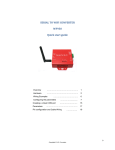
How to setup a serial Bluetooth adapter
Master Guide
This guide is based on Windows 7 and the UCBT232B/EXA Serial Bluetooth adapter.
Pairing the serial Bluetooth adapter with your computer …………………
2
Pairing with built-in Bluetooth or external USB Bluetooth dongle
using Windows default Bluetooth management software
(for Windows Vista, 7, 8)
.……………………………………….
2
Pairing with built-in Bluetooth or external USB Bluetooth dongle using
BlueSoleil (for Windows XP or older)
...................................... ..
12
Pairing with another Serial Bluetooth Adapter
Enabling the DIP switches
……………………………..
………………………………………..
20
24
Changing the COM port number ……………………………..…………
25
Making a loop-back test
28
……………………………...……
Configuring the parameters
………………………………………..
32
Configuring the parameters through the serial interface……………..
32
Configuring the parameters over Bluetooth……………………………
36
Resetting the serial Bluetooth adapter ………………………………………..
39
Questions and Answers
40
Known Issues
………………………..………………..
…………………………………………………………
USconverters.com
Copyright © U.S. Converters LLC
44
1
www.USconverters.com
Pairing the serial Bluetooth adapter with your computer.
To be able to communicate with the serial Bluetooth adapter you need to first pair it with your
computer.
Our serial Bluetooth adapters part UCBT232B and UCBT232EXA can be paired using a
Bluetooth management software called BlueSoleil (for Windows XP) or by using Windows Vista,
Windows 7 or Windows 8’s built-in Bluetooth management software.
We will first describe how to pair it using Windows Vista, 7 or 8.
Pairing with built-in Bluetooth or external USB Bluetooth dongle
using Windows default Bluetooth management software (for
Windows Vista, 7, 8)
First we identify the products:
Serial Bluetooth adapter
(UCBT232B/EXA)
USB Bluetooth adapter
type 1
USB Bluetooth dongle
type 2
The setup looks like this:
USconverters.com
Copyright © U.S. Converters LLC
2
www.USconverters.com
Getting Started
If your computer does not already have built-in Bluetooth, then you can instead use a USB
Bluetooth dongle.
Plug-in the dongle to your computer’s USB port. Windows should now search for the drivers for
the USB Bluetooth dongle, (you may need to be connected to the internet).
Windows automatically installing the drivers.
USconverters.com
Copyright © U.S. Converters LLC
3
www.USconverters.com
After the installation has finished successfully (there might be some failed control items as shown
in the image above, you don’t need to worry about this) you will be able to see two COM ports in
Windows Device Manager. One is an outgoing port and the other is an incoming port. Both are
virtual COM ports created by the Bluetooth drivers and the dongle.
USconverters.com
Copyright © U.S. Converters LLC
4
www.USconverters.com
Now you need to pair the serial Bluetooth adapter with the computer via the USB Bluetooth
dongle.
Enter the word “Bluetooth” in the start menu and click the Bluetooth link that shows up. This will
start Windows default Bluetooth management software (if this has successfully been installed on
your computer).
USconverters.com
Copyright © U.S. Converters LLC
5
www.USconverters.com
A Bluetooth icon should now appear in the task bar:
Click the Bluetooth icon and click “Add a Device” in the menu:
Windows should now search for the serial Bluetooth adapter and be able to find it:
USconverters.com
Copyright © U.S. Converters LLC
6
www.USconverters.com
After windows have found the adapter, click “Enter the device pairing code”:
USconverters.com
Copyright © U.S. Converters LLC
7
www.USconverters.com
The pairing code is “1234”:
Click Next
USconverters.com
Copyright © U.S. Converters LLC
8
www.USconverters.com
The serial Bluetooth adapter is now successfully installed and paired:
USconverters.com
Copyright © U.S. Converters LLC
9
www.USconverters.com
If Windows does NOT find the serial Bluetooth adapter it might be because it has already been
found earlier and already exists in the system. In that case you may need to first remove the
serial Bluetooth adapter from the system. Click the Bluetooth icon in Windows task bar and
chose “Show Bluetooth devices” from the menu:
The image above shows two serial Bluetooth adapters even only one adapter is connected. The
reason is that Windows sometimes fails to remove the last adapter which was connected to the
computer; you will then need to remove it manually. Right-click the icon and chose “Remove
Device” to remove it. Now you can again try to add the serial Bluetooth adapter by clicking the
Bluetooth icon in the task bar and chose “Add Device” from the menu.
USconverters.com
Copyright © U.S. Converters LLC
10
www.USconverters.com
Assuming that the serial Bluetooth adapter has been successfully installed, click the Bluetooth
icon in the Windows task bar and chose “Open Settings”. In the Bluetooth settings window you
can now see the COM ports for the serial Bluetooth adapter. I this case COM port number 63 and
105 have been assigned by Windows. Windows assigns an ingoing and an outgoing port. To
simplify things; COM63 is the main port which we will use for our communication. You do not
need to worry about incoming or outgoing ports as long as you identify which port is the main
port. The main port in this case for the UCBT232B/EXA is usually indicated as “Serial Adapter
‘Dev B’” as shown below:
COM63 shown above is the USB Bluetooth dongle.
If you wish to change the COM port number from COM63 to for example COM10 then you can do
so in Device Manager. Right-click the COM port listed under Ports (COM & LTP) in Device
Manager and chose “Properties”. Under the “Port Settings” tab click the “Advanced” button, you
can here change several settings including the COM port number.
USconverters.com
Copyright © U.S. Converters LLC
11
www.USconverters.com
Pairing with built-in Bluetooth or external USB Bluetooth dongle
using BlueSoleil (ONLY for Windows XP or older)
1. Download Bluesoleil from www.usconverters.com
2. Install Bluesoleil
3. Start Bluesoleil
4. Insert a USB Bluetooth dongle into your computer’s USB port.
If you computer has built-in Bluetooth skip this step.
5. Connect the UCBT232B/EXA to the power supply, either by a USB
power cable or a 110/5V power adapter, and turn it ON. The red LED
light on the UCBT232B/EXA should be steady ‘ON’ and the blue light
should be flashing.
The setup should look similar to this
USconverters.com
Copyright © U.S. Converters LLC
12
www.USconverters.com
6. To search for devices click on the orange circle in Bluesoleil and the UCBT232B/EXA will
be discovered. The lower status line must say “Searching for devices…” when a device
search is in progress.
If BlueSoleil cannot find or detect the Serial Adapter when you click the orange search button a
simple solution can be to use a different USB port for the external USB Bluetooth dongle if you
are using this. If this does not help try resetting the UCBT232B/EXA (hold down the reset button
for 10 sec with a paper clip while you apply power).
USconverters.com
Copyright © U.S. Converters LLC
13
www.USconverters.com
If you are getting a “USB Device Not Recognized” error from Windows when you turn on the
UCBT232B/EXA you can simply just ignore this error. The adapter only gets its power from the
USB port, no data is transmitted.
7. Right-click on the Serial Adapter icon in Bluesoleil and click ‘Pair Device’
USconverters.com
Copyright © U.S. Converters LLC
14
www.USconverters.com
8. Enter the default Pin code which is ‘1234’
9. Right-click on the Serial Adapter icon and click “Refresh”
USconverters.com
Copyright © U.S. Converters LLC
15
www.USconverters.com
10. Right-click again on the Serial Adapter icon and this time point the cursor on “Connect”
and click “Bluetooth Serial Port Service” to connect the UCBT232B/EXA with your
computer.
11. If you want Windows to automatically connect to the UCBT232B/EXA click Yes otherwise
click No.
USconverters.com
Copyright © U.S. Converters LLC
16
www.USconverters.com
12. The UCBT232B/EXA is now paired and connected to your computer. When its
successfully connected the blue LED light on the UCBT232B/EXA should be steady blue;
and in BlueSoleil a green dotted line with a red arrow going from the serial adapter icon
towards the orange circle should be visible.
USconverters.com
Copyright © U.S. Converters LLC
17
www.USconverters.com
13. To see the COM port number, status and signal strength, right-click on the Serial Adapter
icon and click ‘Status’
USconverters.com
Copyright © U.S. Converters LLC
18
www.USconverters.com
14. Status screen
USconverters.com
Copyright © U.S. Converters LLC
19
www.USconverters.com
Pairing with another Serial Bluetooth Adapter
If you do not have a built-in or external Bluetooth dongle you can instead use two serial Bluetooth
adapters to setup a link as illustrated in below illustration. This is a more direct form of cable
replacement since you do not need Bluesoleil or any other software to establish a communication
link.
First you will need to configure the two units as a slave and a master. To do this you can use
Tera Term or HyperTerminal.
1. Connect one serial Bluetooth adapter to your computer, this will be assigned the master
unit. If your computer does not have a serial port then you can connect the serial
Bluetooth adapter via a USB to serial adapter. If using a USB serial adapter make sure
that the COM port has been successfully created (check in Device Manager) before
continuing. Please see our “USB to Serial Setup Guide” for information on how to
successfully setup a USB serial Adapter. We recommend using a Premium USB to Serial
adapter (with FTDI processor chip), Prolific chips will in some cases not work.
Notice the COM port number, you will need it later.
Notice: The parameters of the UCBT232B/EXA can be configured through the serial COM
interface or over Bluetooth.
RESTART YOUR COMPUTER WITH THE USB TO SERIAL ADAPTER CONNECTED TO
YOUR COMPUTER AFTER INSTALLING THE DRIVERS. Otherwise you might experience
problems with Tera Term communication.
USconverters.com
Copyright © U.S. Converters LLC
20
www.USconverters.com
In this example the COM port created by the USB serial adapter is COM2 and the computer’s
built-in COM port is COM 1.
USconverters.com
Copyright © U.S. Converters LLC
21
www.USconverters.com
Now you need to configure one adapter as Master and one as Slave so that they can be paired
and communicate with each other. We use Tera Term for configuring the adapter’s parameters.
2. Download Tera Term from www.usconverters.com.
3. Install and start Tera Term. At the startup screen choose the virtual COM port number
which the USB adapter has created.
4. Click OK.
Note: make sure Tera Term’s port is set to 9600 baud which is the Bluetooth adapter’s
default setting, (adapter serial number 14090200 and lower has 19200 baud as default).
5. If there is a Flow switch on your Serial Bluetooth adapter it should be in position DCE
(towards the DB9 connector on the UCBT232B/EXA). You are now ready to send
commands to the UCBT232B/EXA. If you for example enter the command AT you should
get an ‘OK’ back from the UCBT232B/EXA.
Example: Entering the command VERSION=? gives you the UCBT232B/EXA’s version
number.
To be able to setup a link between the two serial Bluetooth adapters, one unit has to be
configured as a Master and the other has to be configured as a Slave (Slave this is the
default setting).
To change the adapter from Slave mode (default mode) to Master mode enter the following
command:
ROLE=M
USconverters.com
Copyright © U.S. Converters LLC
22
www.USconverters.com
This will put the adapter in Master mode, (for a list of all commands please refer to the serial
Bluetooth adapters user’s manual).
When the Serial Bluetooth Adapter is in Master mode the blue LED light will flash at a rate of
approximately 0.9 sec. This means that the adapter is inquiring and searching for other serial
Bluetooth adapters in the area.
To be able to auto-pair the two serial Bluetooth adapters you will also have to configure the
MASTER adapter to auto-connect; you do that by sending the AUTO=Y command to the adapter
in Tera Term. This command only applies to the Master adapter, not the slave.
You can now connect the other serial Bluetooth adapter (the slave) to the power supply and turn
it on. The factory default for the serial Bluetooth adapters is Slave mode, so you do not need to
configure the second adapter.
If configured correctly the Master adapter will within 5 seconds automatically find and connect to
the Slave adapter and the blue LED light will be steady ON. The wireless communication link is
now established.
To test if you successfully can send and receive data through the link you can make a loop-back
test as described later in this guide.
USconverters.com
Copyright © U.S. Converters LLC
23
www.USconverters.com
Enabling the DIP switches
If you want to use the DIP switches on top of the adapter then you need to first enable
these. You do that by sending the command DIP=Y in Tera Term; this will enable the
two DIP switches. The DIP switches can be a convenient way of switching between
Master and Slave mode.
USconverters.com
Copyright © U.S. Converters LLC
24
www.USconverters.com
Changing the COM port number
If you need to change the COM port number the UCBT232B/EXA is using, this can be done
as following:
Go to Windows Device Manager, right-click on the COM port which Bluesoleil (or your built-in
or USB Bluetooth dongle) has created, in this case COM 10 and select “Properties”.
If there are multiple COM ports listed in Device Manager you can determine which port to
click by right-clicking the Serial Adapter icon in BlueSoleil and click ‘Status’, as described in
section 1 of this guide; or if you are using Windows 7’s built-in Bluetooth drivers you can go to
Windows Bluetooth Settings and confirm which port is the outgoing COM port.
USconverters.com
Copyright © U.S. Converters LLC
25
www.USconverters.com
Under the ‘Port Settings” tab click the “Advanced” button
USconverters.com
Copyright © U.S. Converters LLC
26
www.USconverters.com
You will here be able to change the COM port number
After you have changed the COM port number click Ok. In Windows Device Manager you
may need to click the “Scan for Hardware changes” icon to have the changes show up:
USconverters.com
Copyright © U.S. Converters LLC
27
www.USconverters.com
Making a loop-back test
To verify that the UCBT232B/EXA is properly working, paired and connected you can make a
loop-back test. In this test you will check if you can send data from your computer out through
your computer’s Bluetooth (which actually is a virtual serial COM port) to the TX (transmit)
wire on the UCBT232B/EXA (pin 2), loop it back (by the help of a paper clip) and then receive
it back on the RX (receive) wire of the UCBT232B/EXA, and finally receive it back on your
computer.
To make the loop-back test you will need to setup and pair the UCBT232B/EXA with either
your computer’s build-in Bluetooth or a USB Bluetooth dongle as shown in the image below:
Please carefully follow the steps starting on page 2 of this guide to setup and link the
UCBT232B/EXA with your computer. In order to successfully perform the loop-back test the
UCBT232B/EXA MUST be properly linked with your computer.
1. Download the software AccessPort from www.usconverters.com.
2. Start AccessPort.
3. Click Tools > Configuration and enter the parameters of the UCBT232B/EXA at the COM
port which it has created, in this case COM 10.
To check which COM port number you need to enter in AccessPort see page 14 in this
guide. It is important you enter the correct COM port number otherwise you will not be
able to communicate with the UCBT232B/EXA.
USconverters.com
Copyright © U.S. Converters LLC
28
www.USconverters.com
Notice: adapter serial number 14090200 and lower has 19200 baud as default.
4. Loop-back the TX and RX signals. To do this you can simply use a paperclip by connecting it
from pin 2 to pin 3 on the UCBT232B/EXA’s DB9 connector:
USconverters.com
Copyright © U.S. Converters LLC
29
www.USconverters.com
The UCBT232B/EXA obviously cannot and should not be connected to your serial device
when you do this test. It only needs to have the loop-back paper clip and power connected
and turned ON.
5.
In AccessPort open COM 10 by clicking Tools > Port Switch. Make sure the COM port is
properly opened.
If AccessPort cannot open the port this is an indication that the UCBT232B/EXA in not properly
connected, it has a defect or the port for some other reason has not successfully been created,
perhaps you entered the wrong COM port number in AccssPort Configurations.
Enter a text string in the lower window and click send. With the UCBT232B/EXA properly
connected and linked you should now be able to receive the same characters in the upper
window which you send in the lower window.
USconverters.com
Copyright © U.S. Converters LLC
30
www.USconverters.com
USconverters.com
Copyright © U.S. Converters LLC
31
www.USconverters.com
Configuring the parameters
Configuring the UCBT232B/EXA with your own custom settings such a baud rate, data settings,
flow control etc. Please refer to the Serial Adapter’s datasheet for all available parameters.
The adapter’s parameters can be configured by one of the following ways:
1. Through the serial RS232 interface
2. Over Bluetooth
Configuring the parameters through the serial interface
Configuring the parameters through the serial interface is the easiest way.
If you do not have a built-in serial COM port available in your computer we recommend using our
Pro USB to Serial adapter model XS880 (with FTDI processor chip), which is fully compatible with
the adapter. We cannot guarantee compatibility with other adapters.
1. Connect the UCBT232B/EXA to your computer either directly to a COM port, or if you
computer does not have a COM port use a USB to Serial RS232 adapter.
2. If you are using a USB to Serial adapter first install the required drivers for the adapter
and make sure that a virtual COM port has been successfully created.
3. Connect the UCBT232B/EXA to the power supply and connect the UCBT232B/EXA’s
COM port to the USB serial adapter (or your computer’s COM port).
4. If you are using a USB serial adapter check in Windows Device Manager which COM
port has been assigned to your adapter, in this case COM port 5.
USconverters.com
Copyright © U.S. Converters LLC
32
www.USconverters.com
RESTART YOUR COMPUTER WITH THE USB TO SERIAL ADAPTER CONNECTED TO
YOUR COMPUTER AFTER INSTALLING THE DRIVERS. Otherwise you might experience
problems with Tera Term communication.
5. Download Tera Term from www.usconverters.com, we do not recommend using
HyperTerminal.
6. Install and start Tera Term. At the startup screen choose the virtual COM port number
which the USB adapter has created.
USconverters.com
Copyright © U.S. Converters LLC
33
www.USconverters.com
Notice: if your adapter has serial number 14090200 or lower the default baud rate is
19200 baud.
7. Click OK. If there is a Flow switch on your Serial Bluetooth adapter it should be in position
DCE (towards the DB9 connector on the UCBT232B/EXA). You are now ready to send
commands to the UCBT232B/EXA. If you enter the command AT you should get an ‘OK’
back from the UCBT232B/EXA.
Example: Entering the command VERSION=? gives you the UCBT232B/EXA’s version
number.
USconverters.com
Copyright © U.S. Converters LLC
34
www.USconverters.com
Keep in mind: that if you change the baud rate of the UCBT232B/EXA to for example 1200 baud
then you will no longer be able to communicate with the UCBT232B/EXA through Tera Term until
you also change the baud rate in Tera Term to 1200.
USconverters.com
Copyright © U.S. Converters LLC
35
www.USconverters.com
Configuring the parameters over Bluetooth
Setting the Data Mode and Command Mode using <<< and >>>
First pair and connect two adapters referring to the procedure described earlier in this guide,
or connect the adapter via built-in Bluetooth or an external USB Bluetooth dongle.
You can use Windows 7’s built-in Bluetooth management software for pairing the adapter with
your computer. Please see the section called:
“Pairing with built-in Bluetooth or external USB Bluetooth dongle using Windows default Bluetooth
management software (for Windows Vista, 7, 8)”
in this guide for how to pair the serial Bluetooth adapter with your computer using Windows builtin Bluetooth management software.
USconverters.com
Copyright © U.S. Converters LLC
36
www.USconverters.com
Before the connection is made the blue LED light on the adapter should flash which means that
the adapter is NOT connected.
Open Tera Term and open the COM port with the settings shown below, however change the
COM port number to the COM port number your system has created.
NOTICE: IF YOU ARE USING A BUILT-IN OR USB BLUETOOTH DONGLE THEN THIS COM
PORT NUMBER IS THE COM PORT CREATED BY THE BLUETOOTH DRIVERS, IT IS NOT
THE ADAPTER’S COM PORT. PLEASE SEE THE SECTION CALLED “Pairing with built-in
Bluetooth or external USB Bluetooth dongle using Windows default Bluetooth management
software (for Windows Vista, 7, 8)” FOR HOW TO DETERMINE WHAT THE BLUETOOTH
CREATED COM PORT NUMBER IS.
Click the OK button and the adapter will open the COM port. The blue LED light on the adapter
should be steady ON.
Now hold down the Shift key on your keyboard and pres the > key 3 times in a row with less than
500ms between the presses. You should now receive an “OK” message back from the adapter,
indicating that it is in command/configuration mode. It may take a few tries to get the “OK” to
appear since the timing of the three > signs have to be correct.
USconverters.com
Copyright © U.S. Converters LLC
37
www.USconverters.com
You can now enter any AT command which will be sent to the serial adapter over Bluetooth. For
example enter baud=? And you will get the current baud rate back from the adapter.
USconverters.com
Copyright © U.S. Converters LLC
38
www.USconverters.com
To get the adapter back to Data Mode you can enter the command: connect=y
Resetting the serial Bluetooth adapter
To reset the adapter to factory settings simply press and hold the reset button located on the top
of the adapter. Use a paper clip and carefully press AND HOLD the micro button through the hole
in the housing for approx 2 – 5 seconds. The adapter will then reset and restart.
Resetting the adapter by pressing the reset button will erase all settings you have entered and
reset them to factory default settings.
Removing the power supply to the adapter will however NOT erase your entered settings.
USconverters.com
Copyright © U.S. Converters LLC
39
www.USconverters.com
Questions & Answers
Q: I cannot communicate with my UCBT232B/EXA, why?
A: Here are several things you can try:
1. Try and swap the TX and RX wires between the UCBT232B/EXA and the remote device
it is connected to by using a null modem adapter. This is required if the serial device you
are connecting to is configured as a DTE device.
2. If you are using a null modem cable to connect your computer to the remote device then
the switch on the UCBT232B/EXA connected to your computer must be in the position
towards the DB9 connector. The UCBT232B/EXA connected to your remote device must
also be in the position towards the DB9 connector.
3.
If you are using a straight through cable to connect your computer to the remote device
then the switch on the UCBT232B/EXA connected to the computer must be toward the
DB9 connector. The switch on the UCBT232B/EXA connected to the remote device must
be towards the antenna.
4. Reset the adapter(s) to factory settings by pressing the reset button and start over.
5. Disable the Echo and status messages. This can be done with the ECHO=N and
PROMPT=N commands.
6. Disable flow control on both UCBT232B/EXA’s (FLOW=N)
7. Loop-back RTS to CTS (Pin 7 to Pin 8) on the remote connector if possible.
8. Your device may need a DSR/DTR signal. Some devices require a signal on both CTS
and DSR. The UCBT232B/EXA simply loop-back DTR to DSR. If your device requires a
DSR signal but does not provide a DTR signal then the DSR signal will be missing.
Looping-back the wires as shown below will solve this problem. Generally hardware flow
control should be disabled on the UCBT232B/EXA when this loop-back is used.
Adapter Side
Equipment Side
Pin 2 (RxD)
Pin2 (RxD)
Pin 3 (RxD)
Pin3 (RxD)
Pin5 (GND)
Pin5 (GND)
Pin7 (RTS)
Pin4 (DTR)
Pin7 (RTS)
Pin8 (CTS)
Pin6 (DSR)
Pin8 (CTS)
USconverters.com
Copyright © U.S. Converters LLC
40
www.USconverters.com
Q: When entering the command ATF? it returns an error when trying to search for Bluetooth
devices in range.
A: In order to have the UCBT232B/EXA display Bluetooth devices in range it must be in Master
mode, and must not be in auto-connect mode.
Q: How do I configure the UCBT232B/EXA for 7 data bits, 1 stop bit and even parity?
A: The adapter itself cannot be set to 7 data bits however by setting the parity bit of your
software (local computer side) and serial device (remote adapter side) to either SPACE,
NONE or MARK the adapter can emulate 7-bit communication while its actually set to 8 bit
communication. This will work with most devices, however possibly not all.
This has been tested and confirmed working both with a paired “USB Bluetooth dongle to serial
Bluetooth adapter” setup and a paired “serial Bluetooth adapter to serial Bluetooth adapter”
setup.
Alternatively, if your serial device and/or control software is set to 7 bits (and cannot be set to 8
bits which the adapter is using), you may be able to set your serial device and/or control software
to 8 bits and the parity bit to EVEN, which in will simulate 8 bits. This solution will work with many
serial devices.
Please see example setup below:
Depending on your serial device you need to set the parity
bit of your control software and/or serial device (not
the adapter) to either Space, None or Mark, you will need
to simply try all 3 to find out which works best with your
particular serial device.
USconverters.com
Copyright © U.S. Converters LLC
41
www.USconverters.com
Example settings when using AccessPort terminal software with 7 bit communication at the
computer side:
Q: How is DTR/DSR signals (pins 4 & 6) handled by the UCBT232B/EXA?
A: The DTR signal is rarely used in most serial devices and even if it is used it is often not
actually required by the application. This is why the UCBT232B/EXA has looped back the DTR /
DSR signal, pin 4 looped to pin 6. By doing this, if the device asserts DTR indicating it will read an
asserting DSR. For devices that require an asserting DSR but are not asserting DTR the DSR
signal (pin 6) can be shorted to RTS (pin 7).
USconverters.com
Copyright © U.S. Converters LLC
42
www.USconverters.com
Q: How can I keep the COM port open at all times? I have created a link using a USB Bluetooth
dongle and a UCBT232B and it appears as the COM port does not open until my application
software tries to connect to my serial device.
A: When creating a link with a USB Bluetooth dongle or built-in Bluetooth the UCBT232B/EXA will
be the Slave and the USB Bluetooth dongle (or built-in Bluetooth) in the PC will be the Master.
The Master or the application at the Master will control the Slave. This is cannot be changed
since this is how the Bluetooth SPP works.
To keep a port open at all times you can instead create a link using two UCBT232B/EXA’s, this
will create a Master and a Slave UCBT232B/EXA which will work independent from the PC
thereby keeping the port open at all times.
Q: I found that the UCBT232B/EXA generates a connect and disconnect string upon changes in
Bluetooth state as following: CONNECT : C485 08 177441 DISCONNECT : C485 08 177441.
This string causes my serial device (a telescope) to enter into a bad state which requires a power
cycle to recover from. Would it be possible to avoid generating the character string?
A: Yes, please refer to the 'PROMPT=N' command. This parameter is by default set to “Y”, if you
change it to “N” then the character strings will no longer be present and no longer cause
problems with your serial device.
Q: Does the UCBT232B/EXA work with iPhone/iPad/iPods?
A: The iPhone/iPad/iPods does not support the SPP (Serial Port Profile) so currently the
UCBT232B/EXA does not work with iPhone/iPad/iPods.
Update December 2012: We are working on a new version of the UCBT232B/EXA which will be
compatible with iOS for iPhone/iPad/iPods, unfortunately we currently do not have a release date.
Bluetooth V4.0 has support for newer versions of smart phones with iOS. Older versions of iOS is
not compatible with Bluetooth V4.0.
USconverters.com
Copyright © U.S. Converters LLC
43
www.USconverters.com
Known issues
When using the UCBT232B/EXA with SkySafari telescope software the “Echo” and system status
messages must be disabled for proper communication. These can be disabled with the
commands:
ECHO=N
PROMPT=N
USconverters.com
Copyright © U.S. Converters LLC
44