1
TROUBLESHOOTING
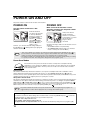
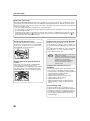
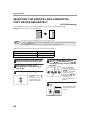
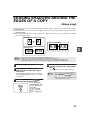
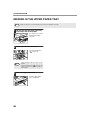
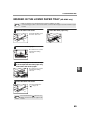
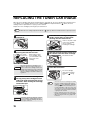
MISFEED IN THE MACHINE
1
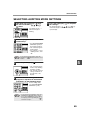
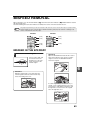
Open the bypass tray and the side
cover.
2
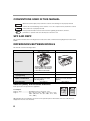
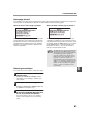
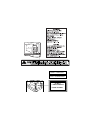
Check the misfeed location. Remove
the misfed paper following the
instructions for each location in the
illustration below.
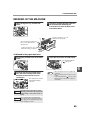
If paper is misfed here, go to "B.
Misfeed in the fusing area".
If the misfed paper is visible side
here, go to "C. Misfeed in the
transport area".
If paper is misfed here, go to "A.
Misfeed in the paper feed area".
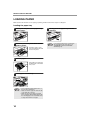
A. Misfeed in the paper feed area
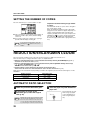
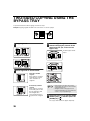
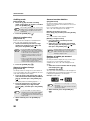
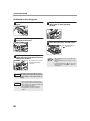
1
Push gently on both ends of the front
cover.
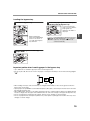
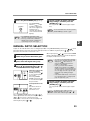
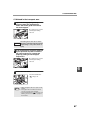
3
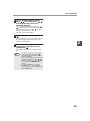
Close the front cover and side cover.
The misfeed indicator
(
) will go out.
6
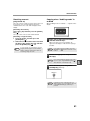
2
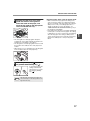
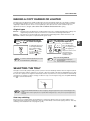
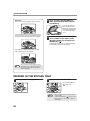
Carefully remove the misfed paper.
Turn the roller rotating knob in the
direction of the arrow to assist in
removing it.
Roller rotating knob
Be careful not to tear the
misfed paper during
removal.
Note
• When closing the front cover, gently hold
both ends.
• When closing the side cover, press on the
handle.
• If the misfeed indicator (
) does not stop
blinking, check for torn pieces of paper in
the machine.
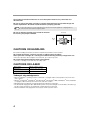
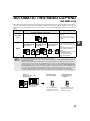
The fusing unit is hot. Do not touch
Warning the fusing unit when removing misfed
paper. Doing so may cause a burn or
injury.
Do not touch the photoconductive drum
Caution (green portion) when removing the misfed
paper. Doing so may damage the drum and
cause smudges on copies.
65