1
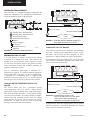
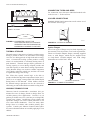
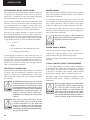
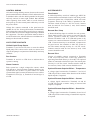
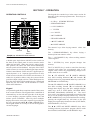
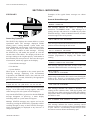
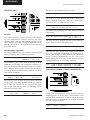
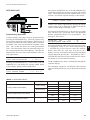
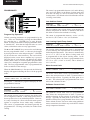
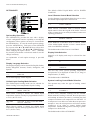
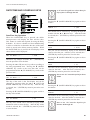
Form 201.28-NM1.EN.PED/CE (0211) SECTION 7 - OPERATION OPERATING CONTROLS DISPLAY The keypad also contains keys in the center section for data entry in the various program modes. These keys are listed below: • 0-9 Keys NUMERIC KEYPAD • PERIOD/DECIMAL • +/- PLUS/MINUS • ENTER • CANCEL • ▲ UP ARROW • ▼ DOWN ARROW • ◄ LEFT ARROW 7 • ► RIGHT ARROW The numeric keys allow keying numeric values into memory. KEYPAD UNIT SWITCH FIGURE 15 - KEYBOARD AND DISPLAY Unit Switch A double pole single throw ON/OFF rocker switch on the front of the control panel is used to turn the entire chiller ON and OFF. When the switch is placed in the OFF position, the entire unit shuts down immediately and all systems will be disabled. One pole of the UNIT switch contacts is wired to the Run Signal input and the Chiller Control Board “UNIT switch X” digital input (X equals System 1 or 2). Separate System Fuses are also wired in series with each set of UNIT switch contacts. If either fuse is pulled or blown, only the system with the good fuse (Input is high) will run. When both inputs are high, the entire chiller will be enabled to run. When both inputs are low, the chiller will be disabled as a UNIT switch OFF Shutdown. Keypad An operator keypad allows complete control of the system from a central location. The keypad offers a multitude of command keys on the left and right side of the keypad to access displays, program setpoints, history data, and initiate system commands. Most keys have multiple displays that can be accessed by repetitively pressing the key or by pressing the ▲,▼,◄, and ► (ARROW) keys. The keypad utilizes an overlay to convert the keypad to various languages. JOHNSON CONTROLS The • (PERIOD/DECIMAL) key allows keying a decimal point into numeric values. The +/- (PLUS/MINUS) key allows making numeric values negative. The (ENTER) key stores program changes into memory. The X (CANCEL) key is used to cancel the data entry operation and returns the programmed value to the original value, before any programming changes were made, when an error is made. The ▲ (UP ARROW) and ▼ (DOWN ARROW) keys allow scrolling backward (▲) and forward (▼) through items to be programmed under keys such as the PROGRAM or OPTIONS key. The ▲ (UP ARROW) and ▼ (DOWN ARROW) keys also allow scrolling forward (▼) or backwards (▲) through data display keys that have multiple displays under keys such as UNIT DATA, SYSTEM DATA, HISTORY, PROGRAM, OPTIONS, etc. The arrow keys can be used instead of repeatedly pressing the data key to see the multiple displays under a key. Once the ▲ ▼ (ARROW) keys are pressed and used for scrolling, pressing the original data key will return to the first display message displayed under the data (UNIT DATA, SYSTEM DATA, etc.) keys. The ◄ ► (LEFT and RIGHT ARROW) keys allow scrolling between non-numeric program choices under the OPTION, DATE/TIME, and SCHEDULE keys. 49