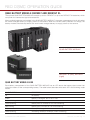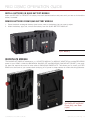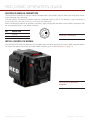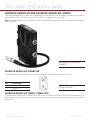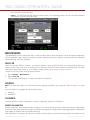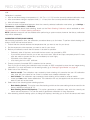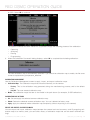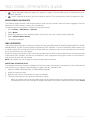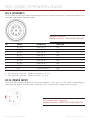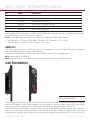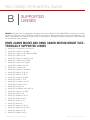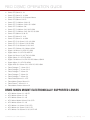
1
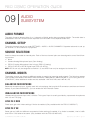
RED DSMC
O P E R AT I O N G U I D E
EPIC | SCARLET | V5.1
DRAGON | MYSTERIUM-X
RED.COM
R E D D S M C O P E R AT I O N G U I D E
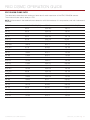
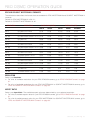
TABLE OF CONTENTS
Disclaimer4
Copyright Notice
4
Trademark Disclaimer
4
Compliance Statements
4
Safety Instructions
6
Chapter 1: DSMC Overview
7
DRAGON Sensor
7
MYSTERIUM-X ® Sensor
7
Image Processing
8
HDRx8
Magic Motion
9
Audio Recording
9
Microphone Level Analog Inputs 9
Line Level Analog Inputs
9
Video Monitoring Outputs
10
Lens Mounts
11
REDMOTE11
SMPTE Timecode 11
Additional Resources
11
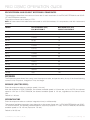
Chapter 2: Components and Modules
12
Brain12
SIDE SSD MODULE
14
SIDE HANDLE
15
DSMC Modules
16
REDMOTE21
Displays22
Chapter 3: Power the DSMC
25
Power Consumption
25
Power Draw
25
Power Sources
25
Power Status
32
Power Up
32
Power Down
33
Chapter 4: Graphical User Interface
34
RED LCD, Touchscreen LCD, BOMB EVF, External
Monitors34
SIDE HANDLE
38
REDMOTE38
Navigate Graphical User Interface
39
Chapter 5: Basic Menus
40
Access Advanced Menus from Basic Menus
40
Edit List Feature
40
Frame Rate (FPS)
40
ISO (Sensitivity)
40
F Stop
41
Exposure41
White Balance
41
Resolution42
REDCODE42
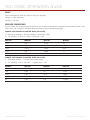
Chapter 6: Advanced Menus
47
Settings Menu
47
Media Menu
83
Playback83
Power84
COPYRIGHT © 2013 RED.COM, INC HDR Menu
85
Focus Menu
85
Presets91
Chapter 7: Upgrade DSMC Firmware
94
Verify Current Camera Firmware
94
Upgrade Procedure
94
Chapter 8: Manage Digital Media
96
Overview96
Format Media
96
Metadata97
Clip Naming Conventions 98
Media Capacity Remaining Status
98
Eject Media from Camera (Unmount)
98
Offload Media to your Computer
99
Erase Media
99
Media Menua
100
Chapter 9: Audio Subsystem
102
Audio Format
102
Channel Setup
102
Source Selection
102
Channel Modes
102
Audio Recording
103
Peak Meter
103
Data Path
103
HD-SDI/HDMI Embedded Audio
103
Audio During Playback
105
Chapter 10: REDMOTE Operation
106
Control, Connectors and Display
106
Operation108
Internal Battery
112
Upgrade REDMOTE Firmware
113
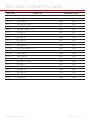
Appendix A: Input/Output Connectors
117
Camera Brain Front
117
Camera Brain Rear
119
SIDE SSD MODULE
124
REDMOTE125
Appendix B: Supported Lenses
126
DSMC Canon Mount and DSMC Canon MOTION
MOUNT Electronically Supported Lenses 126
DSMC Nikon Mount Electronically Supported Lenses
127
DSMC Leica-M Mount Lenses
128
Appendix C: Default Key Functions
129
Appendix D: 3D Setup and Operation
132
Overview132
Camera Setup
132
Clip Naming Conventions
132
Connecting Cameras
133
Operation133
Appendix E: Post-Production134
Monitoring134
REDCINE-X ® PRO
134
Appendix F: DSMC Maintenance
135
Cleaning135
955-0020_V5.1, REV-A |
2
R E D D S M C O P E R AT I O N G U I D E
Back Focus Adjustment
Appendix G: Troubleshoot Your DSMC
No Media Attached
Recording Halted: Record Error–Shutdown
Preset Could Not Be Applied
Camera Cannot Be Paired to REDMOTE
Cannot See Menus on LCD Touchscreen
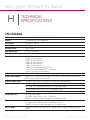
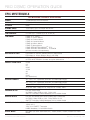
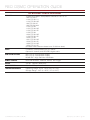
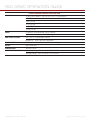
Appendix H: Technical Specifications
EPIC DRAGON
EPIC MYSTERIUM-X
SCARLET DRAGON
SCARLET MYSTERIUM-X
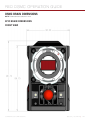
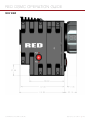
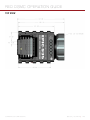
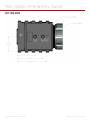
DSMC Brain Dimensions
Appendix I: Menu Map
COPYRIGHT © 2013 RED.COM, INC 136
138
138
138
138
138
138
139
139
141
143
145
147
152
955-0020_V5.1, REV-A |
3
R E D D S M C O P E R AT I O N G U I D E
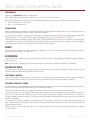
DISCLAIMER
RED has made every effort to provide clear and accurate information in these installation instructions, which are provided solely for
the user’s information. While thought to be accurate, the information in this document is provided strictly “as is” and RED will not
be held responsible for issues arising from typographical errors or
user’s interpretation of the language used herein that is different
from that intended by RED. All safety and general information is
subject to change as a result of changes in local, federal or other
applicable laws.
RED reserves the right to revise this document and make changes
from time to time in the content hereof without obligation to notify
any person of such revisions or changes. In no event shall RED, its
employees or authorized agents be liable to you for any damages
or losses, direct or indirect, arising from the use of any technical or
operational information contained in this document.
COPYRIGHT NOTICE
COPYRIGHT© 2013 RED.COM, INC.
All trademarks, trade names, logos, icons, images, written material,
code, and product names used in association with the accompanying product are the copyrights, trademarks or other intellectual
property owned and controlled exclusively by RED.COM, INC.
TRADEMARK DISCLAIMER
All other company, brand and product names are trademarks or registered trademarks of their respective holders. RED has no affiliation
to, is not associated or sponsored with, and has no express rights
in third-party trademarks. Distagon is a registered trademark of Carl
Zeiz, Inc. Leica is a regestered trademark of BV Corporation Netherlands. Nikkor, is a registered trademark of Nikon Corporation.
For comments or questions about content in this Operation Guide,
please send a detailed e-mail to [email protected].
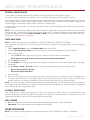
COMPLIANCE STATEMENTS
INDUSTRIAL CANADA EMISSION COMPLIANCE STATEMENTS
This device complies with Industry Canada license-exempt RSS
standards RSS 139 and RSS 210. Operation is subject to the following two conditions: (1) this device may not cause interference, and
(2) this device must accept any interference, including interference
that may cause undesired operation of the device.
manufacturer could void the users authority to operate this equipment.
NOTE: This device complies with Part 15 of the FCC Rules.
Operations subjected to the following two conditions (1) this device
may not cause harmful interference, and (2) this device must accept
any interference received, including that may cause undesirable interference.
This Class B digital apparatus complies with Canadian ICES-003.
Le présent appareil est conforme aux CNR d’Industrie Canada applicables aux appareils radio exempts de licence. L’exploitation est
autorisée aux deux conditions suivantes : (1) l’appareil ne doit pas
produire de brouillage, et (2) l’utilisateur de l’appareil doit accepter
tout brouillage radioélectrique subi, même si le brouillage est susceptible d’en compromettre le fonctionnement.Cet appareil numérique de la classe B est conforme à la norme NMB-003 du Canada.
FEDERAL COMMUNICATIONS COMMISSION (FCC) STATEMENTS
This equipment has been tested and found to
comply with the limits for a Class B digital device, pursuant to part 15 of the FCC Rules.
These limits are designed to provide reasonable protection against harmful interference
in a residential installation. This equipment
generates, uses and can radiate radio frequency energy and, if not installed and used
in accordance with the instructions, may cause harmful interference
to radio communications. However, there is no guarantee that interference will not occur
in a particular installation. If this equipment does cause harmful interference to radio or television reception, which can be determined
by turning the equipment off and on, the user is encouraged to try to
correct the interference by one or more of the following measures:
Reorient or relocate the receiving antenna.
Increase the separation between the equipment and receiver.
Connect the equipment into an outlet on a circuit different from
that to which the receiver is connected.
Consult the dealer or an experienced radio/TV technician for
help.
In order to maintain compliance with FCC regulations, shielded
cables must be used with this equipment. Operation with non-approved equipment or unshielded cables is likely to result in interference to radio and TV reception. The user is cautioned that changes
and modifications made to the equipment without the approval of
COPYRIGHT © 2013 RED.COM, INC CAUTION: Exposure to Radio Frequency Radiation.
The device shall be used in such a manner that the potential for human contact is minimized
This equipment complies with FCC radiation exposure limits set
forth for an uncontrolled environment. This equipment should be
installed and operated with a minimum distance of 20cm between
the radiator and your body.
CAUTION: Regulations of the FCC and FAA
prohibit airborne operation of radio-frequency
wireless devices because there signals could
interfere with critical aircraft instruments.
CAUTION: If the device is changes or modified
without permission from RED, the user may
void his or her authority to operate the equipment.
AUSTRALIA AND NEW ZEALAND STATEMENTS
RED declares that the radio equipment described in this document
comply with the following international standards.
IEC 60065 - Product Safety
ETSI EN 300 328 - Technical requirement for radio equipment
RED declares digital devices described in this document comply
with the following Australian and New Zealand standards.
AS/NZS CISPR 22 – Electromagnetic Interference
AS/NZS 61000.3.2– Power Line Harmonics
AS/NZS 61000.3.3 – Power Line Flicker
955-0020_V5.1, REV-A |
4
R E D D S M C O P E R AT I O N G U I D E
JAPAN STATEMENTS
FRANCE
This is a Class B product based on the
standard of the Voluntary Control Council
for Interference (VCCI) for information technology equipment. If this equipment is used
near a radio or television receiver in a domestic environment, it may cause radio interference. Install and use the equipment
according to the instruction manual.
Usage Restrictions - Geographic Area Where Restriction Applies :
France
For mainland France
2.400 - 2.4835 GHz (Channels 1-16) authorized for indoor use
2.400 -2.454 GHz (Channels 1-10) authorized for outdoor use
Restrictions d’utilisation - Zone géographique où les restrictions
s’appliquent : France
Pour la France métropolitaine
2.400 - 2.4835 GHz (Canaux 1 à 16) autorisé en usage intérieur
2.400 -2.454 GHz (canaux 1 à 10) autorisé en usage extérieur
NORWAY
EUROPEAN UNION COMPLIANCE STATEMENTS
RED declares that the radio
equipment described in this
document comply with the
R&TTE Directive (1999/5/
EC) issued by the Commission of the European Community.
This subsection does not apply for the geographical area within a
radius of 20 km from the centre of Ny-Ålesund
Dette gjelder ikke for det geografiske området innenfor en radius av
20 km fra sentrum av Ny-Ålesund
Compliance with this directive implies conformity to the following
European Norms (in brackets are the equivalent international standards).
EN 60065 (IEC 60065) – Product Safety
ETSI EN 300 328 Technical requirement for radio equipment
ETSI EN 301 489 General EMC requirements for radio equipment.
INFORMATION
Products with the CE marking comply with the EMC Directive
(2004/108/EC) and the Low Voltage Directive (2006/95/EC) issued
by the Commission of the European Community. Compliance with
these directives implies conformity to the following European Product Family Standards.
EN 55022 (CISPR 22) – Electromagnetic Interference
EN 55024-1 (CISPR 24) – Electromagnetic Immunity
EN 61000-3-2 (IEC610000-3-2) – Power Line Harmonics
EN 61000-3-3 (IEC610000) – Power Line Flicker
EN 60065 (IEC60065) – Product Safety
USAGE RESTRICTIONS FOR PRODUCTS THAT INCORPORATE
REDLINK
Products that fall into this category are denoted
by inclusion of the Class 2 identifier symbol (exclamation mark in a circle) accompanying the CE
Mark on the products regulatory label, example
to the left.
COPYRIGHT © 2013 RED.COM, INC new product.
The Waste Electrical and Electronic Equipment (WEEE) mark applies only to countries
within the European Union (EU) and Norway.
This symbol on the product and accompanying documents means that used electrical
and electronic products should not be mixed
with general household waste. For proper
treatment, recovery and recycling, please
take this product to designated collection
points where it will be accepted free of
charge. Alternatively, in some countries you
may be able to return your products to your
local retailer upon purchase of an equivalent
Disposing of this product correctly will help save valuable resources
and prevent any potential negative effects on human health and the
environment, which could otherwise arise from inappropriate waste
handling. Please contact your local authority for further details of
your nearest designated collection point. Penalties may be applicable for incorrect disposal of this waste, in accordance with you
national legislation.
For business users in the European Union, if you wish to discard
electrical and electronic equipment, please contact your dealer or
supplier for further information.
RESPONSIBLE PARTY:
RED Digital Cinema
34 Parker
Irvine, CA 92618
USA
955-0020_V5.1, REV-A |
5
R E D D S M C O P E R AT I O N G U I D E
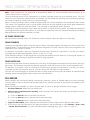
SAFETY INSTRUCTIONS
DO NOT use the camera or accessories near water. Avoid exposing your camera to moisture. The unit is not waterproof,
so contact with water could cause permanent damage to the
unit as well as electric shock and serious injury to the user. DO
NOT use the camera in the rain or under other conditions with
high moisture without appropriate protection, and immediately
remove power source if camera or accessories are exposed to
moisture.
the power cord of the AC Power Adapter. A grounding-type
plug has two blades and a third “grounding” prong. The third
prong is provided for your safety. A grounding-type plug shall
be connected to an outlet with a protective earthen connection. If the grounding-type plug does not fit into your outlet,
do not attempt to modify the plug or outlet, consult a qualified
electrician.
WARNING: To reduce the risk of fire or electric shock, do not expose the camera to
rain or moisture.
DO NOT expose your camera to excessive vibration or impact
(shock). Be careful not to drop your camera. Internal mechanisms may be damaged by severe shock. Mechanical alignment
of optical elements may be affected by excessive vibration.
ELECTROMAGNETIC INTERFERENCE: The use of devices using radio or other communication waves may result in the malfunction or interference with the unit and/or with audio and
video signals.
Clean only using a dry cloth. When cleaning your camera, remember that it is not waterproof and moisture can damage
electronic circuitry. DO NOT rinse or immerse any element of
the camera, lens or other accessory, keep them dry at all times.
DO NOT use soaps, detergents, ammonia, alkaline cleaners,
and abrasive cleaning compounds or solvents. These substances may damage lens coatings and electronic circuitry.
Maintain sufficient ventilation—DO NOT block any ventilation
openings or obstruct cooling fan airflow.
CAUTION: Proper camera ventilation requires a minimum 1/2” (1,25cm) clearance
between the camera ventilation openings
and external surfaces. Verify that objects
that can block the fan intake and exhaust ports do not impede airflow. Failure
to permit adequate airflow may result in
overheating of the camera, degraded operation and in extreme situations, damage
to the camera.
DO NOT operate or store near any heat sources such as radiators, heat registers, stoves, or any other apparatus that produce heat. Store in a protected, level and ventilated place.
Avoid exposure to temperature extremes, damp, severe vibration, strong magnetic fields, direct sunlight or local heat sources during storage. Remove any batteries from the camera before storage. Recommended storage and usage temperatures
for your camera, lenses and other accessories are:
‒‒
Operating range: 0°C to +40°C (32°F to 104°F)
‒‒
Storage range: -20°C to +50°C (-4°F to 122°F)
Protect all power cords from being pinched, walked on or
driven over by a vehicle. Replace any power cords suspected
of sustaining damage due to crushing or other forms physical
damage.
CAUTION: The power cord plug for the AC
Power Adapter is used as the power disconnect. To disconnect all power from the
AC Power Adapter, unplug the power cord
plug from the wall outlet. During use, the
power cord plug should remain easily accessible at all times.
Lithium Ion batteries may be subject to special handling requirements pursuant to federal and local laws. Please refer to
specific shipping instructions included with your battery regarding proper transport of your battery. Do not handle your
battery if it is damaged or leaking. Disposal of batteries must
be in accordance with local environmental regulations. For
example, California law requires that all rechargeable batteries must be recycled by an authorized recycle center. Storing
batteries fully charged or in high temperature, conditions may
permanently reduce the life of the battery. Available battery
capacity may also be temporarily lessened after storage in low
temperature conditions.
WARNING: Do not expose the battery to excessive heat.
WARNING: Danger of explosion if an incorrect battery is charged with the RED Charger or is used to power the camera and
accessories. Replace only with the same
or equivalent type battery.
CAUTION: Refer all service and repair to
qualified RED service personnel. To reduce
the risk of electric shock, and damage to
the camera or accessories, DO NOT attempt to perform any servicing other than
any procedures that are recommended in
the operating instructions.
If there are any performance issues with your camera or accessories when operating within this temperature range, please file
a support ticket on www.RED.com/support.
The SIDE HANDLE, Side SSD Module, Rear Modules and Lens
Mount are NOT HOT SWAPPABLE, meaning you cannot remove or install them while the camera is powered on. Before
installing or removing any of these accessories, you MUST
power down the camera. Failure to do so may result in damage
to the accessory and/or camera brain that will not be covered
under warranty.
Do not bypass the third prong of the grounding-type plug on
COPYRIGHT © 2013 RED.COM, INC 955-0020_V5.1, REV-A |
6
R E D D S M C O P E R AT I O N G U I D E
01
DSMC
OVERVIEW
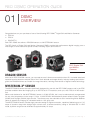
Congratulations on your purchase of one of the following RED DSMC ® Digital Still and Motion Cameras:
EPIC-M
EPIC-X
SCARLET-X
Each RED DSMC has either a DRAGON sensor or a MYSTERIUM-X sensor.
The RED family of Digital Still and Motion Cameras (DSMC) provide high performance digital imaging over a
wide range of frame rates and optical formats including Super 35mm/APS-H.
EPIC Digital Still
and Motion
Cameras
DRAGON SENSOR
With the 6K RED DRAGON ™ sensor, you can capture over 9 times more resolution than HD. Unrivaled detail and
impressive native exposure eclipse 35mm film in both latitude and image density. Industry leading specs distinguish the DRAGON sensor as a model for image innovation, helming the evolution of digital cinema technology.
MYSTERIUM-X ® SENSOR
The MYSTERIUM-X sensor has been specifically designed for use with the RED DSMC camera, and in the EPIC
provides variable frame rate imaging at up to 95 FPS at 5K FF resolution, and up to 400 FPS at 1K WS resolution.
Native color balance for the MYSTERIUM-X sensor is 5,000 KELVIN, but it may be electronically compensated
for any color temperature in the range 1,700 to 10,000 KELVIN. White balance preset values include Tungsten
(3200K) and Daylight (5600K) light sources. The camera may also calculate a color neutralizing White Balance
value on demand by imaging on a standard white or 18% gray card.
The MYSTERIUM-X sensor includes high precision analog to digital conversion, capable of delivering up to 13.5
stops of dynamic range with daylight light sources over a camera sensitivity rating of 320-800 ISO. In HDR
mode, dynamic range can be extended to approximately 18 stops.
COPYRIGHT © 2013 RED.COM, INC 955-0020_V5.1, REV-A |
7
R E D D S M C O P E R AT I O N G U I D E
IMAGE PROCESSING
The digital image received from the sensor is formatted as a pixel defect corrected (but in all other aspects
unprocessed) 16-bit per pixel RAW data frame.
Each RAW frame or sequence of RAW frames in a clip is compressed using proprietary wavelet based REDCODE ® RAW compression, then stored to a digital media magazine such as the REDMAG ™ 1.8” SSD.
When recorded, the RAW data is independent of any RGB domain color processing such as ISO, White Balance
or other RGB color space adjustments made by the camera operator. These parameters are saved with the
RAW data as reference metadata; that is, color is not burned into the recorded RAW data.
This recording technique permits RGB color processing choices to be deferred to post-production or to be adjusted in the field to help a director visualize alternative color treatments, without affecting the recorded RAW
data’s image quality or dynamic range.
The camera’s monitoring path converts RAW sensor data to a white balanced 12-bit depth 1920 x 1080 pixel
RGB 4:4:4 video signal. This signal may be modified using ISO, White Balance or other RGB color space adjustments as desired, and is then scaled and gamma-corrected to provide VIEWFINDER, HD-SDI, and HDMI
monitor outputs at 10-bit depth in 4:2:2 YCC or 8-bit depth in 4:4:4 RGB.
Frame guides and other camera data may be added as desired to one or more of the outputs.
NOTE: The REDCINE-X ® PRO software can create and export .RMD “Look” files which may then be imported as
camera monitor path color processing presets. This information is stored as reference metadata, so that this
color processing choice can be the default value used in post-production. For more information about Look
files, go to “Looks” on page 92.
HDRX
HDRx is an option for extending dynamic range up to 6 stops over the base dynamic range offered by the camera. When enabled, HDRx simultaneously shoots two images of identical resolution and frame rate—a normally
exposed primary track (A-track), and an underexposed secondary track (X-track) whose exposure value reflects
the additional stops of highlight protection desired.
For example, if you select an HDR value of +2 and your primary track exposure is 1/48 sec, the secondary
track exposure will be 2 stops under, or 1/192 sec. The ISO and aperture remain the same for both exposures.
During acquisition and recording, the two tracks are “motion-conjoined”, meaning there is no gap in time between the two exposures. This is very important to note because if these were traditional alternating exposures,
there would be a time gap between the two tracks that would show up as an undesirable motion artifact. Both
tracks (A and X) are stored in a single .R3D ® file.
Since there are two exposures in HDRx mode, the camera is recording double the amount of frames each second. For example, when shooting at 24 FPS, the camera is recording two 24 FPS tracks, which is the data rate
equivalent of 48 FPS; however, after combining the A and X tracks in post-production, you will see only one 24
FPS blended image sequence.
HDRx provides multiple options for exploitation in post-production.
Blend the two tracks in post tools like REDCINE-X PRO or any other application that supports the SDK to
create Magic Motion ™ . This blending of the two tracks comes with a slider so that you can decide just how
much of each track you want to use. A preview window shows you the combined result of your selection,
or you can view each track individually.
Combine the two tracks using MNMB (More Normal Motion Blur). MNMB is designed to emulate the motion
of a traditional camera with full motion blur. This is a tool created by The Foundry that uses a new motion
estimation algorithm designed specifically for HDRx. The shorter exposure (sharper image) is blended to
match the motion blur of the normal exposure. Again, a preview window shows the combined result of your
selection, or you can view each track individually.
Use the X-track data for motion tracking, then combine the X-track with the A-track, or just motion stabilize
the A-track using the motion analysis data extracted from the X-track.
Export to EXR file format to get a multi-view EXR with both exposures (like a stereo EXR).
COPYRIGHT © 2013 RED.COM, INC 955-0020_V5.1, REV-A |
8
R E D D S M C O P E R AT I O N G U I D E
NOTE: If you ignore the X-track data, you will have a standard exposure with up to 13.5 stops of dynamic range
just as if you had not enabled HDRx. For this reason, we encourage the A-track exposure to be “normal” as
it provides the most options. If you are tempted to shoot “over-under”, you are then fully committed to using
HDRx and your post-production options are reduced.
NOTE: When recording in HDRx mode, the camera records twice as many frames per second so that the maximum frame rate or minimum REDCODE ratio, and the maximum record time on your media will be cut in half.
NOTE: HDRx mode can be used with sensor syncing.
MAGIC MOTION
Shooting at 24 FPS and with an 180 degree (1/48 sec) shutter on a film or digital camera may create an optical illusion we are familiar with, however it is not really the way the eye sees motion. To understand this, ask
someone to stand in front of you and swing their arm over their head from one side to the other. What you would
observe in the recording is a constant motion blur until the arm stopped. What your eye sees though is both
motion blur AND a sharper reference to the arm and hand all along the motion path. MAGIC MOTION provides
such a combination of motion blur (A-track) and a sharper reference (X-track), with the bonus of extreme dynamic range not available with any other motion capture camera system.
AUDIO RECORDING
The RED DSMC camera can record up to two discreet channels of microphone level uncompressed 24-bit, 48
KHz audio (four channels of microphone level or line level audio inputs when equipped with a PRO I/O MODULE), that are synchronized with video and timecode to a REDMAG 1.8” SSD.
Input signals are routed via a high quality pre-amplifier and soft clip analog limiter in order to achieve the desired audio reference/recording level and maximize dynamic range.
To assist with audio reference level setup, the camera provides a color-coded Audio Level Meter in the graphical user interface. Meter range is -36dBu to +20dBu (-56dBFS to 0dBFS) with audio input type, reference level
and audio input clipping indicators.
Audio monitor output options include a 2-channel headphone output on the camera brain and 2-channel line
level analog outputs from the optional PRO I/O MODULE, plus 2-channel and 4-channel 24-bit 48KHz uncompressed digital audio embedded in the HD-SDI and HDMI outputs.
MICROPHONE LEVEL ANALOG INPUTS
The recording level of a Microphone input is affected by the sensitivity of the microphone and the Gain setting
of the camera’s pre-amplifier. Available pre-amplifier range is+30dB to +60dB. The camera operator should
choose a Gain value that aligns the input signal to the 0dBu reference line drawn on the camera’s Audio Level
Meter (or the 0VU reference line if operating at that level).
This setting provides up to 30dB of input signal headroom above reference 0dBu level before clipping (up to
26dB above 0VU reference level) and maximizes the signal to noise ratio of the 24-bit digital recording.
LINE LEVEL ANALOG INPUTS
The recording level of a Line input is affected only by the signal provided by the field production sound mixer
or other external line level source. The sound mixer operator should choose a mixer output level that aligns
a reference tone signal to the 0dBu (-20dBFS) reference mark drawn on the camera’s Audio Level Meter, or
if using 0VU as reference level, a mixer output level that aligns a reference tone signal to the 0VU (-16dBFS)
reference mark.
This setting provides up to 24dB of input signal headroom above reference 0dBu level before clipping (up to
20dB above 0VU reference level) and maximizes the signal to noise ratio of the 24-bit digital recording.
COPYRIGHT © 2013 RED.COM, INC 955-0020_V5.1, REV-A |
9
R E D D S M C O P E R AT I O N G U I D E
VIDEO MONITORING OUTPUTS
In its default configuration, the RED DSMC camera can simultaneously support one VIEWFINDER output (suitable for use by a BOMB EVF ® , or RED LCD) plus one PROGRAM output and one PREVIEW output (suitable for
use by HDMI or HD-SDI monitors). The various monitor outputs can support a set of overlay graphics including
camera GUI, timecode, clip name and framing guides; the specific overlay graphics for each type of output is
user configurable.
The default VIEWFINDER output is the EVF/LCD connector located on the front face of the SIDE SSD MODULE.
If neither of these is connected, the VIEWFINDER output can be transferred to either the HDMI output or the
HD-SDI output of the camera Brain.
All monitors are able to display a variety of features, including:
Surround View ™ , which is an additional lookaround area, visible outside of the recorded image.
Frame Guides, showing common film presentation and television aspects such as 2.40:1 and 16:9.
Focus, aided by high display resolution, 1:1 Focus Check function, and false color overlay.
Exposure, aided by dual zebra indicators, RAW “traffic lights”, and RGB histogram.
System information including current frame rate, ISO rating, shutter speed, color temperature, record resolution, record quality, clip name, timecode value, and the remaining battery and media capacity.
BOMB EVF
The BOMB EVFs are high-definition, lightweight viewfinders that align quality performance with compact form
factor.
For applications where use of an attached RED EVF or RED LCD is not desired, such as when working on a
crane, the VIEWFINDER/MENU output can be transferred to the HD-SDI or HDMI outputs, supporting remote
camera monitoring up to 200 ft away.
RED TOUCH LCD
The RED TOUCH LCD pixel progressive scan color display allows you to view your image and navigate through
menu settings using touchscreen functionality.
For applications where use of an attached RED EVF or RED LCD is not desired, such as when working on a
crane, the VIEWFINDER/MENU output can be transferred to the HD-SDI or HDMI outputs, supporting remote
camera monitoring up to 200 ft away.
NOTE: Do NOT use the RED LCD as a handle to lift or carry the DSMC. Damage to the RED LCD or other components of the DSMC system caused by using the RED LCD as a handle is not covered under warranty.
NOTE: The RED LCD swivel axis has a total range of adjustment of approximately 360˚ (180˚ clockwise or counterclockwise from the nominal “rear-facing” display orientation). The range of adjustment for the tilt axis is approximately 180˚. At the end of the adjustment range are internal “hard stops” for both axes. Once the swivel
or tilt hard stops have been reached, IMMEDIATELY STOP APPLYING FORCE TO THE LCD. Continuing to
apply force after reaching the internal stops may damage the friction hinge. Damage to the RED LCD or other
components of the DSMC system caused by using excessive force to rotate the RED LCD is not covered under
warranty.
HD-SDI
A 720p or 1080p progressive scan output suitable for monitoring or recording to an external VTR or DDR device. May be configured for 10-bit LIN (VIDEO) or 10-bit LOG (FILM) encoded data.
HDMI
A 720p or 1080p progressive scan output suitable for monitoring via a PC monitor or most HDTV displays.
COPYRIGHT © 2013 RED.COM, INC 955-0020_V5.1, REV-A |
10
R E D D S M C O P E R AT I O N G U I D E
LENS MOUNTS
The RED DSMC comes with a DSMC TI PL MOUNT, and may be configured with mounts and 19 mm rods to
accommodate most cinematography lenses, matte boxes, and follow focus systems. Adaptors for 15 mm offset
studio and 15 mm lightweight rods are also available.
Other lens mounts, including the DSMC CANON MOUNT, are available, permitting the use of Canon EF and
EF-S photographic lenses. The DSMC CANON MOUNT can report lens iris, focus, and zoom data when mated
to an electronically supported lens. In addition, iris and manual or auto-focus settings may be controlled from
the camera.
Lens mounts can be changed out in the field; however, it is highly recommended that this be performed in a
dust-free environment, as the optical path will be exposed to the elements during this process.
REDMOTE
The REDMOTE is a camera control unit for RED DSMCs that attaches to the rear of the camera Brain or rearmost expansion module. The REDMOTE may also be detached from the camera or rearmost module and provide wireless remote control of the camera over proprietary REDlink ™ protocol.
Whether attached or operating via wireless, REDMOTE supports all controls necessary to operate the camera,
including Record Start/Stop, Shutter Speed, White Balance, ISO, and programmable User Keys. A color LCD
displays critical camera parameters, including media and battery capacity, timecode and clip name, lens data
and exposure information.
The REDMOTE includes a rechargeable Li-Ion battery, which automatically re-charges when attached to the
camera or rearmost module. It may also be re-charged by connecting to a USB 2.0 based power source such
as a laptop or cell phone charger. Under typical operating conditions, the REDMOTE should operate for up to
8 hours without requiring a re-charge and support a wireless communication range of approximately 50 ft.
SMPTE TIMECODE
Time Code (TC) is a SMPTE timecode track that synchronizes to the camera’s high precision internal clock,
or if operated in Jam Sync mode, referencing an externally supplied SMPTE master timecode signal. TC is a
sequential code that is continuous from frame to frame, but is discontinuous from clip to clip.
Edge Code (EC) is a SMPTE timecode track that always starts at 1.00.00.00 on the first frame recorded to the
digital media. It is a sequential code that is continuous from frame to frame and also continuous from clip to
clip. EC is equivalent to RUN RECORD, which is commonly found on broadcast cameras.
Irrespective of the timecode mode selected, once recording starts the camera’s timecode counter will update at
the same instantaneous frame rate as the recording. This ensures that a valid SMPTE timecode value is created
for every frame in the clip, eliminating any timecode count jumps that could affect playback or editing.
If operating in Jam Sync mode referenced to an external timecode source, the clip’s master time reference point
is the first frame of the recorded clip.
ADDITIONAL RESOURCES
The following resources offer additional information about RED, the DSMC system, and the RED community:
RED.com: Check the official RED website for latest information about RED products.
RED Learn Articles: RED offers in-depth technical articles about RED cameras, post-production, and digital
cinematography.
RED.com/downloads: Go to the RED Downloads page to download the latest firmware, operation guides,
and post-production software.
Support.red.com: Check the RED SUPPORT site for FAQs, or to file a support ticket.
Reduser.net: Discuss all things RED on the REDUSER third-party forum.
In-camera Help: Select the Help button on an in-camera screen to open up the help for that screen.
COPYRIGHT © 2013 RED.COM, INC 955-0020_V5.1, REV-A |
11
R E D D S M C O P E R AT I O N G U I D E
02
COMPONENTS
AND MODULES
This section provides an overview of the DSMC components and modules.
WARNING: The SIDE HANDLE, SIDE SSD MODULE, rear modules and Lens Mount are NOT HOT SWAPPABLE,
meaning you cannot remove or install them while the camera is powered on. Before installing or removing any
of these accessories, you MUST power down the camera. Failure to do so may result in damage to the accessory and/or camera brain that will not be covered under warranty.
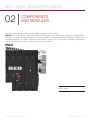
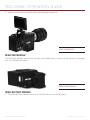
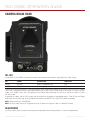
BRAIN
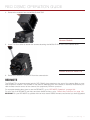
EPIC Brain
COPYRIGHT © 2013 RED.COM, INC 955-0020_V5.1, REV-A |
12
R E D D S M C O P E R AT I O N G U I D E
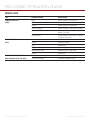
BRAIN LEDS
LED
COLOR/BLINKING
DESCRIPTION
POWER STATUS LED
Red
Power present; camera off
(PWR)
Yellow
Power present; camera booting
Green
Power present; camera on
Green blinking
Power present; running on battery
Yellow blinking
Power present; 5–10 minutes of
battery time left
Red blinking
Power present; less than 5 minutes
of battery time left
RECORD STATUS LED
Off
No media present
(REC)
Green
Ready to record
Red
Recording
Red slow blinking
Recording; 25% media left
Red fast blinking
Recording; 5% media left
Yellow
Finalizing
POWER STATUS LED (PWR)
Both green blinking
Firmware update in progress
AND RECORD STATUS LED (REC)
Both red blinking
Firmware update failing
COPYRIGHT © 2013 RED.COM, INC 955-0020_V5.1, REV-A |
13
R E D D S M C O P E R AT I O N G U I D E
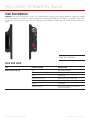
SIDE SSD MODULE
WARNING: The SIDE SSD MODULE is NOT HOT SWAPPABLE, meaning you cannot remove or install the module
while the camera is powered on. Before installing or removing the SIDE SSD MODULE, you MUST power down
the camera. Failure to do so may result in damage to the module or DSMC that will not be covered under warranty.
SIDE SSD MODULE
SIDE SSD LEDS
LED
COLOR/BLINKING
DESCRIPTION
MEDIA INDICATOR LED
Off
No media present
Green
Ready to record
Red
Recording
Red slow blinking
Recording; 25% media left
Red fast blinking
Recording; 5% media left
Yellow
Finalizing
Yellow blinking
Accessing media (for example,
when formatting)
COPYRIGHT © 2013 RED.COM, INC 955-0020_V5.1, REV-A |
14
R E D D S M C O P E R AT I O N G U I D E
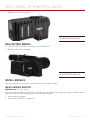
SIDE HANDLE
The DSMC SIDE HANDLE provides the following:
A battery compartment for one REDVOLT battery.
An LCD display that shows key camera parameter values.
Many programmable user keys and buttons. For a full list of all SIDE HANDLE user keys and their default
actions, go to “Default Key Functions” on page 129.
SIDE HANDLE Front
(left), SIDE HANDLE
Rear (right)
SIDE HANDLE Top
COPYRIGHT © 2013 RED.COM, INC 955-0020_V5.1, REV-A |
15
R E D D S M C O P E R AT I O N G U I D E
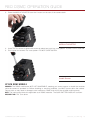
INSTALL SIDE HANDLE
WARNING: The SIDE HANDLE is NOT HOT SWAPPABLE, meaning you cannot remove or install the SIDE HANDLE while the camera is powered on. Before installing or removing the SIDE HANDLE, you MUST power down
the camera. Failure to do so may result in damage to the SIDE HANDLE or DSMC that will not be covered under
warranty.
REQUIRED TOOL: T10 Torx ® driver
1. Power down the camera.
2. Use a T10 Torx driver to remove the single screw located at the bottom of the brain side plate (if installed).
3. Rotate the brain side plate upwards to disengage the lip at the top of the side plate from the camera brain,
and remove the brain side plate.
4. Insert the lip at the top of the SIDE HANDLE into the area where the lip from the brain side plate was installed.
5. Press the SIDE HANDLE down flush along side of camera brain.
6. Rotate the thumbscrew upward while applying steady pressure until tight.
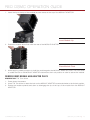
REMOVE SIDE HANDLE
WARNING: The SIDE HANDLE is NOT HOT SWAPPABLE, meaning you cannot remove or install the SIDE HANDLE while the camera is powered on. Before installing or removing the SIDE HANDLE, you MUST power down
the camera. Failure to do so may result in damage to the SIDE HANDLE or DSMC that will not be covered under
warranty.
1. Power down the camera.
2. Rotate the thumbscrew downward until the SIDE HANDLE detaches from the camera body.
3. Pull the bottom of the SIDE HANDLE away from the brain to disengage the lip at the top of the SIDE HANDLE away from the camera brain.
4. Remove the SIDE HANDLE from the camera.
DSMC MODULES
WARNING: The DSMC modules are NOT HOT SWAPPABLE, meaning you cannot remove or install the modules
while the camera is powered on. Before installing or removing modules, you MUST power down the camera.
Failure to do so may result in damage to the modules or DSMC that will not be covered under warranty.
PRO I/O MODULE
The PRO I/O MODULE brings together the essential I/O connections into one module, providing a central hub
for professional audio and video components.
Centralized ports make it easy to manage connections and cables.
LCD/EVF port allows you to connect an additional RED LCD or EVF.
Customize triggers and interface with third-party GPIO and RS232 control devices using RED PRO I/O
cables.
Attach an additional DSMC module or a REDMOTE to the back of the PRO I/O MODULE for additional expansion.
COPYRIGHT © 2013 RED.COM, INC 955-0020_V5.1, REV-A |
16
R E D D S M C O P E R AT I O N G U I D E
Internal cooling system maintains appropriate operating temperature.
PRO I/O MODULE
REAR SSD MODULE
The REAR SSD MODULE secures onto the back of the DSMC brain to serve as a rear location for recording
onto 1.8” REDMAG SSD media.
REAR SSD MODULE
QUAD BATTERY MODULE
The QUAD BATTERY MODULE holds up to four REDVOLTs or two REDVOLT-XLs.
COPYRIGHT © 2013 RED.COM, INC 955-0020_V5.1, REV-A |
17
R E D D S M C O P E R AT I O N G U I D E
Batteries may be hot swapped.
QUAD BATTERY MODULE
DUAL BATTERY MODULE
The DUAL BATTERY MODULE holds up to two REDVOLTs.
Batteries may be hot swapped.
DUAL BATTERY MODULE
INSTALL MODULES
Use the instructions in this section to install and remove DSMC modules.
INSTALL MODULE ADAPTOR
REQUIRED TOOL: T20 Torx ® driver
You must install a MODULE ADAPTOR to the back of the camera brain before you install a DSMC module.
MODULE ADAPTORs are sold separately from the DSMC modules.
1. Power down the camera.
2. Remove the REDMOTE, if attached.
COPYRIGHT © 2013 RED.COM, INC 955-0020_V5.1, REV-A |
18
R E D D S M C O P E R AT I O N G U I D E
3. Place the MODULE ADAPTOR over the V-mount on the rear of the camera brain.
MODULE ADAPTOR
4. Use a T20 Torx driver to tighten the screws by about two turns in a cross pattern. DO NOT FULLY TIGHTEN.
5. Fully tighten the screws in a cross pattern. DO NOT OVERTIGHTEN.
Install Screws
ATTACH DSMC MODULE
WARNING: The DSMC modules are NOT HOT SWAPPABLE, meaning you cannot remove or install the modules
while the camera is powered on. Before installing or removing modules, you MUST power down the camera.
Failure to do so may result in damage to the modules or DSMC that will not be covered under warranty.
NOTE: The instructions below are applicable to all DSMC modules. The QUAD BATTERY MODULE is shown.
REQUIRED TOOL: T20 Torx ® driver
COPYRIGHT © 2013 RED.COM, INC 955-0020_V5.1, REV-A |
19
R E D D S M C O P E R AT I O N G U I D E
1. Insert the lip at the top of the module into the recess at the top of the MODULE ADAPTOR.
Insert Module Lip
2. Rotate the module down flush with the rear of the MODULE ADAPTOR.
Press Module Flush
3. While applying steady pressure to hold the module against the MODULE ADAPTOR, use a T20 Torx driver
to rotate the lock on the MODULE ADAPTOR clockwise to the Lock position in order to secure the module.
REMOVE DSMC MODULE AND ADAPTOR PLATE
REQUIRED TOOL: T20 Torx ® driver
1. Power down the camera.
2. Use a T20 Torx driver to rotate the lock on the MODULE ADAPTOR counterclockwise to the Unlock position.
3. Rotate the module upwards and down to disengage the lip at the top of the module from the MODULE
ADAPTOR.
COPYRIGHT © 2013 RED.COM, INC 955-0020_V5.1, REV-A |
20
R E D D S M C O P E R AT I O N G U I D E
4. Remove the module from the MODULE ADAPTOR.
Remove Module
5. Use a T20 Torx driver to loosen the screws attaching the MODULE ADAPTOR to the camera brain.
Loosen MODULE ADAPTOR
6. Remove the MODULE ADAPTOR from the camera brain.
REDMOTE
The REDMOTE is a camera control unit for RED DSMCs that attaches to the rear of the camera Brain or rearmost expansion module. The REDMOTE may also be detached from the camera or rearmost module and provide wireless remote control of the camera over proprietary REDlink ™ protocol.
For complete details about how to use the REDMOTE, go to “REDMOTE Operation” on page 106.
For a full list of all REDMOTE user keys and their default actions, go to “Default Key Functions” on page 129.
IMPORTANT: For your REDMOTE to operate with the most recent DSMC firmware, ensure that you have upgraded
COPYRIGHT © 2013 RED.COM, INC 955-0020_V5.1, REV-A |
21
R E D D S M C O P E R AT I O N G U I D E
your REDMOTE to the most recent REDMOTE firmware.
REDMOTE
DISPLAYS
BOMB EVFS
For a full list of all EVF user keys and their default actions, go to “Default Key Functions” on page 129.
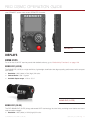
BOMB EVF (LCOS)
The BOMB EVF (LCOS) is a high-definition, lightweight viewfinder that aligns quality performance with compact
form factor.
Resolution: 1280 (wide) x 784 (high) full-color
Contrast Ratio: 1000:1 typical
Available diopter range: +2.0 to -5.0.I
BOMB EVF (LCOS)
BOMB EVF (OLED)
The RED BOMB EVF (OLED) brings advanced OLED technology into the field, providing truer blacks and more
color accurate images
Resolution: 1280 (wide) x 1024 (high) full-color
COPYRIGHT © 2013 RED.COM, INC 955-0020_V5.1, REV-A |
22
R E D D S M C O P E R AT I O N G U I D E
Contrast Ratio: > 1000:1 typical
Available diopter range: +2.0 to -5.0.I.I
BOMB EVF (LCOS)
TOUCHSCREEN LCD
RED offers two touchscreen LCDs:
RED TOUCH 5.0” LCD with 800 X 400 resolution
RED TOUCH 9.0” LCD with 1280 X 784 resolution
Both touchscreen LCDs feature 4:4:4 progressive scan. You can navigate the DSMC menus and adjust camera
parameters by directly touching icons on the touchscreen LCD screen.
For a full list of all EVF user keys and their default actions, go to “Default Key Functions” on page 129.
RED TOUCH 5.0” LCD
TOUCHSCREEN LCD GESTURES
Tap: Tap on an icon to bring up a quick adjustment display.
Double-Tap: If the monitor is in Clean mode, changes to Overlay mode.
Hold: Touch and hold on an icon to bring up an advanced interface display.
Slide: When a menu or drop-down menu is open, touch and slide to increment a value.
Pinch: Touch with two fingers, then open or close to magnify or normalize the video image. By default, this
gesture is disabled.
NOTE: Some of the touchscreen gestures can be disabled. For more information about how to enable/disable
these gestures, go to “Advanced Monitor Gestures” on page 51.
COPYRIGHT © 2013 RED.COM, INC 955-0020_V5.1, REV-A |
23
R E D D S M C O P E R AT I O N G U I D E
TOUCHSCREEN LCD PRECAUTIONS
CAUTION: Do NOT use the threaded holes when mounting the LCD to the RED camera brain. Doing so may damage the camera or the display.
Do Not Use Threaded Holes to
Mount to DSMC
NOTE: Do NOT use the RED LCD as a handle to lift or carry the DSMC. Damage to the RED LCD or other components of the DSMC system caused by using the RED LCD as a handle are not covered under warranty.
NOTE: The RED LCD swivel axis has a total range of adjustment of approximately 360˚ (180˚ clockwise or counterclockwise from the nominal “rear-facing” display orientation). The range of adjustment for the tilt axis is approximately 180˚. At the end of the adjustment range are internal “hard stops” for both axes. Once the swivel
or tilt hard stops have been reached, IMMEDIATELY STOP APPLYING FORCE TO THE LCD. Continuing to
apply force after reaching the internal stops may damage the friction hinge. Damage to the RED LCD or other
components of the DSMC system caused by using excessive force to rotate the RED LCD is not covered under
warranty.
COPYRIGHT © 2013 RED.COM, INC 955-0020_V5.1, REV-A |
24
R E D D S M C O P E R AT I O N G U I D E
03
POWER THE
DSMC
POWER CONSUMPTION
The camera draws approximately 60 watts when recording in 5K resolution, at 24 FPS in MOVIE mode. The
camera is cooled by convection from the camera body assisted by a fan contained in a sealed air duct.
Under typical operating conditions, a REDVOLT ® battery will run the camera and accessories for about 30 minutes and a REDVOLT ® XL battery will run the camera and accessories for about 90 minutes.
POWER DRAW
Power draw is prioritized as follows when multiple power sources are available to the camera:
1. DC (Voltage) or Brick (%)
2. Battery module batteries
3. SIDE HANDLE REDVOLT battery
POWER SOURCES
SIDE HANDLE: REDVOLT
The optional SIDE HANDLE accepts one REDVOLT.
SIDE HANDLE
COPYRIGHT © 2013 RED.COM, INC 955-0020_V5.1, REV-A |
25
R E D D S M C O P E R AT I O N G U I D E
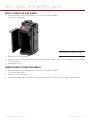
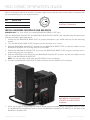
INSTALL REDVOLT IN SIDE HANDLE
1. Press the battery door release button at the top of the SIDE HANDLE.
The battery door opens.
SIDE HANDLE Battery Door
2. Press up on the red retainer.
3. While still pressing the red retainer up, insert a REDVOLT battery until it is fully seated and the retainer
clicks into place.
4. Close battery door.
REMOVE REDVOLT FROM SIDE HANDLE
1. Press the battery door release button at the top of the SIDE HANDLE.
The battery door opens.
2. Press up on the red retainer.
3. While still pressing the red retainer up, remove the REDVOLT battery from the battery compartment.
COPYRIGHT © 2013 RED.COM, INC 955-0020_V5.1, REV-A |
26
R E D D S M C O P E R AT I O N G U I D E
QUAD BATTERY MODULE: REDVOLT AND REDVOLT XL
The optional QUAD BATTERY MODULE accepts up to four REDVOLT or up to two REDVOLT XL batteries, which
can power the camera and typical accessories.
When multiple batteries are installed in the QUAD BATTERY MODULE, the power management circuit will select
the lowest charged battery to supply power to the camera. When the current battery reaches 4% charge, the
battery module automatically selects the next lowest charged battery to supply power to the camera.
QUAD BATTERY MODULE
REDVOLT XL (left), REDVOLT
(right)
QUAD BATTERY MODULE LEDS
Each battery compartment of the QUAD BATTERY MODULE has an LED above the battery eject button that
shows the status of the corresponding battery. The table below describes what each LED color/blinking mode
means.
COLOR/BLINKING
DESCRIPTION
Off
No battery
Green
Battery is charged, but is not in use
Green blinking
Battery in use
Yellow blinking
Battery has 10 minutes of run time remaining
Red blinking
Battery has 5 minutes of run time remaining
Red
Battery Discharged
Yellow blinking
Accessing media (for example, when formatting)
COPYRIGHT © 2013 RED.COM, INC 955-0020_V5.1, REV-A |
27
R E D D S M C O P E R AT I O N G U I D E
INSTALL BATTERIES IN QUAD BATTERY MODULE
Insert one REDVOLT or REDVOLT XL battery into each desired location and press until you hear a click and the
battery is seated.
REMOVE BATTERIES FROM QUAD BATTERY MODULE
1. Press the black rectangular battery eject button next to the battery that you want to eject.
2. When the battery pops out, remove the battery from the QUAD BATTERY MODULE.
Eject Battery
QUICKPLATE MODULE
The QUICKPLATE MODULE attaches to a +1 ADAPTOR MODULE or MODULE ADAPTOR to provide RED BRICK
power to your DSMC. Unlike the BACKPACK QUICKPLATE and BACKPACK QUICKPLATE (SHORT), this product does not require the use of a lemo cable or BACKPACK BASEPLATE. This allows you to mount your RED
BRICK onto the back of your camera brain and plug in DC power to keep camera on when switching batteries.
QUICKPLATE MODULE
Front (left), and Rear
(right)
COPYRIGHT © 2013 RED.COM, INC 955-0020_V5.1, REV-A |
28
R E D D S M C O P E R AT I O N G U I D E
QUICKPLATE MODULE CONNECTORS
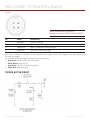
The QUICKPLATE MODULE has two industry-standard 0B 2-pin auxiliary ports to keep your third-party accessories powered when shooting.
The two auxiliary connectors provide a maximum combined output of 3.8 A. For example, if you’re pulling 2.0
A out of one port, you can pull up to 1.8 A out of the other port.
When connecting a cable to an auxiliary connector, align the key and red mark on the auxiliary connector with
the corresponding key on the cable connector.
PIN
DESCRIPTION
1
Ground
2
+12VDC
1
2
Auxiliary Connectors
INSTALL QUICKPLATE MODULE
The QUICKPLATE MODULE attaches to the DSMC brain the same way that the other DSMC modules attach.
For more information about how to install DSMC modules, go to “Install Modules” on page 18.
QUICKPLATE MODULE
Installed
COPYRIGHT © 2013 RED.COM, INC 955-0020_V5.1, REV-A |
29
R E D D S M C O P E R AT I O N G U I D E
BACKPACK QUICKPLATE AND BACKPACK QUICKPLATE (SHORT)
The optional BACKPACK QUICKPLATE and BACKPACK QUICKPLATE (SHORT) attach to the back of the BACKPACK BASE PLATE to provide a compact RED BRICK configuration for your DSMC.
NOTE: BACKPACK BASE PLATE is required for use of the BACKPACK QUICKPLATE and the BACKPACK QUICKPLATE (SHORT).
BACKPACK QUICKPLATE
(SHORT)
BACKPACK QUICKPLATE CONNECTOR
The BACKPACK QUICKPLATE has one D-tap connector for auxiliary accessories (70W max).
1
PIN
DESCRIPTION
1
Ground
2
+12VDC
2
D-tap Connector
BACKPACK QUICKPLATE (SHORT) CONNECTORS
The BACKPACK QUICKPLATE (SHORT) has two 1B 2-pin auxiliary connectors that provide a maximum combined output of 3.8 A. For example, if you’re pulling 2.0 A out of one port, you can pull up to 1.8 A out of the
other port.
COPYRIGHT © 2013 RED.COM, INC 955-0020_V5.1, REV-A |
30
R E D D S M C O P E R AT I O N G U I D E
When connecting a cable to an auxiliary connector, align the key and red mark on the auxiliary connector with
the corresponding key on the cable connector.
PIN
DESCRIPTION
1
Ground
2
+12VDC
1
2
Auxiliary Connectors
INSTALL BACKPACK QUICKPLATE AND RED BRICK
REQUIRED TOOL: T20 Torx ® driver (for installing BACKPACK BASE PLATE only)
Both the BACKPACK QUICKPLATE and BACKPACK QUICKPLATE (SHORT) are installed using the same quick
and easy procedure described below.
1. Ensure that the BACKPACK BASE PLATE is properly attached to your DSMC with the four M4 mounting
screws.
2. Turn the BACKPACK BASE PLATE wingnut counter-clockwise by 2-3 turns.
3. Slide the BACKPACK QUICKPLATE dovetail into the BACKPACK BASE PLATE, so that the V-Mount on the
BACKPACK QUICKPLATE is facing away from the DSMC.
4. Secure the BACKPACK QUICKPLATE by turning the BACKPACK BASE PLATE wingnut clockwise until it
stops turning (do not over tighten).
5. Slide the RED BRICK onto the back of the BACKPACK QUICKPLATE so that it fits into the V-Mount on the
back of the BACKPACK QUICKPLATE.
NOTE: You may not hear a click when the RED BRICK is fully connected.
6. Connect the BACKPACK QUICKPLATE LEMO connector into the DSMC DC IN connector.
BACKPACK QUICKPLATE
(SHORT) and RED BRICK
Installed
7. When you’re ready to remove the RED BRICK, simply press the release button [the release button is black
on the BACKPACK QUICKPLATE and is red on the BACKPACK QUICKPLATE (SHORT)] on the side of the
BACKPACK QUICKPLATE.
COPYRIGHT © 2013 RED.COM, INC 955-0020_V5.1, REV-A |
31
R E D D S M C O P E R AT I O N G U I D E
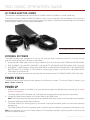
AC POWER ADAPTOR: (DSMC)
The maximum sustainable power load of the AC POWER ADAPTOR (DSMC) is 150W (15V@10A).
The output of the AC POWER ADAPTOR (DSMC) is over current protected, and the adaptor will shut down if
an excess load condition occurs. If the output trips for any reason, remove any external loads from the camera
(such as lights, motors, etc) and unplug the adaptor.
AC POWER ADAPTOR (DSMC)
EXTERNAL DC POWER
The DSMC accepts input voltages of 11.5V–17V DC, and can draw a maximum current of 12 Amps. You can
plug the following into the DC IN port on the DSMC:
An appropriate 150W supply with DC output rated at 15V 10A, such as the AC POWER ADAPTOR (DSMC).
RED CHARGER. Plug the RED CHARGER in via the 2B-TO-1B POWER ADAPTOR CABLE (P/N 790-0138).
RED BRICK ® 140Wh batterie. Attach each RED BRICK to a BACKPACK QUICKPLATE, RED QUICKPLATE,
BATTERY BELT CLIP (DSMC), or RED CRADLE, and plug the module in via the 2B-TO-1B POWER ADAPTOR CABLE (P/N 790-0138).
4-pin XLR DC power sources may be used with the camera via the XLR POWER CABLE (P/N 790-0165).
POWER STATUS
The power status of each power source displays on the Power In screen. To view the Power In screen, go to
Menu > Power > Power In.
POWER UP
1. Attach a power source to the DSMC. For more information about the different power sources, go to “Power
Sources” on page 25.
The Power Status LED illuminates red, indicating that an appropriate power source is connected.
2. Locate the Power/Record button on the right side of the DSMC brain.
NOTE: The Power/Record button also serves as a Record Start/Stop button once the camera is powered up.
3. Press and release the Power/Record button.
The Power Status LED initially goes out, and within 5 seconds illuminates yellow to confirm the camera is
powering up.
The Power Status LED then illuminates green to confirm that the camera is powered up and ready to use.
NOTE: Once powered up, if the the Power Status LED illuminates red AND is blinking, there is less than five
minutes of battery time left.
COPYRIGHT © 2013 RED.COM, INC 955-0020_V5.1, REV-A |
32
R E D D S M C O P E R AT I O N G U I D E
POWER DOWN
NOTE: The DSMC automatically powers down if the supply voltage drops to 11.5 Volts.
Use either of the following ways to power down the DSMC:
Go to Menu > Power and select Shutdown.
Press and continue to hold the Power/Record button in its fully depressed position until the Shutting Down
notification shows on the display.
COPYRIGHT © 2013 RED.COM, INC 955-0020_V5.1, REV-A |
33
R E D D S M C O P E R AT I O N G U I D E
04
GRAPHICAL USER
INTERFACE
RED LCD, TOUCHSCREEN LCD, BOMB EVF, EXTERNAL MONITORS
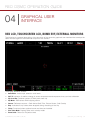
The following is a general description of the structure of the camera’s graphical user interface that overlays the
video monitor signal on the Viewfinder outputs of the camera.
The display elements include:
Audio Meter: Audio input selection and levels
Cal:T/E: Indicator of relative change in sensor temperature and exposure since your last calibration
Clip Level Bar: Relative number of RAW pixels near clip
Clip Meter: RGB sensor RAW clipping status
Cursors: Reference cursors – Safe Action/Safe Title, Picture Center, Grid Overlay
Drop: Indicates if any frames were dropped during recording of the clip
F Stop: Functional when optional mount and lens are installed
False Color Mode: Displays false color overlay mode
Frame Guide: Record or Projection area
COPYRIGHT © 2013 RED.COM, INC 955-0020_V5.1, REV-A |
34
R E D D S M C O P E R AT I O N G U I D E
Frame Rate: Current frame capture rate
Genlock: Indicates presence of valid Genlock signal/HD-SDI sync to genlock
HDR Mode: Displays HDRx mode status
Histogram: RGB Histogram.
ISO: Camera sensitivity
LAN: Indicates communication via Ethernet connection
Lens Info: Lens information when using specific Canon or Cooke lenses
Magnify: Tallies 1:1 if magnify is selected
Media Status: Media location and remaining media capacity in %
Menu: Acces the Advanced Menus.
Next Clip Filename: Filename of the clip that will be shot next
Noise Level Bar: Relative number of RAW pixels in noise
Power: Indicates DC supply voltage or % of remaining battery capacity Including current supply voltage
Record/Playback Toggle: Toggles between Record and Playback modes
REDCODE: REDCODE setting
Resolution: Record Resolution
RIG: Indicates 3D rig metadata is present
RM: Indicates communication to REDMOTE
Shutter Speed: Exposure time or shutter angle
Shutter Sync: Indicates sensor shutter sync status
TC: Indicates presence of valid SMPTE timecode signal and Jam Sync status
Temperature: Displays camera sensor and core temperature in that order (xx/xxC)
Timecode: Current timecode value
White Balance: Color Temperature
The GUI is broken down into the following three main sections: the Upper Status Row, the Live Action Area,
and the Lower Status Row. On VIEWFINDER output(s), all three sections are visible, on PREVIEW outputs only
the Live Action Area and associated graphic overlays are visible. On PROGRAM outputs, none of the graphic
overlays are visible, i.e. a PROGRAM output is defined to be a CLEAN FEED output.
UPPER STATUS ROW
Provides immediate feedback on the most critical image composition parameter settings, including (from Left
to Right):
Playback Access (Touchscreen)
Current frame capture rate
ISO Rating
Shutter Speed (or Shutter Angle)
White Balance
Record Resolution
Record Quality
Whichever parameter is underlined with a red bar may be immediately adjusted by pressing ENTER in the
Navigation Group of the SIDE HANDLE or REDMOTE, then using the Scroll Wheel to change the value of that
parameter. To confirm the parameter change press ENTER a second time.
NOTE: Shutter angle is displayed in Absolute mode by default, as indicated by Yellow text.
If the red bar is not on the parameter you wish to change, first use the Scroll Wheel to position the red bar under that parameter, then press ENTER, adjust with the Scroll Wheel and press ENTER a second time to confirm
COPYRIGHT © 2013 RED.COM, INC 955-0020_V5.1, REV-A |
35
R E D D S M C O P E R AT I O N G U I D E
the value change.
In the above GUI example, the Scroll Wheel has been used to move the red cursor to the Shutter Speed parameter; and the ENTER key has been pressed. This reveals the Parameter Adjust Widow. Adjust the value using
the Scroll Wheel and then press ENTER to confirm the value change, then close the sub-menu.
LIVE ACTION AREA
Contains the recorded image area plus Surround View ™ look around area, plus overlays for Frame Guide, Safe
Action/Safe Title and the current Clip Name and Timecode values. Each overlay may be color coded in one of
5 colors to maximize the contrast between the guide(s) and scene being captured.
LENS INFORMATION DISPLAY
RED DSMC TI PL MOUNT AND LENS
When a RED DSMC TI PL Mount is installed and a lens equipped with Cooke’s S4/i system (or equivalent is attached, the Focal Length and Focal Distance is displayed on the LCD, EVF and external monitors.
The focal length and focal distance values and range varies depending on the attached lens. When the focal
length or focal distance of the lens is manipulated, the current values are displayed.
DSMC CANON MOUNT OR DSMC NIKON MOUNT AND LENS
When a DSMC Canon Mount or a DSMC Nikon Mount is installed with an electronically supported lens attached, the Focal Length and Focal Distance is displayed on the LCD, EVF and external monitors. When AF is
set to Manual or Confirm mode, the focus distance displays as a pair of Near–Far distances. When it is in AF
mode, a single estimated Focus distance is displayed.
The focal length and focal distance values and range vary depending on the attached lens. When the focal
length of the lens is manipulated, the current value is displayed under Focal Length. The Focal Distance can be
changed under Settings > Setup > Lens. For more information, go to “Lens Tab” on page 71.
LOWER STATUS ROW
The Lower Status Row provides feedback on key systems level camera values, including:
Clip Settings
Exposure (Histogram)
Temperature, Power & Sync
Media Status
Power Status
Audio Levels
ICON BEHAVIOR
CAL:T/E
T or E Green: No change in sensor temperature or exposure from the levels recorded during calibration
T or E Yellow: Slight change in sensor temperature or exposure from the levels recorded during calibration
T or E Red: Significant change in sensor temperature or exposure from the levels recorded during calibration
The - and + indicate whether the sensor temperature or exposure has decreased or increased
NOTE: The T and E change colors independently of each other.
TC
TC Gray: No analog time code is currently detected
COPYRIGHT © 2013 RED.COM, INC 955-0020_V5.1, REV-A |
36
R E D D S M C O P E R AT I O N G U I D E
TC Red: Analog time code is being detected, but the use of it is not enabled
TC Green: Analog time code is being used to jam the time of day time code. TC will revert to gray if the signal
is no longer detected
GEN
GEN Gray: No genlock signal is currently detected, or the presented signal cannot cross-lock to project
(24.00 FPS vs. 23.98 FPS).
GEN Red: During process of sync, or genlock is lost while recording.
GEN Green: A genlock signal matching the current HD-SDI monitor rate has been locked to.
GEN Yellow: When timing is cross-locking to compatible but not matching monitor rate. For example, genlock = 24.00, and HD-SDI monitor rate = 25.00.
NOTE: 3D operation should not be done if GEN is yellow. This is a warning that genlock source settings and
camera settings are not aligned. Phasing of the sync between cameras cannot be guaranteed when GEN is
yellow.
SYNC
SYNC Gray: The sensor sync mode is not Genlock.
SYNC Red: The sensor sync mode is Genlock, but it is not locked to any genlock signal, or genlock or sensor sync is lost while recording.
SYNC Green: A genlock signal compatible with the HD-SDI monitor rate has been locked to and the sensor
timing is also locked to it.
POWER STATUS
If powering camera through DC power, the current voltage will be displayed. If using batteries, the remaining
battery time displays.
If using a RED BRICK or similar external battery to power the camera through DC IN, power status displays
the current supply voltage available from the battery. Supply voltage decreases as battery is discharged, the
displayed text is color coded as follows:
Green: 12.0 V and up
Yellow: 11.9 – 11.8 V
Red: 1.7 – 11.6 V
NOTE: The camera will automatically power down if supply voltage drops to 11.5 Volts.
If using a REDVOLT battery in the SIDE HANDLE or Battery Module to power the camera, power status displays
the location of the power source (example: SH: SIDE HANDLE; RM: Rear Module) and reports the remaining
battery capacity and the displayed text is color coded as follows:
Green: >10 minutes
Yellow: 5-10 minutes
Red: <5 minutes
If using a RED BRICK battery connected to DC IN, power status displays BRICK and reports the % of remaining
battery capacity and the displayed text is color coded as follows:
Green: >10 minutes
Yellow: 5-10 minutes
Red: <5 minutes
RAW CLIP METER
The RAW Clip meter looks a traffic light style meter and indicates if either of the Red, Blue or Green channels
of the RAW sensor data are clipping. This meter is unaffected by White Balance, ISO, VIEW or LOOK settings
and therefore represents a true measurement of the exposure levels of the sensor at all times.
COPYRIGHT © 2013 RED.COM, INC 955-0020_V5.1, REV-A |
37
R E D D S M C O P E R AT I O N G U I D E
RAW NOISE LEVEL BAR
The RAW noise bar displays the amount of pixels in the image that are in noise. For example, if the bar is about
1/8 of the total height, this would indicate approximately 1/8 of the total pixels in the image are at an exposure
level at risk of displaying noise when pushed at higher ISO or FLUT values in post-production.
RAW CLIP LEVEL BAR
The RAW clip level bar displays the amount of pixels in the image that are clipping. For example, if the bar is
about 1/4 of the total height, this would indicate approximately 1/8 of the total pixels in the image are at an exposure level at risk of clipping and may not be recoverable by lowering ISO or FLUT values in post-production.
SIDE HANDLE
As you navigate and adjust settings in the Basic Menus they will be reflected on the SIDE HANDLE LCD display.
The display elements include:
Frame Rate: Image capture rate
ISO Rating: Camera sensitivity
Power: Camera power status (DC Shown)
REDCODE: REDCODE setting
Resolution: Recording Resolution
Shutter Speed: Exposure time or shutter angle
White Balance: Color Temp
REDMOTE
The display elements include:
Battery Indicator: Displays battery life or charge status (shown) of REDMOTE
Camera ID: Displays camera ID (DEFAULT shown)
Clip Filename: Filename of the clip that will be shot
Clip Meter: RGB sensor RAW clipping status
False Color Mode: Displays false color overlay mode
Frame Rate: Current frame capture rate
Genlock: Indicates presence of valid Genlock signal/HD-SDI sync to genlock
HDR Mode: Displays HDRx mode status
Histogram: RGB Histogram
ISO: Camera sensitivity
LAN: Indicates communication via Ethernet connection
Magnify: Tallies 1:1 if magnify is selected
Media Status: Media location and remaining media capacity in %
Power: Indicates D.C supply voltage or % of remaining battery capacity Including current supply voltage
Project Frame Rate: Current project TIME BASE
REDCODE: REDCODE setting
Resolution Recording Resolution
RIG: Indicates 3D rig metadata is present
Shutter Speed: Exposure time or shutter angle
Shutter Sync: Indicates sensor shutter sync status
TC: Indicates presence of valid SMPTE timecode signal
COPYRIGHT © 2013 RED.COM, INC 955-0020_V5.1, REV-A |
38
R E D D S M C O P E R AT I O N G U I D E
Timecode: Current timecode value
White Balance: Color Temp
Wireless Status: Displays signal strength when connected wirelessly
NAVIGATE GRAPHICAL USER INTERFACE
The primary method to navigate Menus is via the Scroll Wheel on the REDMOTE or SIDE HANDLE. Press Enter
to open the menu, and then rotate the Scroll Wheel clockwise to move right, counter clockwise to move left.
However, the Left and Right direction Navigation Keys (REDMOTE or SIDE HANDLE) or Adjustment Ring (SIDE
HANDLE) may also be used for this purpose.
The Up Navigation Key selects the Advanced Settings menu when pressed (if parameter has an Advanced Settings menu).
As an example, position the Cursor under the Shutter Speed (24 FPS) icon and press the UP Direction Key to
access advanced adjustment values for Shutter Speed.
NAVIGATE MENUS WITH TOUCHSCREEN LCD
If operating a Touchscreen LCD, camera menu navigation may be made through finger gestures.
To adjust a parameter value, simply touch it, and then swipe the finger left/right to adjust its value.
To access an advanced parameter settings display, press and hold down on the parameter icon, then click
Advanced....
Touch anywhere outside the overlay windows to enter the value changes and to hide the sub-menus.
TOUCHSCREEN SHORTCUTS
The bottom portion of the touchscreen contains shortcuts to the most-used camera screens.
ACCESS SOFT KEYS
User-programmable Soft Keys A-D and 1-4 may be accessed by tapping the left or right regions of the touchscreen.
COPYRIGHT © 2013 RED.COM, INC 955-0020_V5.1, REV-A |
39
R E D D S M C O P E R AT I O N G U I D E
05
BASIC
MENUS
Basic Menus are the menus that are available at the top row of the display screen. The Basic Menus include:
Frame Rate (FPS), ISO (Sensitivity), F Stop, Exposure, White Balance, Resolution, and REDCODE (Quality).
This section gives an overview of each of the Basic Menus, and directs you to the corresponding sections in
the “Advanced Menus” chapter for more information.
ACCESS ADVANCED MENUS FROM BASIC MENUS
Except for the REDCODE menu, you can select the Advanced... button to access the related settings in the
Advanced Menus.
For example, if you open the Resolution menu and select Advanced..., the camera takes you directly to the
Settings > Project > Format screen, where you can modify the resolution, aspect ratio, anamorphic setting, and
lookaround setting.
EDIT LIST FEATURE
In each Basic Menu, you can select the Edit List... button to change the values that display for each setting.
For example, if you open the Frame Rate menu and select Edit List..., the camera lets you remove or add values
to available Frame Rate values.
FRAME RATE (FPS)
Select the sensor frame rate (also referred to as the capture frame rate). The sensor frame rate is the number
of frames per second (FPS) that are recorded. The sensor frame rate is different from the project time base,
which is the rate at which the footage will be played back.
The default sensor frame rate is 23.98 FPS, or the selected project time base when it is a value other than
23.98 FPS or 24 FPS.
Select the Advanced... button to access the Settings > Project > Frame Rate screen. For more information about
the basic and advanced frame rate settings, as well as the minimum and maximum frame rates for each resolution, go to “Frame Rate” on page 56.
ISO (SENSITIVITY)
Select the native camera ISO rating. The sensitivity value is adjustable in 1/3 stop increments. When the ISO
rating is adjusted, the camera logs the change as metadata and the monitor path reacts accordingly. Higher
ISO values lead to brighter images in the monitor path, and vice versa.
RED recommends that you set the ISO near 800, then adjust the lens T-stop and lighting or ND filters to match.
The ISO can later be adjusted around one stop for fine-tuning.
The range is ISO 250–12,800, and the default is ISO 800.
Select the Advanced... button to access the Settings > Look > FLUT screen. For more information about these
settings, go to “FLUT” on page 55.
COPYRIGHT © 2013 RED.COM, INC 955-0020_V5.1, REV-A |
40
R E D D S M C O P E R AT I O N G U I D E
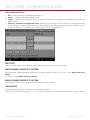
F STOP
The aperture controls the depth of field of the subject imaged by the camera, and in combination with the shutter speed/angle setting controls the amount of light falling on the sensor, which is the exposure.
Increasing the F stop to a higher number reduces exposure as well as increases the depth of field. Decreasing
the F stop to a lower number increases the exposure and decreases the depth of field.
You can chose either 1/3 or 1/4 stops.
RED DSMC TI PL MOUNT INSTALLED
When a lens equipped with Cooke’s S4/i system is attached to the DSMC TI PL Mount, the camera displays the
current aperture (F stop) of the attached lens.
DSMC NIKON MOUNT AND CANON MOUNT INSTALLED
The F-stop menu appears when a DSMC Nikon Mount, DSMC Canon Mount, or DSMC Canon MOTION MOUNT
is installed with a supported lens.
This adjusts the aperture (F stop) of the attached lens.
Select the Advanced... button to access the Settings > Setup > Lens screen. For more information about the
advanced focus settings, go to “Autofocus Modes (DSMC Nikon and Canon Mounts)” on page 86.
EXPOSURE
Select the exposure of each frame captured by the sensor. Shutter speed presets are provided for all common
speeds (and shutter angles) for 24/25 FPS and 50/60 FPS project frame rates.
Decreasing shutter speed increases the amount of time during which light falls on the sensor, increasing exposure and motion blur on any objects moving within the frame. Increasing shutter speed shortens the amount of
time during which light falls on the sensor, decreasing exposure and motion blur on objects moving within the
frame.
From the Exposure menu, you can set the exposure value as a shutter speed (1/xx sec) or a shutter angle (xx
degrees). For more information on how to change whether shutter or shutter angle displays, go to “Display
Modes” on page 52.
If the camera is able to achieve the target exposure, the exposure value displays in white. If the camera is unable to achieve the target exposure, the exposure value displays in yellow.
Select the Advanced... button to access the Settings > Project > Exposure screen. For more information about
these settings, go to “Exposure” on page 52.
EXPOSURE (SHUTTER SPEED)
Enter the exposure value as a shutter speed (1/xx sec).
With the exception of EPIC DRAGON, the slowest available speed is 1/frame rate, so for 24 FPS, the slowest
speed is 1/24 sec. In EPIC DRAGON, the slowest available speed is 1/8 sec, regardless of the sensor frame
rate.
Default is 1/48 sec.
ANGLE
Enter the exposure value as a shutter angle (xx degrees).
Range is 1.000–360.000°.
Default is 180.000°.
WHITE BALANCE
Allows you to manually set Color Temperature in the range from 1,700 to 100,000 KELVIN.
COPYRIGHT © 2013 RED.COM, INC 955-0020_V5.1, REV-A |
41
R E D D S M C O P E R AT I O N G U I D E
Select the Advanced... button to access the Settings > Look > Color Temperature screen. For more information
about these settings, go to “Color Temperature” on page 55.
RESOLUTION
Select the resolution of your project.
Select the Advanced... button to access the Settings > Project > Format screen. For more information about the
available resolutions for your camera and the advanced format settings, go to “Format” on page 61.
REDCODE
Select the target REDCODE compression ratio for your project.
If the camera is able to achieve the target compression ratio, the compression ratio displays in white. If the
camera is unable to achieve the target compression ratio, the compression ratio displays in yellow.
The current compression ratio is automatically recalculated when changes are made to the project resolution,
aspect ratio, anamorphic setting, frame rate, HDRx mode, media, or the target REDCODE compression ratio.
Range is 3:1 to 18:1.
Default is 8:1.
COPYRIGHT © 2013 RED.COM, INC 955-0020_V5.1, REV-A |
42
R E D D S M C O P E R AT I O N G U I D E
EPIC DRAGON: REDCODE OPTIONS FOR VARIOUS FRAME RATES
The table below describes the maximum available REDCODE compression ratio for each format and frame rate
combination. The number in each body cell refers to the number to the left of the colon in the compression
ratio (the “x” of “x:1”).
For example, when your project format is 5K and your capture frame rate is 24 FPS, the maximum available
REDCODE compression ratio is 3:1.
NOTE: The REDCODE and frame rate capabilities in the table below are based on recording to a 128GB REDMAG.
CAPTURE FRAME RATE (FPS)
FORMAT 12
24
25
30
48
50
60
72
75
90
96
100 120 150 175 210 250 288 300 400
6K
3
5
5
6
7
9
9
11
13
14
6K 2:1
3
5
5
6
7
9
9
11
13
13
6K WS
3
4
4
5
6
7
8
9
11
11
13
14
15
6K HD
3
4
4
5
7
8
8
10
12
12
5.5 K
3
4
4
5
6
8
8
9
11
12
5.5K 2:1 3
4
4
5
6
7
8
9
11
11
13
5.5K WS 3
3
3
4
5
6
6
8
9
9
11
12
12
5.5K HD 3
4
4
5
6
7
7
9
11
11
5K
3
3
4
4
5
6
7
8
9
10
12
12
5K 2:1
3
3
3
4
5
6
6
8
9
9
11
12
12
5K WS
3
3
3
3
4
5
5
6
8
8
9
10
10
5K HD
3
3
3
4
5
6
6
8
9
9
11
12
4.5K
3
3
3
4
5
5
6
7
8
8
10
10
11
4.5K 2:1 3
3
3
3
4
5
5
6
7
8
9
10
10
4.5K WS 3
3
3
3
4
4
5
5
6
7
8
8
9
4.5K HD 3
3
3
3
4
5
5
6
7
8
9
10
10
4.5K 3:2 3
3
3
4
5
6
6
7
9
9
11
4K
3
3
3
3
4
4
5
5
6
7
8
8
9
10
4K 2:1
3
3
3
3
3
4
4
5
6
6
7
8
8
9
4K WS
3
3
3
3
3
4
4
4
5
5
6
7
7
8
4K HD
3
3
3
3
4
4
4
5
6
6
7
8
8
10
4K 3:2
3
3
3
3
4
5
5
6
7
7
9
9
9
4K 4:3
3
3
3
4
5
5
6
7
8
8
10
COPYRIGHT © 2013 RED.COM, INC 12
10
10
955-0020_V5.1, REV-A |
43
R E D D S M C O P E R AT I O N G U I D E
CAPTURE FRAME RATE (FPS)
FORMAT 12
24
25
30
48
50
60
72
75
90
96
100 120 150 175 210 250 288 300 400
4K 5:4
3
3
3
4
5
6
6
7
8
9
3.5K
3
3
3
3
3
3
4
4
5
5
6
6
7
8
3.5K 2:1 3
3
3
3
3
3
3
4
5
5
6
6
6
7
3.5K WS 3
3
3
3
3
3
3
3
4
4
5
5
5
6
3.5K HD 3
3
3
3
3
3
3
4
5
5
6
6
6
7
3.5K 3:2 3
3
3
3
3
4
4
5
5
6
7
7
7
3.5K 4:3 3
3
3
3
4
4
4
5
6
6
7
8
8
3.5K 5:4 3
3
3
3
4
4
5
5
6
7
8
8
3K
3
3
3
3
3
3
3
3
4
4
5
5
5
6
8
3K 2:1
3
3
3
3
3
3
3
3
4
4
4
5
5
6
7
3K WS
3
3
3
3
3
3
3
3
3
3
4
4
4
5
6
3K HD
3
3
3
3
3
3
3
3
4
4
4
5
5
6
7
3K 3:2
3
3
3
3
3
3
3
4
5
5
6
6
6
8
3K 4:3
3
3
3
3
3
3
3
4
5
5
6
6
6
7
3K 5:4
3
3
3
3
3
3
4
4
5
5
6
6
7
2.5K
3
3
3
3
3
3
3
3
3
3
3
3
4
4
5
6
2.5K 2:1 3
3
3
3
3
3
3
3
3
3
3
3
3
4
5
6
2.5K WS 3
3
3
3
3
3
3
3
3
3
3
3
3
3
4
5
2.5K HD 3
3
3
3
3
3
3
3
3
3
3
3
3
4
5
6
2.5K 3:2 3
3
3
3
3
3
3
3
3
3
4
4
4
5
6
2.5K 4:3 3
3
3
3
3
3
3
3
3
3
4
4
4
5
2.5K 5:4 3
3
3
3
3
3
3
3
3
4
4
4
5
5
2K
3
3
3
3
3
3
3
3
3
3
3
3
3
3
4
4
5
2K 2:1
3
3
3
3
3
3
3
3
3
3
3
3
3
3
3
4
5
2K WS
3
3
3
3
3
3
3
3
3
3
3
3
3
3
3
3
4
2K HD
3
3
3
3
3
3
3
3
3
3
3
3
3
3
3
4
5
2K 3:2
3
3
3
3
3
3
3
3
3
3
3
3
3
3
4
5
2K 4:3
3
3
3
3
3
3
3
3
3
3
3
3
3
4
4
5
2K 5:4
3
3
3
3
3
3
3
3
3
3
3
3
3
4
5
COPYRIGHT © 2013 RED.COM, INC 8
7
6
5
6
7
955-0020_V5.1, REV-A |
44
R E D D S M C O P E R AT I O N G U I D E
EPIC MYSTERIUM-X: REDCODE OPTIONS FOR VARIOUS FRAME RATES
The table below describes the maximum available REDCODE compression ratio for each format and frame rate
combination. The number in each body cell refers to the number to the left of the colon in the compression
ratio (the “x” of “x:1”).
For example, when your project format is 5K and your capture frame rate is 24 FPS, the maximum available
REDCODE compression ratio is 3:1.
NOTE: The REDCODE and frame rate capabilities in the table below are based on recording to a 128GB REDMAG.
FRAME RATE (FPS)
FORMAT 12
24
25
30
48
50
60
72
75
90
96
5K
3
3
4
4
6
7
8
9
10
12
12
5K 2:1
3
3
3
4
6
6
8
9
9
11
12
12
5K WS
3
3
3
3
5
5
6
8
8
9
10
10
12
5K HD
3
3
3
4
6
6
8
9
9
11
12
5K ANA 3
3
3
3
5
5
6
7
7
8
9
4K
3
3
3
3
4
5
5
6
7
8
8
9
10
4K WS
3
3
3
3
4
4
4
5
5
6
7
7
8
4K HD
3
3
3
3
4
4
5
6
6
7
8
8
10
3K
3
3
3
3
3
3
3
4
4
5
5
5
6
8
3K WS
3
3
3
3
3
3
3
3
3
4
4
4
5
6
3K HD
3
3
3
3
3
3
3
4
4
4
5
5
6
7
2K
3
3
3
3
3
3
3
3
3
3
3
3
3
4
4
5
2K WS
3
3
3
3
3
3
3
3
3
3
3
3
3
3
3
4
2K HD
3
3
3
3
3
3
3
3
3
3
3
3
3
3
4
5
1K WS
3
3
3
3
3
3
3
3
3
3
3
3
3
3
3
1K HD
3
3
3
3
3
3
3
3
3
3
3
3
3
3
3
COPYRIGHT © 2013 RED.COM, INC 100 120 150 175 210 250 288 300 400
10
7
5
6
3
3
3
3
3
3
4
4
4
955-0020_V5.1, REV-A |
45
R E D D S M C O P E R AT I O N G U I D E
SCARLET MYSTERIUM-X: REDCODE OPTIONS FOR VARIOUS FRAME RATES
The table below describes the maximum available REDCODE compression ratio for each format and frame rate
combination. The number in each body cell refers to the number to the left of the colon in the compression
ratio (the “x” of “x:1”).
For example, when your project format is 4K and your capture frame rate is 24 FPS, the maximum available
REDCODE compression ratio is 6:1.
NOTE: The REDCODE and frame rate capabilities in the table below are based on recording to a 128GB REDMAG.
FRAME RATE (FPS)
FORMAT 12
24
25
30
40
48
50
60
6
7
72
75
4
4
90
96
100
120
3
3
3
5K
5
5K 2:1
5
5K WS
4
5K HD
5
5K ANA
3
4K
3
6
6
8
4K WS
3
5
5
6
4K HD
3
6
6
7
3K
3
4
4
4
6
7
3K WS
3
3
3
4
5
6
3K HD
3
3
4
4
5
6
2K
3
3
3
3
3
3
3
4
2K WS
3
3
3
3
3
3
3
3
2K HD
3
3
3
3
3
3
3
4
1K WS
3
3
3
3
3
3
3
3
3
3
3
1K HD
3
3
3
3
3
3
3
3
3
3
3
COPYRIGHT © 2013 RED.COM, INC 955-0020_V5.1, REV-A |
46
R E D D S M C O P E R AT I O N G U I D E
06
ADVANCED
MENUS
The Advanced Menus include: Settings, Media, Playback, Power, HDR, Focus, and Presets.
You can access the Advanced Menus the following ways:
Press the Menu button on the REDMOTE/SIDE HANDLE.
Press the Menu icon on the LCD.
Go to any Basic Menu except the REDCODE menu, and select the Advanced... button to access the related
settings in the Advanced Menus. For example, if you open the Resolution menu and click Advanced, the
camera takes you directly to the Settings > Project > Format screen, where you can modify the resolution,
aspect ratio, anamorphic setting, and lookaround setting.
SETTINGS MENU
This section describes the various secondary controls available to configure the camera. Menu options are
Display, Look, Project, Audio, Recording, Setup, and Maintenance.
DISPLAY
Available options are Tools, Zebra, Monitor Control, Modes, Guides, and Test Signals.
TOOLS
The Tools menu allows you to use different false color modes and display modes. False color options are None,
Exposure, Focus, Video, and Edge. Display mode options are Magnify and RAW.
You can access the Tools menu the following ways:
Navigate to Settings > Display > Tools.
Press the Histogram in the lower left area of the on-screen display.
For more information about the different false color modes, check out the Exposure with RED Cameras: False
Color & Zebra Tools article available at www.red.com/learn/red-101/exposure-false-color-zebra-tools.
FALSE COLOR MODES
NOTE: Only monitors with the Tools check box selected in the Monitor Control screen will show the false colors.
For more information about monitor control, go to “Monitor Control” on page 49.
NOTE: When enabled, the false color modes will affect video that’s recorded through HDMI or HD-SDI out to
an external recorder when the Tools check box is selected. If you’re recording through HDMI or HD-SDI, RED
recommends using the false color modes only as tools to help you configure your project settings, and that you
disable these modes before you start recording.
NONE
Turns off all of the false color modes.
COPYRIGHT © 2013 RED.COM, INC 955-0020_V5.1, REV-A |
47
R E D D S M C O P E R AT I O N G U I D E
EXPOSURE
Displays color overlay on top of a monochrome image that allows you to check for proper exposure. When enabled, the icon “E√” displays in the Lower Status Group.
Purple (underexposure) and red (overexposure) are based on RAW data, which means that these colors show
which areas are clipping or close to clipping. This also means that these indicators are not affected by any RGB
domain adjustments, such as ISO, FLUT, white balance, gain, or other Look information.
Green is based on the RGB levels of the video out signal (that is, the “cooked” look, and not the RAW data).
The Exposure meter color bands provide the following information:
Purple: Underexposed; indicates sensor exposure levels that are likely to be noisy if gained up in postproduction.
Green: IRE 41–48
Red: Overexposed; indicates sensor exposure levels that are at clipping.
FOCUS
Emphasizes edges in the image without changing brightness or image content so it is easier to judge if the image is in focus. By adjusting your lens zoom and focus you can see which objects are coming into and falling
out of focus. When enabled, the icon “F√” displays in the Lower Status Group.
VIDEO
Displays a multi-color overlay that allows you to check the video level of the RGB monitor path (calibrated to
the SMPTE test signal) and any outputs driven from that path, such as HD-SDI and HDMI. When enabled, the
icon “V√” displays in the Lower Status Group.
Color bands are based on the RGB levels of the video out signal (that is, the “cooked” look, and not the RAW
data), so settings like ISO, FLUT, color space and gamma affect these values.
At all other values, the monochrome image represents the luminance value of the ISO adjusted image.
Purple: IRE 0–4
Blue: IRE 5
Teal: IRE 10–12
Green: IRE 41–48
Pink: IRE 61–70
Straw: IRE 92–93
Yellow: IRE 94–95
Orange: IRE 96–98
Red: IRE 99–100
EDGE
Shows the edges/outlines of objects that are in focus. When selected, the icon “F√” displays in the Lower Status Group.
NOTE: This will potentially interfere with recordings done via HDMI or HD-SDI in Clean mode.
DISPLAY MODES
MAGNIFY
Displays the central region of the sensor in 1:1 pixel resolution. When enabled, the 1:1 text in the Lower Status
Group is green, and you will see the AF Window and the magnified region.
The AF Window determines the center point of the magnified region. If you have a lens or lens mount that is not
capable of autofocus with the DSMC, use Confirm mode to turn on the AF Window.
The magnified region cannot zoom in on any areas close to the edge of the screen and the size of the magnified
COPYRIGHT © 2013 RED.COM, INC 955-0020_V5.1, REV-A |
48
R E D D S M C O P E R AT I O N G U I D E
region depends on the monitor screen.
The camera automatically exits magnify mode when you start recording. When using a touchscreen, you can
also perform this function by pinching your fingers together and apart.
NOTE: HDR mode, frame rate, and resolution cannot be modified when in Magnify mode.
RAW
Displays images unaffected by any LOOK settings (including ISO, FLUT, color space, and gamma). When enabled, the word RAW displays in the Histogram in the Lower Status Bar.
NOTE: When enabled, RAW will affect video that’s recorded through HDMI or HD-SDI out to an external recorder.
ZEBRA
Use zebra mode to enable and adjust the upper and lower values for two independent zebra indicators. One
zebra may be used for highlight exposure, and the other for mid-tones or shadows. Zebras are visible when in
1:1 zoom. By default, the zebra indicators are disabled.
As with other IRE-based modes, zebra mode is only applicable for the current ISO and Look settings (such as
with HD-SDI output), and not for the raw image data. If anything is changed in post-production, the indicators
will not be representative of the final output tones. For more information about zebra indicators, check out
the Exposure with RED Cameras: False Color & Zebra Tools article available at www.red.com/learn/red-101/
exposure-false-color-zebra-tools.
ENABLE ZEBRA INDICATORS
1. Select a Zebra check box.
2. Select the low and high IRE values. Each value range is 1–100.
‒ ‒ Zebra 1: Areas of the image exposed within the IRE range are indicated by diagonal lines at -45. Default
is IRE 98–100.
‒ ‒ Zebra 2: Areas of the image exposed within the IRE range are indicated by diagonal lines at 45. Default
range is IRE 41–48.
MONITOR CONTROL
MONITOR
NOTE: Changes to the settings on the Monitor Control screen take effect after you close the screen.
Select the monitor you want to configure from the drop-down menu at the top of the screen. The other settings
on the screen are applicable to the selected monitor.
MODE
Determines what elements display on the monitor:
Clean: Only the video displays; you do not see any menus or overlays.
Overlay: The overlay displays (you can select different overlays from the Overlay drop-down menu). The
overlay includes the menus and the Lower Status Bar.
Mirror: Mirrors another screen at the same resolution. You cannot mirror a screen that is set to Clean. The
Mirror option is available based on the settings of the other attached monitors, and includes the name of
the monitor that you can mirror.
You can only set four monitors to Overlay at a time. To assign additional monitors to Overlay, mirror another
monitor that has the same resolution and is set to Overlay.
COPYRIGHT © 2013 RED.COM, INC 955-0020_V5.1, REV-A |
49
R E D D S M C O P E R AT I O N G U I D E
OVERLAY
Select which overlay shows on top of the video. There are several default overlays that are always available and
are denoted by the (RED) at the end of the overlay name. You can create custom overlays in the Overlay tab.
For more information about creating overlays, go to “Overlay” on page 50.
RESOLUTION
Determines the resolution of the monitor. This option is only available for HDMI and HD-SDI monitors since the
resolutions for LCD/EVF monitors are determined automatically. Available options are:
720 P
1080 P
FREQUENCY
Determines the frequency of the monitor. The available frequencies depend on the selected monitor. For HDSDI monitors, the frequency depends on the project rate.
MONITOR CHECK BOXES
Tools: Enables the false color modes on the monitor. For more information about false color modes, go to
“Tools” on page 47.
Flip/Mirror UI: The overlay is flipped vertically and mirrored horizontally (not rotated). This setting is useful
when mounting a monitor upside down. This setting does not change how your footage is captured; you
will only see the difference on the monitor.
Flip Video: The video footage is flipped horizontally on your monitor, so that it is upside down. This setting
does not change how your footage is captured; you will only see the difference on the monitor.
Framed Overlay: The video display is scaled down on the monitor so that the overlay items fit outside of the
video area rather than over it.
Auto Hide Menus: Hides the menus (top and bottom bars on the display). When this option is disabled, the
video is scaled so that the menus are not overlaid on the video. When this option is enabled, the video is
not scaled, and you can bring up the menus on the LCD by pressing the Menu button on the SIDE HANDLE
or by tapping the screen. This lets you have a control surface on a monitor without having to scale the
video. Enabling this option on a non-control surface results in the menus never displaying on that monitor.
NOTE: If you have two touch LCDs attached to the DSMC with the same resolution and one is currently the control surface, you can set the other to mirror it and give the effect of having two control surfaces.
OVERLAY
You can create custom overlays that include specific items and icons. Overlays can be stored on the camera
or transferred to SSD, so that you can build a library of overlays or quickly copy an overlay from one camera
to another via SSD.
Camera: Overlays that are saved internally on the camera and that display in the Overlay drop-down menu
on the Monitor Control: Monitor tab.
Media: Overlays that are on the media in the path shown (for example, S-SSD\Overlays).
NOTE: Overlays that end with (RED) are provided by default and cannot be edited, deleted, or exported.
OVERLAY ACTIONS
Create...: Create a new custom overlay using a blank new overlay template in the Overlay Editor.
Clone...: Create a new custom overlay using the selected camera overlay as a template in the Overlay Editor.
Edit...: Edit the selected camera overlay in the Overlay Editor.
Delete...: Delete the selected camera overlay.
EXPORT AND IMPORT OVERLAYS
: Export selected overlay from camera to media.
COPYRIGHT © 2013 RED.COM, INC 955-0020_V5.1, REV-A |
50
R E D D S M C O P E R AT I O N G U I D E
All
: Export all overlays from camera to media.
: Import selected overlay from media to camera.
All: Import all overlays from media to camera.
CREATE AND EDIT OVERLAYS
1. Go to Settings > Display > Monitor Control > Overlay.
2. Select Create, or select an existing overlay and select Clone or Edit.
3. If creating a new overlay, enter a name for the overlay and click OK.
4. Select any of the following check boxes to add the corresponding guides to the overlay:
‒ ‒ Frame Guide
‒ ‒ Action Guide
‒ ‒ Title Guide
5. Click a button on the matrix to add a user interface element to that position on the matrix.
By default, the Magnify indicator (MI) is on the top left, the Record indicator (REC) is on the top right, the
Clip Name (CLIP) is on the bottom left, and the Time Code (TC) is on the bottom right.
Selecting one of the buttons opens a new dialog that lets you choose a user interface element.
6. Select the Item that you want to add.
7. Select the Size of the item.
8. If you are adding a Custom Label (LBL), enter the Custom Text for that item.
9. Click Add to return to the previous screen.
10. Add all of the items to the overlay.
11. After setting up your overlay, select Create or Save.
The new overlay displays in the Camera list.
NOTE: Except for the Custom Label (LBL), you can only add each element once. If you add an element you have
already added to the overlay, the element will move to the new position.
PRIORITY
The camera can only have a single control monitor which allows you to interact with the camera settings.
The order of the list determines which monitor is the control monitor.
The monitor that has highest priority (is closest to the top of the list) and is set to Overlay mode in the Monitor
Control screen is the control monitor. For more information about changing the monitor mode, go to “Mode”
on page 49.
To change the order of the monitors in the list, select a monitor and use the Up and Down buttons to move the
monitor up and down, respectively.
BRIGHTNESS
You can control the brightness of each of your LCDs and EVFs. Slide to the right for a brighter display; slide
to the left for a dimmer display.
NOTE: A rear LCD/EVF is one that is plugged into any rear RED module, such as the +1 ADAPTOR MODULE or
the PRO I/O MODULE.
ADVANCED MONITOR GESTURES
GESTURES
Pinch to Magnify: Use two fingers to pinch inward OR slide apart on the LCD to toggle 1:1 Magnify. For more
information about 1:1 Magnify, go to “Magnify” on page 48.
Double-Click Right 25% to Record: Double-tap the right 25% of the video area on the LCD to toggle record.
COPYRIGHT © 2013 RED.COM, INC 955-0020_V5.1, REV-A |
51
R E D D S M C O P E R AT I O N G U I D E
Double-Click Left 25% to Start AF: Double-tap the left 25% of the video area on the LCD to start autofocus
when compatible lenses are used. For a list of compatible lenses, go to “Supported Lenses” on page 126.
OTHER
Lock Touch Screen: Touches to the LCD are locked out. To unlock, touch the screen and follow the on-screen
instructions.
Use Small Dialogs on 9” LCD: The dialogs on the RED TOUCH 9.0” LCD are smaller than the default dialogs.
EVF Tally Light: The Record Tally Red LED on the EVF lights when recording.
DISPLAY MODES
Settings in this screen determine how different settings display on the main screen.
EXPOSURE
Time (Absolute): Displays the exposure time in seconds (1/xx sec). When you change the frame rate in this
mode, the shutter time stays the same, but the shutter angle changes. This is the default.
Angle (Relative): Displays the exposure as an angle (1–360 degrees). When you change the frame rate in this
mode, the shutter angle stays the same, but the exposure time changes.
NOTE: While you cannot select a shutter speed that is outside of the capability of the camera, you can select a
shutter speed that is not currently possible and use that as a target shutter speed. After you change a controlling parameter, you can use the target shutter speed.
APERTURE
1/4 F#: Aperture spinner shows 1/4 stops.
1/3 F#: Aperture spinner shows 1/3 stops. This is the default.
FOCUS DISTANCE
Metric: Displays lens focus distances in meters.
Imperial: Displays lens focus distances in feet and inches. This is the default.
REMAINING POWER
Current Batt %: Displays the remaining percentage of active battery. This is the default.
Total Time: Displays the total run-time left of battery power, taking into account all available batteries.
VU METER SOURCE
Input: Displays levels of audio inputs (pre-mixer). This is the default.
Output: Displays levels of audio outputs (post-mixer).
HISTOGRAM
RGB: Displays red, green, and blue channels on histogram. This is the default.
Luma: Displays luma channel on histogram.
MOTION MOUNT ND
Only applicable when using a DSMC ® RED MOTION MOUNT TM .
Select how the ND value displays in the top left corner of the main screen.
Fraction: Displays the neutral density value as a fraction of light transmission. This is the default.
Density: Displays the neutral density value as an optical density value.
Stop: Displays the neutral density value as a stop loss.
COPYRIGHT © 2013 RED.COM, INC 955-0020_V5.1, REV-A |
52
R E D D S M C O P E R AT I O N G U I D E
MOTION MOUNT ISO PULL
Only applicable when using a DSMC ® RED MOTION MOUNT TM .
When using any ND filter, including the MOTION MOUNT, the effective ISO is reduced because the ND filter
reduces light transmission to the sensor. The MOTION MOUNT and DSMC give you the ability to see both the
effective ISO (on the main screen) and the native camera sensor ISO (in the FLUT screen).
On: Displays the effective ISO. While the effective ISO is displayed on the main screen, you should continue
to follow standard exposure best practices and select your ISO based on the camera’s native ISO.
Off: Displays actual ISO. This is the default.
GUIDES
Set up how you want the Frame Guide, Action Guide, and Title Guide to display. You can also enable/disable
each of these guides.
MODE
Off: Do not show guide.
Full: Guide has the same aspect ratio as the record format.
4:3, 16:9, 1.85:1, 1.9:1, 2.4:1: Guide has the selected aspect ratio.
User: Select a customized aspect ratio for the guide from the drop-down menu that appears when you select this option.
Absolute: Guide is defined by absolute pixel dimensions rather than aspect ratio and scale. When you select
Absolute, the Scale field is replaced with Width/Height fields.
SCALE
Percentage to scale guide from its maximum possible size. Available range is 0–100%.
WIDTH/HEIGHT
The Width/Height fields replace the Scale field when you select Absolute from the Mode drop-down menu. Select the values for the width and height of the guide in pixels.
OFFSET X/Y
Percentage to offset guide from its default centered position. Available range is 0–100%.
100%: Right-aligned (for X offset) and bottom-aligned (for Y offset).
-100%: Left-aligned (for X offset) and top-aligned (for Y offset).
APPEARANCE
Line Style: You can choose the following line styles: Solid, Dashed, or Bracket.
Color: Select a color for the guide. Select the color that provides maximum color contrast with the scene
you are shooting. The default is White.
Opacity: Set the guide opacity. Available options are 0%, 25%, 50%, 75% and 100%.
RELATIVE TO FRAME GUIDE
Only available on the Action Guide and Title Guide tabs.
Select this check box so that the guide is sized and positioned relative to (and bounded by) the Frame Guide
instead of the record format.
GENERAL TAB
You can enable/disable and select the location (Relative To), color, and opacity of the following elements:
COPYRIGHT © 2013 RED.COM, INC 955-0020_V5.1, REV-A |
53
R E D D S M C O P E R AT I O N G U I D E
Center: The center crosshair.
Grid: Rule-of-thirds grid.
Shading: The shaded region outside of the area of interest.
TEST SIGNALS
Permits the video monitor outputs to be replaced with one of the following video test patterns:
Chip Chart
SMPTE Bars
LUMA RAMP
To enable a test signal, select the test signal box. To exit the test signal, tap the touchscreen once or press the
Enter or Menu button on the SIDE HANDLE or REDMOTE.
You can also enable an Audio Tone while a test pattern is active.
Chip Chart
SMPTE Bars with Pluge Pulse
Luma Ramp
NOTE: RED DSMC test signals are not recordable; they are provided to help align external video monitors connected via the HD-SDI or HDMI outputs.
LOOK
The Look menu permits adjustment of Color, Gain, FLUT ® , Curves, Color/Gamma, and Color Temperature metadata values. These parameters will affect the look of the monitor path, but do not affect the actual REDCODE
RAW data being recorded.
COPYRIGHT © 2013 RED.COM, INC 955-0020_V5.1, REV-A |
54
R E D D S M C O P E R AT I O N G U I D E
COLOR
You can adjust the following:
Saturation: Adjusts color saturation. Range is 0.0 (monochrome) to +4.0 (super color). Default is 1.0.
Contrast: Adjusts the overall contrast of the image. Range is -1.0 (flat) to +1.0 (max contrast). Default is 0.0.
Brightness: Adjusts brightness without crushing highlights. Available range is – 10.0 to +10.0. Default is 0.0.
Exposure: Adjusts exposure compensation. Available range is -7.0 to +7.0. Default is 0.0.
GAIN
You can adjust the Red channel, Blue channel, and Green channel individually. The range for each is 0.0 (none
of the color) to +10.0, and the default for each is 1.0.
FLUT
You can adjust the following:
ISO (Native): Adjusts the camera’s native ISO value. RED recommends that you set the ISO near 800, then
adjust the lens T-stop and lighting or ND filters to match. The ISO can later be adjusted around one stop
for fine-tuning. Range is ISO 250–12,800. Default is ISO 800.
FLUT: FLUT (Floating Point Lookup Table) adjusts mid-range tone values. Range -8.0 to +8.0. Default is 0.0.
Shadow: Adjusts the toe value of the FLUT, or in other words, the tone near Black. Range is -2.0 to +2.0.
Default is 0.0. Increasing the Shadow value raises the video level of near Blacks. Lowering the Shadow
value crushes the video level of near Blacks.
CURVES
You can define the curves for the Luma, Red, Green, and Blue channels.
Select Reset Curve to reset the currently selected curve.
COLOR/GAMMA
You can adjust the monitor output Color Space and Gamma curves. RED recommends using the most recently
released Color Space and Gamma settings, and use legacy settings (such as REDcolor2) only if you need to
record footage to match footage that you recorded with that legacy setting.
For more information about RED gamma settings, check out the Understanding REDlogFilm and REDgamma
article available at www.red.com/learn/red-101/redlogfilm-redgamma.
COLOR TEMPERATURE
Color temperature range is 1700–100,000 K, with a default of 5600 K.
TINT
Color temperature calculations assume a pure light source that may not be true in the specific scene the camera is imaging. To compensate for any residual colorcast, the Tint parameter adjusts the RGB color balance
with a compensating magenta-green color component. Tint range is -100 to +100, with a default of 0.000.
NOTE: Selecting Auto White Balance calculates a new Tint value. This value doesn’t change if you adjust the
color temperature manually. If you select any preset, Tint will be reset to 0.000.
PRESETS
Each preset has 0 Tint. Available preset options are:
Incandescent: 2800 K
Tungsten: 3200 K
Fluorescent: 4500 K
COPYRIGHT © 2013 RED.COM, INC 955-0020_V5.1, REV-A |
55
R E D D S M C O P E R AT I O N G U I D E
Flash: 5500 K
Daylight: 5600 K
Cloudy: 7500 K
Shade: 9000 K
AUTO WHITE BALANCE
The auto white balance function analyzes the central 25% of the image visible in the monitor to calculate a color
temperature that will render a white object as white.
To use the auto white balance function, follow the instructions below:
1. Place a white or gray object under the ambient light.
2. Select Auto White Balance.
PROJECT
The project menu sets the operating parameters the camera will use for a given project. Options available are
Frame Rate, Exposure, Time Code, Slate, and Format.
FRAME RATE
SENSOR FRAME RATE
Select the sensor frame rate (also referred to as the capture frame rate). The sensor frame rate is the number
of frames per second (FPS) that are recorded. The sensor frame rate is different from the project time base,
which is the rate at which the footage will be played back.
The default sensor frame rate is 23.98 FPS, or the selected project time base when it is a value other than
23.98 FPS or 24 FPS.
PROJECT TIME BASE
Defines the rate at which the footage will be played back. When changing the project time base, the sensor
frame rate will default to the project time base, but may be over-ridden using the sensor frame rate controls.
The time base setting is displayed in the lower left corner of Viewfinder output(s).
Multiple projects with differing time bases may be stored on a media cartridge (SSD).
The following project time bases are currently available:
23.98 FPS (default)
24.00 FPS
25.00 FPS
29.97 FPS
47.95 FPS
48.00 FPS
50.00 FPS
59.94 FPS
VARISPEED
When a sensor frame rate other than the current project time base is selected, the FPS text turns yellow and
the word VARISPEED replaces the Audio Meter in the lower right corner of the display.
Audio is not recorded in VARISPEED mode.
COPYRIGHT © 2013 RED.COM, INC 955-0020_V5.1, REV-A |
56
R E D D S M C O P E R AT I O N G U I D E
EPIC DRAGON FRAME RATES
The table below describes the maximum frame rate for each resolution of the EPIC DRAGON camera.
The minimum frame rate is always 1 FPS.
NOTE: All frame rates in the table below are based on a 23.98 time base, 8:1 compression, and with Lookaround
disabled.
FORMAT
MAX FRAME RATE (FPS)
FORMAT
MAX FRAME RATE (FPS)
6K FF
82.81
3.5K WS
166.77
6K 2:1
84.73
3.5K HD
135.51
6K WS
100.21
3.5K 3:2
114.12
6K HD
83.12
3.5K 4:3
101.76
5.5K FF
87.43
3.5K 5:4
95.56
5.5K 2:1
92.34
3K FF
159.1
5.5K WS
109.19
3K 2:1
167.62
5.5K HD
87.43
3K WS
197.86
5K FF
95.69
3K HD
159.1
5K 2:1
100.83
3K 3:2
134.68
5K WS
119.08
3K 4:3
119.94
5K HD
95.69
3K 5:4
112.56
4.5K FF
107.06
2.5K FF
192.09
4.5K 2:1
112.94
2.5K 2:1
200.88
4.5K WS
135.58
2.5K WS
237.08
4.5K HD
107.06
2.5K HD
192.09
4.5K 3:2
90.56
2.5K 3:2
161.45
4K FF
120.38
2.5K 4:3
143.8
4K 2:1
126.88
2.5K 5:4
134.95
4K WS
150.03
2K FF
239.67
4K HD
120.38
2K 2:1
252.55
4K 3:2
101.76
2K WS
298.36
4K 4:3
90.56
2K HD
239.67
4K 5:4
84.94
2K 3:2
202.74
3.5K FF
135.51
2K 4:3
180.49
3.5K 2:1
141.63
2K 5:4
169.34
COPYRIGHT © 2013 RED.COM, INC 955-0020_V5.1, REV-A |
57
R E D D S M C O P E R AT I O N G U I D E
EPIC MYSTERIUM-X AND SCARLET MYSTERIUM-X FRAME RATES
The table below describes the maximum frame rate for each resolution of the EPIC MYSTERIUM-X and SCARLET MYSTERIUM-X cameras.
The minimum frame rate is always 1 FPS.
NOTE: All frame rates in the table below are based on a 23.98 time base, 8:1 compression, and with Lookaround
disabled.
FORMAT
MAX FRAME RATE (FPS)
EPIC MYSTERIUM-X
MAX FRAME RATE (FPS)
SCARLET MYSTERIUM-X
5K FF
95.83
12
5K 2:1
100.83
12
5K WS
120.83
12
5K HD
95.83
12
5K 1.2:1
95.83
12
4K FF
120.83
30
4K WS
152.47
36
4K HD
120.83
30
3K FF
159.88
48
3K WS
200.88
60
3K HD
159.88
48
2K FF
239.67
60
2K WS
301.79
75
2K HD
239.67
60
1K HD
356.58
90
1K WS
400
120
EXPOSURE
The Exposure screen allows fine control over the exposure value, and permits entry in any of the three following
common units: Exposure, Integration Time, and Angle.
EXPOSURE (SHUTTER SPEED)
Enter the exposure value as a shutter speed (1/xx sec).
With the exception of EPIC DRAGON, the slowest available speed is 1/frame rate, so for 24 FPS, the slowest
speed is 1/24 sec. In EPIC DRAGON, the slowest available speed is 1/8 sec, regardless of the sensor frame
rate.
Default is 1/48 sec.
INTEGRATION TIME
Enter the exposure value as a shutter integration time (xx milliseconds).
The range of available integration times depends on the sensor frame rate. In EPIC MYSTERIUM-X and SCARLET MYSTERIUM-X, the slowest available speed is 1000 ms (Exposure: 1/1 sec). In EPIC DRAGON, the slowest
available speed is 125.109 ms (Exposure: 1/8 sec).
Default is 20.833 ms.
COPYRIGHT © 2013 RED.COM, INC 955-0020_V5.1, REV-A |
58
R E D D S M C O P E R AT I O N G U I D E
ANGLE
Enter the exposure value as a shutter angle (xx degrees).
Range is 1.000–360.000°.
Default is 180.000°.
EXPOSURE CONVERSIONS
As you adjust any of these three parameters, the camera automatically calculates the equivalent value in the
other units, but as a quick reference here are some common speeds and angles.
CONVERT SHUTTER SPEED TO SHUTTER ANGLE (FOR 24 FPS)
Equivalent Degrees = (Shutter Speed x Frame Rate x 360)
For example: (1/48 x 24 x 360) = (8640/48) = 180
SHUTTER
DEGREES
SHUTTER
DEGREES
1/32
270
1/120
72
1/48
180
1/192
45
1/50
172.8
1/348
22.5
1/60
144
1/696
11
1/96
90
1/1000
8.6
CONVERT SHUTTER ANGLE TO SHUTTER SPEED (FOR 24 FPS)
Equivalent Shutter = 1/(Frame Rate x 360/Angle)
For example: 1/(24 x 360/180) = 1/(8640/180) = 1/48
DEGREES
SHUTTER
DEGREES
SHUTTER
270
1/32
72
1/120
180
1/48
45
1/192
172.8
1/50
22.5
1/348
144
1/60
11
1/696
90
1/96
8.6
1/1000
COPYRIGHT © 2013 RED.COM, INC 955-0020_V5.1, REV-A |
59
R E D D S M C O P E R AT I O N G U I D E
TIME CODE
Select a Time Code Display mode:
TOD: TOD stands for Time of Day, and indicates that the time code runs continually.
Edge: The time code starts and stops coincident with recording.
Select the Time Code Source to be used. Available options are User Provided, External: Brain, and External: Rear
Module.
TIME CODE SOURCE
MODE
DESCRIPTION
User Provided (Internal)
Use Real Time Clock
(RTC)
Uses the camera’s Real Time Clock as the time code
counter source.
You can also specify the user bits of the time code.
Set Manually
You can define a custom value as the time code counter seed.
The three numerical boxes below allow you to set
hours, minutes and seconds (in that order).
You can also specify the user bits of the time code.
External: Brain
Varies by device
Uses the time code from an external device connected
to the time code connector on the camera brain.
External: Rear Module
Varies by device
Uses the time code from an external device connected
to the time code connector on a rear module, such as
the RED PRO I/O MODULE.
TIME CODE AND HANC DATA
The time code displayed becomes the primary time code HANC data while the other time code is sent as secondary.
SLATE
Use the Slate sub-menu to add metadata to your clips.
After configuring the following fields, the information will populate in the Media screen when you format media:
Cam ID
Cam Pos
AUTO-INCREMENTING TAKE
If there is a value entered in the Take box on the Scene tab, the camera will automatically increment the take
number every time the camera starts and stops recording.
NOTE: The scene name is limited to eight (8) characters.
COPYRIGHT © 2013 RED.COM, INC 955-0020_V5.1, REV-A |
60
R E D D S M C O P E R AT I O N G U I D E
FORMAT
Use the Format screen to select the project’s resolution, aspect ratio, anamorphic setting, and lookaround setting.
EPIC DRAGON FORMATS
The table below describes the formats that are available for EPIC DRAGON cameras.
Default for EPIC DRAGON is 6K 2:1.
RESOLUTION
DESCRIPTION
DIMENSIONS (PIXELS)
WIDTH
HEIGHT
6K FF
6K RAW Full Frame
6144
3160
6K 2:1
6K RAW 2:1
6144
3072
6K WS
6K RAW Wide Screen
6144
2592
6K HD
6K RAW HD
5568
3132
5.5K FF
5.5K RAW
5600
2960
5.5K 2:1
5.5K RAW 2:1
5600
2800
5.5K WS
5.5K RAW Wide Screen
5600
2360
5.5K HD
5.5K RAW HD
5280
2960
5K FF
5K RAW Full Frame
5120
2700
5K 2:1
5K RAW 2:1
5120
2560
5K WS
5K RAW Wide Screen—2.4:1
5120
2160
5K HD
5K RAW HD
4800
2700
4.5K FF
4.5K RAW
4608
2432
4.5K 2:1
4.5K RAW 2:1
4608
2304
4.5K WS
4.5K RAW Wide Screen
4608
1944
4.5K HD
4.5K RAW HD
4320
2432
4.5K 3:2
4.5K RAW 3:2
4320
2880
4K FF
4K RAW Full Frame
4096
2160
4K 2:1
4K RAW 2:1
4096
2048
4K WS
4K RAW Wide Screen—2.4:1
4096
1728
4K HD
4K RAW HD
3840
2160
4K 3:2
4K RAW 3:2
3840
2560
4K 4:3
4K RAW 4:3
3840
2880
4K 5:4
4K RAW 5:4
3840
3072
3.5K FF
3.5K RAW Full Frame
3584
1876
3.5K 2:1
3.5K RAW 2:1
3584
1792
3.5K WS
3.5K RAW Wide Screen—2.4:1
3584
1512
3.5K HD
3.5K RAW HD
3360
1876
3.5K 3:2
3.5K RAW 3:2
3360
2240
COPYRIGHT © 2013 RED.COM, INC 955-0020_V5.1, REV-A |
61
R E D D S M C O P E R AT I O N G U I D E
RESOLUTION
DESCRIPTION
DIMENSIONS (PIXELS)
WIDTH
HEIGHT
3.5K 4:3
3.5K RAW 4:3
3360
2520
3.5K 5:4
3.5K RAW 5:4
3360
2688
3K FF
3K RAW Full Frame
3072
1620
3K 2:1
3K RAW 2:1
3072
1536
3K WS
3K Wide Screen—2.4:1
3072
1296
3K HD
3K RAW HD
2880
1620
3K 3:2
3K RAW 3:2
2880
1920
3K 4:3
3K RAW 4:3
2880
2160
3K 5:4
3K RAW 5:4
2880
2304
2.5K FF
2.5K RAW Full Frame
2560
1340
2.5K 2:1
2.5K RAW 2:1
2560
1280
2.5K WS
2.5K Wide Screen—2.4:1
2560
1080
2.5K HD
2.5K RAW HD
2400
1340
2.5K 3:2
2.5K RAW 3:2
2400
1600
2.5K 4:3
2.5K RAW 4:3
2400
1800
2.5K 5:4
2.5K RAW 5:4
2400
1920
2K FF
2K RAW Full Frame
2048
1080
2K 2:1
2K RAW 2:1
2048
1024
2K WS
2K RAW Wide Screen—2.4:1
2048
864
2K HD
2K RAW HD
1920
1080
2K 3:2
2K RAW 3:2
1920
1280
2K 4:3
2K RAW 4:3
1920
1440
2K 5:4
2K RAW 5:4
1920
1536
NOTE: The dimensions (in millimeters) will be available in a later version of the DSMC Operation Guide.
COPYRIGHT © 2013 RED.COM, INC 955-0020_V5.1, REV-A |
62
R E D D S M C O P E R AT I O N G U I D E
EPIC AND SCARLET MYSTERIUM-X FORMATS
The table below describes the formats that are available for EPIC MYSTERIUM-X and SCARLET MYSTERIUM-X
cameras.
Default for EPIC MYSTERIUM-X is 5K 2:1.
Default for SCARLET MYSTERIUM-X is 4K.
RESOLUTION
DESCRIPTION
DIMENSIONS (PIXELS)
DIMENSIONS (MM)
WIDTH
HEIGHT
WIDTH
HEIGHT
DIAGONAL
5K FF
5K RAW Full Frame
5120
2700
27.65
14.58
31.26
5K 2:1
5K RAW 2:1
5120
2560
27.65
13.82
30.91
5K WS
5K RAW Wide Screen—2.4:1 5120
2160
27.65
11.66
30.01
5K HD
5K RAW HD
4800
2700
25.92
14.58
29.74
5K 1.2:1
5K RAW 1.2:1
3296
2700
17.80
14.58
23.01
4K FF
4K RAW Full Frame
4096
2160
22.12
11.66
25.01
4K WS
4K RAW Wide Screen—2.4:1 4096
1708
22.12
9.22
23.96
4K HD
4K RAW HD
3840
2160
20.74
11.66
23.79
3K FF
3K RAW Full Frame
3072
1620
16.59
8.75
18.75
3K WS
3K Wide Screen—2.4:1
3072
1284
16.59
6.93
17.98
3K HD
3K RAW HD
2880
1620
15.55
8.75
17.84
2K FF
2K RAW Full Frame
2048
1080
11.06
5.83
12.50
2K WS
2K RAW Wide Screen—2.4:1 2048
854
11.06
4.61
11.98
2K HD
2K RAW HD
1920
1080
10.37
5.83
11.90
1K HD
1K RAW HD
1280
720
6.91
3.89
7.93
1K WS
1K Wide Screen—2.4:1
1280
480
6.91
2.59
7.38
RESOLUTION
Select your Resolution.
For a list of available resolutions for your EPIC DRAGON camera, go to “EPIC DRAGON Formats” on page
61.
For a list of available resolutions for your EPIC MYSTERIUM-X or SCARLET MYSTERIUM-X camera, go to
“EPIC and SCARLET MYSTERIUM-X Formats” on page 63.
ASPECT RATIO
Select your Aspect Ratio. The available aspect ratios are determined by your selected resolution.
For a list of available aspect ratios for your EPIC DRAGON camera, go to “EPIC DRAGON Formats” on page
61.
For a list of available aspect ratios for your EPIC MYSTERIUM-X or SCARLET MYSTERIUM-X camera, go to
“EPIC and SCARLET MYSTERIUM-X Formats” on page 63.
COPYRIGHT © 2013 RED.COM, INC 955-0020_V5.1, REV-A |
63
R E D D S M C O P E R AT I O N G U I D E
ANAMORPHIC
Select your Anamorphic setting, if applicable.
EPIC DRAGON cameras support anamorphic 1.3x and 2x with each format.
EPIC MYSTERIUM-X and SCARLET MYSTERIUM-X cameras support the following anamorphic settings:
5K FF: Anamorphic 1.3x and 2x.
5K 1.2:1: Anamorphic 2x
LOOKAROUND
When Lookaround is enabled, the Frame Guide and recording area are scaled down on the display so that you
can see what images are going to enter the recording area.
You can assign a Shading overlay to the Lookaround area (the area outside of the recording area) in the Guides:
General screen. For more information about Shading settings, go to “General Tab” on page 53.
Lookaround limits the available frame rates. Also, higher resolutions (such as 5K Full Frame in EPIC MYSTERIUM-X and 6K Full Frame in EPIC DRAGON) show the full sensor area or full sensor height on the video display,
so Lookaround is either very limited or not possible in these formats.
AUDIO
The AUDIO menu lets you configure the audio subsystem. For more information about the DSMC audio system,
go to “Audio Subsystem” on page 102.
RECORDING
This menu lets you select and configure different recording modes. Available tabs are Mode, Frame Processing,
and Pre-Record.
NOTE: The Frame Processing menu is not accessible on any EPIC DRAGON or SCARLET DRAGON.
RECORDING MODE
You can select the following recording modes: Continuous Record, Internal Timelapse Timer, External Frame
Trigger, Speed Ramp Mode, and External Record Only.
CONTINUOUS RECORD
This is the “normal” recording mode. The camera continuously records frames at the current sensor frame rate.
You can limit each recording to a specific amount of frames using the Limit Recording to setting.
INTERNAL TIMELAPSE TIMER
In this mode, the camera periodically records the specified number of frames at a specified interval. The current
sensor frame rate determines the timing of the frames per pulse.
You can limit each recording to a specific amount of frames using the Limit Recording to setting.
You can also use the Timer/Trigger Settings to set a specific amount of frames to be captured during an interval of 1–3,599 seconds. When using the Timer/Trigger Settings, the trigger is the REC key or any key that
is programmed to start recording. The Interval setting specifies the frequency at which the frame or group of
frames is captured.
For example, in Internal Timelapse Timer mode, you can choose to record a total amount of 1000 frames, and
take 1 frame every 4.67 seconds. After you’ve recorded 1000 frames (which takes 4,670.00 seconds), the recording process stops.
While recording in this mode, you can see how many frames you’ve recorded out of the total amount of frames
on the overlay.
COPYRIGHT © 2013 RED.COM, INC 955-0020_V5.1, REV-A |
64
R E D D S M C O P E R AT I O N G U I D E
EXTERNAL FRAME TRIGGER
In this mode, the camera records the specified number of frames for each external trigger.
You can limit each recording to a specific amount of frames using the Limit Recording to setting.
You can also use the Timer/Trigger Settings to set a specific amount of frames to be captured during a pulse
of the trigger. When using the Timer/Trigger Settings, the action Record: External Frame Trigger is used for the
external trigger and may be mapped to any user key or camera input.
While recording in this mode, you can see how many frames you’ve recorded out of the total amount of frames
on the overlay.
NOTE: There may be a delay between receiving the external trigger and capturing the next frame(s). This delay
may be as long 1 frame period at the current sensor frame rate. To achieve completely synchronized frames to
an external trigger you must set Sensor Sync Mode to MoCo. For more information about setting the Sensor Sync
Mode, go to “GPIO/SYNC” on page 69.
SPEED RAMP MODE
NOTE: The Ramp Settings are not accessible on any EPIC DRAGON or SCARLET DRAGON.
This mode lets you program the current sensor frame rate to transition to a target sensor frame rate during
recording.
1. Select Speed Ramp Mode from the Recording Mode drop-down menu.
2. Use the Limit Recording to fields to set the recording to end at a predefined frame limit (optional).
3. Select a ramp target:
‒ ‒ Ramp A/B/C/D: Each ramp target is tied to a specific Target/Duration combination.
‒ ‒ Reset: Allows you to ramp to the starting frame rate with the specified Duration.
4. Set the Target frame rate.
5. Set the Duration. This is how long it takes the camera to transition from your current frame rate to the target
frame rate.
6. Go to Settings > Setup > Keys and program one of the following keys to start the speed ramp:
‒ ‒ Record: Start Speed Ramp A/B/C/D
‒ ‒ Record: Start Speed Ramp Reset
7. Start recording.
8. When you are ready to start the speed ramp, press the key that you’ve mapped to start the speed ramp.
The frame rate transitions to your target frame rate during the duration you set up. After you reach your
target frame rate, the camera continues to record at that frame rate until you stop recording.
NOTE: If you ramp to target a frame rate that cannot be maintained along with the exposure setting, the camera
will change the exposure setting. To maintain consistent exposure throughout the recording, select an exposure
that is valid at all ramp target frame rates.
EXTERNAL RECORD ONLY
This mode allows for external recording only. That is, the recording is NOT saved to the camera’s SSD, and
external recording is blocked if an SSD is mounted to the camera. An external recorder is required and can be
triggered automatically via HD-SDI (if supported by the recorder).
BEEP SPEAKER
Off: The camera does not make a sound when recording starts/stops. This is the default.
Record/Stop: The camera beeps when recording starts/stops.
FRAME PROCESSING
NOTE: The Frame Processing screen is not accessible on any EPIC DRAGON or SCARLET DRAGON.
COPYRIGHT © 2013 RED.COM, INC 955-0020_V5.1, REV-A |
65
R E D D S M C O P E R AT I O N G U I D E
NOTE: Frame processing is not supported in Speed Ramp Mode. For more information about ramping, go to
“Speed Ramp Mode” on page 65.
Frame processing allows for the combination of multiple captured frames into one recorded frame. The combination occurs before the resultant frame is encoded. You can select the following frame processing settings:
No Frame Processing, Frame Summing, Frame Averaging.
When in Frame Summing mode or Frame Averaging mode, the current integration time is applied to each frame.
This means if the integration time is not the entire frame time (or 360 degrees) there will be gaps between the
images used to create the combined frame. This may lead to unexpected motion artifacts.
The effect of frame processing is only visible during record. In Frame Summing mode, this means the exposure
will change between preview and record. You may have to experiment with your exposure and frame processing
settings before you achieve the effect you want.
NO FRAME PROCESSING
Normal frame processing mode. The Frames to Process selection does not affect your recording.
FRAME SUMMING
Combines the specified number of frames into one frame, and adds together the exposure time for each of the
original frames. The resultant frame has an effective integration time that is equal to the current integration time
multiplied by the number of frames.
For example, if you select 16 as your Frames to Process value, and set your exposure to 1/48 sec, your resulting image has an effective integration time of 1/3 sec (16 x 1/48).
Frame summing results in a final image that is brighter and possibly blurrier than any of the original frames, so
you can use frame summing to achieve the effect of long-exposure.
FRAME AVERAGING
Combines the specified number of frames into one frame, and averages the exposure time for each of the original frames. The resultant frame has an effective integration time that is equal to the current integration time.
For example, if you select 16 as your Frames to Process value, and set your exposure to 1/48 sec, your resulting image still has the exposure value of 1/48 sec, along with the effect of long-exposure.
You can use frame averaging to achieve the effect of long-exposure along with the benefits of reduced noise.
However, frame averaging does affect motion blur characteristics.
PRE-RECORD
When enabled, the Pre-Record setting continuously captures a cache of footage before you start recording.
You can select to have 4–30 seconds (incremented at two second intervals) of pre-record time added to your
actual footage.
When Pre-Record is enabled, you won’t miss the start of a shot by being a little slow on the trigger.
Pre-Record Duration: Select the pre-record time.
Always trigger Pre-Record before recording: When selected, Pre-Record will always be activated when you
initiate recording:
A. Press the Record button to activate Pre-Record.
B. Press the Record button a second time to start recording.
C. Press the Record button a third time to stop recording.
Trigger Pre-Record Now: When selected, the Pre-Record screen closes and Pre-Record mode starts.
If you want to use Pre-Record only for specific situations, map Pre-Record to a key (Settings > Setup > Keys
> Record: Start Pre-Record). For more information about mapping keys, go to “Keys” on page 67.
COPYRIGHT © 2013 RED.COM, INC 955-0020_V5.1, REV-A |
66
R E D D S M C O P E R AT I O N G U I D E
SETUP
This menu permits a variety of system setup tasks to be accomplished. Options available are Keys, Date/Time,
Communication, REDmote, GPIO/Sync, Fan Control, and Lens.
KEYS
Map keys to often-used actions to easily control the camera. For a full list of all of the default key mappings,
go to “Default Key Functions” on page 129.
KEY MAPPING
To map or remap a user key:
1. Press the user key on the camera that you want to map.
2. Select an action from the Press (or CCW) drop-down menu that you want to map to the user key.
3. To un-map a key, select -Key Disabled- from the drop-down menu.
4. If you want, map a Release or (CW) action to the key.
A Release action occurs when you press a key and then release it.
OPTIONS
MENU Key Returns to Settings Menu: Pressing the Menu key on the SIDE HANDLE or REDMOTE moves you
up one level in the menu tree.
Lock SIDE HANDLE Keys: None of the SIDE HANDLE keys perform any actions when pressed, unless you set
up the exceptions below:
‒ ‒ Record Key Remains Active When Locked: If the SIDE HANDLE keys are locked, the Record key continues
to function when pressed.
‒ ‒ Navigation Keys Remain Active When Locked: If the SIDE HANDLE keys are locked, the navigation keys
continue to function. Navigation keys include: Up, Down, Left, Right, Enter, Menu, Wheel CCW, and
Wheel CW.
Show Key Action Notifications: A notification displays on the bottom of the display when you perform an action mapped to a key.
SOFT KEYS
The following sets of soft keys are available on the touch LCD:
A, B, C, D (left side of the touch LCD)
1, 2, 3, 4 (right side of the touch LCD)
To map or remap a soft key, select an action from the drop-down menu next to the key you want to map.
Enable Soft Keys on touchscreen: Tap the left or right side of the LCD to show the soft keys.
Show key actions as labels: When the soft keys display, the number/letter of the key and the key action display.
ADVANCED
You can use this tab to map any key, even if the key is not currently accessible. For example, you can map the
REDMOTE keys even if a REDMOTE is not present.
WARNING: It is possible to remap the navigation keys using this tab. However, if you don’t have a touch LCD attached, it may be possible to lock out control. Take extreme care when remapping any of the navigation keys.
DATE/TIME
You can use this screen to reset the internal clock of the camera. The time and date are used as timestamps
on the .R3D files when recording to the RED MAG 1.8” SSD media.
COPYRIGHT © 2013 RED.COM, INC 955-0020_V5.1, REV-A |
67
R E D D S M C O P E R AT I O N G U I D E
The camera uses the 24-hour clock convention (military time). For example, 2:35 p.m. should be entered as
14:35:00.
The date and time are saved when you close the Date/Time screen.
COMMUNICATION
The Communication screen allows you to set a unique identification for your camera (or a group of cameras)
when operating in a command and control communications network.
You can use the serial port or a direct Ethernet interconnect to connect two cameras, or one camera and one
external device. If the camera is connected via Ethernet to a hub or router, multiple cameras and devices can
communicate with each other.
The communication structure allows for a lot of flexibility. For example, on a multi-rig 3D shoot, you can either
send commands to an individual camera (Example: Set CAM_A_L to 1/48 exposure), to a group of cameras
(Example: Set “3DRIG_A” to 48 FPS), or to all cameras (Example: Start Recording on all cameras).
With the exception of the None setting, all command filtering happens on the receiver side of the communication link.
Name: Enter a unique camera name to use in network communications. The field is limited to eight (8) characters.
Group: Enter a group name if you want to identify the camera as a member of a group of devices. For example, a group “3DRIG_A” could include two cameras: “CAM_A_L” and “CAM_A_R”. Group names (like
camera names) can be used to uniquely address commands to a specific group of networked cameras. The
field is limited to eight (8) characters, and the default name is DEFAULT.
Target: Specify which devices the camera can send commands to:
‒ ‒ All: The camera can send commands to all devices on the network.
‒ ‒ None: The camera cannot send commands to any devices on the network. The camera can only receive
messages.
‒ ‒ Custom: The camera can send commands to a specific camera/device (enter the name of the camera/
device in the Custom text box) or a specific group (enter the name of the group in the Custom text
box). The camera or group name must match the name entered in the Name or Group field of the target
device(s).
SERIAL PROTOCOL
The camera can communicate to external devices via the RS232 Serial Port and/or the Gigabit Ethernet Port.
Select one of the following protocols from the Serial Protocol drop-down menu:
None
Element Technica
3ality SPC 7100
3ality SPC 7000
Serial Shell (default)
RED Control Protocol
RCP 3D Metadata
NETWORK
Use the settings on the Network tab to configure the Gigabit Ethernet port. Each camera or device requires a
unique IP address. For simple camera-to-camera communication via Ethernet, both cameras need to be in the
same sub-net (have the same netmask address) and have the same gateway address.
DHCP: Enables DHCP. If a DHCP-server is available in the communications network, the camera will obtain
an IP address, netmask address, and gateway address automatically from the DHCP server. You cannot
manually enter anything in the IP Address, Netmask, and Gateway fields when this check box is selected.
COPYRIGHT © 2013 RED.COM, INC 955-0020_V5.1, REV-A |
68
R E D D S M C O P E R AT I O N G U I D E
Enable Camera to camera: Changes to settings on this camera will be sent out via the network as UDP packets as a SET command, which will then set the property on other cameras. SET commands sent to this
camera will not be propagated.
Enable External Control: This camera can be controlled via TCP/IP from an external device.
REDMOTE
A REDMOTE that is docked to the DSMC is automatically paired with the DSMC. The MAC address of a locally
attached REDMOTE is displayed in brackets.
To pair the DSMC with REDMOTEs wirelessly, select Scan for REDMOTES. The DSMC scans for any REDMOTEs
that are turned on with REDlink wireless enabled. The available wireless REDMOTEs appear in the left panel.
Use the Pair and Unpair buttons to select and pair/unpair REDMOTEs.
REDlink Enable: When selected, the DSMC produces a wireless signal. Be sure to disable wireless in any
setting in which the wireless signal could interfere with other devices, such as in a helicopter.
REDlink Channel: Select the communication channel for the REDlink wireless connection in the event of interference from other wireless devices.
GPIO/SYNC
SYNC
Sensor Sync Mode: Allows the shutter timing (scan start) to be synced to an external signal.
‒ ‒ Off: Sensor free runs at the current sensor frame rate. This is the default option.
‒ ‒ Genlock: Sensor synchronizes with the incoming compatible genlock signal. Genlock syncing of the
monitors is separate from syncing of the sensor, and other methods of sensor sync can be selected
while genlocking the monitors. HD-SDI monitor genlock syncing occurs automatically when a genlock
signal that is compatible with the selected monitor frequency is present.
‒ ‒ MoCo: Each rising edge on the sync input triggers a frame to be captured. To use MoCo (Motion Control), go to the Brain GPIO tab and set the Camera Input option to Sync In. When using MoCo, choose a
frame rate that is at least two times (2x) the fastest trigger rate used.
Genlock Source: Select which genlock input should be used:
‒ ‒ Brain (default)
‒ ‒ Rear Module
BRAIN GPIO
Camera Input: Select one of the following options to configure the input for devices connected to the SYNC
connector on the brain:
‒ ‒ Sync In: The camera input is used as a sync-in signal for MoCo.
‒ ‒ General Purpose In: Use the Brain GPI In High/Low drop-down menus to map inputs to actions.
Camera Output: Select one of the following options to configure the output for devices connected to the
CTRL connector on the brain:
‒ ‒ Sync Out: Provides an output sync signal to act as a shutter start tally.
‒ ‒ Recording Indicator Out: Provides a signal when recording is in process.
NOTE: For more information about connectors, go to “Input/Output Connectors” on page 117.
GEN AND SYNC STATUS ICONS
The Lower Status Row of the camera display has GEN and SYNC icons, which change color based on the
current genlock and sync statuses. For information about what each color indicates, go to “Icon Behavior” on
page 36.
COPYRIGHT © 2013 RED.COM, INC 955-0020_V5.1, REV-A |
69
R E D D S M C O P E R AT I O N G U I D E
PRO I/O GPIO AND PRO I/O SW
Use the PRO I/O GPI and PRO I/O SW screens to assign General Purpose Inputs and Outputs (GPIO) on the
PRO I/O MODULE. You can map I/O actions to the GPIO and AUX connectors on the PRO I/O MODULE.
When mapping actions, High and Low refer to the voltage; High is the rising edge (transition from low voltage
to high voltage) and Low is the falling edge (transition from high voltage to low voltage). In practice, Low/High
correlates to the press/release of a trigger or the on/off position of a switch.
For example, if you connect a start/stop trigger to the GPIO connector on the PRO I/O MODULE and keep the
default GPIO A High and Low settings (Key Disabled and Record: Toggle, respectively), then pressing the trigger starts/stops recording.
GPIO CONNECTOR
This table describes the I/O options for the GPIO connector on the PRO I/O MODULE:
I/O OPTION
DEFAULT ACTION
PIN
GPI A High
Key Disabled
2
GPI A Low
Record: Toggle
2
AUX CONNECTOR
This table describes the I/O options for the AUX connector on the PRO I/O MODULE:
I/O OPTION
DEFAULT ACTION
PIN
GPI B High
Key Disabled
6
GPI B Low
Record: Toggle
6
SW 1 High
Key Disabled
7
SW 1 Low
Go to: Playback
7
SW 2 High
Key Disabled
5
SW 2 Low
Record: Toggle
5
NOTE: For more information about the PRO I/O MODULE, see the PRO I/O Operation Guide available at www.
red.com/downloads.
COPYRIGHT © 2013 RED.COM, INC 955-0020_V5.1, REV-A |
70
R E D D S M C O P E R AT I O N G U I D E
FAN CONTROL
Select a fan control mode for your bottom fan. If a top fan is installed, it will activate at a constant speed when
necessary.
Adaptive: Select a target temperature and the bottom fan self-adjusts to maintain the selected temperature.
The default target temperature is 55 °C. This is the default mode.
‒ ‒ EPIC DRAGON and SCARLET DRAGON: Target temperature range is 55–70 °C.
‒ ‒ EPIC MYSTERIUM-X and SCARLET MYSTERIUM-X: Target temperature range is 45–70 °C.
Quiet Preview And Record: The bottom fan self-adjusts to maintain the lowest possible noise level in record
and standby mode while still cooling the DSMC.
Auto: This mode is only available on EPIC MYSTERIUM-X and SCARLET MYSTERIUM-X cameras. Select
a maximum bottom fan record speed, and the standby mode fan speed self-adjusts accordingly so that
enough cooling is provided overall. The default Maximum Record Speed is 50%; a slower speed setting
results in a faster standby mode fan speed, and vice versa.
NOTE: All settings are intended as target speeds only; actual fan speeds may at times be higher than specified
to satisfy any unmet cooling requirements due to long recording times or high ambient temperatures.
NOTE: If you select a new fan setting, run the DSMC until the core temperature stabilizes, and then perform a
black shading calibration.
NOTE: If you’re using a top fan, the top fan may not run immediately after turning on the DSMC, as the top fan
runs when the DSMC requires additional cooling power.
POST RECORD DELAY
Select the amount of time that it takes for the bottom fan to switch from record to standby mode. Default is
None.
LENS
LENS TAB
The options you see on the Lens tab change based on the lens mount that’s currently attached.
PL MOUNT
Auto-Detect PL Lenses: By default, this feature is disabled.
Detect Lens
CANON AND NIKON LENS SETTINGS
The settings below display when a DSMC Nikon Mount, DSMC Canon Mount, or DSMC Canon MOTION MOUNT
is installed with a supported lens.
Aperture: Enter the F-stop value. The range and default depend on the attached lens.
Focus: Enter the focal distance. The default value is the value read from the lens. The range depends on
the attached lens.
MOTION MOUNT TAB
NOTE: The Motion Mount menu is only accessible when a DSMC ® RED MOTION MOUNT TM is installed. For more
information about using the MOTION MOUNT, see the DSMC MOTION MOUNT Operation Guide, available at
www.red.com/downloads.
1. Navigate to Settings > Setup > Lens > Motion Mount.
2. Select one of the following Motion Mount settings from the Shutter Type drop-down menu:
‒ ‒ ND Only: The MOTION MOUNT functions only as an ND filter.
‒ ‒ Soft: The MOTION MOUNT soft shutter takes over shuttering duties, and the MOTION MOUNT continCOPYRIGHT © 2013 RED.COM, INC 955-0020_V5.1, REV-A |
71
R E D D S M C O P E R AT I O N G U I D E
ues to function as an ND filter.
‒ ‒ Square: The MOTION MOUNT square shutter takes over shuttering duties, and the MOTION MOUNT
continues to function as an ND filter.
MAINTENANCE
The Maintenance menu allows the user to check system status and information, save the camera diagnostic
LOG to attached media, perform a software update, calibrate the sensor, perform a camera self test, and reset
system settings to factory defaults.
SAVE LOG
When you contact RED for support, you may be asked to send a LOG file from your camera along with your
support ticket. The LOG file is a diagnostic tool that can assist RED with camera troubleshooting. For more
information about RED support, or to create a support ticket, go to https://support.red.com.
To save a LOG file, follow the instructions below:
1. Go to Settings > Maintenance.
2. Select Save Log.
The LOG file is saved as a *.txt file in the SSD root directory.
UPGRADE
NOTE: For more information on the firmware force upgrade procedure, go “Upgrade DSMC Firmware” on page
94.
You can check for upgrades for the following items:
Camera
REDMOTE
CALIBRATE
You can perform a sensor calibration, a motion calibration, and a lens calibration.
SENSOR CALIBRATION
Sensor calibration, also known as black shading, is a process during which the camera optimizes image quality
by ensuring that pixel sensitivity remains consistent throughout an image. Black shading generates a calibration
map based on system and environment settings.
After calibration, the sensor should show a uniform noise profile over the whole area without any falloffs on any
COPYRIGHT © 2013 RED.COM, INC 955-0020_V5.1, REV-A |
72
R E D D S M C O P E R AT I O N G U I D E
side.
Calibration is required:
After an extreme change in temperature (+/- 30 °F or +/-15 °C) from the currently selected calibration map.
After an extreme change in exposure time (+/- 1/2 sec) from the currently selected calibration map.
After a firmware update.
To check at which temperature/exposure time the currently selected calibration was taken, go to Settings >
Maintenance > System Status > Calibration.
For more information about black shading, check out the Black Shading Calibration article available at www.
red.com/learn/red-101/black-shading-calibration.
NOTE: Calibration maps will still be available after performing a system restore; however the factory calibration
map will be reselected.
CALIBRATION CAPTURE (BLACK SHADING)
Not including preparation time, the calibration procedure takes up to 6 minutes. To perform black shading calibration, follow the instructions below:
1. Ensure that the camera reaches the temperature that you want to use for your shoot.
2. Set the exposure to the exposure you want to use for your shoot.
3. Before you calibrate, ensure that the sensor is as dark as possible.
‒ ‒ Preferably, take off the lens, and install the lens mount cap provided by RED.
‒ ‒ If you cannot take off the lens, put a lens cap on the lens. (Not all lens-caps completely block IR. Lens
caps are made to protect the lens, not necessarily to block light.)
‒ ‒ If possible, use a dark room.
‒ ‒ Just closing the iris is NOT sufficient.
4. Ensure a properly formatted SSD is attached to the camera.
Even if you are not saving the calibration map to media, an SSD is required to store the raw images during
calibration. For more information on formatting media, go to “Manage Digital Media” on page 96.
5. Select one of the following:
‒ ‒ Save As user HS: The calibration map created by black shading will overwrite the user HS calibration
map. User HS is the name for the current in-camera user-created calibration map.
‒ ‒ Save To Media: The calibration map created by black shading will be saved to external media.
‒ ‒ Leave both Save check boxes deselected: The calibration will only be applied until the camera is powered off, and will not be saved.
6. Select one of the following black shading options:
‒ ‒ Black Shading (Default): This option uses fixed settings which are the same settings that are used for the
factory calibration (around 46 °C).
‒ ‒ Black Shading (Current FPS/Exposure): This option generates a calibration map with the currently set
frame rate and exposure. This can be used to generate a calibration for long exposures.
7. After selecting a black shading option, a dialog box displays, reminding you to cover the sensor and insert
COPYRIGHT © 2013 RED.COM, INC 955-0020_V5.1, REV-A |
73
R E D D S M C O P E R AT I O N G U I D E
an SSD. Select OK to continue.
The system initializes and then makes two (2) passes through the following phases of the calibration:
‒ ‒ Capturing
‒ ‒ Analyzing
‒ ‒ Erasing
‒ ‒ Programming
8. When the Calibration Successful dialog displays, select OK to complete black shading calibration.
The new calibration map is automatically selected. If you saved the calibration map to media, the file name
format is exposuretime_temperature_datetime.
CALIBRATION MANAGEMENT
Use the Calibration Management screen to apply, import, and export calibration maps.
Calibration Map: The calibration maps that are saved internally on the camera:
‒ ‒ Factory: This is the calibration map generated during the manufacturing process, and is the default
map.
‒ ‒ User HS: The user-created calibration map.
Media: The calibration maps that are on the media in the path shown (for example, S-SSD\calibration).
CALIBRATION MAP ACTIONS
Set: Set and apply the selected camera calibration map.
Delete: Delete the selected camera calibration map. You can’t delete the factory map.
Apply: Apply the selected media calibration map temporarily (without importing to the camera).
EXPORT AND IMPORT CALIBRATION MAPS
You can export and import calibration maps between the camera brain and a memory card. By exporting calibration maps to a memory card, you can build a library of calibration maps that can be used in different settings.
COPYRIGHT © 2013 RED.COM, INC 955-0020_V5.1, REV-A |
74
R E D D S M C O P E R AT I O N G U I D E
: Export selected calibration map from camera to media. The file name format is exposuretime_temperature_datetime.
: Import selected calibration map from media to camera. This overwrites the user HS calibration map.
MOTION SENSOR CALIBRATION
The DSMC displays data from the accelerometer to help orient the camera. After a firmware upgrade or Factory
Restore, the motion sensors need to be re-calibrated.
To calibrate the motion sensors, follow the instructions below:
1. Go to Settings > Maintenance > Calibrate.
2. Select Motion.
3. Place the camera on a flat, levelled surface, and do not move the camera during calibration.
4. Select Calibrate Motion Sensors.
The sensors calibrate.
LENS CALIBRATION
There are currently a quantity of electronic lenses that are compatible with the DSMC CANON MOUNT or DSMC
NIKON MOUNT, but are not electronically supported by RED cameras. The Lens Calibration feature allows you
to create custom lens configuration files for these electronic lenses so that you can use features such as rack
focus and autofocus with your lenses.
While the custom configuration files will not be as precise as the files for the lenses that are fully electronically
supported by RED cameras, the files will provide the F-stop range and focal lengths so that you can electronically control the lens with the camera.
NOTE: The camera may not be able to calibrate some electronic lenses.
CREATE LENS CALIBRATION FILES
The calibration process creates a calibration file for the current focal length of the electronic lens. Calibrate the
lens at each of your camera’s focal lengths to create a full lens calibration file.
1. Attach a DSMC CANON MOUNT or DSMC NIKON MOUNT.
2. Attach an electronic lens.
3. Manually set the first focal length you want to calibrate.
4. There are two ways to start the lens calibration process:
‒ ‒ When you attach a lens that the camera does not recognize as being fully electronically supported, the
“Unsupported Lens Found” dialog box displays and asks if you want to calibrate the lens. Select Create
COPYRIGHT © 2013 RED.COM, INC 955-0020_V5.1, REV-A |
75
R E D D S M C O P E R AT I O N G U I D E
Custom Lens Config.
‒ ‒ Go to Settings > Maintenance > Calibrate > Lens and select Create....
The lens calibration process for the current focal length starts and a progress bar displays. Once the cali-
COPYRIGHT © 2013 RED.COM, INC 955-0020_V5.1, REV-A |
76
R E D D S M C O P E R AT I O N G U I D E
bration process starts, do NOT touch the lens, as doing so may cause the lens to calibrate incorrectly.
5. Click OK after the calibration file is created.
6. To calibrate the next focal length, follow the instructions below:
A. Go to Settings > Maintenance > Calibrate > Lens.
COPYRIGHT © 2013 RED.COM, INC 955-0020_V5.1, REV-A |
77
R E D D S M C O P E R AT I O N G U I D E
B. Select the calibration file name in the Camera list and select Edit....
C. Manually set the next focal length.
D. Select Add Cal @ xx..., where “xx” is the current focal length.
NOTE: If you calibrate a focal length that has already been calibrated, the new files overrides the previous file.
The lens calibration process for the current focal length starts and a progress bar displays. Once the
calibration process starts, do NOT touch the lens, as doing so may cause the lens to calibrate incorrectly.
COPYRIGHT © 2013 RED.COM, INC 955-0020_V5.1, REV-A |
78
R E D D S M C O P E R AT I O N G U I D E
7. Repeat Step 6 for each focal length of the lens.
The lens calibration file remains on the camera after system restores and firmware upgrades.
VIEW AND MODIFY LENS CALIBRATION INFORMATION
1. Go to Settings > Maintenance > Calibrate > Lens.
2. Select the calibration file name in the Camera list and select Edit....
The following information displays:
‒ ‒ Mount Type
‒ ‒ Focal Length
‒ ‒ F Stop Range: Overall F-stop range of lens.
‒ ‒ Lens Status
‒ ‒ Calibrated Focal Lengths
COPYRIGHT © 2013 RED.COM, INC 955-0020_V5.1, REV-A |
79
R E D D S M C O P E R AT I O N G U I D E
3. You can perform any of the following actions:
‒ ‒ Add Cal @ xx...: Calibrate the current focal length; “xx” is the current focal length.
‒ ‒ Remove Cal: Remove the calibration for the selected focal length.
EXPORT AND IMPORT LENS CALIBRATION FILES
Lens calibration files can be stored on the camera or transferred to SSD, so that you can build a library of lens
calibration files or quickly copy a lens calibration file from one camera to another via SSD.
When exporting lens calibration files from camera to media, the files are saved to a folder on the media called
“lens_cal”.
Do NOT change the file name of the calibration file after you save it to media.
All
: Export selected calibration file from camera to media.
: Export all calibration files from camera to media.
: Import selected calibration file from media to camera.
All: Import all calibration files from media to camera.
COPYRIGHT © 2013 RED.COM, INC 955-0020_V5.1, REV-A |
80
R E D D S M C O P E R AT I O N G U I D E
LENS CALIBRATION ACTIONS
Edit...: View and edit the selected calibration file.
Delete...: Delete the selected calibration file.
Create...: Create a new calibration file. This option is disabled if you already have a calibration file for the
attached lens.
Prompt for calibration of unsupported lenses: Select this check box to ensure that the “Unsupported Lens
Found” dialog box displays every time the camera detects an unsupported electronic lens at boot-up. Deselect this check box to disable the “Unsupported Lens Found” dialog box.
SELF TEST
When selected, allows you to perform a self-test for the sensor and LCD Touchscreen.
ENABLE/DISABLE SENSOR TEST PATTERN
When selected, enables/disables the sensor test pattern (White Screen). To turn on, select Enable Sensor Test
Pattern.
To turn off, select Disable Sensor Test Pattern.
ENABLE/DISABLE SENSOR TEST PATTERN
This feature is currently only used during the manufacturing process.
TOUCHSCREEN
When selected allows you to perform a touchscreen self-test.
When the touchscreen self-test is on, you can verify all areas of the touchscreen respond to touch. Simply
COPYRIGHT © 2013 RED.COM, INC 955-0020_V5.1, REV-A |
81
R E D D S M C O P E R AT I O N G U I D E
touch each box using your finger. The touchscreen responds to the touch and the green box turns blue.
To exit the Touchscreen Self-Test:
1. Place your finger on the touchscreen and hold it there until the main screen appears.
2. Press the Enter or Menu button on the SIDE HANDLE or REDMOTE.
RESTORE SYSTEM
Restore System permits ALL camera configuration and setup data to be reset to factory default values.
When selected, you will be asked to confirm if you want to delete all settings and restore the factory default
settings. After settings are restored, the camera automatically powers down.
NOTE: User key settings will be reset as well as any other changes from the cameras default settings. The REDMOTE will also require paring to communicate wirelessly with the camera.
REDISCOVER
Rediscovers all hardware and caches the data for future boot cycles.
When selected, you will be asked to confirm if you want to reset all hardware discovery settings. After settings
are reset, “RESET HARDWARE DISCOVERY SUCCESSFUL, INITIALIZING RESTART…” displays. The camera
automatically powers down and you will need to manually power it up.
SYSTEM STATUS
The System Status menu displays key project and system information on the following tabs: Project Status,
Module Status, Camera Info.
PROJECT STATUS
Displays the currently selected camera and project settings.
MODULE STATUS
Displays which modules are attached to the brain.
Not Detected: The module is either not attached, or is not detected by the brain.
Attached: The module is attached and detected.
CAMERA INFO
Displays the following camera information:
COPYRIGHT © 2013 RED.COM, INC 955-0020_V5.1, REV-A |
82
R E D D S M C O P E R AT I O N G U I D E
Model: Includes camera type (EPIC or SCARLET) and sensor type
Version: Current firmware version.
P.I.N.: The personal identification number that is specific to your camera.
SVN revision: The current revision number of your firmware.
Hours of operation: The number of hours that your camera has been turned on.
MEDIA MENU
The Media Menu is used to format media (SSD) prior to use on the camera as well as to eject (unmount) the
media prior to removal from the camera.
For more information about using media, go to “Manage Digital Media” on page 96.
PLAYBACK
To view clips on the media that’s attached to the camera, go to Menu > Playback. In addition to playing clips,
you can change the look of the clips by changing the settings that are available when in Playback mode.
PLAYBACK MENUS
In Playback mode, you can access a pared-down version of the usual menu system. Major differences between
the Playback menu system and the usual menu system are described below:
MEDIA
List all available clips on the attached media.
You can perform the following actions:
All
: Move selected clip to the Play List.
: Move all clips to the Play List.
Apply Image Metadata: Image data such as color, gain, curves, etc. that were recorded with the image will
be displayed with the playback image. When deselected, the current playback Look settings will be used.
Load: Closes the menu and brings up the selected clip in Playback mode.
RECORD (EXIT)
Select Record to exit Playback mode. You can also press any button that’s mapped to Record to exit Playback
mode.
META
Displays the metadata for the selected clip.
PLAYBACK STATUS BAR
Displays the progress of the clip during playback. When using the touchscreen, you can swipe your finger right
and left to fast-forward and rewind the clip, respectively.
LOWER CONTROLS
From left to right, the screen displays the following: Playback/Record toggle, Histogram, Playback Speed, In
Point Marker, Frame-by-Frame Reverse, Play/Pause toggle, Frame-by-Frame Forward, Out Point Marker, Play
Once/Loop toggle, Playback Direction toggle, and additional Clip/Camera information.
PLAYBACK/RECORD TOGGLE
Toggles between Record mode and Playback mode.
COPYRIGHT © 2013 RED.COM, INC 955-0020_V5.1, REV-A |
83
R E D D S M C O P E R AT I O N G U I D E
HISTOGRAM
Displays the clip histogram. The histogram changes based on any changes made to the Look settings. For more
information about Looks, go to “Looks” on page 92.
When using the touchscreen, touching the histogram displays the Tools menu.
PLAYBACK SPEED
Allows you to select x1, x2, x4, x8, or x16 playback speed.
IN/OUT POINT MARKERS
Allows you to set In and Out Points during clip playback. This allows you to play only a certain portion of the
clip. The In/Out Markers help when the clip is long and you want to focus on a particular segment. The In (red)
and Out (green) points display in the Playback Status Bar.
FRAME-BY-FRAME REVERSE/FORWARD
Allows you to move through the clip frame-by-frame, going either forward or in reverse.
PLAY/PAUSE TOGGLE
Allows you to play and pause the clip.
PLAY ONCE/LOOP TOGGLE
Allows you to choose to play the clip one time or to loop the clip in the player.
PLAYBACK DIRECTION TOGGLE
Allows you to play the clip forward or backwards.
ADDITIONAL CLIP/CAMERA INFORMATION
Will indicate if clip was recorded in HDRx, the current camera power status, and audio input signals.
POWER
The power menu displays the current power status of all attached power sources as well as allows you to shut
down the camera.
POWER IN
The power status is displayed for the Brain DC, SIDE HANDLE, Rear 1, Rear 2, Rear 3, and Rear 4. The screen
displays the voltage of the source or the percentage of the power left, as well as the time left, if applicable.
POWER OUT
The Power Out menu shows the status of the power out ports on the PRO I/O MODULE and the +1 ADAPTOR.
The statuses are:
N/A: The device is not present.
OK: The power out port is functional.
FAULT: There is a fault. Click RESET to clear the fault.
POWER SAVE
You can select the following power saving options (the default for each is Never):
Low Power Preview: The camera uses a lower amount of power after the specified period of inactivity.
COPYRIGHT © 2013 RED.COM, INC 955-0020_V5.1, REV-A |
84
R E D D S M C O P E R AT I O N G U I D E
Sleep: All monitors turn off and keys will not perform mapped actions after the specified period of inactivity.
Touch the screen or press a key to exit Sleep mode.
Auto Shutdown: The camera shuts down after the specified period of activity.
SHUTDOWN
Shutdown controls are interlocked to prevent accidental powering down of the camera. For details on the different ways to power down your RED DSMC Camera, go to “Power Down” on page 33.
1. Go to Menu > Power.
2. Select Shutdown.
The camera immediately powers down.
HDR MENU
NOTE: The HDR menu is not accessible on any EPIC DRAGON or SCARLET DRAGON.
NOTE: HDR mode cannot be modified when in Magnify 1:1 mode.
By default HDRx is disabled, and the HDR text in the Lower Status Group of the Viewfinder screen is gray.
To enable HDRx, follow the instructions below:
1. Go to Menu > HDR.
2. Select HDRx.
3. Select the number of Stops. The range is 1–6, and the default is 2.
The HDR text in the Lower Status Group of the Viewfinder screen turns white.
FOCUS MENU
MODE TAB
The Focus Menu is used to enable and select Focus parameters, including Mode, Zone, Size, and Enhanced
A/F.
MODE
Select one of the following from the Mode drop-down menu:
Manual: When selected, all focus operations are manual.
Confirm: Enables the Center or Spot focus target. This mode provides additional focus assistance by usCOPYRIGHT © 2013 RED.COM, INC 955-0020_V5.1, REV-A |
85
R E D D S M C O P E R AT I O N G U I D E
ing red, yellow, and green color changes to the focus spot window. Inadequate subject illumination and/or
contrast may interfere with normal Focus Confirm operation.
For best results with Focus Confirm, you should “rock” the focus ring: Focus through the point of optimum
focusing and back again in decreasing amplitude, as when “zeroing-in” for precision manual focus.
AUTOFOCUS MODES (DSMC NIKON AND CANON MOUNTS)
When you have any of the following conditions, there are additional options in the Modes drop-down menu:
DSMC Nikon Mount and a supported lens is attached. The lens focus switch is set to “A” or “M/A”.
DSMC Canon Mount and a supported lens is attached. The lens focus switch is set to “AF”.
DSMC Canon MOTION MOUNT and a supported lens is attached. The lens focus switch is set to “AF”.
When any of the conditions above are met, you have the additional following options in the Modes drop-down
menu:
Single: When you press the key mapped to AF: Start, the camera performs single-shot AF. Optimized for
rapid focus even under low-contrast conditions. Works with both Center and Spot zones.
Continuous: When you press the key mapped to AF: Start, the camera attempts to keep objects in the target
in focus. Works best with good lighting and contrast. Works with both Center and Spot zones.
Touch Track: Dynamically updates a positionable AF point using the touchscreen. Only works with Spot
zone. Keep Spot target on subject while moving across frame, as the lens continuously focuses on that
target.
Rack: Enables rack focus. Only works with Spot zone. For more information about configuring rack focus,
go to “Rack Tab” on page 89.
In Single, Continuous, and Touch Track modes, a single target displays on the screen that indicates where the
image will be in focus. In Rack mode, multiple targets display on the screen to indicate the different areas between which the camera will rack focus.
Press the key mapped to AF Mode: Cycle (REDMOTE/SIDE HANDLE button A default) to cycle through the
Focus Mode options in order.
Performance of autofocus may be reduced under the following conditions:
Subject is dark or distant.
Inadequate contrast between the subject and background.
Scene has reflective highlights.
Subject is backlit.
Inadequate surface contrast/detail inside the window.
NOTE: Edge mode can be used for additional assistance in these conditions. For more information about Edge
COPYRIGHT © 2013 RED.COM, INC 955-0020_V5.1, REV-A |
86
R E D D S M C O P E R AT I O N G U I D E
mode, go to “Edge” on page 48.
ZONES
Available options are Center and Spot (default).
Both the Center and Spot targets change color to indicate the focus state of the objects in the targets.
TARGET COLOR
DESCRIPTION
Blue
Camera is focusing
Red
Objects are out of focus
Yellow
Objects are almost in focus
Green
Objects are in focus
CENTER
Provides a large target square for focus that is centered in the recording area.
SPOT
Provides a target for precise focus that you can move around the recording area.
MOVE THE SPOT FOCUS TARGET
Perform either of the following to move the Spot target using the touchscreen LCD:
Press and hold the touchscreen LCD on the location you want to relocate the Spot target.
Press and hold the touchscreen LCD where the Spot target currently is, and drag the Spot target.
To move the Spot target using the SIDE HANDLE or REDMOTE:
1. Go to the main screen.
2. Press the Down Arrow in the Navigation Group.
The Spot target line weight increases and the red cursor under Menu dims slightly.
3. Use the directional arrows to move the Spot target to the desired location.
4. Press the Enter button.
5. To exit, press the Menu button.
SIZE
Choose any of the sizes for the Spot target:
Small
Medium
Large
ENHANCED A/F
Enhanced A/F has an autofocus algorithm that offers better performance and improved visual indicators when
in Confirm mode.
ENABLE ENHANCED A/F
1. Go to Menu > Focus > Mode.
2. Select Confirm from the Mode drop-down menu.
3. Select an option from the Zone drop-down menu.
4. If you selected Spot from the Zone drop-down menu, select a size from the Size drop-down menu.
COPYRIGHT © 2013 RED.COM, INC 955-0020_V5.1, REV-A |
87
R E D D S M C O P E R AT I O N G U I D E
5. Select the Enhanced A/F check box.
6. Select the monitor that you want to dedicate to using the Enhanced A/F feature from the Monitor drop-down
menu:
‒ ‒ Brain HDMI
‒ ‒ Brain HD-SDI
The selected monitor will be in Clean mode (no overlay) with a set resolution of 720p and update frequency
of 60 Hz. The target does not display on the selected monitor. You will not have control over this monitor
until you disable the Enhanced A/F feature.
7. Select the Confirm target style from the Confirm Style drop-down menu:
CONFIRM
STYLE
DESCRIPTION
OBJECTS IN TARGET ARE IN
FOCUS...
OBJECTS IN TARGET ARE OUT OF
FOCUS
None
Square target;
operates just like the
target square in Confirm
mode
Target is yellow or green
Target is red
Circle
Yellow circle around a
square target
Target is yellow or green;
Target is red;
yellow circle is almost the same yellow circle gets bigger
size as the square
Bar
Bar target
Target is yellow or green;
vertical bar on the right side is
filled up
Pie
Pie target
Target is yellow or green;
Target is red;
line around the curve is filled up line around the curve is almost
empty
Target is red;
vertical bar on the left side is
almost empty
8. Exit the Focus screen.
The target displays on the touchscreen LCD, and the monitor that you selected for the Enhanced A/F fea-
COPYRIGHT © 2013 RED.COM, INC 955-0020_V5.1, REV-A |
88
R E D D S M C O P E R AT I O N G U I D E
ture is in Clean mode.
RACK TAB
Use the Rack tab to configure up to four focus points and execute rack focus between them.
SET UP RACK FOCUS
1. Ensure that a DSMC Nikon Mount, DSMC Canon Mount, or DSMC Canon MOTION MOUNT is installed and
that a supported lens is attached.
2. Go to Menu > Focus > Mode.
3. Select Rack from the Mode drop-down menu.
Spot is automatically selected from the Zone drop-down menu, since rack focus only works with Spot zone.
4. Select a size from the Size drop-down menu.
5. Go to the Rack tab.
6. Use the Rack Speed slider to change the speed at which the lens moves. Move the slider to the left for a
slower speed, and to the right for a faster speed.
7. Select the number of rack points you want from the Rack Points drop-down menu. You can select up to four
COPYRIGHT © 2013 RED.COM, INC 955-0020_V5.1, REV-A |
89
R E D D S M C O P E R AT I O N G U I D E
points.
A line for each rack point displays, indicated by the letters A, B, C, and D. The focus distance displays for
each rack point.
8. If needed, select Re-Autofocus to run the autofocus algorithm, which resets the focus distance to the focus
distance calculated by the algorithm.
9. To set a rack point location, follow the instructions below:
A. Select the rack point that you want to set: A, B, C, or D.
B. Exit the Rack tab to return to the main screen.
C. Press and hold the touchscreen LCD on the location where you want the rack point to be.
D. You can also press and drag the rack point to another location.
When you move a rack point, the camera autofocuses.
10. After setting up all of your rack points, press the key that is mapped to AF: Start (default is SH Record Half
Press) to cycle to the next rack point in order (A, B, C, and D).
For example, if rack point A is currently selected when you trigger the AF: Start action, the focus racks from
point A to point B.
COPYRIGHT © 2013 RED.COM, INC 955-0020_V5.1, REV-A |
90
R E D D S M C O P E R AT I O N G U I D E
MAP KEYS TO CYCLE RACK FOCUS
You can map user keys to rack focus between different rack points. For more information about mapping keys,
go to “Keys” on page 67.
You can map the following actions:
AF: Start
AF: Rack to A
AF: Rack to B
AF: Rack to C
AF: Rack to D
PRESETS
The DSMC has three types of presets:
Camera Presets: These are used to store and recall camera setup information, such as in-camera Looks,
key mappings, I/O configurations, etc. Your RED DSMC camera has a number of factory-installed presets.
Looks: These allow you to save the specific color, image, white balance, and detail settings to be used for
other projects. Looks that are generated in-camera display on the Camera Presets tab. Looks that are generated in REDCINE-X PRO and are imported to the DSMC via an SSD display on the Looks tab.
Auto Presets: These allow you to specify pre-selected presets for Startup, Preview, and Playback.
You can create custom presets and Looks. Presets and Looks can be stored on the camera or transferred to
SSD, so that you can build a library of presets and Looks, or quickly copy presets and Looks from one camera
to another via SSD.
Camera: Presets or Looks that are saved internally on the camera.
Media: Presets or Looks that are on the media in the path shown (for example, S-SSD\presets).
CAMERA PRESETS
PRESETS ACTIONS
Apply: Apply the selected preset.
Create...: Create a new preset using the camera’s current settings.
Update...: Update the selected preset by allowing the parameter set to be modified and all the values to be
updated to their current in-camera values. You cannot update factory-installed presets, which end with
“(RED)”.
Clone...: Create a new preset using the selected preset’s parameter set as a template.
Delete...: Delete the selected preset.
EXORT AND IMPORT PRESETS
When exporting presets from camera to media, the presets are saved to a folder on the media called “Presets”.
When importing presets from media to camera, the presets must be stored on the media in a folder called
“Presets”.
All
: Export selected preset from camera to media.
: Export all presets from camera to media.
: Import selected preset from media to camera. You will be asked if you want to apply the preset.
All: Import all presets from media to camera. You will be asked if you want to apply the preset.
COPYRIGHT © 2013 RED.COM, INC 955-0020_V5.1, REV-A |
91
R E D D S M C O P E R AT I O N G U I D E
CREATE PRESETS
1. Set up the camera how you want the preset to be configured.
For example, if you want to create a preset specifically for your zebra indicators, first go to Settings >
Display > Zebra and configure your zebra indicators the exact way that you want them to be in the preset.
2. Go to Presets > Camera Presets.
3. Select Create, or select an existing preset and select Clone or Update.
4. If creating a new preset, enter a name for the preset and click OK.
5. Select the following tabs to display different sets of preset options: Display, Key, Look, Project, and System.
6. Select the following:
‒‒
: Add selected setting to the preset.
‒ ‒ All
: Add all settings to the preset.
X: Remove selected setting from the preset.
‒‒
7. Select Create.
The preset is saved and stored in the camera.
LOOKS
A Look is made up of the following settings: Color, Gain, FLUT, Curves, Color/Gamma, Color Temperature.
These settings are configured either in-camera (in the Settings > Look menu) or in REDCINE-X PRO (in the
Looks panel).
CREATE AND MANAGE IN-CAMERA LOOKS
Create in-camera looks in the Presets > Camera Presets tab. You can apply, create, update, clone, delete, and
export these in-camera Looks the same way you would with any of the other presets created in the Camera
Presets tab. For more information about creating and managing presets and in-camera Looks, go to “Camera
Presets” on page 91.
IMPORT LOOKS FROM REDCINE-X PRO
1. While your SSD is mounted to your computer, create a folder on the SSD called Looks.
2. Save your RMD files (that have been exported from REDCINE-X PRO) to the Looks folder on the SSD.
3. Eject the SSD from your computer.
4. Mount the SSD to your DSMC.
5. Go to Presets > Looks.
6. Select one of the following:
‒‒
: Import selected Look from media to camera.
‒‒
All: Import all Looks from media to camera.
For more information about creating and exporting Looks from REDCINE-X PRO, check out the “REDCINEX PRO: Saving Looks to Camera” video tutorial, available at www.red.com/learn/workflow/redcine-x-savinglooks-camera.
MANAGE IMPORTED LOOKS
All Looks that you import from REDCINE-X PRO are managed in the Presets > Looks tab. When exporting Looks
from camera to media, the Looks are saved to a folder on the media called “Looks”.
You can perform the following actions with imported Looks:
All
: Export selected Looks from camera to media.
: Export all Looks from camera to media.
COPYRIGHT © 2013 RED.COM, INC 955-0020_V5.1, REV-A |
92
R E D D S M C O P E R AT I O N G U I D E
Apply: Apply the selected Look.
Delete...: Delete the selected Look.
AUTO PRESETS
On Startup: The selected preset is applied every time the camera is turned on.
On Enter Preview: The selected preset is applied every time the camera enters Preview mode. This includes
at startup and when exiting Playback mode.
On Enter Playback: The selected preset is applied every time the camera enters Playback mode.
COPYRIGHT © 2013 RED.COM, INC 955-0020_V5.1, REV-A |
93
R E D D S M C O P E R AT I O N G U I D E
07
UPGRADE DSMC
FIRMWARE
Your RED DSMC camera functionality may be upgraded by installing the latest firmware.
Make a habit of frequently visiting www.red.com/downloads to check for new versions of camera firmware,
updated operation guides, and post-production software.
Your REDMOTE also requires a firmware upgrade. For more information on upgrading your REDMOTE, go to
“Upgrade REDMOTE Firmware” on page 113.
VERIFY CURRENT CAMERA FIRMWARE
To see the current firmware version that is installed on your DSMC, navigate to Menu > Settings > Maintenance
> System Status > Camera Info.
The camera’s P.I.N. and current firmware version display. A higher number reflects a later release.
UPGRADE PROCEDURE
NOTE: Upgrading your camera deletes all on-camera user-generated Preset, Look, and Custom Overlay files.
The files must be manually saved/restored by using the procedure below.
1. Power up the camera, insert the SSD into the camera, and format the SSD.
2. Copy user-generated Camera Presets, Looks, and Custom Overlay files to the SSD.
3. Copy Custom Overlays to the SSD.
4. Shutdown the camera, and remove the SSD.
5. Download the most recent firmware from www.red.com/downloads.
6. Uncompress the firmware zip file.
NOTE: RED Watchdog (MAC only) mounts the MAG as read-only by default. Change preference to mount
Read-Write before attempting to copy firmware to the MAG.
7. Using a RED STATION REDMAG 1.8”, copy the force_upgrade folder and its contents to the top level of the
REDMAG® 1.8” SSD directory.
8. Eject or unmount the SSD, then remove the SSD from RED STATION.
9. Ensure camera is powered down and the REDMOTE is undocked.
10. Insert the SSD into your DSMC.
11. Power up the DSMC.
The force upgrade automatically runs only at power up and will not display anything on the external monitors.
During upgrade, the fans will run at high speed and the PWR and REC LEDs will blink green. After approximately 15 seconds, the LEDs will stop blinking and the camera will power down.
12. After camera power down, remove the SSD and wait 10 seconds.
13. Power up the camera.
14. Go to Menu > Settings > Maintenance > System Status > Camera Info and verify that the camera monitor
output(s) report back list the firmware version that you downloaded.
COPYRIGHT © 2013 RED.COM, INC 955-0020_V5.1, REV-A |
94
R E D D S M C O P E R AT I O N G U I D E
15. Restore use-generated Camera Preset, Look, and Custom Overlay files from SSD to the camera.
NOTE: After the firmware upgrade, it is mandatory that you re-format the REDMAG SSDs before use.
COPYRIGHT © 2013 RED.COM, INC 955-0020_V5.1, REV-A |
95
R E D D S M C O P E R AT I O N G U I D E
08
MANAGE DIGITAL
MEDIA
OVERVIEW
REDCODE RAW compressed MOTION clips and STILL images; time code, multi-channel audio and metadata
may be recorded to a REDMAG 1.8” SSD magazine of 48GB, 64GB, 128GB, 256GB, or 512GB capacity. Record duration is dependent on resolution, quality and frame rate, but a 64GB SSD will typically provide 24
minutes of 24 FPS 5K RAW recording.
Each clip is recorded with a unique name in a clip folder with the extension .RDC. This folder contains all appropriate information describing the clip, including one or more REDCODE RAW .R3D files and all color grading
metadata and other system level metadata such as lens and location information.
The individual clip folders are placed into a magazine folder (i.e. root directory) on the digital media. This magazine folder has the extension .RDM. As this folder contains all the recorded clips; copying all clips recorded on
the SSD to other media may be performed by a drag and drop operation on the .RDM folder.
IMPORTANT: After connecting REDMAG 1.8” SSD to the camera and BEFORE recording, you should format the
media using the camera (even if formatting was previously performed on a computer). For more information,
go to
IMPORTANT: After connecting REDMAG 1.8” SSD to the camera and BEFORE recording, you should format the
media using the camera (even if formatting was previously performed on a computer).
FORMAT MEDIA
Media must be formatted prior to using it for recording. Formatting is performed on camera, although media
may be erased on a Macintosh OS X personal computer, allowing the camera to just add the necessary project
profile and clip log data.
NOTE: Media formatted on-camera will use a name and root volume in the format:
Camera Letter + Reel Number + Month + Day + ** where ** is a two digit alphanumeric random number
generated by the camera for each file e.g. A001_0512A6.RDM
Clips recorded to the media follow similar naming conventions: A001_C001_0512A6_001.RDC and A001_
C001_0512A6_H.mov etc.
IMPORTANT: Media must always be un-mounted prior to removal or disconnection from the camera. This ensures
power is removed from the digital media and any open data files are closed. Failure to do so may result in lost
data or corrupted files. ReferNOTE: When media is full, the SIDE SSD LED will flash Red.UNT).
This procedure outlines the formatting of REDMAG 1.8” SSD media using a RED DSMC camera. Formatting the
SSD media will take about 10 seconds. Use only a REDMAG 1.8” 48GB, 64GB, 128GB, 256GB, or 512GB SSD
that has not previously been recorded to, or is not a camera master and may therefore be erased and re-used.
1. Insert the REDMAG 1.8” SSD with the RED logo facing outward (away from camera body). Insert the SSD
firmly into its slot, but without using excessive force to prevent damage.
NOTE: When fully inserted, the SSD media protrudes slightly from the SSD slot.
2. When SSD media is inserted into the camera, the camera will recognize if the media is unformatted:
‒ ‒ On LCD, EVF and external monitors, in the media section of the GUI, NONE will be displayed twice (as
COPYRIGHT © 2013 RED.COM, INC 955-0020_V5.1, REV-A |
96
R E D D S M C O P E R AT I O N G U I D E
opposed to when no media is inserted, the GUI displays NONE with three dashes below “---“).
‒ ‒ On REDMOTE, NONE will be displayed twice (as opposed to when no media is inserted, the GUI displays NONE with three dashes below “---“).
‒ ‒ On the SIDE HANDLE, NA will be displayed (same as if no media is present).
3. To format the media, go to Menu > Media.
4. Select Format Media.
5. Select an option from the Select Media drop-down menu.
6. Select Format Media....
A dialog box appear allowing you to add Camera Identity and 3D Position properties when formatting.
7. Select your formatting options and select Format.
NOTE: If any clips will be erased on the attached media, you will be informed of the number.
8. Once formatting is completed, the Viewfinder output(s) will display “THE MAGAZINE WAS SUCCESSFULLY
FORMATTED THE DIGTAL MAGAZINE IS READY FOR IMMEDIATE USE”.
METADATA
RED’s family of DSMC cameras record the Metadata, which is data for each frame of the recording:
Clip Name
Time Code
Date and GMT
Lens and shutter speed/angle parameters
Audio configuration
Firmware version #
media serial #
LTC user bits (3 32-bit word reg-dump from ISP)
s4i static data
s4i dynamic data
GMT time/data
RGB curves
shadow control
Luma curve
Lens name, brand, ID, near focus, far focus
Camera Network Name
Production Name
Director Name
DP Name
Copyright
Unit
Camera Name
Location
Scene
Take
Accelerometer Data
Gyro Data
COPYRIGHT © 2013 RED.COM, INC 955-0020_V5.1, REV-A |
97
R E D D S M C O P E R AT I O N G U I D E
CLIP NAMING CONVENTIONS
When you press RECORD, the camera automatically creates a unique name for the CLIP being recorded to the
REDMAG 1.8” SSD media. The format of this name is:
Camera Letter + Reel Number + Month + Day (A001_C002_0502**.RDC )
Where: A = camera A, 001 = reel 001, C002 = clip 002, and 0502 = May 02, and the digits * * are two random
characters generated by the camera to prevent any possibility of duplicate names being created.
So a three Clip sequence of Clip Folders within a Magazine Folder on Camera A would look like this:
A001_C001_0502**.RDC
A001_C002_0502**.RDC
A001_C003_0502**.RDC
MULTI CAMERA SHOOTS
The scheme provides flexibility to uniquely identify Clips from different cameras on a multi-camera shoot.
For example three cameras, slated as camera A, camera B, and camera C respectively, can generate these
easily recognizable clips on their respective digital media Magazines.
A001_C001_0502**.RDC
B001_C001_0502**.RDC
C001_C001_0502**.RDC
3D (STEREO) CAMERA SHOOTS
The scheme also allows unique identification of Clips from left and right eye cameras on a stereo shoot.
For example two cameras, both slated as Camera S, can generate these easily recognizable clips on their respective digital media Magazines.
S001_L001_0502**.RDC
S001_R001_0502**.RDC
MEDIA CAPACITY REMAINING STATUS
The Viewfinder output(s) will display the remaining media capacity in the MEDIA indicator (100% is shown).
At 10%, remaining capacity the media status will turn yellow, at 5% it will turn red. At 2%, remaining the camera will cease recording. This reserves a small amount of capacity for ancillary data to be written to the media.
NOTE: When media is full, the SIDE SSD LED will flash Red.
EJECT MEDIA FROM CAMERA (UNMOUNT)
IMPORTANT: Media must always be Ejected (un-mounted) prior to removal or disconnection from the camera.
This ensures power is removed from the digital media and any open data files are closed. Failure to do so may
result in lost data or corrupted files.
Removing an SSD without first un-mounting it will not physically damage the media, however it does increase
the risk of file corruption, so it’s good operational practice to un-mount the media if possible before removing
or disconnecting.
IMPORTANT: Unmounting the digital media takes a few seconds, protects the integrity of your recorded data
and helps clips mount instantly to your workstation once in post-production, so it’s a recommended habit to
develop. If you do not un-mount the media the camera will offer a warning – your files may not be damaged,
but you will have been warned!
NOTE: The camera will respond to physical removal of the media without un-mounting and display ”MEDIA REMOVED PRIOR TO UNMOUNT – DATA INTEGRITY RISK”.
COPYRIGHT © 2013 RED.COM, INC 955-0020_V5.1, REV-A |
98
R E D D S M C O P E R AT I O N G U I D E
UES REDMOTE/TOUCHSCREEN LCD
1. Go to Menu > Media.
2. Select Eject Media.
3. When media is ejected, Viewfinder output(s) will display “MEDIA EJECTED SUCCESSFULLY“.
4. Media can now be removed from the camera.
USE SIDE HANDLE
1. By default, the lower of the three (3) SYSTEM KEYS is set to Eject Media when pressed.
2. When media is ejected, Viewfinder output(s) will display “MEDIA EJECTED SUCCESSFULLY“.
3. Media can now be removed from the camera.
USE SIDE SSD
1. Press both User Keys 1 and 2 at the same time to eject REDMAG 1.8” SSD Media.
2. When media is ejected, Viewfinder output(s) will display “MEDIA EJECTED SUCCESSFULLY“.
3. Media can now be removed from the camera.
OFFLOAD MEDIA TO YOUR COMPUTER
When copying media, it is recommended that you drag the complete .RDM folder on the digital magazine to the
archive storage media. This copies all the media and metadata files. You will not need to copy the log, magazine
profile, or presets files, but if you do so, it will do no harm.
NOTE: When using a RED STATION in conjunction with a 512GB REDMAG, an AC Power Adaptor will be required
for offload. The RED STATION may not function properly when powered by a USB or Firewire cable. On MAC computers with REDCINE-X PRO installed, RED Watchdog will mount the SSD as “READ-ONLY” by
default and you cannot write the firmware to the SSD. RED Watchdog is identified by the RED Coin icon located
on the Right side of the Menu Bar. Right-click on the icon to enter RED Watchdog settings and change to mount
the drive as “READ-WRITE” to allow you to save the firmware to the SSD.
Refer to the REDCINE-X PRO OPERATION GUIDE for complete RED Watchdog instructions and details. The
REDCINE-X PRO OPERATION GUIDE is part of the REDCINE-X PRO package, available at www.red.com/downloads.
ERASE MEDIA
NOTE: If the media was formatted using SECURE FORMAT, you cannot erase the media using an external
source. Erasing of the media must be performed by formatting on the camera.
MACINTOSH OS X
1. Connect the REDMAG 1.8” SSD via RED STATION REDMAG 1.8”.
2. Open the Disk Utility.
3. Carefully choose the drive from the list on the left.
4. Select the Erase tab.
5. Choose MS-DOS (FAT) as the Volume Format. You can add a Name if desired, however the camera will
overwrite this.
IMPORTANT: Before performing the next step, double-check that this is the correct SSD that you wish to
erase DATA FROM.
6. Select Erase. When the pop up window appears click on the Erase button.
7. When the media is erased, drag its icon to the trashcan and physically disconnect it.
COPYRIGHT © 2013 RED.COM, INC 955-0020_V5.1, REV-A |
99
R E D D S M C O P E R AT I O N G U I D E
8. The media will need to be formatting by the camera before usIMPORTANT: After connecting REDMAG 1.8”
SSD to the camera and BEFORE recording, you should format the media using the camera (even if formatting was previously performed on a computer). For more information, go to FORMAT MEDIA..
WINDOWS
1. Connect the REDMAG 1.8” SSD via RED STATION REDMAG 1.8”.
2. Open Windows Explorer.
3. Double-click on the drive you wish to erase files from.
4. Select all the files on the drive you wish to erase.
IMPORTANT: Before performing the next step, double-check that this is the correct SSD that you wish to
erase DATA FROM.
5. Press the Delete key on the keyboard.
6. When the pop up window appears click Yes.
NOTE: The media will need to be formatting by the camera before use.
MEDIA MENUA
The Media Menu is used to format media (SSD) prior to use on the camera as well as to Eject (unmount) the
media prior to removal from the camera. Available options when selected are SELECT MEDIA, FORMAT MEDIA,
EJECT MEDIA, and UTILITIES.
IMPORTANT: Media MUST be ejected from the camera before removal to prevent corruption and/or loss of data
on media.
SELECT MEDIA
Allows you to select the Media location to be used by the camera. Default is the SIDE SSD (S-SSD) MODULE.
FORMAT MEDIA
When selected, a new dialog box will appear allowing you to add properties to the media highlighted in the Current Media box when formatting. Available options are REEL NO, CAM ID, CAM POS, and FORMAT to format
the media with the values entered.
NOTE: If clips are present on the media, you will be informed of how many clips will be erased when you format
the media.
REEL NO.
When selected a keypad will appear allowing you to enter a value between 1 and 999.
CAMERA ID (SLATE)
Identifies the camera with a letter A through Z. Default is A.
CAMERA POS (POSITION)
Identifies the camera position as Right, Left or Center. Default is Center.
EDGE TIMECODE START
Users may manually enter an Edge Timecode value (seldom used).
FORMAT
When selected, formats the media and adds the selected properties.
COPYRIGHT © 2013 RED.COM, INC 955-0020_V5.1, REV-A |
100
R E D D S M C O P E R AT I O N G U I D E
During formatting, the camera will display “Formatting” with a Green status bar. REDMOTE will also display
this message.
When formatting is complete, camera will display “The magazine was successfully re-formatted. The digital
magazine is ready for immediate use. REDMOTE will also display this message.
EJECT MEDIA
When selected will Eject (unmount) the media highlighted in the Select Media box.
When ejected, camera will display “Media Ejected Successfully”. REDMOTE will also display this message.
UTILITIES
Options are SECURE FORMAT.
SECURE FORMAT
Secure Format is a low-level format the rebuilds the SSD file system. It should only be used if the performance
of the SSD is in question.
NOTE: If clips are present on the media, you will be informed of how many clips will be erased when you secure
format the media.
COPYRIGHT © 2013 RED.COM, INC 955-0020_V5.1, REV-A |
101
R E D D S M C O P E R AT I O N G U I D E
09
AUDIO
SUBSYSTEM
AUDIO FORMAT
The audio format is always either 2 or 4 channels of 24-bit audio data recorded at 48kHz. The audio data is
embedded in the R3D file and can be exported from REDCINE-X into separate audio files.
CHANNEL SETUP
The audio channels are set up under SETTINGS > AUDIO > AUDIO CHANNELS. Separate tabs exist to set up
the channel 1/2 and channel 3/4 properties.
SOURCE SELECTION
Audio is always recorded at channel pairs. Each of the two channel pairs can be assigned to one of the following sources:
None
Camera Analog Microphone Input (Cam Analog)
PRO I/O Analog Microphone/Line In Input (PRO I/O Analog)
PRO I/O AES A or AES B Digital Input (PRO I/O AES A)
NOTE: AES A can only be assigned to channel 1/2, and AES B can only be assigned to channel 3/4.
CHANNEL MODES
The analog sources can be set to different modes to match the incoming audio signals. The following camera
input modes are available: BALANCED MICROPHONE, UNBALANCED MICROPHONE. If you’re using the PROI/O MODULE, these additional modes are also available: LINE IN 0 DBU and LINE IN 0 VU
BALANCED MICROPHONE
Balanced microphone input. Usually used with microphones that provide XLR connectors and have an internal
battery. If you select BALANCED, you can enable the 48V Phantom Power.
UNBALANCED MICROPHONE
Unbalanced microphone input with 3.3V bias. This type of input is usually provided by unpowered microphones
with 3.5 mm TRS plug.
LINE IN 0 DBU
Fixed input gain with limiter settings if limiter is enabled. (Only available with the PRO-I/O MODULE.)
LINE IN 0 VU
Same gain as 0 dBu but different compression/limiter settings if enabled. If no limiter is enabled, Line In 0 dBu
and Line In 0 VU behave the same. (Only available with the PRO-I/O MODULE.)
COPYRIGHT © 2013 RED.COM, INC 955-0020_V5.1, REV-A |
102
R E D D S M C O P E R AT I O N G U I D E
PHANTOM POWER
Audio inputs that are set to BALANCED MICROPHONE input can enable the 48V phantom power on a perchannel basis.
NOTE: Phantom Power is not available on non-upgraded EPIC-M’s and early EPIC-X. If your camera does not allow you to select PHANTOM POWER, please contact your Bomb Squad representative for upgrade information.
LIMITER
A limiter can be added to the analog input signal chain that adds about 12dB dynamic headroom to avoid clipping on signal spikes. While it is best practice to use an external audio mixer to control the signal strength the
limiter can be used in more dynamic environments where an external mixer is not practical to reduce the risk
of clipped audio samples.
NOTE: The limiter is not available on non-upgraded EPIC-M’s and early EPIC-X. Please contact your Bomb
Squad representative for upgrade information.
AUDIO RECORDING
Audio Recording is enabled if any of the input channel pairs are set to anything other than NONE. For successful audio recording, the following parameters need to be set correctly:
At least one channel pair has a currently present source selected
Input gain is set correctly so that the Peak Meter shows valid data
None of the following modes are enabled:
Varispeed mode (framerate differs from project rate)
Single frame MoCo mode
Timelapse mode
Ramp mode
Single frame stills mode
NOTE: Even if audio is not recorded (in varispeed, single frame, timelapse, or ramp mode), audio will be passed
through to the headphones.
PEAK METER
The peak meters always show the incoming audio signal, no matter if the channel is recorded or not, as long
as a source is selected.
Actively recorded channels are drawn with a lighter outline and the channel indicator left of the peak meter will
be green.
The peak meters are updated 12 times per second with the maximum signal from the last 1/12 of a second
period. In case the input signal exceeds 19dBu the whole bar will be filled with red.
The total range of the peak meter is -36 dB to 20dB. For reference the following markers are supplied on the
peak meter: Solid marker at 0 dB, Dashed marker at 4,10,14,18 dB.
DATA PATH
The following diagram outlines the data flow in Preview. The only difference in playback is that the data comes
from the R3D file and the input channel selection is disabled.
HD-SDI/HDMI EMBEDDED AUDIO
HDMI/HD-SDI audio output is limited to the first two channels and the channels will be the same between HDMI
and HD-SDI.
COPYRIGHT © 2013 RED.COM, INC 955-0020_V5.1, REV-A |
103
R E D D S M C O P E R AT I O N G U I D E
AUDIO CONTROL
Audio channel level inputs are displayed in the lower section of the screen. When audio is enabled, the circle
next to CH1, CH2 etc… will be Green and the box around the signal will be highlighted.
When setting the levels for Camera, Rear, and Monitor Mix, the VU meter will show the output levels for these
ports. The display can be permanently switched to display the audio levels for the output, which is helpful in
external recording mode.
PRE-AMP
Allows you to adjust pre-amplifier levels. Range 30 to 60 dB.
HEADPHONE
Allows you to adjust levels for headphones that you plug into the DSMC brain. Range -28 to -0 dB.
The headphone output volume can be set individually for each channel. (Or can be linked together as the input
gain controls.)
Additionally, the output of each channel may be muted individually.
The signal strength of the line out cannot be controlled and is fixed at -15 dB gain. Line input will pass without
gain through the system.
CAM MIX, REAR MIX, AND MONITOR MIX
Cam Mix (Camera Mix): Controls audio for the camera.
Rear: Controls audio for any rear module, such as the PRO I/O MODULE. The input gain is fixed.
Monitor: Controls audio for all monitors that provide audio.
COPYRIGHT © 2013 RED.COM, INC 955-0020_V5.1, REV-A |
104
R E D D S M C O P E R AT I O N G U I D E
Audio tracks may be assigned to the Left, Middle, or Right side of a stereo mix.
Additionally each channel can be enabled/disabled independently in the output mix.
As this is a digital mixer, each output is normalized to not exceed the output signal range. This means that if
for example 1 channel is passed through to an output and a second channel is mixed into the same output, the
level of the first channel will drop to half.
AUDIO DURING PLAYBACK
During playback the same audio controls for the volume out and the headphone and PRO I/O mixer are available. All channels recorded will be played back.
Audio output will be unmuted automatically when entering playback mode.
AUDIO CONTROL
Audio channel level inputs are displayed in the lower section of the screen. When audio is enabled, the circle
next to CH1, CH2 etc… will be Green and the box around the signal will be highlighted.
PRE-AMP
Allows you to adjust pre-amplifier levels. Range 30 to 60 dB.
HEADPHONE
Allows you to adjust levels for headphones that you plug into the DSMC brain. Range -28 to -0 dB.
CAM MIX, REAR MIX, AND MONITOR MIX
Cam Mix (Camera Mix): Controls audio for the camera.
Rear: Controls audio for any rear module, such as the PRO I/O MODULE.
Monitor: Controls audio for all monitors that provide audio.
Audio tracks may be assigned to the Left, Middle, or Right side of a stereo mix.
INPUT
Available inputs are CH 1/2 and CH 3/4.
NOTE: For cameras not equipped with a PRO I/O MODULE, options are CH 1/2.
SOURCE
Audio is always recorded at channel pairs. Each of the two channel pairs can be assigned to one of the following sources:
None
Camera Analog Microphone Input (Cam Analog)
PRO I/O Analog Microphone/Line In Input (PRO I/O Analog)
PRO I/O AES A or AES B Digital Input (PRO I/O AES A)
NOTE: For cameras not equipped with a PRO I/O MODULE, options are NONE or CAM ANALOG.
MODE
The following camera input modes are available: BALANCED MICROPHONE, UNBALANCED MICROPHONE. If
you’re using the PRO-I/O MODULE, these additional modes are also available: LINE IN 0 DBU and LINE IN 0
VU.
LINK
Enables linkage between Channel Gain controls.
COPYRIGHT © 2013 RED.COM, INC 955-0020_V5.1, REV-A |
105
R E D D S M C O P E R AT I O N G U I D E
10
REDMOTE
OPERATION
CONTROL, CONNECTORS AND DISPLAY
This section describes the REDMOTE physical controls, connectors and color LCD display.
CONTROLS
REDMOTE
For a full list of all REDMOTE user keys and their default actions, go to “Default Key Functions” on page 129.
IMPORTANT: For your REDMOTE to operate with the most recent DSMC firmware, ensure that you have upgraded
your REDMOTE to the most recent REDMOTE firmware.
STILL/MOTION SWITCH
The STILLS/MOTION toggle switch is used to switch between STILLS operation (DOWN) and MOTION operation (UP). When the toggle switch is set to the MOTION position, all camera settings and defaults are movie
specific. When the toggle switch is set to the STILLS position, all camera settings and defaults are stills photography specific.
NOTE: In the current firmware, the STILLS/MOTION switch is disabled. Default mode is MOTION.
COPYRIGHT © 2013 RED.COM, INC 955-0020_V5.1, REV-A |
106
R E D D S M C O P E R AT I O N G U I D E
LEDS
There are two status LED indicators located above the rockers switch on the left side of the LCD display.
LED
COLOR/BLINKING
DESCRIPTION
UPPER LED
Red
Camera startup; camera recording
LOWER LED
Green
Camera ready; REDMOTE connected
Green blinking
Searching/Establishing communication
(REC)
ROCKER SWITCH
The function of the ROCKER SWITCH may be assigned by the operator to one of a number of operational controls.
For a full list of all REDMOTE user keys and their default actions, go to “Default Key Functions” on page 129.
USER FUNCTION KEYS
The function of each User Function Key may be assigned by the operator to one of a number of operational
controls.
For a full list of all REDMOTE user keys and their default actions, go to “Default Key Functions” on page 129.
MENU BUTTON
Below and to the left of the User Keys is the MENU button, press to switch between primary level and secondary level Camera menus. When in Camera menus or REDMOTE menus, press once to exit menus.
SOFT MENU BUTTONS 1-3
Below the LCD are three Soft Menu Buttons, whose specific functions are indicated by the LCD screen.
NAVIGATION GROUP
The Navigation Group allows navigation of the camera menus and adjustment of selected parameters.
The Navigation Group has three separate operational capabilities.
SCROLL WHEEL
The Scroll Wheel allows the operator to select and adjust the values of selected camera parameters.
DIRECTION KEYS
The Direction Keys allows Left/Right/Up/Down navigation thru the camera menus to select a desired parameter
for adjustment.
ENTER BUTTON
The Enter button allows confirmation of a parameter adjustment or operational mode selection.
FOCUS AND RECORD BUTTON
Below the Navigation Group is the focus and record button. A half press initiates Auto Focus; a full press initiates Stills capture or starts/stops a Movie recording.
When recording, the upper LED will illuminate Red and the Timecode readout on the REDMOTE LCD will also
display in red colored text.
NOTE: In the current firmware, the frame count of the Timecode is not displayed. This is normal and does not
COPYRIGHT © 2013 RED.COM, INC 955-0020_V5.1, REV-A |
107
R E D D S M C O P E R AT I O N G U I D E
indicate an error.
SOFT MENU BUTTONS 4-8
To the right of the LCD are five Soft Menu Buttons. These buttons select a variety of camera status pages.
NOTE: In the current firmware, Soft Menu Buttons 7 and 8 are undefined.
POWER/KEY LOCK SWITCH
If the REDMOTE is powered OFF, moving and holding the switch in the down (POWER) direction for 2 seconds
will power UP the REDMOTE and if the REDMOTE is powered ON, moving and holding the switch in the down
(POWER) direction for 5 seconds will power DOWN the REDMOTE.
Moving the switch to the up (LOCK) position will lockout all REDMOTE buttons to prevent unintentional operation. When in the LOCK position, KEYS LOCKED will be displayed in red text above the SOFT MENU BUTTONS
1-3 on the REDMOTE LCD display.
USB POWER PORT
The USB port may be used to charge the REDMOTE internal battery from a suitable USB power source.
OPERATION
DOCKING AND UNDOCKING
This section describes how to physically dock/undock the REDMOTE to/from the camera Brain or the back of
the rearmost expansion module.
DOCKING
1. Place the female V-Mount of the REDMOTE over the male V-Mount of the camera Brian or rearmost module.
2. Slide the REDMOTE down until a click is heard which indicates the REDMOTE is securely attached.
UNDOCKING
1. Depress the two latch release buttons located on each side of the REDMOTE.
2. Slide the REDMOTE upward to release from the V-Mount of the camera Brain/rear most module.
3. Remove the REDMOTE.
POWER UP/DOWN
Located on the upper right side of the REDMOTE is the Power/Key Lock Switch.
POWER UP
CONNECTED TO CAMERA
If the REDMOTE is physically attached to a camera, when the camera is powered up the REDMOTE will automatically power up along with the camera.
NOT CONNECTED TO CAMERA
To manually power up the REDMOTE, slide and hold the Power/Key Lock Switch in the down direction for 2
seconds, then release.
COPYRIGHT © 2013 RED.COM, INC 955-0020_V5.1, REV-A |
108
R E D D S M C O P E R AT I O N G U I D E
POWER DOWN
USING CAMERA
When REDMOTE is connected to the camera and the camera is powered down, the REDMOTE will also power
down. When disconnected from the camera, the REDMOTE will not power down with the camera.
USING REDMOTE
To power down REDMOTE, slide and hold the Power/Key Lock Switch in the down direction for 5 seconds.
Or slide and hold the Power/Key Lock Switch in the down direction momentarily, then release. A screen will
display with options to power down the REDMOTE, the Camera, or REDMOTE and Camera together. Select the
desired option and press the ENTER key in the REDMOTE Navigation Group.
NOTE: Wireless mode shown. When docked to camera, SHUTDOWN CAMERA is not displayed.
RECORDING
To record, press the Red REC (record) button. If media is connected and properly formatted, the upper LED
will illuminate Red and the Timecode value displayed in the LCD will change to Red text.
To stop recording, press the REC button a second time. After recording to media is completed, the upper LED
will go out and the Timecode value displayed in the LCD will change back to White text.
NOTE: If media is NOT connected when record is requested, the REDMOTE LCD and camera VIEWFINDER
(MENUS) output will indicate “NO MEDIA ATTACHED”.
ACCESSING CAMERA CONTROLS/SETTINGS
The Navigation Group is used to navigate through camera menus. The camera settings and status are displayed
on the REDMOTE LCD.
CHANGING CAMERA SETTINGS
USING CAMERA LCD/EXTERNAL MONITOR AS REFERENCE
To adjust a parameter value displayed on the camera’s Upper Status Group, first note the red colored bar (located under 24 FPS in this example), indicating the currently active parameter for instant adjustment.
Use the NAVIGATION GROUP directional pad to move the cursor to a different parameter if desired, then press
the ENTER key to select that parameter and use the Scroll Wheel to adjust that parameter’s value. To confirm
the change in parameter value and to exit the adjustment menu, press the ENTER button.
To access the camera’s menus, press the MENU button at the lower left. The MENU displays on the EVF, LCD
or external monitors if the LCD and/or EVF are not connected disconnected.
Use the NAV GROUP to make changes to the cameras settings. Use the scroll wheel and directional pad to
move the cursor to navigate and make changes to the desired settings. When a desired setting change is made,
press the ENTER button or the directional pad UP arrow to exit from that setting.
USING REDMOTE LCD STAND-ALONE
The LOCAL function of the REDMOTE allows you to adjust the camera settings from the REDMOTE while observing the parameters directly on the REDMOTE LCD as opposed to on the camera LCD or an external monitor.
COPYRIGHT © 2013 RED.COM, INC 955-0020_V5.1, REV-A |
109
R E D D S M C O P E R AT I O N G U I D E
ADVANCED OPERATION: REDMOTE MENUS
SOFT MENU BUTTONS 1-3
Located below the main LCD display are three Soft Menu Buttons, who access advanced function menus identified by text in the LCD directly above the corresponding button. These menus control wireless connection
(CONNECT), camera or local menus (REMOTE/LOCAL) and system setup (SETUP).
WIRELESS CONNECT: SOFT MENU BUTTON 1
NOTE: This Button is hidden if REDMOTE is attached to the camera or rear-most camera module.
NOTE: If a REDMOTE has previously been successfully paired with a camera, and the REDMOTE has scanned
the wireless network and found that camera, the following operation can be bypassed as the REDMOTE will
auto scan and connect to that camera each time it is powered ON and undocked.
CONNECT REDMOTE TO A PAIRED CAMERA
NOTE: The following procedure assumes the camera has already been paired and named DEFAULT under the
camera’s REDMOTE and Communication menus.
1. Press Connect to initiate a scan by the REDMOTE for available paired cameras in wireless range.
2. If the REDMOTE fails to find a camera it has been paired with the following screen will be displayed. Select
Rescan and press the Enter button in the Navigation Group to force a second scan for paired cameras in
wireless range.
A wireless scan typically takes 20-30 seconds.
When REDMOTE finds a camera or cameras it has been paired with in wireless range, the name of the available camera or cameras will be displayed—for example a single camera named DEFAULT.
3. Select the desired camera to connect to for REDMOTE wireless operation and press the Enter button in the
Navigation Group.
The REDMOTE will connect to the selected camera.
Once connected, the REDMOTE will display the key operating parameters of the selected camera. The wireless signal strength will be shown in the lower Right corner of the REDMOTE screen.
The camera VIEWFINDER monitor output will confirm REDMOTE is wireless connection by displaying RM
and a signal strength icon in Green on the Lower Status Group.
NOTE: Once this procedure has occurred once, the REDMOTE will automatically search for the camera each time
it is undocked, until the paired camera selection is changed.
CANCEL
If you wish to exit the CONNECT menu at any time press Cancel.
DISCONNECT
To stop communicating wirelessly with the camera, select Soft Menu Button 1 Connect, then select Disconnect and
press the Enter key in the Navigation Group.
RECONNECTING IF SIGNAL IS LOST
On loss of wireless communication REDMOTE will scan for the camera it was last paired with.
If the REDMOTE is unable to re-connect after 30 seconds, it will enter the manual SCAN menu, follow the procedure outlined about to scan and identify camera(s) that you wish to connect to.
OPERATING WITH MULTIPLE CAMERAS FROM A REDMOTE
To control more than one camera from a single REDMOTE, first pair the REDMOTE with each camera. After pairing REDMOTE to the desired cameras, press Soft Menu Button 1: CONNECT. Available cameras will be listed.
COPYRIGHT © 2013 RED.COM, INC 955-0020_V5.1, REV-A |
110
R E D D S M C O P E R AT I O N G U I D E
Select the camera you wish to control and press the Enter button. When you want to switch to a different camera, press Soft Menu Button 1: Connect again to list available cameras and re-select.
REDMOTE OR LOCAL MENUS: SOFT MENU BUTTON 2
When selected allows the user to toggle the REDMOTE between REMOTE and LOCAL menus.
REMOTE
Allows the user to adjust camera settings from REDMOTE, by navigating the camera menus appearing on the
VIEWFINDER output of the camera, with summary data only appearing on the REDMOTE LCD
LOCAL
Allows the user to adjust camera settings from REDMOTE, by navigating camera menus appearing on the REDMOTE LCD, with summary data only appearing on the VIEWFINDER output of the camera.
CUSTOMIZING LOCAL MENUS
When operating in LOCAL mode, REDMOTE provides the user the option to configure which parameters to
display in each of the parameter status windows. You can assign the parameters to one of the 5 pages of information available under Soft Menu Buttons 4-8.
To customize parameters:
1. Ensure camera is ON and wirelessly connected to REDMOTE.
2. If Soft Menu Button 2 reports as REMOTE, press Soft Menu Button 2 once so it reports LOCAL.
3. Select the Soft Menu Button page you would like to set the parameter on from the right hand side of the
LCD.
4. Use the directional arrows on the Navigational Control to move the red cursor to the desired location within
that page to place the parameter.
5. Now press Setup: Soft Menu Button 3.
6. Select Setup Slot and press the Enter button.
A new Setup window will appear displaying available parameters to display.
7. Select the desired parameter and press the Enter button.
You may now control this parameter directly from the REDMOTE.
REDMOTE SETUP: SOFT MENU BUTTON 3
When pressed, SETUP provides the option of forcing the REDLINK wireless link ON or OFF and selecting the
following REDMOTE Setup menu.
Adjustable parameters include LCD screen brightness; beep speaker Volume and Auto Shutdown time. In the
lower section of the display is the MAC address and the current firmware build of the REDMOTE
BRIGHTNESS
The BRIGHTNESS control adjusts the LCD backlight intensity. Set value to maximum for daylight visibility, set
value lower for nighttime operation or for maximum battery run time when operating in wireless mode.
Default value is Maximum.
VOLUME
The VOLUME control adjusts the loudness of the beep speaker. As you adjust this value the REDMOTE will beep
the speaker to give an audible confirmation of the selected volume. Default value is Minimum.
AUTO SHUTDOWN
The AUTO SHUTDOWN control adjusts the amount of time a REDMOTE will continue to operate when in the
wireless mode after no detected activity (i.e. no button presses are detected) before powering down.
COPYRIGHT © 2013 RED.COM, INC 955-0020_V5.1, REV-A |
111
R E D D S M C O P E R AT I O N G U I D E
Default value is OFF (REDMOTE will operate continuously until manually powered down.)
DISPLAY LAYOUT: SOFT MENU BUTTONS 4-8
To the right of the LCD are five Soft Menu buttons 4-8. These buttons select between a variety of camera status
page layouts.
NOTE: In the current firmware, buttons 7 and 8 are undefined.
INTERNAL BATTERY
CHARGE STATUS
An icon shows the charge status of the REDMOTE battery in the lower right corner of the LCD.
When REDMOTE is operating in wireless mode, the icon indicates current charge capacity. When satisfactory
the icon is displayed in Green. When battery charge becomes marginal, the icon turns Yellow. When battery
charge is critically low, and wireless communication is at risk of being lost the icon turns Red. The REDMOTE
should be re-attached to the camera or rearmost module, or be attached to a suitable USB power source, to
recharge the battery before re-attempting wireless operation.
When attached to the camera or rearmost camera module, or external USB power source, this icon will either
display solid green, indicating fully charged, or blink, indicating the battery is being charged by the camera or
external USB power source.
BATTERY LIFE
When using the REDMOTE in wireless configuration, the battery will last approximately 8 hours before charging
is necessary.
NOTE: When not using the REDMOTE, for maximum battery storage life, use the Power/Lock Switch to power
down the REDMOTE completely by pressing down in the power off position and using the displayed menu to
shut down the REDMOTE and/or the REDMOTE and camera. If the Power/Lock Switch is pressed down in the
power off position and held until the REDMOTE powers down, the battery storage life will be reduced greatly as
there will be a slight power draw on the REDMOTE when shut down using this procedure.
CHARGING
CHARGE TIME
A fully discharged REDMOTE battery will be fully charged in approximately 6 hours.
USING CAMERA
While connected to the camera, the REDMOTE will automatically recharge its internal battery. Charge status is
indicated by the Green Battery Icon at the top-right of the REDMOTE LCD display screen. A fully discharged
REDMOTE battery will be re-charged in approximately 6 hours if connected to a powered camera or a USB
based power source such as laptop P.C.
USING USB CONNECTOR
The REDMOTE can be charged by connecting the RED Mini-USB-to-USB cable (790-0230) between REDMOTE
and a computer or a cell phone charger.
NOTE: The REDMOTE can be charged using the Mini-USB connector while connected and controlling a camera
wirelessly.
NOTE: If the computer/cable/hub do not provide enough voltage, the REDMOTE will not charge and show an
“Error Charging” message.
1. Connect the USB connector to any computer (computer must be ON to charge REDMOTE).
COPYRIGHT © 2013 RED.COM, INC 955-0020_V5.1, REV-A |
112
R E D D S M C O P E R AT I O N G U I D E
2. Connect the Mini-USB end to the REDMOTE USB Port located on the lower right side (under rubber protective cover).
If the REDMOTE is powered down (and paired camera is OFF), the REDMOTE will power UP, display STARTING UP, display SEARCHING (with flashing Green LED), then settle into IDLE mode.
Green battery indicator will blink, indicating REDMOTE is charging.
A fully discharged REDMOTE battery will be fully charged in approximately 6 hours.
UPGRADE REDMOTE FIRMWARE
UPGRADE REDMOTE THROUGH DSMC
When you dock a REDMOTE on the DSMC, the DSMC checks to see if the REDMOTE is running the latest
firmware. If the REDMOTE firmware is slightly outdated, you have the option to update the REDMOTE through
the DSMC, without having to install updates from a USB. If the REDMOTE firmware is severely outdated, the
screen will tell you to install the most recent version from a USB.
UPGRADE REDMOTE (MACINTOSH)
INSTALL REDMOTE UPGRADE UTILITY (MACINTOSH)
The REDMOTE Upgrade Utility allows you to upgrade the firmware on your REDMOTE.
NOTE: After firmware has been upgraded through the REDMOTE Upgrade Utility, the REDMOTE must be paired
to the camera again.
1. Download the DSMC_Resources_vX.X.zip file located at https://support.red.com.
2. Uncompress the zip file.
3. Open the DSMC_Resources_vX.X folder.
4. Open the REDMOTE_Upgrade_Utility folder.
5. Open the Mac folder.
6. Open REDMOTE.dmg.
7. Open REDMOTE Upgrade Utility.
8. Go to “Configure REDMOTE Connection with Computer (Macintosh)” on page 113.
CONFIGURE REDMOTE CONNECTION WITH COMPUTER (MACINTOSH)
The next step in upgrading REDMOTE firmware is to establish communication between the computer and the
REDMOTE.
1. Connect a USB to mini-USB cable between the MAC and the USB connector on the REDMOTE.
NOTE: When properly connected to the PC, the battery charge indicator will flash.
2. Go to System Preferences and choose Network.
NOTE: This may open automatically when the REDMOTE is connected.
3. Look for a device called RNDIS/ ...Gadget.
4. Change Configure IPv4 setting to Manually.
5. In the IP Address field, enter 192.168.0.1.
6. In the Subnet Mask field, enter 255.255.255.0.
7. Click Apply.
The Status should change to Connected after changes.
NOTE: After entering the IP address as shown above you may not connect during the upgrade procedure.
If you go back and check the IP address you see that it is 0.0.0.0 and the status of the device is shown as
Connected, you may need to enter the IP address again.
COPYRIGHT © 2013 RED.COM, INC 955-0020_V5.1, REV-A |
113
R E D D S M C O P E R AT I O N G U I D E
8. Go back to REDMOTE Upgrade Utility and click Connect to establish communication with the REDMOTE.
Connection is Established With REDMOTE will be displayed when connected. If the connection is not established, then disable all internet connections and try again.
9. Go to “Upgrade REDMOTE Firmware (Macintosh)” on page 114.
UPGRADE REDMOTE FIRMWARE (MACINTOSH)
The following information will guide you through proper updating of your REDMOTE firmware.
1. Download and save the REDMOTE_Firmware_vX.X.XX.zip file located at https://support.red.com.
NOTE: Always review the read_me_installing_redmote_vX.X.XX instructions contained in the REDMOTE_Firmware_vX.X.XX.zip file.
2. Uncompress the zip file.
3. Open the REDMOTE_Firmware_vX.X.XX folder.
4. Click Select File in REDMOTE Upgrade Utility.
5. Navigate to the redmote.1.bin file located in the REDMOTE_Firmware_vX.X.XX folder and click Open.
Selected File: redmote.1.bin will then be displayed.
6. Click Start Upgrade.
File Transfer Progress will be displayed.
REDMOTE will display Upgrading Firmware… with a Green status bar showing upgrade progress. REDMOTE
will also display UPGRADE during this process. Upgrade process can also be tracked on another display.
Once the File Transfer Status is completed, the REDMOTE Upgrade Utility will display Firmware Upgrade
Successfully Done.
7. Click OK.
8. Click Disconnect to close the REDMOTE Upgrade Utility.
REDMOTE will reboot.
REDMOTE will display POWER UP and then SEARCHING once the upgrade has completed.
9. Select Cancel.
10. Go to Settings > Maintenance > System Status > Camera Info and verify the current REDMOTE firmware version.
REDMOTE upgrade is complete and you can now attach it to the DSMC brain.
NOTE: Pairing of the REDMOTE may not be necessary after upgrading the REDMOTE firmware, however,
after upgrading the camera firmware you must pair the REDMOTE again.
UPGRADE REDMOTE (WINDOWS)
INSTALL REDMOTE UPGRADE UTILITY (WINDOWS)
The REDMOTE Upgrade Utility allows you to upgrade the firmware on your REDMOTE.
NOTE: After firmware has been upgraded through the REDMOTE Upgrade Utility, the REDMOTE must be paired
to the camera again.
1. Download the DSMC_Resources_vX.X.zip file located at https://www.red.com/downloads.
2. Uncompress the zip file.
3. Open the DSMC_Resources_vX.X folder.
4. Open the Win folder.
5. Open REDMOTE_upgrade_setup.exe.
6. Click Extract All.
7. Select a destination and extract files.
COPYRIGHT © 2013 RED.COM, INC 955-0020_V5.1, REV-A |
114
R E D D S M C O P E R AT I O N G U I D E
8. Click Extract.
9. Open the DSMC_Resources_vX.X folder.
10. Open the REDMOTE_Upgrade_Utility folder.
11. Open the Win folder.
12. Open the REDMOTE_upgrade_setup.exe.
NOTE: If you receive an error when attempting to install the REDMOTE Upgrade Utility, right-click the setup
file and select Run as Administrator to proceed.
13. Select I Agree to the License Agreement.
14. Select Install REDMOTE Firmware and click Next.
15. Choose location to install the REDMOTE Upgrade Utility and click Next.
16. Select the Start Menu folder you would like to create the shortcut and click Install.
17. Click Close after setup completes successfully.
18. Go to “Configure REDMOTE Connection with Computer (Windows)” on page 115.
CONFIGURE REDMOTE CONNECTION WITH COMPUTER (WINDOWS)
The next step in upgrading REDMOTE firmware is to establish communication between the computer and the
REDMOTE.
1. Connect a USB to mini-USB cable between the PC and the USB connector on the REDMOTE.
If connecting for the first time, a RNDIS/Gadget driver will be installed on the system.
When the driver is installed, the battery charge indicator will flash on the REDMOTE.
NOTE: If the REDMOTE will not connect to the PC, please refer to the read_me_installing_redmote_vX.X.XX
file in the REDMOTE_Firmware_vX.X.XX folder for manual setup of network connection instructions or contact
RED SUPPORT for assistance at https://support.red.com.
2. Open the REDMOTE_update program from the Start Menu folder you created the shortcut for.
3. Click Connect to establish communication between the REDMOTE and REDMOTE_update.
“Connection is Established With REDMOTE” will be displayed when connected. If the connection is not
established, then disable all internet connections and try again.
4. Go to “Upgrade REDMOTE Firmware (Windows)” on page 115.
UPGRADE REDMOTE FIRMWARE (WINDOWS)
The following information will guide you through proper updating of your REDMOTE firmware.
1. Download and save the REDMOTE_Firmware_vX.X.XX.zip file located at https://www.red.com/downloads.
NOTE: Always review the read_me_installing_redmote_vX.X.XX instructions contained in the REDMOTE_Firmware_vX.X.XX.zip file.
2. Uncompress the zip file.
3. Open the REDMOTE_Firmware_vX.X.XX folder.
4. Click Select File in REDMOTE Upgrade Utility.
5. Navigate to the redmote.1.bin file located in the REDMOTE_Firmware_vX.X.XX folder and click Open.
Selected File: redmote.1.bin will then be displayed.
6. Click Start Upgrade.
File Transfer Progress will be displayed.
REDMOTE will display Upgrading Firmware… with a Green status bar showing upgrade progress. REDMOTE
will also display UPGRADE during this process. Upgrade process can also be tracked on another display.
Once the File Transfer Status is completed, the REDMOTE Upgrade Utility will display Firmware Upgrade
Successfully Done.
COPYRIGHT © 2013 RED.COM, INC 955-0020_V5.1, REV-A |
115
R E D D S M C O P E R AT I O N G U I D E
7. Click OK.
8. Click Disconnect to close the REDMOTE Upgrade Utility.
REDMOTE will reboot.
REDMOTE will display POWER UP and then SEARCHING once the upgrade has completed.
9. Select Cancel.
10. Go to Settings > Maintenance > System Status > Camera Info and verify the current REDMOTE firmware version.
REDMOTE upgrade is complete and you can now attach it to the DSMC brain.
NOTE: Pairing of the REDMOTE may not be necessary after upgrading the REDMOTE firmware, however,
after upgrading the camera firmware you must pair the DSMC brain.
COPYRIGHT © 2013 RED.COM, INC 955-0020_V5.1, REV-A |
116
R E D D S M C O P E R AT I O N G U I D E
A
INPUT/OUTPUT
CONNECTORS
CAMERA BRAIN FRONT
EPIC Brain and SIDE SSD
MODULE
COPYRIGHT © 2013 RED.COM, INC 955-0020_V5.1, REV-A |
117
R E D D S M C O P E R AT I O N G U I D E
MIC-1, MIC-2 (MICROPHONE AUDIO)
Two 3.5mm phone jacks on the front of the brain support two independent channels of balanced or unbalanced
microphone level analog audio inputs.
Microphone Input Connector
PIN
SIGNAL
DESCRIPTION
DIRECTION
TIP
IN +
Mic Input (+48V Phantom Power)
In
RING
IN -
Mic Input (+48V Phantom Power)
In
SLEEVE
GND
Camera ground
N/A
Microphone Level analog audio input signals are routed via a high quality pre-amplifier and soft limiter, whose
Gain may be controlled using the Input Level control to achieve the desired audio reference/recording level.
Microphone inputs support +48V @ 10mA Phantom Power as a user selectable option.
To assist with reference level setup, the camera provides a color-coded Peak Level Meter in the Graphical User
Interface, with witness marks that indicate 0dBu (-20dbFS) and 0Vu (-16dBFS) levels.
Peak Level Meter range is –36dBu to +20dBu (-54dBFS to 0dBFS) and provides input clip indication.
NOTE: A pre-fabricated XLR to TRS interface cable, the XLR MICROPHONE CABLE (P/N 790-0229), is available
from RED Digital Cinema.
COPYRIGHT © 2013 RED.COM, INC 955-0020_V5.1, REV-A |
118
R E D D S M C O P E R AT I O N G U I D E
CAMERA BRAIN REAR
HD-SDI
A standard 75 Ohm BNC connector provides a broadcast specification high definition video output.
PIN
SIGNAL
DESCRIPTION
DIRECTION
Center
HD-SDI
SMPTE-292M HD-SDI
Out
Shield/Screen
GROUND
Camera ground
N/A
The HD-SDI output provides a 720p progressive scan video feed operating at 50.00 or 59.94 Hz or a 1080p
10-bit 4:2:2 progressive scan video feed operating at 23.98, 24.00, 25.00 or 29.97 Hz when in 1.5GHz HD-SDI
mode, or a 1080p 10-bit 4:2:2 progressive scan video feed operating at a 50.00 or 59.94 Hz when in 3GHz
HD-SDI mode.
In addition to video, the HD-SDI output also provides two channels of embedded audio, Time of Day and Edge
timecode, record Tally flag and Clip Name information as SMPTE RP-188 VITC2 HANC metadata.
NOTE: Default setting is PROGRAM.
NOTE: HD-SDI video output is Progressive Scan; it does not support 1080i or 1080PsF modes.
HEADPHONE
A 3.5mm stereo jack provides two channels of adjustable level analog audio for monitor headphones.
COPYRIGHT © 2013 RED.COM, INC 955-0020_V5.1, REV-A |
119
R E D D S M C O P E R AT I O N G U I D E
Headphone Output Connector
PIN
SIGNAL
DESCRIPTION
DIRECTION
TIP
LEFT
Left channel audio
Out
RING
RIGHT
Right channel audio
Out
SLEEVE
GND
Camera ground
N/A
The camera’s four audio channels may be monitored in pairs: either 1L–2R or 3L–4 R or as a quad mix of 1+3L–
2+4R based on the MIX parameter. Default is 1L–2R.
Output volume may be adjusted as follows:
Volume: (master volume) Adjusts headphone volume equally for left and right outputs.
Range is -18dB to 0dB in 1dB steps. Default is -9dB.
NOTE: For maximum output signal quality, only use high impedance headphones.
NOTE: In the current firmware, the above selection is not available; the output is set to 1L/2R.
SYNC (VIDEO SYNC)
A 4-pin LEMO connector supports shutter synchronization, GPI, timecode and genlock input signals.
The shutter Sync input signal acts as an immediate response hardware trigger to commence a scan. This is
useful for motion control and other applications where the camera is driven by a master timing device. When using SYNC as the camera shutter timing reference, fine shutter start time timing (SHUTTER PHASE) is disabled;
make any desired timing adjustments at the external SYNC generator.
Alternatively, this input may be used as a GPI (General Purpose Input) trigger, whose function is programmed
in the USER KEYS menu. Default function for the GPI trigger is Record Start/Stop.
The SMPTE timecode input provides a frame accurate time stamp for each frame of recorded video. External
TC must be chosen in the Project > Timecode menu. When SMPTE timecode is detected it will align the internal
TC value to the external TC signal at every :00 frame crossing of the external TC signal.
The Video Genlock input may be used as a vertical interval reference signal for the sensor and HD-SDI outputs
when precise synchronization is required between cameras, such as for 3D and live broadcasts.
NOTE: When GENLOCK is selected as the sensor shutter reference, shutter start timing (SHUTTER PHASE) may
still be adjusted. HD-SDI monitor outputs will automatically sync to the external GENLOCK signal as soon as it
is detected, there is no need to enable this function. Sensor shutter sync to GENLOCK is only supported with
COPYRIGHT © 2013 RED.COM, INC 955-0020_V5.1, REV-A |
120
R E D D S M C O P E R AT I O N G U I D E
HD-SDI.
SYNC (Video Sync) Connector
Mating Connector: FGG.00.304.CLAD27Z
PIN
SIGNAL
DESCRIPTION
1
GROUND
Common Ground
2
SS/GPI
Shutter Sync/GPI Trigger Input
3
TIMECODE
SMPTE unbalanced timecode Input
4
GENLOCK
RS170A Tri-Level Sync Input
The Camera Brain’s Shutter Sync/GPI Trigger uses a 3.3 V Schmitt trigger (5 V tolerant). It is not a switch closure circuit. Therefore, it requires current supplied by the trigger source. Both edges of the input signal may
be used as a trigger.
For example, when GPI trigger is used for Record Start/Stop.
Start Record: On Ground to 3.3 V transition
During Record: Hold at 3.3 V
Stop Record: On 3.3 V to Ground transition
During Stop: Hold at Ground
TRIGGER BUTTON CIRCUIT
COPYRIGHT © 2013 RED.COM, INC 955-0020_V5.1, REV-A |
121
R E D D S M C O P E R AT I O N G U I D E
NOTE: A 3BNC-TO-00 SYNC CABLE (P/N 790-0154) SYNC interface cable is available from RED Digital Cinema:
‒ ‒ White BNC: Shutter Sync/GPI
‒ ‒ Yellow BNC: SMPTE Timecode
‒ ‒ Green BNC: RS170A Genlock
CTRL (RS232 CONTROL)
A 4-pin LEMO connector supports RS232 remote control for 3D camera communication, and third party metadata ingest applications.
The shutter Sync Output signal acts as an immediate response hardware tally of a scan. This is useful for 3D
or motion control applications where a slave camera or lighting device needs to be synchronized to a master
camera.
Alternatively, this output pin may be used as a GPO (General Purpose Output) tally, whose function is programmed in the USER KEYS menu. Default function for the General Purpose Output is Record Tally.
CTRL (RS232) Connector
Mating Connector: FGG.00.304.CLAD27Z
PIN
SIGNAL
DESCRIPTION
1
GROUND
Common Ground
2
232 RX
RS232 RX
3
SS/GPO
Shutter Sync/GPO Output
4
232 TX
RS232 TX
When active, the GPO tally presents 3.3V @ 0.04 Amps maximum between pins 1 and 3. When used as Sync
Out, the rising edge of the pulse indicates start of exposure. When used as a Tally, the rising edge of the pulse
indicates start of record, falling edge represents end of record.
COPYRIGHT © 2013 RED.COM, INC 955-0020_V5.1, REV-A |
122
R E D D S M C O P E R AT I O N G U I D E
GIG-E (ETHERNET)
A 9-pin LEMO connector provides a Gigabit Ethernet port for remote camera setup, master/slave camera communication and external metadata ingest.
Ethernet Connector
Mating Connector: FGG.0B.309.CLAD32Z
PIN
SIGNAL
DESCRIPTION
DIRECTION
1
B1_DC +
Data Pair C+
N/A
2
B1_DC -
Data Pair C-
N/A
3
B1_DD+
Data Pair D+
N/A
4
B1_DD -
Data Pair D-
N/A
5
B1_DA-
Data Pair A-
N/A
6
B1_DA+
Data Pair A+
N/A
7
B1_DB+
Data Pair B+
N/A
8
B1_DB-
Data Pair B-
N/A
9
N/A
Do Not Connect
N/A
NOTE: Two pre-fabricated Ethernet interface cables are available from RED Digital Cinema.
P/N 790-0163 – Ethernet – Camera to Camera – 3 ft. (1m)
P/N 790-0159 – Ethernet – Camera to RJ45 – 3 ft. (1m)
DC IN (POWER INPUT)
The 6-pin LEMO connector accepts DC input power between +11.5 V and +17 V DC. Power conditioning provides protection against reverse-polarity connection, ESD, under and over voltage, and over current.
DC In Power Input Connector
Mating Connector: LEMO FGJ.1B.306.CWLD72Z
COPYRIGHT © 2013 RED.COM, INC 955-0020_V5.1, REV-A |
123
R E D D S M C O P E R AT I O N G U I D E
PIN
SIGNAL
DESCRIPTION
1
+VBATT
Power input, +11.5 to +17 V DC
2
+VBATT
N/A
3
SCL-BATT
Serial Battery Bus Clock
4
GROUND
Power Return (Camera Ground)
5
GROUND
N/A
6
SCA-BATT
Serial Battery Bus Data
WARNING: It is very important that both pairs of +VBATT and GROUND pins are wired up. DO NOT fabricate
power cables with just one each of +VBATT and GROUND pins wired, as this may cause damage to the camera’s power supply; this is not covered by Warranty.
NOTE: Two pre-fabricated DC Power input cables are available from RED Digital Cinema.
P/N 790-0138 – DC Power – RED BRICK ® QUICKPLATE to Camera – 18 in. (0.5m)
P/N 790-0164 – DC Power – XLR to Camera – 10 ft. (3m)
HDMI OUT
The HDMI output supports an HDTV and PC monitor compatible 10-bit 4:2:2 progressive scan video signal
(with embedded audio) at 720p and 1080p resolution.
In addition to video data, the HDMI output also provides 4 channels of embedded audio.
NOTE: Default setting is PREVIEW.
NOTE: HDMI video output is Progressive Scan; it does not support 1080i or 1080PsF modes.
SIDE SSD MODULE
SIDE SSD MODULE
The SIDE SSD MODULE mounts to the left side of the camera Brain. On the rear face of this module is a slot for
inserting a REDMAG 1.8”SSD digital Magazine. Do not attempt to insert any other media type, or any foreign
objects into this slot, as damage to the SIDE SSD MODULE and/or the camera Brain may occur.
The VIEWFINDER output Module on the front face of the SIDE SSD MODULE provides digital video, communications and power interconnection between the camera and a RED EVF or RED LCD digital display. Due to the
requirement for absolute data integrity this requires a custom cable manufactured by RED, the pin-out of this
COPYRIGHT © 2013 RED.COM, INC 955-0020_V5.1, REV-A |
124
R E D D S M C O P E R AT I O N G U I D E
interface is not published.
NOTE: Pre-fabricated EVF/LCD cables are available from RED Digital Cinema.
P/N 790-0157 – EVF/LCD Cable – Right Angle to Right Angle – 6 in. (0.15m)
P/N 790-0153 – EVF/LCD Cable – Right Angle to Straight – 18 in. (0.5m)
REDMOTE
This section describes the physical connectors on the REDMOTE.
REDMOTE
The REDMOTE interface connector allows communication between the REDMOTE and the camera Brain or any
expansion module. Make sure these contacts are kept clean and free of any contaminants that may interfere
with a reliable electrical contact.
COPYRIGHT © 2013 RED.COM, INC 955-0020_V5.1, REV-A |
125
R E D D S M C O P E R AT I O N G U I D E
B
SUPPORTED
LENSES
WARNING: All lenses are hot swappable. However, lens mounts are NOT HOT SWAPPABLE, meaning you cannot
remove or install lens mounts while the camera is powered on. Before installing or removing lens mounts, you
MUST power down the camera. Failure to do so may result in damage to the lens mounts or DSMC that will
not be covered under warranty.
DSMC CANON MOUNT AND DSMC CANON MOTION MOUNT ELECTRONICALLY SUPPORTED LENSES
Canon EF 100-400mm f/4.5-5.6L IS
Canon EF 100mm f/2.0 USM
Canon EF 100mm f/2.8L Macro IS USM
Canon EF 135mm f/2.0L
Canon EF 135mm f/2.8 Soft Focus
Canon EF 14mm f/2.8L II USM
Canon EF 15mm f/2.8 Fisheye
Canon EF 16-35mm f/2.8L II
Canon EF 17-40mm f/4L
Canon EF 180mm f/3.5L Macro
Canon EF 200mm f/2.0L IS
Canon EF 200mm f/2.8L II
Canon EF 20mm f/2.8 USM
Canon EF 24mm f/1.4L II
Canon EF 24-105mm f/4L IS
Canon EF 24-70mm f/2.8L
Canon EF 24mm f/2.8
Canon EF 28-300mm f/3.5-5.6L IS
Canon EF 28mm f/1.8 USM
Canon EF 28mm f/2.8
Canon EF 300mm f/2.8L IS
Canon EF 300mm f/4L IS
Canon EF 35mm f/1.4L
Canon EF 35mm f/2
Canon EF 400mm f/2.8L IS
Canon EF 400mm f/4.0 DO IS
Canon EF 400mm f/5.6L
Canon EF 500mm f/4L IS
COPYRIGHT © 2013 RED.COM, INC 955-0020_V5.1, REV-A |
126
R E D D S M C O P E R AT I O N G U I D E
Canon EF 50mm f/1.2L
Canon EF 50mm f/1.4 USM
Canon EF 50mm f/2.5 Compact Macro
Canon EF 600mm f/4L IS
Canon EF 70-200mm f/2.8L IS
Canon EF 70-200mm f/2.8L IS II USM
Canon EF 70-200mm f/4L
Canon EF 70-300mm f/4-5.6 IS USM
Canon EF 70-300mm f/4.5-5.6 DO IS USM
Canon EF 800mm f/5.6L IS
Canon EF 85mm f/1.2L II
Canon EF 85mm f/1.8 USM
Canon EF-S 10-22mm f/3.5-4.5 USM
Canon EF-S 17-55mm f/2.8 IS USM
Canon EF-S 18-200mm f/3.5-5.6 IS
Canon EF-S 60mm f/2.8 Macro USM
Sigma 10-20mm f/3.5 EX DC HSM
Sigma 20mm f/1.8 EX DG ASP RF
Sigma 24-70mm f/2.8 IF EX DG HSM
Sigma 50mm f/1.4 EX DG HSM
Sigma 70-200mm f/2.8 EX DG APO Macro HSM II
Sigma 85mm f/1.4 EX DG HSM
Sigma APO 50-150mm f/2.8 II EX DC APO HSM
Zeiss Distagon T* 18mm f/3.5
Zeiss Distagon T* 21mm f/2.8
Zeiss Distagon T* 25mm f/2
Zeiss Distagon T* 28mm f/2
Zeiss Distagon T* 35mm f/2
Zeiss Planar 50mm f/1.4 ZE
Zeiss Makro-Planar 50mm f/2
Zeiss Planar T* 85mm f/1.4
Zeiss Makro-Planar 100mm f/2
DSMC NIKON MOUNT ELECTRONICALLY SUPPORTED LENSES
AF-S Nikkor 24mm f/1.4 G ED
AF-S Nikkor 35mm f/1.4 G
AF-S Nikkor 50mm f/1.4 G
AF-S Micro-Nikkor 60mm f/2.8 G ED
AF-S Nikkor 85mm f/1.4 G
AF-S Nikkor 14-24mm f/2.8 G ED
AF-S Nikkor 24-70mm f/2.8 G ED
AF-S Nikkor 70-200mm f/2.8 G II ED VR
COPYRIGHT © 2013 RED.COM, INC 955-0020_V5.1, REV-A |
127
R E D D S M C O P E R AT I O N G U I D E
DSMC LEICA-M MOUNT LENSES
The RED DSMC LEICA-M Mount is compatible with all Leica M-series lenses with focal lengths of 50mm and
greater EXCEPT the 50mm f2.0 Dual-Range Summicron. The 50mm Dual-Range Summicron has a protruding
lug on the exterior of the lens body for mounting a supplementary finder, and this lug interferes with the DSMC
LEICA-M Mount’s lock ring.
Most Leica lenses with focal lengths of less than 50mm will encounter mechanical interference between the rear
lens cell and the camera’s front panel.
NOTE: Attempting to mount Leica lenses of focal lengths of less than 50mm could result in damage to the lens
and/or the camera.
A new OLPF frame (included) is required to use the Leica-M mount Replacement OLPF frame is compatible with all DSMC lens mounts
OLPF frame upgrade may be performed by customer or RED, free of charge
COPYRIGHT © 2013 RED.COM, INC 955-0020_V5.1, REV-A |
128
R E D D S M C O P E R AT I O N G U I D E
C
DEFAULT KEY
FUNCTIONS
CAMERA BRAIN
KEY
FUNCTION
KEY
FUNCTION
Record Half Press
Key Disabled
Record Half Release
Key Disabled
Record Full Press
Record: Toggle
Record Full Release
Key Disabled
GPI In High
Record: Start
GPI In Low
Record: Stop
SIDE HANDLE
KEY
FUNCTION
KEY
FUNCTION
User A Press
AF Mode: Cycle
User A Release
Key Disabled
User B Press
WB: Auto Calc
User B Release
Key Disabled
User C Press
Magnify: Toggle
User C Release
Key Disabled
User D Press
Exposure Check: Toggle
User D Release
Key Disabled
User 1 Press
Slot: Set ISO
User 1 Release
Key Disabled
User 2 Press
Slot: Set Aperture
User 2 Release
Key Disabled
User 3 Press
Slot: Set Shutter
User 3 Release
Key Disabled
User 4 Press
Slot: Set Color Temp
User 4 Release
Key Disabled
User 5 Press
Exposure Check: Toggle
User 5 Release
Key Disabled
User 6 Press
Key Disabled
User 6 Release
Key Disabled
User 7 Press
Eject Media
User 7 Release
Key Disabled
User 1+4 Press
SH: Toggle Key Lock
User 1+4 Release
Key Disabled
Still Select
Focus Mode: Still
Movie Select
Focus Mode: Motion
Record Half Press
AF: Start
Record Half Release
Key Disabled
Record Full Press
Record: Toggle
Record Full Release
Key Disabled
Backlight Press
SH: Toggle Backlight
Backlight Release
Key Disabled
Rocker + Press
Iris: Open
Rocker + Release
Key Disabled
Rocker - Press
Iris: Close
Rocker - Release
Key Disabled
Rotary Front CW
Navigation: CW
Rotary Front CCW
Navigation: CCW
Nav Menu Press
Navigation: Menu
Nav Menu Release
Key Disabled
Nav North Press
Navigation: Up
Nav North Release
Key Disabled
Nav South Press
Navigation: Down
Nav South Release
Key Disabled
COPYRIGHT © 2013 RED.COM, INC 955-0020_V5.1, REV-A |
129
R E D D S M C O P E R AT I O N G U I D E
SIDE HANDLE
KEY
FUNCTION
KEY
FUNCTION
Nav West Press
Navigation: Right
Nav East Release
Key Disabled
Nav East Press
Navigation: Left
Nav West Release
Key Disabled
Nav Enter Press
Navigation: Select
Nav Enter Release
Key Disabled
Rotary Jog CW
Navigation: CW
Rotary Jog CCW
Navigation: CCW
SIDE SSD MODULE
KEY
FUNCTION
KEY
FUNCTION
Record Full Press
Record: Toggle
Record Full Release
Key Disabled
Record Half Press
AF: Start
Record Half Release
Key Disabled
User 1 Press
Key Disabled
User 1 Release
Key Disabled
User 2 Press
Key Disabled
User 2 Release
Key Disabled
User 1+2 Press
Eject Media
REDMOTE
KEY
FUNCTION
KEY
FUNCTION
User A Press
AF Mode: Cycle
User A Release
Key Disabled
User B Press
RAW Check: Toggle
User B Release
Key Disabled
User C Press
Magnify: Toggle
User C Release
Key Disabled
User D Press
Exposure Check: Toggle
User D Release
Key Disabled
Still Select
Focus Mode: Still
Movie Select
Focus Mode: Motion
Record Full Press
Record: Toggle
Record Full Release
Key Disabled
Record Half Press
AF: Start
Record Half Release
Key Disabled
Rocker + Press
Iris: Open
Rocker + Release
Key Disabled
Rocker - Press
Iris: Close
Rocker - Release
Key Disabled
Nav Menu Press
Navigation: Menu
Nav Menu Release
Key Disabled
Nav North Press
Navigation: Up
Nav North Release
Key Disabled
Nav South Press
Navigation: Down
Nav South Release
Key Disabled
Nav West Press
Navigation: Right
Nav East Release
Key Disabled
Nav East Press
Navigation: Left
Nav West Release
Key Disabled
Nav Enter Press
Navigation: Select
Nav Enter Release
Key Disabled
Rotary CW
Navigation: CW
Rotary CCW
Navigation: CCW
COPYRIGHT © 2013 RED.COM, INC 955-0020_V5.1, REV-A |
130
R E D D S M C O P E R AT I O N G U I D E
LCD (BRAIN AND REAR)
KEY
FUNCTION
KEY
FUNCTION
Down Press
Br. Down
(Decrease brightness)
Up Press
Br. Up
(Increase brightness)
User 1 Press
Magnify: Toggle
User 1 Release
Key Disabled
User 2 Press
Exposure Check: Toggle
User 2 Release
Key Disabled
User 1+2 Press
LCD: Toggle Lock
EVF (BRAIN AND REAR)
KEY
FUNCTION
KEY
FUNCTION
User 1 Press
Magnify: Toggle
User 1 Release
Key Disabled
User 2 Press
Exposure Check: Toggle
User 2 Release
Key Disabled
PRO I/O GPIO
KEY
FUNCTION
KEY
FUNCTION
GPI A High
Key Disabled
GPI A Low
Record: Toggle
GPI B High
Key Disabled
GPI B Low
Record: Toggle
SW 1 High
Key Disabled
SW 1 Low
Go to: Playback
SW 2 High
Key Disabled
SW 2 Low
Record: Toggle
UI SOFT KEYS
KEY
FUNCTION
KEY
FUNCTION
UI Softkey A Press
Key Disabled
UI Softkey 1 Press
Key Disabled
UI Softkey B Press
Key Disabled
UI Softkey 2 Press
Key Disabled
UI Softkey C Press
Key Disabled
UI Softkey 3 Press
Key Disabled
UI Softkey D Press
Key Disabled
UI Softkey 4 Press
Key Disabled
COPYRIGHT © 2013 RED.COM, INC 955-0020_V5.1, REV-A |
131
R E D D S M C O P E R AT I O N G U I D E
D
3D SETUP AND
OPERATION
OVERVIEW
The following information outlines basic procedures to connect two RED DSMC cameras together in a Master/
Slave configuration for 3D operation, operation of cameras in Master/Slave configuration and clip naming conventions for clips recorded on those cameras. The MASTER camera will control only the METADATA parameters
of both cameras. On the SLAVE camera, any other setting outside of these will need to be manually changed
before recording.
CAMERA SETUP
Select one camera to be designated as Master and a second to be designated as Slave.
NOTE: Cameras can also be set up in a MASTER/MASTER and SLAVE/SLAVE configuration. To set as MASTER/
MASTER select ALL under TARGET for both cameras. This will allow either camera to make METADATA changes
and control record start/stop of both cameras. To set as SLAVE/SLAVE select NONE under TARGET for both
cameras. This allows each camera to control its own METADATA.
MASTER CAMERA
Perform the following steps on the Master camera:
1. Go to Settings > Setup > Communication.
2. Type a name for the camera (CAM A, LEFT, etc) in the Name field.
3. For Target, select All.
4. Give the camera a unique IP address.
5. Go to “Slave Camera” on page 132.
SLAVE CAMERA
Perform the following steps on the Slave camera:
1. Go to Settings > Setup > Communication.
2. Type a name for the camera (CAM B, RIGHT, etc) in the Name field.
3. For Target, select None.
4. Give the camera a unique IP address that is different from the Master camera’s IP address.
CLIP NAMING CONVENTIONS
REEL NO./SLATE (CAMERA ID)/CAMERA POSITION
Before shooting in Master/Slave or Master/Master configuration for a Stereo/3D production, make sure the
Camera Slate (i.e. Reel No. and Cam ID) are set to the same value for both Master and Slave cameras. Then
change the Cam Pos value from the system default of CENTER, to either LEFT or RIGHT to identify the “left
eye” and “right eye” camera in the stereo pair.
COPYRIGHT © 2013 RED.COM, INC 955-0020_V5.1, REV-A |
132
R E D D S M C O P E R AT I O N G U I D E
The Reel No, Cam ID and Cam Pos can be set when formatting the media or after formatting by using the SET
option.
For example, if Master is set to LEFT and Slave is set to RIGHT and both Cam IDs are set to S, the first clip
recorded by this stereo camera configuration will be:
Master: S001_L001_0503B6.R3D
Slave: S001_R001_0503R7.R3D
Where 0503 represents 05 March, B6 and R7 are examples of camera generated wildcard characters.
NOTE: If both Master and Slave cameras are accidentally left in default settings of CENTER and CAM A ID, the
clips recorded on each camera will have the same file structure, with the exception of the camera generated
wildcard characters which protect against exact file name duplication:
Master: A001_C001_0503B6.R3D
Slave: A001_C001_0503R7.R3D
CONNECTING CAMERAS
1. While still powered up, interconnect the cameras using a Master/Slave GIG-E Cable P/N 790-0163. Plug
the cable into the GIG-E connector on the rear of each camera body.
2. Power down both cameras, then power back up. If properly connected, LAN will illuminate Green on the UI.
3. Connect a SYNC cable P/N 790-0154 to each camera and connect as to your 3rd party device.
4. Yellow BNC connector is for SMPTE unbalanced Timecode input.
5. Green BNC connector is for Tri-Level Sync (Genlock) input.
6. White BNC connector is a dual-purpose (Shutter SYNC input or GPI) input.
7. Go to Settings > Setup > GPIO/Sync.
8. Select Genlock from the Sensor Sync Mode drop-down menu,
9. Verify the camera’s project frame rate matches the Genlock and Timecode generator(s) framerate(s).
When properly connected and synchronized, TC, GEN and SYNC will illuminate Green on the UI.
OPERATION
CHANGING SETTINGS
When changes are made to the Master camera settings, the Slave camera setting will also change, but not in
real-time. For example, when you change the Frame Rate on the Master camera, you will not see the change
on the Slave camera until you set the Master camera at the new Frame Rate.
Also when making changes to the Secondary menu settings, the Slave camera will not display those changes
unless it affects items displayed on the main screen (example: when HDRx is enabled on the Master camera,
HDR will change to HDRx on the Slave camera).
RECORDING
When the power/record button is pressed on the Master camera to start/stop recording, the Slave camera will
also start/stop recording.
POWER DOWN
When the Master camera is powered down using Menu > Power > Shutdown, the Slave camera will also power
down.
COPYRIGHT © 2013 RED.COM, INC 955-0020_V5.1, REV-A |
133
R E D D S M C O P E R AT I O N G U I D E
E
POSTPRODUCTION
RED workflow is quite easy to understand, especially if you have experience with photographic RAW image
processing, or shoot 16mm or 35mm film followed by a telecine transfer to video for non-linear video editing
and on-line conform.
The RAW data captured by RED cameras has wide dynamic range and color space, so you can freely change
the white balance, adjust exposure and alter highlight and shadow tonality in post-production.
The RED DSMC camera records RAW sensor data using wavelet based REDCODE RAW compression to REDMAG 1.8” SSD. The compressed RAW data is then transferred from the digital media to a Macintosh OSX or
Windows XP workstation running REDCINE-X PRO post-production software. These applications do not directly
edit or conform the RAW data themselves, but prepare the RAW data for editing and conforming by RGB domain post-production software applications.
In film processing terms, REDCINE-X PRO act as an integrated film laboratory, telecine, and one light color corrector. It converts recorded REDCODE RAW data to RGB video, and provides basic one light image processing
and color correction. Using REDCINE-X PRO, footage can also be cropped, resized, or repositioned.
REDCINE-X PRO can also encode 4K or 2K RAW footage into a variety of uncompressed RGB and compressed
4:2:2 video formats. For film out, multi-media or special effects applications, REDCINE-X PRO may export a
sequence of 2K or 4K image files in TIFF, Open EXR, DPX, JPEG, or Photoshop PSD file formats.
Provided the appropriate QuickTime codecs are available on the host computer workstation, compressed video
choices include ProRes, DNxHD, DV100 and M-JPEG QuickTime movies at 1080p or 720p resolution, providing
compatibility with the majority of non-linear editing systems.
Depending on the QuickTime movie resolution, material may be taken directly to a broadcast delivery videotape
format, or after the editorial decisions have been made, video can be conformed at full image resolution by
replacing the lower resolution edit proxy with a high resolution 4K, 2K or 1080p image file.
MONITORING
When using RED Digital Cinema software tools it is recommended your monitor should be set to Adobe 1998,
or to SMPTE-C display profile. If you use the HD Cinema display profile, adjust the gamma to 2.2.
REDCINE-X ® PRO
REDCINE-X PRO is available for Intel based Mac OSX and Windows XP platforms. The application performing
white balance and one light color correction, image pan/scan, crop and scaling operations.
The application can export either a single clip, or a sequence of clips, as 4K or 2K resolution 10-bit DPX or 16bit TIFF files. REDCINE-X PRO can also render clips into standalone QuickTime movies using a variety of video
codecs including H.264, Apple ProRes and Avid DNxHD
REDCINE-X PRO is available for download at www.red.com/downloads. The REDCINE-X PRO Operation Guide
is included with the download package.
COPYRIGHT © 2013 RED.COM, INC 955-0020_V5.1, REV-A |
134
R E D D S M C O P E R AT I O N G U I D E
F
DSMC
MAINTENANCE
WARNING: DO NOT attempt to modify, dismantle or open your camera, lens or other accessory as doing so may
expose you to electric shock and serious injury. There are no user-serviceable parts inside. Alteration or repairs
made to the camera, lens or other accessory, except by a RED authorized service facility, will void the Limited
Warranty.
CLEANING
All RED products are designed for rugged durability, but precision instruments demand proper care. Please
note the following care guidelines:
WARNING: DO NOT rinse or immerse any element of the camera, lens or other accessory, keep them dry at all
times.
WARNING: DO NOT use soaps, detergents, ammonia, acetone, alkaline cleaners, abrasive cleaning compounds,
or solvents. These substances may damage lens coatings and electronic circuitry.
CAMERA AND ACCESSORY EXTERIOR SURFACES
Clean ONLY using a dry cloth. When cleaning your camera and accessories, remember that it is not waterproof
and moisture can damage electronic circuitry.
BRAIN
OPTICAL LOW-PASS FILTER (OLPF)
If equipped with an OLPF, use Delkin Devices Digital Duster Kit (P/N DDSS-DUSTER2) or equivalent to clean
OLPF surface.
LCD SCREEN (TOUCHSCREEN/NON-TOUCHSCREEN)
The specialized AR and AS coatings on RED TOUCH LCD displays must be treated with special care to avoid
scratching. To help maintain the specialized AR and AS coatings on RED TOUCH LCD displays, the RED
TOUCH LCD comes with a RED Microfiber bag for cleaning and storage. Using it will preserve the superior
quality of these coatings. Hand wash and air-dry the RED Microfiber bag regularly.
NOTE: RED’s warranty does not cover any LCD display against scratches or damage due to use of improper
chemicals to clean the LCD.
ONLY USE a RED Microfiber bag or equivalent Photographic Solutions PEC*PADs (P/N 05011) and Isopropyl
Alcohol (>95%) or equivalent Pancro Professional Lens Cleaner (P/N PANCROCLN) to clean the screen on
Touchscreen and Non-Touchscreen LCDs.
DO NOT USE any other solvents, chemicals or third party cleaning kits because they have not been tested on
RED TOUCH LCD displays and can possibly damage them. Not approved for use on RED TOUCH LCD displays:
Rubbing Alcohol
Isopropyl Alcohol (<90%)
Windex
COPYRIGHT © 2013 RED.COM, INC 955-0020_V5.1, REV-A |
135
R E D D S M C O P E R AT I O N G U I D E
Pre-packaged lens cleaner containing any additives, such as detergent, anti-static, fragrance, etc.
For proper cleaning and storage, remember to protect the RED TOUCH LCD by storing it in the RED Microfiber
bag.
EVF
Use Pancro Professional Lens Cleaner (P/N PANCROCLN) and Photographic Solutions PEC*PADs (P/N 05011)
or equivalent to clean the viewfinder lens. Ensure your spray the solution onto the pad and not directly onto
the lens surface.
REDMOTE SCREEN
Use Pancro Professional Lens Cleaner (P/N PANCROCLN) and Photographic Solutions PEC*PADs (P/N 05011)
or equivalent to clean the screen on Touchscreen and Non-Touchscreen LCDs.
LENSES
Use Pancro Professional Lens Cleaner (P/N PANCROCLN) and Photographic Solutions PEC*PADs (P/N 05011)
or equivalent to clean the viewfinder lens. Ensure your spray the solution onto the pad and not directly onto
the lens surface.
SIDE HANDLE LCD
Use Pancro Professional Lens Cleaner (P/N PANCROCLN) and Photographic Solutions PEC*PADs (P/N 05011)
or equivalent to clean the screen on the SIDE HANDLE LCD.
BACK FOCUS ADJUSTMENT
WARNING: There is a Screw-In metal plug installed in the camera body covering the back focus screw. This plug
must be removed before performing a back focus adjustment. To remove the plug, use a T10 Torx driver.
NOTE: To perform this procedure as written, you must have a PL mount and RED Focus ™ . For more information
on using the RED Focus, see the RED Focus Operation Guide, available at www.red.com/downloads.
Back focus is adjusted by turning the back focus adjustment on the top of the camera’s front plate using a T10
Torx driver. This screw is indicated by a Siemens Star with an arrow pointing to its location.
Back Focus Adjustment Location
1.
1. Remove the screw-in plug located in the back focus adjustment opening using a T10 Torx driver.
2. Place the camera on a level, stable surface or mount the camera on a tripod.
3. Install RED Focus to the camera PL mount.
COPYRIGHT © 2013 RED.COM, INC 955-0020_V5.1, REV-A |
136
R E D D S M C O P E R AT I O N G U I D E
4. Remove the camera lens or sensor cover if equipped.
5. Install RED Focus onto the camera in the position shown.
6. Ensure RED Focus is secured to the camera with the camera lock ring.
RED Focus Installed on DSMC
7. Power up the camera.
8. Power up RED Focus.
NOTE: Remember that RED Focus will AUTOMATICALLY power down after 3 minutes. Press the Red button
on the front to power back up.
9. Go to Settings > Display > Tools.
10. Select Magnify.
NOTE: The “Focus” option located under Settings > Display > Tools can serve as a good double-check for
proper focus during this procedure.
11. Insert a T10 Torx driver into the back focus adjustment screw. The screw is oriented at approximately 80°
as shown.
Back Focus Adjustment
12. Carefully and slowly, rotate the back focus adjustment screw to achieve optimum focus.
13. Turning CLOCKWISE moves the sensor forward.
14. Turning COUNTER-CLOCKWISE moves the sensor rearward.
NOTE: The center of the image will never be in perfect focus as the lines are less than 1/3 of a pixel in size.
The back focus adjustment mechanism is self-locking, and does not require a supplementary locking screw.
15. Install the screw-in plug in the back focus adjustment opening using a T10 Torx driver.
COPYRIGHT © 2013 RED.COM, INC 955-0020_V5.1, REV-A |
137
R E D D S M C O P E R AT I O N G U I D E
G
TROUBLESHOOT
YOUR DSMC
NO MEDIA ATTACHED
Displayed if media is not present or not formatted when pressing the record button. Connect media to camera
if necessary. If media is already connected, format media and attempt to record again. For more information
about formatting media, go to “Manage Digital Media” on page 96.
RECORDING HALTED: RECORD ERROR–SHUTDOWN
Displayed if media removed while recording. DO NOT remove media while camera is recording. Power down the
camera, verify the media is inserted properly (inspect connectors for damage), power up and resume recording.
PRESET COULD NOT BE APPLIED
If the preset could not be applied, “Preset Could Not Be Applied” will appear to inform you. Power down camera, power back up and attempt to apply the preset that failed.
CAMERA CANNOT BE PAIRED TO REDMOTE
Ensure REDMOTE display indicates IDLE before attempting to pair the camera to the REDMOTE.
Ensure the REDMOTE is detached from the rear of the camera body and powered on.
Ensure the REDMOTE wireless in turned on.
Ensure camera does not display REDLINK Upgrade Required.
CANNOT SEE MENUS ON LCD TOUCHSCREEN
Double tap the LCD screen to exit clean mode.
COPYRIGHT © 2013 RED.COM, INC 955-0020_V5.1, REV-A |
138
R E D D S M C O P E R AT I O N G U I D E
H
TECHNICAL
SPECIFICATIONS
EPIC DRAGON
EPIC DRAGON TECHNICAL SPECIFICATIONS
SENSOR
19 MEGAPIXEL RED DRAGON ™
PIXEL ARRAY
6144 (h) x 3160 (v)
S/N RATIO
80db
DYNAMIC RANGE
16.5+ stops
MAX IMAGE AREA
6144 (h) x 3160 (v)
LENS COVERAGE
30.7mm (h) x 15.8mm (v) x 34.5 mm (d)
LENS MOUNT
DSMC TI PL Mount
DSMC TI Canon Mount
DSMC AL Canon Mount
DSMC AL Leica M Mount
DSMC AL Nikon Mount
DSMC TI Nikon Mount
DSMC RED MOTION MOUNT TM TI PL
DSMC RED MOTION MOUNT TM TI CANON
(all lens mounts sold separately)
MAX DEPTH OF FIELD
Equivalent to S35mm (Motion)/APS-H (Still) lenses
ACQUISITION FORMATS
Go to “EPIC DRAGON Frame Rates” on page 57 for a full list of EPIC DRAGON formats and pixel dimensions
PROJECT FRAME RATES
23.98, 24, 25, 29.97, 47.96, 48, 50, 59.94 FPS, all resolutions
DELIVERY FORMATS
4K : DPX, TIFF, OpenEXR (REDRAY via RRencode Plugin)
2K : DPX, TIFF, OpenEXR (REDRAY via RRencode Plugin)
1080p RGB or 4:2:2, 720p 4:2:2 : Quicktime, JPEG
Avid AAF, MXF. 1080p 4.2.0, 720p 4:2:0 : H.264, .MP4
PROGRAM OUTPUT
HD-SDI Clean Feed
2K RGB, 1080p RGB or 4:2:2, 720p 4:2:2
SMPTE Timecode, HANC Metadata, 24-bit 48Khz Audio
MONITOR OUTPUT
HD-SDI and HDMI with Frame Guides and Lookaround
2K RGB, 1080p RGB or 4:2:2, 720p RGB or 4:2:2
SMPTE Timecode, HANC Metadata, 24-bit 48Khz Audio
DIGITAL MEDIA
REDMAG (via SIDE SSD MODULE) : 48GB, 64GB, 128GB, 256GB & 512GB
Media
COPYRIGHT © 2013 RED.COM, INC 955-0020_V5.1, REV-A |
139
R E D D S M C O P E R AT I O N G U I D E
EPIC DRAGON TECHNICAL SPECIFICATIONS
REDCODE ™
12 and 16-bit RAW : Compression choices of 18:1 to 3:1
1-100 FPS 6K
1-120 FPS 5K, 4.5K
1-150 FPS 4K
1-200 FPS 3K
1-300 FPS 2K
AUDIO
2 channel, uncompressed, 24 bit, 48KHz.
Optional 4 channel, and AES/EBU digital audio.
MONITORING OPTIONS
RED LCD 5" Touchscreen Display
BOMB EVF ™ High Definition Viewfinder
REMOTE CONTROL
REDLINK Wireless, Ethernet, RS232, GPI Trigger
WEIGHT
5lbs. Body only
CONSTRUCTION
Aluminum Alloy
TEMPERATURE RANGES
Operating Range: 0˚C to +40˚C (32˚F to 104˚F)
Storage Range: -20˚C to +50˚C (-4˚F to 122˚F)
COPYRIGHT © 2013 RED.COM, INC 955-0020_V5.1, REV-A |
140
R E D D S M C O P E R AT I O N G U I D E
EPIC MYSTERIUM-X
EPIC MYSTERIUM-X TECHNICAL SPECIFICATIONS
SENSOR
14 MEGAPIXEL MYSTERIUM-X ™
PIXEL ARRAY
5120 (h) x 2700 (v)
S/N RATIO
66db
DYNAMIC RANGE
13.5 stops, up to 18 stops with HDRx ™
MAX IMAGE AREA
5120 (h) x 2700 (v)
LENS COVERAGE
27.7mm (h) x 14.6mm (v) x 31.4 mm (d)
LENS MOUNT
DSMC TI PL Mount
DSMC TI Canon Mount
DSMC AL Canon Mount
DSMC AL Leica M Mount
DSMC AL Nikon Mount
DSMC TI Nikon Mount
DSMC RED MOTION MOUNT TM TI PL
DSMC RED MOTION MOUNT TM TI CANON
(all lens mounts sold separately)
MAX DEPTH OF FIELD
Equivalent to S35mm (Motion)/APS-H (Still) lenses
Equivalent to 16mm (Motion) lens in 2K RAW
ACQUISITION FORMATS
Go to “EPIC and SCARLET MYSTERIUM-X Formats” on page 63 for a full list
of EPIC MYSTERIUM-X formats and pixel dimensions
PROJECT FRAME RATES
23.98
24
25
29.97
47.96
48
50
59.97
(all resolutions)
DELIVERY FORMATS
4K : DPX, TIFF, OpenEXR (REDRAY via RRencode Plugin)
2K : DPX, TIFF, OpenEXR (REDRAY via RRencode Plugin)
1080p RGB or 4:2:2, 720p 4:2:2 : Quicktime, JPEG
Avid AAF, MXF. 1080p 4.2.0, 720p 4:2:0 : H.264, .MP4
PROGRAM OUTPUT
HD-SDI Clean Feed
2K RGB, 1080p RGB or 4:2:2, 720p 4:2:2
SMPTE Timecode, HANC Metadata, 24-bit 48Khz Audio
MONITOR OUTPUT
HD-SDI and HDMI with Frame Guides and Lookaround
2K RGB, 1080p RGB or 4:2:2, 720p RGB or 4:2:2
SMPTE Timecode, HANC Metadata, 24-bit 48Khz Audio
MONITOR/PROGRAM OUTPUT
HD-SDI and HDMI with Frame Guides and Lookaround or Clean Feed
1080p 4:2:2
720p 4:2:2 SMPTE Timecode
HANC Metadata, 24-bit 48Khz Audio
DIGITAL MEDIA
REDMAG (via SIDE SSD MODULE) : 48GB, 64GB, 128GB, 256GB & 512GB
Media
COPYRIGHT © 2013 RED.COM, INC 955-0020_V5.1, REV-A |
141
R E D D S M C O P E R AT I O N G U I D E
EPIC MYSTERIUM-X TECHNICAL SPECIFICATIONS
REDCODE ™
12 and 16-bit RAW : Compression choices of 18:1 to 3:1
1-96 FPS 5K FF
1-100 FPS 5K 2:1
1-120 FPS 5K WS
1-96 FPS 5K HD
1-96 FPS 5K ANA
1-120 FPS 4K
1-152 FPS 4K WS
1-120 FPS 4K HD
1-159 FPS 3K
1-200 FPS 3K WS
1-159 FPS 3K HD
1-239 FPS 2K
1-301 FPS 2K WS
1-239 FPS 2K HD
1-399 FPS 1K WS
1-356 FPS 1K HD
(all listed frame rates are based on a 23.98 time base)
AUDIO
2 channel, uncompressed, 24 bit, 48KHz.
Optional 4 channel, and AES/EBU digital audio.
MONITORING OPTIONS
RED LCD 5" Touchscreen Display
RED LCD 9" Touchscreen Display
BOMB EVF ™ High Definition Viewfinder
REMOTE CONTROL
REDLINK Wireless, Ethernet, RS232, GPI Trigger
WEIGHT
4.5 lbs. (approx.) Body only
CONSTRUCTION
Aluminum Alloy
TEMPERATURE RANGES
Operating Range: 0˚C to +40˚C (32˚F to 104˚F)
Storage Range: -20˚C to +50˚C (-4˚F to 122˚F)
COPYRIGHT © 2013 RED.COM, INC 955-0020_V5.1, REV-A |
142
R E D D S M C O P E R AT I O N G U I D E
SCARLET DRAGON
SCARLET DRAGON TECHNICAL SPECIFICATIONS
SENSOR
19 MEGAPIXEL RED DRAGON ™
PIXEL ARRAY
5120 (h) x 2700 (v)
S/N RATIO
80db
DYNAMIC RANGE
16.5+ stops
MAX IMAGE AREA
5120 (h) x 2700 (v)
LENS COVERAGE
25.6mm (h) x 13.5mm (v) x 28.9 mm (d)
LENS MOUNT
DSMC TI PL Mount
DSMC TI Canon Mount
DSMC AL Canon Mount
DSMC AL Leica M Mount
DSMC AL Nikon Mount
DSMC TI Nikon Mount
DSMC RED MOTION MOUNT TM TI PL
DSMC RED MOTION MOUNT TM TI CANON
(all lens mounts sold separately)
MAX DEPTH OF FIELD
Equivalent to S35mm (Motion)/APS-H (Still) lenses
ACQUISITION FORMATS
5K RAW (Full Frame, 2:1, 2.4:1 and Anamorphic 2:1)
4.5K RAW (2.4:1)
4K RAW (16:9, HD, 2:1 and Anamorphic 2:1) 3K RAW (16:9, 2:1 and Anamorphic 2:1)
2K RAW (16:9, 2:1 and Anamorphic 2:1)
PROJECT FRAME RATES
23.98, 24, 25, 29.97, 47.96, 48, 50, 59.94
DELIVERY FORMATS
4K : DPX, TIFF, OpenEXR (REDRAY via RRencode Plugin)
2K : DPX, TIFF, OpenEXR (REDRAY via RRencode Plugin)
1080p RGB or 4:2:2, 720p 4:2:2 : Quicktime, JPEG
Avid AAF, MXF. 1080p 4.2.0, 720p 4:2:0 : H.264, .MP4
PROGRAM OUTPUT
HD-SDI Clean Feed
2K RGB, 1080p RGB or 4:2:2, 720p 4:2:2
SMPTE Timecode, HANC Metadata, 24-bit 48Khz Audio
MONITOR OUTPUT
HD-SDI and HDMI with Frame Guides and Lookaround
2K RGB, 1080p RGB or 4:2:2, 720p RGB or 4:2:2
SMPTE Timecode, HANC Metadata, 24-bit 48Khz Audio
DIGITAL MEDIA
REDMAG (via SIDE SSD MODULE) : 48GB, 64GB, 128GB, 256GB & 512GB
Media
COPYRIGHT © 2013 RED.COM, INC 955-0020_V5.1, REV-A |
143
R E D D S M C O P E R AT I O N G U I D E
SCARLET DRAGON TECHNICAL SPECIFICATIONS
REDCODE ™
12 and 16-bit RAW: 1-48 FPS 5K FF at 5:1 compression
Max FPS (2.4:1):
1-60 FPS 5K
1-75 FPS 4K
1-100 FPS 3K
1-150 FPS 2K
AUDIO
2 channel, uncompressed, 24 bit, 48KHz.
Optional 4 channel, and AES/EBU digital audio.
MONITORING OPTIONS
RED LCD 5" Touchscreen Display
BOMB EVF ™ High Definition Viewfinder
REMOTE CONTROL
REDLINK Wireless, Ethernet, RS232, GPI Trigger
WEIGHT
5lbs. Body only
CONSTRUCTION
Aluminum Alloy
TEMPERATURE RANGES
Operating Range: 0˚C to +40˚C (32˚F to 104˚F)
Storage Range: -20˚C to +50˚C (-4˚F to 122˚F)
COPYRIGHT © 2013 RED.COM, INC 955-0020_V5.1, REV-A |
144
R E D D S M C O P E R AT I O N G U I D E
SCARLET MYSTERIUM-X
SCARLET MYSTERIUM-X TECHNICAL SPECIFICATIONS
SENSOR
14 MEGAPIXEL MYSTERIUM-X ™
PIXEL ARRAY
5120 (h) x 2700 (v)
S/N RATIO
66db
DYNAMIC RANGE
13.5 stops, up to 18 stops with HDRx ™ On
6 FPS with 5K Full Frame and HDRx ™ On
15 FPS with 4K HD and HDRx ™ On
MAX IMAGE AREA
5120 (h) x 2700 (v)
LENS COVERAGE
27.7mm (h) x 14.6mm (v) = 31.4 mm (d)
LENS MOUNT
DSMC TI PL Mount
DSMC TI Canon Mount
DSMC AL Canon Mount
DSMC AL Leica M Mount
DSMC AL Nikon Mount
DSMC TI Nikon Mount
DSMC RED MOTION MOUNT TM TI PL
DSMC RED MOTION MOUNT TM TI CANON
(all lens mounts sold separately)
MAX DEPTH OF FIELD
Equivalent to S35mm (Motion)/APS-H (Still) lenses
Equivalent to 16mm (Motion) lens in 2K RAW
ACQUISITION FORMATS
Go to “EPIC and SCARLET MYSTERIUM-X Formats” on page 63 for a full list
of SCARLET MYSTERIUM-X formats and pixel dimensions
PROJECT FRAME RATES
23.98
24
25
29.97
47.96
48
50
59.97
DELIVERY FORMATS
4K : DPX, TIFF, OpenEXR (REDRAY via RRencode Plugin)
2K : DPX, TIFF, OpenEXR (REDRAY via RRencode Plugin)
1080p RGB or 4:2:2, 720p 4:2:2 : Quicktime, JPEG
Avid AAF, MXF. 1080p 4.2.0, 720p 4:2:0 : H.264, .MP4
AUDIO
2 channel, uncompressed, 24 bit, 48KHz.
Optional 4 channel, and AES/EBU digital audio.
MONITORING OPTIONS
RED LCD 5" Touchscreen Display
RED LCD 9" Touchscreen Display
BOMB EVF ™ High Definition Viewfinder
REMOTE CONTROL
REDLINK Wireless, Ethernet, RS232, GPI Trigger
WEIGHT
4.5lbs. Body only
CONSTRUCTION
Aluminum Alloy
COPYRIGHT © 2013 RED.COM, INC 955-0020_V5.1, REV-A |
145
R E D D S M C O P E R AT I O N G U I D E
SCARLET MYSTERIUM-X TECHNICAL SPECIFICATIONS
COLOR
Battleship Gray Brain Body
Black Canon Mount and SIDE SSD
All DSMC Modules Black
TEMPERATURE RANGES
Operating Range: 0˚C to +40˚C (32˚F to 104˚F)
Storage Range: -20˚C to +50˚C (-4˚F to 122˚F)
COPYRIGHT © 2013 RED.COM, INC 955-0020_V5.1, REV-A |
146
R E D D S M C O P E R AT I O N G U I D E
DSMC BRAIN DIMENSIONS
NOTE: Dimensions are shown in mm.
EPIC BRAIN DIMENSIONS
FRONT VIEW
COPYRIGHT © 2013 RED.COM, INC 955-0020_V5.1, REV-A |
147
R E D D S M C O P E R AT I O N G U I D E
SIDE VIEW
COPYRIGHT © 2013 RED.COM, INC 955-0020_V5.1, REV-A |
148
R E D D S M C O P E R AT I O N G U I D E
TOP VIEW
COPYRIGHT © 2013 RED.COM, INC 955-0020_V5.1, REV-A |
149
R E D D S M C O P E R AT I O N G U I D E
BOTTOM VIEW
COPYRIGHT © 2013 RED.COM, INC 955-0020_V5.1, REV-A |
150
R E D D S M C O P E R AT I O N G U I D E
BACK VIEW
COPYRIGHT © 2013 RED.COM, INC 955-0020_V5.1, REV-A |
151
R E D D S M C O P E R AT I O N G U I D E
I
MENU
MAP
See the menu map on the following page.
The menu map is applicable to the following cameras, except as noted in the DSMC Operation Guide:
EPIC DRAGON
EPIC MYSTERIUM-X
SCARLET DRAGON
SCARLET MYSTERIUM-X
COPYRIGHT © 2013 RED.COM, INC 955-0020_V5.1, REV-A |
152
R E D D S M C O P E R AT I O N G U I D E
MENU
SETTINGS
MEDIA
} Eject media
PLAYBACK
} Playback Screen
} Format media
LOOK
DISPLAY
Tools
} None
} Exposure
} Focus
} Video
} Edge
} Magnify
} Raw
Zebra
} Zebra 1 and 2
Monitor Control
} Monitor
} Overlay
} Priority
} Brightness
} Advanced
Modes
} Exposure
} Aperture
} Focus Distance
} Remaining
Power
} VU Meter Source
} Histogram
} Motion Mount
ND
} Motion Mount
ISO Pull
Color
} Saturation
} Contrast
} Brightness
} Exposure
Gain
} Red
} Green
} Blue
FLUT
} ISO (native)
} FLUT
} Shadow
Curves
} Luma
} Red
} Green
} Blue
Color / Gamma
} Color Space
} Gamma
Space
Color Temp
} Color Temp
} Tint
} Auto White
Balance
Guides
POWER
} Power In
} Power Out
} Power Save
PROJECT
Frame Rate
} Sensor Frame
Rate
} Project Time
Base
Exposure
} Exposure
} Integration
Time
} Angle
Time Code
} Time Code
Display
} Time Code
Source
} User Bits
Slate
} Scene
} Camera
} Project Labels
} Auto Slate
Format
} Resolution
} Aspect Ratio
} Anamorphic
} Lookaround
AUDIO
Audio Control
} Pre-Amp
} Headphone
} Cam Mix
} Rear Mix
} Monitor Mix
Audio Channels
} Channel 1/2
Audio Settings
} Channel 3/4
Audio Settings
HDR
} HDRx Toggle
and Stops
RECORDING
} Recording
Modes
} Frame
Processing
} Pre-Record
FOCUS
} Lens Focus
Modes
SETUP
Keys
} Key Mapping
} Options
} Soft Keys
} Advanced
Date / Time
} Date Settings
} Time Settings
Communication
} Camera
} Serial
} Network
REDMote
} REDMote Scan
} REDMote Enable
GPIO / Sync
} Sync
} Brain GPIO
} PRO I/O GPIO
} PRO I/O SW
Fan Control
} Fan Settings
PRESETS
} Camera Presets
} Looks
} Auto Presets
MAINTENANCE
Save Log
} Save Camera
Log to Media
Upgrade
} Camera
} REDMote
Calibrate
} Sensor
Calibration
} Motion
Calibration
Self Test
} Sensor Test
Pattern
} Sensor
Alignment
} Touchscreen
Restore System
} Restore to
Factory Settings
Rediscover
} Rediscover
Hardware
Lens
} Lens Settings
} Motion Mount
Settings
System Status
} Project Status
} Module Status
} Camera Info
} Frame Guide
} Action Guide
} Title Guide
} General
Test Signals
} Off
} Chip Chart
} SMPTE Bars
} Luma Ramp
} Audio Tone
COPYRIGHT © 2013 RED.COM, INC 955-0020_V5.1, REV-A |
153
RED DIGITAL CINEMA
COPYRIGHT© 2013 RED.COM, INC.
All trademarks, trade names, logos, icons, images, written material, code and product names used in association with the accompanying product are the copyrights, trademarks or other intellectual property owned and
controlled exclusively by RED.COM, INC.