1
5. Maintenance and Troubleshooting
Regular cleaning will extend the life and performance of the CX-70DHD. Before cleaning,
be sure to unplug the power cord from the power outlet.
Do not under any circumstances use solvents such as benzene or thinner to clean the
CX-70DHD. Doing so may cause deterioration or peeling of paint from the display or
remote control unit.
5.1
Cleaning
Cleaning the Display
Panel Body and Remote
Control
EL
IM
IN
A
R
Y
Wipe the display and remote control gently with a soft cloth. In the case of excessive dirt
buildup, dampen a soft cloth with a diluted neutral cleaning detergent and after wringing
the cloth thoroughly, wipe the component and then dry it with a dry soft cloth.
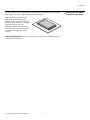
After dusting, wipe the screen gently using the supplied cleaning cloth or another soft
cloth (cotton, flannel etc.). Do not use tissue or a rough cloth. The screen surface is easily
scratched; do not rub it or hit it with a hard object.
Cleaning the Screen
If you clean the surface of the screen with a wet cloth, water droplets on the surface may
enter into the product and cause a malfunction.
Cleaning the Vents
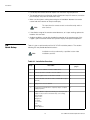
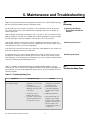
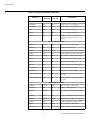
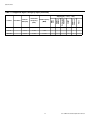
Table 5-1 provides some general guidelines for troubleshooting problems you may
encounter with the CX-70DHD. If the suggested solutions fail to resolve the problem or if
you encounter an issue not described here, please contact your Runco dealer or Runco
Technical Support.
5.2
Troubleshooting Tips
PR
As a general rule, use a vacuum cleaner about once a month to clean the vents on the
rear panel of the display of dust buildup (set the vacuum cleaner to its weakest setting
when doing this). If not removed, accumulated dust can cause the internal temperature to
increase, resulting in possible breakdown or fire.
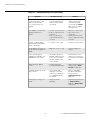
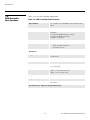
Table 5-1. Troubleshooting Chart
Symptom
The display does not turn on
after initial installation.
Possible Cause(s)
Solution
• The CX-70DHD is not
plugged in or the AC outlet
is not active.
• The DHD Controller is not
plugged in or the AC outlet
is not active.
• Ensure that the CX-70DHD
is plugged in and that the
AC outlet is active.
• Ensure that the DHD
Controller is plugged in
and that the AC outlet is
active.
• Replace the batteries.
• The remote control
batteries have run out.
• The serial connection from
the DHD Controller to the
CX-70DHD is incorrect.
CX-70DHD Installation/Operation Manual
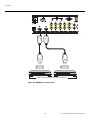
• Ensure that the RS-232
(Display Control) output
from the DHD Controller is
properly connected to the
RS-232C input on the
CX-70DHD (see Figure 3-4
or Figure 3-5).
57