1
Front Panel Overview
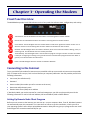
The MultiModem product has 6 LED indicators on the front panel that indicate status, configuration, and activity.
Transmit Data. The TD LED flashes when the modem is transmitting data to another modem.
Receive Data. The RD LED flashes when the modem is receiving data from another modem.
Carrier Detect. The CD LED lights when the modem detects a valid carrier signal from another modem. It is on
when the modem is communicating with the other modem and off when the link is broken.
Off-Hook. The OH LED lights when the modem is off-hook, which occurs when the modem is dialing, online, or
answering a call. The LED flashes when the modem pulse-dials.
Terminal Ready. The TR LED lights when a communications program is using the modem. It means the modem
is ready for an outgoing or incoming call. It goes off when the communications program disconnects. When it
goes off, a connected modem also disconnects.
Power. The PWR led lights when the modem is installed in Windows.
Connecting to the Internet
To use your Multi-Tech modem for Internet access, establish a dial-up account with an Internet service provider
(ISP). To locate an ISP near you, look in a local directory or computer publication. Your ISP provides you with the
following information:
●
User name (also called user ID)
●
Password
●
Access number (the number you call to connect to the server)
●
Host name and/or domain name
●
Domain Name Server (DNS) server address
If, besides the Web, you use the Internet for e-mail and newsgroups, your ISP can also provide you with the
following information: E-mail or POP mail address; POP server address; Mail or SMTP address
Setting Up Remote-Node Client Program
Before you can connect to the Internet, you must set up a on your computer. Most, if not all, Windows browsers
can automatically open this connection. For instructions on how to set up this connection, consult your ISP or
your operating system’s online help or printed documentation. Many ISPs can give you a program that can install
and configure this connection automatically for you.
MT9234ZBA-USB-CDC-XR User Guide
17