1
Adjusting Magnification
Changing the Viewing Mode
The DaVinci offers a large range of magnification capabilities.
The followingdirections can be used with the Front Panel Controls or
the DaVinci Control Console.
The DaVinci was designed to provide optimum viewing for people with
certain visual conditions by offering a range of choices in both text and
background colors. Use the Mode key located on the Front Panel and
Control Console to toggle between full color viewing, Black and White,
Enhanced Positive, Enhanced Negative, and up to 5 of your favorite
color select modes. The 5 favorite color select modes can be modified
to any of the 28 color select options by following the instructions
provided on page 19.
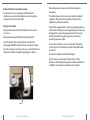
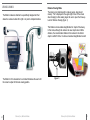
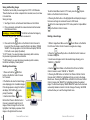
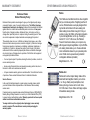
1. To adjust the magnification turn the zoom wheel located on the Control Console or Front Panel until you reach your desired magnification. Turning the wheel clockwise will increase magnification and turning the wheel counter-clockwise will decrease magnification.
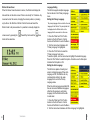
2. The Zoom Level will appear in the upper right corner of your
monitor when you are increasing or decreasing magnification. “Max
Zoom,” will appear at the maximum magnification and “Min Zoom,”
will appear at the minimum magnification.
NOTE: The extent of the magnification is dependent upon the distance
of the Camera to the object.
Adjusting Viewing Modes
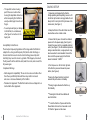
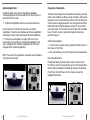
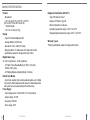
1. You can choose a viewing mode by pressing the “Mode” button on
the Console or Front Panel
2. Each push will allow you to cycle through all seven viewing modes.
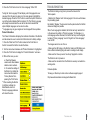
Color Select Mode Menu
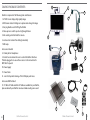
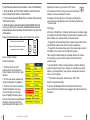
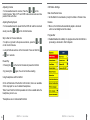
Pressing and holding the mode button for about 3 seconds on the
Front Panel or Control Console will bring up the Color Selection Menu.
Scroll through the available Color Modes by turning the Zoom Wheel.
Press Find on the Front Panel or Control Console to select the
highlighted Color Mode.
16
Ajusting Magnification
Changing the Viewing Mode
17