1
MODEL
BD-HP52U
BLU-RAY DISC PLAYER
SHARP ELECTRONICS CORPORATION
Sharp Plaza, Mahwah, New Jersey 07495-1163
SHARP CORPORATION
Printed in China
TINSEA166WJQZ
<DRC1389-A>
09P09-CH-NG
OPERATION MANUAL
OPERATION MANUAL
ENGLISH
• This Player is classified as a CLASS 1 LASER product.
• The CLASS 1 LASER PRODUCT label is located on
the rear cover.
• This product contains a low power laser device. To
ensure continued safety do not remove any cover or
attempt to gain access to the inside of the product.
Refer all servicing to qualified personnel.
1
BD-HP52U_en.indd 1
2009/09/15 11:35:05
Introduction
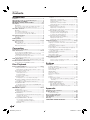
Contents
Introduction
Contents ............................................................................. 2
What would you like to do with this Player? ................... 3
DEAR SHARP CUSTOMER ............................................... 4
IMPORTANT SAFETY INSTRUCTIONS ........................ 4–5
About Discs .................................................................... 6–7
Blu-ray Disc .................................................................. 6
Types of Discs that Can Be Used with This Player ......... 6
Discs that Cannot Be Used with This Player .............. 6–7
About Disc Contents ......................................................... 8
BD Video ...................................................................... 8
Title, Chapter and Track ................................................ 8
Icons Used on DVD Video Disc Cases .......................... 8
The Icons Used in This Operation Manual ..................... 8
Important Information ....................................................... 9
Disc Precautions ........................................................... 9
Copyright ...................................................................... 9
Getting Started ................................................................ 10
Major Components.................................................... 11–12
Main Unit (Front).......................................................... 11
Main Unit (Rear) .......................................................... 11
HDMI cable holder on the rear of the main unit ...... 11
Remote Control Unit ................................................... 12
Connection
Introduction to Connections .......................................... 13
Video Connections .................................................... 14–16
Connecting to the HDMI Terminal ................................ 14
Selecting the priority video output when connecting
HDMI and Component video .................................... 14
Connecting to the Component Jacks .......................... 15
Connecting to the Video Jack ..................................... 16
Audio Connections .......................................................... 17
Connecting to the Digital Audio Terminal or Audio Jacks ... 17
Broadband Internet Connection .................................... 18
Connecting to the ETHERNET terminal ....................... 18
Disc Playback
Before Starting Playback .......................................... 19–23
Loading the Batteries in the Remote Control ............... 19
Approximate operating range of remote control ..... 19
Connecting the Power Cord........................................ 19
Turning the Power On ................................................. 20
Turning the power on ............................................. 20
Entering standby .................................................... 20
Indicators on the Player ......................................... 20
Language Setting........................................................ 21
Changing the on-screen display language.............. 21
Operating a SHARP TV Using the Remote Control ...... 21
TV function control ................................................. 21
Turning Off the LCD Backlight and Indications............. 22
Using AQUOS LINK .................................................... 22
Controlling the Blu-ray disc player using AQUOS LINK ... 22
RSS Reader function .................................................. 23
Netflix service function ................................................ 23
BD/DVD/CD Playback ............................................... 24–32
Loading a Disc ............................................................ 24
BD/DVD Video Playback ............................................. 24
Displaying the disc information ............................... 24
BD/DVD Menus .......................................................... 25
Start playback by selecting a title from the top menu ... 25
Using the disc menu .............................................. 25
Using the pop-up menu ......................................... 25
Enjoying BONUSVIEW or BD-LIVE .............................. 26
Use of Picture in Picture function
(secondary audio/video playback)........................ 26
Virtual Package ...................................................... 26
BD-LIVE................................................................. 26
DVD-R/-RW (VR format) / BD-RE/-R (BDAV format)
Playback ............................................................ 27–28
Playback by selecting a title ............................. 27–28
Playback by selecting a chapter ............................. 28
Sorting the titles ..................................................... 28
Playback by selecting a Playlist .............................. 28
Playing back the title you stopped while being played... 28
Audio CD Playback ..................................................... 29
Playback from the beginning .................................. 29
Playback by selecting a track ................................. 29
Operation procedure for the “Functions” menu ...... 29
Audio Data (MP3 File) Playback................................... 30
Playing back Audio data (MP3 files) ....................... 30
To play another file during Playback ....................... 30
To skip the file during Playback .............................. 30
Displaying Still Images (JPEG files) ........................ 31–32
Displaying Still Images (JPEG files) ......................... 31
Playing back Slide Show ........................................ 31
Setting slide show speed/repeat playback ............. 32
Playback Functions ................................................... 32–35
Fast Forward/Reverse (Search) ................................... 32
Skipping to the Next or the Start of the Current Chapter
(Track/Title) ............................................................... 33
Pause/Frame Advance Playback ................................. 33
Slow Playback ............................................................ 33
Repeat Playback of a Title or Chapter (Repeat Playback) ... 33
Partial Repeat Playback (Repeat Playback of
a Specified Part) ....................................................... 34
Displaying the Audio Information ................................. 34
Switching Subtitles...................................................... 34
Switching the Angle .................................................... 35
Displaying the Angle Mark ........................................... 35
Settings During Playback ......................................... 36–37
Function Control ......................................................... 36
Function control operation procedure .................... 36
Functions which can be set ................................... 37
Settings
SETTINGS ................................................................... 38–50
Common operations ................................................... 38
Basic Operation for Playback Setting .......................... 38
Audio Video Settings............................................. 39–40
Smart Settings ............................................................ 40
AQUOS LINK .............................................................. 41
Playback Setting ......................................................... 41
On Screen Language .................................................. 41
Version........................................................................ 41
System ....................................................................... 41
Communication Setup .......................................... 42–44
The operation procedure for inputting characters
manually .............................................................. 44
USB Memory Management ......................................... 45
Software Update Settings ..................................... 46–49
Auto Update from Network .................................... 46
Manual Update from Network ................................ 47
Manual Update from USB memory device ....... 48–49
Appendix
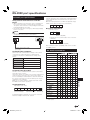
RS-232C port specifications........................................... 51
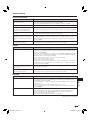
Troubleshooting ......................................................... 52–54
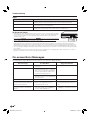
To Reset this Player..................................................... 54
On-screen Error Messages ............................................ 54
About Software License.................................................. 55
Specifications .................................................................. 56
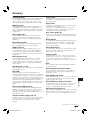
Glossary ..................................................................... 57–59
CONSUMER LIMITED WARRANTY ................................ 60
2
BD-HP52U_en.indd 2
2009/09/15 11:35:06
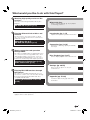
What would you like to do with this Player?
Watching high quality movies on Bluray discs
This Player offers full high-definition Blu-ray disc
playback.
BD/DVD/CD Playback (p. 24)
Enjoying different kinds of discs and
contents
What to do first:
Refer to “Getting Started” (p. 10) to prepare
for watching your discs.
Introduction (pp. 1–12)
Explains the important operation information.
Use this Player to enjoy various types of optical
discs such as DVDs and CDs that contain various
multimedia content.
About Discs (pp. 6–7)
BD/DVD/CD Playback (p. 24)
Connection (pp. 13–18)
Shows the connecting options provided by
this Player.
Simple connection and operation
through HDMI
This Player is equipped with an HDMI terminal. You
can connect it to the TV using HDMI and no other
cable will be needed to enjoy movies. If your TV
is compatible with AQUOS LINK, you can control
both the TV and this Player with simple operations.
Disc Playback (pp. 19–37)
Shows simple playback and useful functions.
Introduction to Connections (p. 13)
Video Connections (p. 14)
Settings (pp. 38–50)
Gives you more options to suit your
circumstances.
Enjoying BD-LIVE functions through
the internet
This Player is compatible with BD-LIVE. You can
enjoy bonus content such as movie trailers through
the internet when playing back BD-Video discs
compatible with BD-LIVE.
Enjoying BONUSVIEW or BD-LIVE
(p. 26)
Appendix (pp. 51–60)
Provides troubleshooting tips and more
information.
* The illustrations and on-screen displays in this operation manual are for explanation purposes and may vary
slightly from the actual operations.
3
BD-HP52U_en.indd 3
2009/09/15 11:35:06
DEAR SHARP CUSTOMER
Thank you for your purchase of the SHARP Blu-ray Disc Player. To ensure safety and many years of
trouble-free operation of your product, please read the Important Safety Instructions carefully before
using this product.
IMPORTANT SAFETY INSTRUCTIONS
Electricity is used to perform many useful functions, but it can also cause personal injuries and property damage if
improperly handled. This product has been engineered and manufactured with the highest priority on safety. However,
improper use can result in electric shock and/or fire. In order to prevent potential danger, please observe the following
instructions when installing, operating and cleaning the product. To ensure your safety and prolong the service life of your
Blu-ray Disc Player, please read the following precautions carefully before using the product.
1)
2)
3)
4)
5)
6)
7)
8)
9)
10)
11)
12)
13)
14)
Read these instructions.
Keep these instructions.
Heed all warnings.
Follow all instructions.
Do not use this apparatus near water.
Clean only with dry cloth.
Do not block any ventilation openings. Install in accordance with the manufacturer’s instructions.
Do not install near any heat sources such as radiators, heat registers, stoves, or other apparatus (including amplifiers)
that produce heat.
Do not defeat the safety purpose of the polarized or grounding-type plug. A polarized plug has two blades with one
wider than the other. A grounding type plug has two blades and a third grounding prong. The wide blade or the
third prong are provided for your safety. If the provided plug does not fit into your outlet, consult an electrician for
replacement of the obsolete outlet.
Protect the power cord from being walked on or pinched particularly at plugs, convenience receptacles, and the point
where they exit from the apparatus.
Only use attachments/accessories specified by the manufacturer.
Use only with the cart, stand, tripod, bracket, or table specified by the manufacturer, or sold with the apparatus.
When a cart is used, use caution when moving the cart/apparatus combination to avoid injury from tip-over.
Unplug this apparatus during lightning storms or when unused for long periods of time.
Refer all servicing to qualified service personnel. Servicing is required when the apparatus has been
damaged in any way, such as power-supply cord or plug is damaged, liquid has been spilled or objects
have fallen into the apparatus, the apparatus has been exposed to rain or moisture, does not operate
normally, or has been dropped.
Additional Safety Information
15) Power Sources—This product should be operated only from the type of power source indicated on the marking label.
If you are not sure of the type of power supply to your home, consult your product dealer or local power company.
For products intended to operate from battery power, or other sources, refer to the operating instructions.
16) Overloading—Do not overload wall outlets, extension cords, or integral convenience receptacles as this can result in
a risk of fire or electric shock.
17) Object and Liquid Entry—Never push objects of any kind into this product through openings as they may touch
dangerous voltage points or short-out parts that could result in a fire or electric shock. Never spill liquid of any kind on
the product.
18) Damage Requiring Service—Unplug this product from the wall outlet and refer servicing to qualified service personnel
under the following conditions:
a) When the AC cord or plug is damaged,
b) If liquid has been spilled, or objects have fallen into the product,
c) If the product has been exposed to rain or water,
d) If the product does not operate normally by following the operating instructions.
Adjust only those controls that are covered by the operating instructions as an improper adjustment of other
controls may result in damage and will often require extensive work by a qualified technician to restore the
product to its normal operation,
e) If the product has been dropped or damaged in any way, and
f) When the product exhibits a distinct change in performance - this indicates a need for service.
19) Replacement Parts—When replacement parts are required, be sure the service technician has used replacement
parts specified by the manufacturer or have the same characteristics as the original part. Unauthorized substitutions
may result in fire, electric shock, or other hazards.
20) Safety Check—Upon completion of any service or repairs to this product, ask the service technician to perform safety
checks to determine that the product is in proper operating condition.
21) Wall or ceiling mounting—When mounting the product on a wall or ceiling, be sure to install the product according to
the method recommended by the manufacturer.
22) The main AC plug is used as disconnect device and shall always remain readily operable.
4
BD-HP52U_en.indd 4
2009/09/15 11:35:06
IMPORTANT SAFETY INSTRUCTIONS
Introduction
• Water and Moisture—Do not use this product near water - for example, near a bath tub, wash bowl, kitchen sink, or
laundry tub; in a wet basement; or near a swimming pool; and the like.
• Stand—Do not place the product on an unstable cart, stand, tripod or table. Placing the product on an unstable base
can cause the product to fall, resulting in serious personal injuries as well as damage to the product. Use only a cart,
stand, tripod, bracket or table recommended by the manufacturer or sold with the product. When mounting the product
on a wall, be sure to follow the manufacturer’s instructions. Use only the mounting hardware recommended by the
manufacturer.
• Selecting the location—Select a place with no direct sunlight and good ventilation.
• Ventilation—The vents and other openings in the cabinet are designed for ventilation. Do not cover or block these vents
and openings since insufficient ventilation can cause overheating and/or shorten the life of the product. Do not place
the product on a bed, sofa, rug or other similar surface, since they can block ventilation openings. This product is not
designed for built-in installation; do not place the product in an enclosed place such as a bookcase or rack, unless
proper ventilation is provided or the manufacturer’s instructions are followed.
• Heat—The product should be situated away from heat sources such as radiators, heat registers, stoves, or other
products (including amplifiers) that produce heat.
• Lightning—For added protection for this product during a lightning storm, or when it is left unattended and unused for
long periods of time, unplug it from the wall outlet. This will prevent damage to the product due to lightning and powerline surges.
• To prevent fire, never place any type of candle or flames on the top or near the product.
• To prevent fire or shock hazard, do not expose this product to dripping or splashing.
No objects filled with liquids, such as vases, should be placed on the product.
• To prevent fire or shock hazard, do not place the AC cord under the product or other heavy items.
Precautions when cleaning this product
• Turn off the main power and unplug the AC cord from the wall outlet before handling.
• To clean the outer cabinet, periodically wipe it with a soft cloth (cotton, flannel, etc.).
• For severe dirt, soak a soft cloth (cotton, flannel, etc.) in some neutral detergent diluted with water, wring the cloth out
thoroughly, wipe off the dirt, then wipe again with a soft, dry cloth.
• Do not use chemicals or a chemically treated cloth for cleaning. It may damage the cabinet finish.
5
BD-HP52U_en.indd 5
2009/09/15 11:35:07
About Discs
Blu-ray Disc
Blu-ray Disc is the ultimate next generation optical
media format, offering the following key features:
• Largest capacity (25 GB single layer – 50 GB dual layer)
– with over 5 times the amount of content possible with
current DVDs, particularly well suited for high definition
feature films with extended levels of interactive features
• Pristine picture quality with the capability for full high
definition 1920 x 1080p resolution
• Best audio possible with uncompressed surround sound
(higher quality than even theater audio)
• Broadest industry support – ensuring more choice for
consumers in the marketplace
• Hardware products will be backward compatible with
DVDs, allowing continued enjoyment of existing DVD
libraries.
• Disc Durability – new breakthroughs in hard coating
technologies gives Blu-ray Discs the strongest resistance
to scratches and finger prints.
Types of Discs that Can Be Used
with This Player
• The following discs can be played back in this Player. Do
not use an 8 cm (3”) to 12 cm (5”) adapter.
• Use discs that conform to compatible standards as
indicated by the presence of official logos on the disc label.
Playback of discs not complying with these standards is not
guaranteed. In addition, the image quality or sound quality
is not guaranteed even if the discs can be played back.
Recording
Format
Disc Type
BD
Video
Region code
A/ALL
—
Contents
Audio
+ Video
(Movie)
Disc
Size
12 cm
(5”)
• BD/DVD video players and discs have region codes, which
dictate the regions in which a disc can be played. This
Player's region code is A for BD and 1 for DVD. (Discs
marked ALL will play in any player.)
• BD/DVD video operations and functions may be different
from the explanations in this manual and some operations
may be prohibited due to disc manufacturer's settings.
• If a menu screen or operating instructions are displayed
during playback of a disc, follow the operating procedure
displayed.
• The audio component of a DVD video recorded at 96
kHz (Linear PCM) will be output as 48 kHz audio during
playback.
NOTE
• Playback for some of the discs in the left side column
tables may not be possible depending on the disc.
• “Finalize” refers to a recorder processing a recorded disc
so that it will play in other DVD players/recorders as well
as this player. Only finalized DVD discs will play back in
this player. (This player does not have a function to finalize
discs.)
• Some discs cannot be played back depending on the
recording format.
Discs that Cannot Be Used with
This Player
The following discs cannot be played back or will
not play back properly on this Player. If such a
disc is mistakenly played back, speaker damage
may occur. Never attempt to play back these
discs.
CDG, Video CD, Photo CD, CD-ROM, CD-TEXT, SVCD,
SACD, PD, CDV, CVD, DVD-RAM, DVD-Audio, BD-RE
with the cartridge, CD-WMA
Discs with unusual shapes cannot be played.
BD-RE DL
BD-R DL
BDMV/BDAV
format
DVD
Video
Video format
Region code
1/ALL
1
ALL
DVD+RW/DVD+R
DVD-RW/DVD-R
DVD+R DL/DVD-R DL
Video/VR/
AVCHD format
(finalized disc
only)
JPEG*
2
• Discs with unusual shapes (heart-shaped or hexagonal
discs, etc.) cannot be used. The use of such discs will
cause malfunction.
Audio
+ Video
(Movie)
12 cm
(5”)
8 cm
(3”)
Audio
+ Video
(Movie)
12 cm
(5”)
8 cm
(3”)
Still image
(JPEG file)
MP3*3
Audio
Audio CD*1
Audio CD
(CD-DA)
Audio
CD-RW/CD-R
Audio CD
(CD-DA)
Audio
JPEG*2
Still image
(JPEG file)
MP3*
3
12 cm
(5”)
8 cm
(3”)
Audio
*1 This Player has been designed on the premise of playing
back Audio CDs that comply with CD (Compact Disc)
standards. CDs containing a signal for the purpose of
protecting copyrights (copy control signal) may not be able
to be played back with this Player.
The following BD video discs cannot be played.
• Discs not displaying “A” or “ALL” for the region code (discs
sold outside the authorized marketing area).*
• Discs produced illegally.
• Discs recorded for commercial use.
* The region code for this product is A.
The following DVD video discs cannot be played.
• Discs not displaying “1” or “ALL” for the region code (discs
sold outside the authorized marketing area).*
• Discs produced illegally.
• Discs recorded for commercial use.
* The region code for this product is 1.
The following BD-RE/R, DVD-RW/R and
DVD+RW/R discs cannot be played.
• Discs on which data has not been recorded cannot be
played back.
The following Audio CD discs cannot be played.
• Discs containing a signal for the purpose of protecting
copyrights (copy control signal) may not be played back
with this Player.
• This Player has been designed on the premise of playing
back Audio CDs that comply with CD (Compact Disc)
standards.
6
BD-HP52U_en.indd 6
2009/09/15 11:35:07
About Discs
The following CD-RW/R discs cannot be played.
• Discs on which data has not been recorded cannot be
played back.
• Discs recorded in a format other than an Audio CD and
JPEG/MP3 file format cannot be played back.
• Discs may not be played back depending on their
recording status or the status of the disc itself.
• Discs may not be played back depending on their
compatibility with this Player.
*2
About the JPEG file format
JPEG is a type of file format for storing still-image files
(photos, illustrations, etc.). The Player lets you play JPEG
format still-image files.
Other files that cannot be played back.
• When both Audio CD [CD-DA] format and JPEG/MP3 file
formats are recorded on a disc. (The disc is recognized to
be an Audio CD [CD-DA] only tracks in Audio CD [CD-DA]
format are played back.)
• Multi-session discs cannot be played.
About files/folders for Still images
(JPEG files) and audio data (MP3 files)
You can play still images (JPEG files) /audio data (MP3 files)
with this unit by making folder(s) on discs or USB memory
devices as shown below.
Example of a folder structure:
Root
001.jpg/001.mp3
• It may take some time to play files depending on the
number of folders, number of files and volume of data
involved.
• EXIF information will not be displayed. EXIF stands for
Exchangeable Image File Format, and is a standard for
storing interchange information in image files, especially
those using JPEG compression. (Refer to http://exif.org for
more information.)
*3
About the MP3 file format
MP3 files are audio data compressed in the MPEG1/2 Audio
layer-3 file format. “MP3 files” have “.mp3” as extensions.
(Some files that have “.mp3” extensions or files that have not
been recorded in MP3 format will produce noise or cannot be
played.)
Playing the MP3 file format
• The MP3 files are not played in the order they were
recorded.
• It is recommended to record data at a lower speed as data
recorded at a fast speed can produce noise and may not
be able to be played.
• The more folders there are, the longer the reading time.
• Depending on the folder tree, reading MP3 files can take
time.
• The playing time may not be correctly displayed during
MP3 file playback.
*4
xxx.jpg/xxx.mp3
*4
01 Folder
• You may not be able to play some still images which you
have created, touched up, copied or otherwise edited on
your computer.
• You may not be able to play some still images you have
processed (rotated or saved by overwriting other images
you have imported from the Internet or e-mail).
You may experience one or more of the following
symptoms when playing files.
Introduction
File formats that are not compatible.
• Still images in formats other than JPEG (such as TIFF)
cannot be played.
• There may be some files that cannot be played even if they
are in JPEG format.
• Progressive JPEG files cannot be played.
• Moving image files as well as Motion JPEG format files
cannot be played, even though they are JPEG files.
The following files cannot be played on this
player.
001.jpg/001.mp3
Folder
256.jpg/256.mp3
001.jpg/001.mp3
255.jpg/255.mp3
xxx Folder
*4
001.jpg/001.mp3
256.jpg/256.mp3
*4
*4 Including the root directory, the maximum number of
folders and files in each folder is limited to 256 in total.
File and folder requirements
• The discs or USB memory devices which this player can
play back (recognize) are limited to the following properties:
Contains EXIF format files (only JPEG files)
Picture resolution: Between 32 x 32 and 7680 x 4320
pixels (only JPEG files)
Maximum number of folders and files in each folder: 256
Maximum hierarchy level of folders: 5
File size: 20 MB or less (JPEG files)
200 MB or less (MP3 files)
NOTE
• File and folder names displayed on this player may differ
from those displayed on PCs.
7
BD-HP52U_en.indd 7
2009/09/15 11:35:08
About Disc Contents
DTS
BD Video
DTS is a digital sound system developed by DTS, Inc. for
use in cinemas.
Enjoy BD-specific functions including BONUSVIEW (BD-ROM
Profile 1 Version 1.1), such as picture-in-picture, and BD-LIVE
(page 26).
For the BD video discs compatible with BONUSVIEW/BDLIVE, you can enjoy additional contents by copying the data
from the discs or downloading it via the internet. For instance,
this function is capable of playing the original movie as the
primary video while playing video commentary from the film
director on a small screen as a secondary video.
NOTE
Linear PCM
Linear PCM is a signal recording format used for Audio
CDs and on some DVD and Blu-ray discs. The sound
on Audio CDs is recorded at 44.1 kHz with 16 bits.
(Sound is recorded between 48 kHz with 16 bits and 96
kHz with 24 bits on DVD video discs and between 48
kHz with 16 bits and 192 kHz with 24 bits on BD video
discs.)
2
Subtitle languages
3
Screen aspect ratio
4
Camera angle
This indicates the kind of subtitles.
• The available functions differ depending on the disc.
Movies are shot in a variety of screen modes.
Title, Chapter and Track
• Blu-ray discs and DVDs are divided into “Titles” and
“Chapters”. If the disc has more than one movie on it, each
movie would be a separate “Title”. “Chapters”, on the other
hand, are subdivisions of titles. (See Example 1.)
• Audio CDs are divided into “Tracks”. You can think of a
“Track” as one tune on an Audio CD. (See Example 2.)
Example 1: Blu-ray disc or DVD
Recorded onto some BD/DVD discs are scenes which
have been simultaneously shot from a number of
different angles (the same scene is shot from the front,
from the left side, from the right side, etc.).
5
Region code
This indicates the region code (playable region code).
The Icons Used in This Operation
Manual
Title 1
Title 2
BD VIDEO ........... Indicates the functions that can be performed
for BD Video discs.
........... Indicates the functions that can be performed
for BD-RE discs.
BD-R ........... Indicates the functions that can be performed
for BD-R discs.
DVD VIDEO ....... Indicates the functions that can be performed
for DVD Video discs.
DVD-RW ........... Indicates the functions that can be performed
for DVD-RW discs.
DVD-R ............ Indicates the functions that can be performed
for DVD-R discs.
AUDIO CD ........... Indicates the functions that can be performed
for Audio CDs.
CD-R ........... Indicates the functions that can be performed
for CD-R discs.
CD-RW ........... Indicates the functions that can be performed
for CD-RW discs.
USB
........... Indicates the functions that can be performed
for USB memory devices.
BD-RE
Chapter 1 Chapter 2
Chapter 3
Chapter 1
Example 2: Audio CD
Track 1
Track 2
Track 3
Track 4
Icons Used on DVD Video Disc Cases
The back of the case of a DVD that is commercially
available usually contains various information about the
contents of the disc.
1
2
2
1. English
2. Chinese
3
4
16:9 LB
1
2
1. English
2. Chinese
5
2
123
456
Audio tracks and audio formats
DVD discs can contain up to 8 separate tracks with
a different language on each. The first in the list is the
original track.
This section also details the audio format of each
soundtrack — Dolby Digital, DTS, MPEG etc.
Dolby Digital
A sound system developed by Dolby Laboratories Inc.
that gives movie theater ambience to audio output when
the Player is connected to a Dolby Digital processor or
amplifier.
8
BD-HP52U_en.indd 8
2009/09/15 11:35:08
Important Information
Disc Precautions
Be Careful of Scratches and Dust
• BD, DVD and CD discs are sensitive to dust, fingerprints
and especially scratches. A scratched disc may not be able
to be played back. Handle discs with care and store them
in a safe place.
Proper Disc Storage
Place the disc in the center of the
disc case and store the case and
disc upright.
Do not drop discs or subject them
to strong vibrations or impacts.
Avoid storing discs in locations
where there are large amounts of
dust or moisture.
Handling Precautions
• If the surface is soiled, wipe gently with a soft, damp (water
only) cloth. When wiping discs, always move the cloth from
the center hole toward the outer edge.
• Do not use record cleaning sprays, benzene, thinner, static
electricity prevention liquids or any other solvent.
• Do not touch the surface.
• Do not stick paper or adhesive labels to the disc.
• If the playing surface of a disc is soiled or scratched, the
Player may decide that the disc is incompatible and eject
the disc tray, or it may fail to play the disc correctly. Wipe
any dirt off the playing surface with a soft cloth.
U.S. Patent Nos. 6,836,549; 6,381,747; 7,050,698;
6,516,132; and 5,583,936
• Manufactured under license from Dolby Laboratories.
“Dolby” and the double-D symbol are trademarks of Dolby
Laboratories.
• Manufactured under license under U.S. Patent #’s:
5,451,942; 5,956,674; 5,974,380; 5,978,762; 6,226,616;
6,487,535; 7,392,195; 7,272,567; 7,333,929; 7,212,872 &
other U.S. and worldwide patents issued & pending. DTS is
a registered trademark and the DTS logos, Symbol, DTSHD and DTS-HD Master Audio | Essential are trademarks
of DTS, Inc. ©1996-2008 DTS, Inc. All Rights Reserved.
Introduction
Avoid storing discs in locations
subject to direct sunlight, close to
heating appliances or in locations
of high humidity.
Copyright
• Audio-visual material may consist of copyrighted works
which must not be recorded without the authority of the
owner of the copyright. Refer to relevant laws in your
country.
• This product incorporates copyright protection technology
that is protected by U.S. patents and other intellectual
property rights. Use of this copyright protection technology
must be authorized by Macrovision, and is intended for
home and other limited viewing uses only unless otherwise
authorized by Macrovision. Reverse engineering or
disassembly is prohibited.
is a trademark.
•
• “BD-LIVE” logo is a trademark of Blu-ray Disc Association.
is a trademark of DVD Format/Logo Licensing
•
Corporation.
• HDMI, the HDMI logo and High-Definition Multimedia
Interface are trademarks or registered trademarks of HDMI
Licensing LLC.
• “x.v.Color” and “x.v.Color” logo are trademarks of Sony
Corporation.
• Java and all Java-based trademarks and logos are
trademarks or registered trademarks of Sun Microsystems,
Inc. in the United States and/or other countries.
• “BONUSVIEW” logo is a trademark of Blu-ray Disc
Association.
• “AVCHD” and the “AVCHD” logo are trademarks of
Panasonic Corporation and Sony Corporation.
Cleaning the Pick Up Lens
• Never use commercially available cleaning discs. The use
of these discs can damage the lens.
• Request the nearest service center approved by SHARP to
clean the lens.
Warnings about dew formation
• Condensation may form on pick up lens or disc in the
following conditions:
− Immediately after a heater has been turned on.
− In a steamy or very humid room.
− When the Player is suddenly moved from a cold
environment to a warm one.
When condensation forms:
• It becomes difficult for the Player to read the signals
on the disc and prevents the Player from operating
properly.
To remove condensation:
• Take out the disc and leave the Player with the power
off until the condensation disappears. Using the Player
when there is condensation may cause malfunction.
ENERGY STAR® Program Information
Products that have earned
the ENERGY STAR® are
designed to protect the
environment through
superior energy efficiency.
To comply with the ENERGY STAR® standards mentioned
above, please set the Quick Start function to “No” as
described on page 40.
ENERGY STAR® is a U.S. registered mark.
9
BD-HP52U_en.indd 9
2009/09/15 11:35:09
Getting Started
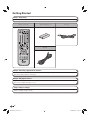
Step 1: Unpacking
Make sure the following accessories are provided with the product.
Remote control unit
“AA” size battery (g2)
AC cord
AV cable
Step 2: Selecting equipment to connect
Connection varies with the equipment used. Refer to Connection. (Pages 13–18)
Turn off the devices before connecting.
Step 3: Playing back discs
Play back a Blu-ray disc after connecting the Player to your favorite equipment.
Refer to Disc Playback. (Pages 19–37)
Step 4: Adjust settings
Adjust settings to enjoy various features and other functions for playing discs.
Refer to Settings. (Pages 38–50)
10
BD-HP52U_en.indd 10
2009/09/15 11:35:10
Major Components
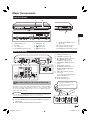
Main Unit (Front)
1
2
3
5
6
7
8
9 10
11
12
AQUOS PURE MODE indicator
(pp. 20, 22)
10 Remote control sensor (p. 19)
11 Front panel display (p. 20)
12 BD/DVD/CD mode indicator (p. 20)
9
1
2
3
4
OPEN/CLOSE (p. 24)
Door flap
Disc tray (p. 24)
ON/STANDBY indicator (p. 20)
5
6
7
8
POWER (p. 20)
d PLAY (p. 24)
H STOP (p. 24)
F PAUSE (p. 29)
Introduction
4
Main Unit (Rear)
HDMI OUT terminal (p. 14)
ETHERNET terminal (p. 18)
BD STORAGE/SERVICE terminal
BD STORAGE (pp. 26, 45)
SERVICE for software (p. 48)
4 COMPONENT VIDEO OUT jacks
(p. 15)
5 VIDEO output jack (p. 16)
6 2CH AUDIO output jacks (p. 17)
7 DIGITAL AUDIO OUT OPTICAL
terminal (p. 17)
8 HDMI cable holder (See below.)
9 Cooling fan
The cooling fan operates while the
power to the Player is on.
10 AC IN terminal (p. 19)
11 RS-232C terminal (p. 51)
1
2
3
2
4
8
5
9
10
11
1
3
6
7
HDMI cable holder on the rear of the main
unit
This Player comes with a dedicated cable holder so that the HDMI
cable does not place direct weight and stress on the terminal. When
connecting the HDMI cable, be sure to pass the cable through the
cable holder and secure it.
Connect the HDMI cable to
the rear of the main unit while
providing some slack.
CAUTION
• Do not pull on the HDMI cable when it is connected to the terminal, as
this can damage the terminal or cause a poor connection.
1 Press down on the tab and pull it towards you.
2 Pass the HDMI cable (commercially available) through the
cable holder.
3 Press in on the tab until it clicks into position.
HDMI cable
11
BD-HP52U_en.indd 11
2009/09/15 11:35:11
Major Components
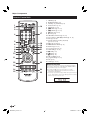
Remote Control Unit
1
2
3
16
17
4
5
6
7
8
9
10
18
19
20
21
22
11
12
23
1
2
3
4
5
6
7
8
9
10
11
12
13
14
15
16
17
18
19
20
21
22
23
24
25
POWER (p. 20)
m OPEN/CLOSE (p. 24)
AUDIO (p. 34), SUBTITLE (p. 34)
Number buttons (p. 37)
REPEAT (pp. 33, 34)
T SKIP/k (pp. 27, 33)
U SKIP/l (pp. 27, 33)
F PAUSE (pp. 29, 33)
d PLAY (p. 24)
TOP MENU/TITLE LIST (pp. 25, 27)
Cursor buttons (a/b/c/d), ENTER (pp. 21, 38)
EXIT (pp. 20, 38)
A (Red), B (Green), C (Blue), D (Yellow)
(pp. 28, 29, 32, 44)
(Lock) (See below.)
VIDEO OUTPUT RESET (p. 39)
DISPLAY (pp. 24, 34)
TV control buttons (p. 21)
FUNCTION (pp. 35, 36)
V FWD (p. 32)
S REV (p. 32)
H STOP (p. 24)
POP-UP MENU (p. 25)
n RETURN (pp. 29, 33)
PinP (p. 26)
SETUP (pp. 21, 38)
Keylock function
13
14
24
15
25
You can set the keylock to prevent accidental operations.
This function allows TVs compatible with AQUOS LINK to
also perform a Key Lock on the player.
Press and hold
(Lock) for more than 5 seconds.
• Each time you perform this operation, the function is
activated or deactivated.
• If you try to operate the Player while the keylock function
is set, “Hold” blinks on the front display panel to indicate
that the keylock function is set.
12
BD-HP52U_en.indd 12
2009/09/15 11:35:12
Connection
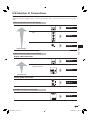
Introduction to Connections
This Player is equipped with the terminals/jacks listed below. Find the corresponding terminal/jack on your video
equipment. Using the supplied cable or commercially available cables, connect the video first. Then connect the
audio.
Video terminals/jacks on this Player
Higher Quality
1 HDMI OUT terminal
Page 14
2 COMPONENT VIDEO OUT
jacks
Page 15
3 VIDEO output jack
Page 16
Connection
Standard Quality
Audio terminals/jacks on this Player
Digital audio connection
Higher Quality
1 HDMI OUT terminal
Page 14
2 DIGITAL AUDIO OUT
OPTICAL terminal
Page 17
Standard Quality
Analog audio connection
Standard Quality
2CH AUDIO output jacks
Page 17
Broadband Internet connection
ETHERNET terminal
Page 18
13
BD-HP52U_en.indd 13
2009/09/15 11:35:12
Video Connections
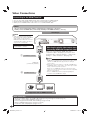
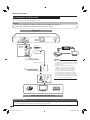
Connecting to the HDMI Terminal
• You can enjoy high quality digital picture and sound through the HDMI terminal.
• See page 50 for information on the output of next generation audio formats.
• When you use AQUOS LINK, make sure to use a certified HDMI cable.
STEPS
1 Be sure to turn off this Player and the equipment before making any connections.
2 Firmly connect an HDMI cable (commercially available) to the HDMI terminals (1 and 2).
This Player
NOTE
• Audio transmitted in DTS-HD High
Resolution Audio and DTS-HD Master
Audio formats is output from the
HDMI terminal as Bitstream. Connect
an amplifier with a built-in decoder to
enjoy the fine sound quality.
• When using an HDMI output, 7.1 ch
Digital Output is available.
1
Selecting the priority video output when
connecting HDMI and Component video
When you connect both an HDMI cable and a
component cable to this player, you need to select
the priority video output in “Settings” – “Audio Video
Settings” – “Video Out Select”. (See page 39.)
To HDMI OUT terminal
NOTE
• When you connect the player to a SHARP TV with an
HDMI cable only and the TV is turned on, the video output
switches to HDMI automatically. (The above setting is
unnecessary.)
• When you connect the player to a TV with an HDMI cable,
“HDMI Video Out” is set to “Auto”. If you don’t get a stable
image, select the desired resolution*.
When you set “HDMI Video Out” to a setting other than
“Auto”, you can only select resolutions* that are compatible
with the connected TV.
* Refer to “HDMI Video Out” on page 39 regarding the
resolutions of the HDMI video output.
HDMI cable
(commercially available)
2
To HDMI IN terminal
Projector
TV
AV receiver
Equipment with an HDMI terminal
After connecting
•
•
•
•
•
Secure the HDMI cable to the HDMI cable holder, passing it through the holder. (Page 11)
If desired, connect audio equipment. (Page 17)
If necessary, perform the Audio Video Settings. (Pages 39–40)
Refer to AQUOS LINK function. (Pages 22 and 41)
Load a disc and start playback. (Pages 24–32)
14
BD-HP52U_en.indd 14
2009/09/15 11:35:13
Video Connections
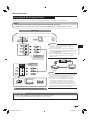
Connecting to the Component Jacks
You can enjoy accurate color reproduction and high quality images through the component jacks.
STEPS
1 Be sure to turn off this Player and the equipment before making any connections.
2 Firmly connect a component video cable (commercially available) to the component jacks (1 and 2).
This Player
CAUTION
(Red)
Red
(Green)
Green
1
To COMPONENT
VIDEO OUT jacks
Connection
(Blue)
Blue
• You need to select the priority video output in
“Settings” – “Audio Video Settings” – “Video Out
Select”. (See page 39.)
• When the priority video output is set to “HDMI” in
“Video Out Select”, the video resolution which is output
from the COMPONENT VIDEO OUT jacks is the one
set in “HDMI Video Out”.
• When the output from the COMPONENT VIDEO OUT
jacks is prioritized, set the priority video output to
“Component”.
Component video cable
(commercially available)
VCR
To COMPONENT
COMPONENT IN
Red
Blue
Green
2 IN jacks
(Red)
PR
(CR)
Connect directly
Blu-ray Disc
Player
(Blue)
PB
(CB)
(Green)
NOTE
Y
Projector
TV
LCD TV
AV receiver
• Connect the Blu-ray disc player to LCD TV directly.
If you play back the image via VCR, the image may
deteriorate due to the copy guard function.
• When you record the program where copyright
is protected, the copy guard function is activated
automatically; the program cannot be recorded
correctly. Also, the playback image via VCR may
deteriorate due to this function. However, this is not
a malfunction. When you watch the program where
copyright is protected, we recommend that the Blu-ray
disc player be connected to LCD TV directly.
Video equipment with component jacks
After connecting
• Connect audio equipment or the audio terminals of the TV. (Page 17)
• If necessary, perform the Audio Video Settings. (Pages 39–40)
15
BD-HP52U_en.indd 15
2009/09/15 11:35:14
Video Connections
Connecting to the Video Jack
You can enjoy the images through the video jack.
STEPS
1 Be sure to turn off this Player and the equipment before making any connections.
2 Firmly connect an AV cable (supplied) to the video jacks (1 and 2).
This Player
(Yellow)
Yellow
VCR
Connect directly
Blu-ray Disc
Player
1 To VIDEO output jack
LCD TV
NOTE
• Connect the Blu-ray disc player to LCD TV
directly. If you play back the image via VCR,
the image may deteriorate due to the copy
guard function.
• When you record the program where
copyright is protected, the copy guard
function is activated automatically; the
program cannot be recorded correctly.
Also, the playback image via VCR may
deteriorate due to this function. However,
this is not a malfunction. When you watch
the program where copyright is protected,
we recommend that the Blu-ray disc player
be connected to LCD TV directly.
AV cable (supplied)
2 To VIDEO input jack
(Yellow)
Yellow
Projector
TV
AV receiver
Video equipment with a video jack
After connecting
• Connect audio equipment or the audio terminals of the TV. (Page 17)
• If necessary, perform the Audio Video Settings. (Pages 39–40)
16
BD-HP52U_en.indd 16
2009/09/15 11:35:16
Audio Connections
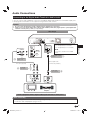
Connecting to the Digital Audio Terminal or Audio Jacks
• You can connect audio equipment or the TV to the DIGITAL AUDIO OUT terminal or 2CH AUDIO output jacks.
• See page 50 for information on the output of next generation audio formats.
STEPS
1 Be sure to turn off this Player and the equipment before making any connections.
2 Firmly connect an optical digital cable (commercially available) or AV cable (supplied) to the optical digital audio
terminals or audio jacks (1 and 2, or 3 and 4).
This Player
(White)
NOTE:
White
7.1 ch Audio is available via the HDMI
terminal.
(Red)
Red
To OPTICAL output
terminal
3
Connection
• When using OPTICAL output,
5.1 ch Digital Output is available.
7.1 ch Digital Output is not available.
1
To 2CH AUDIO
output jacks
Optical digital cable
(commercially available)
AV cable (supplied)
4
To AUDIO
input jacks
To OPTICAL
input terminal
(White) (Red)
White
TV
2
Red
Amplifier
Audio equipment with a digital audio input terminal or audio jacks
After connecting
• If necessary, perform the Audio Video Settings. (Pages 39–40)
• Load a disc and start playback. (Pages 24–32)
17
BD-HP52U_en.indd 17
2009/09/15 11:35:17
Broadband Internet Connection
Connecting to the ETHERNET terminal
• You can enjoy a variety of contents with interactive functions by connecting to the internet when playing BDLIVE compatible discs. Refer to pages 26 and 41 regarding further information on BD-LIVE functions.
• You can enjoy an RSS reader function and Netflix service via the internet. (Netflix service will be available with a
software update.)
• This player can update the software from Sharp’s server using the internet.
• When using the internet, a broadband internet connection as shown below is required.
STEPS
1 Be sure to turn off this Player and the equipment before making any connections.
2 Firmly connect a LAN cable (commercially available) to the ETHERNET terminal (1 and 2).
This Player
To ETHERNET
terminal
CAUTION
• When using a broadband internet connection, a contract
with an internet service provider is required. For more
details, contact your nearest internet service provider.
• Refer to the operation manual of the equipment you have
as the connected equipment and connection method may
differ depending on your internet environment.
1
LAN cable
(commercially available)
NOTE
• Use a LAN cable/router supporting 10BASE-T/100BASETX.
• SHARP cannot guarantee that all brands’ hubs will operate
with this player.
To LAN terminal
2
LAN
Internet
Modem
Hub or broadband router
PC
Example of a Broadband Internet Connection
After connecting
• Perform the communication settings. (Pages 42–44)
• When enjoying the BD-LIVE function, load a BD-LIVE compatible disc and play back the contents. (Pages 24 and 26)
• When enjoying the RSS reader function or Netflix service, see page 23. (Netflix service will be available with a
software update.)
• To update the software via the internet, perform Software Update Settings. (Pages 46–47)
18
BD-HP52U_en.indd 18
2009/09/15 11:35:17
Disc Playback
Before Starting Playback
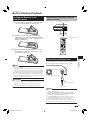
Loading the Batteries in the
Remote Control
1
Hold in the tab on the battery cover and pull the
cover towards the direction of the arrow.
2
Load the two “AA” size batteries (R-06 size,
UM/SUM-3). Place batteries with their terminals
corresponding to the m and n indications in
battery compartment.
Approximate operating range of
remote control
Remote control sensor
30º
3
30º
7m
Remote control unit
Insert the smaller tab of the battery cover into
the opening 1, and press down on the cover
until it clicks in place 2.
Plug the supplied AC cord into the AC IN terminal on
the rear of the Player. Then plug into AC outlet.
NOTE
• Do not subject the remote control unit to shock, water or
excessive humidity.
• The remote control unit may not function if the Player's
remote sensor is in direct sunlight or any other strong light.
• Incorrect use of batteries may cause them to leak or burst.
Read the battery warnings and use the batteries properly.
• Do not mix old and new batteries, or mix different brands.
• Remove the batteries if you will not use the remote control
unit for an extended period of time.
Disc Playback
Connecting the Power Cord
WARNING
• Do not use or store batteries in direct sunlight or other
excessively hot place, such as inside a car or near a heater.
This can cause batteries to leak, overheat, explode or
catch fire.
It can also reduce the life or performance of batteries.
To AC IN terminal
To AC outlet
NOTE
• Place the Player close to the AC outlet, and keep the
power plug within reach.
• TO PREVENT RISK OF ELECTRIC SHOCK, DO NOT
TOUCH THE UN-INSULATED PARTS OF ANY CABLES
WHILE THE AC CORD IS CONNECTED.
• The ON/STANDBY indicator blinks while the Player is
preparing for starting up. You cannot turn the Player on
until the ON/STANDBY indicator stops blinking.
• If you are not going to use this Player for a long period of
time, be sure to remove the AC cord from the AC outlet.
19
BD-HP52U_en.indd 19
2009/09/15 11:35:18
Before Starting Playback
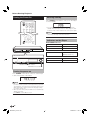
Turning the Power On
Entering standby
Press POWER on the remote control or on the Player
to enter standby.
• If you press POWER again immediately after entering
standby, the Player may not turn on. If this happens, wait
for 10 seconds or more and then turn on the power again.
NOTE
• When the ON/STANDBY indicator is blinking (may take
some time), the Player cannot be turned on.
Indicators on the Player
ON/STANDBY indicator
Green on
Power on
Red blinks
Preparing for standby
Red on
Standby
AQUOS PURE MODE indicator
POWER
Green on
ON/STANDBY indicator
Output in AQUOS PURE
MODE (See page 22.)
BD/DVD/CD mode indicator
Blue on
Playing back
Blue blinks
Loading a disc
AQUOS PURE MODE indicator
BD/DVD/CD mode indicator
Turning the power on
Press POWER on the remote control or on the Player
to turn on the power of the Player.
NOTE
• When you turn on this player for the first time after
purchase or when you turn on this player after you perform
“System Reset” (see page 41), the language setting screen
will be displayed, so please perform the language setting
(see step 4 of page 21).
• When you turn on the power, the Menu screen automatically
displays for a while.
Press EXIT to exit the Menu screen.
20
BD-HP52U_en.indd 20
2009/09/15 11:35:19
Before Starting Playback
Language Setting
Operating a SHARP TV Using the
Remote Control
The Universal Remote Control may operate the basic
functions of the SHARP TV.
TV function control
Changing the on-screen display
language
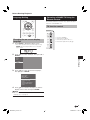
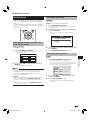
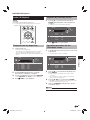
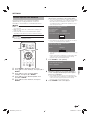
1 Press SETUP to display the Menu screen.
•
•
•
•
TV Power: POWER
TV-AV Selector: INPUT
TV Volume up/down: VOL e/f
TV Channel up/down: CH r/s
• The same operation can be performed by pressing
ENTER after selecting the Menu icon on the Wall
paper screen.
2
Press a/b to select “Settings”, then press d or
ENTER.
3
Disc Playback
Movie
Picture
Music
e-Contents
Settings
Press a/b to select “On Screen Language”,
then press d or ENTER.
Audio Video Settings
Smart Settings
AQUOS LINK
Playback Setting
On Screen Language
Communication Setup
Version
USB Memory Management
Software Update Settings
System
4
Press a/b to select the language you want to
display on the screen, then press ENTER.
NOTE
• To select the DVD disc language, such as subtitle
language, etc., see page 25.
21
BD-HP52U_en.indd 21
2009/09/15 11:35:19
Before Starting Playback
Turning Off the LCD Backlight and
Indications
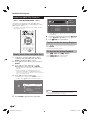
If you feel that the indicators on the player’s front
display are too bright when watching movies, you can
turn them off except for the ON/STANDBY indicator.
Using AQUOS LINK
Controlling the Blu-ray disc player
using AQUOS LINK
What is AQUOS LINK?
Using the HDMI CEC (Consumer Electronics Control), with
AQUOS LINK you can interactively operate this player with
your SHARP AQUOS TV.
What you can do with AQUOS LINK
When you connect this player to the LCD TV compatible
with AQUOS LINK using an HDMI cable, you can perform
the function listed below. (See page 14 for connecting to the
HDMI terminal).
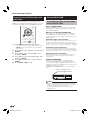
Automatic input select function
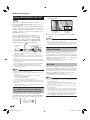
1
Press SETUP to display the Menu screen.
• The same operation can be performed by pressing
ENTER after selecting the Menu icon on the Wall
paper screen.
2
3
4
5
6
Press a/b to select “Settings”, then press d or
ENTER.
Press a/b to select “Smart Settings”, then
press d or ENTER.
Press a/b to select “Front Display/LED”, then
press d or ENTER.
Press a/b to select “On” or “Off”, then press
ENTER.
Press SETUP or EXIT to exit.
When you start playback of this player, the input selector of
the LCD TV will automatically switch to the LCD TV input
terminal connected to the player and the playback image will
appear on the screen, even if you are watching a TV program.
Automatic power off function
If you turn off the LCD TV when this player is in stop mode,
the power of this player will be turned off automatically. (In the
case, while playing back a disc, the power does not turn off.)
Automatic power on function
When you switch to the LCD TV input terminal connected
to this player, the power of this player will be turned on
automatically.
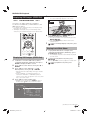
AQUOS PURE MODE
When you connect this player to an AQUOS LCD TV
compatible with AQUOS LINK and set “AQUOS LINK” to
“Yes” (page 41), images automatically adjusted to the most
suitable image quality for the AQUOS TV are output from the
HDMI OUT terminal of this player.
The AQUOS PURE MODE indicator on the player lights in
green.
AQUOS PURE MODE indicator
NOTE
• In order to make AQUOS LINK available, set up AQUOS
LINK on the LCD TV that is connected to this player. See
page 41 regarding the setup of this player.
Refer to the Operation Manual of the TV for details
regarding setup.
22
BD-HP52U_en.indd 22
2009/09/15 11:35:20
Before Starting Playback
RSS Reader function
In this Player, text information, such as news, which
SHARP provides through the internet can be displayed
scrolling text.
• To enjoy this function, perform the broadband internet
connection (page 18) and communication settings (pages
42–44), then perform the following operation.
NOTE
• The information displayed varies periodically. However, the
updating period is not constant depending on the content.
• The operation and text display may not be possible
depending on the status of the player.
• When the main feature of a disc is played and the menu
screen is displayed, this function cannot be displayed.
• When loading a disc, this function sometimes cannot be
displayed.
• Please note that SHARP does not take any responsibility
for the contents displayed with this function.
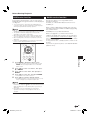
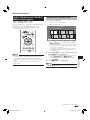
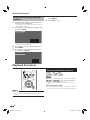
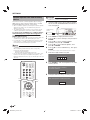
Press SETUP to display the Menu screen.
• The same operation can be performed by pressing
ENTER after selecting the Menu icon on the Wall
paper screen.
2
3
4
This function allows you to enjoy Netflix service
through the internet.
However, as of November 2009, this function is not
available yet.
When software supporting the Netflix service function
is provided, this function will be available by upgrading
the software version.
Availability has not yet been determined.
When you upgrade to a software version which
supports the Netflix service function, at the same time
access www.sharpusa.com/products/support using a
PC to download the operation manual of Netflix service
shown on the website.
To enjoy this function, carefully read the contents of the
manual.
If you have any question, please call 1-800-BE-SHARP
(800-237-4277).
Disc Playback
1
Netflix service function
Press a/b to select “e-Contents”, then press
d or ENTER.
Press a/b to select “RSS”, then press d or
ENTER.
Press a/b to select “On”, then press ENTER.
• Select “Off” to turn off this function.
5
Press a/b to select the desired channel.
• The text information on the selected channel, such as
news, is displayed, scrolling from right to left.
NOTE
• If you want to change the channel, press c/d to select
the RSS icon and press a/b to select the desired channel
while the Wall paper screen (Blu-ray Disc logo screen) is
displayed.
• If you want to turn the text display off, perform the
operations from step 1 when playback of the disc is
stopped.
23
BD-HP52U_en.indd 23
2009/09/15 11:35:20
BD/DVD/CD Playback
This section explains playback of commercially
available BD Video and DVD Video discs (like movies),
CDs, and recorded DVD-RW/R discs.
To stop playback
Press H STOP.
Resume playback function
• If you press d PLAY next, playback will resume from
the point where the Player was previously stopped. To
playback from the beginning, cancel resume mode by
pressing H STOP, then press d PLAY. (This may not
work depending on the type of disc. In this case, open the
disc tray or enter standby.)
Loading a Disc
NOTE
POWER
OPEN/CLOSE
• Resume playback may not function depending on the disc.
Displaying the disc information
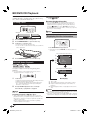
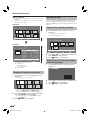
1
2
3
Press POWER to turn on the power.
Press OPEN/CLOSE to open the disc tray.
Load a disc on the disc tray.
• Insert the disc with the label face up.
• In case of disc recorded on both sides, face down the
side to play back.
Press DISPLAY during playback.
• Each time you press DISPLAY, the display switches
as follows.
Disc Information Screen A
1
4
2
Press OPEN/CLOSE to close the disc tray.
3
BD/DVD Video Playback
BD VIDEO
DVD VIDEO
BD-RE
DVD-R
4
DVD-RW
Disc Information Screen B
4
• For a description of other playback functions, refer to
“Playback Functions” on pages 32–35.
Press d PLAY if playback does not begin
automatically or playback is stopped.
00 : 00 : 12
/ 03 : 12 : 28
No Display
Load a disc.
• Playback may begin automatically, depending on the disc.
• Playback begins from the first title.
• The menu may be displayed first, depending on the
disc. Perform playback operation by following the
directions on the screen.
2
1/1
1 / 101
00 : 00 : 12
/ 03 : 12 : 28
BD-R
This player supports DVD upscaling during DVD
playback.
1
BD-VIDEO
1 Type of disc
2 Title number being played / Total number of Titles
3 Chapter number being played / Total number of
Chapters
4 Elapsed playback time / Total playback time for the
Title
NOTE
NOTE
• The disc load time may vary depending on the disc.
Regarding playback of BD video discs
• Some of the newly released BD video discs cannot be
played back unless you update the player software to the
latest version. Therefore, it may be required to update the
software of the player.
Refer to pages 46–49 for more information regarding
software updates for the player.
• Disc Information Screen A disappears after about 1 minute
elapses without performing any operations.
• For some commercially-released BD VIDEO discs, the total
playback time display for the Chapter/Title may not appear.
24
BD-HP52U_en.indd 24
2009/09/15 11:35:21
BD/DVD/CD Playback
BD/DVD Menus
Using the disc menu
• This section explains how to play back a BD/DVD
video disc with a top menu, disc menu or pop-up
menu.
• The titles listed in the top menu and a disc guide (for
options like subtitles and audio languages) are given
in the disc menu.
DVD VIDEO
Example: Select “SUBTITLE LANGUAGE”.
1
Press TOP MENU/TITLE LIST.
• The disc menu screen is displayed if present on the
DVD video disc.
2
Press a/b to select “SUBTITLE LANGUAGE”,
then press ENTER.
• The screen for selecting the subtitle language is
displayed.
MENU
1 AUDIO LANGUAGE
2 SUBTITLE LANGUAGE
3 AUDIO
Start playback by selecting a title
from the top menu
BD VIDEO
1
DVD VIDEO
3
Press TOP MENU/TITLE LIST.
• The top menu screen is displayed if present on the
BD/DVD video disc.
TOP MENU
Using the pop-up menu
1
Jazz
2
Latin
BD VIDEO
3
Classic
4
Rock
1
Press POP-UP MENU during playback.
• The pop up menu screen is displayed.
• The menu contents displayed vary depending on the
disc. For details on how to see and operate the popup menu, refer to the manual for the disc.
Press a/b/c/d to select the title, then press
ENTER.
• The selected title is played back.
Pop-up menu
NOTE
• The procedure explained on this page is the basic
operation procedure. Procedures vary depending on
the BD/DVD video disc, so you may need to follow the
instructions in the BD/DVD video disc manual or the
instructions displayed on the screen.
Top menu
• With some BD/DVD discs, the top menu may be referred
to as the “Title Menu”. Use TOP MENU/TITLE LIST on
the remote control when the instructions refer to “Title
Menu”.
• If no top menu is available, the TOP MENU/TITLE LIST
button will have no effect.
Disc Playback
2
4
Press a/b to select the subtitle language, then
press ENTER.
Press TOP MENU/TITLE LIST to exit.
Previous page
Next page
2
Press a/b/c/d to select the desired item,
then press ENTER.
3
Press POP-UP MENU to exit.
• The pop-up menu will automatically disappear for
some discs.
25
BD-HP52U_en.indd 25
2009/09/15 11:35:22
BD/DVD/CD Playback
Enjoying BONUSVIEW or BD-LIVE
1
Press PinP during playback to show the 2picture screen.
BD VIDEO
This Player is compatible with additional functions of
BD-Video, BONUSVIEW (BD-ROM Profile 1 Version
1.1) and BD-LIVE.
For BD-Video discs compatible with BONUSVIEW, the
functions of Picture in Picture and Virtual Package are
available. For BD-LIVE compatible discs, you can enjoy
a variety of functions via the internet in addition to the
BONUSVIEW functions.
Virtual Package/BD-LIVE data is saved in Local
Storage (USB memory device connected to this
Player). To enjoy these functions, connect a USB
memory device (2GB or greater) supporting USB
2.0 High Speed (480Mbit/s) to the BD STORAGE/
SERVICE terminal on the back of this player.
USB memory
device
Primary
audio/video
2
Secondary
audio/video
To remove the secondary video, press PinP
again.
NOTE
• To listen to secondary audio, make sure that “Secondary
Audio” is set to “On”. (See page 39.)
• The secondary audio and video for Picture In Picture may
automatically play back and be removed depending on the
content. Also, playable areas may be restricted.
Virtual Package
• If there is insufficient storage space, the data will not be
copied/downloaded. Delete unneeded data or use a new
USB memory device.
• If a USB memory device containing other data (previously
recorded) is used, the video and audio may not play back
properly.
• If the USB memory device is disconnected from this player
during playback of Virtual Package/BD-LIVE data, playback
of the disc will stop.
• Some time may be required for the data to load (read/write).
• Refer to “USB Memory Management” on page 45 for
erasing the Virtual Package data and the BD-LIVE data in
the USB memory device.
NOTE
• SHARP cannot guarantee that all brands’ USB memory
devices will operate with this player.
• Only USB memory devices formatted with FAT 32/16 are
compatible.
When formatting a USB memory device using a PC,
perform the following settings.
Format File System: FAT32
Allocation Unit Size: Default Allocation Size
• Do not use a USB extension cable when connecting a USB
memory device to the BD STORAGE/SERVICE terminal of
the player.
− Using a USB extension cable may prevent the player
from performing correctly.
Use of Picture in Picture function
(secondary audio/video playback)
BD-Video that includes secondary audio and video
compatible with Picture in Picture can be played back
with secondary audio and video simultaneously as a
small video in the corner.
For BD-Video discs compatible with Virtual Package,
data is copied from the discs or internet to local
storage. It is automatically copied to the local storage
prior to playback. You can enjoy a variety of additional
functions including secondary video, secondary audio,
subtitles, movie trailers, etc.
• The playback methods vary depending on the disc. For
details, refer to the disc manual.
BD-LIVE
In this Player, a variety of contents with interactive
functions are available through BD-LIVE compatible Bluray discs by connecting to the internet. You can enjoy
the download of bonus features such as latest movie
trailers to the USB memory device, communication
compatible BD-J interactive games, etc.
• The available functions differ depending on the disc.
NOTE
• Regarding playback method of BD-LIVE contents, etc.,
perform the operations in accordance with the instructions
in the BD disc manual.
• To enjoy BD-LIVE functions, perform the broadband
internet connection (page 18) and communication settings
(pages 42–44).
• Refer to page 41 regarding the setup to restrict access to
BD-LIVE contents.
• If the BD-LIVE screen does not appear for a while after you
select the BD-LIVE function in the BD disc menu, the USB
memory device may not have enough free space. In such
cases, eject the disc from the player, and then erase the
data in the USB memory device using the Data Erase menu
in the “USB Memory Management” menu on page 45.
26
BD-HP52U_en.indd 26
2009/09/15 11:35:23
BD/DVD/CD Playback
DVD-R/-RW (VR format) / BD-RE/-R
(BDAV format) Playback
DVD-R
DVD-RW
BD-RE
BD-R
Playback by selecting a title
1
Load a recorded disc.
• The Title List screen is displayed.
Example: Thumbnail screen
You can play back a recorded disc (DVD: VR format
finalized disc only / BD: BDAV format disc only).
Program 1
• For a description of other playback functions, refer to
”Playback Functions” on pages 32–34.
5/21 Fri 9:30 AM 110 Min.
Program
1
Program
4
A
Select
Title Name B
Program
2
Program
3
Program
5
Enter
By Chapter
C
Return
Playlist
Program
6
㪜㪯㪠㪫
D
Exit
Functions
• If the Title List screen is not displayed, press TOP
MENU/TITLE LIST.
• When loading a BD disc with usage restrictions placed
by a BD recorder, the password input screen appears.
Then, input your password.
If you input a wrong password three times, the disc
tray will open. Close the disc tray, and then input a
correct password.
2
NOTE
• If you want to select additional titles, switch pages by
pressing KSKIP/k or LSKIP/l.
• You can playback by pressing d PLAY instead of
pressing ENTER.
3
Press H STOP to stop playback.
NOTE
• The Tttle List screen also can be displayed by pressing
TOP MENU/TITLE LIST when playback is stopped.
Disc Playback
• “Finalize” refers to a recorder processing a recorded disc
so that it will play in other DVD players/recorders as well
as this player. Only finalized DVD discs will play back in
this player. (This player does not have a function to finalize
discs.)
• Some discs cannot be played back depending on the
audio format.
Press a/b/c/d to select the desired title, then
press ENTER to start playback.
(Continued on the next page)
27
BD-HP52U_en.indd 27
2009/09/15 11:35:24
BD/DVD/CD Playback
About Title List
• The Title List can be displayed in two types, Thumbnail and
Title Name.
• Each time you press A (Red), the screen changes between
Thumbnail and Title Name.
Thumbnail
Sorting the titles
Each time you press B (Green) while the Title Name
screen is displayed, the Title Name display changes
between displaying the newest title first and the oldest
title first.
Program 1
1
5/21 Fri 9:30 AM 110 Min.
Program
1
Program
2
Program
4
Select
A Title Name B
Program
3
Program
5
Enter
By Chapter
Playback by selecting a Playlist
1
• The Playlist screen is displayed.
Program
6
㪜㪯㪠㪫
D
Return
C Playlist
Exit
Functions
Press C (Blue) while the Title List screen is
displayed.
Example: Thumbnail screen
Program 1
3
5/21 Fri 9:30 AM 110 Min.
Program
1
Title Name
Program 1
1 Program 1
2 Program 2
3 Program 3
4 Program 4
5 Program 5
6 Program 6
[From Old]
Program
1
Select
A Thumbnail B
Enter
Sorting
5/21
6/15
7/3
9/18
9/20
9/25
Fri 110 Min.
Fri 110 Min.
Mon 56 Min.
Thu 40 Min.
Sat 20 Min.
Thu 60 Min.
1/All 8 Titles
Return
C Playlist
㪜㪯㪠㪫
D
Exit
Functions
A
2
2
3
3
1 Information of selected title
2 Title Name
Recording Date
Recording Duration
3 Button Guide
Program
3
Program
4
1
5/21 Fri 9:30 AM 110 Min.
Program
2
Select
Title Name B
Enter
By Chapter
C
Return
Original
㪜㪯㪠㪫
D
Exit
Functions
Press a/b/c/d to select the desired title, then
press ENTER to start playback.
Press H STOP to stop playback.
Playing back the title you stopped
while being played.
1
Press D (Yellow) while the Title List screen is
displayed.
Playback
Playback by selecting a chapter
1
Press B (Green) while the Thumbnail screen is
displayed.
From Beginning
From Continued
• The chapter screen is displayed.
Chapter
1
Chapter
4
Chapter
2
Chapter
5
Chapter
3
Chapter
6
2
3
Press a/b to select the type of Playback, then
press ENTER to start playback.
Press H STOP to stop playback.
• If you want to select additional chapters, switch pages
by pressing KSKIP/k or LSKIP/l.
• To return to the Thumbnail screen, press B (Green).
2
Press a/b/c/d to select the desired chapter,
then press ENTER to start playback.
• You can playback by pressing d PLAY instead of
pressing ENTER.
3
Press H STOP to stop playback.
28
BD-HP52U_en.indd 28
2009/09/15 11:35:25
BD/DVD/CD Playback
Audio CD Playback
Playback by selecting a track
1
AUDIO CD
This Player can play back audio CDs.
• For a description of other playback functions, refer to
“Playback Functions” on pages 32–34.
Press a/b to select the track, then press
ENTER during playback or when playback is
stopped.
• Playback of the selected track will begin.
Track 03
0:00
1
2
3
4
5
6
5:23
Track 01
Track 02
Track 03
Track 04
Track 05
Track 06
Functions
3 / 12
00 : 00 : 11
3
L+R
Off
5:16
5:10
5:23
5:03
4:44
5:08
3 / 12
2
Playback from the beginning
1
Operation procedure for the
“Functions” menu
Load an audio CD.
• The CD screen is displayed.
(The CD screen is displayed only when a compact
disc recorded in the CD-DA format is inserted.)
• Playback may begin automatically, depending on the
disc.
Track 01
1
2
3
4
5
6
5:16
Track 01
Track 02
Track 03
Track 04
Track 05
Track 06
Press D (Yellow) (Functions) when the CD screen
is displayed.
• The “Functions” menu is activated.
Track 03
Functions
1 / 12
00 : 00 : 11
3
L+R
Off
5:23
0:00
1
2
3
4
5
6
5:16
5:10
5:23
5:03
4:44
5:08
Track 01
Track 02
Track 03
Track 04
Track 05
Track 06
Functions
3 / 12
00 : 00 : 11
3
L+R
Off
5:16
5:10
5:23
5:03
4:44
5:08
3 / 12
1 / 12
2
1
Disc Playback
0:00
Press H STOP to stop playback.
3
Press d PLAY if playback does not begin
automatically or playback is stopped.
To pause the playback at any time, press F PAUSE.
4
Press H STOP to stop playback.
2
Press a/b to select the desired setting, then
press ENTER.
• When playback is stopped, only “Track” can be
selected.
• For a description of each setting, see “Functions
which can be set” (Page 37).
• Press F PAUSE or d PLAY to return to playback.
3
Press a/b/c/d to set, then press ENTER.
• Operations vary depending on the setting. Follow the
operation instructions on the screen.
4
Press n RETURN or D (Yellow) to exit the
“Functions” menu.
NOTE
• The displayed items vary depending on the disc.
29
BD-HP52U_en.indd 29
2009/09/15 11:35:26
BD/DVD/CD Playback
• Playback of the selected file will begin.
Audio Data (MP3 File) Playback
Track 01.mp3
CD-R
CD-RW
DVD-R
DVD-RW
USB
5:16
0:00
This Player can play back audio data (MP3 files)
recorded on CD-R/RW discs, DVD-R/RW discs and
USB memory devices.
1
2
3
4
5
6
• For details on the audio data that you can play using this
player, refer to page 7.
Track 01.mp3
Track 02.mp3
Track 03.mp3
Track 04.mp3
Track 05.mp3
Track 06.mp3
1 / 12
00 : 00 : 11
1 MP3 Stereo
–
5:16
5:10
5:23
5:03
4:44
5:08
1 / 12
• When MP3 files are played, the “Functions” menu is
not available.
6
To pause the playback at any time, press F PAUSE.
7
Press H STOP to stop playback.
• Press F PAUSE or d PLAY to return to playback.
To play another file during Playback
Press a/b to select the file you want to play, then
press ENTER.
• The chosen file will be played.
To skip the file during Playback
Playing back Audio data (MP3 files)
1
2
3
Load a disc or insert a USB memory device
containing audio data (MP3 files), then press
SETUP to display the Menu screen.
Press a/b to select “Music”, then press d or
ENTER.
Press a/b to select “DVD/CD*” or “USB
Memory Device”, then press d or ENTER.
Press KSKIP/k or LSKIP/l.
• Press KSKIP/k to skip backward.
• Press LSKIP/l to skip forward.
Display name varies depending on the type of media
* inserted.
• If only a “DVD/CD” or a USB memory device is
inserted, the “DVD/CD” or “USB Memory Device”
selection screen does not appear. In such cases, after
step 2, proceed to step 4.
4
Press a/b to select a folder or file.
• When you select a folder, press ENTER to open it,
and then press a/b to select a file in the folder.
Folder 1
CD
1 Folder 1
5/21 Fri
2 Folder 2
6/15 Fri
3 Folder 3
7/3 Mon
4 Folder 4
9/18 Thu
5 Track 01.mp3
6 Track 02.mp3
1/ALL 14 files and folders
5
NOTE
• The Fast Forward/Reverse function does not work.
• The Repeat function does not work.
Press ENTER to play back the selected file.
30
BD-HP52U_en.indd 30
2009/09/15 11:35:27
BD/DVD/CD Playback
Displaying Still Images (JPEG files)
CD-R
CD-RW
DVD-R
DVD-RW
5
Press ENTER to display the selected file.
• The selected still image appears on the screen.
USB
1/77
This Player can display still images (JPEG files)
recorded on CD-R/RW discs, DVD-R/RW discs and
USB memory devices.
• For details on the still images that you can display using
this player, refer to page 7.
• Still images are played one by one while during “Slide
show”, they are automatically replaced one after another.
6
Press KSKIP/k or LSKIP/l to
replace one image with another.
• The same operation can be performed by pressing
S REV/V FWD.
• Press n RETURN if you wish to return to the
selection screen.
7
To stop the still image display at any time, press
H STOP.
Playing back Slide Show
1
To play back Slide Show, in Step 6 of the
“Playing back Still Images (JPEG files)”, press
d PLAY (Slide Show).
• The still images inside the selected folder are played
as a slide show.
Displaying Still Images (JPEG files)
2
3
Load a disc or insert a USB memory device
containing Still Images (JPEG files), then press
SETUP to display the Menu screen.
Press a/b to select “Picture”, then press d or
ENTER.
Press a/b to select “DVD/CD*” or “USB
Memory Device”, then press d or ENTER.
To pause the playback at any time, press
F PAUSE.
• Press d PLAY to return to playback of a slide show.
3
To stop the playback at any time, press
H STOP.
Disc Playback
1
2
* Display name varies depending on the type of media
inserted.
• If only a “DVD/CD” or a USB memory device is
inserted, the “DVD/CD” or “USB Memory Device”
selection screen does not appear. In such cases, after
step 2, proceed to step 4.
4
Press a/b to select a folder or file.
• When you select a folder, press ENTER to open it,
and then press a/b to select a file in the folder.
Folder 1
5/21 Fri 9:30 AM
CD
1 Folder 1
5/21 Fri
2 Folder 2
6/15 Fri
3 Folder 3
7/3 Mon
4 Folder 4
9/18 Thu
9/20 Sat
5 Image 01.jpg
9/20 Sat
6 Image 02.jpg
1/ALL 14 files and folders
(Continued on the next page)
31
BD-HP52U_en.indd 31
2009/09/15 11:35:27
BD/DVD/CD Playback
Setting slide show speed/repeat
playback
1
5
6
Press a/b to select the desired item, then
press ENTER.
Press EXIT to exit.
Press D (Yellow) (Slide Show Menu) while the
selection screen is displayed.
• The setting screen for “Slide Show Speed”/“Repeat
Mode Setting” appears.
2
Press a/b to select “Slide Show Speed”, then
press d or ENTER.
Slide Show Speed
Repeat Mode Setting
Normal
• The slide show speed may be selected from “Fast”,
“Normal”, “Slow1” and “Slow2”.
3
4
Press a/b to select the desired speed, then
press ENTER.
Press a/b to select “Repeat Mode Setting”,
then press d or ENTER.
Slide Show Speed
Repeat Mode Setting
Yes
No
Playback Functions
Fast Forward/Reverse (Search)
BD VIDEO
DVD VIDEO
BD-R
DVD-R
BD-RE
DVD-RW
AUDIO CD
The Fast Forward/Reverse function is enabled when
G REV or J FWD is pressed during playback.
Example: When J FWD is pressed
• The search speed will change each time you press the
button.
When playing back a DVD
• You cannot fast forward or fast reverse from one title and
continue to another title (except when playing audio CDs).
NOTE
• Some operations in the following playback functions
cannot be performed depending on the specifications of
the disc.
32
BD-HP52U_en.indd 32
2009/09/15 11:35:28
Playback Functions
Skipping to the Next or the Start of
the Current Chapter (Track/Title)
BD VIDEO
DVD VIDEO
AUDIO CD
BD-R
DVD-R
CD-R
BD-RE
BD VIDEO
DVD-RW
CD-RW
Repeat Playback of a Title or
Chapter (Repeat Playback)
DVD VIDEO
USB
The Skipping (to the beginning of a chapter, track or
title) function is enabled when T SKIP/k or
U SKIP/l is pressed during playback.
DVD VIDEO
BD-R
DVD-R
DVD-R
BD-RE
DVD-RW
AUDIO CD
1
2
3
Pause/Frame Advance Playback
BD VIDEO
BD-R
Play back the title or chapter you want to repeat.
Press REPEAT.
Press a/b to select the type of Repeat
Playback.
• Playback Title: Repeats the title currently being played
back.
• Playback Chapter: Repeats the chapter currently
being played back.
• Scene Selection: Repeats the specified scene of title
or chapter.
BD-RE
DVD-RW
The Pause function is enabled when F PAUSE is
pressed during playback. (If you are playing back an
audio CD, audio data [MP3 files] or still images [JPEG
files], these will also pause.)
Playback Title
Playback Chapter
The Frame Advance Playback function is enabled when
L SKIP/l is pressed during pause.
Scene Selection
• Frame Advance Playback may not function properly with
discs other than DVD-RW (VR format).
• Press n RETURN to cancel without setting the
type of Repeat Playback.
• For Audio CD, you can select “Playing Disc”, “Playing
Track” and “Specify The Part” as Repeat Playback
options.
NOTE
4
Press ENTER.
Example: Repeat playback of a title (TITLE)
BD-VIDEO
Slow Playback
BD VIDEO
DVD VIDEO
BD-R
DVD-R
1/3
5 / 25
00 : 20 : 30
2 English
1
1
5 . 1ch
On Title Repeat
BD-RE
DVD-RW
The Slow Playback function is enabled when
L SKIP/l or K SKIP/k is pressed for
more than 2 seconds during pause.
Disc Playback
• Some BD/DVD Video discs are not compatible with Pause/
Frame Advance Playback.
• Frame Advance/Reverse Playback can be performed for
DVD discs by pressing L SKIP/l or K SKIP/k
during pause.
• Press d PLAY to return to normal playback.
NOTE
• This doesn't work for audio CDs.
• Reverse Slow Playback cannot be performed for BD video
and DVD discs in AVCHD format.
On Title Repeat
5
Press REPEAT to return to normal playback.
33
BD-HP52U_en.indd 33
2009/09/15 11:35:29
Playback Functions
NOTE
• Press LSKIP/l, the Repeat Playback is cancelled
and the next chapter being play back.
• Press KSKIP/k once, the Repeat Playback is
cancelled and the player returns to the start of current
chapter (track).
• If you press KSKIP/k again (within about 5 seconds)
the player will skip to the beginning of the previous chapter
(track).
• For Partial Repeat Playback, set the start and end points
within the same title.
• Repeat Playback may be forbidden depending on the disc.
• Partial Repeat Playback may not work in multi-angle
scenes.
• If you press DISPLAY, you can confirm the Repeat
Playback status.
Displaying the Audio Information
You can display the audio information on the disc
currently being played back by pressing AUDIO.
• The displayed contents vary depending on the disc.
Partial Repeat Playback (Repeat
Playback of a Specified Part)
DVD VIDEO
DVD-R
DVD-RW
AUDIO CD
Press REPEAT during playback.
Press a/b to select “Scene Selection”, then
press ENTER.
• “Set Start Point” displays.
Playback Title
DVD VIDEO
The audio track currently being played back will be
displayed.
If multiple audio channels are recorded, you can switch
the audio channel by pressing AUDIO.
DVD-RW
NOTE
• Some operations in the following playback function cannot
be performed depending on the specifications of the disc.
1
2
BD VIDEO
DVD-R
When a recorded broadcast with stereo or
monaural audio is played back:
“Stereo” is displayed. (Audio cannot be switched.)
NOTE
• When you play a program recorded in stereo or monaural,
and if you are listening to the Bitstream sound via the digital
output jack, you cannot select the audio channel. Set
“Audio Out” to “PCM” (Page 40), or if you want to change
the audio channel, listen via the analog output jacks.
Playback Chapter
Scene Selection
3
Set Start Point
Press ENTER at the scene where you want to
set the start point.
• “Set End Point” displays.
4
Press ENTER at the scene where you want to
set the end point.
• You can press V FWD to fast forward to the scene
where you want to set the end point. When you
reach the desired scene, simply press I PLAY and
then ENTER to set the end point. To cancel Repeat
Playback, press REPEAT.
Switching Subtitles
BD VIDEO
DVD VIDEO
If subtitles are provided in multiple languages, you can
switch between them.
Press SUBTITLE during playback.
• The display indicates the subtitle number currently being
played back, and the subtitles appear.
Each time SUBTITLE is pressed, the subtitles change.
• “–” is displayed if a disc has no subtitles.
• You can also select “Off”.
34
BD-HP52U_en.indd 34
2009/09/15 11:35:31
Playback Functions
Switching the Angle
BD VIDEO
DVD VIDEO
Displaying the Angle Mark
BD VIDEO
If multiple angles are recorded, you can switch
between them.
DVD VIDEO
You can change settings so that Angle Mark appears
in the right bottom part of the screen when multiple
angles are recorded. (The Angle Mark is displayed
for BD/DVD video.) The settings can be changed in
“Settings” - “Playback Setting” - “Angle Mark Display”
(Page 41).
NOTE
• Settings for audio and subtitles can be changed also in
Function Control screen (Page 36).
• The operations of subtitles, angle and audio differ
according to each disc. You may need to refer to the
operation manual of the disc.
• The following operations will not work when playing back
an audio CD:
Slow Playback, Frame Advance
1
Press FUNCTION during playback.
• The Function Control screen is displayed on the TV.
2
Press a/b to select the Angle Number column,
then press ENTER.
BD-VIDEO
• The display for subtitles, angle or audio automatically
disappears after 5 seconds.
Switching between functions
• You can switch the subtitles and audio at the Function
Control screen (Page 36).
• The operation for each function varies depending on the
disc. See the manual for the disc.
Fast Forward/Reverse
• You cannot perform Fast Forward/Fast Reverse between
titles. At the end or beginning of the title, Fast Forward/
Fast Reverse will be cancelled and normal playback will
automatically resume.
• Subtitles are not played back with BD/DVD video discs
during Fast Forward and Fast Reverse.
Slow Playback
3
Press a/b to select the desired Angle Number,
then press ENTER.
• “–” is displayed if a disc is recorded with only one
angle.
4
Press n RETURN or FUNCTION to close the
Function Control screen.
NOTE
Disc Playback
1/3
5 / 25
00 : 20 : 30
2 English
1
1
5 . 1c h
Off
Display of functions
• You cannot perform Slow Playback between titles. At the
end of the title, Slow Playback will be cancelled and normal
playback will automatically resume.
Repeat Playback
• Repeat Playback may be forbidden depending on the disc.
• Partial Repeat Playback may not work in multi-angle
scenes.
• For Partial Repeat Playback, set the start and end points
within the same title.
• The displayed items vary depending on the disc.
• If you access the Function Control screen during playback
of a BD/DVD video, it may be impossible to operate the
BD/DVD video playback. In cases like this, close the
Function Control screen.
35
BD-HP52U_en.indd 35
2009/09/15 11:35:32
Settings During Playback
Function control operation
procedure
Function Control
BD VIDEO
DVD VIDEO
BD-R
BD-RE
DVD-R
DVD-RW
AUDIO CD
This allows you to adjust various settings at once, like
subtitles, angle settings and the title selection for Direct
Playback. You can adjust the video and audio to suit
your preferences. The operations are the same for BD
and DVD.
Function Control screen
BD-VIDEO
1
1/3
5 / 25
00 : 20 : 30
2 English
1
1
5 . 1c h
Off
Select
ENTER
2
1
Press FUNCTION during playback.
• The Function Control screen is displayed on the TV.
2
Press a/b to select the desired setting, then
press ENTER.
• For a description of each setting, see “Functions
which can be set” (Page 37).
Enter
Return
BD-VIDEO
3
1/3
5 / 25
00 : 20 : 30
2 English
1
1
5 . 1c h
Off
1 Playback status display
Shows the operation status and the disc type.
2 Setting items
Selects a title (or track) or chapter for playback, or performs
video/audio settings.
•
•
•
•
•
•
•
Title/Track Number (Direct Title/Track Skip)
Chapter Number (Direct Chapter Skip)
Playback Elapsed Time (Direct Time Skip)
Subtitle Language
Angle Number
Audio
Repeat
3 Operation guide display
Provides help on remote control button operations.
3
Press a/b/c/d to set, then press ENTER.
• Operations vary depending on the setting. Follow the
operation instructions on the screen.
4
Press n RETURN or FUNCTION to close the
Function Control screen.
NOTE
• If “– –” is displayed for an option like title number or
subtitles, the disc has no titles or subtitles which can be
selected.
• The displayed items vary depending on the disc.
• If you access the Function Control screen during playback
of a BD/DVD video, it may be impossible to operate the
BD/DVD video playback. In cases like this, close the
Function Control screen.
36
BD-HP52U_en.indd 36
2009/09/15 11:35:33
Settings During Playback
Functions which can be set
Title/Track Number (Direct Title/Track Skip)
• Shows the title number being played back (or track number when playing back an audio
CD). You can skip to the start of the title (or track).
• To skip to the start of a selected title (or track), press the Number buttons to enter the
title (or track) number when this option is highlighted.
Chapter Number (Direct Chapter Skip)
• Shows the chapter number being played back. You can skip to the start of the chapter.
• To skip to the start of a selected chapter, press the Number buttons to enter the
chapter number when this option is highlighted.
Playback Elapsed Time (Direct Time Skip)
• Shows the time elapsed from the beginning of the current disc title (or track). This lets
you skip to a specific time.
• Press c/d to select the Hour, Minute or Second, then press a/b or the Number
buttons to set the time. Press ENTER to start playback at the set time.
Subtitle Language
• Shows the currently selected subtitle language. If subtitles are provided in other
languages, you can switch to your preferred language.
Angle Number
• Shows the currently selected angle number. If the video is recorded with multiple angles,
you can switch the angle.
Repeat
Disc Playback
Audio
• Shows the currently selected type of audio. You can select the desired type of audio.
• The current Title (or Chapter) or partial segments can be repeatedly played back. Repeat
Playback is also possible with the REPEAT button on the remote control.
NOTE
• These functions may not work with all discs.
37
BD-HP52U_en.indd 37
2009/09/15 11:35:34
Settings
SETTINGS
Common operations
The “Menu” enables various audio/visual settings and adjustments on the functions using the remote control
unit. You need to call up the OSD to perform settings for this player. The following is the explanation for the basic
operations of the “Menu”.
Example: Setting “AQUOS LINK”
1
Movie
Picture
Music
e-Contents
Settings
3
2
Display the Menu screen
Press SETUP to display the Menu screen.
• The same operation can be performed
by pressing ENTER after selecting the
Menu icon on the Wall paper screen.
Press a/b to select “Settings”, then press
d or ENTER.
Basic Operation for Playback Setting
Example: Setting “Parental Control” under “Playback Setting”
Press SETUP to display the Menu screen.
• The same operation can be performed by pressing
ENTER after selecting the Menu icon on the Wall
paper screen.
2
3
4
Audio Video Settings
Smart Settings
AQUOS LINK
Playback Setting
On Screen Language
Communication Setup
Version
USB Memory Management
Software Update Settings
System
4
Press n RETURN to return to the
previous “Menu” page.
1
Press a/b to select “AQUOS LINK”,
then press d or ENTER.
Select a menu item
Press a/b to select the desired item,
then press d or ENTER.
Press a/b to select “Settings”, then press d or
ENTER.
Press a/b to select “Playback Setting”, then
press d or ENTER.
Press a/b to select “Parental Control”, then
press d or ENTER.
Select the next item
Exit the Menu screen
Press SETUP or EXIT to exit.
2 Enter a 4-digit number for the password, then
the same 4-digit number for confirmation.
3 Press ENTER to complete the password setting
procedure and move to the next setting screen.
6 Press c/d to select the parental control level
for DVD VIDEO, BD-ROM, and then select the
country code. Press ENTER after making each
selection.
Parental Control
Disc Language
Angle Mark Display
Password Setting
BD Internet Access
• When you operate this Player for the first time, the
password setting screen will be displayed. See “When
setting the password for the first time” below.
5
Level 3
0
Enter your 4-digit password.
• You cannot move to the next setting screen until you
can input the correct password.
When setting the password for the first time.
1 To set the password for the first time, press a/b
to select “Yes” to enter the password setting
menu, then press d or ENTER.
USA
7
Press SETUP or EXIT to exit.
38
BD-HP52U_en.indd 38
2009/09/15 11:35:34
SETTINGS
Audio Video Settings
TV Aspect Ratio
You can set the screen aspect ratio of the connected
TV, and adjust the video output.
If you switch your TV (i.e. because you have bought a
new one) and the screen aspect ratio of the connected
TV changes, you will have to change the “TV Aspect
Ratio” setting.
Video Out Select
Dual video output is possible simultaneously from the
COMPONENT VIDEO OUT jacks and the HDMI OUT
terminal with the following settings. Select the video
output which you want to have priority according to
the following chart.
NOTE
• 1080p and AQUOS LINK are only available in HDMI.
Item
Wide 16:9: Select this when connecting to a TV with a
16:9 screen aspect ratio.
Normal 4:3: Select this when connecting to a TV with a
4:3 screen aspect ratio.
Video Out
Select
HDMI
<When selecting Normal 4:3>
Item
Letter Box: If you connect to a TV with a screen aspect
ratio of 4:3 and playback a DVD with 16:9 video, the
video will be played back with black bands at the top
and bottom while maintaining the 16:9 ratio.
Pan Scan: If you connect to a TV with a screen aspect
ratio of 4:3 and playback a DVD with 16:9 video, the
video will be played back with the left and right sides of
the image cut off to display in 4:3 screen aspect ratio.
(This function works if the disc is labelled for 4:3PS.)
Component
Dual
Output
HDMI
Video Out
Component
Out Resolution
in Dual Mode
No
Auto
*1
No
1080p
No
Yes
1080i
1080i
Yes
720p
720p
Yes
480p
480p
HDMI Out
Resolution in
Dual Mode
Dual
Output
Component
Video Out
Yes
1080i
1080i
Yes
720p
720p
Yes
480p
480p
Yes
480i
480i
*1 Depends on source. 1080p is not available.
Component Video Out
Item
1080i, 720p, 480p, 480i
HDMI Video Out
This sets the resolution of the HDMI video output.
Some TVs are not fully compatible with the Blu-ray
disc player, which may cause the image distortion.
In this case, press VIDEO OUTPUT RESET on the
remote control for five seconds. “HDMI Video Out” will
be reset to “Auto” (factory preset value).
Item
Item
HDMI, Component
• When the priority video output is selected, video is output
from the other video terminal with the resolution of the
selected video output.
• There is no output from the COMPONENT VIDEO OUT
jacks and VIDEO output jack when video is output at
1080p resolution and the priority video output is selected
to “HDMI”.
• If the video equipment connected to each of the terminals
is not compatible with the resolution of the priority video
output, abnormalities in images on the screen may appear.
Settings
This sets the resolution of the component video
output.
Some TVs are not fully compatible with the Blu-ray
disc player, which may cause the image distortion.
In this case, press VIDEO OUTPUT RESET on the
remote control for five seconds. “Component Video
Out” will be reset to “480i” (factory preset value).
Secondary Audio
This toggles the clicking sound on the menu and audio
with secondary video in picture in picture mode for
BD-Video.
• Select “Off” when enjoying the high quality sounds of BDVideo.
Item
On, Off
Auto, 1080p, 1080i, 720p, 480p
NOTE
• When the BD player is connected to a 1080p 24Hz
compatible TV and the “HDMI Video Out” is set to
“Auto”, 1080p 24Hz will automatically be displayed when
compatible discs are played back.
At 1080p 24Hz/1080p 60Hz, there is no output from the
COMPONENT VIDEO OUT jacks and VIDEO output jack.
39
BD-HP52U_en.indd 39
2009/09/15 11:35:35
SETTINGS
Audio Out
Dynamic Range Control
You can set the audio output when connecting to
SURROUND equipment.
1 This sets the audio output connected to
SURROUND equipment.
Item
Item
HDMI Output: Select this when you connect using HDMI
OUT terminal.
Digital Output: Select this when you connect using
DIGITAL AUDIO OUT terminal (OPTICAL).
2ch Audio Output: Select this when you do not use
SURROUND sound equipment.
2
You can set the audio output mode for each
output terminal.
1 This sets the audio output mode for HDMI OUT
terminal when selecting “HDMI Output”.
Item
PCM (Surround):
• Select this when connecting to
HDMI equipment with a built-in
decoder for DOLBY DIGITAL, etc.
• Setting to Bitstream will output
each audio signal by Bitstream.
• Select this when connecting to
multi-channel HDMI equipment.
• Setting to PCM (Surround) will
output by LINEAR PCM by
decoding audio signals recorded in
each audio output mode such as
DOLBY DIGITAL, DTS.
2 This sets the audio output mode for DIGITAL
AUDIO OUT (OPTICAL terminal) when selecting
“Digital Output”.
Item
Bitstream:
PCM:
Normal: The same audio output range is played as the
original recorded audio output range.
Shift*: When Dolby Digital audio is played back, the
dynamic range of the audio is adjusted so that the
dialog portion can be heard easily. (If the audio sounds
abnormal, set to “Normal”.)
Auto: When you play back audio in the Dolby TrueHD
format, the dynamic range is automatically adjusted.
* Lower the audio volume before setting. If you do not do so,
the speakers may emit a loud sound or excessive output
may be applied to the speakers.
Smart Settings
NOTE
• When the secondary audio is set to “On”, PCM is
automatically selected as the audio output mode.
Bitstream:
This lets you adjust the range between the loudest
and softest sounds (dynamic range) for playback
at average volume. Use this when it is hard to hear
dialog.
• Select this when connecting to
SURROUND equipment with
a built-in decoder for DOLBY
DIGITAL, etc.
• Setting to Bitstream will output
each audio signal by Bitstream.
• Select this when connecting to 2
channel stereo audio equipment.
• Setting to PCM will output by
converting each audio signal into
PCM 2 channel audio signal.
Quick Start
This turns the Quick Start function on and off.
When the Quick Start function is on:
• The startup time of the Player is reduced.
• However, power consumption will increase.
When the Quick Start function is off:
• The player will enter the low power consumption mode
when in standby condition.
Item
Yes, No
NOTE
• When “Quick Start” is set to “Yes”, the Player requires
some time to turn off.
Auto Power Off
This sets the Player so that power is automatically shut
off if playback is stopped for about 10 minutes.
Item
Yes, No
Front Display/LED
If you feel that the indicators on the player’s front
display are too bright when watching movies, you can
turn them off except for the ON/STANDBY indicator.
Item
NOTE
On, Off
• See page 50 for information on output of next generation
audio formats.
40
BD-HP52U_en.indd 40
2009/09/15 11:35:35
SETTINGS
AQUOS LINK
This lets you set the Player to receive the control signal
from the AQUOS LINK remote control via the HDMI
cable.
Item
Yes, No
Angle Mark Display
This lets you turn the Angle Mark Display on or off
when BD/DVD video recorded with multiple angles is
played back. (The Angle Mark is displayed in the lower
right screen.)
Item
Yes, No
NOTE
• For details, refer to the operation manual of TV.
• If “Component” is selected from the “Video Out Select”
menu, AQUOS LINK is not available. Select “HDMI” if you
want to use AQUOS LINK features.
Password Setting
This sets the password for setting or changing the
Parental Control Level.
Item
Playback Setting
Parental Control
This lets you set the Parental Control depending on the
disc content. The available Parental Control Levels are
shown below.
The 4-digit password number needs to be entered
before the Parental Control Levels and the Country
Code are set. The Parental Control Levels and the
Country Code cannot be set if a password has not
been created or the password is not entered.
Item (For DVD-VIDEO)
8 and Off: All DVD-video can be played.
1–7: Prohibits play of DVD-video with corresponding
ratings recorded on them.
Item (For BD-ROM)
No Limit: All BD-video can be played.
0–99 year(s): Prohibits play of BD-video with corresponding
ratings recorded on them.
NOTE
• Refer to “Basic Operation for Playback Setting” on page 38
for details.
Disc Language (Disc Priority Language)
This lets you select the language for subtitles, audio
and menus displayed on the screen.
Item (Subtitle)
Refer to the Language List. (Page 50)
Item (Audio)
NOTE
• When you forget the password, you can reset the current
password using “System Reset” under “Settings”. (See this
page.)
• You can also set the new password if desired.
BD Internet Access
This allows you to set access restriction to BD-LIVE
contents.
Item
Permit: Allows all BD-LIVE discs.
Limit: Allows only discs with owner certification.
Prohibit: Prohibits all BD-LIVE discs.
NOTE
• The available functions differ depending on the disc.
• Regarding playback method of BD-LIVE contents, etc.,
perform the operations in accordance with the instructions
in the BD disc manual.
• To enjoy BD-LIVE functions, perform the broadband internet
connection (page 18) and communication settings (pages
42–44).
Settings
Item (Country code)
Sets the country code. Refer to the Country Code List
(page 50) because the ratings differ according to the
country.
Yes: Enter the 4-digit number.
No
On Screen Language
You can set the language you want to display on the
screen.
Item
English, Español, Français
Version
When you select “Version”, the system software
version is displayed.
System
Refer to the Language List. (Page 50)
Item (Menu)
Refer to the Language List and Language Code List.
(Page 50)
System Reset
You can reset all settings to the factory presets.
Item
Reset, Not Reset
41
BD-HP52U_en.indd 41
2009/09/15 11:35:36
SETTINGS
Communication Setup
5
This allows you to perform and/or change the
communication setting. This setting is required to use
BD-LIVE functions, the RSS reader function, Netflix
service and software updates that connect to the
internet. (Netflix service will be available with a software
update.)
Do you obtain the IP address
automatically?
Yes
No
IP Address
Netmask
Gateway
NOTE
• Make sure that the LAN cable is connected to this Player.
(See page 18.)
• For manually performing the setting, the following
information of the connected router or modem is required.
Confirm the information prior to the setting.
− IP address, netmask, gateway, DNS address
• Besides, if specifying a proxy server, the following
information specified from your internet service provider is
also required. Confirm the information prior to the setting.
− IP address and port number of the proxy server
For setting the IP address, press c/d to select
“Yes” or “No”, then press ENTER.
Next
• If selecting “Yes”: The IP address is automatically
obtained.
• If selecting “No”: The IP address, netmask and
gateway are manually entered using the screen for
inputting characters. (See page 44.)
Regarding each of the setup values, confirm the
specifications of your broadband router.
6
Select “Next”, then press ENTER.
• If selecting “Yes” in the step 5, go to the step 9.
7
Enter your DNS address.
Enter your DNS address.
Primary
Secondary
Next
1
2
3
4
Press SETUP to display the Menu screen.
Press a/b to select “Settings”, then press d or
ENTER.
Press a/b to select “Communication Setup”,
then press d or ENTER.
Press ENTER, then press a/b to select
“Change”, and then press ENTER again.
• The primary and secondary DNS addresses are
entered using the screen for inputting characters. (See
page 44.)
Regarding each of the setup values, confirm the
specifications of your broadband router.
8
9
Do you use the proxy server?
Yes
: Auto Setup
: Auto Setup
: Auto Setup
: Auto Setup
: Not Use
Next
• If selecting “Yes”: The IP address or proxy server
name and port number for the proxy server specified
from your internet service provider are entered using
the screen for inputting characters. (See page 44.)
• If selecting “No”: Go to the next step.
Change
Initialize
• For initializing the current setting, select “Initialize”,
then press ENTER.
No
Address
Port
Current Ethernet setup info.
IP Address
Netmask
Gateway
DNS
Proxy
Select “Next”, then press ENTER.
For setting the proxy server, press c/d to
select “Yes” or “No”, then press ENTER.
10
Select “Next”, then press ENTER.
42
BD-HP52U_en.indd 42
2009/09/15 11:35:36
SETTINGS
11
For the advanced setting (the setting of the
Ethernet connection speeds), press a/b to
select “Yes” or “No”, then press ENTER.
• Normally select “No”, then press ENTER.
• The Ethernet connection speeds can be set when you
select “Yes”, then press ENTER.
• As automatic detection is made (factory preset
mode), this setting is not normally necessary. If a
situation occurs in which the Ethernet connection fails,
etc., change the setting and confirm if the Ethernet
connection successfully works.
When the connection speed is set, select “Next”, then
press ENTER.
Option
Ethernet Connection Speeds
Auto-Detection
10M Half Duplex
10M Full Duplex
100M Half Duplex
100M Full Duplex
Next
12
For testing the connection to the internet, after
confirming the settings, press a/b to select
“Test”, then press ENTER.
• “Test” is available only when setting to obtain the IP
address automatically. “Test” cannot be selected if the
IP address has not been obtained automatically.
Confirm the current setting.
IP Address : xxx xxx xxx xxx
Netmask
: xxx xxx xxx xxx
Gateway
: xxx xxx xxx xxx
DNS Address : xxx xxx xxx xxx
MAC Address : xx:xx:xx:xx:xx:xx
• As a result of the test, if the internet connection fails,
enter the setup values manually.
13
Settings
Test
Complete
Press a/b to select “Complete”, then press
ENTER.
43
BD-HP52U_en.indd 43
2009/09/15 11:35:37
SETTINGS
3
The operation procedure for
inputting characters manually
Press c/d to select a number/character, then
press ENTER.
Repeat the step 3 to display all of the desired
characters/numbers in the input field.
4
NOTE
• Numeric characters such as IP address can be entered on
the input screen either by selecting each of the characters
in the “Numeric” mode or using the Number buttons on
the remote control.
IP Address
Netmask
Gateway
1
123
Numeric
Edit
1 2 3 4 5 6 7 8 9 0
123
NOTE
• Press n RETURN (Del.Char.) to delete a number/
character you have input.
• To change a number/character you have input, press B
(Green) (Left) or C (Blue) (Right) to select the number/
character you want to change, and press n RETURN
(Del.Char.). Then, press c/d to select a new number/
character you want to input, and press ENTER.
Press ENTER at the boxes in which characters
are to be entered, and the input screen will
appear.
Numeric
Edit
5
1 2 3 4 5 6 7 8 9 0
Selected by
pressing a/b
2
Example: The screen for inputting numeric characters
Press D (Yellow) (Complete) to fix the numbers
which have been input.
IP Address
Netmask
Gateway
Selected by
pressing c/d
Press a/b to select the desired input mode.
• When inputting the address of the proxy server;
“1ABC” (Alphabet/numeric character) / “Sign” / “Edit”
• When inputting other values (IP address, etc.);
“Numeric” / “Edit”
6
123
Repeat step 1 to 5 to finish inputting all the
required characters.
Input character list
1ABC (Alphabet/
numeric character)
Num.
ABC
Num.
1234567890
ABC
ABCabc
DEF
GHI
GHIghi
JKL
JKLjkl
MNO
MNOmno
PQRS
PQRSpqrs
TUV
TUVtuv
WXYZ
WXYZwxyz
Spc.
(space)
Numeric
Sign
Edit
DEF
GHI
JKL
MNO
PQRS
TUV
WXYZ
Spc.
DEFdef
1234567890
@.,:
;_-\
$%!?
&#+*
=/|˜
“‘ˆ`
()<>
[ ]{ }
Spc.
@.,:
@ . , :
;_-\
; _ - \
$%!?
&#+*
& # + *
=/|˜
= / | ˜
“‘ˆ`
“ ‘ ˆ `
( )< >
(
Spc.
(space)
Cancel
) <
>
Left
[ ]{ }
Right
[
]
Complete
{
}
$ % ! ?
Del.Char.
* The same operation as the colored buttons and n RETURN can be performed by selecting
each of the items and pressing ENTER.
“Del.Char.” stands for deleting characters.
44
BD-HP52U_en.indd 44
2009/09/15 11:35:37
SETTINGS
Before using the USB memory device
CAUTION:
• Do not remove the USB memory device or unplug
the AC cord while the operations for “USB Memory
Management” or “Software Update (Manual Update
from USB memory device)” are being performed.
• Do not use a USB extension cable when connecting
a USB memory device to the BD STORAGE/SERVICE
terminal of the player.
− Using a USB extension cable may prevent the player
from performing correctly.
2
3
4
Press SETUP to display the Menu screen.
Press a/b to select “Settings”, then press d or
ENTER.
Press a/b to select “USB Memory Management”,
then press d or ENTER.
• “No USB Memory” appears when no USB memory is
inserted.
5
Press a/b to select “Erase” or “Format”, then
press ENTER.
Erase: Deletes only BD-VIDEO data written on the USB
memory device such as BD-LIVE data.
Format: Be aware that all data including BD-VIDEO data
and software update data will be deleted.
NOTE:
• SHARP cannot guarantee that all brands’ USB memory
devices will operate with this player.
• Only USB memory devices formatted with FAT 32/16
are compatible.
When formatting a USB memory device using a PC,
perform the following settings.
Format File System: FAT32
Allocation Unit Size: Default Allocation Size
• If you want to delete only the unneeded software
update data after the software is updated, delete the
data on the USB memory device using a PC.
USB Memory Management
The following instructions explain how to delete data
such as the Virtual Package data and the BD-LIVE
data in a USB memory device.
Erase
Erases BD-VIDEO data on USB memory.
Format
Erase all contents on USB memory
including protected contents.
NOTE
• Data which has been saved to the player’s internal memory
(game score, etc.) will also be deleted.
6
7
Press a/b to select “Yes”, then press ENTER.
Start the process.
• The screen for the current operation will display.
Complete
1
Insert the USB memory device into the BD
STORAGE/SERVICE terminal on rear of this
player.
8
Press ENTER.
Settings
OK
USB memory
device
45
BD-HP52U_en.indd 45
2009/09/15 11:35:37
SETTINGS
Software Update Settings
Update process
1
In this player, the software version can be updated
using either one of the following methods.
When this player is turned on, the internet
connection starts automatically.
• “Accessing...” blinks on the screen.
• Auto Update from Network
• Manual Update from Network
• Manual Update from USB memory device
• The current version of this unit software and the latest
version of the update file on the network are displayed
when latest version of firmware has been found.
To update this player software with update file, select
“Yes”, and go to step 2.
Auto Update from Network
This function allows you to perform the update by
accessing an internet connection automatically to
check if there is a new firmware version every time the
player is turned on.
When using this function, it is required to perform the
following settings in advance.
Latest version of firmware has been found.
Firmware update is available.
Proceed with update?
Current Version :
xxxxxxxxxx
Latest Version :
yyyyyyyyyy
If “Yes” will be selected, version update will start.
NOTE
Yes
• Make sure that the LAN cable is connected to this player.
(See page 18.)
• Make sure to perform the communication settings. (See
pages 42–44.)
• It may take time to access and download the update
depending on the internet connection and other factors.
No
• If the latest firmware version has been already
updated, nothing is displayed on the screen.
2
CAUTION
Press ENTER to start updating.
Downloading latest firmware…
• Do not remove the LAN cable or unplug the AC cord while
downloading or updating software.
Version : yyyyyyyyyy
30%
3
When the software is successfully updated, a
screen is displayed indicating that the update
process is completed.
• If the update has failed, an error message appears.
Retry to perform the update after checking if the LAN
cable connection (page 18) and internet settings
(pages 42–44) are performed properly.
4
Press POWER to turn off the player before using
again.
Setup
1
2
3
4
5
Press SETUP to display the Menu screen.
Press a/b to select “Settings”, then press d or
ENTER.
Press a/b to select “Software Update
Settings”, then press d or ENTER.
Press a/b to select “Auto Update Setting”,
then press d or ENTER.
Press a/b to select “Yes”, then press ENTER.
• After this, an internet connection will be made
automatically every time this player is turned on.
46
BD-HP52U_en.indd 46
2009/09/15 11:35:38
SETTINGS
Manual Update from Network
6
During access to the network and checking the
latest version of firmware, “Accessing” blinks.
• The current version of this unit software and the latest
version of the update file on the network are displayed
when latest version of firmware has been found.
To update this player software with update file, select
“Yes”, and go to step 7.
This function allows you to perform the update
operation by accessing an internet connection
manually to check if there is a new firmware version.
NOTE
Latest version of firmware has been found.
Firmware update is available.
Proceed with update?
Current Version :
xxxxxxxxxx
Latest Version :
yyyyyyyyyy
If “Yes” will be selected, version update will start.
• Make sure that the LAN cable is connected to this player.
(See page 18.)
• Make sure to perform the communication settings. (See
pages 42–44.)
• It may take time to access and download the update
depending on the internet connection and other factors.
Yes
CAUTION
No
• Do not remove the LAN cable or unplug the AC cord while
downloading or updating software.
• If the firmware has already been updated to the latest
version, the following message appears.
Present version of firmware is latest version.
You do not need to update.
Version :
xxxxxxxxxx
OK
• If the internet connection has failed, an error message
appears.
Retry to perform the update after checking if the LAN
cable connection (page 18) and internet settings
(pages 42–44) are performed properly.
7
Press ENTER to start updating.
Downloading latest firmware…
Version : yyyyyyyyyy
3
4
5
Press SETUP to display the Menu screen.
Press a/b to select “Settings”, then press d or
ENTER.
Press a/b to select “Software Update
Settings”, then press d or ENTER.
Press a/b to select “Manual Update”, then
press d or ENTER.
Press a/b to select “Network”, then press
ENTER.
30%
8
When the software is successfully updated, a
screen is displayed indicating that the update
process is completed.
Settings
1
2
• If the update has failed, an error message appears.
Retry to perform the update after checking if the LAN
cable connection (page 18) and internet settings
(pages 42–44) are performed properly.
9
Press POWER to turn off the player.
47
BD-HP52U_en.indd 47
2009/09/15 11:35:39
SETTINGS
Manual Update from USB memory
device
This function allows software updates by inserting a
USB memory device with the update file into the BD
STORAGE/SERVICE terminal on this player.
• When a software update is performed, the software update
data must be written onto the USB memory device in
advance using a PC.
• The USB memory device must be clear of all files except
software update data to allow new software uploading.
To check for the availability of a software update,
visit www.sharpusa.com/products/support/. If
you have any questions, please call 1-800-BESHARP (800-237-4277).
• When software update data is released, copy the data onto
a USB memory device after downloading it to a PC.
• For methods such as downloading and copying to a USB
memory device, carefully read the description shown on
the website before performing the operation.
NOTE
• Only USB memory devices formatted with FAT 32/16 are
compatible.
When formatting a USB memory device using a PC,
perform the following settings.
Format File System: FAT32
Allocation Unit Size: Default Allocation Size
• Do not extract the firmware update file to any folders other
than the root directory on the USB memory device. The
firmware update file must be only one file directly in the root
directory.
CAUTION
• Do not remove the USB memory device or unplug the AC
cord while the software is being updated.
1
Insert the USB memory device with the update
file into the BD STORAGE/SERVICE terminal on
rear of this player.
USB memory
device
2
3
4
5
6
Press SETUP to display the Menu screen.
Press a/b to select “Settings”, then press d or
ENTER.
Press a/b to select “Software Update
Settings”, then press d or ENTER.
Press a/b to select “Manual Update”, then
press d or ENTER.
Press a/b to select “USB Memory”, then press
ENTER.
• If you have not yet set the password, go to step 8.
7
Enter the 4-digit number using 0–9.
Enter 4-digit password
8
Press ENTER to start checking data in the USB
memory device.
Insert USB memory device containing
the software update file.
OK
9
During the data checking, “Checking” blinks.
Now checking the data in USB memory device.
Checking
48
BD-HP52U_en.indd 48
2009/09/15 11:35:40
SETTINGS
• The current version of this unit software and the
version of the update file on the USB memory device
are displayed. To update this player software with
update file, select “Yes”, and press ENTER.
Software update file is detected in the USB memory device.
Start update?
Current Ver. :
Update Ver. :
xxxxxxxxxx
yyyyyyyyyy
Yes
No
• If the USB memory device is not properly installed or
the correct update file cannot be found on the USB
memory device, an error message is displayed.
Check the file on the USB memory device, and then
reinsert the USB memory device correctly.
Software update file is not detected in the USB memory device.
Confirm that you have transferred the file
to the USB memory device and retry software update.
Confirm that you have inserted the USB memory device
into the correct device.
OK
There is more than one software file
in the USB memory device.
Confirm that only the software update file is
in the USB memory device.
OK
10
Press ENTER to start updating.
• The screen becomes dark for a while until the update
screen can be displayed. Please wait for the update
screen to appear. Do not unplug the AC cord.
Settings
The picture will temporarily go dark until
the software update display appears.
Wait several minutes and do not unplug the AC cord.
OK
Now updating
* Do not unplug AC cord.
Update Version
yyyyyyyyyy
30%
11
When the software is successfully updated, a
screen is displayed indicating that the update
process is completed.
• If the update has failed, check the file in the USB
device and try Software Update again.
12
13
Press POWER to turn off the player.
Remove the USB memory device.
• Delete unneeded software update data using a PC
after the software update process is completed.
49
BD-HP52U_en.indd 49
2009/09/15 11:35:41
SETTINGS
Country Code List
USA / CANADA / JAPAN / GERMANY / FRANCE / UK / ITALY / SPAIN / SWISS / SWEDEN / HOLLAND / NORWAY /
DENMARK / FINLAND / BELGIUM / HONG KONG / SINGAPORE / THAILAND / MALAYSIA / INDONESIA / TAIWAN /
PHILIPPINE / AUSTRALIA / RUSSIA / CHINA
Language List
English / Français / Deutsch / Italiano / Español / Japanese / Svenska / Nederlands
Language Code List
AA Afar / AB Abkhazian / AF Afrikaans / AM Ameharic / AR Arabic / AS Assamese / AY Aymara / AZ Azerbaijani / BA Bashkir /
BE Byelorussian / BG Bulgarian / BH Bihari / BI Bislama / BN Bengali, Bangla / BO Tibetan / BR Breton / CA Catalan /
CO Corsican / CS Czech / CY Welsh / DA Danish / DE German / DZ Bhutani / EL Greek / EN English / EO Esperanto /
ES Spanish / ET Estonian / EU Basque / FA Persian / FI Finnish / FJ Fiji / FO Faroese / FR French / FY Frisian / GA Irish /
GD Scots Gaelic / GL Galician / GN Guarani / GU Gujarati / HA Hausa / HI Hindi / HR Croatian / HU Hungarian / HY Armenian /
IA Interlingua / IE Interlingue / IK Inupiak / IN Indonesian / IS Icelandic/ IT Italian / IW Hebrew / JA Japanese / JI Yiddish /
JW Javanese / KA Georgian / KK Kazakh / KL Greenlandic / KM Cambodian / KN Kannada / KO Korean / KS Kashmiri /
KU Kurdish / KY Kirghiz / LA Latin / LN Lingala / LO Laothian / LT Lithuanian / LV Latvian, Lettish / MG Malagasy / MI Maori /
MK Macedonian / ML Malayalam / MN Mongolian / MO Moldavian / MR Marathi / MS Malay / MT Maltese / MY Burmese /
NA Nauru / NE Nepali / NL Dutch / NO Norwegian / OC Occitan / OM Afan (Oromo) / OR Oriya / PA Panjabi / PL Polish /
PS Pashto, Pushto / PT Portuguese/ QU Quechua / RM Rhaeto-Romance / RN Kirundi / RO Romanian / RU Russian /
RW Kinyarwanda / SA Sanskrit / SD Sindhi / SG Sangho / SH Serbo-Croatian / SI Singhalese / SK Slovak / SL Slovenian /
SM Samoan / SN Shona / SO Somali / SQ Albanian / SR Serbian / SS Siswat / ST Sesotho / SU Sundanese / SV Swedish /
SW Swahili / TA Tamil / TE Telugu / TG Tajik / TH Thai / TI Tigrinya / TK Turkmen / TL Tagalog / TN Setswana / TO Tonga /
TR Turkish / TS Tsonga / TT Tatar / TW Twi / UK Ukrainian / UR Urdu / UZ Uzbek / VI Vietnamese / VO Volapuk / WO Wolof /
XH Xhosa / YO Yoruba / ZH Chinese / ZU Zulu
About Output of Next Generation Audio Formats
Next generation
audio formats
Dolby TrueHD
Maximum number of
channels
7.1ch (48kHz/96kHz)
HDMI
PCM
DIGITAL OUT
Bitstream
PCM
Bitstream
7.1ch *3
7.1ch *4
2ch *2
5.1ch *1/*3
3
4
2
5.1ch *1/*3
5.1ch (192kHz)
5.1ch *
5.1ch *
2ch *
Dolby Digital PLUS
7.1ch (48kHz)
7.1ch *3
7.1ch *4
2ch *2
5.1ch *1/*3
DTS-HD Master Audio
7.1ch (48kHz/96kHz)
7.1ch *3
7.1ch *4
2ch *2
5.1ch *1/*3
5.1ch (192kHz)
5.1ch *3/*5
5.1ch *4
2ch *2
5.1ch *1/*3
7.1ch (48kHz/96kHz)
7.1ch *3
7.1ch *4
2ch *2
5.1ch *1/*3
7.1ch (48kHz/96kHz)
3
7.1ch *
5.1ch (192kHz)
5.1ch *3
DTS-HD High Resolution Audio
LPCM
—
2
2ch *
—
—
2ch *2
—
*1 Core only
*2 Down mixed
*3 When “Secondary Audio” is set to “On”, the audio is output as 48kHz.
*4 When “Secondary Audio” is set to “On”, the audio is output as PCM.
*5 When 5.1ch (192kHz), the audio output is downsampled to 96kHz.
*5 When 2ch, the audio is output as 192kHz.
50
BD-HP52U_en.indd 50
2009/09/15 11:35:41
Appendix
RS-232C port specifications
Parameter
RS-232C port specifications
Using Custom Control Devices with this
Player
• When a program is set, this Player can be controlled from
the custom control device using the RS-232C terminal.
The power can be turned on or off (standby) and automatic
programed playback is possible.
• Use an RS-232C cable cross-type (commercially available)
for the connections.
Input the parameter values, aligning left, and fill with blank(s)
for the remainder. (Be sure that four values are input for the
parameter.)
When the input parameter is not within an adjustable range,
“ERR” returns. (Refer to “Response code format”.)
1
Response code format
Normal response
NOTE
O
• This operation system should be used by a person who is
accustomed to using custom control devices.
K
Return code (0DH)
Problem response (communication error or incorrect
command)
E
R
R
Return code (0DH)
After sending the return code (0DH), make sure to send line
feed (0AH) as well.
RS-232C serial control cable
(cross type)
RC-232C command list
Communication conditions
Set the RS-232C communications settings on the custom
control device to match this player’s communications
conditions. This player’s communications settings are as
follows:
CONTROL ITEM
COMMAND
PARAMETER
POWER ON
P
O
W
R
1
_
_
POWER OFF
P
O
W
R
0
_
_
_
_
L
Y
_
_
_
_
9,600 bps
PLAY
D
P
Data length:
8 bits
STOP
D
S
T
P
_
_
_
_
Parity bit:
None
FWD
D
F
W
D
_
_
_
_
Stop bit:
1 bit
REV
D
R
E
V
_
_
_
_
Flow control:
None
TOP MENU
D
T
M
N
_
_
_
_
UP a
D
U
P
K
_
_
_
_
DOWN b
D
D
W
N
_
_
_
_
LEFT c
D
L
F
T
_
_
_
_
RIGHT d
D
R
G
T
_
_
_
_
ENTER
D
E
N
T
_
_
_
_
RETURN
D
R
E
T
_
_
_
_
EXIT
D
E
X
T
_
_
_
_
SETUP
D
S
E
T
_
_
_
_
POP-UP MENU
D
P
M
N
_
_
_
_
SKIPK
D
S
K
B
_
_
_
_
SKIPL
D
S
K
F
_
_
_
_
PAUSE
D
P
U
S
_
_
_
_
OPEN/CLOSE
D
E
J
T
_
_
_
_
FUNCTION
D
F
N
C
_
_
_
_
REPEAT
D
R
E
P
_
_
_
_
Communication procedure
Send the control commands from the custom control device
via the RS-232C connector.
This Player operates according to the received command and
sends a response message to the custom control device.
Do not send multiple commands at the same time. Wait until
the custom control device receives the OK response before
sending the next command.
Make sure to send “A” with the carriage return and confirm
that “ERR” returns before operating.
Command format
Eight ASCII codes eCR
C1 C2 C3 C4 P1 P2 P3
Command 4-digits
Parameter 4-digits
P4
Return code
Command 4-digits: Command. The text of four characters.
Parameter 4-digits: Parameter 0 – 9, blank
Appendix
Baud rate:
“–” mark: space
51
BD-HP52U_en.indd 51
2009/09/15 11:35:41
Troubleshooting
The following problems do not always suggest a defect or malfunction of this Player.
Refer to the problems and lists of possible solutions below before calling for service.
Power
Problem
Possible causes and solutions
The Player power cannot be turned
on.
• Is the power cord firmly plugged into the AC outlet? (Page 19)
• When the power cord is plugged into an AC outlet, press and hold POWER on the
” appears on the front panel display. Then, after the ON/
Player until “
STANDBY indicator is lit, turn on the power. (Page 54)
• Press POWER after the ON/STANDBY indicator turns on. (Page 20)
The Player power is turned off.
• Is “Auto Power Off” set to “Yes”? When “Auto Power Off” is set to “Yes”, the
power will be automatically turned off after 10 continuous minutes of inactivity (no
playback). (Page 40)
Basic Operation
Problem
Possible causes and solutions
The remote control does not work.
• Use the remote control within its operating range. (Page 19)
• Replace the batteries. (Page 19)
• Reset the remote control.
− Press and hold 1 (the number button) first and then ENTER on the remote control
together for more than 5 seconds.
Cannot operate the Player.
• Are you operating the Player within the specified operating temperature range?
(Page 56)
Disc Playback
Problem
Possible causes and solutions
The Player cannot play a disc.
• Take out the disc and clean it. (Page 9)
• Make sure that the disc is loaded properly (aligned in disc tray and label-side up).
(Page 24)
• Make sure that region code on the disc matches that of this Player. (Page 6)
• Allow any condensation in or near the Player to dry. (Page 9)
• Check that the disc is recorded in the compatible TV system (PAL or NTSC).
• The Player cannot play back video which was not recorded normally. (Page 6)
• Proper playback may be impossible due to the state of the disc recording, a
scratched, warped or dirty disc, the state of the pick-up, or compatibility issues
between this Player and the disc being used. (Pages 6, 9)
• When the recorded time of a disc is unusually short, playback may not be possible.
• BD-RE/R discs recorded in a format other than BDMV/BDAV cannot be played
back. (Page 6)
The disc is automatically ejected
after closing the disc tray.
• Make sure that the disc is loaded properly (aligned in disc tray and label-side up).
(Page 24)
• Take out the disc and clean it. (Page 9)
• Make sure that the disc is playable. (Page 6)
Video stops.
• Has the Player been subjected to shock or impact? Are you using it in an unstable
location? The Player will stop if it senses shock or vibration.
The Player makes a snapping sound
when starting playback or loading
a disc.
• The player may sometimes make a snapping sound when starting playback if it has
not been operated in a while. These sounds are not malfunctions of the player but
are normal operating conditions.
Picture
Problem
No picture.
Possible causes and solutions
• Make sure that the cables are connected correctly. (Pages 14–16)
• Make sure that the connected TV or the AV receiver is set to the correct input.
(Pages 14–16)
• Take out the disc and clean it. (Page 9)
• Make sure that region code on the disc matches that of this Player. (Page 6)
• There is no picture from the HDMI output.
− Are the settings performed correctly? Please check the settings. (Page 39)
• There is no picture from the component video output.
− Are the settings performed correctly? Please check the settings. (Page 39)
52
BD-HP52U_en.indd 52
2009/09/15 11:35:42
Troubleshooting
Picture (Continued)
Problem
Possible causes and solutions
Screen freezes and operation
buttons do not work.
• Turn off the power and turn on the power again.
• If the power is not turned off, perform a reset. (Page 54)
• Is the disc damaged or dirty? Check the condition of the disc. (Page 9)
There is just audio with no video.
• Is the connection cable for video output connected properly? (Pages 14–16)
Widescreen video appears vertically
stretched, or black bands appear at
the top and bottom of the screen.
• Is “TV Aspect Ratio” set to match the connected TV? (Page 39)
• If you are using a widescreen TV, is the “TV Aspect Ratio” set to “Wide”? (Page 39)
Square noise (mosaic) appears on
the screen.
• Blocks in images may be visible in scenes with rapid movement due to the
characteristics of digital image compression technology.
The playback screen will be
disturbed if DVD video is recorded
to a VCR, or played back through a
VCR.
• This Player complies with analog copy protection. Some discs contain a copy
prohibiting signal. If you try to play back such discs through a VCR, or record to a
VCR and play back the signal, the copy protection will prevent normal playback.
(Pages 15–16)
Audio is not output, or images are
not played back properly.
• The audio may not be output or the images may not be played back properly for
some discs in which copyright-protected contents are recorded.
Sound
Problem
Possible causes and solutions
No sound, or sound is distorted.
• If the volume of the TV or amplifier is set to minimum, turn the volume up.
• There is no sound during still mode, slow motion playback, fast forward and fast
reverse. (Pages 32–33)
• DVD audio recorded in DTS is only output from the DIGITAL AUDIO OUT terminal.
Connect a DTS compatible digital amplifier or decoder to the DIGITAL AUDIO OUT
OPTICAL terminal on this Player. (Page 17)
• Check that the audio cable is connected correctly. (Page 17)
• Check that the cable plugs are clean.
• Take out the disc and clean it. (Page 9)
• Audio may not be output depending on the audio recording status, such as when
audio other than an audio signal or non-standard audio is recorded for the audio
content of the disc. (Page 6)
Left and right channels of audio are
reversed, or sound comes out of
only one side.
• Are left and right audio cables connected to the opposite terminal, or is one side
disconnected? (Page 17)
Audio is not output, or images are
not played back properly.
• The audio may not be output or the images may not be played back properly for
some discs in which copyright-protected contents are recorded.
Network
Problem
Possible causes and solutions
• Is the LAN cable connected properly?
• Is the wrong cable such as a modular cable used? Connect a LAN cable to the
ETHERNET terminal. (Page 18)
• Is the power for the connected equipment, such as broadband router or modem
turned on?
• Is the broadband router and/or modem properly connected?
• Is the proper value(s) set in the network setting? Check “Communication Setup”.
(Pages 42–44)
Cannot download BD-LIVE contents.
• Is the LAN cable connected properly?
• Is the USB memory device properly connected? Check that the USB memory
device is connected to the BD STORAGE/SERVICE terminal of this Player.
• Check if the BD disc supports BD-LIVE.
• Check the setting for “BD Internet Access”. (Page 41)
Appendix
Cannot connect to the Internet.
(Continued on the next page)
53
BD-HP52U_en.indd 53
2009/09/15 11:35:42
Troubleshooting
Other
Problem
Possible causes and solutions
The TV operates incorrectly.
• Some TVs with wireless remote control capability may operate incorrectly when
using the remote control of this Player. Use such TVs away from this Player.
The Player heats up during use.
• When using this Player, the console cabinet may heat up depending on the usage
environment. This is not a malfunction.
ON/STANDBY indicator will remain
lit.
• When the AC cord is removed from the outlet, the ON/STANDBY indicator will
remain lit for a short period. This is normal and is not a malfunction.
To Reset this Player
• If this Player receives strong interference from a source such as excessive static electricity,
strong external noise, malfunction of power supply, or voltage caused by lightning during
use or a wrong operation is sent to the Player, errors like the Player not accepting an
operation may occur.
POWER
” appears on the front panel display
Press and hold POWER on the Player until “
when the Player does not operate properly even after the power has been turned off. Then,
after the ON/STANDBY indicator is lit, turn on the power.
• When a reset is performed while the power is on, the Player will turn off. Turn the power on again. At this point, it may take
a few moments for the system processing to finish before the Player is ready for use. During the system processing, the
BD/DVD/CD mode indicator on the front panel display of the Player will blink. Once the system processing has finished, the
indicator will finish blinking and then light up normally. You can operate the Player when the BD/DVD/CD mode indicator is lit.
• Since all settings including the language setting stored in memory are also reset when a reset has been performed, they must
be set again.
• When the problem persists even after performing a reset, unplug the AC cord and plug it in again. If this does not solve the
problem, contact the nearest service center approved by SHARP.
On-screen Error Messages
The following messages appear on the TV screen in case of an error during operation.
Error message
Possible Error
Cannot play.
• The disc cannot be played back with
this Player.
Incompatible disc.
• If you load a disc which cannot be
played with this Player (i.e. a scratched
disc), or if you load a disc upside down,
this message will appear, and the disc
tray will automatically pop out.
• Occurs if the loaded disc cannot be
played because it is a non-standard disc
or scratched, etc.
Suggested Solution
• Check the disc, and load it correctly.
• Remove the disc.
—
Cannot operate.
• Occurs if an operation is incorrect.
This USB memory is not formatted
properly. Please format the memory in
USB memory management.
• Occurs if there is a formatting error.
• Occurs if the USB memory is not
formatted with FAT 32/16.
• Format the USB memory again.
• Format the USB memory with your
PC.
The Connected USB Memory cannot
be used. It should be compliant with
USB 2.0
• Occurs if USB memory not compliant
with USB 2.0 High Speed (480Mbit/s) is
used (i.e. USB 1.0/USB 1.1).
• Connect USB 2.0 High Speed
(480Mbit/s) compliant USB memory.
54
BD-HP52U_en.indd 54
2009/09/15 11:35:43
About Software License
Information on the Software License for This Product
Software composition
The software included in this product is comprised of various software components whose individual copyrights are held by
SHARP or by third parties.
Software developed by SHARP and open source software
The copyrights for the software components and various relevant documents included with this product that were developed or
written by SHARP are owned by SHARP and are protected by the Copyright Act, international treaties, and other relevant laws.
This product also makes use of freely distributed software and software components whose copyrights are held by third parties.
These include software components covered by a GNU General Public License (hereafter GPL), a GNU Lesser General Public
License (hereafter LGPL) or other license agreement.
Obtaining source code
Some of the open source software licensors require the distributor to provide the source code with the executable software
components. GPL and LGPL include similar requirements. For information on obtaining the source code for the open source
software and for obtaining the GPL, LGPL, and other license agreement information, visit the following website:
http://www.sharpusa.com/gpl
We are unable to answer any questions about the source code for the open source software. The source code for the software
components whose copyrights are held by SHARP is not distributed.
Acknowledgements
The following open source software components are included in this product:
• linux kernel • uClibc • OpenSSL • modutils • DirectFB • zlib
Software License Notice
Software License Notice Requirements
The software components incorporated into this product include components whose copyright holders require license notices.
The license notices for these software components are shown below.
OpenSSL License
This product includes software developed by the OpenSSL Project for use in the OpenSSL Toolkit. (http://www.openssl.org)
Original SSLeay License
This product includes cryptographic software written by Eric Young ([email protected]).
BSD License
This product includes software developed by the University of California, Berkeley and its contributors.
Appendix
55
BD-HP52U_en.indd 55
2009/09/15 11:35:43
Specifications
General
Power supply
AC 120V, 60Hz
Power consumption (Normal)
14 W
Power consumption (Standby)
0.4 W (When “Quick Start” is set to “No”)
Dimensions
Approx. 17 1/64 g 2 9/32 g 8 43/64 inch (W g H g D)
Approx. 432 mm g 58 mm g 220 mm (W g H g D)
Weight
Approx. 5.8 lbs. (2.6 kg)
Operating temperature
41°F to 95°F (5°C to 35°C)
Storage temperature
–4°F to 140°F (–20°C to 60°C)
Operating humidity
10 % to 80 % (no condensation)
TV systems
NTSC system
Playback
Playable discs
BD-ROM, BD-RE Dual Layer, BD-R Dual Layer,
DVD Video, DVD+RW/+R/-RW/-R Dual Layer (Video/VR/AVCHD/JPEG file/MP3 file format),
Audio CD (CD-DA), CD-RW/R (CD-DA/JPEG file/MP3 file format)
Region code
A or ALL for BD, 1 or ALL for DVD
Input/Output
HDMI
HDMI 19-pin standard connector (1080p 24Hz output)
HDMI™ (V.1.3 with Deep Color, x.v.Color, Dolby TrueHD,
DTS-HD Master Audio | Essential)
Component video output
Output level:
Y: 1 Vp-p (75 ohms)
PB/CB, PR/CR: 0.7 Vp-p (75 ohms)
Jacks: RCA jack
Video output
Output level: 1 Vp-p (75 ohms)
Jack: RCA-pin jack
Digital audio optical output
Terminal: Square Optical terminal
Audio output
Output level: 2 V rms (Output impedance: 1k ohms)
Jacks: RCA jack
USB input
USB 2.0 High Speed (480Mbit/s) correspondence (for Local storage/Software
update/JPEG and MP3 playback)
ETHERNET
10BASE-T/100BASE-TX
RS-232C
D-sub 9-pin connector
Specifications are subject to change without notice.
56
BD-HP52U_en.indd 56
2009/09/15 11:35:43
Glossary
AVCHD (page 6)
Copy guard
AVCHD (Advanced Video Codec High Definition) refers
to a recording format (specification) for digital video
cameras which can record to a disc such as 8 cm
DVD disc and play back digital high definition images.
This function prevents copying. You cannot copy discs
marked by the copyright holder with a signal which
prevents copying.
BDAV (page 6)
Deep Color can reproduce rich colors, increasing the
number of bits describing colors.
This Player is compatible with Deep Color. You can
enjoy this function by connecting to a Deep Color
compatible TV using an HDMI cable.
BDAV (Blu-ray Disc Audio/Visual, BD-AV) refers to one
of the application formats used for writable Blu-ray
discs such as BD-R, BD-RE, etc. BDAV is a recording
format equivalent to DVD-VR (VR mode) of the DVD
specifications.
BD-J application
The BD-ROM format supports Java for interactive
functions. “BD-J” offers content providers almost
unlimited functionality when creating interactive BDROM titles.
Deep Color
Disc menu (page 25)
This lets you select things like the subtitle language or
audio format using a menu stored on the DVD video
disc.
Dolby Digital
A variety of interactive content is available from BDLIVE compatible Blu-ray discs via the internet.
A sound system developed by Dolby Laboratories Inc.
that gives movie theater ambience to audio output
when the product is connected to a Dolby Digital
processor or amplifier.
BDMV (page 6)
Dolby Digital Plus
BDMV (Blu-ray Disc Movie, BD-MV) refers to one
of the application formats used for BD-ROM which
is one of the Blu-ray Disc specifications. BDMV is a
recording format equivalent to DVD-video of the DVD
specification.
A sound system developed as an extension to Dolby
Digital. This audio coding technology supports 7.1
multi-channel surround sound.
BD-LIVE (page 26)
BD-R (pages 6, 24)
A BD-R (Blu-ray Disc Recordable) is a recordable,
write-once Blu-ray Disc. Since contents can be
recorded and cannot be overwritten, a BD-R can be
used to archive data or for storing and distributing
video material.
Dolby TrueHD
Dolby TrueHD is a lossless coding technology that
supports up to 8 channels of multi-channel surround
sound for the next generation optical discs. The
reproduced sound is true to the original source bit-forbit.
DTS
BD-RE (pages 6, 24)
This is a digital sound system developed by DTS, Inc.
for use in cinemas.
A BD-RE (Blu-ray Disc Rewritable) is a recordable and
rewritable Blu-ray Disc.
DTS-HD High Resolution Audio
BD-ROM
Blu-ray Disc (BD) (page 6)
A disc format developed for recording/playing highdefinition (HD) video (for HDTV, etc.), and for storing
large amounts of data. A single layer Blu-ray Disc
holds up to 25 GB, and a dual-layer Blu-ray Disc holds
up to 50 GB of data.
DTS-HD Master Audio
DTS-HD Master Audio is a lossless audio compression
technology developed for the next generation high
definition optical disc format.
DTS-HD Master Audio | Essential
DTS-HD Master Audio | Essential is a lossless audio
compression technology developed for the next
generation high definition optical disc format.
Appendix
BD-ROMs (Blu-ray Disc Read-Only Memory) are
commercially produced discs. Other than conventional
movie and video contents, these discs have enhanced
features such as interactive content, menu operations
using pop-up menus, selection of subtitle display, and
slide shows. Although a BD-ROM may contain any
form of data, most BD-ROM discs will contain movies
in High Definition format for playback on Blu-ray Disc
players.
DTS-HD High Resolution Audio is a new technology
developed for the next generation high definition
optical disc format.
DVD upscaling (page 24)
Upscaling (upconverting) refers to a function of various
players and devices that enlarge the image size to fit
the size of the screen of video equipments such as a
TV.
Chapter number (pages 36, 37)
Sections of a movie or a music feature that are smaller
than titles. A title is composed of several chapters.
Some discs may only be comprised of a single
chapter.
(Continued on the next page)
57
BD-HP52U_en.indd 57
2009/09/15 11:35:43
Glossary
DVD video (pages 6, 24)
Linear PCM Sound
A disc format that contains up to eight hours of
moving pictures on a disc the same diameter as a CD.
A single-layer single sided DVD holds up to 4.7 GB; a
double layer single-sided DVD, 8.5 GB; a single layer
double-sided DVD, 9.4 GB; double-layer double-sided
DVD, 17 GB. The MPEG 2 format was adopted for
efficient video data compression. It is a variable rate
technology that encodes the data to according to the
status of the video for reproducing high-quality images.
Audio information is recorded in a multi-channel format
such as Dolby Digital, allowing for a realistic audio
presence.
Linear PCM is a signal recording format used for Audio
CDs and on some DVD and Blu-ray discs. The sound
on Audio CDs is recorded at 44.1 kHz with 16 bits.
(Sound is recorded between 48 kHz with 16 bits and
96 kHz with 24 bits on DVD video discs and between
48 kHz with 16 bits and 192 kHz with 24 bits on BD
video discs.)
DVD+/-R (pages 6, 24)
MPEG-2
A DVD+/-R is a recordable, write-once DVD. Since
contents can be recorded and cannot be overwritten,
a DVD+/-R can be used to archive data or for storing
and distributing video material. The DVD+/-R has
two different formats: VR format and Video format.
DVDs created in Video format have the same format
as a DVD video, while discs created in VR (Video
Recording) format allow the contents to be programed
or edited.
DVD+/-RW (pages 6, 24)
A DVD+/-RW is a recordable and rewritable DVD. The
re-recordable feature makes editing possible. The
DVD+/-RW has two different formats: VR format and
Video format. DVDs created in Video format have the
same format as a DVD video, while discs created in
VR (Video Recording) format allow the contents to be
programed or edited.
HDMI (page 14)
MP3 (Pages 6, 7, 30)
MP3 files are audio data compressed in the MPEG1/2
Audio layer-3 file format. “MP3 files” have “.mp3” as
extensions.
MPEG-2 (Moving Picture Experts Group phase 2) is
one of the video data compression schemes, which
is adopted for DVD videos and digital broadcasts
worldwide. Some Blu-ray Discs also use high bitrate
MPEG-2.
Multi Angle (pages 35–37)
This is a feature of DVD and BD video discs. In some
discs, the same scene is shot from different angles,
and these are stored in a single disc so you can enjoy
playback from each angle. (This function can be
enjoyed if the disc is recorded with multiple angles.)
Multi Audio
This is a feature of DVD and BD video discs. This
function makes it possible to record different audio
tracks for the same video, so you can enhance your
enjoyment by switching the audio. (You can enjoy
this function with discs recorded with multiple audio
tracks.)
HDMI (High-Definition Multimedia Interface) is an
interface that supports both video and audio on
a single digital connection. The HDMI connection
carries standard to high definition video signals
and multi-channel audio signals to AV components
such as HDMI equipped TVs, in digital form without
degradation.
Netflix (page 23)
Interlace format
A screen size that cuts off the sides of the image
to allow viewing of wide-screen (16:9) material on a
connected 4:3 TV.
Interlace format shows every other line of an image
as a single “field” and is the standard method for
displaying images on television. The even numbered
field shows the even numbered lines of an image, and
the odd numbered field shows the odd numbered lines
of an image.
JPEG (pages 6, 7, 31, 32)
JPEG (Joint Photographic Experts Group) is a still
image data compression format and is used in most of
digital cameras.
Letter Box (LB 4:3) (page 39)
A screen size with black bars on the top and bottom
of the image to allow viewing of wide-screen (16:9)
material on a connected 4:3 TV.
Netflix is an online DVD and Blu-ray Disc rental
service, offering rental-by-mail and online streaming
to customers. It has a collection of over 100,000 titles
and approximately 10 million subscribers.
Pan Scan (PS 4:3) (page 39)
Parental control (page 41)
In some digital broadcasts and BD/DVD video discs,
a control level for disc viewing is set depending on
the age of the viewer. With this Player, you can set the
control level for viewing such broadcasts and discs.
Pop-up menu (page 25)
An enhanced menu operation available on BD video
discs. The pop-up menu appears when POP-UP
MENU is pressed during playback, and can be
operated while playback is in progress.
58
BD-HP52U_en.indd 58
2009/09/15 11:35:43
Glossary
Progressive format
Compared to the Interlace format that alternately
shows every other line of an image (field) to create one
frame, the Progressive format shows the entire image
at once as a single frame. This means that while the
Interlace format can show 30 frames/60 fields in one
second, the Progressive format can show 60 frames in
one second. The overall picture quality increases and
still images, text, and horizontal lines appear sharper.
Region code (page 6)
Code identifying a geographic region of compatibility
for a BD/DVD.
Resume playback (page 24)
If you stop playback while it is in progress, the Player
stores the stop position in memory, and this function
lets you playback from that point.
RSS (page 23)
“Really Simple Syndication” / “Rich Site Summary” is a
web feed formats used to publish frequently updated
information in a scrolling text format from a web.
Skip (pages 30, 33)
This returns to the start of the chapter (or track) being
played, or skips to the next chapter (or track).
Subtitles (pages 34, 36, 37)
These are the lines of text appearing at the bottom of
the screen which translate or transcribe the dialog.
They are recorded on many DVD and BD video discs.
Time number
This indicates the play time which has elapsed from
the start of a disc or a title. It can be used to find a
specific scene quickly. (It may not work with some
discs.)
Title number (pages 36, 37)
These numbers are recorded on DVD and Blu-ray
discs. When a disc contains two or more movies,
these movies are numbered as title 1, title 2, etc.
Top menu (page 25)
Track number (pages 36, 37)
These numbers are assigned to the tracks which are
recorded on audio CDs. They enable specific tracks to
be located quickly.
Appendix
In a BD/DVD video, this is the menu for selecting
things like the chapter to be played back and the
subtitle language. In some DVD videos, the top menu
may be called the “Title Menu”.
x.v.Color
x.v.Color reproduces a greater range of color than
before, showing almost all of the colors that the human
eye can detect. (Applicable for JPEG files only with this
system)
59
BD-HP52U_en.indd 59
2009/09/15 11:35:44
CONSUMER LIMITED WARRANTY
(Valid for warranty service in the U.S. and PUERTO RICO only)
CONSUMER LIMITED WARRANTY
SHARP ELECTRONICS CORPORATION warrants to the first consumer purchaser that this Sharp brand product (the
“Product”), when shipped in its original container, will be free from defective workmanship and materials, and agrees that
it will, at its option, either repair the defect or replace the defective Product or part thereof with a new or remanufactured
equivalent at no charge to the purchaser for parts or labor for the period(s) set forth below.
This warranty does not apply to any appearance items of the Product or if the serial number or model number affixed to
the Product has been removed, defaced, changed, altered or tampered with. This warranty does not cover installation
or signal reception problems. This limited warranty will not apply if the Product has been or is being used in a commercial setting or application; this warranty is meant solely for the non-commercial, household use of the Product by
consumers in their home or residence.
In order to enforce the rights under this limited warranty, the purchaser should follow the steps set forth below and
provide proof of purchase to the servicer.
To the extent permitted by applicable state law, the warranties set forth are in lieu of, and exclusive of, all other warranties, express or implied. Specifically ALL OTHER WARRANTIES OTHER THAN THOSE SET FORTH ABOVE ARE
EXCLUDED, ALL EXPRESS AND IMPLIED WARRANTIES INCLUDING THE WARRANTIES OF MERCHANTABILITY,
FITNESS FOR USE, AND FITNESS FOR A PARTICULAR PURPOSE ARE SPECIFICALLY EXCLUDED. IF, UNDER APPLICABLE STATE LAW, IMPLIED WARRANTIES MAY NOT VALIDLY BE DISCLAIMED OR EXCLUDED, THE DURATION OF
SUCH IMPLIED WARRANTIES IS LIMITED TO THE PERIOD(S) FROM THE DATE OF PURCHASE SET FORTH BELOW.
THIS WARRANTY GIVES YOU SPECIFIC LEGAL RIGHTS. YOU MAY ALSO HAVE OTHER RIGHTS WHICH VARY
FROM STATE TO STATE.
The warranties given herein shall be the sole and exclusive warranties granted by Sharp and shall be the sole and exclusive remedy available to the purchaser and only for the time periods set forth herein. No other representations or promises made by anyone are permitted. Correction of defects, in the manner and for the period of time described herein,
shall constitute complete fulfillment of all liabilities and responsibilities of Sharp to the purchaser with respect to the
Product, and shall constitute full satisfaction of all claims, whether based on contract, negligence, strict liability or otherwise. Sharp does not warrant nor shall Sharp be liable, or in any way responsible, for Products which have been subject
to abuse (including, but not limited to, improper voltage), accident, misuse, negligence, lack of reasonable care, alteration, modification, tampering, improper operation or maintenance or any damages or defects in the Product which were
caused by repairs or attempted repairs performed by anyone other than a Sharp authorized servicer. Nor shall Sharp be
liable or in any way responsible for any incidental or consequential economic or property damage. Some states do not
allow limits on warranties or on remedies for breach in certain transactions; in such states, the limits herein may not
apply.
THIS LIMITED WARRANTY IS VALID ONLY IN THE FIFTY (50) UNITED STATES, THE DISTRICT OF COLUMBIA. AND
PUERTO RICO
Model Specific Section
Your Product Model Number & Description:
BD-HP52U BLU-RAY DISC PLAYER
(Be sure to have this information available when you need
service for your Product.)
Warranty Period for this Product:
One (1) year parts and labor from the date of purchase.
Additional Item(s) Excluded from
Warranty Coverage (if any):
Non-rechargeable batteries.
Where to Obtain Service:
From a Sharp Authorized Servicer located in the United
States. To find the location of the nearest Sharp Authorized
Servicer, call Sharp toll free at 1-800-BE-SHARP.
What to do to Obtain Service:
Please transport the Product in its original packaging and
ensure that the Product is covered to avoid scratches and
damage. Sharp shall not be responsible for lost, stolen or
misdirected mail or for damage to the product incurred
during shipping.
TO OBTAIN PRODUCT INFORMATION, CALL 1-800-BE-SHARP OR VISIT www.sharpusa.com
60
BD-HP52U_en.indd 60
2009/09/15 11:35:44
MODEL
BD-HP52U
BLU-RAY DISC PLAYER
SHARP ELECTRONICS CORPORATION
Sharp Plaza, Mahwah, New Jersey 07495-1163
SHARP CORPORATION
Printed in China
TINSEA166WJQZ
<DRC1389-A>
09P09-CH-NG
OPERATION MANUAL