1
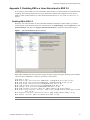
Installing and Configuring Linux Guest Operating Systems The VMware Tools control panel, which lets you modify settings, shrink virtual disks, and connect and disconnect virtual devices. A set of scripts that helps you automate guest operating system operations. The scripts run when the virtual machine’s power state changes if you configure them to do so. The VMware user process (vmware-user on Linux guests), which enables you to copy and paste text between the guest and managed host operating systems. In Linux guests, this process controls grabbing and releasing the mouse cursor when the SVGA driver is not installed. Make sure you configure the guest operating system to include the development packages before installing or reinstalling VMware Tools. This enables VMware Tools to determine the correct mouse configuration and module configuration. An improperly configured guest operating system can cause problems, including guest operating system crashes, when you install VMware Tools. VMware Tools has the following limitations in Linux virtual machines: Shrink disk is not supported. The mouse driver installation fails in X Window System versions earlier than 4.2.0. NOTE If you do not have VMware Tools installed in your virtual machine, you cannot use the shutdown or restart options in VirtualCenter. You can use only the power options. If you want to shut down the guest operating system, shut it down from within the virtual machine console before you power off the virtual machine. The installers for VMware Tools are built into ESX as ISO image files. An ISO image file looks like a CD‐ROM to your guest operating system. You do not use an actual CD‐ROM disc to install VMware Tools, nor do you need to download the CD‐ROM image or burn a physical CD‐ROM of this image file. When you select to install VMware Tools, VirtualCenter temporarily connects the virtual machine’s first virtual CD‐ROM disk drive to the ISO image file that contains the VMware Tools installer for your guest operating system. You are ready to begin the installation process. To install or upgrade VMware Tools on a Linux guest from X with the RPM installer You can perform RPM installations only in certain Linux distributions such as Red Hat and SUSE Linux Enterprise Server, among others. For other Linux distributions, follow the RMP installation guidelines provided with the distribution or see the next section. 1 Open a console to the virtual machine. 2 Power on the virtual machine. 3 After the guest operating system starts, right‐click the virtual machine and select Install/Upgrade VMware Tools. The remaining steps take place inside the virtual machine. 4 Do one of the following: If you see a VMware Tools CD icon on the desktop, double‐click it, and after it opens, double‐click the RPM installer in the root of the CD‐ROM. If you see a file manager window, double‐click the RPM installer file. In some Linux distributions, the VMware Tools CD icon might fail to appear on the desktop. In this case, double‐click Computer and double‐click the CD‐ROM drive and you should see a VMwareTools-3.5.0-<xxxxx>.i386.rpm file as well as a VMwareTools-3.5.0-<xxxxx>.tar.gz file (where <xxxxx> is the build number of the ESX release—for example, build number 82663 for ESX 3.5 Update 1). Or you may install VMware Tools from the command line, as described in the next section. 5 If prompted, enter the root password and click OK. The installer prepares the packages. 6 Click Continue when the installer presents a dialog box that shows Completed System Preparation. A dialog box appears with a progress bar. When the installer is done, VMware Tools is installed. There is no confirmation or finish button, however you can verify installation in VI Client in the Summary tab of the Linux virtual machine. You can delete the vmware-tools-distrib folder. Copyright © 2008 VMware, Inc. All rights reserved. 5