1
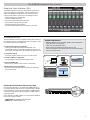
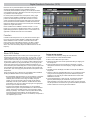
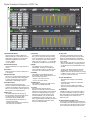
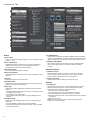
Digital Feedback Reduction (DFR) Tab
①
②
⑥ ⑦
⑧
③
⑨
⑤
⑩
⑪
⑫
⑭
④
⑮
⑬
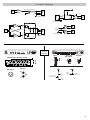
1) Enable/Disable Button
Click this button to enable or disable the
DFR notch filtering. It automatically turns on
when DFR is assigned to a channel. When
disabled, the DFR filters are turned off.
• Green= enabled
• Gray= disabled
2) Channel Assignment
Assign the DFR block to an input channel or
mix bus.
3) # of Filters
Adjust the maximum number of filters from 1
to 16 (default).
4) Response Graph
This curve is a graphical representation of the
processor’s active notch filters (highlighted
in yellow). The frequency of the currently
selected filter is indicated by a red line.
5) Feedback Filters
Each filter row displays the filter type,
frequency, depth and Q width. Between 1 and
16 filters are available for each DFR channel.
When a row is selected, a red line appears on
the response curve at that frequency.
6) Filter Type
This button designates the filter type so
that its frequency either dynamically adjusts
or remains fixed. In both types, DFR
automatically adjusts the filter depth.
• Unlocked (Dynamic): the frequency is
adjusted automatically
• Locked (Fixed): the frequency is fixed and
will not change automatically
7) Frequency
This indicates the frequency of the selected
filter. You can change the value by scrolling
on the arrow buttons or by entering a specific
value. The frequency range is from 25Hz to
20kHz. The value is blank (------) until the filter
is deployed by the DFR or entered manually.
8) Depth
This indicates the gain reduction of the
selected filter. The range of available gain
values is between 0 db and -18 dB in 0.5 dB
increments, with a default setting of 0 dB.
9) Q-Width
This indicates the bandwidth type of the
selected filter. Select High Q (default) or Low
Q from the drop-down menu.
• High Q: 1/70th octave (Q=101)
• Low Q: 1/40 octave (Q=58)
10) New Filter Q
This selection designates the width of each
new filter as it is deployed by DFR.
11) Freeze
Click this button to prevent both the
deployment of new filters and the automatic
adjustment of existing filters. Freeze the DFR
to keep it from deploying filters for program
material that contains sounds that closely
resemble feedback (such as guitar effects,
synthesized tones, flute or pipe organ). The
button appears lighted in blue when the freeze
feature is enabled. During this time, filters
remain manually adjustable.
12) Auto Clear
This feature automatically clears Unlocked
(Dynamic) filters and removes changes to the
depth of Locked (Fixed) filters. Locked filter
depth reverts to the level set when Auto Clear
was enabled.
When enabled, Auto Clear occurs during each
power cycle. Additionally, a repeating timeout
can be defined to ensure that DFR filters clear
regularly.
The Auto Clear timeout applies to each filter
independently, and starts the moment it is
deployed. The timer will restart after any change
to a filter’s frequency, depth, or Q. The timer has
a range of 1 minute to 100 hours.
13) Clear Filter Buttons
• Selected: Clears settings for the selected
filter(s).
• Unlocked: Clears settings for all Unlocked
(Dynamic) filters.
• Clear All: Clears all settings in the DFR
block and reverts all filters back to Unlocked
(Dynamic).
14) Load/Save
All DFR parameters can be saved as a file to a
computer and loaded to quickly recall settings.
Note: DFR settings are included with SCM820
system settings that are saved from the
Preferences tab.
15) Channel Fader and Gain Value
Channel gain is adjustable from to the DFR tab
for monitoring the notch filters when ringing out a
sound system. Any adjustment made to the gain
here is mirrored on the assigned channel strip.
23