1
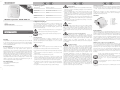
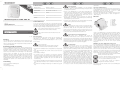
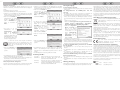
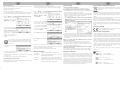
Technical data Operational safety Input voltage 100-240 V~, 50/60 Hz Rated input current 50 mA WLAN standards 802.11 b, 802.11 g, 802.11 n Frequency 2.4 GHz Encryption WPA, WPA2, WEP (128/64) Dimensions (W x H x D) 8.5 x 5.2 x 8.6 cm Weight 93 g Temperature, air humidity 5 to 35 °C; max. 85 % rel. humidity Safety instructions Storage when not in use Configuring the wireless repeater manually using a LAN If the device will not be used for a long period of time disconnect the wireless connection Only connect the wireless repeater to a freely accessible mains socket so that it repeater from the mains power supply. Ensure that the storage temperature can be quickly disconnected from the mains in the event of danger (smoke, remains between -20 °C and 60 °C. The humidity should not exceed 90% rel. air fumes or smell of burning). humidity. network cable to the LAN socket (6) of the wireless repeater. Insert the other end Please note: temperature range and rel. air humidity differ considerably for of the network cable into a free LAN socket on your computer. a prolonged period (e.g. during holidays). Even if the storage and operation, please see the information in the “Operating environment” The following describes the set-up in Windows® 7. The settings in other operating device is not being used it consumes power. This minimises the risk of fire or section. systems may differ. To be able to establish a connection to the wireless repeater Disconnect the wireless repeater from the mains if the device will not be used for smouldering which always exists when an electrical device is connected to the mains power supply. your computer must automatically obtain the IP address. Proceed as follows: Overview Turn on your computer. Always disconnect the wireless repeater from the mains power supply before a Click on Start | Control Panel | View network status and tasks | storm or thunderstorm if there is the risk of lightning, as the wireless repeater can 1 Power LED be irreparably damaged by high voltage surges if lightning strikes. 2 WLAN LED 3 WPS LED 4 LAN LED Select Obtain an IP address automatically and click on OK. 5 WPS button Then close all opened windows. 6 LAN socket 7 Reset button Never use any adapter plugs or extension cables which are damaged or which do not comply with valid safety standards. Before using the device for the first time please read the following instructions carefully, even if you are familiar with using electronic devices. Store these Cables someone else, be sure to always include these instructions. themselves. Never place furniture or other heavy objects on the cable and take systems may differ. Open the Internet browser on your computer. Enter care that the cable is not kinked, especially near the plug and connection sockets. http://192.168.10.1 in the address line of the Internet browser and confirm This symbol indicates important information for safe operation of Never make knots in any of the cables or tie them together with other cables. the device and the safety of the user. Ensure that all cables are placed so that no one can trip over them and they do First use the entry with the Enter button. Plug the wireless repeater into a properly installed power socket. The optimal The following window will open. Enter network. the wireless devices which are to be connected to the network using the wireless Children and persons with disabilities V 1.45 integrated WPS function enables it to be easily connected to a secured wireless repeater. Test other locations if the wireless repeater does not work there. There Electrical devices do not belong in the hands of children. Persons with disabilities are two different ways to configure the wireless repeater. If your router supports Operating environment should also only use electrical devices appropriately. Never allow children or WPS you can use this simple function to easily install the wireless repeater. If you The device is not designed for use in environments with a high temperature or persons with disabilities to use electrical devices unsupervised. They may not wish to use a router without a WPS function you can connect the wireless repeater humidity (e.g. bathrooms) or in extremely dusty conditions. Operating temperatures and operating air humidity: 5 °C to 35 °C, max. 85 % rel. air recognise potential risks. Small parts can be fatal if swallowed. Also always keep plastic packaging out of reach, as it poses a suffocation risk. Intended use Do not use the device on aircraft, in hospitals, operating rooms or in the vicinity of This is an information technology device. It increases the range of an existing medical electronic systems. The transmitted radio waves can impair the Ensure that uses of the wireless repeater. The additional settings in the now flash for approx. 2 minutes. During this period please activate the WPS configuration menu should only be used by experienced users. An function on your router. The wireless repeater will automatically connect to your functionality of sensitive devices. Keep the device at least 20cm away from any router and carry out the complete set-up. The wireless repeater can then be used. no direct sunlight or bright artificial light reaches the device; radio waves. The transmitted radio waves can cause interference in hearing aids. router. the device is not in the immediate vicinity of magnetic fields (e.g. speakers); Do not place the device in the vicinity of flammable gases or in an explosion- no fire sources (e.g. burning candles) are placed on or near the device; hazard environment (e.g. paint shop) when the radio components are switched no foreign objects penetrate the device; on since the transmitted radio waves can cause an explosion or a fire. The range and laws in the country of use. contact with sprayed and dripping water and corrosive liquids is prevented and the device is never operated near water; in particular it should never be immersed (do not place any objects filled with liquids such as vases or drinks on Supplied items SilverCrest SWR 300 A1 wireless repeater Network cable This instruction manual procedure described above. simply press the WPS button (5) on the wireless repeater. The WPS LED (3) will climates. This device meets all relevant norms and standards in conjunction with operation this function has not been implemented. Please observe the regulations the reset button (7) for at least 10 seconds and repeat the Please note that the following only describes the most common The wireless repeater can now be accessed using the SSID and password of your damage or faults in such cases. As a standby mode would influence normal If the user name and password window does not open hold down supports WPS. For further details, please read your router's user manual. Then pacemakers, since the proper functioning of the pacemaker can be impaired by guaranteed. The manufacturer does not accept any liability for any resulting the wireless repeater will then open. Configuring the wireless repeater with the WPS function no direct heat sources (e.g. heating) can affect the device; approved by the manufacturer, compliance with these standards is no longer then click on OK. The configuration menu of to your computer using a LAN connection. purposes. Furthermore, the device may not be used outdoors or in tropical CE conformity. In the event of any modification to the device that was not admin as user name and password and This is the simplest way to configure the wireless repeater. First check if your router humidity. Radio interface wireless network. It may only be used for private and not industrial or commercial Opening the configuration menu The following describes the set-up in Windows® 7. The settings in other operating position for the wireless repeater is exactly in the middle between your router and SilverCrest SWR 300 A1 increases the range of an existing wireless network. The (TCP/IPv4) | Properties. Always handle the cables by the connector and do not pull on the cables This symbol indicates other important information on the topic. Thank you for purchasing the SilverCrest SWR 300 A1 wireless repeater. The LAN connection | Properties | Internet Protocol Version 4 instructions in a safe place for future reference. If you pass on the device to not cause an obstruction. Introduction You can also configure the wireless repeater using a network cable: Connect the or near the device); the device is not subjected to any extreme temperature fluctuations, as this may result in moisture caused by condensation and therefore a short circuit; the device is never subjected to excessive shocks and vibrations; of the radio waves is dependent on conditions in the surrounding environment. In service.com. By using WPS, WDS (Wireless Distribution System) is activated as Setting the menu language standard as long as this is supported by your router. The default menu language is English. Proceed as follows to change the menu Multiple Wireless Access Points can be connected language: together using WDS (Wireless Distribution System) in order case of data traffic via a wireless connection, it is also possible for unauthorised advanced instruction manual can be downloaded at www.lidl- Select the Management tab. Select to achieve larger network coverage. third parties to receive data. Targa GmbH is not responsible for radio or television the desired language under Select interference caused by unauthorised changes to this device. In addition, Targa It is possible to configure multiple repeaters. These should be assumes no responsibility for the replacement or exchange of connecting lines configured one after the other. and devices not indicated by Targa GmbH. Only the user himself is responsible for the elimination of interference caused by such unauthorised changes and for If your router does not support WPS you can also manually configure the wireless the replacement or exchange of the devices. repeater. Language. Finally click on Apply Settings to confirm the settings.