1
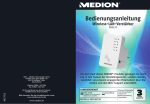
Configuring WAP mode Plug the wireless repeater into a suitable power socket. WAP mode (Wireless Application Protocol) is used to extend your network or to Connect a network cable to the LAN socket (6) of the wireless repeater. Insert make your network available in another location. the other end of the network cable into a free LAN socket on your computer. Set up WAP mode as follows: Plug the wireless repeater into a suitable power socket. Connect a network cable to the LAN socket (6) of the wireless repeater. Insert the other end of the network cable into a free LAN socket on your computer. Click on Wizard on the Home page of the wireless repeater's configuration Wireless Click on Wizard on the Home menu and Repeater select Mode. Troubleshooting Environmental and disposal information The Power LED (1) does not light up. When the crossed out wheely bin symbol appears on a product, this Socket defective or fuse tripped; check the socket with another device. indicates that the product is subject to the European Directive The configuration menu of the wireless repeater is not shown. 2002/96/EC. Internet browser incorrectly; check and correct the entry. The wireless repeater has already been configured and is using another IP address. To be able to establish a connection to the wireless repeater the IP address of your computer must be changed. Proceed as follows: page of the wireless repeater's Click on Start | Control Panel | View network status and tasks | configuration menu and select LAN connection | Properties | Internet Protocol Version 4 (TCP/IPv4) | Properties. WAP mode. Then click Next. A Here you can determine the SSID window with all available Select Use the following IP wireless networks will then open. address and enter an IP Select the network whose range address you wish to extend in the Select 192.168.10.100 column and enter the password of the selected network in the Key (network name) and the Security column. Then click Next. mode. In Security mode select the desired form of encryption mixed). If the encryption between and 192.168.10.200 (for example 192.168.10.101). Enter the IP Manufacturer waste and disposed of at designated state facilities. The correct disposal of old TARGA GmbH devices in this manner will prevent environmental pollution and human health Postfach 22 44 hazards. D-59482 Soest For further information about proper disposal contact your local authorities, waste www.targa.de disposal office or the shop where you bought the device. Dispose of the packaging in an environmentally compatible manner. Cardboard can be put out for municipal paper collections or brought to public collection points for recycling. Films and plastic used for packaging the device are collected by your local disposal services and disposed of in an environmentally compatible manner. Conformity remarks This device conforms with the basic requirements and other required the Subnet mask and click on provisions of the R&TTE Directive 1999/5/EC. OK. Then close all opened windows. Warranty and servicing advice This device is sold with three years warranty from the date of purchase. Please The wireless repeater has already been configured and is using another IP keep the original receipt in a safe place as proof of purchase. Before using your activated the password must be address. Reset the wireless repeater to the factory default settings. Hold down product for the first time, please read the enclosed documentation or online help. entered. the reset button (7) for at least 10 seconds until the LEDs briefly go out and then Should any problems arise which cannot be solved in this way, please call our come on again. hotline. Please have the article number and, if available, the serial number to network or set-up an independent Access Point. When entering Click on Save to save the settings entered. the router's SSID ensure that this corresponds to the encryption of the router. Click on Save to save the settings entered. wireless repeater will be ready to use. Disconnect the network cable from your computer and connect it to a free LAN up Wireless Repeater Mode as follows: fault. Within the warranty period the product will be repaired or replaced free of The router's wireless function is deactivated; activate the wireless function. charge as we deem appropriate. No new warranty period commences if the repeater, preferably with the WPS function. using a network cable this should now be removed. and the wireless repeater. Meaning of the LEDs: The computer is too far away from the wireless repeater; reduce the distance. The computer's wireless function is deactivated; activate the wireless function. Cleaning / maintenance Power LED (1) This LED will light up if the device is drawing power. WLAN LED (2) This LED will permanently light up if there is a connection; housing of the device is damaged, if liquid or objects penetrate the inside of the the LED will flash on data transfer. device or if it is exposed to rain or moisture. Maintenance work is also necessary If the WPS button (5) is pressed this LED will flash for the if the device is not working correctly or has been dropped. If smoke is produced, WPS LED (3) period when a connection is sought (approx. 2 minutes). Configuring Wireless Repeater Mode Wireless Repeater Mode is used to extend the range of your wireless network. Set hotline support staff will initiate further servicing procedures depending on the The wireless repeater is too far away from the router; reduce the distance. No wireless connection can be established between the computer port on your router. The wireless repeater is only accessible using the assigned SSID. hand for all enquiries. If it is not possible to solve the problem on the phone, our and the wireless repeater. wireless repeater will be ready to use. If the configuration has been carried out The wireless repeater is only accessible using the selected SSID. The wireless repeater will then restart. Wait approx. 30 seconds, then the There is no wireless connection established between the router The wireless repeater's configuration is incorrect; reconfigure the wireless The wireless repeater will then restart. Wait approx. 30 seconds, then the LAN LED (4) This LED will permanently light up if there is a LAN connection; the LED will flash on data transfer. [email protected] All old electrical and electronic devices must be separated from normal household is You can specify the SSID of the router and thereby extend the E-Mail: IAN: 73766 address 255.255.255.0 under Click on Next in the new window. (WPA, WPA2 or WPA/WPA2 800 – 92 496 The IP address http://192.168.10.1 was entered into the address line of the Turn on your computer. Then click Next. Phone: Maintenance work is necessary if the device becomes damaged e.g. if the product is repaired or replaced. Consumables such as batteries, rechargeable batteries and lamps are not covered by the warranty. Your statutory rights towards the seller are not affected or restricted by this warranty. Service Phone: 0207 – 36 50 744 E-Mail: [email protected] or there are any unusual sounds or smells, disconnect the device from the mains Phone: 01 – 242 15 83 immediately. In these cases the device should not be used until it has been E-Mail: [email protected] Phone: 800 – 62 175 E-Mail: [email protected] inspected by authorised service personnel. Only have qualified personnel carry out the maintenance work on the device. Never open the housing of the device. There is the risk of a fatal electric shock when the housing is open. Only use a clean, dry cloth for cleaning and never use any corrosive liquids.