1
!install_ar160205.book
1 ページ 2003年10月9日 木曜日 午後4時48分
MODEL
AL-1633
AL-1644
DIGITAL MULTIFUNCTIONAL
SYSTEM
SOFTWARE SETUP GUIDE
Page
• INTRODUCTION
• SOFTWARE FOR THE
SHARP AL-1633/1644
• BEFORE INSTALLATION
• INSTALLING THE
SOFTWARE
• CONNECTING TO
A COMPUTER
• CONFIGURING THE
PRINTER DRIVER
• SETTING UP
BUTTON MANAGER
• HOW TO USE THE
ONLINE MANUAL
• TROUBLESHOOTING
1
2
3
4
10
11
12
14
15
!install_ar160205.book
2 ページ 2003年10月9日 木曜日 午後4時48分
!install_ar160205.book
1 ページ 2003年10月9日 木曜日 午後4時48分
INTRODUCTION
This manual explains how to install and configure the software that is required for the printer and scanner functions
of the machine. The procedure for viewing the Online Manual is also explained.
Note
• The screen images in this manual are mainly for Windows XP. With other versions of Windows, some screen
images may be different from those in this manual.
• The explanations in this manual are based on the North American version of the software. Versions for other
countries and regions may vary slightly from the North American version.
• Where "AL-XXXX" appears in this manual, please substitute the name of your model for "XXXX". For the name
of your model, see "DIFFERENCES BETWEEN MODELS" in the Operation Manual.
• This manual refers to the "SHARP DIGITAL MULTIFUNCTIONAL SYSTEM AL-1633/1644 Software" CD-ROM
simply as "CD-ROM".
Trademark acknowledgments
• Microsoft® Windows® operating system is a trademark or copyright of Microsoft Corporation in the U.S.A. and
other countries.
• Windows® 95, Windows® 98, Windows® Me, Windows NT® 4.0, Windows® 2000, and Windows® XP are
trademarks or copyrights of Microsoft Corporation in the U.S.A. and other countries.
• Acrobat® Reader Copyright© 1987- 2002 Adobe Systems Incorporated. All rights reserved. Adobe, the Adobe
logo, Acrobat, and the Acrobat logo are trademarks of Adobe Systems Incorporated.
• IBM and PC/AT are trademarks of International Business Machines Corporation.
• All other trademarks and copyrights are the property of their respective owners.
CONTENTS
SOFTWARE FOR THE SHARP AL-1633/1644................................................................................ 2
BEFORE INSTALLATION ................................................................................................................ 3
● HARDWARE AND SOFTWARE REQUIREMENTS ............................................................................... 3
● INSTALLATION ENVIRONMENT AND USEABLE SOFTWARE ........................................................... 3
● INSTALLATION ENVIRONMENT AND INSTALLATION PROCEDURE................................................ 3
INSTALLING THE SOFTWARE ....................................................................................................... 4
● INSTALLATION IN WINDOWS XP (USB/PARALLEL CABLE) .............................................................. 4
● INSTALLATION IN WINDOWS 98/ME/2000 (USB CABLE)................................................................... 6
● INSTALLATION IN WINDOWS 95/98/ME/NT4.0/2000 (PARALLEL CABLE) ........................................ 8
CONNECTING TO A COMPUTER ................................................................................................. 10
● CONNECTING A USB CABLE ............................................................................................................. 10
● CONNECTING A PARALLEL CABLE .................................................................................................. 10
CONFIGURING THE PRINTER DRIVER ....................................................................................... 11
SETTING UP BUTTON MANAGER ............................................................................................... 12
● Windows XP.......................................................................................................................................... 12
● Windows 98/Me/2000 ........................................................................................................................... 13
HOW TO USE THE ONLINE MANUAL .......................................................................................... 14
TROUBLESHOOTING .................................................................................................................... 15
1
!install_ar160205.book
2 ページ 2003年10月9日 木曜日 午後4時48分
SOFTWARE FOR THE SHARP
AL-1633/1644
The CD-ROM that accompanies the machine contains the following software:
MFP driver
Printer driver
The printer driver enables you to use the printer function of the machine.
The printer driver includes the Print Status Window. This is a utility that monitors the machine and informs you of
the printing status, the name of the document currently being printed, and error messages.
Scanner driver
The scanner driver allows you to use the scanning function of the machine with TWAIN-compliant and
WIA-compliant applications.
Sharpdesk
Sharpdesk is an integrated software environment that makes it easy to manage documents and image files, and
launch applications.
Button Manager
Button Manager allows you to use the scanner keys on the machine to scan a document.
Note
2
The scanning feature can only be used with computers that are running Windows 98/Me/2000/XP and are
connected to the machine by a USB cable. If you are running Windows 95/NT 4.0 or are connected by a parallel
cable, only printing is available.
!install_ar160205.book
3 ページ 2003年10月9日 木曜日 午後4時48分
BEFORE INSTALLATION
HARDWARE AND SOFTWARE REQUIREMENTS
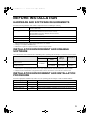
Check the following hardware and software requirements before installing the software.
Computer type
IBM PC/AT or compatible computer equipped with a USB 1.1*1 or bi-directional parallel
interface (IEEE 1284)
Operating system*2
Windows 95, Windows 98, Windows Me,
Windows NT Workstation 4.0 (Service Pack 5 or later)*3,
Windows 2000 Professional*3, Windows XP Professional*3,
Windows XP Home Edition*3
Display
800 x 600 dots (SVGA) display with 256 colors (or better)
Hard disk free space
150 MB or more
Other hardware requirements
An environment on which any of the operating systems listed above can fully operate
*1 Compatible with Windows 98, Windows Me, Windows 2000 Professional, Windows XP Professional or Windows XP Home
Edition preinstalled models equipped with a USB interface as standard.
*2 Printing is not available in MS-DOS mode.
*3 Administrator’s rights are required to install the software using the installer.
INSTALLATION ENVIRONMENT AND USEABLE
SOFTWARE
The software that can be installed varies depending on the operating system and type of connection to the machine.
MFP Driver
Printer driver
Windows 98/Me/2000/XP
USB connection
Windows 95/98/Me/NT 4.0/2000/XP
Parallel connection
Button
Manager
Sharpdesk
Available
Available
Available
Not Available
Not Available
Available*2
Scanner
driver
Available*1
*1 When the machine is connected using a parallel cable, the Print Status Window can only be used when the parallel port is set
to ECP mode. To set the parallel port mode, refer to your computer manual or ask the manufacturer of your computer.
*2 Sharpdesk can be installed when using a parallel cable, however, the machine's scanner function cannot be used.
INSTALLATION ENVIRONMENT AND INSTALLATION
PROCEDURE
Follow the appropriate installation procedure for your operating system and type of cable as indicated below.
Operating system
Windows XP
Cable
USB/Parallel
Procedure to follow
INSTALLATION IN WINDOWS XP (USB/PARALLEL CABLE) (p. 4)
Windows 98/Me/2000
USB
INSTALLATION IN WINDOWS 98/ME/2000 (USB CABLE) (p. 6)
Windows 98/Me/2000
Parallel
INSTALLATION IN WINDOWS 95/98/ME/NT4.0/2000 (PARALLEL CABLE) (p. 8)
Windows 95/NT 4.0
Parallel
INSTALLATION IN WINDOWS 95/98/ME/NT4.0/2000 (PARALLEL CABLE) (p. 8)
3
!install_ar160205.book
4 ページ 2003年10月9日 木曜日 午後4時48分
INSTALLING THE SOFTWARE
Note
• In the following explanations it is assumed that the mouse is configured for right hand operation.
• The scanner feature only works when using a USB cable.
• If an error message appears, follow the instructions on the screen to solve the problem. After the problem is
solved, the installation procedure will continue. Depending on the problem, you may have to click the "Cancel"
button to exit the installer. In this case, reinstall the software from the beginning after solving the problem.
• When installing Sharpdesk, a minimal version of Internet Explorer 5.01 will be installed on your computer if your
computer does not currently have Internet Explorer version 4.01 or later
INSTALLATION IN WINDOWS XP (USB/PARALLEL CABLE)
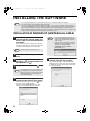
1
The USB or parallel cable must not be
connected to the machine. Make sure
that the cable is not connected before
proceeding.
Note
If the cable is connected, a Plug and Play window
will appear. If this happens, click the "Cancel" button
to close the window and disconnect the cable.
Note
The cable will be connected in step 11.
2
Insert the CD-ROM into your CD-ROM
drive.
3
Click the "start" button, click "My
Computer" ( ), and then double-click
the CD-ROM icon ( ).
4
Double-click the "setup" icon (
Note
5
).
If the language selection screen appears after
you double click the "setup" icon, select the
language you wish to use and click the "Next"
button. (Normally the correct language is
selected automatically.)
Select the software packages to be
installed and then click the "Next" button.
Software packages with a checkmark ( ) in the
list on the screen will be installed.
Click the "Display README" button to show
information on packages that are selected.
4
• If you are using a parallel cable, do not
select the Button Manager checkbox (this
feature is not supported when a parallel
cable is used).
• If the following screen appears, click the
"OK" button. For the software that can be
installed, see "INSTALLATION
ENVIRONMENT AND USEABLE
SOFTWARE" (p. 3).
6
Check the packages on the screen,
and then click the "Start" button.
The software packages to be installed will be
displayed on the screen. If an incorrect package
is displayed, click the "Back" button and select
the correct packages.
!install_ar160205.book
5 ページ 2003年10月9日 木曜日 午後4時48分
INSTALLING THE SOFTWARE
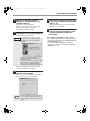
7
The files required for installation of
the MFP driver are copied (if "MFP
Driver" was selected in Step 5).
11
Connect the interface cable to the
machine and your computer (p. 10).
• If you are using a USB cable, make sure the
machine's power is turned on and then connect
the cable.
• If you are using a parallel cable, turn off the
power of the machine and your computer,
connect the cable, turn on the power of the
machine, and then turn on your computer.
Follow the on-screen instructions.
When you are asked how the printer is connected,
select "Connected to this computer" and click the
"Next" button.
Windows will detect the machine and the Plug
and Play screen will appear.
If you are using Windows XP with a parallel
cable, go to step 13.
12
Begin installation of the scanner
driver. (Only when using a USB cable.)
"SHARP AL-XXXX" will appear in the "Found New
Hardware Wizard" dialog box. Select "Install the
software automatically (Recommended)", click the
"Next" button, and follow the on-screen instructions.
If the following screen appears while the files are
Caution being copied (the message may appear more
than once), click the "Continue Anyway" button.
If a warning window appears regarding the
Caution "Windows logo test", be sure to click the
"Continue Anyway" button.
13
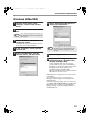
When "The MFP driver installation is complete."
appears, click the "OK" button.
The Button Manager installer will start.
8
Begin the installation of Button
Manager (if "Button Manager" was
selected in Step 5).
Follow the on-screen instructions.
Click the "Finish" button when the message
informs you that setup is successful.
The Sharpdesk installer will start.
9
Begin installation of the printer driver.
"SHARP AL-XXXX" will appear in the "Found New
Hardware Wizard" dialog box. Select "Install the
software automatically (Recommended)" and click
the "Next" button. Follow the on-screen instructions.
If a warning window appears regarding the
Caution "Windows logo test", be sure to click the
"Continue Anyway" button.
This completes the installation of the software.
• If you installed the MFP driver, configure the printer
driver settings as explained in "CONFIGURING THE
PRINTER DRIVER" (p. 11).
• If you installed Button Manager, set up Button Manager as
explained in "SETTING UP BUTTON MANAGER" (p. 12).
Begin the installation of Sharpdesk (if
"Sharpdesk" was selected in Step 5).
Follow the on-screen instructions.
Click the "Finish" button when the message
informs you that Setup is complete.
10
When the "Finish" screen appears,
click the "Close" button.
When "Now connect the MFP interface cable to
the PC." appears, click the "OK" button.
Note
After the installation, a message prompting
you to restart your computer may appear. In
this case, click the "Yes" button to restart your
computer.
5
!install_ar160205.book
6 ページ 2003年10月9日 木曜日 午後4時48分
INSTALLING THE SOFTWARE
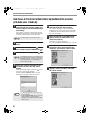
INSTALLATION IN WINDOWS 98/ME/2000 (USB CABLE)
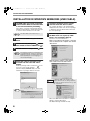
1
The USB cable must not be connected
to the machine. Make sure that the cable
is not connected before proceeding.
6
The software packages to be installed will be
displayed on the screen. If an incorrect package
is displayed, click the "Back" button and select
the correct packages.
If the cable is connected, a Plug and Play window
will appear. If this happens, click the "Cancel" button
to close the window and disconnect the cable.
Note
2
The cable will be connected in step 11.
Insert the CD-ROM into your CD-ROM
drive.
3
Double-click "My Computer" ( ), and
then double-click the CD-ROM icon ( ).
4
Double-click the "setup" icon (
Note
5
Check the packages on the screen,
and then click the "Start" button.
7
The files required for installation of
the MFP driver are copied (if "MFP
Driver" was selected in Step 5).
Follow the on-screen instructions.
When you are asked how the printer is connected,
select "Connected to this computer" and click the
"Next" button.
).
If the language selection screen appears after
you double click the "setup" icon, select the
language you wish to use and click the "Next"
button. (Normally the correct language is
selected automatically.)
Select the software packages to be
installed and then click the "Next"
button.
When the interface selection screen appears,
select "USB" and click the "Next" button.
Software packages with a checkmark ( ) in the
list on the screen will be installed.
Click the "Display README" button to show
information on packages that are selected.
In Windows 2000, if the following screen
Caution appears while the files are being copied (the
message may appear more than once), click
the "Yes" button.
Note
If the following screen appears, click the "OK"
button.
When "The MFP driver installation is complete."
appears, click the "OK" button.
The Button Manager installer will start.
6
!install_ar160205.book
7 ページ 2003年10月9日 木曜日 午後4時48分
INSTALLING THE SOFTWARE
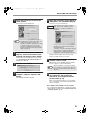
8
Begin the installation of Button
Manager (if "Button Manager" was
selected in Step 5).
Follow the on-screen instructions.
Click the "Finish" button when the message
informs you that setup is successful.
The Sharpdesk installer will start.
9
Begin the installation of Sharpdesk (if
"Sharpdesk" was selected in Step 5).
Follow the on-screen instructions.
If the following screen appears, click the
Caution "Skip" button or the "Continue" button as
appropriate to continue the Sharpdesk
installation.
11
Make sure that the power of the machine
is turned on, and then connect the USB
cable. (p. 10)
Windows will detect the machine and the Plug
and Play screen will appear.
12
Follow the instructions in the Plug
and Play screen that appears in your
version of Windows to begin the
installation.
This completes the installation of the software.
• If you installed the MFP driver, configure the printer
driver settings as explained in "CONFIGURING THE
PRINTER DRIVER" (p. 11).
• If you installed Button Manager, set up Button
Manager as explained in "SETTING UP BUTTON
MANAGER" (p. 12).
If "Skip" is selected, the Sharpdesk
installation will continue without installing
Sharpdesk Imaging.
If "Continue" is selected, Sharpdesk Imaging
will be installed. If Imaging for Windows is
installed on your computer, Sharpdesk
Imaging will overwrite Imaging for Windows.
Click the "Finish" button when the message
informs you that Setup is complete.
10
When the "Finish" screen appears,
click the "Close" button.
When "Now connect the MFP interface cable to
the PC." appears, click the "OK" button.
Note
After the installation, a message prompting
you to restart your computer may appear. In
this case, click the "Yes" button to restart your
computer.
7
!install_ar160205.book
8 ページ 2003年10月9日 木曜日 午後4時48分
INSTALLING THE SOFTWARE
INSTALLATION IN WINDOWS 95/98/ME/NT4.0/2000
(PARALLEL CABLE)
1
The USB or parallel cable must not be
connected to the machine. Make sure
that the cable is not connected before
proceeding.
If the cable is connected, a Plug and Play window
will appear. If this happens, click the "Cancel" button
to close the window and disconnect the cable.
Note
2
3
Double-click "My Computer" ( ), and
then double-click the CD-ROM icon ( ).
4
Double-click the "setup" icon (
5
Begin installation of the MFP driver
(printer driver) (if "MFP driver" was
selected in Step 5).
Follow the on-screen instructions.
If you are using Windows 95/NT 4.0, go to step 10.
8
When you are asked how the printer is
connected, select "Connected to this
computer" and click the "Next" button.
9
When the interface selection screen
appears, select "Parallel" and click
the "Next" button.
If the language selection screen appears after
you double click the "setup" icon, select the
language you wish to use and click the "Next"
button. (Normally the correct language is
selected automatically.)
Software packages with a checkmark ( ) in the
list on the screen will be installed.
Click the "Display README" button to show
information on packages that are selected.
8
7
).
Select the software packages to be
installed and then click the "Next"
button.
Note
Check the packages on the screen,
and then click the "Start" button.
The software packages to be installed will be
displayed on the screen. If an incorrect package
is displayed, click the "Back" button and select
the correct packages.
The cable will be connected in step 16.
Insert the CD-ROM into your CD-ROM
drive.
Note
6
• In Windows 95/NT 4.0, "Button Manager"
does not appear.
• In Windows 98/Me/2000, do not select the
"Button Manager" checkbox (Button
Manager is not supported when a parallel
cable is used).
!install_ar160205.book
9 ページ 2003年10月9日 木曜日 午後4時48分
INSTALLING THE SOFTWARE
10
Select the printer port and click the
"Next" button.
14
Select "LPT1" for the printer port.
Begin the installation of Sharpdesk (if
"Sharpdesk" was selected in Step 5).
Follow the on-screen instructions.
If the following screen appears, click the
Caution "Skip" button or the "Continue" button as
appropriate to continue the Sharpdesk
installation.
Note
11
If "LPT1" does not appear, another printer or
peripheral device is using LPT1. In this case
continue the installation, and after the
installation is finished, change the port setting
so that the machine can use LPT1. This
procedure is explained in "Another printer is
using the parallel port (when using a parallel
cable)" on page 16.
When the model selection window
appears, select model name of your
machine and click the "Next" button.
For the name of the model that you are using,
see "DIFFERENCES BETWEEN MODELS" in
the Operation Manual.
12
If "Skip" is selected, the Sharpdesk
installation will continue without installing
Sharpdesk Imaging.
If "Continue" is selected, Sharpdesk Imaging
will be installed. If Imaging for Windows is
installed on your computer, Sharpdesk
Imaging will overwrite Imaging for Windows.
Click the "Finish" button when the message
informs you that setup is successful.
15
When the "Finish" screen appears,
click the "Close" button.
When "Now connect the MFP interface cable to
the PC." appears, click the "OK" button.
Click the "Yes" button.
Note
13
When "The MFP driver installation is
complete." appears, click the "OK"
button.
The Sharpdesk installer will start.
16
After the installation, a message prompting
you to restart your computer may appear. In
this case, click the "Yes" button to restart your
computer.
Turn off the power of the machine and
your computer, and connect the
machine to your computer with the
parallel cable. (p. 10)
After connecting the machine to your computer,
turn on the power of the machine and then start
up your computer.
This completes the installation of the software.
• If you installed the MFP driver, configure the printer
driver settings as explained in "CONFIGURING THE
PRINTER DRIVER" (p. 11).
9
!install_ar160205.book
10 ページ
2003年10月9日 木曜日 午後4時48分
CONNECTING TO A COMPUTER
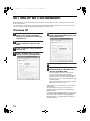
Follow the procedure below to connect the machine to your computer.
Interface cables for connecting the machine to your computer are not included with the machine. Please purchase
the appropriate cable for your computer.
Interface cable
USB cable
Shielded twisted pair cable, high-speed transmission equivalent (3 m (10 feet) max.)
Parallel cable
IEEE 1284-Shielded type bi-directional parallel interface cable (3 m (10 feet) max.)
Caution
• If you intend to use the machine as a scanner, it must be connected to your computer with a USB interface
cable. The scanner function cannot be used if the machine is connected with a parallel cable.
• USB is available with a PC/AT compatible computer that was originally equipped with USB and had Windows 98,
Windows Me, Windows 2000 Professional, Windows XP Professional or Windows XP Home Edition preinstalled.
• Do not connect the interface cable before installing the MFP driver. The interface cable should be connected
during installation of the MFP driver.
CONNECTING A USB CABLE
1
Insert the cable into the USB connector
on the machine.
2
Insert the other end of the cable into
the your computer's USB connector.
CONNECTING A PARALLEL CABLE
1
Ensure that your computer and the
machine are turned off.
2
Plug the cable into the parallel
connector on the machine, and fasten
with the clasps.
10
3
Plug the other end of the cable into
your computer's parallel connector.
!install_ar160205.book
11 ページ
2003年10月9日 木曜日 午後4時48分
CONFIGURING THE PRINTER DRIVER
After installing the MFP driver (printer driver), you must configure the printer driver settings appropriately for the
number of paper trays on the machine and the size of paper loaded in each.
1
Click the "start" button, click "Control
Panel", click "Printers and Other Hardware",
and then click "Printers and Faxes".
5
In operating systems other than Windows XP, click the
"Start" button, select "Settings", and then click "Printers".
2
Click the "Set Tray Status" button and
select the size of paper that is loaded
in each tray.
Select a tray in the "Paper source" menu, and
select the size of paper loaded in that tray from the
"Setting Paper Size" menu. Repeat for each tray.
Click the "SHARP AL-XXXX" printer
driver icon and select "Properties"
from the "File" menu.
If you are using Windows NT 4.0/2000/XP, go to step 4.
3
In Windows 95/98/Me, click the "Setup" tab.
4
Click the "Configuration" tab.
Be sure to configure the above "Set Tray Status"
Caution settings, and then when printing specify a tray
other than "Auto Select" in "Paper Source" in the
"Paper" tab of the printer driver setup screen.
6
Click the "OK" button in the "Set Tray
Status" window.
7
Click the "OK" button in the printer
properties window.
11
!install_ar160205.book
12 ページ
2003年10月9日 木曜日 午後4時48分
SETTING UP BUTTON MANAGER
Button Manager is a software program that works with the scanner driver to enable scanning from the operation
panel of the machine.
To scan using the operation panel of the machine, Button Manager must be linked with the scan menu keys on the
machine. Follow the steps below to link Button Manager to scanner events.
Windows XP
1
Click the "start" button, click "Control
Panel", click "Printers and Other
Hardware", and then click "Scanners
and Cameras".
2
Click the "SHARP AL-XXXX" icon and
select "Properties" from the "File"
menu.
3
In the "Properties" screen, click the
"Events" tab.
4
Select "ScanMenu SC1" from the
"Select an event" pull-down menu.
5
Select "Start this program" and then
select "Sharp Button Manager D" from
the pull-down menu.
6
Click the "Apply" button.
7
Repeat Steps 4 through 6 to link
Button Manager to "ScanMenu SC2"
through "ScanMenu SC6".
Select "ScanMenu SC2" from the "Select an
event" pull-down menu. Select "Start this
program", select "Sharp Button Manager D" from
the pull-down menu, and then click the "Apply"
button. Do the same for each ScanMenu through
"ScanMenu SC6".
When the settings have been completed, click the
"OK" button to close the screen.
Button Manager is now linked to the scan menu keys
(1 through 6).
The scan settings for each of scan menu keys 1
through 6 can be changed in the setting window of
Button Manager.
For the factory default settings of the scan menu keys,
see "USING THE SCANNER MODE" in the Operation
Manual. For the procedures for configuring Button
Manager settings, see "Button Manager Settings" in
the Online Manual.
12
!install_ar160205.book
13 ページ
2003年10月9日 木曜日 午後4時48分
SETTING UP BUTTON MANAGER
Windows 98/Me/2000
1
click the "Start" button, select
"Settings", and then click "Control
Panel".
2
Double-click the "Scanners and Cameras"
icon.
Note
3
6
Select "Sharp Button Manager D" in
"Send to this application".
If the "Scanners and Cameras" icon does not
appear in Windows Me, click "view all Control
Panel options".
Select "AL-XXXX", and click the
"Properties" button.
In Windows Me, right click "AL-XXXX" and click
"Properties" in the menu that appears.
4
In the "Properties" screen, click the
"Events" tab.
5
Select "ScanMenu SC1" from the
"Scanner events" pull-down menu.
Note
If other applications are shown, deselect the
checkboxes for the other applications and
leave only the Button Manager checkbox
selected.
7
Click the "Apply" button.
8
Repeat Steps 5 through 7 to link
Button Manager to "ScanMenu SC2"
through "ScanMenu SC6".
Select "ScanMenu SC2" from the "Scanner
events" pull-down menu. Select "Sharp Button
Manager D" in "Send to this application" and click
the "Apply" button. Do the same for each
ScanMenu through "ScanMenu SC6".
When the settings have been completed, click the
"OK" button to close the screen.
Button Manager is now linked to the scan menu keys
(1 through 6).
The scan settings for each of scan menu keys 1
through 6 can be changed in the setting window of
Button Manager.
For the factory default settings of the scan menu keys,
see "USING THE SCANNER MODE" in the Operation
Manual. For the procedures for configuring Button
Manager settings, see "Button Manager Settings" in
the Online Manual.
13
!install_ar160205.book
14 ページ
2003年10月9日 木曜日 午後4時48分
HOW TO USE THE ONLINE MANUAL
The Online Manual provides detailed instructions for operating the machine as a printer or scanner. View the Online
Manual when you use the printer and scanner functions after the initial setup is completed.
Contents of the Online Manual
The contents of the Online Manual are as follows.
How to use the Online Manual
Explains how to use the Online Manual.
Print
Provides information on how to print a document.
Printer sharing
Explains how to configure the machine for use as a shared printer.
Scan
Explains how to scan using the scanner driver and how to adjust the settings for the Button Manager.
Note
To view the Online Manual, your computer must have Acrobat Reader 5.0 or later. If you do not have Acrobat
Reader, follow the instructions in "Installing Acrobat Reader" to install it.
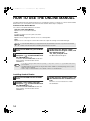
1
Insert the CD-ROM into your CD-ROM
drive.
2
Click the "start" button, click "My
Computer" ( ), and then double-click
the CD-ROM icon ( ).
3
Double-click the "Manual" folder,
double-click the "English" folder, and
then double-click the
"AL_1633_1644.pdf" icon.
The Online Manual will appear.
In Windows 95/98/Me/NT 4.0/2000, double-click
"My Computer", and then double-click the
CD-ROM icon.
Note
• If you will be viewing the Online Manual repeatedly, you may find it convenient to copy this Online Manual file to
your computer.
• The Online Manual can be printed out using Acrobat Reader. SHARP recommends printing out the sections
which you refer to regularly.
• Refer to "Help" of Acrobat Reader for more details on how to use Acrobat Reader.
Installing Acrobat Reader
1
Insert the CD-ROM into the CD-ROM
drive.
2
Click the "start" button, click "My
Computer" ( ), and then double-click
the CD-ROM icon ( ).
In Windows95/98/Me/NT4.0/2000, double-click
"My Computer", and then double-click the
CD-ROM icon.
14
3
Double-click the "Acrobat" folder, and
then double-click the "ar500enu.exe"
icon.
Follow the on-screen instructions to install
Acrobat Reader.
!install_ar160205.book
15 ページ
2003年10月9日 木曜日 午後4時48分
TROUBLESHOOTING
If the software does not install correctly, check the following items on your computer.
To remove the software, see "Removing the software" (p. 61) in the Operation Manual.
Troubleshooting information can also be found in the README files for each of the software programs. To view a
README file, click the "Display README" button in the "Select Packages" screen. (p.4, 6, 8)
MFP driver cannot be installed
(Windows 2000/XP)
Plug and play screen does not appear
(when using a USB cable)
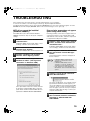
If the MFP driver cannot be installed in Windows
2000/XP, follow these steps to check your computer's
settings.
If the Plug and Play screen does not appear after you
connect the machine to your computer with a USB
cable and turn on the machine, follow the steps below
to verify that the USB port is available.
1
Click the "start" button and then click
"Control Panel".
1
In Windows 2000, click the "Start" button, select
"Settings", and then click "Control Panel".
2
Click "Performance and Maintenance",
and then click "System".
In Windows 2000, double-click the "System" icon.
3
Click the "Hardware" tab and then
click the "Driver Signing" button.
4
Check "What action do you want
Windows to take?" ("File signature
verification" in Windows 2000).
Click the "start" button, click "Control
Panel", and then click "Performance
and Maintenance".
In Windows 98/Me/2000, click the "Start" button,
select "Settings", and then click "Control Panel".
2
Click "System", click the "Hardware"
tab, and click the "Device Manager"
button.
"Universal Serial Bus controllers" will appear in
the list of devices.
Note
3
• In Windows 98/Me, double-click the
"System" icon and click the "Device
Manager" tab.
• In Windows 2000, double-click the
"System" icon, click the "Hardware" tab,
and click the "Device Manager" button.
• If the "System" icon does not appear in
Windows Me, click "view all Control Panel
options".
Click the
icon beside "Universal
Serial Bus controllers".
Two items should appear: your controller chipset
type and Root Hub. If these items appear, you
can use the USB port. If the "Universal Serial Bus
controllers" shows a yellow exclamation point or
does not appear, you must check your computer
manual for USB troubleshooting or contact your
computer manufacturer.
If the option "Block" has been selected, it will not
be possible to install the MFP driver. Select the
option "Warn" and then install the MFP driver as
explained in "INSTALLING THE SOFTWARE".
4
Once you have verified that the USB
port is enabled, install the software as
explained in "INSTALLING THE
SOFTWARE".
15
!install_ar160205.book
16 ページ
2003年10月9日 木曜日 午後4時48分
TROUBLESHOOTING
The MFP driver cannot be correctly
installed by Plug and Play (Windows
2000/XP)
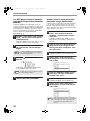
In Windows 2000/XP, if the MFP driver cannot be
correctly installed by Plug and Play (for example, Plug
and Play takes place without copying the required files
for the MFP driver installation), follow these steps to
remove unneeded devices and then install the MFP
driver as explained in "INSTALLING THE
SOFTWARE" (p. 4).
1
Another printer is using the parallel
port (when using a parallel cable)
If another printer is using the parallel port and printing
is not possible using the machine, follow the steps
below to change the port setting of the other printer
driver, and make sure that the port of the printer driver
for the machine is set to LPT1.
1
Click the "start" button, click "Control
Panel", and then click "Performance
and Maintenance".
In Windows 95/98/Me/NT 4.0/2000, click the
"Start" button, select "Settings", and then click
"Printers".
In Windows 2000, click the "Start" button, select
"Settings", and then click "Control Panel".
2
Click "System", click the "Hardware"
tab, and click the "Device Manager"
button.
Note
3
In Windows 2000, double-click the "System"
icon, click the "Hardware" tab, and click the
"Device Manager" button.
Click the
devices".
icon beside "Other
Click the "start" button, click "Control
Panel", click "Printers and Other
Hardware", and then click "Printers
and Faxes".
2
Click the icon of the printer driver for
which you wish to change the port
setting, and select "Properties" from
the "File" menu.
3
Click the "Ports" tab.
4
Select "FILE:" in the "Print to the
following port" list box, and click the
"OK" button.
5
Click the "SHARP AL-XXXX" printer
driver icon and select "Properties"
from the "File" menu.
6
Click the "Ports" tab.
7
Select "LPT1" in the "Print to the
following port" list box, and click the
"OK" button.
In Windows 95/98/Me, click the "Details" tab.
If "AL-XXXX" and "SHARP AL-XXXX" appear,
select and delete both of these items.
Note
4
If "Other devices" does not appear, close the
"Device Manager" window.
Install the software as explained in
"INSTALLING THE SOFTWARE".
In Windows 95/98/Me, click the "Details" tab.
Note
16
In the event that you need to use the other
printer, repeat the above steps to set the port
of the machine to "FILE:", and change the
port setting of the other printer back to
"LPT1".
!install_ar160205.book
1 ページ 2003年10月9日 木曜日 午後4時48分
!install_ar160205.book
2 ページ 2003年10月9日 木曜日 午後4時48分
AL-1633/AL-1644
SHARP CORPORATION
Printed on 100% post-consumer recycled paper
PRINTED IN CHINA
2003K
KS➀
TINSE1169QSZZ