1
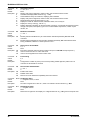
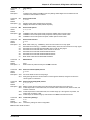
Four USB V.90 Modems
MultiModemUSB
Model MT4X56USB
User Guide
User Guide
88310952 Revision C
MultiModemUSB (Model MT4X56USB)
This publication may not be reproduced, in whole or in part, without prior expressed written permission from
Multi-Tech Systems, Inc. All rights reserved.
Copyright © 1999, by Multi-Tech Systems, Inc.
Multi-Tech Systems, Inc. makes no representations or warranties with respect to the contents hereof and
specifically disclaims any implied warranties of merchantability or fitness for any particular purpose.
Furthermore, Multi-Tech Systems, Inc. reserves the right to revise this publication and to make changes from
time to time in the content hereof without obligation of Multi-Tech Systems, Inc. to notify any person or
organization of such revisions or changes.
Record of Revisions
Revision
Description
B
(3/26/99)
Manual released. All pages at revision B.
C
(3/7/00)
Updated driver install procedures and added driver installation procedure in Windows 2000
operating systems. All pages at revision C.
Patents
This Product is covered by one or more of the following U.S. Patent Numbers: 5.301.274; 5.309.562;
5.355.365; 5.355.653; 5.452.289; 5.453.986. Other Patents Pending.
Trademarks
MultiModemUSB, Multi-Tech, and the Multi-Tech logo are trademarks of Multi-Tech Systems, Inc.
IBM is a trademark of International Business Machines Corporation.
MNP and Microcom Network Protocol are trademarks of Microcom, Inc.
K56flex is a registered trademark of Rockwell International Corporation and Lucent Technologies Corporation.
Microsoft, Windows, Windows 95, and Windows NT are either registered trademarks or trademarks of
Microsoft Corporation in the United States and/or other countries.
Notice
Though these modems are capable of 56 Kbps download performance, line impairments, public telephone
infrastructure and other external technological factors currently prevent maximum 56 Kbps connections.
Multi-Tech Systems, Inc.
2205 Woodale Drive
Mounds View, Minnesota 55112
(763) 785-3500 or (800) 328-9717
Fax 763-785-9874
Tech Support (800) 972-2439
Internet Address: http://www.multitech.com
Contents
Chapter 1 - Introduction and Description
Introduction ....................................................................................................................................................... 6
Features ............................................................................................................................................................ 6
Technical Specifications .................................................................................................................................... 7
Preview of this Guide ........................................................................................................................................ 7
Related Documentation ..................................................................................................................................... 8
Front Panel ........................................................................................................................................................ 9
Modem Ports (Ports 1, 2, 3, and 4) ............................................................................................................. 9
Hub ............................................................................................................................................................. 9
System ........................................................................................................................................................ 9
Back Panel ...................................................................................................................................................... 10
Chapter 2 - Installation
Unpacking ....................................................................................................................................................... 12
Safety Warning Telecom ................................................................................................................................. 12
Cabling your MT4X56USB .............................................................................................................................. 13
Chapter 3 - Software Loading and Configuration
Introduction ..................................................................................................................................................... 16
System USB Support ...................................................................................................................................... 16
Loading your Driver Software .......................................................................................................................... 16
MT4X56USB Drivers for Windows 98 ....................................................................................................... 16
MT4X56USB Drivers for Windows 95 ....................................................................................................... 19
MT4X56USB Drivers for Windows NT 4.0 ................................................................................................ 21
MT4X56USB Drivers for Windows 2000 ................................................................................................... 23
Installing Your V.90 Modems ........................................................................................................................... 27
Installing Your V.90 Modems (Windows 2000) ................................................................................................ 31
Windows 95/98 Configuration Utility ................................................................................................................ 34
Windows NT 4.0/2000 Configuration Utility ..................................................................................................... 36
Chapter 4 - AT Commands, S-Registers and Result Codes
Introduction ..................................................................................................................................................... 40
S-Registers ..................................................................................................................................................... 49
Result Codes ................................................................................................................................................... 51
Chapter 5 - Remote Configuration
Introduction ..................................................................................................................................................... 54
Remote Configuration Procedure .................................................................................................................... 54
Setup ........................................................................................................................................................ 54
Chapter 6 - Troubleshooting
Introduction ..................................................................................................................................................... 58
None of the Indicators Light ...................................................................................................................... 58
The Modem Does Not Respond to Commands ........................................................................................ 58
The Modem Dials But Cannot Connect .................................................................................................... 58
The Modem Disconnects While Online ..................................................................................................... 59
The Modem Cannot Connect When Answering ........................................................................................ 60
The Modem Doesn’t Work with Caller ID .................................................................................................. 60
Fax and Data Software Can’t Run at the Same Time ............................................................................... 60
Loopback Tests ............................................................................................................................................... 60
Local Analog Loopback Test (V.54 Loop 3) ............................................................................................... 61
Remote Digital Loopback Test (V.54 Loop 2) ............................................................................................ 62
Local Digital Loopback Test (V.54 Loop 2) ................................................................................................ 63
Windows 95/98 Troubleshooting ..................................................................................................................... 64
Determining Why USB Support Is Not Present ........................................................................................ 64
Installing Microsoft USB Support .............................................................................................................. 64
Chapter 7 - Upgrade Procedure
Introduction ..................................................................................................................................................... 66
Upgrade Overview .......................................................................................................................................... 66
Step 1: Identify the MT4X56USB Firmware .............................................................................................. 66
Step 2: Identify the Current Firmware Version .......................................................................................... 66
Step 3: Download the Upgrade File .......................................................................................................... 67
Step 4: Extract the Upgrade Files ............................................................................................................. 67
Step 5: Clear Your Stored Paramenters ................................................................................................... 67
Step 6: Upgrade the Modem’s Firmware .................................................................................................. 68
Step 7: Restore Your Parameters ............................................................................................................. 68
Chapter 8 - Service, Warranty and Tech Support
Introduction ..................................................................................................................................................... 70
Software User License Agreement .................................................................................................................. 70
Limited Warranty ............................................................................................................................................. 71
On-line Warranty Registration ................................................................................................................... 71
Tech Support ................................................................................................................................................... 71
Recording MT4X56USB Information ......................................................................................................... 71
Contacting Tech Support via E-mail .......................................................................................................... 72
Service ............................................................................................................................................................ 72
Appendices
Appendix A - Regulatory Information ............................................................................................................... 74
Class B Statement .................................................................................................................................... 74
FCC Part 68 Telecom ................................................................................................................................ 75
FAX Branding Statement .......................................................................................................................... 76
Canadian Limitations Notice: .................................................................................................................... 76
EMC, Safety and Terminal Directive Compliance ..................................................................................... 77
Commission Decision "CTR21" ................................................................................................................ 77
New Zealand Telecom Warning Notice ..................................................................................................... 77
Appendix B - V.90 Support .............................................................................................................................. 78
Introduction ............................................................................................................................................... 78
V.90 Troubleshooting ................................................................................................................................ 78
Glossary of Terms
Index
Four USB V.90 Modems
Chapter 1 - Introduction and Description
MultiModemUSB User Guide
Introduction
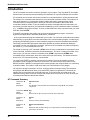
The MultiModemUSB, model MT4X56USB, is a Universal Serial Bus (USB) Concentrator that
contains four full-featured V.90 modems and a USB port which allows additional MultiModemUSBs to
be daisy-chained together. These features allow any system running Windows 95/98, Windows NT
4.0, or Windows 2000 and equipped with a USB port to quickly and easily add modems four at a
time, using MultiModemUSBs, without opening the case. The modems can be used for virtually any
existing datacomm application including Remote Access Service, dial-out, Internet proxy services,
business Internet services, or multiple-modem client communications.
Using Microsoft or other third-party software, users on the same network as the USB host can share
modems, gain Internet access, and double or even triple bandwidth by using more than one modem
simultaneously with Multi-Link PPP bonding. The MT4X56USB includes a complete set of Internet
business applications. The four dual-mode 56 Kbps modems support the new ITU V.90 standard and
offer backward compatibility with K56flex. They support Class 1 and Class 2 fax, MNP 3 or 4 and
V.42 error correction, along with MNP 5 and V.42bis data compression. Complete data and fax
softwar e plus a large compilation of Internet applications are included on a CD ROM from TUCOWS.
The CD includes client/server software for email, web hosting, FTP servers, news servers/clients,
and web browsers.
The MT4X56USB modem concentrator is designed to operate efficiently in V.90 communication links,
address the needs of newer datacomm applications and preserve the investment users have in
legacy systems. Each modem is equipped with remote configuration to configure modems anywhere
in the network, flash memory for firmware upgrades, DTMF tone detection, and three-number storage
for automatic dialing.
®
Four USB V.90 Modems
RD
TD CD TR
Port 1
RD
TD CD TR
Port 2
RD
TD CD TR
Port 3
RD
TD CD TR
Port 4
Hub
System
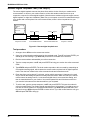
Figure 1-1. MT4X56USB
Features
6
•
Four built-in V.90/56 Kbps modems
•
USB interface for easy installation
•
Hot-swappable with other USB devices without restarting or reconfiguring your PC
•
Operating support for Windows 95, Windows 98, Windows NT 4.0, and Windows 2000.
•
Supports Class 1 and Class 2 faxing at 14.4 Kbps
•
Supports U.S Caller ID reporting
•
Allows administrators to set up and configure remote concentrators
•
A small footprint and stackable design
•
Stores up to three phone numbers
•
Supports Plug-and-Play operation under Windows 95, Windows 98, and Windows 2000
•
Includes data communications, fax, voice, TUCOWS Top 100 Internet applications CD-ROM
•
Upgrades easily with built-in flash memory
•
Full-service, two-year warranty
MT4X56USB
Chapter 1 - Introduction and Description
Technical Specifications
The MT4X56USB conforms to the following specifications.
USB Ports
•
Interface: USB Type A and Type B
•
Speed: up to 12 Mbs
Modems
•
Ports: 4
•
Data Rates and Standards: 56 Kbps downloading from V.90/K56flex servers; V.90/K56flex,
enhanced V.34, V.32bis, and V.22bis
•
Error Correction: V.42
•
Data Compression: MNP Class 5; V.42bis
•
Fax Rate and Standards: 14.4 Kbps; V.17, Group 3, Class 1 and Class 2
Power
•
External power supply, 110V AC or 240V AC, 47-63 Hz
Connectors
•
Four RJ-11 telephone connectors (PORT 1 - PORT 4)
•
One USB type B (upstream) connector
•
One USB type A (downstream) connector
Operating System Requirements
•
Processor and RAM: Pentium Class with minimum 16 MBS RAM recommended
•
Operating System: Windows 95 (OSR2), Windows 98, Windows NT 4.0, and Windows 2000
Physical Description
•
4.3” width by 1.1” height by 5.8” depth; 2.0 lbs
10.8 cm width by 2.9 cm height by 14.8 cm depth; 0.9 kg
Environmental Requirements
•
Ambient temperature: 32° F to 104° F (0° C to 40° C)
•
Relative humidity: 0 to 95% non-condensing
Preview of this Guide
This guide describes the MT4X56USB and explains how to install and configure the unit. The
information contained in each chapter is as follows:
Chapter 1 - Introduction and Description
This chapter describes the MT4X56USB including features, technical specifications and a description
of the front panel indicators and back panel connectors.
Chapter 2 - Installation
This chapter provides information on unpacking and cabling your MT4X56USB.
MT4X56USB
7
MultiModemUSB User Guide
Chapter 3 - Software Loading and Configuration
This chapter provides the necessary information to verify if your system supports USB and describes
the process for installing the appropriate device drivers.
Chapter 4 - AT Commands, S-Registers and Result Codes
This chapter describes the commands used to control the operation of your modem.
Chapter 5 - Remote Configuration and Management
This chapter provides procedures for changing the configuration of a remote MT4X56USB anywhere
in your network from one location.
Chapter 6 - Troubleshooting
This chapter discusses possible reasons for why your MT4X56USB may not work and provides
corrective actions that can be taken to remedy the problem.
Chapter 7 - Upgrade Procedure
This chapter provides procedures for upgrading the MT4X56USB firmware stored in flash memory.
Chapter 8 - Service, Warranty and Tech Support
This chapter provides instructions on getting service for your MT4X56USB at the factory, a statement
of limited warranty, information about our Internet presence, and space for recording information
about your MT4X56USB prior to calling Multi-Tech’s Technical Support.
Appendix A - Regulatory Information
This appendix provides the regulatory information for the MT4X56USB modem.
Appendix B - V.90 Support
This appendix provides information required for V.90 support.
Related Documentation
The complete documentation package for the MT4X56USB includes this User Guide and a Quick
Start Guide. The printed version of the Quick Start Guide, shipped with the unit, provides the
necessary information for a qualified person to unpack, cable, and install the driver software for
proper operation. Copies of the following guides are provided on the Manuals disk that ships with
each MT4X56USB, and you can always find the latest version of these guides at Multi-Tech’s Web
site.
At the Multi-Tech Home Page (http://www.multitech.com), click Support, then Manuals, then
MT4X56USB and you will find the following guide listed by title:
•
8
MT4X56USB User Guide
MT4X56USB
Chapter 1 - Introduction and Description
Front Panel
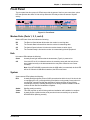
The front panel has four groups of LEDs that provide the status of the four port connections, plus a
LED that provides the status of Hub activity and and a LED that provides the status of System
activity.
Figure 1-2. Front Panel
Modem Ports (Ports 1, 2, 3, and 4)
Modem LEDs are Green and indicate the following:
RD
The Receive Data indicator blinks when the modem is receiving data.
TD
The Transmit Data indicator blinks when the modem is transmitting data.
CD
The Carrier Detect indicator is lit when the modem detects a carrier signal.
TR
The Terminal Ready is lit when the modem is communicating with the peripheral.
Hub
Hub status LEDs indicate the following:
Green
A steady Green light indicates that the downstream (Type A) is powered on.
Off
If the Hub LED is Off, it indicates that there is something wrong with the hub (drivers
aren’t loaded correctly or the downstream device may have caused an overcurrent
condition).
Note: If the MT4X56USB is powered on but the USB cable is not attached, the Hub LED
will be Off. When the USB cable is attached, the LED turns Green.
System
System status LEDs indicate the following:
Red
A steady Red light signifies a loss of USB communication with the host. If the loss is due
to unplugging the unit, it will begin blinking Red (before turning steady Green) when it is
reconnected. A steady Red light also indicates a problem with the drivers (fixed by
reinstalling the drivers). A blinking Red light occurs during software installation and will
continue to blink Red until installation completes.
Amber
Signifies serial port activity.
Yellow
This LED may blink on and off during software installation until installation is complete.
Green
A steady Green signifies that the serial ports have been successfully set up and the
MT4X56USB is operating normally.
MT4X56USB
9
MultiModemUSB User Guide
Back Panel
The cable connections for the MT4X56USB are made at the back panel. Three groups of cables are
used; four ports for RJ-11 modem connections, two types of USB connections, and a power
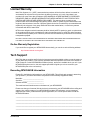
connection. The cable connections are shown in Figure 1-3 and defined in the following groups.
Port 1
Port 2
Port 3
Port 4
USB - A
USB - B
POWER
Figure 1-3. Back Panel
RJ-ll Modem Connector
The four RJ-11 modem connectors connect the MT4X56USB to computers or network servers.
USB Type A (Upstream) Connector
The USB Type A (Upstream) connector connects the MT4X56USB to devices where the external
cable is permanently attached (e.g., input hubs or other MT4X56USBs).
USB Type B (Downstream) Connector
The USB Type B (Downstream) connector connects the MT4X56USB to devices where the external
cable is detachable (e.g., peripherals such as computers, printers, scanners, modems, or output hubs,
etc.).
Power Connector
The power is supplied by a UL Listed Direct Plug-In Power Unit marked “Class 2” and rated 5V DC/5A,
100-240V, 47-63Hz if used in the U.S. and Canada; or, a power supply with similar rating and
approved by your local safety code if it is used elsewhere.
10
MT4X56USB
Four USB V.90 Modems
Chapter 2 - Installation
MultiModemUSB User Guide
Unpacking
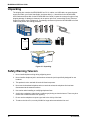
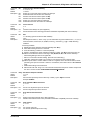
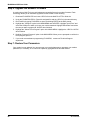
The shipping box contains the MT4X56USB, four RJ-11 cables, one USB cable, an external power
supply and cable, your Quick Start Guide, and three disks (i.e., three disks for the MT4X56USB
driver software and one disk for the MT4X56USB User Guide). Inspect the contents for signs of any
shipping damage. If damage is observed, do not power up the unit; contact Multi-Tech’s Technical
Support for advice (refer to Chapter 8). If no damage is observed, place the MT4X56USB in its final
location and perform the cabling procedure.
Four USB V.90 Modems
®
Four USB V.90 Modems
Quick Start Guide
RD
RD
TD CD TR
Port 1
RD TD CD TR
Port 1
MADE
RD
TD CD TR
Port 2
TD CD TR
Port 2
IN U.
S.A
RD
RD
TD CD TR
Port 3
TD CD TR
Port 3
RD
RD
TD CD TR
Port 4
TD CD TR
Port 4
MADE IN
Hub
System
U.S.A
Figure 2-1. Unpacking
Safety Warning Telecom
1. Never install telephone wiring during a lightning storm.
2. Never install a telephone jack in wet locations unless the jack is specifically designed for wet
locations.
3. This product is to be used with UL and cUL listed computers.
4. Never touch uninsulated telephone wires or terminals unless the telephone line has been
disconnected at the network interface.
5. Use caution when installing or modifying telephone lines.
6. Avoid using a telephone (other than a cordless type) during an electrical storm. There may be a
remote risk of electrical shock from lightning.
7. Do not use the telephone to report a gas leak in the vicinity of the leak.
8. To reduce the risk of fire, use only 26 AWG or larger telecommunication line cord.
12
MT4X56USB
Chapter 2 - Installation
Cabling your MT4X56USB
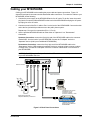
Cabling your MT4X56USB involves making the proper cable and power connections. Figure 2-2
shows the back panel connectors and the associated cable connections. To connect the cables to your
MT4X56USB, do the following.
1. Connect the power supply to the MT4X56USB and a live AC outlet. To do this, insert the coaxial
plug into the connector marked POWER on the back of the MT4X56USB and plug the AC power
input plug into a live AC outlet.
2. Connect one end of the RJ-11 cable to Port 1 on the back of the MT4X56USB. Connect the other
end to the line jack which provides access to the public phone system.
Repeat step 2 for up to four connections (Port 1 - Port 4).
3. Use the provided MT4X56USB cable to make either an “Upstream” or a “Downstream”
Connection.
Upstream Connection: connect the flat (4-pin) end of the MT4X56USB cable to the connector
marked USB - A on the back of your MT4X56USB. Connect the “D-shaped” end to the
“Upstream” device (Hub input or additional MT4X56USBs).
Downstream Connection: connect the flat (4-pin) end of the MT4X56USB cable to the
“Downstream” device (USB-supported peripheral such as a computer, printer, scanner, modem,
or output Hub). Connect the “D-shaped” end to the connector marked USB - B on the back of
your MT4X56USB.
CAUTION: Do NOT plug the “D-shaped” end of the USB cable into the USB-B port on the back
of your MT4X56USB at this time.
Port 1
Port 2
Port 3
Port 4
USB - A
USB - B
POWER
Port Connections
Power Connection
“Downstream Connection”
Peripherals such as
computers, printers,
scanners, modems, or hubs
PSTN (Public Switched
Telephone Network) Connections
®
Four USB V.90 Modems
RDRDTDTDCDCD
TRTR
Port
1 1
Port
RDRDTDTDCDCD
TRTR
Port
2 2
Port
RD TD CD TR
RDPortTD
CD TR
3
Port 3
RD
TD CD TR
RD
TD
PortPort
4 4CD TR
Hub
System
“Upstream Connection”
Hubs (Input) or additional
MT4X56USBs
Figure 2-2. Back Panel Connections
MT4X56USB
13
MultiModemUSB User Guide
14
MT4X56USB
Four USB V.90 Modems
Chapter 3 - Software Loading and Configuration
MultiModemUSB User Guide
Introduction
MT4X56USB software installation consists of verifying that your system supports USB and then
installing the appropriate device drivers. Multitech provides the driver software on two diskettes. Disk 1
contains the driver software for Windows 98/95, Disk 2 contains the driver software for Windows NT
4.0, and Disk 3 contains the driver software for Windows 2000.
System USB Support
Before loading the software you must verify that your system supports USB.
If you are using Windows 98, which fully supports USB, proceed to “Loading Your Driver Software.” If
you are using Windows NT, proceed to “MT4X56USB Drivers for Windows NT” and if you are using
Windows 2000, proceed to “MT4X56USB Drivers for Windows 2000”. If you are using Windows 95
OSR2.1 or above, please do the following to determine if your system supports USB:
1) Insert MT4X56USB Driver Disk 1 into drive A.
2) In the START menu, select Run.
3) Type a:\usbready. One of two USB System Checker dialog boxes will be displayed.
If your system supports USB, the dialog reads “This system DOES have support for USB.” To
continue installation, go to “Loading Your Software” .
If your system does not support USB, the dialog will read, “This system DOES NOT currently
support USB!” Proceed to “Determining Why Support Is Not Present” in the section on Installing
the Windows 95 Drivers.
Loading your Driver Software
The installation procedures are divided into four separate sections: MT4X56USB Drivers for Windows
98, MT4X56USB Drivers for Windows 95, MT4X56USB Drivers for Windows NT, and MT4X56USB
Drivers for Windows 2000.
MT4X56USB Drivers for Windows 98
This section details the process for loading the software.
1. Power up your Windows 98 system.
2. Ensure that the appropriate USB cable connection has been made to the peripheral (refer to the
“Cabling Your MT4X56USB” section).
3. Connect the D-shaped end of the USB cable to the MT4X56USB’s USB-B port now.
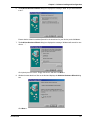
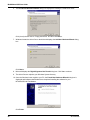
4. Windows detects the MT4X56USB and displays the Add New Hardware Wizard dialog box.
5. Insert the MT4X56USB Driver Disk 1 into drive A and click Next > to proceed.
16
MT4X56USB
Chapter 3 - Software Loading and Configuration
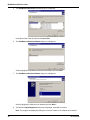
6. The Add New Hardware Wizard dialog box displays the message “What do you want Windows
to do?”.
Ensure that the default is enabled (Search for the best driver for your device.) and click Next >.
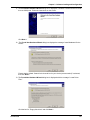
7. The Add New Hardware Wizard dialog box displays the message “Windows will search for new
drivers . . .”
Click (check) the box next to “Floppy disk drives” and then click Next >.
8. Windows locates the driver files on the disk and displays the Add New Hardware Wizard dialog
box.
Click Next >.
MT4X56USB
17
MultiModemUSB User Guide
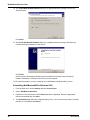
9. The driver files are copied to your Windows System directory.
10. Once the files have been copied to your PC, the Add New Hardware Wizard dialog box is
displayed and indicates that Windows has finished installing the software for your hardware
device.
Click Finish. Several screens are displayed indicating that all software drivers have been
successfully installed. Installation is complete when no more screens appear.
11. To install the modems, go to the “Installing Your V.90 Modems” section.
Uninstalling MultiModemUSB in Windows 98
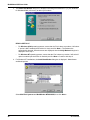
1. Double-click the edgeport.exe file in your Windows System directory. The MultiModem
Properties dialog box is displayed.
2. Select the Advanced tab.
3. Click the Uninstall button.
The drivers will be removed from your computer.
18
MT4X56USB
Chapter 3 - Software Loading and Configuration
MT4X56USB Drivers for Windows 95
This section details the process for loading the software. For Windows 95, only version OSR2.1,
Revision C, offers support for USB peripherals. If you are unsure that your Windows 95 system
supports USB, refer to the “System USB Support” section at the beginning of this chapter.
1. Power up your Windows 95 system.
2. Ensure that the appropriate USB cable connection has been made to the periperal (Refer to the
“Cabling Your MT4X56USB” section).
3. Connect the “D-shaped” end to the USB-B port on the back of the MT4X56USB now.
4. Windows detects the MT4X56USB and displays the Update Device Driver Wizard dialog box.
Note: If the Update Device Driver Wizard dialog box does not appear, refer to “Windows 95/98
Troubleshooting” in Chapter 6 of the online User Guide.
Click Next > to proceed.
5. Windows searches for unknown devices. For each unknown device found, the Update Device
Driver Wizard dialog box is displayed. Continue to click Finish until the Update Device Driver
Wizard dialog box displays the “MultiTech USB MT4X56USB V.90 Fax/Modem” message.
Click Finish to continue with the installation.
MT4X56USB
19
MultiModemUSB User Guide
6. The Insert Disk dialog box is displayed.
Insert MT4X56USB Driver Disk 1 into drive A and click OK.
7. The Copying Files… dialog box is displayed.
Type A: in the “Copy files from” field and click OK. The driver files will be copied to your system.
8. Several screens are displayed indicating that ports are being assigned. Installation is complete
when the last dialog box disappears.
9. To install the modems, go to the “Installing Your V.90 Modems” section.
Uninstalling MultiModemUSB in Windows 95
1. Double-click the edgeport.exe file in your Windows System directory. The MultiModem
Properties dialog box is displayed.
2. Select the Advanced tab.
3. Click the Uninstall button.
The drivers will be removed from your computer.
20
MT4X56USB
Chapter 3 - Software Loading and Configuration
MT4X56USB Drivers for Windows NT 4.0
Because NT 4.0 does not support USB, Multi-Tech provides a USB stack that will be installed along
with the necessary drivers. To do this, you must have have NT Service Pack 3.00 or higher and an
account that has administrative privileges.
Note: “Plug-and-Play” operations are not supported in an NT 4.0 (or earlier) operating system.
1. Ensure that power to the MT4X56USB is on but that the USB cable remains disconnected.
2. Insert the MT4X56USB Disk 2 into drive A.
3. Click Start | Run.
4. Type A:\setup and click OK.
5. The install program prompts you to make certain you have NT Service Pack 3.00 or higher. Click
Yes to continue.
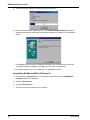
6. The MultiModemUSB Drivers Install dialog box displays.
Click Next >.
7. The Read Multi-Tech Software License agreement screen is displayed. Read carefully. If you
accept the terms of the agreement, click Yes.
8. The Release Notes screen is displayed (Release Notes can also be found after installation in the
Start menu under Programs | Multi-Tech USB Utilities).
Click Next >.
MT4X56USB
21
MultiModemUSB User Guide
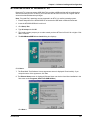
9. After the program files have been copied to your hard drive, the Information dialog box is
displayed indicating that the drivers have been successfully installed.
Connect the USB cable to the MT4X56USB and click OK.
10. Remove the disk from the floppy drive.
11. Reboot your system.
Note: The System LED should be blinking green indicating that the driver software was
successfully installed.
12. Once the reboot is completed, the Modem Properties dialog box is displayed. To install the
modems, refer to the “Installing Your V.90 Modems” section.
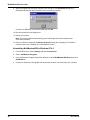
Uninstalling MultiModemUSB in Windows NT 4.0
1. From the Start menu, select Settings and then Control Panel.
2. Select Add/Remove Programs.
3. In the Add/Remove Programs Properties dialog box, select MultiModemUSB Drivers and click
Add/Remove ...
4. Confirm file deletion by clicking Yes, then wait as the drivers are removed from your computer.
22
MT4X56USB
Chapter 3 - Software Loading and Configuration
MT4X56USB Drivers for Windows 2000
This section provides the procedure for loading MT4X56USB driver software in a Windows 2000
operating system.
Note: “Plug-and-Play” operations are supported in a Windows 2000 operating system.
1. Power up your Windows 2000 system.
2. Ensure that the appropriate USB cable connection has been made to the peripheral (refer to the
“Cabling Your MT4X56USB” section) and that the MT4X56USB is powered on.
3. Connect the D-shaped end of the USB cable to the USB-B port on the back of the MT4X56USB
now.
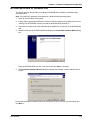
4. Windows 2000 detects the MT4X56USB and displays the Found New Hardware Wizard dialog
box.
Insert the MT4X56USB Driver Disk 3 into drive A and click Next > to proceed.
5. The Found New Hardware Wizard dialog box displays the message “Install Hardware Device
Drivers.”
Ensure that the default is enabled “Search for the best driver for your device (recommended)” and
click Next >.
MT4X56USB
23
MultiModemUSB User Guide
6. The Found New Hardware Wizard dialog box displays the message “Locate Driver Files.”
Click (check) the box next to “Floppy disk drives” and then click Next >.
7. Windows locates the driver files on the disk and displays the Add New Hardware Wizard dialog
box.
Click Next >.
8. Microsoft displays the Digital Signature Not Found dialog box. Click Yes to continue.
9. The driver files are copied to your Windows System directory.
10. Once the files have been copied to your PC, the Found New Hardware Wizard dialog box is
displayed and indicates that Windows has completed installing the software for your
MT4X56USB V.90 Fax/Modem.
Click Finish.
24
MT4X56USB
Chapter 3 - Software Loading and Configuration
11. The Found New Hardware Wizard dialog box is displayed. It initiates a second search to create
the new COM ports. Follow the instructions on the screen.
Click Next >.
12. The Found New Hardware Wizard dialog box displays the message “Install Hardware Device
Drivers.”
Ensure that the default “Search for the best driver for your device (recommended)” is selected,
then click Next >.
13. The Found New Hardware Wizard dialog box is displayed with the message “Locate Driver
Files.”
Click the box for “Floppy disk drives” and click Next >.
MT4X56USB
25
MultiModemUSB User Guide
14. The Found New Hardware Wizard dialog box is displayed with the message “Driver Files
Search Results.”
Click Next >.
15. The Found New Hardware Wizard dialog box is displayed with the message “Windows has
finished installing the software for this device.”
Click Finish.
Several screens are displayed indicating that all software drivers have been successfully
installed. Installation is complete when no more screens appear.
16. To install the modems, go to the “Installing Your V.90 Modems (Windows 2000)” section.
Uninstalling MultiModemUSB in Windows 2000
1. From the Start menu, select Settings and then Control Panel.
2. Select Add/Remove Hardware.
3. Follow the on-line instructions until the Devices window is displayed. Select the appropriate
entries to be deleted and click Next >.
4. The Uninstall Device dialog box is diplayed asking you if you are sure that you want to uninstall
this device. Click Yes and then Next >.
26
MT4X56USB
Chapter 3 - Software Loading and Configuration
Installing Your V.90 Modems
After the software drivers are installed, you will need to install your V.90 modems. The installation
procedures are identical for Windows 95 and Windows 98. The procedure for Windows NT is more
involved and differences will be noted below. The procedures for installing your V.90 modems in
Windows 2000 are sufficiently different to require a separate installation section.
CAUTION: For space considerations, the graphics displayed below are Windows NT 4.0 dialog boxes.
Any major differences with Windows 95/98 dialog boxes will be noted.
1. Click Start | Settings | Control Panel | Modems.
2. The Modems Properties dialog box is displayed.
Note: Windows 95/98 provides a Diagnostics tab option.
From the General tab, click the Add button.
MT4X56USB
27
MultiModemUSB User Guide
3. The Install New Modem dialog box is displayed indicating that Windows NT ( or just “Windows”
for Windows 95/98) will now try to detect your modem.
READ CAREFULLY!
•
For Windows 95/98 operating systems, ensure that the “Don’t detect my modem; I will select
it” option is NOT enabled (the check box is clear) and click Next >. The modems are
automatically detected. Several screens are displayed, then the Verify Modem dialog box is
displayed. Go to step 7.
•
For Windows NT operating systems, ensure that the “Don’t detect my modem; I will select it”
option is enabled (the check box is checked) and click Next >. Continue with step 4.
4. For Windows NT installations, the Install New Modem dialog box is displayed - Manufacturer
and Model options.
Select MultiTech Systems and MultiModem MT4X56USB, then click Next >.
28
MT4X56USB
Chapter 3 - Software Loading and Configuration
5. The Install New Modem dialog box is displayed identifying the modem you had selected.
Enable the “Selected ports” option and highlight the Communications ports required (e.g., COM5,
COM6, COM7, and COM8), then click Next >.
6. The program installs the modems and prompts you to reboot your system and then displays the
Install New Modem dialog box.
Click Finish. Go to Step 9.
7. For Windows 95/98 installs, the Verify Modem dialog box is displayed indicating that the modem
was found.
Click Next > for each of the four modems.
Note: For first time installation, the application may display a Location Information dialog box.
Fill out the necessary phone information and click Next >.
MT4X56USB
29
MultiModemUSB User Guide
8. The Install New Modem dialog box is displayed indicating that the modem has been set up
successfully.
Click Finish.
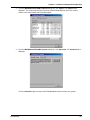
9. The Modems Properties dialog box is displayed and lists the modems that are set up on the
computer.
Click Close to exit the program.
Note for Windows NT 4.0: Once you have clicked Close, NT requires that you update Dial-up
networking (RAS). Click Yes and follow the online instructions.
30
MT4X56USB
Chapter 3 - Software Loading and Configuration
Installing Your V.90 Modems (Windows 2000)
Follow the procedures below to install your V.90 modems in a Windows 2000 operating system.
1. Click Start | Settings | Control Panel | Phone and Modems option.
2. The Location Information dialog box is displayed.
Note: This is for first-time instal;lations only.
Enter the appropriate location information and click OK.
3. The Phone and Modem Options dialog box is displayed. Click on the Modems tab.
Click Add.
4. The Add/Remove Hardware Wizard dialog box is displayed.
Check (click) the “Don’t detect my modem; I will select it from a list.” option and then click Next >.
MT4X56USB
31
MultiModemUSB User Guide
5. The Add/Remove Hardware Wizard dialog box is displayed.
Insert Driver Disk 3 into drive A and click Have Disk.
6. The Add/Remove Hardware Wizard dialog box is displayed.
Select (highlight) the MultiModem MT4X56USB modem and click Next >.
7. The Add/Remove Hardware Wizard dialog box is displayed.
Select (highlight) the COM ports you installed and click Next >.
8. The Microsoft Digital Signature dialog box is displayed. Click Yes to continue.
Note: The program will display this dialog box for all four modems. Click Yes in each instance.
32
MT4X56USB
Chapter 3 - Software Loading and Configuration
9. The Found New hardware Wizard dialog box is displayed.
Click Finish.
10. The Phone and Modems Options dialog box is displayed.
Check to make certain that all four modems have been installed and then click OK.
MT4X56USB
33
MultiModemUSB User Guide
Windows 95/98 Configuration Utility
The Windows 95 and Windows 98 Configuration utilities are located in your Windows System
directory. These utilities allow you to manage various resources of your MT4X56USB. You can:
•
check the version numbers and other information regarding the drivers,
•
uninstall the USB environment,
•
check mapping of each physical communications port to the Windows COM port numbers,
•
assign the physical ports to any available Windows COM port number from 1 to 255, and
•
give your MT4X56USB a user-friendly name (useful if you have more than one).
To access the Configuration utility:
1. Double-click the edgeport.exe file located in your Windows System directory.
2. The MultiModem Properties dialog box is displayed.
While in the General tab, use your cursor to highlight your MT4X56USB and then click the
Information or the Configure button.
The Information screen (not shown) displays information about your MT4X56USB; including
manufacturer’s name, device name, serial and part number, ROM size, CPU Revision, RAM size,
etc.
The configuration screen (see below) allows you to change the device name and the starting
number for the ports.
Click OK to save the changes and return to the MultiModemUSB USB Properties dialog box.
34
MT4X56USB
Chapter 3 - Software Loading and Configuration
3. From the MultiModemUSB USB Properties dialog box, click Version. The Version tab is
displayed. The Version tab contains a list of all of the MT4X56USB files, each file's version
number, size, date created, and a brief description.
4. From the MultiModemUSB USB Properties dialog box, click Advanced. The Advanced tab is
displayed.
Click the Uninstall button to remove the MT4X56USB device drivers from your system.
MT4X56USB
35
MultiModemUSB User Guide
Windows NT 4.0/2000 Configuration Utility
The Windows NT 4.0 and Windows 2000 Configuration utilities are located in your Windows System
directory.
Note: The steps below display Windows NT 4.0 dialog boxes. The Windows 2000 dialog boxes are
similar.
These utilities allow you to manage various resources of your MT4X56USB. You can:
•
check the version numbers and other information regarding the drivers,
•
check mapping of each physical communications port to the Windows COM port numbers,
•
assign the physical ports to any available Windows COM port number from 1 to 255, and
•
give your MT4X56USB a user-friendly name (useful if you have more than one).
To access the Configuration utility:
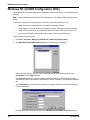
1. Click Start | Programs | Multi-Tech USB Utilities | USB Configuration Utility.
2. The MultiModemUSB USB Properties dialog box (General tab) is displayed.
While in the General tab, use your cursor to highlight your MT4X56USB and then click the
Information or the Configure button.
The Information screen (not shown) displays information about your MT4X56USB; including
manufacturer’s name, device name, serial and part number, ROM size, CPU Revision, RAM size,
etc.
The configuration screen (see below) allows you to change the device name and the starting
number for the ports.
Click OK to save the changes and return to the MultiModemUSB USB Properties dialog box.
36
MT4X56USB
Chapter 3 - Software Loading and Configuration
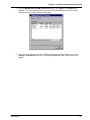
3. From the MultiModemUSB USB Properties dialog box, click Version. The Version tab is
displayed. The Version tab contains a list of all of the MT4X56USB files, each file's version
number, size, date created, and a brief description.
4. To remove the program files, use the Add/Remove program found in the Start menu under
Settings | Control Panel. Refer to the “Uninstalling MultiModem USB” section earlier in this
chapter.
MT4X56USB
37
MultiModemUSB User Guide
38
MT4X56USB
Four USB V.90 Modems
Chapter 4 - AT Commands, S-Registers
and Result Codes
MultiModemUSB User Guide
Introduction
The AT commands are used to control the operation of your modem. They are called AT commands
because each command must be preceded by the characters AT to get the ATtention of the modem.
AT commands can be issued only when the modem is in command mode or online command mode.
The modem is in command mode whenever it is not connected to another modem. The modem is in
data mode whenever it is connected to another modem and ready to exchange data. Online
command mode is a temporary state in which you can issue commands to the modem while
connected to another modem. To put the modem into online command mode from data mode, you
must issue an escape sequence (+++) followed immediately by the AT characters and the command
(e.g., +++ATH to hang up the modem). To return to data mode from online command mode, you must
issue the command ATO.
To send AT commands to the modem you must use a communications program, such as the
HyperTerminal application in Windows 95/98 and NT 4.0/200041
, or the communications program included with your modem. You can issue commands to the modem
either directly, by typing them in the terminal window of the communications program, or indirectly, by
configuring the operating system or communications program to send the commands automatically.
Fortunately, communications programs make daily operation of modems effortless by hiding the
commands from the user. Most users, therefore, need to use AT commands only when reconfiguring
the modem, e.g., to turn autoanswer on or off.
The format for entering an AT command is ATXn, where X is the command and n is the specific value
for the command, sometimes called the command parameter. The value n is always a number. If the
value is zero, you can omit it from the command; thus, AT&W is equivalent to AT&W0. Most
commands have a default value, which is the value that is set at the factory. The default values are
shown in the “AT Command Summary,” section below.
You must press ENTER to send the command to the modem. Any time the modem receives a
command, it sends a response known as a result code. The most common result codes are OK,
ERROR, and the CONNECT messages that the modem sends to the computer when it is connecting
to another modem. For a table of valid result codes, see “Result Codes” in this chapter.
You can issue several commands in one line, in what is called a command string. The command
string begins with AT and ends when you press ENTER. Spaces to separate the commands are
optional; they are ignored by the command interpreter. The most familiar command string is the
initialization string, which is used to configure the modem when it is turned on or reset, or when your
communications software calls another modem.
AT Command Summary
Command: AT
Values:
Description:
Attention Code
n/a
The attention code precedes all command lines except A/, A:, and escape
sequences.
Command: ENTER Key
Values:
n/a
Description:
Press the ENTER (RETURN) key to execute most commands.
40
Command: A
Values:
Description:
Answer
n/a
Answer incoming call immediately.
Command: A/
Values:
Description:
Repeat Last Command
n/a
Repeat the last command string. Do not precede this command with AT. Do not
press ENTER to execute.
MT4X56USB
Chapter 4 - AT Commands, S-Registers and Result Codes
Command: Bn
Values:
Default:
Description: B0
B1
B2
B3
B15
B16
Communication Standard Setting
n = 0–3, 15, 16
1 and 16
Select ITU-T V.22 mode when modem is at 1200 bps.
Select Bell 212A when modem is at 1200 bps.
Deselect V.23 reverse channel (same as B3).
Deselect V.23 reverse channel (same as B2).
Select V.21 when the modem is at 300 bps.
Select Bell 103J when the modem is at 300 bps.
Command: Cn
Values:
Default:
Description: C0
C1
Carrier Control
n=1
1
Transmit carrier always off. (Not supported.)
Normal transmit carrier switching (included for backward compatibility with some software).
Command: Ds
Values:
Default:
Description:
Dial
s = dial string (phone number and dial modifiers)
none
Dial telephone number s, where s may up to 40 characters long and include the 0–9, *, #, A, B, C,
and D characters, and the L, P, T, V, W, S, comma (,), semicolon (;), !, @, ^ and $ dial string
modifiers.
Dial string modifiers:
L Redial last number. (Must be placed immediately after ATD.)
P Pulse-dial following numbers in command.
T Tone-dial following numbers in command (default).
V Switch to speakerphone mode and dial the following number. Use ATH command to hang up.
W Wait for a new dial tone before continuing to dial. (X2, X4, X5, X6, or X7 must be selected.)
, Pause during dialing for time set in register S8.
; Return to command mode after dialing. (Place at end of dial string.)
! Hook flash. Causes the modem to go on-hook for one-half second, then off-hook again.
@ Wait for quiet answer. Causes modem to wait for a ringback, then 5 seconds of silence, before
processing next part of command. If silence is not detected, the modem returns a NO ANSWER
code.
^ Disable data calling tone transmission.
$ Detect AT&T call card “bong” tone. The character should follow the phone number and precede
the user’s call card number: ATDT1028807637853500$123456789
Command: DS=y Dial Stored Telephone Number
Values:
y = 0–3
Default:
none
Description:
Dial a number previously stored in directory number y by the &Zy=x command.
Example: ATDS=3
Command: En
Values:
Default:
Description: E0
E1
Echo Command Mode Characters
n = 0 or 1
1
Do not echo keyboard input to the terminal.
Do echo keyboard input to the terminal.
Command: Fn
Values:
Default:
Description: F0
F1
Echo Online Data Characters
n=1
1
Enable online data character echo. (Not supported.)
Disable online data character echo (included for backward compatibility with some software).
Command: Hn
Values:
Default:
Description: H0
H1
Hook Control
n = 0 or 1
0
Go on-hook (hang up).
Go off-hook (make the phone line busy).
MT4X56USB
41
MultiModemUSB User Guide
Command: In
Values:
Default:
Description: I0
I1
I2
I3
I4
I5
I9
I11
Information Request
n = 0–5, 9, 11
None
Display V.90 protocol supported, modem model, and controller firmware version.
Calculate and display ROM checksum (e.g., 12AB).
Check ROM and verify the checksum, displaying OK or ERROR.
Display V.90 protocol supported, modem model, and controller firmware version.
Display firmware version for data pump (e.g., 94).
Display the board ID: software version, hardware version, and country ID
Display the country code (e.g., NA Ver. 1).
Display diagnostic information for the last modem connection, such as DSP and firmware version,
link type, line speed, serial speed, type of error correction/data compression, number of past
retrains, etc.
Command: Nn
Values:
Default:
Description: N0
Modulation Handshake
n = 0 or 1
1
Modem performs handshake only at communication standard specified by S37 and the B
command.
Modem begins handshake at communication standard specified by S37 and the B command.
During handshake, fallback to a lower speed can occur.
N1
Command: On
Values:
Default:
Description: O0
O1
O3
Return Online to Data Mode
0, 1, 3
None
Exit online command mode and return to data mode (see +++AT<CR> escape sequence ).
Issue a retrain and return to online data mode.
Issue a rate renegotiation and return to data mode.
Command: P
Values:
Default:
Description:
Pulse Dialing
P, T
T
Configures the modem for pulse (non-touch-tone) dialing. Dialed digits are pulsed until a T
command or dial modifier is received.
Command: Qn
Values:
Default:
Description: Q0
Q1
Q2
Result Codes Enable/Disable
n = 0 or 1
0
Enable result codes.
Disable result codes.
Returns an OK for backward compatibility with some software.
Command: Sr=n
Values:
Default:
Description:
Set Register Value
r = S-register number; n varies
None
Set value of register Sr to value of n, where n is entered in decimal format. E.g., S0=1.
Command: Sr?
Values:
Default:
Description:
Read Register Value
r = S-register number
None
Read value of register Sr and display it in 3-digit decimal form. E.g., S2? gives the response 043.
42
MT4X56USB
Chapter 4 - AT Commands, S-Registers and Result Codes
Command: T
Values:
Default:
Description:
Tone Dialing
P, T
T
Configures the modem for DTMF (touch-tone) dialing. Dialed digits are tone dialed until a P
command or dial modifier is received.
Command: Vn
Values:
Default:
Description: V0
V1
Result Code Format
n = 0 or 1
1
Displays result codes as digits (terse response).
Displays result codes as words (verbose response).
Command: Wn
Values:
Default:
Description: W0
W1
W2
Result Code Options
n = 0, 1, or 2
2
CONNECT result code reports serial port speed, disables protocol result codes.
CONNECT result code reports serial port speed, enables protocol result codes.
CONNECT result code reports line speed, enables protocol result codes.
Command: Xn
Values:
Default:
Description: X0
X1
X2
X3
X4
X5
X6
X7
Result Code Selection
n = 0–7
4
Basic result codes (e.g., CONNECT); does not look for dial tone or busy signal.
Extended result codes (e.g., CONNECT 46000 V42bis); does not look for dial tone or busy signal.
Extended result codes with NO DIALTONE; does not look for busy signal.
Extended result codes with BUSY; does not look for dial tone.
Extended result codes with NO DIALTONE and BUSY.
Extended result codes with NO DIALTONE and BUSY.
Extended result codes with NO DIALTONE and BUSY.
Basic result codes with NO DIALTONE and BUSY.
Command: Z
Values:
Default:
Description: Z
Modem Reset
None
Reset modem to profile saved by the last &W command.
Command: &Cn
Values:
Default:
Description: &C0
&C1
Data Carrier Detect (DCD) Control
n = 0 or 1
1
Forces the DCD circuit to be always high.
DCD goes high when the remote modem’s carrier signal is detected, and goes low when the
carrier signal is not detected.
Command: &Dn
Values:
Default:
Description: &D0
&D1
Data Terminal Ready (DTR) Control
n = 0, 1, 2, or 3
2
Modem ignores the true status of the DTR signal and responds as if it is always on.
If DTR drops while in online data mode, the modem enters command mode, issues an OK, and
remains connected.
If DTR drops while in online data mode, the modem hangs up. If the signal is not present, the
modem will not answer or dial.
If DTR drops, the modem hangs up and resets as if an ATZ command were issued.
&D2
&D3
Command: &Fn
Values:
Default:
Description: &F0
Load Factory Settings
n=0
None
Load factory settings as active configuration.
Note: See also the Z command.
MT4X56USB
43
MultiModemUSB User Guide
Command: &Gn
Values:
Default:
Description: &G0
&G1
&G2
V.22bis Guard Tone Control
n = 0, 1, or 2
0
Disable guard tone.
Set guard tone to 550 Hz.
Set guard tone to 1800 Hz.
Note: The &G command is not used in North America.
Command: &Jn
Values:
Default:
Description: &J0
&J1
Auxiliary Relay Control
n=0
0
The auxiliary relay is never closed.
Not supported—responds ERROR.
Command: &Kn
Values:
Defaults:
Description: &K0
&K3
&K4
Flow Control Selection
n = 0, 3, or 4
3
Disable flow control.
Enable CTS/RTS hardware flow control.
Enable XON/XOFF software flow control.
Command: &Mn
Values:
Defaults:
Description: &M0
&M1
Communications Mode
n=0
0
Asynchronous mode.
Not supported—responds ERROR.
Command: &Qn
Values:
Default:
Description: &Q0
&Q5
&Q6
&Q8
Asynchronous Communications Mode
n = 0, 5, 6, 8, or 9
5
Asynchronous with data buffering. Same as \N0.
Error control with data buffering. Same as \N3.
Asynchronous with data buffering. Same as \N0.
MNP error control mode. If MNP error control is not established, the modem falls back according
to the setting in S36.
V.42 or MNP error control mode. If neither error control is established, the modem falls back
according to the setting in S36.
&Q9
Command: &Sn
Values:
Default:
Description: &S0
&S1
Data Set Ready (DSR) Control
n = 0 or 1
0
Force DSR always high (on).
Let DSR go high only during a connection.
Command: &Tn
Values:
Default:
Description: &T0
&T1
&T3
&T6
V.54 Test Commands
n = 0, 1, 3 or 6
None
Abort. Stop any test in progress.
Local analog loopback test.
Local digital loopback test.
Remote digital loopback test.
Note: To stop a test, you must use the escape sequence (+++AT) before typing AT&T0.
Command: &V
Values:
Description:
44
Display Current Settings
n/a
Displays the active modem settings, including the callback security settings if callback security is
enabled. If the setup password has been entered, it also displays the callback security passwords.
MT4X56USB
Chapter 4 - AT Commands, S-Registers and Result Codes
Command: &Wn
Values:
Default:
Description: &W0
&W1
Command: &Yn
Values:
Default:
Description: &Y0
&Y1
Store Current Configuration
n=0
None
Stores current modem settings in nonvolatile memory and causes them to be loaded at power-on
or following the ATZ command instead of the factory defaults. See also the &F command.
Clears user default settings from nonvolatile memory and causes the factory defaults to be loaded
at power-on or following the ATZ command.
Select Stored Configuration for Hard Reset
n=0
0
Select stored configuration 0 on power-up. (For backward compatibility with some software.)
Not supported—responds ERROR.
Command: &Zy=x Store Dialing Command
Values:
y = 0–3 (callback security disabled) or 0–29 (callback security enabled)
x = Dialing command
Default:
None
Description:
Stores dialing command x in memory location y. Dial the stored number using the command
ATDS=y. See also the #CBSn command. For callback security options, see Chapter 6.
Command: \An
Values:
Default:
Description: \A0
\A1
\A2
\A3
Select Maximum MNP Block Size
n = 0, 1, 2, or 3
3
64-character maximum.
128-character maximum.
192-character maximum.
256-character maximum.
Command: \Bn
Values:
Default:
Description:
Transmit Break
n = 0–9 in 100 ms units
3
In non-error-correction mode only, sends a break signal of the specified length to a remote
modem. Works in conjunction with the \K command.
Command: \Gn
Values:
Default:
Description: \G0
\G1
Modem Port Flow Control
n=0
0
Returns an OK for backward compatibility with some software.
Not supported—responds ERROR.
Command: \Jn
Values:
Default:
Description: \J0
\J1
Data Buffer Control
n=0
0
Enable data buffer—serial port speed is independent of connect speed.
Disable data buffer—serial port speed is forced to the line speed.
MT4X56USB
45
MultiModemUSB User Guide
Command: \Kn
Values:
Default:
Description:
Break Control
n = 0–5
5
Controls the response of the modem to a break received from the computer, the remote modem,
or the \B commnd. The response is different for each of three different states.
\K0
\K1
\K2
\K3
\K4
\K5
Data mode. The modem receives the break from the computer:
Enter online command mode, no break sent to the remote modem.
Clear data buffers and send break to the remote modem.
Same as \K0.
Send break immediately to the remote modem .
Same as \K0.
Send break to the remote modem in sequence with the transmitted data.
\K0
\K1
\K2
\K3
\K4
\K5
Data mode. The modem receives the break from the remote modem:
Clear data buffers and send break to the computer.
Same as \K0.
Send break immediately to the computer.
Same as \K2.
Send break to the computer in sequence with the received data.
Same as \K4.
\K0
\K1
\K2
\K3
\K4
\K5
Online command mode. The modem receives a \Bn command from the computer:
Clear data buffers and send break to the remote modem.
Same as \K0.
Send break immediately to the remote modem.
Same as \K2.
Send break to the remote modem in sequence with the transmitted data.
Same as \K4.
Command: \Nn
Values:
Default:
Description: \N0
\N1
\N2
\N3
\N4
\N5
\N7
Error Correction Mode Selection
n = 0–5, or 7
3
Non-error correction mode with data buffering (buffer mode; same as &Q6).
Direct mode.
MNP reliable mode. If the modem cannot make an MNP connection, it disconnects.
V.42/MNP auto-reliable mode. The modem attempts first to connect in V.42 error correction mode,
then in MNP mode, and finally in non-error-correction (buffer) mode with continued operation.
V.42 reliable mode.If the modem cannot make a V.42 connection, it disconnects.
V.42, MNP, or non-error correction (same as \N3).
V.42, MNP, or non-error correction (same as \N3).
Command: \Qn
Values:
Default:
Description: \Q0
\Q1
\Q2
\Q3
Flow Control Selection
n = 0, 1, or 3
3
Disable flow control (same as &K0).
XON/XOFF software flow control (same as &K4).
CTS-only flow control. Not supported.
RTS/CTS hardware flow control (same as &K3).
Command: \Tn
Values:
Default:
Description: \Tn
Inactivity Timer
n = 0, 1–255
0
Sets the time (in minutes) after the last character is sent or received that the modem waits before
disconnecting. A value of zero disables the timer. Applies only in buffer mode.
Note: You can also set the inactivity timer by changing the value of S30.
46
MT4X56USB
Chapter 4 - AT Commands, S-Registers and Result Codes
Command: \Vn
Values:
Default:
Description: \V0
\V1
\V2
Protocol Result Code
n = 0, 1, or 2
1
Disable the appending of the protocol result code to the DCE speed.
Enable the appending of the protocol result code to the DCE speed.
Same as \V1.
Command: \Xn
Values:
Defaults:
Description: \X0
\X1
XON/XOFF Pass-Through
n = 0 or 1
0
Modem responds to and discards XON/XOFF characters.
Modem responds to and passes XON/XOFF characters.
Command: -Cn
Values:
Defaults:
Description: -C0
-C1
Data Calling Tone
n = 0 or 1
0
Disable V.25 data calling tone to deny remote data/fax/voice discrimination.
Enable V.25 data calling tone to allow remote data/fax/voice discrimination.
Command: %B
Values:
Description:
View Numbers in Blacklist
n/a
If blacklisting is in effect, AT%B displays the numbers for which the last call attempted in the
previous two hours failed. In countries that do not require blacklisting, the ERROR result code
appears.
Command: %Cn
Values:
Default:
Description: %C0
%C1
Data Compression Control
n = 0 or 1
1
Disable V.42bis/MNP 5 data compression.
Enable V.42bis/MNP 5 data compression.
Command: %DCn AT Command Control
Values:
n = 0 or 1
Default:
0
Description: %DC0 The modem responds to AT commands.
%DC1 The modem ignores AT commands.
Note: The modem will respond to AT%DC for 10 seconds after power-up.
Command: %En
Values:
Default:
Description: %E0
%E1
%E2
Fallback and Fall Forward Control
n = 0, 1, or 2
2
Disable fallback and fall forward.
Enable fallback, disable fall forward.
Enable fallback and fall forward.
Command: #Sx
Values:
Default:
Description:
Enter Setup Password
x= password (1–8 characters, case sensitive)
MTSMODEM
Enters the remote configuration setup password.
Command: #S=x
Values:
Default:
Description:
Store Setup Password
x= password (1–8 characters, case sensitive)
MTSMODEM
Stores a new remote configuration setup password.
MT4X56USB
47
MultiModemUSB User Guide
Command: +++AT<CR> Escape Sequence
Values:
n/a
Description:
Puts the modem in command mode (and optionally issues a command) while remaining online.
Type +++AT and up to ten command characters, then press ENTER. Used mostly to issue the
hang-up command: +++ATH<CR>.
Command: %%%AT<CR>Remote Configuration Escape Sequence
Values:
n/a
Description:
Initiates remote configuration mode while online with remote modem. The remote configuration
escape character (%) is defined in register S13.
48
MT4X56USB
Chapter 4 - AT Commands, S-Registers and Result Codes
S-Registers
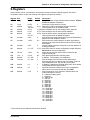
Certain modem values, or parameters, are stored in memory locations called S-registers. Use the S
command to read or to alter the contents of S-registers (see previous section).
Register Unit
S0
1 ring
Range
0, 1–255
S1
S2
1 ring
decimal
S3
S4
S5
decimal
decimal
decimal
S6
seconds
0–255
0–127
128–255
0–127
0–127
0–32
33–127
2–65*
S7
seconds
1–255*
S8
seconds
0–65
S9
decimal
0, 1–127
S10
100 ms
1–254
S11
S28
S30
1 ms 5
decimal
1 minute
0–150*
0, 1–255
0, 1–255
S35
decimal
0–1
S36
decimal
0–7
S37
decimal
0–19
Default
1
Description
Sets the number of rings until the modem answers. ATS0=0
disables autoanswer completely.
0
Counts the rings that have occurred.
43 (+) Sets ASCII code for the escape sequence character.
Values greater than 127 disable escape.
13 (^M) Sets the ASCII code for the carriage return character.
10 (^J) Sets the ASCII code for the line feed character.
8 (^H) Sets the ASCII code for the backspace character.
Values greater than 32 disable backspace.
2*
Sets the time the modem waits after it goes off-hook before it
begins to dial the telephone number.
50*
Sets the time the modem waits for a carrier signal before
aborting a call. Also sets the wait for silence time for the @
dial modifier.
2
Sets the length of a pause caused by a comma character in
a dialing command.
37 (%) Sets ASCII code for remote configuration escape character.
S9=0 disables remote configuration.
20
Sets how long a carrier signal must be lost before the
modem disconnects.
95*
Sets spacing and duration of dialing tones.
1
0 disables, 1–255 enables V.34 modulation.
0
Sets the length of time that the modem waits before
disconnecting when no data is sent or received. A value of
zero disables the timer. See also the \T command
0
0 disables, 1 enables the V.25 data calling tone, which allows
remote data/fax/voice discrimination.
7
Specifies the action to take in the event of a negotiation
failure when error control is selected. (See S48.)
0
Sets the maximum V.34 “upstream” speed at which the
modem attempts to connect.
0 = maximum modem speed
1 = reserved
2 = 1200/75 bps
3 = 300 bps
4 = reserved
5 = 1200 bps
6 = 2400 bps
7 = 4800 bps
8 = 7200 bps
9 = 9600 bps
10 = 12000 bps
11 = 14400 bps
12 = 16800 bps
13 = 19200 bps
14 = 21600 bps
15 = 24000 bps
16 = 26400 bps
17 = 28800 bps
18 = 31200 bps
19 = 33600 bps
* These values may be different outside North America.
MT4X56USB
49
MultiModemUSB User Guide
S38
decimal
0–23
1
S42
decimal
0–1
1
S43
decimal
0–1
1
S48
decimal
7 or 128
7
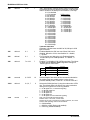
Sets “downstream” data rate where K56flex provides rates
of 32,000 to 56,000 in 2,000 bps increments, V.90 provides
rates of 28,000 to 56,000 bps in increments of 1,333 bps.
0 = V.90 disabled
K56flex rates
1 = V.90 autorate
2 = 28,000 bps
2 = 32,000 bps
3 = 29,333 bps
3 = 34,000 bps
4 = 30,666 bps
4 = 36,000 bps
5 = 32,000 bps
5 = 38,000 bps
6 = 33,333 bps
6 = 40,000 bps
7 = 34,666 bps
7 = 42,000 bps
8 = 36,000 bps
8 = 44,000 bps
9 = 37,333 bps
9 = 46,000 bps
10 = 38,666 bps
10 = 48,000 bps
11 = 40,000 bps
11 = 50,000 bps
12 = 41,333 bps
12 = 52,000 bps
13 = 42,666 bps
13 = 54,000 bps
14 = 44,000 bps
14 = 56,000 bps
15 = 45,333 bps
16 = 46,666 bps
17 = 48,000 bps
18 = 49,333 bps
19 = 50,666 bps
20 = 52,000 bps
21 = 53,333 bps
22 = 54,666 bps
23 = 56,000 bps
Upstream data rates
Upstream V.90 data rates are 4800 to 33,600 bps in 2400
bps increments.
Enables/disables the 56K auto rate. When 56K auto is
disabled, fallback to V.34 is also disabled. 0 = disable;
1 = enable.
For For testing and debugging only. Enables/disables
V.32bis start-up auto mode operation. 0 = disable; 1 =
enable.
Enables (7) or disables (128) LAPM negotiation. The following table lists the S36 and S48 configuration settings for
certain types of connections.
S48=7
S48=128
S36=0, 2
LAPM or hangup
Do not use
S36=1, 3
LAPM or async
Async
S36=4, 6
LAPM, MNP, or hangup
MNP or hangup
S36=5, 7
LAPM, MNP, or aysnc
MNP or async
S89
seconds
0, 5–255
10
Sets the length of time in the off-line command mode before
the modem goes into standby mode. A value of zero
prevents standby mode; a value of 1–4 sets the value to 5.
S108
decimal
0–3, 6, 7
6
Selects the 56K digital loss if using the modem thru a PBX
line. The default value is -6 dB loss, the value used when
calling from a typical POTS line long distance.
S109
decimal
0--2
1
0 = -0 dB digital loss, no robbed-bit signaling
1 = -3 dB PBX digital loss
2 = -2 dB digital loss
3 = -3 dB digital loss
6 = -6 dB digital loss
7 = -0 dB digital loss with robbed-bit signaling
Sets one of three 56K operating modes:
K56flex mode, V.90 mode, or Auto-mode.
S109=2 forces V.90 connections for testing purposes, etc. S109
sets the 56K operating mode as shown below:
0 = V.90 disabled
1 = K56flex or V.90 (Dual mode enabled)
2 = V.90 only (K56flex disabled).
50
MT4X56USB
Chapter 4 - AT Commands, S-Registers and Result Codes
Result Codes
In command mode your modem can send responses called result codes to your computer. Result
codes are used by communications programs and can also appear on your monitor.
Terse
Verbose
Description
0
1
2
3
4
5
6
7
8
10
11
12
13
14
24
5
6
40
55
56
57
58
59
60
0
71
72
73
74
75
76
77
78
79
80
81
82
88
89
90
100
101
102
103
104
105
106
107
108
109
110
111
112
113
114
OK
CONNECT
RING
NO CARRIER
ERROR
CONNECT 1200
NO DIALTONE
BUSY
NO ANSWER
CONNECT 2400
CONNECT 4800
CONNECT 9600
CONNECT 14400
CONNECT 19200
CONNECT 7200
CONNECT 12000
CONNECT 16800
CONNECT 300
CONNECT 21600
CONNECT 24000
CONNECT 26400
CONNECT 28800
CONNECT 31200
CONNECT 33600
CONNECT 32000
CONNECT 34000
CONNECT 36000
CONNECT 38000
CONNECT 40000
CONNECT 42000
CONNECT 44000
CONNECT 46000
CONNECT 48000
CONNECT 50000
CONNECT 52000
CONNECT 54000
CONNECT 56000
DELAYED
BLACKLISTED
BLACKLIST FULL
CONNECT 28000
CONNECT 29333
CONNECT 30666
CONNECT 33333
CONNECT 34666
CONNECT 37333
CONNECT 38666
CONNECT 41333
CONNECT 42666
CONNECT 45333
CONNECT 46666
CONNECT 49333
CONNECT 50666
CONNECT 53333
CONNECT 54666
Command executed
Modem connected to line
Ring signal detected
Carrier signal lost or not detected
Invalid command
Connected at 1200 bps
No dial tone detected
Busy signal detected
No answer at remote end
Connected at 2400 bps
Connected at 4800 bps
Connected at 9600 bps
Connected at 14400 bps
Connected at 19200 bps
Connected at 7200 bps
Connected at 12000 bps
Connected at 16800 bps
Connected at 300 bps
Connected at 21600 bps
Connected at 24000 bps
Connected at 26400 bps
Connected at 28800 bps
Connected at 31200 bps
Connected at 33600 bps
Connected at 32000 bps, 56K rate
Connected at 34000 bps, 56K rate
Connected at 36000 bps, 56K rate
Connected at 38000 bps, 56K rate
Connected at 40000 bps, 56K rate
Connected at 42000 bps, 56K rate
Connected at 44000 bps, 56K rate
Connected at 46000 bps, 56K rate
Connected at 48000 bps, 56K rate
Connected at 50000 bps, 56K rate
Connected at 52000 bps, 56K rate
Connected at 54000 bps, 56K rate
Connected at 56000 bps, 56K rate
Delay is in effect for the dialed number
Dialed number is blacklisted
Blacklist is full
Connected at 28000 bps, V.90 rate
Connected at 29333 bps, V.90 rate
Connected at 30666 bps, V.90 rate
Connected at 33333 bps, V.90 rate
Connected at 34666 bps, V.90 rate
Connected at 37333 bps, V.90 rate
Connected at 38666 bps, V.90 rate
Connected at 41333 bps, V.90 rate
Connected at 42666 bps, V.90 rate
Connected at 45333 bps, V.90 rate
Connected at 46666 bps, V.90 rate
Connected at 49333 bps, V.90 rate
Connected at 50666 bps, V.90 rate
Connected at 53333 bps, V.90 rate
Connected at 54666 bps, V.90 rate
MT4X56USB
*
*
*
*
*
*
*
*
*
*
*
*
*
*
*
*
*
*
*
*
*
*
*
*
*
*
*
*
*
51
MultiModemUSB User Guide
* EC is added to these result codes when the extended result codes configuration option is enabled. EC is replaced by one of the following
codes, depending on the type of error control connection:
V42bis —V.42 error control (LAP-M) and V.42bis data compression
V42 —V.42 error control (LAP-M) only
MNP5 —MNP 4 error control and MNP 5 data compression
MNP4 —MNP 4 error control only
NoEC —No error control protocol).
For more information on scripting, click the Help button.
52
MT4X56USB
Four USB V.90 Modems
Chapter 5 - Remote Configuration
MultiModemUSB User Guide
Introduction
Remote configuration is a network management tool that enables you to configure modems
anywhere in your network from one location. With password-protected remote configuration, you can
issue AT commands to a remote MT4x56USB for maintenance or troubleshooting as if you were onsite.
Remote Configuration Procedure
The following steps are valid regardless of whether the connection is established by the local or the
remote Multi-Tech modem.
1. Establish a data connection with a remote MT4X56USB modem.
2. Send three remote configuration escape characters followed by AT and the setup password, then
press ENTER. Example: %%%ATMTSMODEM<CR>. You have four tries to enter the correct
password before being disconnected. If the password is correct, the remote modem responds
with:
OK
3. You can now send AT commands to configure the remote modem.
4. When you have finished configuring the remote modem, save the new configuration by typing
AT&W0<CR>, then type ATO<CR> to exit remote configuration. You can then break the
connection in the normal way.
CAUTION: If you hang up while you are in remote configuration mode, it may lock up the
remote modem.
Setup
Multi-Tech modems are shipped with a default setup password (MTSMODEM). Anyone who has an
owner’s manual knows the default setup password. For security, you should change the password
and possibly also the remote configuration escape character.
Changing the Setup Password
1. Open a data communications program such as HyperTerminal.
2. In the terminal window, type AT#SMTSMODEM (or AT#Syyyyyy if you have replaced the
MTSMODEM password with yyyyyy) and press ENTER. The modem responds with OK if the
setup password is correct, and ERROR if it is wrong.
3. To change the password, type AT#S=yyyyyy, where yyyyyy stands for the password, and press
ENTER. The password can include any keyboard character, and must be one to eight characters
long. The modem responds with OK.
4. The new password is saved automatically. You can now either enter more AT commands or exit
the data communications program. The next time you remotely configure the modem you must
use the new setup password.
CAUTION: You can only change the setup password locally; you cannot do it remotely. Also,
passwords are case sensitive. The next time you enter the password, it must be in the same
case as when you set it up.
54
MT4X56USB
Chapter 5 - Remote Configuration and Management
Changing the Remote Escape Character
To increase security, you can change a remote modem’s remote configuration escape character. The
remote configuration escape character is stored in register S9. The factory default is 37, which is the
ASCII code for the percent character (%). Setting S9 to 0 (zero) disables remote configuration
entirely—but if you do this remotely, you won’t be able to change it back remotely!
1. Establish a remote configuration link with the remote modem as described in “Basic Procedure.”
2. Type ATS9=n, where n is the ASCII code for the new remote configuration escape character, then
press ENTER.
3. Save the new value by typing AT&W and pressing ENTER.
4. Type ATO<CR> to exit remote configuration.
Remote Configuration Commands
These commands, documented in Chapter 4 of this manual, enable you to configure various Remote
Configuration parameters: #Sx, #S=x, and %%%AT.
MT4X56USB
55
MultiModemUSB User Guide
56
MT4X56USB
Four USB V.90 Modems
Chapter 6 - Troubleshooting
MultiModemUSB User Guide
Introduction
Your MT4X56USB was thoroughly tested at the factory before it was shipped. If you are unable to
make a successful connection with one of the V.90 modem ports, or if you experience data loss or
garbled characters during your connection, it is possible that a particular modem is defective.
However, it is more likely that the source of your problem lies elsewhere. The following symptoms are
typical of problems you might encounter:
•
None of the LEDs light when the unit is on.
•
The unit does not respond to commands.
•
The unit dials but is unable to make a connection.
•
The unit disconnects while online.
•
The unit cannot connect when answering.
•
The unit doesn’t work with Caller ID.
•
Fax and data software can’t run at the same time.
If you experience problems, please check the following possibilities before calling Technical Support
(Refer to Chapter 8).
None of the Indicators Light
When you plug in the MT4X56USB, the Power LED should light. After the operating system detects
and configures the MT4X56USB, all four TR LEDs should light.
•
If the Power LED does not light, double-check the cable connections.
•
If none of the TR LEDs light, check to see that the software from the installation disk has
been installed (Refer to Chapter 3).
The Modem Does Not Respond to Commands
•
Make sure you are issuing the modem commands from the data communications software,
either manually in terminal mode or automatically by configuring the software. (You cannot
send commands to the modem from the DOS prompt.)
•
Make sure you are in terminal mode in your data communications program, then type AT and
press ENTER. If you get an OK response, your connections are good and the problem likely
is in the connection setup in your communications software.
•
Try resetting your modems by unplugging the USB cable from the MT4X56USB, and then
plugging it back in.
•
Try rebooting the computer.
•
An MT4X56USB modem might be defective. If you have another Multi-Tech modem, try
swapping modems. If the problem goes away, the first modem is possibly defective. Call
Tech Support for assistance (see Chapter 8).
The Modem Dials But Cannot Connect
There can be several reasons the V.90 modem fails to make a connection. Possibilities include:
58
•
lack of a physical connection to the telephone line
•
a wrong dial tone
•
a busy signal
MT4X56USB
Chapter 6 - Troubleshooting
•
a wrong number
•
no modem at the other end
•
a faulty modem, computer, or software at the other end
•
incompatibility between modems
You can narrow the list of possibilities by using extended result codes. Extended result codes are
enabled by default. If they have been disabled, enter ATV1X4 and press ENTER while in terminal
mode, or include V1X4 in the modem’s initialization string. When you dial again, the modem will
report the call’s progress.
•
If the modem reports NO DIALTONE, check that the modem’s phone cable is securely
connected to both the modem’s LINE jack (not the PHONE jack) and the telephone wall jack.
If the cable looks secure, try replacing it. If that doesn’t work, the problem might be in your
building’s telephone installation. To find out, plug a telephone into your modem’s wall jack and
listen for a dial tone. If you hear a one, your modem might be installed behind a company
phone system (PBX) with an internal dial tone that sounds different from the normal one. In
that case, the modem might not recognize the dial tone and might treat it as an error. Check
your PBX manual to see if you can change the internal dial tone; if you can’t, change your
modem’s initialization string to replace X4 with X3, which will cause the modem to ignore dial
tones (note, however, that X3 is not allowed in some countries, such as France and Spain).
•
If the modem reports BUSY, the other number might be busy, in which case you should try
again later, or it might indicate that you have failed to add a 9, prefix to the phone number if
you must dial 9 for an outside line.
If you must dial 9 to get an outside line, the easiest way to dial it automatically is to include it
in the modem’s dial prefix, e.g., ATDT9,. Note the comma, which inserts a pause before the
number is dialed. By inserting 9, into the dial prefix, you do not have to include it in each
directory entry.
To change the dial prefix in Windows 98 HyperTerminal, select Call from the Call menu, click
Dialing Properties, and type 9 in the local and long distance boxes in How I dial from this
location.
•
If the modem reports NO ANSWER, the other system has failed to go off-hook, or you might
have dialed a wrong number. Check the number.
•
If the modem reports NO CARRIER, the phone was answered at the other end, but no
connection was made. You might have dialed a wrong number, and a person answered
instead of a computer, or you might have dialed the correct number but the other computer or
software was turned off or faulty. Check the number and try again, or try calling another
system to make sure your modem is working. Also, try calling the number on your telephone.
If you hear harsh sounds, then another modem is answering the call, and the modems might
be having problems negotiating because of modem incompatibilities or line noise. Try
connecting at a lower speed.
The Modem Disconnects While Online
•
If you have Call Waiting on the same phone line as your modem, it can interrupt your
connection when someone tries to call you. If you have Call Waiting, disable it before each
call. In most telephone areas in North America, you can disable Call Waiting by preceding the
telephone number with *70 (check with your local telephone company).
You can automatically disable Call Waiting by including the disabling code in the modem’s
dial prefix (e.g., ATDT*70,—note the comma, which inserts a pause before the number is
dialed). To change the dial prefix in Windows 98 HyperTerminal, select Call from the Call
menu, click Dialing Properties, check This location has Call Waiting, and select the
correct code for your phone service.
MT4X56USB
59
MultiModemUSB User Guide
•
If you have extension phones on the same line as your modem, you or someone else can
interrupt the connection by picking up another phone. If this is a frequent problem, disconnect
the extension phones before using the modem, or install another phone line especially for the
modem.
•
Check for loose connections between the modem and the computer and the telephone jack.
•
You might have had a poor connection because of line conditions or the problem might have
originated on the other end of the line. Try again.
•
If you were online with a service such as MultiTech’s Web site, it might have hung up on you
because of lack of activity on your part or because you exceeded your time limit for the day.
Try again.
The Modem Cannot Connect When Answering
•
Autoanswer might be disabled. Turn on autoanswer in your data communications program or
send the command ATS0=1 (ATS0=2 if you have Caller ID service) to make sure your
MODEM is in terminal mode.
The Modem Doesn’t Work with Caller ID
•
Caller ID information is transmitted between the first and second rings, so if autoanswer is
turned off (S0=0) or if the modem is set to answer after only one ring (S0=1), the modem will
not receive Caller ID information. Check your initialization string, and if necessary change it
to set the modem to answer after the second ring (S0=2).
•
Make sure that you have Caller ID service from your telephone company.
Fax and Data Software Can’t Run at the Same Time
Communications devices can be accessed by only one application at a time. In Windows 98, you can
have data and fax communication applications open at the same time, but they cannot use the same
modem at the same time.
Loopback Tests
Each time you turn on your modem, it performs an automatic self-test to ensure proper operation.
Your modem also has three diagnostic tests: local analog loopback, remote digital loopback, and
local digital loopback. These ITU-T V.54 loopback tests isolate telephone circuit and transmission
problems.
In a loopback test, data from your computer loops through the circuits of your modem and/or a
remote modem before it appears on your monitor. When the loop has been completed, the data on
your PC’s monitor should match the original data.
The local analog loopback test allows you to verify that the modem’s transmitter and receiver circuits
are functioning properly.
The local digital loopback allows you to verify that the local computer or terminal, the two modems,
and the transmission line between them are functioning properly.
The remote digital loopback test allows you to verify that the remote computer or terminal, the remote
modem, the serial ports, the telephone line, and the local modem are functioning properly.
Note: All loopback tests operate at all speeds except 300 bps.
60
MT4X56USB
Chapter 6 - Troubleshooting
Local Analog Loopback Test (V.54 Loop 3)
In this test, data from your computer or terminal is sent to your modem’s transmitter, converted into
analog form, looped back to the modem’s receiver, converted into digital form, and then sent to your
monitor for verification. No connection to the phone line is required.
AT&T1
CONNECT
UUUUUUUUU
UUU
Computer or Terminal
Digital
Analog
Local MultiModemUSB
Figure 6-1. Local analog loopback test.
Test procedure
1. Connect the MT4X56USB to your computer. Using your communication program, set the desired
baud rate and go into terminal mode.
2. Type AT&T1 and press ENTER. This places your modem in analog loopback mode in the
originate mode. A CONNECT message should appear on your display. The modem is now out of
command mode and in a pseudo-online mode.
3. Note that the CD LED is on. If you are set for 14,400 bps or higher, a speed LED should be on. If
the CD LED is not on, there is a defect in your modem.
4. Enter characters from your keyboard. For this test, typing multiple uppercase U characters is a
good way to send an alternating test pattern of binary ones and zeros. The characters entered
should be displayed on your monitor. The TD and RD LEDs should flash when a character is
entered.
5. To exit the test, type the escape sequence +++AT and press ENTER. This puts the modem in
online command mode. Then type either AT&T or ATH to return to command mode.
6. Your modem passes this test if the data received on your monitor are the same as the data
entered from your keyboard. If different data appear on your monitor, your modem is probably
causing the problem, though it could also be your computer. If your modem passes this test, but
you are receiving errors while on line, the remote modem or the phone line could be at fault.
MT4X56USB
61
MultiModemUSB User Guide
Remote Digital Loopback Test (V.54 Loop 2)
The remote digital loopback test tests the phone lines and the circuits of both your modem and a
remote modem. In this test, your modem must be on line with another modem that is set up to
respond to a request for remote digital loopback. (Note that some modems might not support remote
digital loopback or might have it disabled.) Data from your computer or terminal is transmitted through
your modem and over the phone line to the remote modem, where it is then looped back to your
modem.
AT&T6
OK
UUUUUUUUU
UUUUU
Computer or Terminal
AT&T6
OK
Digital
Analog
Local MultiModemUSB
Analog
Digital
Remote MultiModemUSB
Computer or Terminal
Figure 6-2. Remote digital loopback test.
Test procedure
1. Arrange to have &T6 set on the remote test modem.
2. Open your communications software and go into terminal mode. Type AT and press ENTER; you
should get an OK message. Type AT\N and press ENTER to disable error correction.
3. Dial the remote modem and establish your online connection.
4. Type the escape sequence +++AT and press ENTER to bring your modem into online command
mode.
5. Type AT&T6 and press ENTER. The local modem responds to this command by transmitting an
unscrambled marking signal, which causes the remote modem to place itself in digital loopback
mode. Then the local modem exits online command mode and enters data mode.
6. Enter data from your keyboard. For this test, typing multiple uppercase U characters is a good
way to send an alternating test pattern of binary ones and zeroes. Data received by the remote
modem enters its analog receiver, is converted to digital data, is reconverted into analog, and
then is transmitted back to your modem. Your modem passes this test if the data received on
your monitor is the same as the data entered from your keyboard.
7. To exit the test, type the escape sequence +++AT and press ENTER. This puts the modem in
online command mode. The modem should respond with an OK message. If you wish to stay on
line with the remote modem for normal data transmission, type AT&T and press ENTER to exit
the test, then type ATO and press ENTER to return on line. If you wish to terminate the call, type
ATH and press ENTER to hang up.
62
MT4X56USB
Chapter 6 - Troubleshooting
Local Digital Loopback Test (V.54 Loop 2)
The local digital loopback test is identical to the remote digital loopback test with one exception.
Instead of using your modem to signal a remote modem to place itself in digital loopback mode, your
modem is placed in digital loopback mode while the remote modem is not. Data is entered and
transmitted from the remote modem, sent across the phone line to your modem, and looped back to
the remote modem.
AT&T3
OK
UUUUUUUUU
UUUUU
Digital
Computer or Terminal
Analog
Local MultiModemUSB
Analog
Digital
Remote MultiModemUSB
Computer or Terminal
Figure 6-3. Local digital loopback test
Test Procedure
1. Open your communications software and go into terminal mode. Type AT and press ENTER;
you should get an OK message. Type AT\N and press ENTER to disable error correction.
2. Dial the remote modem and establish your online connection.
3. Type the escape sequence +++AT and press ENTER to bring your modem into online
command mode.
4. Type AT&T3 and press ENTER. Once you receive an OK message from your modem (if
responses are enabled), your modem is placed in digital loopback mode.
5. Have someone enter data from the remote keyboard. For this test, typing multiple uppercase
U characters is a good way to send an alternating test pattern of binary ones and zeros. The
data received by your modem enters its analog receiver, is converted to digital data, is
reconverted into analog, and then is transmitted back to the remote modem. Your modem
passes this test if the data received on the remote monitor is the same as the data entered
from the remote keyboard.
6. To exit the test, type the escape sequence +++AT and press ENTER. This puts the modem
in online command mode. The modem should respond with an OK message. If you wish to
stay on line with the remote modem for normal data transmission, type AT&T and press
ENTER to exit the test, then type ATO and press ENTER to return on line. If you wish to
terminate the call, type ATH and press ENTER to hang up.
MT4X56USB
63
MultiModemUSB User Guide
Windows 95/98 Troubleshooting
If after installing the Microsoft USB supplement (usbsupp.exe), Windows Plug-and-Play does not
auto-detect the modem, perform the following steps:
1. Open the System icon from the control panel and select the Device Manager Tab.
2. Double-click the Universal Serial Bus Controller icon.
3. Make sure that both the ROOT HUB and HOST Controller are listed. If only the HOST Controller
is listed, remove it and reboot.
4. Open the System Properties dialog box from the control panel and select the Device Manager
Tab. Check for a device labeled ? UNKNOWN. Double click UNKNOWN and check for a HOST
Controller or ROOT HUB. If listed, remove them and reboot. If, after rebooting, the Add Hardware
Wizard finds the USB devices and requires new drivers, such as uhcd.sys, the drivers can be
found in the /windows/system directory.
Determining Why USB Support Is Not Present
This section is for Windows 95 users only. The DETAILS button in USBREADY can help you
determine what is preventing USB support.
1. Click the DETAILS button. If the USB Class Host Controller window reads, “No USB Host
Controller Found” then the necessary hardware, a USB Host Controller, has not been detected.
If your PC does not have USB connectors, then this system will not support USB regardless of
the Windows version.
2. You will need to purchase a PCI USB controller card.
3. If your PC does have USB connectors, verify that the USB hardware is enabled in your system
BIOS configuration.
4. If the USB Class Host Controller window displays any other message, such as “Standard,”
“Intel,” “Universal,” or “Open” Host Controller, then hardware support is present, but an
incompatible version of Windows is currently installed.
5. If the Test Results Details dialog shows Windows 95 version 4.0.1111, which is Windows 95
OSR.2, proceed to “Installing Microsoft USB Support”. You will need to upgrade to OSR 2.1 by
installing the USB supplement before installing the modem.
Installing Microsoft USB Support
This section is for Windows 95 users only. Microsoft provides a supplemental program (usbsupp.exe)
to allow users to upgrade Windows 95 version OSR2 to support the Universal Serial Bus. To install:
1. Insert your Windows 95 CD into your CD ROM drive.
2. In the START menu, select RUN.
3. Type <CD drive letter>:\other\usb\usbsupp.
4. Follow the instructions on the screen.
5. After rebooting, go back to step 1 in “Verifying That Your System Supports USB” in Chapter 2 of
this manual.
6. Ensure that the Test Results Details (from the Details button in the USB System Checker dialog)
displays Windows 95 version 4.1212 or higher.
Note: Windows 95 version 4.0.950 or 4.0.950a does not support the upgrade path to USB. Microsoft
does not provide an upgrade path to OSR2 from earlier versions of Windows. OSR2 must be
preinstalled by your PC vendor. Contact your PC vendor for more information.
64
MT4X56USB
Four USB V.90 Modems
Chapter 7 - Upgrade Procedure
MultiModemUSB User Guide
Introduction
Your modem is controlled by semi-permanent software (firmware) that is stored in flash memory.
Firmware is nonvolatile; it remains stored in memory when the modem is turned off. However, it can
be changed by either the manufacturer or the user as bugs are fixed or new features are added.
Since the firmware in your modem is stored in flash memory, you can upgrade it yourself in a few
minutes by using the following procedures.
Upgrade Overview
The upgrade procedure consists of the following steps.
1. Identify the model number and firmware version of your MT4X56USB.
2. Identify the current version of the firmware at the Multi-Tech Web site. (If your modem already
has the current firmware, there is no need to update it.)
3. Download the upgrade file for your modem.
4. Extract the .HEX file and the appropriate flash upgrade program from the downloaded file.
5. Document and clear your stored parameters.
6. Upgrade the modem’s firmware using the .HEX file and the flash upgrade program.
7. Restore your parameters.
Step 1: Identify the MT4X56USB Firmware
You must know the model number and firmware version of your Multi-Tech MT4X56USB to know
whether you should update it.
1. Run your favorite terminal program. If you are using Windows 95/98, Windows NT 4.0, or
Windows 2000, you can use HyperTerminal.
2. In the program’s terminal window, type AT&F. Even if you cannot see the AT&F command on
your screen, be sure to type it completely and then press ENTER.
3. Now type ATI and record your results. The model number and firmware version should be:
LT V.90 1.0 MT4X56USB Serial Data/Fax/Voice modem Version 4.07a
Step 2: Identify the Current Firmware Version
Identify the current version of the firmware at the Multi-Tech Web site. If your MT4X56USB already
has the current firmware, there is no need to update it.
Multi-Tech Web Site
1. Using your favorite Web browser, go to http://www.multitech.com/support/firmware.htm.
2. Scroll down to the table with your MT4X56USB model number (non-USA firmware must be
obtained directly from the FTP site).
3. Look at the Current Revision number for your MT4X56USB.
4. If the Current Revision number matches the firmware version number found in “Step 1: Identify
the MT4X56USB Firmware,” your MT4X56USB has the current firmware and does not need to be
updated.
66
MT4X56USB
Chapter 7 - Upgrade Procedure
5. If the Current Revision number is larger than the firmware version number found in “Step 1:
Identify the MT4X56USB Firmware,” your MT4X56USB has an older firmware version. Continue
with “Step 3: Download the Upgrade File.”
Step 3: Download the Upgrade File
Multi-Tech Web Site
1. If you are not already at the Firmware page of the Multi-Tech Web site, follow the procedure in
“Step 2: Identify the Current Firmware.”
2. Click on the upgrade file name for your modem and save the file to a temporary location on your
hard drive.
Step 4: Extract the Upgrade Files
1. Move the downloaded upgrade file to a temporary directory or folder on your hard drive.
2. The file is a self-extracting archive. Extract the files by typing the upgrade file name in DOS or
double-clicking it in Windows. The extracted files include a .HEX file, which contains the upgrade
data, and one flash program each for DOS, Windows 3.1/95/98, Windows NT 4.0, and Windows
2000.
Step 5: Clear Your Stored Paramenters
Before you flash your modem it is important that you issue the AT&W1Z command to it to clear out
any stored parameters. You should also record the parameters that are currently stored in your
modem so you can reprogram it after flashing.
1. Run your favorite terminal program. If you are using Windows 95/98, Windows NT 4.0, or
Windows 2000, you can use HyperTerminal. If you are using Windows 3.11, you can use
Windows Terminal.
2. In the program’s terminal window, type AT&V and press ENTER to list your modem’s current
parameters.
3. Record your parameters by saving the screens and sending them to your printer.
4. Type AT&W1Z and press ENTER to clear your stored parameters and reset your modem to
factory default.
5. Close the terminal program.
MT4X56USB
67
MultiModemUSB User Guide
Step 6: Upgrade the Modem’s Firmware
At various times, Multi-Tech may add enhancements and/or fixes to the modem firmware. Flash
technology allows you to load these upgrades into the PROM. Do the following.
1. Download FLASHPRO.ZIP and a new .HEX file from the Multi-Tech FTP or Web site.
2. Unzip the FLASHPRO.ZIP file. Place this unzipped file and the .HEX file in the same directory.
3. Run FlashPro by typing FLASHPRO, a space, and hitting ENTER at the DOS prompt.
4. Highlight the "Configure" option in the MAIN MENU and hit ENTER. Highlight "Active Port" and
select the COM port to which you have your modem attached. Highlight "Baud Rate" and select
the rate you want to program at. Hit ESC when finished.
5. Highlight the "Select File to Program" option in the MAIN MENU. Highlight the .HEX file. Hit ESC
when finished.
6. Highlight "Program Firmware" option in the MAIN MENU. When you are prompted to confirm the
file to program, press "Y".
7. If you need more assistance programming FLASHPRO, contact our Technical Support
department.
Step 7: Restore Your Parameters
Your modem is now updated. You can now open your terminal program to reprogram your modem
parameters, if necessary, or to confirm the update by typing ATI in the terminal window.
68
MT4X56USB
Four USB V.90 Modems
Chapter 8 - Service, Warranty and Tech Support
MultiModemUSB User Guide
Introduction
This chapter provides the information necessary for receiving service or support for your
MT4X56USB. The chapter includes Multi-Tech’s license agreement, a description of the warranty,
and provides instructions for contacting the Service Department, Technical Support group, and
various Multi-Tech internet resources.
Software User License Agreement
MultiMobileUSB software is licensed by Multi-Tech Systems, Inc. to the original end-user purchaser
of the product, hereafter referred to as “Licensee.” The License includes thhe distribution diskette,
other accompanying programs, and the documentation. The MultiMobileUSB software, hereafter
referred to as “Software,” consists of the computer program files included on the original distribution
diskette.
Licensee agrees that by purchase and/or use of the Software, he hereby accepts and agrees to the
terms of this License Agreement. In consideration of mutual covenants contained herein, and other
good and valuable considerations, the receipt and sufficiency of which is acknowledged, Multi-Tech
Systems, Inc. does hereby grant to the Licensee a non-transferable and non-exclusive license to use
the Software and accompanying documentation on the following conditions and terms:
The software is furnished to the Licensee for execution and use on a single computer system only
and may be copied (with the inclusion of the Multi-Tech Systems, Inc. copyright notice) only for use
on that computer system. The Licensee hereby agrees not to provide or otherwise make available
any portion of this software in any form to any third party without the prior express written approval of
Multi-Tech Systems, Inc.
Licensee is hereby informed that this Software contains confidential proprietary and valuable trade
secrets developed by or licensed to Multi-Tech Systems, Inc. and agrees that sole ownership shall
remain with Multi-Tech Systems, Inc.
The Software is copyrighted. Except as provided herein, the Software and documentation supplied
under this agreement may not be copied, reproduced, published, licensed, sublicensed, distributed,
transferred, or made available in any form, in whole or in part, to others, without expressed written
permission of Multi-Tech Systems, Inc. Copies of the Software may be made to replace worn or
deteriorated copies for archival or backup procedures.
Licensee agrees to implement sufficient security measures to protect Multi-Tech Systems, Inc.
proprietary interests and not to allow the use, copying or transfer by any means, other than in
accordance with this agreement. Licensee agrees that any breach of this agreement will be damaging
to Multi-Tech Systems, Inc.
Licensee agrees that all warranties, implied or otherwise, with regard to this Software, including all
warranties of merchantability and fitness for any particular purpose are expressly waived, and no
liability shall extend to any damages, including consequential damages, whether known to Multi-Tech
Systems, Inc. It is hereby expressly agreed that Licensee’s remedy is limited to replacement or refund
of the license fee, at the option of Multi-Tech Systems, Inc., for defective distribution media. There is
no warranty for misused materials.
This package contains 3.5-inch disks and/or CD-ROM discs. Neither this software nor the
accompanying documentation may be modified or translated without the written permission of MultiTech Systems, Inc.
This agreement shall be governed by the laws of the State of Minnesota. The terms and conditions of
this agreement shall prevail regardless of the terms of any other submitted by the Licensee. This
agreement supersedes any proposal or prior agreement. Licensee further agrees that this License
Agreement is the complete and exclusive statement of Agreement, oral, written, or any other
communications between Multi-Tech Systems, Inc. and Licensee relating to the subject matter of this
agreement. This agreement is not assignable without written permission of an authorized agent of
Multi-Tech Systems, Inc.
70
MT4X56USB
Chapter 8 - Service, Warranty and Tech Support
Limited Warranty
Multi-Tech Systems, Inc. (“MTS”) warrants that its products will be free from defects in material or
workmanship for a period of two years from the date of purchase, or if proof of purchase is not
provided, two years from date of shipment. MTS MAKES NO OTHER WARRANTY, EXPRESSED
OR IMPLIED, AND ALL IMPLIED WARRANTIES OF MERCHANTABILITY AND FITNESS FOR A
PARTICULAR PURPOSE ARE HEREBY DISCLAIMED. This warranty does not apply to any
products which have been damaged by lightning storms, water, or power surges or which have been
neglected, altered, abused, used for a purpose other than the one for which they were manufactured,
repaired by the customer or any party without MTS’s written authorization, or used in any manner
inconsistent with MTS’s instructions.
MTS’s entire obligation under this warranty shall be limited (at MTS’s option) to repair or replacement
of any products which prove to be defective within the warranty period, or, at MTS’s option, issuance
of a refund of the purchase price. Defective products must be returned by Customer to MTS’s factory
transportation prepaid.
MTS WILL NOT BE LIABLE FOR CONSEQUENTIAL DAMAGES AND UNDER NO CIRCUMSTANCES WILL
ITS LIABILITY EXCEED THE PURCHASE PRICE FOR DEFECTIVE PRODUCTS.
On-line Warranty Registration
If you would like to register your MT4X56USB electronically, you can do so at the following address:
http://www.multitech.com/register/
Tech Support
Multi-Tech has an excellent staff of technical support personnel available to help you get the most out
of your Multi-Tech product. If you have any questions about the operation of this unit, call 1-800-9722439. Please fill out the MT4X56USB information (below), and have it available when you call. If your
MT4X56USB requires service, the tech support specialist will guide you on how to send in your
MT4X56USB (refer to the next section).
Recording MT4X56USB Information
Please fill in the following information on your MT4X56USB. This will help tech support in answering
your questions. (The same information is requested on the Warranty Registration Card.)
Model No.: _________________________
Serial No.: _________________________
Software Version: ____________________
The model and serial numbers are on the bottom of your MT4X56USB.
Please note the type of external link device that is connected to your MT4X56USB before calling tech
support. Also, note the status of your MT4X56USB including LED indicators, screen messages,
diagnostic test results, problems with a specific application, etc. Use the space below to note the
MT4X56USB status:
________________________________________________________________________________________________________
________________________________________________________________________________________________________
________________________________________________________________________________________________________
________________________________________________________________________________________________________
______________________________________________________________________________________________________________
MT4X56USB
71
MultiModemUSB User Guide
Contacting Tech Support via E-mail
If you prefer to receive service on-line, via the internet, you can contact Tech Support via e-mail at
the following address:
http://www.multitech.com/
Service
If your tech support specialist decides that service is required, your MT4X56USB may be sent (freight
prepaid) to our factory. Return shipping charges will be paid by Multi-Tech Systems.
Include the following information with your MT4X56USB:
•
a description of the problem
•
return billing and return shipping addresses
•
contact name and phone number
•
check or purchase order number for payment if the MT4X56USB is out of warranty. (Check
with your technical support specialist for the standard repair charge for your MT4X56USB).
•
if possible, note the name of the technical support specialist with whom you spoke and the
tracker number of the technician assigned to you.
If you need to inquire about the status of the returned product, be prepared to provide the serial
number of the product sent.
Send your MT4X56USB to this address:
MULTI-TECH SYSTEMS, INC.
2205 WOODALE DRIVE
MOUNDS VIEW, MINNESOTA 55112
ATTN: SERVICE OR REPAIRS
You should also check with the supplier of your MT4X56USB on the availability of loaner units and/or
local service in your area.
72
MT4X56USB
Four USB V.90 Modems
Appendices
MultiModemUSB User Guide
Appendix A - Regulatory Information
Class B Statement
FCC Part 15
This equipment has been tested and found to comply with the limits for a Class B digital device,
pursuant to Part 15 of the FCC Rules. These limits are designed to provide reasonable protection
against harmful interference in a residential installation. This equipment generates, uses and can
radiate radio frequency energy and, if not installed and used in accordance with the instructions, may
cause harmful interference to radio communications. However, there is no guarantee that
interference will not occur in a particular installation. If this equipment does cause harmful
interference to radio or television reception, which can be determined by turning the equipment off
and on, the user is encourgaed to try to correct the interference by one or more of the following
measures:
•
Reorient or relocate the receiving antenna.
•
Increase the separation between the equipment and receiver.
•
Connect the equipment into an outlet on a circuit different from that to which the receiver is
connected.
•
Consult the dealer or an experienced radio/TV technician for help.
This device complies with Part 15 of the FCC rules.
Operation is subject to the following two conditions:
(1) This device may not cause harmful interference.
(2) This device must accept any interference that may cause undesired operation.
Warning: Changes or modifications to this unit not expressly approved by the party responsible for
compliance could void the user’s authoriyt to operate the equipment.
Industry Canada
This Class B digital apparatus meets all requirements of the Canadian Interference-Causing
Equipment Regulations.
Cet appareil numerique de la classe B respecte toutes les exigences du Reglement sur le material
brouilleur du Canada.
74
MT4X56USB
Appendices
FCC Part 68 Telecom
1. This equipment complies with Part 68 of the Federal Communications Commission (FCC) rules.
On the outside surface of this equipment is a label that contains, among other information, the
FCC registration number and ringer equivalence number (REN). If requested, this information
must be provided to the telephone company.
2. As indicated below, the suitable jack (Universal Service Order Code connecting arrangement) for
this equipment is shown. If applicable, the facility interface codes (FIC) and service order codes
(SOC) are shown. An FCC-compliant telephone cord and modular plug is provided with this
equipment. This equipment is designed to be connected to the telephone network or premises
wiring using a compatible modular jack which is Part 68 compliant. See installation instructions
for details.
3. The ringer equivalence number (REN) is used to determine the number of devices which may be
connected to the telephone line. Excessive REN’s on the telephone line may result in the devices
not ringing in response to an incoming call. In most, but not all areas, the sum of the REN’s
should not exceed five (5.0). To be certain of the number of devices that may be connected to the
line, as determined by the total REN’s, contact the telephone company to determine the
maximum REN for the calling area.
4. If this equipment causes harm to the telephone network, the telephone company will notify you in
advance that temporary discontinuance of service may be required. But if advance notice isn’t
practical, the telephone company will notify the customer as soon as possible. Also, you will be
advised of your right to file a complaint with the FCC if you believe it is necessary.
5. The telephone company may make changes in its facilities, equipment, operations, or procedures
that could affect the operation of the equipment. If this happens, the telephone company will
provide advance notice in order for you to make necessary modifications in order to maintain
uninterrupted service.
6. If trouble is experienced with this equipment (the model of which is indicated below) please
contact Multi-Tech Systems, Inc., at the address shown below for details of how to have repairs
made. If the equipment is causing harm to the telephone network, the telephone company may
request that you remove the equipment from the network until the problem is resolved.
7. No repairs are to be made by you. Repairs are to be made only by Multi-Tech Systems or its
licensees. Unauthorized repairs void registration and warranty.
8. This equipment cannot be used on public coin service provided by the telephone company.
Connection to Party Line Service is subject to state tariffs. (Contact the state public utility
commission, public service commission or corporation commission for information.)
9. If so required, this equipment is hearing-aid compatible.
Manufacturer:
Trade Name:
Model Number:
FCC Registration Number:
Ren:
Modular Jack (USOC):
Service Center in USA:
MT4X56USB
MultiTech Systems, Inc.
MultiModemUSB
MT4X56USB
AU7USA-25814-M5-E
0.3B
RJllC or RJ11W
MultiTech Systems, Inc.
2205 Woodale Drive
Mounds View, MN 55112
(763) 785-3500 Fax (763) 785-9874
75
MultiModemUSB User Guide
FAX Branding Statement
The Telephone Consumer Protection Act of 1991 makes it unlawful for any person to use a computer
or other electronic device, including fax machines, to send any message unless such message
clearly contains the following information:
•
Date and time the message is sent
•
Identification of the business or other entity, or other individual sending the message
•
Telephone number of the sending machine or such business, other entity, or individual
This information is to appear in a margin at the top or bottom of each transmitted page or on the first
page of the transmission. (Adding this information in the margin is referred to as fax branding.)
Since any number of Fax software packages can be used with this product, the user must refer to the
Fax software manual for setup details. Typically the Fax branding information must be entered via the
configuration menu of the software.
Canadian Limitations Notice:
RINGER EQUIVALENCE NUMBER
NOTICE: The ringer equivalence number (REN) assigned to each terminal device provides an
indication of the maximum number of terminals allowed to be connected to a telephone interface, The
termination on an interface may consist of any combination of devices subject only to the requirement
that the sum of the ringer equivalence numbers of all the devices does not exceed 5.
NOTICE: The Industry Canada label identifies certified equipment. This certification means that the
equipment meets certain telecommunications network protective, operational and safety
requirements. The Department does not guarantee the equipment will operate to the user’s
satisfaction.
Before installing this equipment, users should ensure that it is permissible to be connected to the
facilities of the local telecommunications company. The equipment must also be installed using an
acceptable method of connection. The customer should be aware that compliance with the above
conditions may not prevent degradation of service in some situations. Repairs to certified equipment
should be made by an authorized Canadian maintenance facility designated by the supplier. Any
repairs or alterations made by the user to this equipment, or equipment malfunctions may give the
telecommunications company cause to request the user to disconnect the equipment.
Users should ensure for their own protection that the electrical ground connections of the power
utility, telephone lines and internal metallic water pipe system, if present, are connected together.
This precaution may be particularly important in rural areas.
Caution: Users should not attempt to make such connections themselves, but should contact the
appropriate electric inspection authority, or electrician, as appropriate.
76
MT4X56USB
Appendices
EMC, Safety and Terminal Directive Compliance
The CE mark is affixed to this product to confirm compliance with the following European Community
Directives:
Council Directive 89/336/EEC of 3 May 1989 on the approximation of the laws of Member States
relating to electromagnetic compatibility.
and
Council Directive 73/23/EEC of 19 February 1973 on the harmonization of the laws of Member States
relating to electrical equipment designed for use within certain voltage limits:
and
Council Directive 98/13/EEC of 12 March 1998 on the approximation of the laws of Member States
concerning telecommunications and Satellite earth station equipment.
Commission Decision "CTR21"
The equipment has been approved to [Commission Decision"CTR21"] for pan-European single
terminal connection to the Public Switched Telephone Network (PSTN). However, due to differences
between the individual PSTNs provided in different countries, the approval does not, of itself, give an
unconditional assurance of successful operation on every PSTN network termination point.
In the event of problems, you should contact your equipment supplier in the first instance.
New Zealand Telecom Warning Notice
Use of pulse dialing, when this equipment is connected to the same line as other equipment, may
give rise to ‘bell tinkle’ or noise and may also cause a false answer condition. Should such problems
occur, the user should NOT contact the Telecom Faults Service.
The preferred method of dialing is to use DTMF tones, as this is faster than pulse (decadic) dialing
and is readily available on almost all New Zealand telephone exchanges.
Warning Notice: No '111' or other calls can be made from this device during a mains power
failure.
International Modem Restrictions
Some dialing and answering defaults and restrictions may vary for international modems. Changing
settings may cause a modem to become non-compliant with national telecom requirements in
specific countries. Also note that some software packages may have features or lack restrictions that
may cause the modem to become non-compliant.
MT4X56USB
77
MultiModemUSB User Guide
Appendix B - V.90 Support
Introduction
V.90 is the ITU designation for what had formerly been called V.pcm. The ITU recommendation V.90
was determined at a meeting in Geneva ending February 6, 1998.
V.90 will replace K56flex and other proprietary solutions for PCM connections. Dual-mode client
modem code will be important until all central-site digital modems are upgraded to V.90 and all
interoperability problems have been resolved. Until that time, the Dual-mode client code will provide
reliable connections in K56flex mode to the central-site modems currently deployed.
Your V.90 dual-mode (V.90/K56flex) modem now includes:
· New AT commands,
· New Result Codes in V.90 mode, and
· A-law/u-law selection and various changes to the AT command documentation.
These new functions are explained in documents that are readily-available on the Multi-Tech web site
in Portable Document Format (PDF) files at http://www.multitech.com/support/manuals/IDCfiles/
manuals.idc . You can download the Acrobat Reader to view PDF files (you may want to bookmark
http://www.adobe.com/prodindex/acrobat/readstep.html before following the “download” link).
For files with a .ZIP extension, you can download PKUNZIP.EXE to extract the zipped files from the
Multi-Tech FTP site at: ftp://ftp.multitech.com/Utiltities/PKUNZIP.EXE. Using your favorite Web
browser, go to http://www.multitech.com/support/V.90upgrades.htm for additional information on
ITU V.90 support and other Multi-Tech products.
V.90 Troubleshooting
1. Check if the modem firmware is the latest. If not, download the latest from ftp://ftp.multitech.com.
2. Try adding one or more comma (,) characters to the dialed number in the dialing string.
3. Try limiting the speed with the S37 (sets the maximum upstream speed) and S38 (sets the
maximum downstream speed) commands.
4. Perform basic modem/line troubleshooting (check the phone line for noise, try a different line, try
another device on the same line, etc.)
78
MT4X56USB
Four USB V.90 Modems
Glossary of Terms
MultiModemUSB User Guide
A
Analog signal: A waveform which has amplitude, frequency and phase, and which takes on a range of values between its
maximum and minimum points.
Analog Transmission: One of two types of telecommunications which uses an analog signal as a carrier of voice, data,
video, etc. An analog signal becomes a carrier when it is modulated by altering its phase, amplitude and frequency to
correspond with the source signal. Compare with digital transmission.
Application Program Interface (API): A software module created to allow dissimilar, or incompatible applications programs
to transfer information over a communications link. APIs may be simple or complex; they are commonly required to link PC
applications with mainframe programs.
ASCII (American Standard Code for Information Interchange) (pronounced “askey”): A binary code for data that is
used in communications and in many computers and terminals. The code is used to represent numbers, letters, punctuation
and control characters. The basic ASCII code is a 7-bit character set which defines 128 possible characters. The extended
ASCII file provides 255 characters.
Asynchronous Transfer Mode (ATM): A very high-speed method of transmission that uses fixed-size cells of 53 bytes to
transfer information over fiber; also known as cell relay.
AT Commands: A standard set of commands used to configure various modem parameters, establish connections and
disconnect. The “AT” is used to get the “attention” of the modem before the actual command is issued.
Availability: The measure of the time during which a circuit is ready for use; the complement of circuit “outage” (100%
minus % outage = % available).
B
Babble: unexpected bus activity that persists beyond a specified point in a frame.
Backbone: 1. A set of nodes and their interconnecting links providing the primary data path across a network. 2. In a local
area network multiple-bridge ring configuration, a high-speed link to which the rings are connected by means of bridges. A
backbone may be configured as a bus or as a ring. 3. In a wide area network, a high-speed link to which nodes or data
switching exchanges (DSEs) are connected. 4. A common distribution core that provides all electrical power, gases,
chemicals, and other services to the sectors of an automated wafer processing system.
Background: An activity that takes place in the PC while you are running another application. In other words, the active
user interface does not correspond to the ‘background’ task.
Bandwidth: the amount of data transmitted per unit of time, typically bits per second (bps) or bytes per second (Bps).
Bell Operating Companies (BOC): The family of corporations created during the divestiture of AT&T. BOCs are
independent companies which service a specific region of the US. Also called Regional Bell Operating Companies
(RBOCs).
Bell Pub 41450: The Bell publication defining requirements for data format conversion, line conditioning, and termination
for direct DDS connection.
Bell Pub 62310: The Bell publication defining requirements for data format conversion, line conditioning, and termination
for direct DDS connection.
Binary Synchronous Communication (BSC): A form of telecommunication line control that uses a standard set of
transmission control characters and control character sequences, for binary synchronous transmission of binary-coded data
between stations.
Bit (Binary digit): A bit is the basis of the binary number system. It can take the value of 1 or 0. Bits are generally
recognized as the electrical charge generated or stored by a computer that represent some portion of usable information.
Bps (bits per second): A unit to measure the speed at which data bits can be transmitted or received. Bps differs from
baud when more than one bit is represented by a single cycle of the carrier.
Bridges: 1. A functional unit that interconnects two local area networks that use the same logical link protocol but may use
different medium access control protocols. 2. A functional unit that interconnects multiple LANs (locally or remotely) that use
the same logical link control protocol but that can use different medium access control protocols. A bridge forwards a frame
to another bridge based on the medium access control (MAC) address. 3. In the connection of local loops, channels, or
rings, the equipment and techniques used to match circuits and to facilitate accurate data transmission.
Buffer: A temporary storage register or Random Access Memory (RAM) used in all aspects of data communications which
prevents data from being lost due to differences in transmission speed. Keyboards, serial ports, muxes and printers are a
few examples of the devices that contain buffers.
Bus: A common channel between hardware devices either internally between components in a computer, or externally
between stations in a communications network.
80
MT4X56USB
Glossary
Bus Enumeration: Detecting and identifying Universal Serial Bus devices.
Byte: The unit of information a computer can handle at one time. The most common understanding is that a byte consists
of 8 binary digits (bits), because that’s what computers can handle. A byte holds the equivalent of a single character (such
as the letter A).
C
Call Setup Time: The time to establish a circuit-switched call between two points. Includes dialing, wait time, and CO/long
distance service movement time.
Capabilities: Those attributes of a Universal Serial Bus device that are administerable by the host.
Carrier Group Alarm (CGA): A T1 service alarm generated by a channel bank when an OOF condition occurs for a
predefined length of time (usually 300mS to 2.5 seconds). The CGA causes the calls using a trunk to be dropped and for
trunk conditioning to be applied.
Carrier signal: An analog signal with known frequency, amplitude and phase characteristics used as a transport facility for
useful information. By knowing the original characteristics, a receiver can interpret any changes as modulations, and
thereby recover the information.
CCITT (Consultative Committee for International Telephone and Telegraph): An advisory committee created and
controlled by the United Nations and headquartered in Geneva whose purpose is to develop and to publish
recommendations for worldwide standardization of telecommunications devices. CCITT has developed modem standards
that are adapted primarily by PTT (post, telephone and telegraph) organizations that operate phone networks of countries
outside of the U.S. See also ITU.
Central Office (CO): The lowest, or most basic level of switching in the PSTN (public switched telephone network). A
business PABX or any residential phone connects to the PSTN at a central office.
Centrex: A multi-line service offered by operating telcos which provides, from the telco CO, functions and features
comparable to those of a PBX for large business users. See also “Private Branch Exchange”, “Exchange”.
Channel: A data communications path between two computer devices. Can refer to a physical medium (e.g., UTP or coax),
or to a specific carrier frequency.
Channel Bank: A device that acts as a converter, taking the digital signal from the T1 line into a phone system and
converting it to the analog signals used by the phone system. A channel bank acts as a multiplexer, placing many slowspeed voice or data transactions on a single high-speed link.
Characteristics: Those qualities of a Universal Serial Bus device that are unchangeable; for example, the device class is a
device characteristic.
Circuit-switched Network: A technology used by the PSTN that allocates a pair of conductors for the exclusive use of one
communication path. Circuit switching allows multiple conversations on one talk path only if the end-users multiplex the
signals prior to transmission.
Circuit Switching: The temporary connection of two or more communications channels using a fixed, non-shareable path
through the network. Users have full use of the circuit until the connection is terminated.
Clear Channel: A transmission path where the full bandwidth is used (i.e., no bandwidth needed for signaling, carrier
framing or control bits). A 64 Kbps digital circuit usually has 8 Kbps used for signaling. ISDN has two 64 Kbps circuits, and a
16 Kbps packet service of which part is used for signaling on the 64K channels.
Client-Server: In TCP/IP, the model of interaction in distributed data processing in which a program at one site sends a
request to a program at another site and awaits a response. The requesting program is called a client; the answering
program is called a server.
Cluster Controller: A device that can control the input/output operations of more than one device connected to it. A cluster
controller may be controlled by a program stored and executed in the unit, or it may be entirely controlled by hardware.
Committed Burst Size: The maximum number of bits that the frame relay network agrees to transfer during any
measurement interval.
Committed Information Rate (CIR): An agreement a customer makes to use a certain minimum data transmission rate (in
bps). The CIR is part of the frame relay service monthly billing, along with actual usage, that users pay to their frame relay
service provider.
Compression: 1. The process of eliminating gaps, empty fields, redundancies, and unnecessary data to shorten the length
of records or blocks. 2. In SNA, the replacement of a string of up to 64-repeated characters by an encoded control byte to
reduce the length of the data stream to the LU-LU session partner. The encoded control byte is followed by the character
that was repeated (unless that character is the prime compression character). 3. In Data Facility Hierarchical Storage
Manager, the process of moving data instead of allocated space during migration and recall in order to release unused
space. 4. Contrast with decompression.
COMx Port: A serial communications port on a PC.
MT4X56USB
81
MultiModemUSB User Guide
Congestion: A network condition where there is too much data traffic. The ITU I.233 standard defines congestion
managemennt in terms of speed and burstiness.
Congestion notification: The function in frame relay that ensures that user data transmitted at a rate higher than the CIR
are allowed to slow down to the rate of the available network bandwidth.
Consecutive Severely Errored Seconds (CSES): An error condition that occurs when from 3 to 9 SES (Severely Errored
Seconds) are logged consecutively.
Customer Premise Equipment (CPE): The generic term for data comm and/or terminal equipment that resides at the user
site and is owned by the user with the following exclusions: Over voltage protection equipment, inside wiring, coin operated
or pay telephones, “company-official” equipment, mobile telephone equipment, “911” equipment, equipment necessary for
the provision of communications for national defense, or multiplexing equipment used to deliver multiple channels to the
customer.
D
Data Communications Equipment (DCE): Any device which serves as the portal of entry from the user equipment to a
telecommunications facility. A modem is a DCE for the telephone network (PSTN) that is commonly on site at the user’s
premises. Packet Switched Networks have another level of DCE which is most often located at a central office.
Data Link Connection Identifier (DLCI): One of the six components of a frame relay frame. Its purpose is to distinguish
separate virtual circuits across each access connection. Data coming into a frame relay node is thus allowed to be sent
across the interface to the specified “address”. The DLCI is confirmed and relayed to its destination, or if the specification is
in error, the frame is discarded.
Dataphone Digital Service (DDS): A private line digital service that offers 2400, 4800, 9600 and 56 Kbps data rates on an
inter-LATA basis by AT&T and on an intra-LATA basis by the BOCs.
Data Service Unit (DSU): A device that provides a digital data service interface directly to the data terminal equipment. The
DSU provides loop equalization, remote and local testing capabilities, and a standard EIA/CCITT interface.
Dedicated Line: A communication line that is not switched. The term leased line is more common.
Default: This is a preset value or option in software packages, or in hardware configuration, that is used unless you specify
otherwise.
Default Address: an address defined by the Universal Serial Bus Specification and used by a Universal Serial Bus device
when it is first powered or reset. The default address is 00h.
Default Pipe: the message pipe created by Universal Serial Bus system software to pass control and status information
between the host and a Universal Serial Bus device’s Endpoint 0.
Device: a logical or physical entity that performs a function. The actual entity described depends on the context of the
reference. At the lowest level, device may refer to a single hardware component, as in a memory device. At a higher level, it
may refer to a collection of hardware components that perform a particular function, such as a Universal Serial Bus
interface device. At an even higher level, device may refer to the function performed by an entity attached to the Universal
Serial Bus; for example, a data/FAX modem device. Devices may be physical, electrical, addressable, and logical. When
used as a non-specific reference, a Universal Serial Bus device is either a hub or a function.
Device Address: the address of a device on the Universal Serial Bus. The Device Address is the Default Address when the
Universal Serial Bus device is first powered or reset. Hubs and functions are assigned a unique Device Address by
Universal Serial Bus software.
Device driver: Software that controls how a computer communicates with a device, such as a printer or mouse.
Digital Cross-connect System (DCS): The CO device which splits and redistributes the T1 bandwidth. the DCS takes time
slots from various T1 lines and alters them to provide the needed connectivity. DCS connections are made with software at
an administrator’s workstation.
Digital Data: Information represented by discrete values or conditions (contrast “Analog Data”).
Digital Loopback: A technique used for testing the circuitry of a communications device. Can be initiated locally, or
remotely (via a telecommunications device). The tested device decodes and encodes a received test message, then echoes
the message back. The results are compared with the original message to determine if corruption occurred en route.
Digital PBX: A Private Branch Exchange that operates internally on digital signals. See also “Exchange”.
Digital Service, level 0 (DS0): The world-wide standard speed (64 Kbps) for digital voice conversation using PCM (pulse
coded modulation).
Digital Service, level 1 (DS1): The 1.544M bps voice standard (derived from an older Bell System standard) for digitized
voice transmission in North America. The 1.544M bps consists of 24 digitally-encoded 64 Kbps voice channels (north
America) and 2.048M bps (30 channels) elsewhere.
82
MT4X56USB
Glossary
Digital Signal: A discrete or discontinuous signal (e.g., a sequence of voltage pulses). Digital devices, such as terminals
and computers, transmit data as a series of electrical pulses which have discrete jumps rather than gradual changes.
Digital Signaling Rates (DSn): A hierarchical system for transmission rates, where “DS0” is 64 Kbps (equivalent to ISDN B
channel), and DS1 is 1.5 Mbps (equivalent to ISDN PRI).
Digital Transmission: A method of electronic information transmission common between computers and other digital
devices. Analog signals are waveforms: a combination of many possible voltages. A computer’s digital signal may be only
“high” or “low” at any given time. Therefore, digital signals may be “cleaned up” (noise and distortion removed) and
amplified during transmission.
Digitize: To convert an analog signal to a digital signal.
DIP switch (pronounced “dip switch”): A set of tiny toggle switches, built into a DIP (dual in-line package), used for
setting configurable parameters on a PCB (printed circuit board).
Downstream: The direction of data flow from the host or away from the host. A downstream port is the port on a hub
electrically farthest from the host that generates downstream data traffic from the hub. Downstream ports receive upstream
data traffic.
Driver: When referring to hardware, an I/O pad that drives an external load. When referring to software, a program
responsible for interfacing to a hardware device; that is, a device driver.
Drop and Insert: The process where a portion of information carried in a transmission system is demodulated (“Dropped”)
at an intermediate point and different information is included (“Inserted”) for subsequent transmission.
DTE (Data Terminal Equipment): A term used to include any device in a network which generates, stores or displays user
information. DTE is a telecommunications term which usually refers to PCs, terminals, printers, etc.
DTMF (Dual-Tone MultiFrequency): A generic push-button concept made popular by AT&T TouchTone.
DWORD: Double word. A data element that is 2 words, 4 bytes, or 32 bits in size.
Dynamic Insertion and Removal: the ability to attach and remove devices while the host is in operation.
E
E&M: A telephony trunking system used for either switch-to-switch, or switch-to-network, or computer/telephone system-toswitch connection.
EIA: The Electronics Industries Association is a trade organization in Washington, DC that sets standards for use of its
member companies. (See RS-232, RS-422, RS530.)
Encapsulation: A technique used by network-layer protocols in which a layer adds header information to the protocol data
unit from the preceding layer. Also used in “enveloping” one protocol inside another for transmission. For example, IP inside
IPX.
End User: The user of a host.
Endpoint: See Device Endpoint.
Endpoint Address: The combination of a Device Address and an Endpoint Number on a Universal Serial Bus device.
Endpoint Number: A unique pipe endpoint on a Universal Serial Bus device.
Ethernet: A 10-megabit baseband local area network that allows multiple stations to access the transmission medium at will
without prior coordination, avoids contention by using carrier sense and deference, and resolves contention by using
collision detection and transmission. Ethernet uses carrier sense multiple access with collision detection (CSMA/CD).
Excess Zeros: A T1 error condition that is logged when more than 15 consecutive 0s or fewer than one 1 bit in 16 bits
occurs.
Exchange: A unit (public or private) that can consist of one or more central offices established to serve a specified area. An
exchange typically has a single rate of charges (tariffs) that has previously been approved by a regulatory group.
Exchange Area: A geographical area with a single uniform set of charges (tariffs), approved by a regulatory group, for
telephone services. Calls between any two points within an exchange area are local calls. See also “Digital PBX”, “PBX”.
Exchange Termination (ET): The carrier’s local exchange switch. Contrast with “Loop Termination - LT”.
Explicit Congestion Management: The method used in frame relay to notify the terminal equipment that the network is
overly busy. The use of FECN and BECN is called explicit congestion management. Some end-to-end protocols use FECN
or BECN, but usually not both options together. With this method, a congestion condition is identified and fixed before it
becomes critical. Contrast with “implicit congesion”.
MT4X56USB
83
MultiModemUSB User Guide
Extended Super Frame (ESF): One of two popular formats for framing bits on a T1 line. ESF framing has a 24-frame
super-frame, where robbed bit signaling is inserted in the LSB (bit 8 of the DS-0 byte) of frames 6, 12, 18 and 24. ESF has
more T1 error measurement capabilities than D4 framing. Both ESF and B8ZS are typically offered to provide clear channel
service.
F
Failed Seconds: A test parameter where the circuit is unavailable for one full second.
Failed Signal: A T1 test parameter logged when there are more than 9 SES (Severely Errored Seconds).
Fax (facsimile): Refers to the bit-mapped rendition of a graphics-oriented document (fax) or to the electronic transmission
of the image over telephone lines (faxing). Fax transmission differs from data transmission in that the former is a bitmapped approximation of a graphical document and, therefore, cannot be accurately interpreted according to any character
code.
Firmware: A category of memory chips that hold their content without electrical power, they include ROM, PROM, EPROM
and EEPROM technologies. Firmware becomes “hard software” when holding program code.
Foreground: The application program currently running on and in control of the PC screen and keyboard. The area of the
screen that occupies the active window. Compare with “background”.
Fractional T1 (FT1): A digital data transmission rate between 56 Kbps (DS0 rate) and 1.544M bps (the full T1 rate - in
North America). FT1 is typically provided on 4-wire (two copper pairs) UTP. Often used for video conferencing, imaging and
LAN interconnection due to its low cost and relatively high speed. FT1 rates are offered in 64 Kbps multiples, usually up to
768 Kbps.
Frequency: A characteristic of an electrical or electronic signal which describes the periodic recurrence of cycles.
Frequency is inversely proportional to the wavelength or pulse width of the signal (i.e., long wavelength signals have low
frequencies and short wavelength signals yield high frequencies).
Foreign Exchange (FX): A CO trunk with access to a distant CO, allowing ease of access and flat-rate calls anywhere in
the foreign exchange area.
Foreign Exchange Office (FXO): Provides local telephone service from a CO outside of (“foreign” to) the subscriber’s
exchange area. In simple form, a user can pick up the phone in one city and receive a tone in the foreign city. Connecting a
POTS telephone to a computer telephony system via a T1 link requires a channel bank configured for the FX connection. To
generate a call from the POTS set to the computer telephony system, a FXO connection must be configured.
Foreign Exchange Station (FXS): See FX, FXO. To generate a call from the computer telephony system to the POTS set,
an FXS connection must be configured.
Forward Explicit Congestion Notification (FECN): A bit that tells you that a certain frame on a particular logical
connection has encountered heavy traffic. The bit provides notification that congestion-avoidance procedures should be
initiatedin the same direction of the received frame. See also BECN (Backward Explicit Congestion Notification).
Function: A Universal Serial Bus device that provides a capability to the host. For example, an ISDN connection, a digital
microphone, or speakers.
G
Gateway: 1. A functional unit that interconnects two computer networks with different network architectures. A gateway
connects networks or systems of different architectures. A bridge interconnects networks or systems with the same or
similar architectures. 2. A network that connects hosts.
Graphical User Interface (GUI): A type of computer interface consisting of a visual metaphor of a real-world scene, often
of a desktop. Within that scene are icons, representing actual objects, that the user can access and manipulate with a
pointing device.
H
Handshaking: A process that two modems go through at the time of call setup to establish synchronization over the data
communications link. It is a synchronization and negotiation process accomplished by the exchange of predefined, mutually
recognized control codes.
Hexadecimal: A base 16 numbering system used to represent binary values. Hex uses the numbers 0-9 and the letters A-F:
usually notated by an “h” (e.g., “4CF h”, read “four charley fox, hex”). The result is that one hex digit represents a 4-bit
value.
High-level Data Link Control (HDLC): An ISO standard, bit-oriented data communications protocol that provides nearly
error-free data transfers.
Host: The host computer system where the Universal Serial Bus host controller is installed. This includes the host hardware
platform (CPU, bus, etc.) and the operating system in use.
84
MT4X56USB
Glossary
Host Controller: The host’s Universal Serial Bus interface. A hardware device that provides the interface to the Host
Controller Driver (HCD) and the USB bus.
Host Controller Driver (HCD): Software that provides an interface to the USB Driver and the Host Controller. (The
interface to the Host Controller is defined by the OHCI spec.
I
Implicit congestion management: A method of informing the terminal that the network is busy. This method relies on the
end-system protocol to detect and fix the congestion problem. (TCP/IP is an example of a protocol using only implicit
congestion management.) See also “explicit congestion management”.
In-band: Refers to the type of signalling over the conversion path on an ISDN call. Contrast “out-of-band”.
Insufficient Ones: A T1 error condition that is logged when fewer than one 1 in 16 0s or less than 12.5 % average 1s
density is received.
Inter Exchange Carrier (IEC): The long distance company (LE) who’s central office provides the point of reference for T1
access. Any common carrier authorized by the FCC to carry customer transmissions between LATAs.
Internet: Refers to the computer network of many millions of university, government and private users around the world.
Each user has a unique Internet Address.
Internet Address (IP Address): A unique 32-bit address for a specific TCP/IP host on a network. Normally printed in dotted
decimal format (e.g., 129.128.44.227).
Internet Protocol (IP): A protocol used to route data from its source to its destination in an Internet enviroment. The
Internet Protocol was designed to connect local area networks. Although there are many protocols that do this, IP refers to
the global system of interconnecting computers. It is a highly distributed protocol (each machine only worries about sending
data to the next step in the route).
Internetwork Packet Exchange (IPX): A NetWare communications protocol used to route messages from one node to
another. IPX packets include network addresses and can be routed from one network to another. An IPX packet can
occasionally get lost when crossing networks, thus IPX does not guarantee delivery of a complete message. Either the
application has to provide that control, or NetWare’s SPX protocol must be used.
Interoperable: Devices from different vendors that can exchange information using a standard’s base protocol.
Interrupt Request: A hardware signal that allows a device to request attention from a host. The host typically invokes an
interrupt service routine to handle the condition which caused the request.
I/O Addresses: Locations within the I/O address space of your computer used by a device, such as an expansion card, a
serial port, or an internal modem. The address is used for communication between software and a device.
IRQ Level (Interrupt Request Level): The notification a processor receives when another portion of the computer’s
hardware requires its attention. IRQs are numbered so that the device issuing the IRQ can be identified, and so IRQs can
be prioritized.
Isochronous data: Information delivered in a continuous stream at a steady rate.
ISA (Industry Standards Architecture) (pronounced “ice a”): The classic 8 or 16-bit architecture introduced with IBM’s
PC-AT computer.
ISDN (Integrated Services Digital Network): An International telecommunications standard for transmitting voice, video
and data over a digital communications line. ISDN is a world-wide telecommunications service that uses digital transmission
and switching technology to support voice and digital data communications. Frame relay was partially based on ISDN’s data
link layer protocol (LAPD). Frame relay can be used to transmit across ISDN services offering circuit-switched connection at
64 Kbps and higher speeds. Contrast Public Switched Telephone Network (PSTN).
ITU-TSS (formerly CCITT): International Telecommunications Union-Telecommunications Sector; the United Nations
organization that prepares standards (“Recommendations”) for resolving communications issues and problems.
J
No Entries.
K
Key Telephone System (KTS): Phone devices with multiple buttons that let you select incoming or outgoing CO phone
lines directly. Similar in operation to a PBX, except with a KTS you don’t have to dial a “9” to call outside the building.
Key Service Unit (KSU): A small device containing the switching electronics for a business key telephone system (KTS).
Key Set: A phone set with several buttons for call holding, line pickup, intercom, autodialing, etc. Also called a touchtone
phone (Ericsson) and a KTS (Key Telephone Set).
MT4X56USB
85
MultiModemUSB User Guide
L
LAPB: Link Access Procedure Balanced; based on the X.25 Layer 2 specification. A full-duplex, point-to-point, bitsynchronous protocol commonly used as a data link control protocol to interface X.25 DTEs. LAPB is the link initialization
procedure that establishes and maintains communications between the DTE and the DCE.
LAPD: Link Access Protocol for the D-Channel; based on the ISDN Q.921 specification. A full-duplex point-to-point bitsynchronous link-level protocol for ISDN connections; different from LAPB in its framing sequence. Transmission is in units
called “frames”, and a frame may contain one or more X.25 packets.
Line Coding: The representation of 1s and 0s on a T1 line. The two methods of line coding commonly used, B8ZS and
AMI, differ in the restrictions placed on user data. T1 line coding ensures that sufficient timing information is sent with the
digital signal to ensure recovery of all the bits at the far end. Timing information on the T1 line is included in the form of 1s
in the data stream; a long string of 0s in the data stream could cause problems recovering the data.
Line Termination (LT): The electronics at the ISDN network side of the user/network interface that complements the NT1
at the user side. The LT and the NT1 together provide the high-speed digital line signals required for BRI access.
Listed Directory Number (LDN): The main number assigned by the telco; the number listed in the phone directory and
also provided by Directory Assistance. Some devices can have more than one LDN, such as ISDN devices that have one
LDN for voice and another LDN for data.
Local Area Network (LAN): 1. A computer network located on a user’s premises within a limited geographical area.
Communication within a local area network is not subject to external regulations; however, communication across the LAN
boundary may be subject to some form of regulation. 2. A LAN does not use store-and-forward techniques. 3. A network in
which a set of devices are connected to one another for a communication and that can be connected to a larger network.
Local Access and Transport Area (LATA): A post-divestiture geographical area generally equivalent to a Standard
Metropolitan Statistical Area. At divestiture, the territory served by the Bell system was divided into approximately 161
LATAs. The Bell Operating Companies (BOCs) provide Intra-LATA services.
Local Exchange Carrier (LEC): The local phone company which provides local (i.e., not long distance) transmission
services. AKA “telco”. LECs provide T1 or FT1 access to LDCs (unless the T1 circuit is completely intra-LATA). Inter-LATA
T1 circuits are made up of a combination of Access and Long Haul facilities.
Local Management Interface (LMI): A specification for frame relay equipment that defines status information exchange.
Local Loop: A transmission path, typically twisted-pair wire, between an individual subscriber and the nearest public
telecommunications network switching center. The wires provide ISDN service, but require an NT1 at the user end and an
LT at the network end. (AKA, “loop” or “subscriber loop”.)
Logical Link Control (LLC2): In a local area network, the protocol that governs the exchange of transmission frames
between data stations independently of how the transmission medium is shared. The LLC2 protocol was developed by the
IEEE 802 commitee and is common to all LAN standards.
Logical Unit (LU): A type of network accessible unit that enables end users to gain access to network resources and
communicate with each other.
Long Haul: The T1 element that connects to the Access portion of the long distance company’s (LDC’s) central office. The
LDC is commonly called the point of presence (POP). Each LDC has a number of POPs, located throughout the country.
The LDC is also called an IEC (Inter Exchange Carrier).
Long Haul Communications: The type of phone call reaching outside of a local exchange (LE).
M
Management Information Base (MIB): A database of network management information used by the Common
Management Information Protocol (CMIP) and the Simple Network Management Protocol (SNMP).
Megacom: An AT&T service with a normal WATS line (typically T1) between the customer premise and the AT&T serving
class 4 CO are the customer’s responibility.
MegaLink: BellSouth’s leased T1 service.
Message: Associated with such terms as packet, frame, and segment. 1. In information theory, an ordered series of
characters intended to convey information. 2. An assembly of characters and sometimes control codes that is transferred as
an entry from an originator to one or more recipients.
Message Pipe: A pipe that transfers data using a request/data/status paradigm. The data has an imposed structure which
allows requests to be reliably identified and communicated.
Modem: A communications device that enables a computer to transmit information over a phone line. It converts the
computer’s digital signals into analog signals to send over a phone line and converts them back to digital signals at the
receiving end. Modems can be internal and fit into an expansion slot, or external and connect to a serial port.
86
MT4X56USB
Glossary
Multiplexer (Mux): 1. A device that takes several input signals and combines them into a single output signal in such a
manner that each of the input signals can be recovered. 2. A device capable of interleaving the events of two or more
activities or capable of distributing the events of an interleaved sequence to the respective activities. 3. Putting multiple
signals on a single channel.
Multiprotocol: A device that can interoperate with devices utilizing different network protocols.
Multithreading: The ability of a software system to be able to handle more than one transaction concurrently. This is
contrasted to the case where a single transaction is accepted and completely processed befor the next transaction
processing is started.
N
Network: A group of computers connected by cables or other means and using software that enables them to share
equipment, such as printers and disk drives to exchange information.
Node: Any point within a network which has been assigned an address.
O
OHCI (OpenHCI): Open Host Controller Interface Specification for USB. All transfers on the USB are initiated by the host
system’s host controller. The host controller is responsible for controlling traffic on the USB and can be appropriately
programmed to transfer data to and from USB devices. This is typically a PCI device that can be programmed to run a given
schedule of transfers on the USB and bus master the results into memory for processing by the host software. There are
currently two standards for host controllers: OpenHCI (OHCI or Open Host Controller Interface) and UHCI (Universal Host
Controller Interface). Both these standards define register level interfaces of the host controller to PCI bus. Bandwidth
allocation over the USB is software managed and is done by the programming of the host controller.
Object-Oriented: A method for structuring programs as hierarchically organized classes describing the data and operations
of objects that may interact with other objects.
Office Channel Unit - Data Port (OCU-DP): The CO channel bank used as the interface between the customer’s DSU and
the channel bank.
Off-hook: The condition of a device which has accessed a phone line (with or without using the line). In modem use, this is
equivalent to a phone handset being picked up. Dialing and transmission are allowed, but incoming calls are not answered.
Contrast “on-hook”.
Off Premise Extension (OPX): An extension or phone that terminates in a location other than that of the PBX. Commonly
used to provide a corporate member with an extension of the PBX at home.
Ones Density: The measure of the number of logical 1s on a T1 line compared to a given total number of bits on that line;
used for timing information in data recovery in AMI and B8ZS.
On-Hook: The condition of a device which has not accessed a phone line. In modem use, this is equivalent to a telephone
handset that has not been picked up. In other words, it can receive an incoming call. Contrast “off-hook”.
Open Shortest Path First (OSPF): A hierarchical Interior Gateway Protocol (IGP) routing algorithm for IP that is a
proposed standard for the Internet. OSPF incorporates least-cost routing, equal-cost routing, and load balancing.
Outage: The measure of the time during which a circuit is not available for use due to service interrupt. Outage is the
complement of circuit “availability” (100% minus % available = % outage).
Out-of-band: Signaling that is separated from the channel carrying the information (e.g., the voice/data/video signal is
separate from the carrier signal). Dialing and various other “supervisory” signals are included in the signaling element.
Contrast “In-band” signaling.
Out of Frame (OOF): A T1 alarm condition that is logged on the loss of 2, 3 or 4 of 5 consecutive FT framing bits.
P
Packet: 1. In data communication, a sequence of binary digits, including data and control signals, that is transmitted and
switched as a composite whole. The data, control signals and, possibly, error control information are arranged in a specific
format. 2. Synonymous with data frame. 3. In TCP/IP, the unit of data passed across the interface between the Internet
layer and the link layer. A packet includes an IP header and data. A packet can be a complete IP datagram or a fragment of
an IP diagram. 4. In X.25, a data transmission information unit. A group of data and control characters, transferred as a unit,
determined by the process of transmission. Commonly used data field lengths in packets are 128 or 256 bytes. 5. The field
structure and format defined in the CCITT X.25 recommendation.
Packet Assembler/Dissembler (PAD): Used by devices to communicate over X.25 networks by building or stripping X.25
information on or from a packet.
Packet Data: The information format (“packetized”) used for packet-mode calls.
MT4X56USB
87
MultiModemUSB User Guide
Packet Mode: Refers to the switching of chunks of information for different users using statistical multiplexing to send them
over the same transmission facility.
Parity bit: An extra bit attached to each byte of synchronous data used to detect errors in transmission.
Permanent Virtual Circuit (PVC): A connection between two endpoints dedicated to a single user. In ISDN, PVCs are
establised by network administration and are held for as long as the user subscribes to the service.
Physical Unit (PU): The component that manages and monitors the resources (such as attached links and adjacent link
stations) associated with a node, as requested by an SSCP via an SSCP-PU session. An SSCP activates a session with the
physical unit in order to indirectly manage, through the PU, resources of the node such as attached links. This term applies
to type 2.0, type 4, and type 5 nodes only.
Pipe: A logical abstraction representing the association between an endpoint on a device and software on the host. A pipe
has several attributes; for example, a pipe may transfer data as streams (Stream Pipe) or messages (Message Pipe).
Plug and Play (PnP): A technology for configuring I/O devices to use non-conflicting resources in a host. Resources
managed by Plug and Play include I/O address ranges, memory address ranges, IRQs, and DMA channels.
Point of Presence (POP): The central office’s end points of the long distance carriers.
Point-to-Point Protocol (PPP): A protocol that lets a PC user access TCP/IP (Internet memeber) using an ISDN terminal
adapter or a high-speed modem over a standard phone line.
Polling: Asking multiple devices, one at a time, if they have any data to transmit.
Port: Point of access to or from a system or circuit. For Universal Serial Bus, the point where a Universal Serial Bus device
is attached.
Primary Rate Interface (PRI): Used on ISDN. In North America, and Japan, PRI is one 64Kbps D channel and 23 B
channels. Elsewhere, it is one D channel and 30 B channels.
Primitive: An abstract representation of interaction across the access points indicating that information is being passed
between the service user and the service provider. The OSI Reference Model defines four types of primitives: Request,
Indication, Response and Confirm.
Private Branch Exchange (PBX): A phone exchange located on the customer’s premises. The PBX provides a circuit
switching facility for phone extension lines within the building, and access to the public phone network. See also
“Exchange”.
PROM (Programmable Read Only Memory - pronounced “prom”): A permanent memory chip that can be programmed
or filled by the customer after by the manufacturer has set initial values. Contrast with ROM.
Protocol: 1. A set of semantic and syntactic rules that determines the behavior of functional units in achieving
communication. 2. In Open Systems Interconnection architecture, a set of semantic and syntactic rules that determine the
behavior of entities in the same layer in performing communication functions. 3. In SNA, the meanings of and the
sequencing rules for requests and responses used for managing the network, transferring data, and synchronizing the
states of network components. 4. Synonymous with line control discipline.
PSTN (Public Switched Telephone Network): A worldwide public voice telephone network that is used as a
telecommunications medium for the transmission of voice, data and other information.
Public Data Network (PDN): A packet-switched network that is available to the public for individual (“subscriber”) use.
Typically, controlled by a government or a national monopoly.
Public Switched Telephone Network (PSTN): The group of circuit-switching voice carriers, which are commonly used as
analog data communications services.
Pulse Code Modulation (PCM): 1. In data communication, variation of a digital signal to represent information; for
example, by means of pulse amplitude modulation (PAM), pulse duration modulation (PDM), or pulse position modulation
(PPM). 2. Transmissions of analog information in digital form through sampling and encoding the samples with a fixed
number of bits.
Pulse dialing: One of two methods of dialing a telephone, usually associated with rotary-dial phones. Compare with “tone
dialing”.
Q
Quantizing: The process of analog-to-digital conversion by assigning a range, from the contiguous analog values, to a
discrete number.
R
Random Access Memory (RAM): A computer’s primary workspace. All data must be stored in RAM (even for a short
while), before software can use the processor to manipulate the data. Before a PC can do anything useful it must move
programs from disk to RAM. When you turn it off, all information in RAM is lost.
88
MT4X56USB
Glossary
Rate Enforcement: The concept in frame relay where frames sent faster than the CIR are to be carried only if the
bandwidth is available, otherwise they are to be discarded. (The frame relay network assumes that anything exceeding the
CIR is of low priority.) Rate enforcement makes sure that the network will not get so congested that it isn’t able to meet the
agreed on CIR.
Recognized Private Operating Agency (RPOA): A corporation, private or government-controlled, that provides
telecommunications services. RPOAs, such as AT&T, participate as non-voting members in the CCITT.
Red Alarm: A T1 error condition generated when a local failure (e.g., loss of synchronization) exists for 2.5 seconds,
causing a Carrier Group Alarm (CGA). See also “Blue Alarm” and “Yellow Alarm”.
Request for Comment (RFC): A set of papers in which Internet standards (published and proposed), along with generallyaccepted ideas, proposals, research results, etc. are published.
RJ-11: An industry standard interface used for connecting a telephone to a modular wall outlet; comes in 4-and 6-wire
packages.
RJ-45: An 8-wire modular connector for voice and data circuits.
Root Hub: A Universal Serial Bus hub directly attached to the host controller. This hub is attached to the host; tier 0.
Root Port: The upstream port on a hub.
Router: A device that connects two networks using the same networking protocol. It operates at the Network Layer (Layer
3) of the OSI model for forwarding decisions.
Routing Information Protocol (RIP): A distance vector-based protocol that provides a measure of distance, or hops, from
a transmitting workstation to a receiving workstation.
RS-232C: An EIA standard for a serial interface between computers and peripheral devices (modem, mouse, etc.). It uses a
25-pin DB-25, or a 9-pin DB-9 connector. The RS-232 standard defines the purposes, electrical characteristics and timing of
the signals for each of the 25 lines.
RS-422: The EIA standard for a balanced interface with no accompanying physical connector. RS-422 products can use
screw terminals, DB9, various DB25, and DB37 connectors.
RS-530: The EIA standard for the mechanical/electrical interface between DCEs and DTEs transmitting synchronous or
asynchronous serial binary data. RS-530 provides for high data rates with the same connector used for RS-232; however, it
is incompatible with RS-232.
S
Serial Port: The connector on a PC used to attach serial devices (those that need to receive data one bit after another),
such as a mouse, a printer or a modem. This consists of a 9- or 25-pin connector that sends data in sequence (bit by bit).
Serial ports are referred to as “COMx” ports, where x is 1 to 4 (i.e., COM1 through COM4). A serial port contains a
conversion chip called a “UART” which translates between internal parallel and external serial formats.
Service: The requirements offered by an RPOA to its customers to satisfy specific telecommunications needs.
Severely Errored Seconds (SES): Refers to a typical T1 error event where an error burst occurs (a short term, high biterror rate that is self-clearing). Per the ITU-T (CCITT) G.821: any second in which the BER is less than 1x10 -3 .
Signaling: The process of establishing, maintaining, accounting for, and terminating a connection between two endpoints
(e.g., the user premises and the telco CO). Central office signals to the user premises can include ringing, dial tone, speech
signals, etc. Signals from the user’s telephone can include off-hook, dialing, speech to far-end party, and on-hook signals.
In-band signaling techniques include pulse and tone dialing. With common channel signaling, information is carried out-ofband.
Simple Network Management Protocol (SNMP): TCP/IP protocol that allows network management.
Simultaneous Voice Data (SVD): A technology for letting a user send data via a modem, and use a handset to talk to
another user at the same time over the same connection. The alternative, making a second call, can be expensive or even
impossible. The uses for SVD are telecommuting, videoconferencing, distant learning, tech support, etc.
Stop Bit: One of the variables used for timing in asynchronous data transmission. Depending on the devices, each
character may be trailed by 1, 1.5, or 2 stop bits.
Switched Virtual Circuit (SVC): A data transmission type where the connection is maintained only until the call is cleared.
Switched Line: In communications, a physical channel established by dynamically connecting one or more discrete
segments. This connection lasts for the duration of the call, after which each segment can be used as part of a different
channel. Contrast with leased line.
Switched Network: A network in which a temporary connection is established from one point via one or more segments.
MT4X56USB
89
MultiModemUSB User Guide
Synchronous Data Link Control (SDLC): A discipline conforming to subsets of the Advanced Data Communications
Control Procedures (ADCCP) of the American National Standards Institute (ANSI) and High-level Data Link Control (HDLC)
of the International Organization for Standardization, for managing synchronous, code-transparent, serial-by-bit information
transfer over a link connection. Transmission exchanges may be duplex, or half-duplex over switched or nonswitched links.
The configuration of the link connection may be point-to-point, multipoint, or loop.
Synchronous Transmission: The transmission of data which involves sending a group of characters in a packet. This is a
common method of transmission between computers on a network or between modems. One or more synchronous
characters are transmitted to confirm clocking before each packet of data is transmitted. Compare to Asynchronous
Transmission.
Systems Network Architecture (SNA): The description of the logical structure, formats, protocols, and operational
sequences for transmitting information units through, and controlling the configuration and operation of, networks.
T
TCP/IP: A set of communication protocols that support peer-to-peer connectivity functions for both local and wide area
networks.
T Carrier: The generic name for a digitally multiplexed carrier system. In the North American digital hierarchy, a T is used to
designate a DS (digital signal) level hierarchy. Examples: T1 (DS1) is a 1.544 M bps 24-channel designation. In Europe, T1
is called E1. The T Carrier system was originally designed for transmitting digitized voice signals, but has since been
adapted for digital data applications.
T1: A digital transmission link capable of 1.544M bps. T1 uses two pairs of normal UTP, and can handle 24 voice
conversations, each digitized at 64 Kbps. T1 is a standard for digital transmission in the U.S., Canada, Japan and Hong
Kong. T1 is the access method for high-speed services such as ATM, frame relay, and SMDS. See also T Carrier, T1 line
and FT1.
T1 Channel Tests: A set of diagnostics that vary by carrier, used to verify a T1 channel operation. Can include Tone, Noise
Level, Impulse Noise Level, Echo Cancelers, Gain, and Crosstalk testing.
T1 Framing: To digitize and encode analog voice signals requires 8000 samples per second (twice the highest voice
frequency of 4000 Hz). Encoding in an 8-bit word provides the basic T1 block of 64 Kbps for voice transmission. This “Level
0 Signal, as its called, is represented by “DS-0”, or Digital Signal at Level 0. 24 of these voice channels are combined into a
serial bit stream (using TDM), on a frame-by-frame basis. A frame is a sample of all 24 channels; so adding in a framing bit
gives a block of 193 bits (24x8+1=193). Frames are transmitted at 8000 per second (the required sample rate), creating a
1.544M (8000x193=1.544M) transmission rate.
T1 Line: A digital communications facility that functions as a 24-channel pathway for data or voice transmission. A T1 line is
composed of two separate elements: the Access element and the Long Haul element.
T1 Mux: A device used to carry many sources of data on a T1 line. The T1 mux assigns each data source to distinct DS0
time slots within the T1 signal. Wide bandwidth signals take more than one time slot. Normal voice traffic or 56/64 Kbps
data channels take one time slot. The T1 mux may use an internal or external T1 DSU; a “channel bank” device typically
uses an external T1 CSU.
Transmission Control Protocol / Internet Program (TCP/IP): A multi-layer set of protocols developed by the US
Department of Defense to link dissimilar computers across dissimilar and unreliable LANs.
Terminal: The screen and keyboard device used in a mainframe environment for interactive data entry. Terminals have no
“box”, which is to say they have no file storage or processing capabilities.
Terminal Adapter (TA): An ISDN DTE device for connecting a non-ISDN terminal device to the ISDN network. Similar to a
protocol converter or an interface converter, a TA connects a non-ISDN device between the R and S interfaces. Typically a
PC card.
Tie line: A dedicated circuit linking two points without having to dial a phone number (i.e., the line may be accessed by
lifting the telephone handset or by pushing a button).
Time-Division Multiplexing (TDM): Division of a transmission facility into two or more channels by allotting the common
channel to several different information channels, one at a time.
Time Slot: One of 24 channels within a T1 line. Each channel has a 64 Kbps maximum bandwidth. “Time slot” implies the
time division multiplexing organization of the T1 signal.
Toll Call: A call to a location outside of your local service area (i.e., a long distance call).
Tone dialing: One of two methods of dialing a telephone, usually associated with Touch-Tone® (push button) phones.
Compare with pulse dialing.
Topology: Physical layout of network components (cables, stations, gateways, and hubs). Three basic interconnection
topologies are star, ring, and bus networks.
90
MT4X56USB
Glossary
Transmission Control Protocol (TCP): A communications protocol used in Internet and in any network that follows the US
Department of Defense standards for internetwork protocol. TCP provides a reliable host-to-host protocol between hosts in
packet-switched communications networks and in interconnected systems of such networks. It assumes that the Internet
protocol is the underlying protocol.
Transport Layer: Layer 4 of the Open Systems Interconnection (OSI) model; provides reliable, end-to-end delivery of data,
and detects transmission sequential errors.
Transport Protocol Data Unit (TPDU): A transport header, which is added to every message, contains destination and
source addressing information that allows the end-to-end routing of messages in multi-layer NAC networks of high
complexity. They are automatically added to messages as they enter the network and can be stripped off before being
passed to the host or another device that does not support TPDU’s.
Trunk: Transmission links that interconnect switching offices.
TSR (terminate and stay resident): A software program that remains active and in memory after its user interface is
closed. Similar to a daemon in UNIX environments.
Tunneling: Encapsulation data in an IP packet for transport across the Internet.
Twisted pair wiring: A type of cabling with one or more pairs of insulated wires wrapped around each other. An inexpensive
wiring method used for LAN and telephone applications, also called UTP wiring.
Type A: The upstream (USB Type A) connector. A Type A Connector is for those devices on which the external cable is
permanently attached. Connectors for USB come in two designs: the 'A' and 'B' types. Upstream connections (computer,
hub input, etc.) are made using the 'A' type connector, downstream connections (peripherals, hub outputs) are made using
the 'B' type connector. The USB spec defines two types of connectors to protect the bus from illegal topologies (e.g.,
connecting one downstream port back to another, etc.) and to prevent end-user confusion. This allows end users to easily
attach the correct connectors to peripherals and ports. Type A Plug and receptacle are to be used for those devices on
which the external cable is permanently attached to devices such as Keyboard, mouse and hubs. Series B Plug and
receptacle are to be used for those devices that require an external detachable cable such as printers, scanners and
modems.
Type B: The uplink (USB Type B) connector. A Type B Connector is for detachable external cables. Allows for double
ended cable assemblies. Connectors for USB come in two designs: the 'A' and 'B' types. Upstream connections (computer,
hub input, etc.) are made using the 'A' type connector, downstream connections (peripherals, hub outputs) are made using
the 'B' type connector. The USB spec defines two types of connectors to protect the bus from illegal topologies (e.g.,
connecting one downstream port back to another, etc.) and to prevent end-user confusion. This allows end users to easily
attach the correct connectors to peripherals and ports. Type A Plug and receptacle are to be used for those devices on
which the external cable is permanently attached to devices such as Keyboard, mouse and hubs. Series B Plug and
receptacle are to be used for those devices that require an external detachable cable such as printers, scanners and
modems.
U
UART (Universal Asynchronous Receiver/Transmitter) (pronounced “you art”): A chip that transmits and receives data
on the serial port. It converts bytes into serial bits for transmission, and vice versa, and generates and strips the start and
stop bits appended to each character.
UHCI (Universal Host Controller Interface): The USB Universal Host Controller Interface. All transfers on the USB are
initiated by the host system’s host controller. The host controller is responsible for controlling traffic on the USB and can be
appropriately programmed to transfer data to and from USB devices. This is typically a PCI device that can be programmed
to run a given schedule of transfers on the USB and bus master the results into memory for processing by the host
software. There are currently two standards for host controllers: OpenHCI (OHCI or Open Host Controller Interface) and
UHCI (Universal Host Controller Interface). Both these standards define register level interfaces of the host controller to PCI
bus. Bandwidth allocation over the USB is software managed and is done by the programming of the host controller.
UNIX: An operating system developed by Bell Laboratories that features multiprogramming in a muti-user environment.
Universal Serial Bus: A collection of Universal Serial Bus devices and the software and hardware that allow them to
connect the capabilities provided by functions to the host.
Universal Serial Bus Device: Includes hubs and functions. See device.
Universal Serial Bus Driver: The host resident software entity responsible for providing common services to clients that
are manipulating one or more functions on one or more Host Controllers.
Universal Serial Bus Interface: The hardware interface between the Universal Serial Bus cable and a Universal Serial Bus
device. This includes the protocol engine required for all Universal Serial Bus devices to be able to receive and send
packets.
Unshielded Twisted Pair (UTP): Telephone-type wiring. Tansmission media for 10Base-T.
Upstream: The direction of data flow towards the host. An upstream port is the port on a device electrically closest to the
host that generates upstream data traffic from the hub. Upstream ports receive downstream data traffic.
MT4X56USB
91
MultiModemUSB User Guide
USB: See Universal Serial Bus.
USBD: See Universal Serial Bus Driver.
USB Performance categories: Low Speed (Interactive Devices at 10-100 Kb/s); Medium Speed (Phone, Audio,
Compressed Video at 500Kb/s - 10Mbp/s); High Speed (Video, Disk at 25-500 Mb/s)
V
V.25bis: An ITU-T standard for synchronous communications between a mainframe or host and a modem using HDLC or
other character-oriented protocol.
V.54: The ITU-T standard for local and remote loopback tests in modems, DCEs and DTEs. The four basic tests are:
•
•
•
•
local digital loopback (tests DTE send and receive circuits),
local analog loopback (tests local modem operation),
remote analog loopback (tests comm link to the remote modem), and
remote digital loopback (tests remote modem operation).
Virtual Circuit: A logical connection. Used in packet switching wherin a logical connection is established between two
devices at the start of transmission. All information packets follow the same route and arrive in sequence (but do not
necessarily carry a complete address).
W
Wide Area Network (WAN): 1. A network that provides communication services to a geographic area larger than that
served by a local area network or a metropolitan area network, and that may use or provide public communication facilities.
2. A data communications network designed to serve an area of hundreds or thousands of miles; for example, public and
private packet-switching networks, and national telephone networks. Contrast with local area network (LAN).
Wide Area Telecommunications Service (WATS): A low-cost toll service offered by most long distance and local phone
companies. Incoming (800 call service, or IN-WATS) and outgoing WATS are subscribed to separately, but over the same
line.
X
X.25: ITU-T’s definition of a three-level packet-switching protocol to be used between packet-mode DTEs and network
DCEs. X.25 corresponds with layer 3 of the 7-layer OSI model.
Y
Yellow Alarm: An error indication sent by the T1 device when it has not gotten a receive signal, or cannot synchronize on
the receive signal received. Contrast “Red Alarm” and “Blue Alarm”.
Z
Zero Byte Time Slot Interchange (ZBTSI): A method for allowing 64 Kbps unrestricted user data (allowing all 0s in the
user data). An alternative to (but not as popular as) B8ZS.
92
MT4X56USB
Index
Index
Symbols
56K operation
digital loss when used with PBX ........................ 50
disabling the auto rate ....................................... 50
A
Abort timer ............................................................. 49
Analog loopback test ............................................. 61
Answer command ................................................. 40
Asynchronous Communications Mode command . 44
AT Command Control command ........................... 47
AT commands ....................................................... 40
#S ............................................................... 47, 54
#S= ............................................................. 47, 54
%%%AT ............................................................. 48
%B ..................................................................... 47
%C ..................................................................... 47
%DC .................................................................. 47
%E ..................................................................... 47
&C ...................................................................... 43
&D ...................................................................... 43
&F ...................................................................... 43
&G ..................................................................... 44
&J ...................................................................... 44
&K ...................................................................... 44
&M ..................................................................... 44
&Q ..................................................................... 44
&S ...................................................................... 44
&T ...................................................................... 44
&V ...................................................................... 44
&W ....................................................... 45, 54, 55
&Y ...................................................................... 45
&Z= .................................................................... 45
+++AT ................................................................ 48
-C ....................................................................... 47
\A ....................................................................... 45
\B ....................................................................... 45
\G ....................................................................... 45
\J ........................................................................ 45
\K ....................................................................... 46
\N ....................................................................... 46
\Q ....................................................................... 46
\T ....................................................................... 46
\V ....................................................................... 47
\X ....................................................................... 47
A ........................................................................ 40
A/ ....................................................................... 40
AT ...................................................................... 40
B ........................................................................ 41
C ........................................................................ 41
D ........................................................................ 41
MT4X56USB
definition ............................................................ 40
descriptions ....................................................... 40
disabling response to ......................................... 47
DS= ................................................................... 41
E ........................................................................ 41
F ........................................................................ 41
format ................................................................ 40
H ........................................................................ 41
I .......................................................................... 42
N ........................................................................ 42
O .......................................................... 42, 54, 55
P ........................................................................ 42
Q ........................................................................ 42
S= ...................................................................... 42
S? ...................................................................... 42
T ........................................................................ 43
V ........................................................................ 43
W ....................................................................... 43
X ........................................................................ 43
Z ........................................................................ 43
Attention code ....................................................... 40
Autoanswer ............................................. 40, 49, 60
Auxiliary Relay Control command ......................... 44
B
Back panel connections ........................................ 13
Backspace character, setting ................................ 49
Bell 212A mode ..................................................... 41
Blacklisting ............................................................ 47
Break Control command ....................................... 46
Break signal .......................................................... 46
C
Cable connectors .................................................. 10
Cabling your MT4X56USB .................................... 13
Call Waiting ........................................................... 59
Callback security
displaying settings ............................................. 44
setup password ................................................. 47
storing a dialing command ................................. 45
Caller ID ................................................................ 60
Canadian limitations notice ................................... 76
Carriage return character ...................................... 49
Carrier Control command ...................................... 41
Carrier loss disconnect time, setting ..................... 49
CD indicator .......................................................... 61
Comma, setting pause time ................................... 49
Command mode .................................................... 40
Command string .................................................... 40
93
MultiModemUSB User Guide
Commission Decision "CTR21" ............................. 77
Communication Standard command ..................... 41
Communications Mode command ......................... 44
Communications programs ............................ 40, 58
Configuration
selecting reset configuration .............................. 45
storing ................................................................ 45
Configuration utility
For Windows 95/98 ............................................ 34
For Windows NT 4.0/2000 ................................. 36
Connect messages ............................................... 51
Contacting Tech Support via E-mail ...................... 72
Country code, displaying ....................................... 42
D
F
Fallback ................................................................. 42
Fallback and Fall Forward command .................... 47
Fax branding statement ......................................... 76
FCC Part 15 statement ......................................... 74
FCC Part 68 Telecom ............................................ 75
Features .................................................................. 6
Firmware, upgrading ............................................. 66
Firmware version, displaying ................................. 42
Flash memory ....................................................... 66
FlashPro ................................................................ 68
Flow control ............................................. 44, 45, 46
Flow Control Selection command ................... 44, 46
Front panel LEDs .................................................... 9
Data Buffer Control command ............................... 45
Data buffering ........................................................ 44
Data calling tone .................................................... 49
Data Calling Tone command ................................. 47
Data Carrier Detect command ............................... 43
Data Compression Control command ................... 47
Data mode ............................................... 40, 42, 62
Data Set Ready Control command ........................ 44
Data Terminal Ready command ............................ 43
DCD Control command ......................................... 43
Default settings ..................................................... 43
Diagnostic information, displaying ......................... 42
Dial command ....................................................... 41
Dial Stored Telephone Number command ............. 41
Dial string modifiers ............................................... 41
Dialing tones ......................................................... 49
Digital loopback tests ............................................ 62
Disconnect delay ................................................... 49
Display Current Settings command ....................... 44
Documentation ........................................................ 8
Downstream connection ........................................ 13
Drivers for Windows 2000 ..................................... 23
Drivers for Windows 95 ......................................... 19
Drivers for Windows 98 ......................................... 16
Drivers for Windows NT 4.0 .................................. 21
DSR Control command ......................................... 44
DTR Control command .......................................... 43
Dual operating mode ............................................. 50
G
E
K
Echo Command Mode Characters command ....... 41
Echo Online Data Characters command ............... 41
EMC, Safety and Terminal Directive Compliance .. 77
ENTER key ........................................................... 40
Enter Setup Password command .......................... 47
Error control, setting ....................................... 49, 50
Error correction
disabling ..................................................... 62, 63
Error Correction Mode Selection command .......... 46
Escape character .................................................. 49
Escape sequence ........................................... 40, 48
K56flex operating mode ........................................ 50
94
Guard Tone Control command .............................. 44
H
Handshake ............................................................ 42
Hangup command ................................................. 41
Hangup delay ........................................................ 49
Home page information ........................................... 8
Hook Control command ......................................... 41
Hub, LED status ...................................................... 9
I
Inactivity timer ....................................................... 49
Inactivity Timer command ..................................... 46
Indicators ............................................................... 58
Information Request command ............................. 42
Initialization strings ......................................... 40, 59
Installing MT4X56USB Drivers
Windows 2000 ................................................... 23
Windows 95 ....................................................... 19
Windows 98 ....................................................... 16
Windows NT ............................................... 21, 23
Installing V.90 modems
Procedure for Windows 95/98/NT 4.0 ................ 27
Windows 2000 ................................................... 31
International modem restrictions ........................... 77
L
LED indicators ....................................................... 58
License agrrement, software ................................. 70
Limited Warranty
On-line Warranty Registration ........................... 71
Line feed character ............................................... 49
Load Factory Settings command ........................... 43
Loading driver software
For Windows 2000 ............................................. 23
MT4X56USB
Index
For Windows 95 ................................................. 19
For Windows 98 ................................................. 16
For Windows NT 4.0 .......................................... 21
Local analog loopback test .................................... 61
Local digital loopback test ..................................... 63
Loopback tests ...................................................... 60
Local Analog (V.54 Loop 3) ................................ 61
Local digital (V.54 loop 2) ................................... 63
Remote digital (V.54 loop 2) ............................... 62
M
Manufacturer/model information ............................ 75
Messages .............................................................. 51
ML-PPP bonding ..................................................... 6
MNP 5 data compression ...................................... 47
MNP error correction ............................................. 46
Modem installation ................................................ 27
Modem Port Flow Control command ..................... 45
Modem ports, LED status ........................................ 9
Modem Reset command ....................................... 43
Modulation Handshake command ......................... 42
MT4X56USB
Back panel ......................................................... 10
Cabling .............................................................. 13
Drivers for Windows 2000 ................................. 23
Drivers for Windows 95 ..................................... 19
Drivers for Windows 98 ..................................... 16
Drivers for Windows NT 4.0 ............................... 21
Features .............................................................. 6
Front panel .......................................................... 9
Introduction .......................................................... 6
Modem installation ...................................... 27, 31
Service ............................................................... 72
System USB support ......................................... 16
Technical specifications ....................................... 7
Technical support ............................................... 71
Testing ............................................................... 58
Troubleshooting ................................................. 58
Unpacking .......................................................... 12
Upgrading firmware ........................................... 66
Multi-Tech Web site ............................................... 66
N
New Zealand Telecom Warning Notice ................. 77
O
On-hook/off-hook .................................................. 41
On-line Warranty Registration ............................... 71
Online command mode ......................................... 40
P
Pause time for comma, setting .............................. 49
Power Connector .................................................. 10
Power LED ............................................................ 58
Protocol Result Code command ............................ 47
MT4X56USB
Pulse Dialing command ......................................... 42
R
Rate, maximum data ............................................. 49
Read Register Value command ............................. 42
Recording MT4X56USB information ..................... 71
Registration Number (FCC) ................................... 75
Regulatory information .......................................... 74
Remote configuration
Changing the escape character ......................... 55
Commands ........................................................ 55
Procedure .......................................................... 54
Setup ................................................................. 54
Remote digital loopback test ................................. 62
Repeat command .................................................. 40
Resetting the modem ............................................ 43
Result Code Format command ............................. 43
Result Code Options command ............................ 43
Result Code Selection command .......................... 43
Result codes .................................... 40, 47, 51, 59
Result Codes Enable/Disable command ............... 42
Return Online to Data Mode command ................. 42
Rings, setting number of ....................................... 49
RJ11 modem connector ........................................ 10
ROM checksum ..................................................... 42
S
S-registers ............................................................. 49
reading ............................................................... 42
S0 ...................................................................... 49
S1 ...................................................................... 49
S10 .................................................................... 49
S108 .................................................................. 50
S109 .................................................................. 50
S11 .................................................................... 49
S2 ...................................................................... 49
S28 .................................................................... 49
S3 ...................................................................... 49
S30 .................................................................... 49
S35 .................................................................... 49
S36 .................................................................... 49
S37 .................................................................... 49
S38 .................................................................... 50
S4 ...................................................................... 49
S42 .................................................................... 50
S43 .................................................................... 50
S48 .................................................................... 50
S5 ...................................................................... 49
S6 ...................................................................... 49
S7 ...................................................................... 49
S8 ...................................................................... 49
S89 .................................................................... 50
S9 ............................................................... 49, 55
setting ................................................................ 42
Safety warning ...................................................... 12
95
MultiModemUSB User Guide
Select Maximum MNP Block Size command ........ 45
Select Stored Configuration command .................. 45
Service .................................................................. 72
Set Register Value command ................................ 42
Setup password .................................................... 54
Shipping information .............................................. 72
Software user license agreement .......................... 70
Speed
maximum ........................................................... 49
Speed conversion (data buffer) ...................... 44, 45
Standby mode delay time ...................................... 50
Store Current Configuration command .................. 45
Store Dialing Command ........................................ 45
Store Setup Password command .......................... 47
System, LED status ................................................. 9
System USB support ............................................. 16
T
Tech Support
Contacting Tech Support via E-mail ................... 72
Technical specifications ........................................... 7
Telephone line ....................................................... 58
Terminal mode ................................................ 58, 62
Testing the modem ................................................ 44
loopback tests .................................................... 60
Tone Dialing command .......................................... 43
Tones, dialing ........................................................ 49
Transmit Break command ..................................... 45
Troubleshooting
Fax and data software don't run at same time ... 60
Introduction ........................................................ 58
LEDs don't light .................................................. 58
Loopback tests .................................................. 60
Modem cannot connect when answering .......... 60
Modem dials but doesn't connect ...................... 58
Modem disconnects while online ....................... 59
Modem does not respond to commands ........... 58
Modem doesn't work with caller ID .................... 60
V.90 .................................................................... 78
Windows 95 support .......................................... 64
USB Type A connector .......................................... 10
USB Type B connector .......................................... 10
V
V.22 mode ............................................................. 41
V.22bis Guard Tone Control command .................. 44
V.25 data calling tone ..................................... 47, 49
V.32bis start-up auto mode, disabling ................... 50
V.34 modulation, enabling ..................................... 49
V.42 error correction .............................................. 46
V.42bis data compression ..................................... 47
V.54 tests ....................................................... 44, 61
V.90 operating mode ............................................. 50
V.90 support .......................................................... 78
V.90 troubleshooting .............................................. 78
W
Wait time for dial tone ............................................ 49
Web site, Multi-Tech .............................................. 66
Windows 95 support
Installing Microsoft USB support ........................ 64
USB support not present ................................... 64
X
XON/XOFF Pass-Through command ................... 47
U
Uninstalling MultiModemUSB in Windows 2000 .... 26
Uninstalling MultiModemUSB in Windows 9 .......... 18
Uninstalling MultiModemUSB in Windows 95 ........ 20
Uninstalling MultiModemUSB in Windows NT 4.0 . 22
Unpacking the MT4X56USB ................................. 12
Upgrade MT4X56USB firmware
Overview ............................................................ 66
Procedure .......................................................... 66
Upgrading the modem ........................................... 66
Upgrading Windows 95 to support USB ................ 64
Upstream connection ............................................ 13
Upstream V.90 data rates ...................................... 50
USB support, verifying .......................................... 16
USB technical specifications ................................... 7
96
MT4X56USB