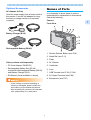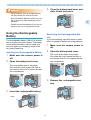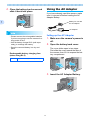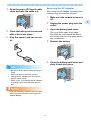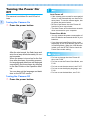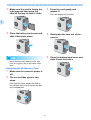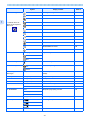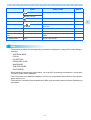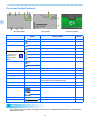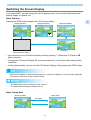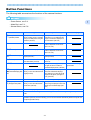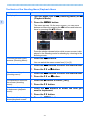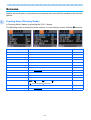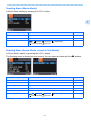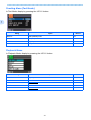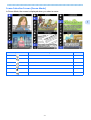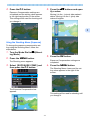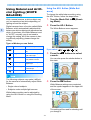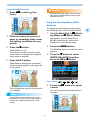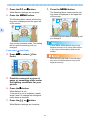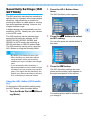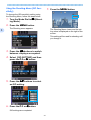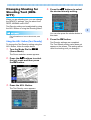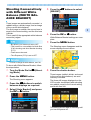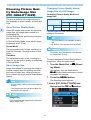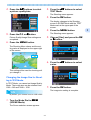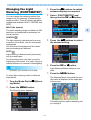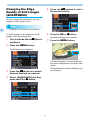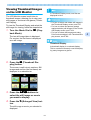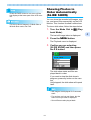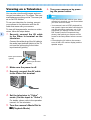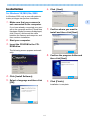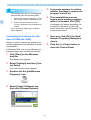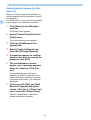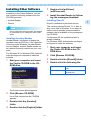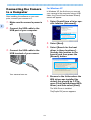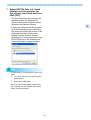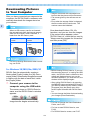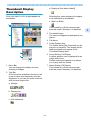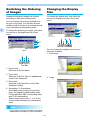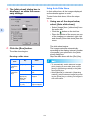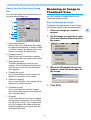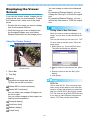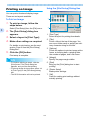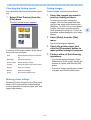
1
Operation Manual For the safe use of your camera, be sure to read the Safety Precautions thoroughly before use. Using These Manuals Using This Guide The three manuals included are for your Caplio RX. Display examples: This manual gives examples of LCD monitor displays from the Caplio G4 wide that has shooting functions equivalent to those of this camera. 1. Please read this first: Read Me First (a sheet of printed document) Terms: In this guide, still images, movies, and sounds are all referred to as "images" or "files." This manual introduces the package contents and explains easy shooting. Before using your camera, first read this guide. Symbols: The following symbols are used in this guide: Important This indicates important information and restrictions. 2. For basic information: Quick Start Guide (printed manual) This booklet is designed to help you enjoy your Caplio RX right away by providing basic information to use the camera. Note This indicates supplementary explanations and useful tips on camera operations. Reference This indicates page(s) relevant to a particular function. "p.xx" is used to refer you to pages in this manual. 3. Please read as needed: Operation Manual (this manual) This explains how to use all the functions of your Caplio RX. To get the most out of your Caplio RX, please read it through once and refer to it whenever necessary. Terms This indicates an explanation of a technical term. 2 Contents Shooting with Multi-Shot............................................. 42 Shooting with S Multi-Shot ......................................... 42 Shooting with M Multi-Shot......................................... 42 Shooting Movies .................................................. 42 Shooting with Optical Zoom................................. 43 Using These Manuals ............................................ 2 1. Please read this first: ................................................2 2. For basic information: ............................................... 2 3. Please read as needed:............................................2 Shooting with the Digital Zoom.................................. 44 Shooting Close-ups (Macro Photo)...................... 45 Using the AF target shift function ............................... 45 Using This Guide.................................................... 2 Recording Voice Memos...................................... 47 Display examples: ........................................................2 Terms: ..........................................................................2 Symbols: .......................................................................2 Section 3 Using Special Features for Improved Photography Contents................................................................. 3 Chapter 1 Using Your Camera Using the Flash.................................................... 50 Using the Self-Timer ............................................ 51 Shooting a Still Image with Sound (IMAGE WITH SOUND)............................................................... 52 Using the ADJ. (Adjust) Button ............................ 53 Section 1 Getting Started Checking that Everything is Packed....................... 8 Optional Accessories ....................................................9 Adjustments Using the ADJ. Button ........................... 53 Names of Parts ...................................................... 9 How to Use the Mode Dial ................................... 11 Inserting the Batteries .............................................. 11 Using the Batteries............................................... 12 Using the Rechargeable Battery .............................. 13 Changing the Exposure (EXPOSURE COMP.) ... 54 Examples of Exposure Compensation ....................... 54 Using the ADJ. Button (Exposure) ............................ 54 Using the Shooting Menu (Exposure) ........................ 55 Using Natural and Artificial Lighting (WHITE BALANCE).................................................................. 56 Inserting the Rechargeable Battery ............................13 Removing the Rechargeable Battery..........................13 Using the ADJ. Button (White Balance) .................... 56 Using the Shooting Menu (White Balance) ................ 57 Using the AC Adapter .......................................... 14 Setting up the AC Adapter ..........................................14 Removing the AC Adapter ......................................... 15 Sensitivity Settings (ISO SETTING) .................... 59 Using the ADJ. Button (ISO Sensitivity) ..................... 59 Using the Shooting Menu (ISO Sensitivity) ............... 60 Turning the Power On/Off .................................... 16 Turning the Camera On ..............................................16 Turning the Camera Off ..............................................16 Changing Shading for Shooting Text (DENSITY) 61 Using the ADJ. Button (Text Density)......................... 61 Using the Shooting Menu (Text Density)................... 62 Inserting an SD Memory Card (Available in Stores) .... 17 Inserting the SD Memory Card ...................................17 Removing the SD Memory Card.................................18 Shooting Consecutively with Different White Balance (WHITE BALANCE BRACKET) ........................... 63 Choosing Picture Quality Mode/Image Size (PIC QUALITY/SIZE) ................................................... 64 How to Use the LCD Monitor ............................... 19 Screen Examples when Shooting Pictures.................19 The Screen During Playback ..................................... 22 About Picture Quality Mode........................................ 64 About Image Size ....................................................... 64 Changing Picture Quality Mode/Image Size of a Still Image ............................................................................ 64 Changing the Image Size for Shooting in TEXT Mode65 Changing the Image Size of a Movie ......................... 66 Switching the Screen Display................................... 23 Synchro Monitor Mode .............................................. 24 Histogram Display ......................................................24 Button Functions .................................................. 25 The Basics of the Shooting Menu/Playback Menu.. 26 The Basics of the Setup Screen .................. 27 Manual Focus Shooting (FOCUS) ....................... 67 Screens ................................................................ 28 Manual Focus Shooting.............................................. 67 Shooting at a Fixed Distance ..................................... 68 Shooting Menu (Shooting Mode) ................................28 Shooting Menu (Movie Mode) ................................... 29 Shooting Menu (Scene Mode, except in Text Mode)..29 Shooting Menu (Text Mode) .......................................30 Playback Menu ...........................................................30 Scene Selection Screen (Scene Mode)..................... 31 Setup Screen (Setup Mode) .......................................32 Changing the Light Metering (PHOTOMETRY)... 69 Changing the Edge Quality of Still Images (SHARPNESS).................................................................. 70 Shooting Consecutively with Different Exposures (AUTO BRACKET) .............................................. 71 Setting the Exposure Time (TIME EXPOSURE) . 72 Shooting Pictures Automatically at Set Intervals (INTERVAL).............................................................. 73 Inserting the Date into a Still Image (DATE IMPRINT) . 75 Returning the Shooting Menu Settings to their Defaults (RESTORE DEFAULTS)............................ 76 Section 2 Basic Shooting How to Hold the Camera...................................... 34 How to Focus ........................................................... 34 Shooting Still Images ............................................... 35 Checking the Focus and Shooting (Half-press) ..........35 Capturing the Moment Shooting (Full-press)..............36 Section 4 Playing Back/Deleting Still Images, Movies, and Sounds When the Subject is not Centered on Your Composition (Focus Lock).................................................. 37 Shooting with Scenery-Matching.......................... 38 Viewing the Photo You Just Took (Quick Review) 78 Combination of Scene Mode and Function ................39 Displaying an Enlarged View of the Still Image Displayed.. 78 Deleting the Displayed Still Image or Movie .............. 79 Shooting with Multi-Shot ...................................... 40 Making Multi-Shot Settings (CONT. MODE)...............41 Viewing a Still Image or Movie............................. 79 3 Changing the Playback Method for Viewing on TV (VIDEO OUT MODE)......................................... 112 Viewing Still Images Recorded on an SD Memory Card ..... 79 Viewing Still Images Recorded on Internal Memory ...80 Viewing Movies .................................................... 80 Chapter 2 Playing Back Images (Pictures/Movies) on a Computer (For Windows) Adjusting the Movie Sound Volume............................81 Playing Back Sound ............................................. 81 Playing Back Sound ...................................................81 Playing Back Sound Recorded with a Still Image.......82 Adjusting the Volume..................................................82 Section 1 Installing Software Viewing Thumbnail Images on the LCD Monitor.. 83 Enlarged Viewing ..................................................... 84 Viewing an S Multi-Shot or M Multi-Shot Still Image in Enlarged Display Mode .................................... 84 Showing Photos in Order Automatically (SLIDE SHOW)................................................................. 85 Viewing on a Television ....................................... 86 Deleting Unwanted Still Images/Movies/Sounds.. 87 Using the Software Provided ............................. 114 Software and OS Applicability Table ........................ 114 System Requirements for Using the Provided Software ................................................................... 115 Preparing to Download Images to Your Computer ..... 116 Installation.......................................................... 117 For Windows 98/98SE/Me/2000............................... 117 Uninstalling the Software (For Windows 98/98SE/Me/ 2000) ........................................................................ 118 For Windows XP...................................................... 119 Uninstalling the Software (For Windows XP) ........... 120 Deleting One Still Image.............................................87 Deleting All Frames at Once.......................................87 Deleting Multiple Frames at Once ..............................88 Installing Other Software ................................... 121 Section 5 Direct Printing Installing Acrobat Reader ......................................... 121 Installing DirectX ...................................................... 121 About the Direct Print Function ............................ 90 Sending Images to a Printer for Printing .............. 90 Section 2 Downloading Images to a Computer Connecting the Camera to a Printer .......................... 91 Printing One Image.....................................................91 Printing All Images......................................................92 Printing Several Images .............................................93 Connecting the Camera to a Computer ............. 124 For Windows XP...................................................... 124 Section 6 About Other Functions Downloading Pictures to Your Computer........... 126 For Windows 98/98SE/Me/2000/XP ......................... 126 Write-protecting Your Images (PROTECT).......... 96 How to Use RICOH Gate La.............................. 127 Protecting the Displayed Still Image ...........................96 Protecting All Still Images .......................................... 96 Protecting Multiple Still Images, Movies, or Sounds at Once .......................................................................... 97 The RICOH Gate La Window ................................... 127 How to Use the Optional Settings ........................... 128 How to Use the Background Illustration Settings .... 129 Downloading Images from an SD Memory Card 129 Copying the Contents of Internal Memory to a Memory Card (COPY TO CARD)................................. 98 Using a Printing Service (DPOF: Dee-Pof) .......... 99 Images in an SD Memory Card ................................ 129 Section 3 Displaying Thumbnail Images (How to Use DU-10x) Setting DPOF for the Still Image Displayed................99 Setting DPOF for a Still Images............................... 100 Setting DPOF for Multiple Still Images .....................100 Starting and Exiting DU-10x .............................. 132 DU-10x Window ....................................................... 132 Exiting DU-10x ........................................................ 132 Changing the Image Size (RESIZE) .................. 102 Section 7 Changing Camera Settings Thumbnail Display Description .......................... Switching the Ordering of Images...................... Changing the Display Size................................. Viewing Images in a Slide Show ........................... Getting the SD Memory Card Ready for Use (CARD FORMAT) .............................................. 104 Write-protecting Your Images ...................................104 133 134 134 135 To View a Slide Show .............................................. 135 Using Auto Slide Show ............................................ 136 How to Use the Slide Show Dialog Box .................. 137 Formatting Internal Memory (IN FORMAT)........ 105 Adjusting the Brightness of the LCD Monitor (LCD BRIGHTNESS) ......................................... 105 Setting a Function to the ADJ. Button (ADJ BTN.SET.).......................................................... 106 Changing the Operation Sound Setting (BEEP SOUND) ................................................. 107 Changing Image Confirmation Time (LCD CONFIRM.)............................................... 107 Changing Auto Power-Off Settings (AUTO POWER OFF) ........................................ 108 Changing File Name Settings (SEQUENTIAL NO.)........................................... 109 Changing Power-Save Mode Settings (Power-Save) ..................................................... 110 Setting the Date and Time (DATE SETTINGS) . 111 Changing the Display Language (LANGUAGE). 112 Renaming an Image in Thumbnail View ............ 137 How to Rename an Image........................................ 137 Copying a Reduced Image File ......................... 138 How to Copy an Reduced Image File....................... 138 Enabling Functions Available with Other Models of Caplio................................................................. 138 How to Enable GPS Linkage or Camera Memo Function.. 138 Cameras and Available Options.............................. 139 Functions You Can Use ........................................... 139 Deleting Images................................................. 139 Using the File Menu ................................................. 139 Using the Shortcut Menu.......................................... 139 Using the Keyboard ................................................. 140 Viewing Image Information ................................ 140 Using the File Menu ................................................. 140 4 Using the Shortcut Menu ......................................... 140 Displaying the Viewer Screen ............................ 141 Using the Viewer Screen ..........................................141 Printing an Image ............................................... 142 To Print an Image .....................................................142 Using the [Print Setup] Dialog Box .......................... 142 Checking the Printing Layout................................... 143 Making printer settings .............................................143 Printing Images........................................................ 143 Chapter 3 Playing Back Images (Pictures/Movies) on a Computer (For Macintosh) Section 1 Installing Software Using the Software Provided.............................. 146 Software and OS Applicability Table ........................146 System Requirements........................................ 147 Preparing to Download Images to Your Computer ..... 148 Installation .......................................................... 149 For Mac OS 8.6 to 9.2.2 ...........................................149 For Mac OS X 10.1.2 to 10.3....................................150 Uninstalling the Software (For Mac OS 8.6 to 9.2.2) 151 Uninstalling the Software (For Mac OS X 10.1.2 to 10.3) .. 151 Section 2 Downloading Images to a Computer Connecting the Camera to a Computer ............. 154 Downloading Pictures to Your Computer ........... 154 For Mac OS 8.6 to 9.2.2 ...........................................155 For Mac OS X 10.1.2 to 10.3................................... 156 How to Use RICOH Gate La .............................. 157 The RICOH Gate La Window ...................................157 How to Use Optional Settings.................................. 158 Appendices A. Specifications................................................. 160 B. Optional Accessories ......................................... 161 C. SD Memory Card Recording Capacities........ 162 D. Using Your Camera Abroad .............................. 162 E. Cautions on Use ............................................ 163 F. Care and Storage........................................... 164 G. Troubleshooting............................................. 165 H. Error Messages ............................................. 175 I. Warranty and Servicing................................... 176 INDEX ................................................................ 179 5 Chapter 1 Using Your Camera Section 1 Getting Started This section explains how to get your camera ready, from taking it out of the package to preparing to shoot. Checking that Everything is Packed 1 Quick Start Guide The following items should be included with the camera. Please make sure everything was packed. Caplio RX Caplio CD-ROM The software and the operation manual are included on this CD-ROM. AA Alkaline Batteries (LR6) (2) Warranty Card Handstrap Safety Precautions AV Cable Used when viewing your images on a TV unit. Attaching the hand strap to the camera USB Cable Thread the tips of the strap through the camera's strap eyelet and loop them as shown. Used to connect the camera to a personal computer or Direct Print supported printer. Read Me First 8 Names of Parts Optional Accessories AC Adapter (AC-4a) It is necessary to know these in order to understand the explanations in this manual. Check the following. Used for power supply from a home outlet to the camera. Connect this adapter for longtime play or image transfer to a personal computer. Camera Front View Battery Charger (BJ-2) Rechargeable Battery (DB-43) 1. Shutter Release Button (see P.34) 2. Mode Dial (see P.11) 3. Flash Other products sold separately: 4. AF Window • PC Card Adapter (FM-SD53) 5. Viewfinder • Rechargeable Battery Set (SC-40) Includes the Rechargeable Battery (DB-43) and Battery Charger (BJ-2). 6. Lens • SD Memory Card (available in stores) 8. AV Output Terminal (see P.86) 7. USB Terminal (see P.126, P.154) 9. Microphone (see P.47) • In the unlikely event that something is missing or damaged, please contact the store where you purchased the camera. • After checking the contents of the warranty card, please keep it in a safe place. 9 1 1. Flash Lamp Rear View 2. Auto Focus Lamp 3. Viewfinder 4. Power Button (see P.16) 5. Z (Wide-angle)/9 (Thumbnail Display) Button (see P.43) 1 6. z (Telephoto)/8 (Enlarged View) Button (see P.43) 7. # Button/Q (Quick Review) Button (see P.78) Left Side, looking from the front 8. $ Button/F(Flash) Button (see P.50) 9. O (OK) Button 10.! Button 11. " /N (Macro) Button (see P.45) 12.DISP. Button 13.M Button 14.D (Delete)/T (Self-timer) Button (see P.87/P.51) Bottom 15.ADJ. Button 16.LCD Monitor 17.Speaker 18.Power (DC in) Cable Cover 19.Strap eyelet (see P.8) 20.Battery/Card Cover 21.Tripod Screw Hole (underside) To avoid damaging the connectors, do not put any objects into the camera's microphone or speaker holes. 10 How to Use the Mode Dial The following batteries can be used in the camera. Please choose which kind to use according to your needs. • AA Alkaline Batteries (LR6) (included) The Mode Dial is on the top of the camera. The Mode Dial is used to select the desired mode and operation for shooting and playback (still image viewing). 1. You can obtain them anywhere, so they are convenient for travel. However, in a low-temperature environment the number of shots you can take will decrease. Warm the batteries before use. It is recommended that you use the rechargeable battery when using the camera for a long time. Turn the Mode Dial to the symbol of the mode you want to use. • Rechargeable Battery (DB-43) (sold separately) This is a lithium-ion battery. This is economical because you can recharge it using the battery charger BJ-2 (sold separately) and use it over and over again. They last a long time, so they are convenient for travel. • AA Nickel Batteries (available in stores) Mode Dial Symbols and Functions Symbol Mode Name 1 Setup Mode Function Allows you to set and confirm camera settings. 2 Voice Memo Mode Allows you to record sounds. 3 Movie Mode 4 Scene Mode These batteries are not rechargeable. However, they last a long time as compared with AA Alkaline Batteries when used with a digital camera. • Nickel-Hydrogen Battery (available in stores) This battery is economical because you can recharge and use it over and over again. Please use a battery recharger available in stores. Allows you to record movies. Allows you to optimize the camera settings for six different scenes. 5 Shooting Mode Allows you to shoot still images. 6 Playback Mode Allows you to playback and delete still images and movies. Indication of the number of images you can take Battery Type Inserting the Batteries If you have already used this camera, follow the steps below to make sure it is turned off before removing or loading batteries. 1. Make sure the LCD monitor is turned off. Number of Number of Shots (Normal Shots (PowerMode) Save Mode) *1 AA Alkaline Batteries (LR6) approx. 100 approx. 110 Rechargeable Battery (DB-43) approx. 400 approx. 450 *1 The number of shots in the Synchro-Monitor Mode (see P.23) 2. Make sure the lens barrier (built-in lens protection) is closed. • The number of shots is based on a temperature of 22 degrees Celsius, shooting at 30-second intervals and one out of every two being shot with the flash. If you set the camera to the Power-Save mode, the number of shots you can take will increase. In addition to the batteries, you can use the AC Adapter (sold separately). 11 1 Using the Batteries • The number of shots is for reference only. If the camera is used for long periods od time for setting and playback, the shooting time (the number of shots) will decrease. 1 If you have already used this camera, make sure it is turned off before loading batteries. • Other batteries, such as manganese dry cell (R6) and Ni-Cd, cannot be used. • Please remove the batteries if you are not going to use the camera for a long period of time. • The life of an AA alkaline battery (LR6) depends on the brand and the storage time from the date of production. In addition, the life of an alkaline battery becomes shorter at low temperatures. • The Nickel-Hydrogen Battery is not factory-charged. Charge it before use. Immediately after the purchase or after a long storage, the battery may not be charged fully. Repeat charging and discharging before use. For details, see the documentation that came with the battery or charger. • The battery may become very hot immediately after operation. Turn the camera off and leave it to cool down sufficiently before removing the battery. 1. Make sure the camera power is off. 2. Open the battery/card cover. The cover slides open in two steps. First slide the cover toward the face of the camera, then lift it to expose the battery compartment. 3. Insert the two batteries, making sure they are facing the correct way.. 4. Close the battery/card cover and slide it back into place. Battery level indication A battery mark appears at the lower left of the LCD monitor to indicate the battery level. Prepare new batteries before the batteries wear out. Battery Mark Description Sufficient battery charge Low remaining charge: Prepare new batteries. No remaining charge: Replace the batteries. If you are using nickel metal hydride batteries, may not appear or or may appear immediately depending on the battery type and environmental conditions. Check the batteries at hand before use. 12 4. Close the battery/card cover and slide it back into place. • Other batteries, such as manganese dry cell (R6) and Ni-Cd, cannot be used. • With AA Alkaline Batteries (LR6), the number of shots may differ depending on the batteries. 1 • Please remove the batteries if you are not going to use it for a long period of time. Using the Rechargeable Battery Removing the Rechargeable Battery If you have already used this camera, make sure it is turned off before removing batteries. The rechargeable battery (DB-43) is another option for powering this camera. This battery is convenient because it can be used over and over again by recharging, and the battery power lasts long. Inserting the Rechargeable Battery 1. Make sure the camera power is off. 2. Open the battery/card cover. 1. Make sure the camera power is off. 2. Open the battery/card cover. The cover slides open in two steps. First slide the cover toward the face of the camera, then lift it to expose the battery compartmen The cover slides open in two steps. First slide the cover toward the face of the camera, then lift it to expose the battery compartment. 3. 3. Insert the rechargeable battery. Label 13 Remove the rechargeable battery. 4. Using the AC Adapter Close the battery/card cover and slide it back into place. If you have already used this camera, make sure it is turned off before loading the AC Adapter Battery. 1 Battery for use with the AC Adapter AC Adapter Setting up the AC Adapter • Please remove the rechargeable batteries if you are not going to use the camera for a long period of time. • Use the battery charger BJ-2 (sold separately) to recharge the battery. 1. Make sure the camera's power is off. 2. Open the battery/card cover. • Store the removed battery in a dry cool place. The cover slides open in two steps. First slide the cover toward the face of the camera, then lift it to expose the battery compartment. Rechargeable battery charging time (when using BJ-2) DB-43 Approx. 220 min. (at room temperature) 3. 14 Insert the AC Adapter Battery. 4. Removing the AC Adapter Open the power (DC input) cable cover and take the cable out. 5. Close the battery/card cover and slide it back into place. 6. Plug the power cord into an outlet. When using the AC Adapter, the battery level indication may not reach the full area. 1. Make sure the camera's power is off. 2. Unplug the power plug from the outlet. 3. Open the battery/card cover. The cover slides open in two steps. First slide the cover toward the face of the camera, then lift it to expose the battery compartment. • Be sure to firmly attach cables and plug in cords. • When you are not using the camera, unplug the AC Adapter from the camera and the power outlet. • While in use, if you detach the AC Adapter or unplug it from the outlet, data may be lost. If you have already used this camera, make sure it is turned off before removing the AC Adapter Battery. 15 4. Remove the battery. 5. Close the battery/card cover and slide it back into place. 1 Turning the Power On/ Off Auto Power-off Turning the Camera On • If the camera goes unused for a set period of time, it will automatically turn itself off to save power. To use the camera again, simply press the power button. 1. • At time of purchase, the Auto Power-off function is set to one minute. The camera is switched On and Off as follows. 1 Press the power button. • The Auto Power-off function does not work when connected to your computer. Power-Save Mode • You can reduce the power consumption of the LCD Monitor and extend the life of your batteries. • If you have activated Power-Save mode, the display on the LCD Monitor will turn off in Shooting Mode. When the LCD Monitor is dark, turn the SETUP Dial to check the Power-Save mode setting. After the start sound, the flash lamp and auto-focus lamp blink alternately for several seconds. When the power is turned on for the first time after purchase, the setting screens for language and date/time are displayed sequentially. Set these items by referring to the Start Guide or the Operation Manual. You can also set the language and date/ time on the SETUP screen. • For how to change the Auto Power-off time, see P.108. • For how to set the Power-Save Mode, see P.110. • For how to set the start sound, see P.107. • For how to set the display language, see P.112. • For how to set the date/time, see P.111. Turning the Camera Off 1. Press the power button. 16 Inserting an SD Memory Card (Available in Stores) Where images are recorded When no SD memory card is inserted, the camera records images in the internal memory; when an SD memory card is inserted, it records images on the memory card. You can record the still images and movies you have taken in the camera's internal memory or on an SD memory card (available in stores). When no memory card is loaded When a memory card is loaded Records to internal memory Records to the SD memory card Protecting your images from being deleted If you move the SD memory card's write-protection switch to LOCK, your still images cannot be accidentally erased, and the memory card cannot be formatted. If you return the switch to the former position, it is once again possible to erase images and format the card. It is recommended to switch to LOCK after recording important images. • When an SD memory card is loaded, no data is recorded in the internal memory even after the SD memory card becomes full. • Take care not to get any dirt on the SD Memory Card's metal parts. Note that you cannot shoot images in the LOCK state because no data can be recorded on the card. Unlock the card when shooting. Inserting the SD Memory Card If you have already used this camera, make sure it is turned off before loading an SD memory card. The internal memory capacity is 8MB. For the number of images that can be stored on an SD memory card, see P.162. 1. Make sure the camera's power is off. 2. Open the battery/card cover. The cover slides open in two steps. First slide the cover toward the face of the camera, then lift it to expose the battery compartment. For how to format an SD memory card, see .P.104. 17 1 3. Make sure the card is facing the right way and then push the card all the way in until it clicks. 3. Close the battery/card cover and slide it back into place. 4. Gently take the card out of the camera. 5. Close the battery/card cover and slide it back into place. Press the card gently and release it. The card pops out just a little. 1 4. When loading the SD Memory Card, take care not to get any dirt on the card's metal parts. Removing the SD Memory Card 1. Make sure the camera's power is off. 2. The cover slides open in two steps. First slide the cover toward the face of the camera, then lift it to expose the battery compartment. 18 How to Use the LCD Monitor The LCD Monitor can be used to view the subject when you are shooting an image, as well as for playing back movies and still images. Symbols and numbers indicating the camera's status and settings are displayed on the screen of the LCD Monitor. Screen Examples when Shooting Pictures 1 (When the shutter release button is half-pressed) Movie Mode Still Image Mode Symbol 1. Flash Flash Offj Voice Memo Mode Display Contents Refer to Current flash mode. P.50 White Balance set value. P.56 Focus set value. P.67 Recording to internal memory. P.17 Recording to an SD Memory Card. P.17 Auto Red-eye reduction Forced Flash Slow Synchro 2. WHITE BALANCE (No Display) AUTO Daylight Overcast Tungsten light Fluorescent light One-push 3. FOCUS (No Display) AF (Auto-Focus) MF (Manual Focus) Snapshot (Infinite Telephoto) 4. Recording Destination 19 Symbol 5. Flash Mode Types 1 * A musical note is displayed for an image shot with sound. 6.PHOTOMETRY (No Display) Display Contents Refer to Still Image Shooting Mode. P.35 Movie Mode. P.42 Multi-Shot Mode. P.40 S Multi-Shot Mode. P.40 M Multi-Shot Mode. P.40 PORTRAIT Mode. P.38 SPORTS Mode. P.38 LANDSCAPE Mode. P.38 NIGHTSCAPE Mode. P.38 TEXT Mode. P.38 HIGH SENSITIVITY Mode. P.38 Voice Memo Mode. P.47 Light Metering Method. P.69 Macro Shooting. P.45 Picture Quality setting. P.64 Center Spot 7. Macro Shooting 8. Picture Quality Fine Normal 9. Remaining Number of Still Images (Value) Number of photos that can be taken with the current settings. - 10. Image Size (Setting Value) Image Size setting. P.64 11. ISO SETTING (Setting Value) ISO Speed set value. P.59 12. EXPOSURE COMP (Setting Value) Exposure compensation set value. P.54 13. AUTO BRACKET AB Auto-Bracket Shooting. P.63 WB-BKT White Balance Bracket. P.71 SOFT Sharpness (edge quality) set value. P.70 Indicates exposure time. P.72 Remaining Battery Power. P.12 Zoom Bar P.43 14. SHARPNESS (No display) Standard SHARP 15. TIME EXPOSURE (Setting Value) Multi 16. Battery 17.Zoom Bar - 20 Symbol 18. Self-timer After 10 Seconds Display Contents Refer to Self-Timer Shooting. P.51 Date Imprint mode. P.75 Interval Shooting. P.73 Indicates camera shake. Hold the camera still and shoot again. P.34 After 2 Seconds 19. Date/Time 20. INTERVAL Interval 21. Camera Shake 22. Aperture Value - Aperture size. - 23. Shutter Speed - Shutter speed. - 24. Remaining Recording Time (Value) Length of time remaining for shooting with the current settings. - 25. Recording Time (Value) Amount of time recorded. - • The following symbols and corresponding numerals are displayed in orange if the initial setting is changed: WHITE BALANCE FOCUS ISO SETTING EXPOSURE COMP SHARPNESS TIME EXPOSURE PHOTOMETRY • When shooting in particularly bright places, you may fail in preventing overexposure. In that case, the [!AE] symbol will be displayed. • The LCD monitor may display messages to inform you of operational instructions or the camera’s status while in use. • The number of remaining shots available may differ from the actual number of shots, depending on the subject. 21 1 The Screen During Playback 1 Voice Memo Mode Movie Mode Still Image Mode Symbol Display Contents Refer to 1. PROTECT Protected status. P.96 2. DPOF DPOF specified. P.99 3. Playback data source Indicates playback from internal memory. P.79 Indicates playback from an SD Memory Card. P.79 4. Mode Types Still Image Mode. P.79 * A musical note is displayed for an image shot with sound. Movie Mode. P.80 Voice Memo Mode. P.81 Picture Quality setting. P.64 6. Number of Playback Files The number of the file being played back. - 7. Total number of files Total number of files recorded. - 5. Picture Quality Fine Normal 8. Image Size (Setting Value) Image size. P.64 9. Folder No - Number of the folder in which the file is saved. - 10. File No - Number of the file being played back. An asterisk (*) symbol precedes the name of a file other than DCF basic files. - 11. Shutter Speed - Shutter speed. - 12. Aperture Value - Aperture size. - Remaining battery level. P.12 Movie (movie/sound) playback time. - Elapsed time of movie (movie/sound) playback. - 13. Battery 14. Playback Time 15. Indicator (Time) The LCD monitor may display messages to inform you of operational instructions or the camera’s status while in use. 22 Switching the Screen Display If you press DISP., you can change the screen display mode, such as switching between display/no display of symbols, etc. When Shooting Pressing the DISP. button changes the LCD monitor display. Display Symbols Histogram Display Grid Guide Display LCD monitor off (Synchro-Monitor Mode) No Display • You cannot turn the LCD Monitor Display on/off by pressing T (Self-timer), F (Flash) or N (Macro) buttons. • Turning the LCD Monitor Display Off conserves battery life. In this case, shoot using just the Viewfinder. • In Voice Memo Mode, you can turn the LCD Monitor Display off by pressing the DISP. button. When the No Display or Grid Guide Display is on, symbols will appear for a few seconds right after you press the Self-timer, Flash or Macro button. • For details about Synchro Monitor mode, see P.24. • For details about histogram display, see P.24. When Playing Back Display Symbols DISP. button No Display 23 1 Synchro Monitor Mode In Synchro Monitor mode, the LCD monitor is kept off (no display) except during the following camera operations. This mode is effective for saving power consumption. 1 Half-press the shutter button. The LCD Monitor is tuned on and you can confirm composition. After you finish shooting with Full-Press, the LCD Monitor will automatically turn off. Press the Q (Quick Review) button. You can view the photo you just took (see P.78). By pressing the Q (Quick Review) button again, you can turn the LCD Monitor off. Press the M button. The LCD Monitor Display is turned on and you can make various settings for shooting (see P.26). By pressing the M button again, you can turn the LCD Monitor off. ADJ. Button. The LCD Monitor Display is turned on and you can make settings for exposure control, white balance, and ISO sensitivity (see P.54, P.56, and P.59). Pressing the O button turns the LCD Monitor off. Histogram Display When histogram display is on, a histogram appears in the lower right corner on the LCD monitor screen. A histogram is a graph indicating the number of pixels on the vertical axis and the brightness on the horizontal axis. The brightness is shadow (dark), halftone, and highlight (light) from the left. By using the histogram, you can judge the brightness of an image without being affected by the brightness around the LCD monitor. This also helps preventing voids and solids. If the histogram has only peaks on the right side without anything else, this picture is over-exposed with too many pixels only for highlight sections. If the histogram has only peaks on the left side without anything else, this picture is under-exposed with too many pixels only for shadow sections. Correct the exposure to an appropriate level. For details about exposure correction, see P.54. • The histogram displayed on the LCD monitor is for reference only. Depending on the shooting condition (flashing is required, the surrounding light is dark, and so on), the exposure level indicated in the histogram may not correspond to the brightness of the shot image. • Exposure compensation has its limitation. It does not necessarily achieve the best possible result. • The histogram having peaks in the center part does not necessarily provide the best result to suit your particular requirements. For example, an adjustment is required if you want to intentionally achieve under or over exposure. 24 Button Functions The following table summarizes the functions of the camera's buttons. 1 • Power Button, see P.16. • Mode Dial, see P.11. • Shutter Button, see P.34. Button D (Delete)/ T (Self-timer) Button Shooting Mode If you press the button in Shooting Mode, self-timer mode is activated and you can take photos using the self-timer (see P.51). ! Button Playback Mode Menu display If you press the button during Playback Mode, you can delete the still image or movie that is displayed on the LCD Monitor (see P.87). In Voice Playback Mode, press the button to adjust the sound volume (see P.81, P.82). " (N: Macro)Button You can take close-ups (see P.45). In Voice Playback Mode, press the button to adjust the sound volume (see P.81, P.82). # (Q: Quick Review) Button The last still image you took is displayed (see P.78). Displays the previous still image or movie (see P.79). $ ( F: Flash) Button Switches between Flash/Flash Off and other Modes (see P.50). Displays the next still image or movie (see P.79). !"#$ Button Displays the still image (or movie) on the right, left, above or below in Thumbnail Display mode. (see P.83) Moves the frame left, right, up and down. Z (Wide-angle)/ If you press the button in Shooting If you press the button in Playback 9 (Thumbnail Display) But- Mode, you can shoot with the wide- Mode, the LCD Monitor display is angle (see P.43). split, allowing you to see sets of still ton images at one glance (6 images at once) (see P.83). O Button This is used for operating menus on the LCD monitor (see P.27). z (Telephoto)/ 8 (Enlarged View) Button If you press the button in Shooting Mode, you can shoot with the telephoto zoom (see P.43). DISP. Button Switches the display of symbols on the LCD Monitor (see P.23). M Button This button is used for setting the various shooting methods, or downloading still images onto your computer. ADJ. Button This button is used to make settings for exposure control, white balance, and ISO sensitivity, with minimum operations (see P.53). At macro shooting, you can focus the camera automatically without moving the camera (AF target shift function). If you press the button in Playback Mode, image is displayed on the LCD Monitor up to 3.4 times larger (see P.84). 25 The Basics of the Shooting Menu/Playback Menu Operation To display the menu: 1 1. Turn the Mode Dial to 5 (Shooting Mode) or 6 (Playback Mode). 2. Press the M button. The menu appears. On the menu screen, you can move between screens by pressing the #$ buttons and between items by pressing the !" buttons. Press the shutter release button while a menu screen is displayed in the Shooting mode for shooting by returning to the shooting screen. To switch between menu screens (Shooting Menu): 1. To select an item: 1. 2. 1. 2. 1. 2. 1. Press the !" buttons to select the desired item. 2. 1. Press the O button. To select a setting value (shooting menu): To implement a confirmation screen (shooting menu): To select an item you want to implement (playback menu): To return to the shooting screen/playback screen: Press the #$ buttons. You can switch the menu screen from [1] to [3]. Press the O or $ button. Press the !" buttons to select the desired item. Press the O or # button. Press the $ button to select [YES]. Press the O button. Press the !" buttons to select the item you want to implement. Press the M button. 26 • On the setting selection screen, the item with the orange displayed is the current setting. Even if you change the setting by moving the blue indicator, until you finalize the setting the orange indicator remains to show what the previous setting was. • The menu screen sequence slightly varies with the item for which the setting change is being made. For the detailed explanation of each item, see the corresponding page. The Basics of the Setup Screen Operation To display the Setup Screen: 1. To select an item: 1. 1. 1. 2. Press the !" buttons to select the desired item. 1. Switch the Mode Dial to another mode. To select a setting value: When you have selected [EXECUTE]: To close the Setup Screen: Turn the Mode Dial to 1 (Setup Mode). The Setup Screen is displayed. Press the #$ buttons to select the desired item. Press the O button. The following screen is displayed, so make the necessary settings. The sequence of operations slightly varies with the item for which the setting change is being made. For the detailed explanation of each item, see the corresponding page. 27 1 Screens Default values set when you purchased your camera are surrounded by brackets in the selection options. 1 Shooting Menu (Shooting Mode) In Shooting Mode, display by pressing the M button. The Shooting menu is divided into three screens. You can select a screen with the #$ buttons. Setting Option Refer to PIC QUALITY/SIZE F2048/N2048/F1280/[N1280]/N640 P.64 FOCUS [AF]/MF/SNAP/∝ P.67 PHOTOMETRY [MULTI]/CENTRE/SPOT P.69 SHARPNESS SHARP/[NORMAL]/SOFT P.70 CONT. MODE [OFF]/CONT/SCONT/MCONT P.40 AUTO BRACKET ON/[OFF]/WB-BKT P.71, P.63 TIME EXPOSURE [OFF]/1/2/4/8 seconds P.72 INTERVAL P.73 IMAGE WITH SOUND ON/[OFF] P.52 DATE IMPRINT [Off]/Date/Date and Time P.75 EXPOSURE COMP. -2.0 to +2.0 P.54 WHITE BALANCE [ ]/ (Daylight)/ (Fluorescent light)/ ISO SETTING (Overcast)/ (Tungsten light)/ P.56 (One Push) [AUTO]/64/100/200/400/800 P.59 RESTORE DEFAULTS P.76 28 Shooting Menu (Movie Mode) In Movie Mode, display by pressing the M button. 1 Setting Option Refer to MOVIE SIZE [320]/160 P.66 FOCUS [AF]/MF/SNAP/∝ P.67 WHITE BALANCE [ ]/ (Daylight)/ (Fluorescent light)/ (Overcast)/ (Tungsten light)/ P.56 (One Push) Shooting Menu (Scene Mode, except in Text Mode) In Scene Mode, display by pressing the M button. The Shooting menu is divided into two screens. You can select a screen with the #$ buttons. Setting Option Refer to PIC QUALITY/SIZE F2048/N2048/F1280/[N1280]/N640 P.64 FOCUS [AF]/SNAP/∝ (except the Landscape Mode) P.67 IMAGE WITH SOUND ON/[OFF] P.52 DATE IMPRINT [OFF]/DATE/TIME P.75 EXPOSURE COMP. -2.0 to +2.0 P.54 WHITE BALANCE [ ]/ (Daylight)/ (Fluorescent light)/ (Overcast)/ (One Push) 29 (Tungsten light)/ P.56 Shooting Menu (Text Mode) In Text Mode, display by pressing the M button. 1 Setting Option Refer to DENSITY DEEP/[NORMAL]/LIGHT P.61 SIZE 2048/[1280] P.64 IMAGE WITH SOUND ON/[OFF] P.52 DATE IMPRINT [OFF]/DATE/TIME P.75 Playback Menu In Playback Mode, display by pressing the M button. Setting Option Refer to SLIDE SHOW ON/[OFF] P.85 PROTECT Select/Release 1 FILE/ Select/Release ALL FILES P.96 DPOF RESIZE P.99 1280 / 640 P.102 COPY TO CARD P.98 30 Scene Selection Screen (Scene Mode) In Scene Mode, the screen is displayed when you select a scene. 1 Symbol Setting Content Refer to PORTRAIT P.38 SPORT P.38 LANDSCAPE P.38 NIGHTSCAPE P.38 TEXT MODE P.38 HIGH SENSITIVITY P.38 31 Setup Screen (Setup Mode) This screen is displayed in Setup Mode. The Shooting menu is divided into two screens. You can select a screen with the !" buttons. 1 Setting Option Refer to CARD FORMAT P.104 IN FORMAT P.105 LCD BRIGHTNESS P.105 ADJ. BUTT. SET. [OFF]/ BEEP SOUND [ON]/OFF/Shutter release sound P.107 LCD CONFIRM. OFF/[1]/2/3 Seconds P.107 AUTO POWER OFF OFF/[1]/5/30 Minutes P.108 SEQUENTIAL NO. ON/[OFF] P.109 POWER SAVE ON/[OFF] P.110 /AF/MF/SHARP/ DATE SETTINGS P.111 LANGUAGE JPN/[ENG]/FRE/GER/ITA/ESP/Simplified Chinese/Traditional Chinese/Korean P.112 VIDEO OUT MODE [NTSC]/PAL P.112 32 Section 2 Basic Shooting The basics of shooting are explained here, from how to hold your camera to how to shoot still images and movies. 2 How to Hold the Camera How to Focus If the camera moves when you press the shutter button, the still image might not come out clearly (due to camera shake). The mark displayed on the LCD monitor indicates that camera shake should be avoided under the current shooting condition. Hold the camera as illustrated below for best results. The area displayed on the LCD Monitor is shot as a still image or a movie. When adjusting focus, press the shutter button halfway (half-press). 1. 2. To adjust focus, follow the steps below. Hold the camera with both hands and lightly press both elbows against your body. Put your finger on the shutter button. 1. Point the lens toward the subject you want to shoot. 2. Compose the picture on the LCD Monitor. 3. The focus is set at the center of the screen, so use the screen to center your subject. 4. Half-press the shutter button. The f-stop (aperture size) and shutter speed are displayed in the bottom part of the screen, and the camera focuses. Once the shot is in focus, the exposure and white balance are fixed and the crosshair in the center of the LCD Monitor turns green, as does the auto-focus lamp in the lower left of the Viewfinder. Check one of these to make sure the subject is in focus. • Be careful when you are shooting not to get a finger, your hair, or the strap in front of the lens or the flash. • To prevent camera shake, hold the camera securely with both hands when you shoot or use a tripod. • Consider using a tripod to prevent camera shake in the following situations: • When shooting in a dark place, if you do not use the flash or if you use the Slow Synchro mode. • When you shoot with the zoom. 34 If the camera cannot automatically focus, the crosshairs in the center of the LCD monitor turn red and the auto-focus lamp in the lower left of the viewfinder blinks in green. If the subject is not centered on your composition, see P.xx. Auto focus lamp Shooting Still Images Use the Shooting Mode to take your still images. There are two methods of using the shutter button, pressing the shutter in two stages (half-press) and pressing it all the way down at once (full-press). When you use halfpress, you can confirm that your shot is in focus on the LCD Monitor. When you want to capture the moment, full-press is convenient. Crosshair Color of crosshairs Auto focus lamp Before focusing White Off Focused Green On (green) Failed to focus Red xxx • For how to shoot with Zoom, see P.43 • For how to shoot Close-ups, see P.45. Blink (green) Checking the Focus and Shooting (Half-press) • When the grid appears, the crosshairs do not appear in the middle of the LCD monitor. With the auto focus lamp, check that the shot is in focus. • There is another shooting method, which is to fully press the shutter once, without using the half-press method. Full-press shooting is good for capturing the moment. However, you cannot check that your shot is in focus while shooting. (see P.36) • You can use the battery for a longer period of time by using the viewfinder and shooting in power-save mode (see P.110). In this mode, however, you cannot check the focus on the LCD monitor. Instead, observe the auto focus lamp (in the lower left of the viewfinder), which lights up in green when the shot is in focus. The range visible through the viewfinder and that being shot may deviate a little bit, depending on the shooting distance. To check the focusing or the shooting range accurately before shooting, please use the LCD monitor. 1. Turn the Mode Dial to 5(Shooting Mode). 2. Compose your shot either by looking through the Viewfinder or at the LCD Monitor. 3. Put the subject of your photo right in the center and press the shutter button half-way. The f-stop (aperture size) and shutter speed are displayed in the bottom part of the screen, and the camera focuses. 35 2 3. Once the shot is in focus, the exposure and white balance are fixed and the crosshair in the center of the LCD Monitor turns green, as does the auto-focus lamp in the lower left of the Viewfinder. Check one of these to make sure the subject is in focus. 2 4. Put the subject of your photo right in the center and press the shutter button all the way. After the camera focuses automatically, the still image is taken and recorded. Gently press the shutter button all the way. The still image you have taken freezes for a moment on the LCD Monitor and is recorded. Certain subjects are hard to bring into focus: It may be impossible to bring the following subjects into focus. • Subjects lacking contrast (the sky, a white wall, the hood of a car, etc.) • To prevent blurring, press the shutter release button gently. • Flat two-dimensional objects with only horizontal lines and no significant protrusions. • The mark indicates that blurring may occur. Secure the camera firmly and adjust the focus again. • Quickly moving objects. • Things in poorly lit places. • When shooting in a dark place, the AF auxiliary lamp may flash to raise the focusing performance. If the flash is switched to off, the AF auxiliary lamp does not flash. • Areas with strong backlighting, or reflections. • Things that flicker, such as fluorescent lights. When you want to shoot subjects like this, first focus on an object the same distance as your subject and then shoot. (see P.37) • When the image confirmation time is set to OFF, the still image you have taken does not appear on the LCD Monitor. See P.107. If you find it difficult to focus the camera, it is recommended to half press the shutter release button before shooting. Depending on the circumstances, also use the flash and focus lock. Capturing the Moment Shooting (Full-press) 1. 2. Turn the Mode Dial to 5 (Shooting Mode). If it is difficult to focus the camera, see P.34. Compose your shot either by looking through the Viewfinder or at the LCD Monitor. 36 When the Subject is not Centered on Your Composition (Focus Lock) The f-stop (aperture size) and shutter speed are displayed in the bottom part of the screen, and the camera focuses. When the subject of your composition is not centered, you can compose your picture after setting the focus and then shoot. This method is called "Focus-Lock." 2 Example: Taking a photograph of the castle in the background with the camera focused on a person in front. Shooting range Once the shot is in focus, the exposure and white balance are fixed and the crosshair in the center of the LCD Monitor turns green, as does the auto-focus lamp in the lower left of the Viewfinder. Check one of these to make sure the subject is in focus. 3. With the shutter half-pressed, compose your shot. 4. Gently press the shutter button all the way. Subject to be focused on Final still image 1. Turn the Mode Dial to 5 (Shooting Mode). 2. Put the subject of your photo right in the center of the LCD Monitor or the Viewfinder and press the shutter button halfway. • At macro shooting, the AF target shift function allows you to lock the focus without moving the camera. • This function is useful when a tripod is used. • For details about macro shooting, see P.45. • For details about the AF target shift function, see P.45. 37 Shooting with SceneryMatching NIGHTSCAPE Use when shooting night scenes. You can also shoot with people in the frame. If you use the Scene Mode, you can select from among six types of shooting modes and shoot automatically with optimal settings for the scene. 2 You can select a mode from the following six types, in Scene Mode. PORTRAIT This is best for taking pictures of people. TEXT MODE SPORTS Use when capturing text images, for example, notes written on the whiteboard at a meeting. This is best for pictures of moving objects. HIGH SENSITIVITY This is best for taking pictures in dimly lit places. LANDSCAPE This is best for scenery with a lot of blue sky or greenery. • You can set White Balance while in Scene Mode as well (see P.56), but it may not be possible to get the effect that matches a scene. • Manual focus cannot be used in Scene Mode. • In Scene Mode, those pictures displayed in the background of the explanation screen are just for effect. 38 To select a Scene Mode, follow the steps below. 1. Turn the Mode Dial to 4 (Scene Mode). • When you want to change PIC QUALITY/ SIZE in PORTRAIT/SPORTS/LANDSCAPE/NIGHTSCAPE/HIGH SENSITIVITY Modes, see P.64. The scene-selection screen appears. 2. • To make changes to density in TEXT Mode, see P.61. Press the !" buttons to select the mode you want to use. • To change the focus setting to manual or other, see P.67. • To make changes to the White Balance settings, see P.56. TIFF File 3. An image shot in TEXT Mode is stored in the TIFF file format. A TIFF file is smaller than a JPEG file in TEXT Mode only. Press the O button. Combination of Scene Mode and Function The camera switches to the Scene Mode shooting screen and the symbol of the Mode you selected is displayed in the top of the screen. Depending on the Scene Mode, the way functions work may differ from when in normal shooting mode. Refer to the table below. Mode Name If you press the ! button, the scene selection screen is displayed and you can change the mode. If you press M button, the shooting menu appears. 4. Flash Macro Shooting PORTRAIT Initial setting: Flash Off Disabled SRORTS Initial setting: Flash Off Disabled LANDSCAPE Fixed on Flash Off Disabled NIGHTSCAPE Forced flash is disabled Disabled Initial setting: Auto Press the shutter release button. If you return to Scene Mode again, the scene-selection screen is displayed again. 39 TEXT MODE Fixed on Flash Off Enabled HIGH SENSITIVITY Fixed on Flash Off Enabled 2 Shooting with Multi-Shot If you switch to Multi-Shot, you can shoot consecutive images. This is convenient when you want to capture the moment. There are three ways to shoot Multi-Shots, "CONT", "SCONT" and "MCONT". 2 CONT (Multi-Shot) As long as you hold the shutter button down, pictures continue to be taken. The still images are recorded one file each, just as in normal shooting. SCONT (S Multi-Shot) Shoots a continuous stream of images. With just one full-press of the shutter, you can take 16 consecutive shots at 1/7.5 of a second intervals (a span of about two seconds). The 16 still images are grouped together as a set and are recorded as one image file. MCONT (M Multi-Shot) The camera memorizes the scene while you hold the Shutter Button down, and once you release it the previous two seconds of shots are recorded. The 16 still images are grouped together as a set and are recorded as one image file. If you release the shutter button within two seconds from the time you first pressed it, the shots from the time you pressed the shutter until you released it will be recorded (the number of consecutive shots will be less than 16) The camera records for about two seconds ahead If you release the shutter button here... 40 4. • The maximum number of images that can be shot in Multi-Shot mode depends on the image size and picture quality settings as follows: F2048 3 N2048 5 F1280 6 N1280 6 Press the !" buttons to select [CONT], [S-CONT], or [M-CONT]. N640 9 2 • While shooting with Multi-Shot, the LCD Monitor display turns off. Compose your picture and secure it using a tripod, or use the Viewfinder. 5. 6. • The Picture Quality Mode and the Image Size Mode of SCONT and MCONT are F2048 or N2048. Press the O or # button. Press the M button. • When using the Multi-Shot mode (except for S Multi-Shot and M Multi-Shot), shooting with sounds is not possible. For how to view an S Multi-Shot or M MultiShot still image in Enlarged Display mode, see P.84 The Shooting Menu closes and the symbol is displayed above the screen. Making Multi-Shot Settings (CONT. MODE) Multi-Shot S Multi-Shot To make Multi-Shot settings, follow the steps below. 1. Turn the Mode Dial to 5 (Shooting Mode). 2. Press the M button. M Multi-Shot • When you want to return to normal, singleshot shooting, follow steps 1 through 3, select [OFF] in step 4 and press the O or # button. The Shooting menu is displayed. 3. Press the !" buttons to select [CONT. MODE] and press the O or $ button. • The flash cannot be used. 41 Shooting Movies Shooting with Multi-Shot Operation continued from the previous page: 7. 2 You can shoot movies with sound. You can select the image size, either 320 × 240, or 160 × 120 pixels. Compose your picture, then press and hold the shutter button. The maximum recording time of each shot is 30 seconds (320 × 240) and 120 seconds (160 × 120). As long as you hold the shutter button down, pictures continue to be taken. 8. Each movie you shoot is recorded as one AVI file. As soon as you release the shutter button, shooting stops. Shooting with S Multi-Shot Operation continued from the previous page: 7. 1. Turn the Mode Dial to 3 (Movie Mode). 2. Press the shutter button. The camera starts recording. Recording continues until you press the shutter button again. Compose your picture, then press the shutter button. 16 pictures are taken automatically. Shooting with M Multi-Shot Operation continued from the previous page: 7. Compose your picture, then press and hold the shutter button. 3. Pressing the shutter button again stops recording. Storing to memory begins. 8. Release your finger from the shutter button. The camera takes images in memory from two seconds prior up to release of the shutter button. While shooting movies, operation sounds may be recorded. • The flash cannot be used. • While shooting movies, only Digital Zoom can be used. • At the time you press the shutter button in Step 2, the shot comes into focus and the white balance is automatically fixed. • To change the image size for movies, see P.66. • For how to use the Digital Zoom, see P.44. 42 Shooting with Optical Zoom To shoot with the zoom, follow the steps below. If you use the z (Telephoto): T/ Z (Wideangle): W buttons, you can alter the size of the subject in your photo without having to change your distance from the subject. (Equivalent to a 35mm camera's 28 to 100mm zoom.) 1. Turn the Mode Dial to 5 (Shooting Mode). 2. Compose your picture while viewing either the LCD Monitor or the Viewfinder and zoom by pressing either the z button, or the Z button. A bar is displayed in the LCD Monitor indicating Zoom status. Optical Zoom This function enlarges your subject by moving the lens, thus changing the focal length. By pressing the z (Telephoto) button, the subject you see in the LCD Monitor and the Viewfinder becomes larger. By pressing the Z (Wide-Angle) button, the field in the LCD Monitor and the Viewfinder becomes wider. 3. Telephoto Zoom Wide-angle Zoom 43 Press the shutter button. 2 Shooting with the Digital Zoom The Digital Zoom function enlarges images by processing them. When you use the digital zoom, pressing the z (Telephoto) button enlarges the subject even more than the specified enlargement ratio (optical zoom). (Maximum of 3.4 magnification.) 2 • The more you enlarge with the digital zoom, the lower the picture quality becomes. • When using the digital zoom, compose your shot on the LCD Monitor. • If you use the Mode Dial to change modes, the digital zoom setting is lost. To shoot with the Digital Zoom, follow the steps below. 1. Turn the Mode Dial to 5 (Shooting Mode). 2. Zoom in to the maximum by pressing the z button, while viewing through the LCD Monitor. • To release the digital zoom, press the Z (Wide-angle) button. A bar is displayed in the LCD Monitor indicating Zoom status. 3. With the subject image enlarged to the end of the T side (Telephoto) on the Zoom Bar, release the z button once and press z button again and hold down. The digital zoom is activated and the subject becomes larger. 4. Press the shutter button. 44 Shooting Close-ups (Macro Photo) Using the AF target shift function At macro shooting, the AF target shift function allows you to lock the focus by using the !"#$ buttons on the camera without moving the camera. Using the N (Macro) button allows you to take a tight close-up (Macro Photo). This feature is good for shooting flowers, insects and other small subjects, because you can get a close-up of one centimeter (1/2 inch) from the subject. This is useful for macro shooting on a tripod with locked focus. The AF target shift function allows you to shift the cross at the center of the LCD monitor to the subject with the !"#$ buttons for focusing. To shoot close-ups, follow the steps below. 1. Turn the Mode Dial to 5 (Shooting Mode). 2. Press the N (Macro) button. N is displayed momentarily in a large size at the center of the LCD monitor and then at the upper part. 3. Bring the lens close to the subject and press the shutter button. Press the $ button to shift the cross (focus) to the right To get out of Macro Mode, press the N button again. To shoot with locked focus by using the AF target shift function, follow the steps below. • When using the zoom, you can shoot close-ups up to the following distances In Wide-Angle (Wide): Closest 1 cm In Telephoto (Tele): Closest 13.5 cm • To get out of Macro Mode, press the N (Macro) button again. 1. Turn the Mode Dial to 5 (Shooting Mode). 2. 3. Compose your picture. Press the N (Macro) button. The Macro symbol is displayed on the left side of the screen. • During Macro Shooting, the Viewfinder cannot be used. Use the LCD Monitor. For how to use optical zoom, see P.43. 45 2 4. Press the ADJ. button four times (five times if the ADJ. button has the fourth function). 5. Shift the cross to the subject with the !"#$ !"#$ buttons for focusing. 6. 7. Press the O button. 2 Half-press the shutter button. The camera focuses on the cross. 8. Press the shutter release button gently all the way. Until you get out of the Macro mode, the AF target shift function automatically focuses the camera on the set position. 46 Recording Voice Memos For how to play back sound, see P.81. The voice recording time depends on the capacity of the SD memory card. Capacity Recording time 8MB 14 min 02 s 32MB 64 min 38 s 64MB 132 min 13 s 128MB 267 min 17 s WAV file This is one of file formats to store voice data. 2 • The internal memory allows the same recording time as an 8MB SD memory card. • Recorded data is stored as a WAV file. Where images are recorded When an SD memory card is not inserted, the camera records images in the internal memory; when an SD memory card is inserted, it records images on the SD memory card. When no SD memory card is loaded When an SD Memory Card is loaded Records to internal memory Records to the SD memory card^ 1. Turn the Mode Dial to 2 (Voice Mode). 2. Press the shutter button. Voice recording starts. 3. Half-press the shutter button to stop recording. 47 Section 3 Using Special Features for Improved Photography This section describes how to change the various shooting-related settings. Using the Flash • When in NIGHTSCAPE of Scene Mode, Forced Flash cannot be selected. Also, the initial setting value is Auto. If you press the F (Flash) button, you can switch into Flash Mode (Flash, Flash Off, and other settings). Switch settings according to time, conditions and your preference, and shoot your pictures. 3 • If you press the flash button, even while the flash is charging, you can return to Flash Off mode. If you do this, flash charging is cancelled. • If the flash is switched to off, the AF auxiliary lamp to improve focusing in a dark place does not flash. From the front edge of the lens, flashlight reaches about 0.2 to 3.0 m (W) or about 0.14 to 2.5 m (T) when ISO sensitivity is set to AUTO. To switch to Flash Mode, follow the steps below. You can check your Flash Mode setting by the symbol displayed on the upper left of the LCD Monitor. Flash Mode Types Symbol Mode Name 1. Alternatively, turn the Mode Dial to 4 (Scene Mode), and select a scene to have the camera ready. Description Flash Off The flash will not fire. Use when shooting where the use of flash is prohibited or when shooting with indoor lighting. Auto When your subject is poorly lit or backlit, the flash fires automatically. Red-eye reduction When shooting images of people, the red-eye phenomenon, in which people's eyes appear red, is reduced. Forced Flash The flash fires, whatever the light conditions are, when you shoot. Use when there is backlighting when shooting outside in daylight. Slow Synchro The flash fires with the shutter speed slowed. Use when shooting images of people against a nightscape. Turn the Mode Dial to 5 (Shooting Mode). 2. Pressing the F (Flash) button switches to Flash Mode. The Flash mode mark appears momentarily in a large size at the center of the LCD monitor and then is displayed at the upper left. The flash starts recharging. While the flash is charging, the LCD Monitor goes off and the flash lamp blinks. Once charging is complete, the lamp goes off and it is possible to shoot. • By default, your camera is set to Flash Off. • The settings are saved until you press the F (Flash) button to change them. • When shooting movies or in Multi-Shot mode, the setting becomes Flash Off. Slow Synchronized When you shoot pictures in dark places and want to capture background as well, use this mode, which slows shutter speed and sets the flash to Flash Off. • When the camera is set to Flash Off or Slow Synchro Mode, the shutter speed is slowed, so the camera is subject to camera shake. Hold the camera firmly with both hands and shoot. Red-Eye • When in LANDSCAPE of Scene Mode, the flash setting is fixed to Flash Off. If you shoot with the F (flash) in a dark place, people's eyes will appear red. This is called the "red-eye" phenomenon. 50 Using the Self-Timer • Each press of the T (Self-timer) button, it selects a function in the following sequence: 10 sec, 2 sec, Self-timer Off, 10 sec, 2 sec... You can set the Self-timer to shoot after either two or ten seconds. If the person who takes the photo wants to be in the still image as well, it is convenient to use a setting of ten seconds; a setting of two seconds is useful for preventing camera shake. Attach a tripod securely to the tripod mount on the bottom of the camera. • Self-timer settings are released when the power is turned off. • Pressing the T (Self-timer) button may clear the display on the LCD monitor in order to recharge the flash. To shoot with the Self-timer, follow the steps below. 1. Turn the Mode Dial to 5 (Shooting Mode). 2. Press the T (Self-timer) button. • When the self-timer is set to 2 seconds, the flash does not fire. The Self Timer mark appears momentarily in a large size at the center of the LCD monitor and then is displayed at the upper left. The "10" to the right of the symbol indicates the number of seconds. In this case, if you press the shutter button, the camera will shoot after 10 seconds. 3. Press the shutter button. The flash begins to blink and the Selftimer starts. After about ten seconds the camera takes the picture. About two seconds before it shoots, the time interval between blinks begins to shorten and the audio tone begins to beep. After shooting, Self-timer mode switches off. 51 3 Shooting a Still Image with Sound (IMAGE WITH SOUND) 3 6. Press the O or # button. The setting for shooting with sound is complete. 7. You can shoot a still image with a voice memo. After the still image is stored, voice recording starts automatically and can continue for up to eight seconds. This function is useful for adding comments on the status or contents of subject. Even when shooting in Scene Mode, you can record a voice memo by displaying and setting the Shooting menu. Press the M button. The Shooting menu disappears and the cross-hair (shooting mark) appears. To shoot an image with sound, follow the steps below. 1. 2. Turn the Mode Dial to 5 (Shooting Mode). 8. Press the M button. After shooting, the voice mark appears on the screen to indicate the recording status. The Shooting menu appears. 3. Press the #$ buttons to switch between displays as required. 4. Select [Image With Sound] and press the O or $ button. 9. 5. Press the shutter release button for shooting. Press the !" buttons to select [ON]. Press the shutter release button to stop recording. • By default, your camera is set to OFF. • When the shooting mode is set to MultiShot (excluding S Multi-Shot and M MultiShot), sound recording function is not available. • When shooting with sound, you cannot use Auto Bracket or White Balance Bracket. For how to play back sound recorded with a still image, see P.82. 52 Using the ADJ. (Adjust) Button The ADJ button allows exposure correction, white balancing, and ISO sensitivity setting by fewer operations. You can also register a function other than these adjustment functions to the ADJ button. If a frequently used function is registered, they can be set easily by fewer button operations. 3 Use the SETUP screen to register a function to the ADJ button. Adjustments Using the ADJ. Button Adjustments that can be made with the ADJ. button differ between SCENE mode and Movie mode. Settings Available Per Mode Still Image Mode Exposure control, white balance, ISO sensitivity Movie Mode White balance Scene Mode (Text Mode) Text density Scene Mode (other than Text Mode) Exposure control, white balance • After making settings for exposure control, white balance, or ISO sensitivity in the respective setting screen, press the ADJ. or OK button to set the value and proceed to the next screen. • After specifying a value, you can begin shooting by pressing the shutter release button, without pressing the OK or ADJ. Button to return to the shooting screen. In this case, the screen returns to the setting screen after shooting. • You can also make settings for exposure control, white balance, ISO sensitivity, and text density, using the Shooting Menu. • In Macro mode, the AF target shift function (focus locking without moving the camera) can be used with the ADJ. button. • For how to set a function to the ADJ. button, see P.106. • For details about the AF target shift function, see P.45. 53 Changing the Exposure (EXPOSURE COMP.) Using the ADJ. Button (Exposure) To change the exposure compensation setting using the ADJ. Button, follow the steps below. The exposure setting allows you to select brightness levels for your shots. 3 Normally, if your subject is centered, backlight compensation is automatically activated, and you can shoot with correct exposure. However, in the following cases, or when you intentionally want to change the exposure, you can change the exposure setting. 1. Turn the Mode Dial to 5 (Shooting Mode). 2. Press the ADJ. Button. The Exposure Compensation bar appears. Setting the level higher (+) makes pictures brighter and lower (-) makes pictures darker. Examples of Exposure Compensation For Backlighting When the background is particularly bright, the subject will be dark (under-exposure). When your subject is whitish 3. When you photograph a subject that is mainly white, it will turn out entirely dark, with people appearing dark, and white objects appearing grayish. Press the !" buttons and specify a value. Moving it to the - (minus) side makes darker. Moving it to the + (plus) side makes it brighter. You can also press the shutter button in this state. When your subject is darkish When you photograph a subject that is mainly dark, it will turn out entirely bright (over-exposure), with people appearing white, and black objects appearing grayish. The same happens when you take photos of people in a spotlight. Exposure compensation setting can be adjusted by using the ADJ. Button or using the Shooting Menu. • By default, the exposure compensation is set to 0.0. The setting value does not appear when the default value is set. • If your subject is not centered when shooting against light, the camera does not recognize it in the backlight condition. In this case, adjust the exposure compensation setting. 54 4. 4. Press the O button. Exposure Compensation settings are completed and the setting value appears in the right-hand portion of the screen. This setting will be used for shooting until you change it. Press the !" buttons and specify a value. Moving it to the - (minus) side makes it darker. Moving it to the + (plus) side makes it brighter. 3 Using the Shooting Menu (Exposure) To change the exposure compensation setting using the Shooting Menu, follow the steps below. 1. Turn the Mode Dial to 5 (Shooting Mode). 2. Press the M button. 5. Exposure Compensation settings are completed. The Shooting menu appears. 3. Press the O button. 6. Select [EXPOSURE COMP.] and then press the O button. Press the M button. The Shooting Menu closes and the setting value appears in the right of the screen. The Exposure Compensation bar appears. This setting will be used for shooting until you change it. 55 Using Natural and Artificial Lighting (WHITE BALANCE) Using the ADJ. Button (White Balance) To change the white balance setting using the ADJ. Button, follow the steps below. With a normal camera, a white subject may not be reproduced as white depending on lighting around the subject. 3 Digital cameras have a function called White Balance, which automatically adjusts white balance so white subjects are reproduced as white. At purchase, the White Balance is set to "AUTO"; normally you do not need to change the setting, but if the camera is having difficulty adjusting, please change the setting. Types of Modes you can Select Symbol Mode Name 1. Turn the Mode Dial to 5 (Shooting Mode). 2. Press the ADJ. Button. The White Balance menu appears. Description Auto Make adjustments automatically. Daylight Best suited for shooting in bright outdoor light. Overcast Best suited for shooting in cloudy weather or shade. Tungsten light Best suited for shooting under tungsten light. Fluorescent light Best suited for shooting under fluorescent light. One Push Manually set White Balance. If you select 3. / / / / Press the !" buttons to select a mode. You can also press the shutter button in this state. The following subjects may make it difficult for the camera to automatically adjust White Balance: 4. Press the O button. White Balance settings are completed and the symbol appears in the upper left of the screen. • Single colored subjects • Subjects under multiple light sources White balance setting can be adjusted by using the ADJ. Button or using the Shooting Menu. This setting will be used for shooting until you change it. 56 If you select 3. (One Push) Press !" to select Push).‘ (One When shooting with flash in a mode other than Auto, the white balance may not be adjusted correctly. Using the Shooting Menu (White Balance) To change the white balance setting using the Shooting Menu, follow the steps below. 1. 4. Point the camera at a piece of paper or something white under the lighting conditions for your picture. 5. Press the $ button. Alternatively, turn the Mode Dial to 4 (Scene Mode), and select a scene to have the camera ready. 2. Press the M button. The Shooting menu (or the Movie menu) appears. White Balance is set. If the result is not as expected, repeat steps 4 and 5 to change the settings as many times as required. 6. Turn the Mode Dial to 5 (Shooting Mode) or 3 (Movie Mode). 3. Press the O button. Press the " button to select [WHITE BALANCE] and then press the O or $ button. White Balance settings are completed and the symbol appears in the upper left of the screen. If you select 4. This setting will be used for shooting until you change it. / / / / Press the !" buttons to select a mode. You can also press the shutter button in this state. In Auto Mode, white balance may not be adjusted correctly for a mostly dark subject. In this case, add something white as the subject. 57 3 5. 8. Press the O or # button. White Balance settings are complete. 6. Press the M button. The Shooting Menu closes and the setting value is displayed on the upper left of the screen. Press the M button. The Shooting Menu closes and the setting value is displayed on the upper left of the screen. 3 This setting will be used for shooting until you change it. Only except for scene mode, This setting will be used for shooting until you change it. If you select 4. In Auto Mode, white balance may not be adjusted correctly for a mostly dark subject. In this case, add something white as the subject. (One Push) Press !" to select Push). (One When shooting with flash in a mode other than Auto, the white balance may not be adjusted correctly. 5. Point the camera at a piece of paper or something white under the lighting conditions for your picture. 6. Press the $ button. White Balance is set. If the result is not as expected, repeat steps 5 and 6 to change the settings as many times as required. 7. Press the O or # button. White Balance settings are complete. 58 Sensitivity Settings (ISO SETTING) 2. Press the ADJ. Button three times. The ISO Sensitivity menu appears. The ISO sensitivity indicates how sensitive to light the film is. A greater value means higher sensitivity. High sensitivity is suitable for shooting an object in a dark place or moving fast and suppresses blurring. However, the images become rough. 3 A digital camera can automatically vary the sensitivity (AUTO). Usually use your camera in the AUTO mode. 3. The ISO sensitivity can be selected from among the following six settings: AUTO, ISO50, ISO100, ISO200, ISO400, and ISO800. In AUTO mode, the sensitivity is ISO160 with flash or ISO125 without flash. The ISO sensitivity can be set by using the ADJ. Button or using the Shooting Menu. Press the !" buttons to select an ISO setting. You can also press the shutter button in this state. • By default, your camera is set to OFF. • When shooting in a dark place without using the flash, raising the sensitivity enables you to give a subject more brightness. 4. • If you increase the ISO Sensitivity, it becomes possible to shoot under low light conditions, but your pictures may become grainy. The higher the ISO Sensitivity, the grainier your pictures are likely to become, so it is necessary to exercise caution. Press the O button. The ISO Sensitivity settings are completed and the setting value appears in the right-hand portion of the screen. Using the ADJ. Button (ISO Sensitivity) To change the ISO sensitivity setting using the ADJ. Button, follow the steps below. 1. Turn the Mode Dial to 5 (Shooting Mode). This setting will be used for shooting until you change it. 59 7. Using the Shooting Menu (ISO Sensitivity) Press the M button. To change the ISO sensitivity setting using the Shooting Menu, follow the steps below. 1. Turn the Mode Dial to 5 (Shooting Mode). 2. Press the M button. The Shooting menu appears. 3 3. Press the #$ buttons to switch between displays as required. 4. Select [ISO SETTING] and then press the O or $ button. 5. Press the !" buttons to select an ISO setting. 6. Press the O or # button. The Shooting Menu closes and the setting value is displayed on the right of the screen. This setting will be used for shooting until you change it. ISO settings are completed. 60 Changing Shading for Shooting Text (DENSITY) 4. Press the !" buttons to select the desired density setting. When you are shooting text, you can change the DENSITY settings. You can select from DEEP, NORMAL and LIGHT. Text Density setting can be adjusted by using the ADJ. Button or using the Shooting Menu. 3 You can also press the shutter button in this state. For information on how to shoot text, see P.38. 5. Using the ADJ. Button (Text Density) Text Density settings are completed. The Text Density setting value does not appear on the screen. This setting will be used for shooting until you change it. To change the Text Density setting using the ADJ. Button, follow the steps below. 1. Turn the Mode Dial to 4 (Scene Mode). The Scene selection screen appears. 2. Press the !" buttons to select the text mode and then press the O button. 3. Press the ADJ. Button. Press the O button. The Text Density menu appears. 61 7. Using the Shooting Menu (Text Density) The display returns to the shooting screen. The Text Density setting value does not appear on the screen. This setting will be used for shooting until you change it. To change the Text Density setting using the Shooting Menu, follow the steps below. 1. Turn the Mode Dial to 4 (Scene Mode). The Scene selection screen appears. 3 2. 3. Press the !" buttons to select the text mode and then press the O button. By default, the Text Density is set to Normal. Press the M button. The Shooting menu appears. 4. Select [DENSITY] and then press the O or $ button. 5. Press the !" buttons to select the desired density setting. 6. Press the O or # button. Press the M button. Text Density settings are completed. 62 Shooting Consecutively with Different White Balance (WHITE BALANCE BRACKET) 5. Three images are automatically recorded - a reddish image, a bluish image, and an image of the current white balance. The first image is reddish, the second one is equal to the current setting, and the third one is bluish. This is useful if the appropriate white balance cannot be judged. Press the !" buttons to select [WB-BKT]. 3 6. Press the O or # button. White Balance Bracket settings are complete. 7. • By default, your camera is set to OFF. Press the M button. The Shooting menu disappears and the screen displays the set values. • This function is not available for Multi-Shot (P.40) shooting and Auto Bracket shooting (P.71). • Flash cannot be used. • Time Exposure (P.72) is set to OFF. For how to change the white balance, see P.56. To shoot with White Balance Bracket, follow the steps below. 1. 2. 8. Turn the Mode Dial to 5 (Shooting Mode). Three images (reddish, bluish, and equal to the current white balance) are automatically recorded. The three still images displayed on the LCD monitor immediately after shooting are reddish, equal to the current setting, and bluish from left. Press the M button. The Shooting menu appears. 3. Press the #$ buttons to switch between displays as required. 4. Select [Auto Bracket] and press the O or $ button. Press the shutter button. This setting will be used for shooting until you turn the power off. 63 Choosing Picture Quality Mode/Image Size (PIC QUALITY/SIZE) Changing Picture Quality Mode/ Image Size of a Still Image Combining Picture Quality Mode and Image Size. Size The size of a stored still image and movie files depends on picture quality and size settings. 2048×1536 1280×960 Mode About Picture Quality Mode 3 When still images and movies are saved as image files, the image data is saved in a compressed file. F (Fine) F2048 F1280 N (Normal) N2048 N1280 640×480 N640 Figures inside the bold frame indicate those shown on the screen. Picture Quality Mode specifies the compression ratio to use. • The Fine Mode is not available for 640 x 480. In Picture Quality Mode, there are two types, N (Normal) and F (Fine). • By default, your camera is set to N1280. Normal Mode The compression ratio is high, resulting in a small file. Normally, shooting is done in this mode. For details, see "SD Memory Card Recording Capacities" (P.162). Fine Mode The compression ratio is low, resulting in a large file, but the picture quality is better than in Normal Mode. To make changes to Picture Quality Mode/ Image Size, follow the steps below. 1. About Image Size Image size relates to how large the image is. A small image is best for sending via email and using on Web sites. When printing pictures, choose the larger size to obtain better results. Turn the Mode Dial to 5 (Shooting Mode). Alternatively, turn the Mode Dial to 4 (Scene Mode) and select a mode to prepare the camera. 2. Press the M button. The Shooting menu appears. 3.Select [PIC QUALITY/SIZE] and • Picture quality settings cannot be made for movies. then press the O or $ button. • The image sizes that can be set differ for still images and movies. Image Files Files containing still images and movies are called Image Files. 64 4. 2. Press the !" buttons to select a picture quality/size. Press the !" buttons to select TEXT Mode. The Shooting menu appears. 3. Press the O button. The display changes to the Shooting screen in SCENE Mode with the TEXT Mode mark at the upper part of the screen. 4. 5. The Shooting menu appears. Press the O or # button. Picture Quality/Image Size settings are completed. 6. Press the M button. 5. Choose [Size] and press the O or $ button. 6. Press the !" buttons to select a size. 7. Press the O button. Press the M button. The Shooting Menu closes and the setting value is displayed on the upper-right of the screen. This setting will be used for shooting until you change it. Changing the Image Size for Shooting in TEXT Mode In TEXT Mode, you cannot set Image Quality Mode. The image size can be selected from 1280 × 960 and 2048 × 1536. The image size setting is complete. By default, your camera is set to 1280 x 960. 1. Turn the Mode Dial to 4 (SCENE Mode). The Scene selection screen appears. 65 3 8. Press the M button. 4. Press the !" buttons to select Size. 5. Press the O or # button. The Shooting menu disappears and the setting is displayed at the upper right of the screen. 3 This setting will be used for shooting until you change it. Movie Size settings are complete. 6. Changing the Image Size of a Movie Press the M button. The Shooting Menu closes and the setting value is displayed on the upper-right of the screen. Image Quality Mode settings cannot be made for movies. Two Image sizes are available: 320 × 240, and 160 × 120 pixels. By default, your camera is set to 320 x 240. To make changes to Image Size, follow the steps below. 1. Turn the Mode Dial to 3 (Movie Mode). 2. Press the M button. This setting will be used for shooting until you change it. The Shooting menu appears 3. Select [MOVIE SIZE] and then press the O or $ button. 66 Manual Focus Shooting (FOCUS) 4. Press the !" buttons to select [MF]. When Auto-Focus does not focus as desired, you can focus manually (Manual Focus). You can be united also with the subject in the macro distance. You can also shoot with a fixed shooting distance. When using a fixed shooting distance, it can be set to either Snapshot or Infinity (∝). 3 5. • By default, your camera is set to AF (AutoFocus). Press the O or # button. Focus settings are complete. 6. • Manual focus cannot be used in Scene Mode. Press the M button. The Shooting Menu closes and "MF" is displayed on the upper part of the screen. • Macro shooting (P.45) is not available in the Manual Focus Mode. Manual Focus Shooting For Manual Focus Shooting, follow the steps below. 1. Turn the Mode Dial to 5 (Shooting Mode) or 3 (Movie Mode). 2. Press the M button. 7. The Shooting menu appears. 3. Select [FOCUS] and press the O or $ button. Press the !" buttons to focus the camera. If you press the ! button, the focus moves closer. If you press the " button, the focus moves further away. Manual Focus is used for shooting until you change the settings. 67 5. Shooting at a Fixed Distance To shoot with the shooting distance fixed, follow the steps below. 1. Focus settings are complete. 6. Turn the Mode Dial to 5 (Shooting Mode) or 3 (Movie Mode). 2. Press the M button. The Shooting Menu closes and the specified value is displayed on the upper part of the screen. Alternatively, turn the Mode Dial to 4 (Scene Mode), and select a scene to have the camera ready. 3 Press the O or # button. Press the M button. The Shooting menu appears. 3. Select [FOCUS] and then press the O or $ button. This setting will be used for shooting until you change it. 4. Press the !" buttons to select [SNAP] or [∝] (Infinity). • Selecting [SNAP] will fix the shooting distance to 2.5 meters. • Selecting [∝] will fix the shooting distance to infinity. This feature is useful to shoot a distant view. 68 Changing the Light Metering (PHOTOMETRY) You can change the metering method (the range to use for metering) to determine the exposure value. There are three Light Metering Methods available: MULTI, CENTRE, and SPOT. 3. Press the #$ buttons to switch between displays as required. 4. Select [PHOTOMETRY] and then press the O or $ button. MULTI (No Symbol) 3 The entire shooting range is divided into 256 partitions, and subjected to photometry for overall decision. CENTER( ) The light metering is determined by a measurement of the whole, with the central part emphasized. 5. Press the !" buttons to select the desired setting. 6. Press the O or # button. Use this when the brightness of the center and surroundings are different. SPOT( ) Light metering is determined by measuring only the central part. Use this setting when you want to use the brightness of the center. It is useful if there is marked difference in contrast or backlighting. Light Metering Method setting is complete. By default, your camera is set to Multi. 7. To select light metering method, follow the steps below. 1. Turn the Mode Dial to 5 (Shooting Mode). 2. Press the M button. Press the M button. The Shooting Menu closes and the specified value is displayed at the upper part of the screen. The Shooting menu appears. This setting will be used for shooting until you change it. 69 Changing the Edge Quality of Still Images (SHARPNESS) 5. Press the !" buttons to select the desired setting. 6. Press the O or # button. You can change the definition of your still images to either sharp or soft. 3 By default, your camera is set to Normal. To make changes to the sharpness of still images, follow the steps below. 1. Turn the Mode Dial to 5 (Shooting Mode). 2. Press the M button. Sharpness settings are complete. 7. Press the M button. The Shooting menu appears. 3. Press the #$ buttons to switch between displays as required. 4. Select [SHARPNESS] and then press the O or $ button. The Shooting Menu closes and the setting value is displayed on the right of the screen. This setting will be used for shooting until you change it. 70 Shooting Consecutively with Different Exposures (AUTO BRACKET) 5. Select [ON] and then press the O or # button. The Auto Bracketing function automatically shoots three consecutive shots, with the specified exposure value as standard, at three exposure levels, at -0.5EV, ±0, and +0.5EV. 3 6. • By default, your camera is set to OFF. Press the M button. The Shooting Menu closes and [AB] is displayed on the right side of the screen. • This function is not available when shooting with sound. To shoot with Auto Bracket, follow the steps below. 1. Turn the Mode Dial to 5 (Shooting Mode). 2. Press the M button. 7. The Shooting menu appears. Press the shutter button. Three consecutive shots are taken, with the specified Exposure Compensation value as the standard, at -0.5EV, ±0, and +0.5EV. After shooting, three still images are displayed on the LCD Monitor. They are, from the left, at -0.5EV (darker), standard compensation, and +0.5EV (brighter). 3. Press the #$ buttons to switch between displays as required. 4. Select [AUTO BRACKET] and then press the O or $ button. This setting will be used for shooting until you change it. • For how to change the Exposure Compensation see P.54. • For how to change the White Balance see P.56. 71 Setting the Exposure Time (TIME EXPOSURE) 3 4. Select [TIME EXPOSURE] and then press the O button. 5. Press the !" buttons to select the desired setting. 6. Press the O button. If you set the camera to TIME EXPOSURE, when you shoot, the shutter stays open for the time specified. By setting an exposure time, you can capture the track of moving subjects such as fireworks and car lights, when you shoot a night scene. You can select an exposure time of 1, 2, 4 or 8 seconds. • By default, your camera is set to OFF. • When the camera is set to Exposure Time, the shutter speed is slowed, so the camera is subject to camera shake. Hold the camera firmly with both hands when you shoot. • If you set Exposure Time before shooting, the display on the LCD monitor remains cleared during shooting. To set the Exposure Time, follow the steps below. 1. 2. Turn the Mode Dial to 5 (Shooting Mode). Exposure Time settings are completed. 7. Press the M button. The Shooting Menu closes and the specified value is displayed on the bottom of the screen. The Shooting menu appears. 3. Press the M button. Press the #$ buttons to switch between displays as required. This setting will be used for shooting until you change it. 72 Shooting Pictures Automatically at Set Intervals (INTERVAL) 5. Press the !" buttons to specify the length of time. You can set the camera to automatically take pictures at fixed intervals. You can set the shooting interval at any length from 30 seconds to 3 hours, in increments of 30 seconds. 3 By default, your camera is set to OFF. 6. Press the $ button to move to the minutes setting, then use the !" button to set the minutes. 7. Press the $ button to move to the seconds setting, then press the #$ buttons to set the seconds. 8. Press the O or # button. For Interval Shooting, follow the steps below. 1. Turn the Mode Dial to 5 (Shooting Mode). 2. Press the M button. The Shooting menu appears. Interval Shooting settings are completed. 9. Press the M button. The Shooting Menu closes and "Interval" is displayed on the upper part of the screen. 3. Press the #$ buttons to switch between displays as required. 4. Select [INTERVAL] and then press the O or $ button. 10.Press the shutter button. A picture is taken every time the fixed interval elapses. 11.To stop shooting, press the O button. Interval Shooting settings are cleared when the power is turned off. 73 • In steps 5 to 7, if you press and hold the (up/down/left/right arrow) buttons, you can quickly raise or lower the setting value. • If you use batteries for power, you may exhaust the batteries. Using the AC Adapter (sold separately) is recommended. 3 • Even during Interval Shooting, if you press the shutter button, the camera will shoot as usual. However, Interval Shooting Mode is unaffected. After shooting, once the time specified in Interval Shooting elapses, the next shot is taken. • Depending on Picture Quality Mode and Flash Mode settings, the shooting interval may become longer than the time set. • When Interval Shooting is on, even when Multi-Shot is set to [CONT] or [MCONT], consecutive shooting is automatically switched off. 74 4. Inserting the Date into a Still Image (DATE IMPRINT) Press the " button to select [DATE IMPRINT] and then press the O button. You can stamp the date on the bottom right of your still images. You can choose to display the date in one of two formats, Date (Y/M/D) or Date and Time (Y/M/D/H:M). 3 • If the date and time have not been set, DATE IMPRINT cannot be used. First make the date and time settings. • DATE IMPRINT cannot be used with movies. 5. Press the !" buttons to select the desired setting. 6. Press the O button. For how to set date and time, see P.111. The Date Imprint settings are completed. 7. To enter the date or date and time, follow the steps below. 1. Turn the Mode Dial to 5 (Shooting Mode). 2. Press the M button. Press the M button. The Shooting Menu closes and [DATE] appears at the left part of the screen. The Shooting menu appears. This setting will be used for shooting until you change it. 3. Press the #$ buttons to switch between displays as required. 75 Returning the Shooting Menu Settings to their Defaults (RESTORE DEFAULTS) 5. Press the $ button to select [YES]. 6. Press the O button. You can restore the Shooting Menu defaults, returning the settings to what they were at the time of purchase. 3 To restore the Shooting Menu to its initial settings, follow the steps below. 1. 2. Turn the Mode Dial to 5 (Shooting Mode). The display indicates the camera is restoring the initial settings; once it is finished, the Mode screen returns. Press the M button. The Shooting Menu appears. The default settings are maintained even when the camera is turned off, with the exceptions of Interval Shooting and Auto Bracket settings. 3. Press the #$ buttons to switch between displays as required. 4. Select [RESTORE DEFAULTS] and then press the O or $ button. 76 Section 4 Playing Back/Deleting Still Images, Movies, and Sounds You can display still images or movies on the LCD Monitor to check them, and delete unwanted ones. You can also hear a recorded sound from the speaker. It is recommended that you plug in the AC Adapter whenever viewing still images or movies on the LCD Monitor. Viewing the Photo You Just Took (Quick Review) Displaying an Enlarged View of the Still Image Displayed The still image you displayed with the Q (Quick Review) button can be displayed enlarged up to 3.4 times using the 8 (Enlarged View) button. Right after shooting a still image, if you want to see it immediately, you can display the shot in Shooting Mode. This function is called Quick Review. To view still images in the enlarged display mode, follow the steps below. For movies, the first frame appears as a still image. 4 1. To display the still image you just took, follow the steps below. 1. Press the 8 (Enlarged View) button. The still image is enlarged. One part of the still image is displayed on the LCD Monitor. While still in the Shooting Mode, press the Q (Quick Review) button. The still image you just took is displayed on the LCD Monitor. Press Q (Quick Review) again and the camera is ready to shoot. Enlarging 8 button Reducing 9 button Moving to the part you want to display !"#$ button To return to the original display, press the 9 (Thumbnail Display) button for the equal size and then the Q (Quick Review) button. • Once the power is turned off, the Quick Review function can no longer recall the most recently taken image. • During a quick review, press the shutter button to return to the Shooting screen. Movies cannot be displayed enlarged. • If you use Quick Review to view the image taken in Text mode, the displayed image may have slightly lower quality than the recorded one. • From an image with date in TEXT Mode, the date can be displayed in Playback Mode only. 78 Viewing a Still Image or Movie Deleting the Displayed Still Image or Movie The movie or still image you displayed using the Q (Quick Review) button can be deleted by pressing the D (DELETE) button. Still images and movies you shot are recorded in the internal memory of the camera or on an SD memory card. They can be viewed on the camera's LCD monitor display. To delete a still image or movie that is displayed, follow the steps below. 1. 2. 3. While using the Quick Review function, press the D (Delete) button. When an SD memory card is not inserted, the camera plays back from the internal memory; when an SD memory card is inserted, it plays back from the SD memory Press the $ button to select [DELETE]. Press the O button. When no SD memory card is loaded When an SD Memory Card is loaded Plays back from internal memory Plays back from the SD memory card Viewing Still Images Recorded on an SD Memory Card The display indicates that deleting is in process; once finished, the shooting screen returns. To view still images, follow the steps below. 1. For selecting and deleting still images and movies, see P.87. Turn the Mode Dial to 6 (Playback Mode). The last still image taken is displayed. For movies, the first frame is displayed as a still image. 79 4 2. Viewing Movies Move to the still image you want to view using the #$ buttons. To view movies, follow the steps below. If you press the $ button, you can view the next still image or movie. If you press the # button, you can view the previous still image or movie. If you press and hold either the # or the $ button, you can move quickly between images. 4 1. Turn the Mode Dial to 6 (Playback Mode). The last still image taken is displayed. For movies, the first frame is displayed as a still image. 2. For information displayed on the screen during plays back, see P.19. Move to the movie you want to see using the #$ buttons. If you press the $ button, you can view the next still image or movie. If you press the # button, you can view the previous still image or movie. Viewing Still Images Recorded on Internal Memory To view still images recorded on internal memory, follow the steps below. 1. If a memory card is loaded, turn off the power, remove the memory card and turn the power back on. 2. Turn the Mode Dial to 6 (Playback Mode). 3. Playback begins. The elapsed playback indicator or the elapsed time is displayed on the LCD Monitor. The last still image taken is displayed. For movies, the first frame is displayed as a still image. 3. Press the shutter button. Move to the still image you want to view using the #$ buttons. If you press the $ button, you can view the next still image or movie. If you press the # button, you can view the previous still image or movie. If you press and hold the #$ buttons, you can move quickly between images. 80 Playing Back Sound Fast Forward Press the z (telephoto) button during play. Rewind Press the Z (Wide-Angle) button during play. Pause/Playback Press the shutter button. Slow Playback Go on pressing the z (telephoto) button during pause. Slow Rewind Go on pressing the Z (WideAngle) button during pause. Next frame Press the z (telephoto) button during pause. Previous frame Press the Z(Wide-Angle) button during pause. You can play back sound recorded in Voice Memo Mode or recorded with a still image. Playing Back Sound To play back sound recorded in Voice Memo Mode, follow the steps below. 1. Turn the Mode Dial to 6 (Playback Mode). The last still image is displayed. For a movie, the first frame is displayed as a still image. Adjusting the Movie Sound Volume To adjust the volume, follow the steps below. 1. Press the #$ buttons. The volume adjustment bar appears. 2. Press the !" buttons to adjust the volume. 2. The volume can be set to nine levels. The setting will be used until you change it. Press the #$ buttons to select a sound file for playback (speaker icon). Press the $ button to display the next file. Press the # button to display the previous file. Hold the #$ buttons down for fast positioning. Movie Frames A movie frame is also called a frame. Movies consist of many frames whose images appear to be moving when displayed at high speed. For information displayed on the screen during playback, see P.19. 81 4 3. Hold the #$ buttons down for fast movement. Press the shutter button. The sound is played back. If the lens is out, it retracts into the camera, and then the sound is played back. 3. Press the shutter button. Playback starts. To stop playback, press the shutter button or the # button. Adjusting the Volume To adjust the volume, follow the steps below. 1. 4 Press the !" buttons. The volume adjustment bar appears. Fast Forward Press the z (telephoto) button during playback. Rewind Press the Z (Wide-Angle) button during playback. Pause/Play Press the shutter button. 2. Playing Back Sound Recorded with a Still Image The volume can be set to nine levels. The setting will be used until you change it. To play back sound attached to a still image, follow the steps below. 1. Press the !" buttons to adjust the volume. Turn the Mode Dial to 6 (Playback Mode). The last still image is displayed. • For how to record sound, see P.47. • For how to shoot a still image with sound, see P.52. For a movie, the first frame is displayed as a still image 2. Press the #$ buttons to select a still image with sound for viewing. Press the $ button to display the next file. Press the # button to display the previous file. 82 Viewing Thumbnail Images on the LCD Monitor In Thumbnail Display mode, text files are displayed in blue. The LCD Monitor screen is split into six thumbnail images, allowing you to view your still images or movies at one glance (Thumbnail Display). • For how to select and delete still images in the Thumbnail Display screen, see P.87. To view the Thumbnail Display and select the still image for viewing, follow the steps below. 1. • For how to select and protect (protect against deletion) still images in the Thumbnail Display screen, see P.104. Turn the Mode Dial to 6 (Playback Mode). • For how to select still images and make Print Service settings in the Thumbnail Display screen, see P.100. The last still image taken is displayed. For movies, the first frame is displayed as a still image. Thumbnail Display A thumbnail display is a reduced display. This is a method commonly used for displaying many images at a glance. 2. Press the 9 (Thumbnail Display) button. The screen is split into six sections. Still images and movies (the first frame) are displayed in a reduced size. 3. Press the !"#$ !"#$ buttons to select the still image or movie you want to display. 4. Press the 8 (Enlarged View) button. The still image or movie you selected is displayed. 83 4 Viewing an S Multi-Shot or M Multi-Shot Still Image in Enlarged Display Mode Enlarged Viewing When you are displaying a still image, if you press the 8 (Enlarged View) button, you can display the still image up to 3.4 times larger. If you select a still image or movie you want to see from Thumbnail Display Mode, you can view it normally with just the one shot displayed. When S Multi-Shot or M Multi-Shot still images (16 images in a file) are displayed, one (shot) of the 16 images can be displayed in Enlarged Display Mode. After enlarged display, the display can be fed one shot at a time. To view still images in Enlarged Display Mode, follow the steps below. 4 1. Turn the Mode Dial to 6 (Playback Mode). To view a shot from S Multi-Shot or M MultiShot still images in Enlarged Display Mode, follow the steps below. The last still image taken is displayed. 1. Turn the Mode Dial to 6 (Playback Mode). The last still image is displayed. 2. Display the still image you want to enlarge. 3. Press the 8 (Enlarged View) button. The still image is enlarged. One part of the still image is displayed on the LCD Monitor. 2. Display an S Multi-Shot or M Multi-Shot still image. 3. Press the 8 (Enlarged Display) button. The first step of consecutive images is displayed in Enlarged Display Mode. The shot position bar appears at the lower part of the LCD monitor. Press the !"#$ buttons to move to the part you want to display. To return to the original display, press the O button. Press the #$ buttons to feed the shot. To return to the 16-shot display, press the O button. Movies cannot be displayed enlarged. For how to display still images, see P.79. 84 Showing Photos in Order Automatically (SLIDE SHOW) Press the DISP. button to turn on or off the bar display at the lower part of the LCD monitor. You can show the recorded still images, movies, and sound files sequentially on the LCD Monitor. This function is called a slide show. For how to shoot images in S Multi-Shot or M Multi-Shot mode, see P.40. To view a slide show, follow the steps below. 1. Turn the Mode Dial to 6 (Playback Mode). The last still image taken is displayed. 2. Press the M button. The Playback menu is displayed. 3. Confirm you are selecting [SLIDE SHOW] and then press the O button. The slide show starts and files are played back in order. If you want to stop the slide show in progress, press any button on the camera. Until stopped, the slide show will repeat itself. • Still images are displayed for 3 seconds each. • For movies, not just one frame, but the entire movie you shot is displayed. • Sound files are also played back. 85 4 Viewing on a Television 6. You can also view the still images and movies you have taken on a TV screen. The camera displays everything on the TV screen just as on its LCD Monitor. • If you connect the AV cable to your video recorder's In terminal, you can record what you have shot onto video. To use your television for viewing, connect your camera to the television with the AV cable that came with your camera. • Your camera is set to NTSC playback format (used in Japan and other countries) for use with television equipment, etc. If the equipment you want to connect to uses PAL format (used in Europe and elsewhere), then switch your camera to PAL format in the Setup Menu before connecting. To view still images and/or movies on a television, follow the steps below. 4 1. Securely connect the AV cable to the Video In terminal on the television. • Connecting the AV cable to the camera turns off the LCD monitor display and the speaker output. Connect the white plug of the AV cable to the audio input terminal (white) of the TV unit and the yellow plug to the video input terminal (yellow). Video input terminal (yellow) Audio input terminal (white) 2. 3. Make sure the power is off. 4. Set the television to "Video" mode. (Set the input to "Video".) Securely connect the AV cable to the Video Out terminal. For details, please refer to the operation manual for the television. 5. Turn your camera on by pressing the power button. Turn the camera's Mode Dial to 6 (Playback Mode). 86 Deleting Unwanted Still Images/Movies/Sounds 4. Press the $ button to select [DELETE ONE]. 5. Press the O button. You can easily delete still images, movies, and sounds that have not come out right. The following are the three ways to delete photos: • One shot at a time • All frames at once • Select multiple frames to delete together Still images and movies set to Protect cannot be deleted. The display indicates deletion is in progress; once finished, playback screen returns. When an SD memory card is not inserted, the camera deletes still images, movies, or sounds from the internal memory; when an SD memory card is inserted, it deletes them from the memory card. When no SD memory card is loaded When an SD memory card is loaded Deletes from internal memory Deletes from the SD memory card • For how to delete a still image displayed with the Q (Quick Review) button, see P.79 • For how to display still images (or movies), see P.79. • For how to playback sounds, see P.81. • For how to protect still images (or movies or sounds), see P.96. Deleting All Frames at Once To delete all still images, movies, or sounds follow the steps below. 1. Deleting One Still Image To delete a still image, movie, or sound, follow the steps below. 1. The last still image taken is displayed. 2. 3. Turn the Mode Dial to 6 (Playback Mode). The last still image taken is displayed. 2. Display the still image, movie, or sound you want to delete. 3. Press the D(Delete) button. Turn the Mode Dial to 6 (Playback Mode). Press the D (Delete) button. Press the $ button to select [DELETE ALL] and press the O button. A screen appears to confirm the deletion. 87 4 4. Press the $ button to select [YES]. 3. Press the!" !"#$ !"#$ buttons to select the still images, movies, or sounds you want to delete. 4. Press the D (Delete) button. The trash symbol appears in the upper left of the still image, movie, or sound.j 4 5. Press the O button. The display indicates deletion is in process; once finished, the playback screen returns. 5. • For how to display still images (or movies), see P.79. Repeat Steps 3 and 4 to select all the still images, movies, and sounds you wish to delete. If you selected an image by mistake, you can deselect it by selecting the image and pressing the D(Delete) button again. • For how to playback sounds, see P.81 • For how to protect still images (or movies), see P.96. 6. Deleting Multiple Frames at Once Press the O button. A screen appears to confirm the deletion. To delete selected still images, movies, or sounds all at once, follow the steps below. 1. Turn the Mode Dial to 6 (Playback Mode). The last still image taken is displayed. 2. Press the 9 (Thumbnail Display) button. The screen is split into six sections. Still images, movies (the first frame), and sounds (2) are displayed in a reduced size. 7. Press the $ button to select [YES]. 8. Press the O button. The display indicates deletion is in progress; once finished, the Thumbnail Display screen returns. For details on thumbnail display, see P.83. 88 Section 5 Direct Printing PictBridge is a registered trademark. About the Direct Print Function Sending Images to a Printer for Printing The Direct Print standard enables direct printing from a camera to a printer, by connecting them via a USB cable. Photos can be printed quickly and easily from your digital camera without using a computer. You can send images from the camera to a PictBridge compliant printer to print them. Images are sent from the internal memory when no SD memory card is loaded or from an SD memory card when one is installed. The following three kinds of direct printing are supported: 5 • Printing one image (P.91) You cannot print movies (.AVI) with this function. For still images with sounds (.JPG and .WAV), only the still images (.JPG) are printed. • Printing all images from the camera (P.92) • Printing several selected images (P.93) When printing multiple images, you can print any of them as many times as specified on one sheet. • This camera uses PictBridge, an industry standard for Direct Printing. • Your printer must be PictBridge compliant to use the Direct Print function. For support information, see the documentation that came with the printer. • Some printers can print text (.TIF) as well as still images (.JPG). For details, see the documentation that came with the printer. The USB cable connects the camera directly to a printer. Do not disconnect the USB cable during printing. If a printer error message appears during transmission, check the condition of the printer, and take the appropriate action. 90 Connecting the Camera to a Printer Connect your camera to a printer using the USB cable provided. 1. Check that the camera’s power is off. 2. Check that the printer’s power is off. 3. Press the #$ buttons to select an image for printing. 4. 5. Press the ADJ. button. Press the $ button to select [1 FILE]. Load paper into the printer and check that the printer is ready to print. 3. 4. 5. Connect one end of the USB cable provided to the USB port of your printer. 5 Connect the other end of the USB cable to the USB terminal on your camera. 6. Turn the printer power on. 7. Press the O button. The Direct Print menu appears. Turn the printer’s power on. Press the !" buttons to select an item, and then press the $ button to display the detailed options screen. To disconnect the camera from the printer, check that the power of both units is off before disconnecting the USB cable between them. Printing One Image 1. Check that the printer is ready for printing. The following items are available: Item Name The "Connecting" screen appears. 2. Press the ADJ. button. The "Connecting" screen appears. When the connection between the printer and the camera is established, the Direct Print playback mode screen appears. For some printers, the "Connecting" screen automatically appears before you press the ADJ. button. The LCD monitor displays the last image you shot. 91 Function PAPER SIZE Sets the paper size. PAPER TYPE Sets the paper type. LAYOUT Sets the number of images printed on a sheet of paper. DATE PRINT Selects whether to print the date (shooting date). The date format can be set using the date/time option in the Setup Mode. FILE NAME PRINT Selects whether to print the file name. OPTIMIZE IMAGE Selects whether to optimize the image data prior to printing on the printer. Printing All Images 1. • The items available vary depending on the functions of the printer. • If there are no options available for an item, the detailed options screen does not appear even if you press the $ button. Also, items that are not available on the printer do not appear. The "Connecting" screen appears. 2. 5 Press the O button. The display returns to the Direct Print menu. 9. Press the ADJ. button. The "Connecting" screen appears. When the connection between the printer and the camera is established, the Direct Print playback mode screen appears. For some printers, the "Connecting" screen automatically appears before you press the ADJ. button. The LCD monitor displays the last image you shot. • To print images using the printer's default settings, select Printer Setting on the detailed options screen. 8. Check that the printer is ready for printing. Press the O button. The image is sent to the printer and the "Connecting" screen appears. Press the M button to cancel. At the end of transmission, the display returns to the Direct Print playback mode screen and printing starts. 3. Press the ADJ. button. 4. Press the $ button to select [ALL FILES]. 5. Press the O button. The Direct Print menu appears. 6. 92 Press the !" buttons to select an item, and then press the $ button to display the detailed options screen. Printing Several Images The following items are available: Item Name PAPER SIZE 1. Function Sets the paper size. PAPER TYPE Sets the paper type. LAYOUT Sets the number of images printed on a sheet of paper. DATE PRINT Selects whether to print the date (shooting date). The date format can be set using the date/time option in the Setup Mode. FILE NAME PRINT Selects whether to print the file name. OPTIMIZE IMAGE Selects whether to optimize the image data prior to printing on the printer. The "Connecting" screen appears. 2. 3. • If there are no options available for an item, the detailed options screen does not appear even if you press the $ button. Also, items that are not available on the printer do not appear. Press the O button. 9. Press the O button. 4. Press the !"#$ !"#$ buttons to select an image for printing. 5. Press the O button. A printer mark appears at the upper right of the image. The display returns to the Direct Print menu. Repeat steps 6 and 7 to change the settings as required. Press the 9 (Thumbnail Display) button. The screen is split into six sections and each image is displayed at a reduced size. • To print images using the printer's default settings, select Printer Setting on the detailed options screen. 8. Press the ADJ. button. The "Connecting" screen appears. When the connection between the printer and the camera is established, the Direct Print playback mode screen appears. For some printers, the "Connecting" screen automatically appears before you press the ADJ. button. The LCD monitor displays the last image you shot. • The items available vary depending on the functions of the printer. 7. Check that the printer is ready for printing. 6. Press the !" buttons to set the number of copies to print. Press the ! button to increase the number, or the " button to decrease it. All images are sent to the printer and the "Sending" screen appears. Press the M button to cancel. Upon completion of the transmission of the images for a page, printing starts. When all the images have been sent from the camera to the printer, the camera display returns to the Direct Print playback mode screen. 7. Press the #$ buttons to select an image to be printed. 8. Press the !" buttons to set the number of copies to print. 9. Repeat steps 7 and 8 to select all the images to be printed and the number of copies for each. 10.Press the M button. The Direct Print menu appears. 93 5 11.Press the !" buttons to select 14.Press the O button. an item, and then press the $ button to display the detailed options screen. 5 The selected images are sent to the printer and the "Connecting" screen appears. Press the M button to cancel the operation. Upon completion of transmission of images for a page, printing starts. When all the selected images have been sent from the camera to the printer, the camera display returns to the Direct Print playback mode screen. The following items are available: Item Name PAPER SIZE Function Sets the paper size. PAPER TYPE Sets the paper type. LAYOUT Sets the number of images printed on a sheet of paper. DATE PRINT Selects whether to print the date (shooting date). The date format can be set using the date/time option in the Setup Mode. FILE NAME PRINT Selects whether to print the file name. OPTIMIZE IMAGE Selects whether to optimize the image data prior to printing on the printer. • The items available vary depending on the functions of the printer. • If there are no options available for an item, the detailed options screen does not appear even if you press the $ button. Also, items that are not available on the printer do not appear. • To print images using the printer's default settings, select Printer Setting on the detailed options screen. 12.Press the O button. The display returns to the Direct Print menu. 13.Repeat steps 12 and 13 to change the settings as required. 94 Section 6 About Other Functions The camera has functions to protect still images and movies from being inadvertently deleted, to copy those from the internal memory onto a memory card, and to set still images for a Print Service. These management functions are explained here. Write-protecting Your Images (PROTECT) 5. Press the $ button to select [1 FILE]. 6. Press the O button. You can protect still images from being accidentally deleted. There are 3 methods of making Protect settings: • One shot at a time • All frames at once • Select multiple frames to protect together 6 When set to Protect, the Protect symbol appears in the upper-left corner of the screen. Protected still images, movies, and sounds cannot be deleted normally. However, they will be deleted completely if you format the memory where the files are stored. Protecting the Displayed Still Image To protect a still image, movie, or sound, follow the steps below. 1. Turn the Mode Dial to 6 (Playback Mode). The last still image taken is displayed. 2. Display the still image, movie, or sound you want to protect. 3. Press the M button. The procedure for releasing protection from one file at a time is the same as that for setting protection. Protecting All Still Images The Playback menu is displayed. 4. To protect all your still images, movies, or sounds, follow the steps below. Press " button to select [PROTECT] and then press the O button. 1. Turn the Mode Dial to 6 (Playback Mode). 2. Press the M button. The Playback menu is displayed. 96 3. 4. Protecting Multiple Still Images, Movies, or Sounds at Once Press the " button to select [PROTECT] and then press the O button. To protect selected still images, movies, or sounds all at once, follow the steps below. 1. Turn the Mode Dial to 6 (Playback Mode). 2. Press the 9 (Thumbnail Display) button. The screen is split into six sections and thumbnail images are displayed in a reduced size. Press the $ button to select [ALL FILES]. 3. 4. Press the !"#$ to !"#$buttons #$ select the still image, movie, or sound you want to display. Press the M button. The Playback menu appears. 5. 5. Confirm you are choosing [SELECT] and then press O. When set to Protect, the Protect symbol appears in the upper-left corner of the screen. • To remove protection from all your still images, movies, or sounds, select [CANCEL] in step 5. • You can remove protection from all or multiple images, movies, or sounds at once. 97 Press the " button to select [PROTECT] and then press the O button. 6 6. Copying the Contents of Internal Memory to a Memory Card (COPY TO CARD) Press the !"#$ !"#$ buttons to select the still image, movie, or sound you wish to protect and press the O button. You can copy all the movie, still image, and sound data stored in internal memory onto an SD Memory Card at once. To copy still images, movies, and sounds from internal memory to SD Memory Card, follow the steps below. 1. 6 2. 3. 4. The Protect symbol appears in the upper-right corner of the first still image, movie, or sound. 7. Repeat Step 6 to select all the still images, movies, and sounds you wish to protect. 5. Turn the camera on. Turn the Mode Dial to 6 (Playback Mode). Press the M button. The Playback menu appears. If you selected an image by mistake, you can deselect by selecting the image and pressing the O button again. 8. Turn your camera off by pressing the power button. Insert the SD Memory Card. 6. Press the " button to select [COPY TO CARD]. 7. Press the O button. Press the M button. A message appears indicating that the images are being protected. When protection is complete, the display returns to the Thumbnail Display screen. To remove protection from multiple still images, movies, or sounds, follow the same steps described above to select them and remove protection. The display indicates copying is in progress; once finished, the playback screen returns. • If the capacity of the SD Memory Card you are copying to is insufficient, a message will be displayed indicating there is not enough capacity. To copy only the number of shots that will fit into the available capacity, select [YES] and then press the O button. To cancel copying, select [NO] and then press the [OK] button. For details on thumbnail display, see P.83. • It is not possible to copy from a Memory Card to internal memory. For how to load an SD memory card, see P.17. 98 Using a Printing Service (DPOF: Dee-Pof) 5. Press the $ button to select [1 FILE]. 6. Press the O button. The still images recorded on an SD Memory Card can be printed out if you take them to a shop that offers a digital camera print service. To use a print service, it is necessary to make settings required for printing. These settings are called DPOF (Dee-Pof) settings. There are three methods of making DPOF settings: • Set one shot at a time Once the DPOF setting is made, the DPOF symbol appears in the upper-left portion of the screen. • Set for All Still Images • Select multiple shots to set together The DPOF setting specifies one print per still image. However, if multiple images are selected for batch setting, you can specify the number of copies to print. Setting DPOF for the Still Image Displayed To make DPOF settings for one still image, follow the steps below. 1. Turn the Mode Dial to 6 (Playback Mode). 2. Display the still image you want to specify. 3. Press the M button. Removing the DPOF setting for one photo at a time is done in the same way as setting it. The Playback menu is displayed. 4. Press " button to select [DPOF] and then press the O button. 99 6 Setting DPOF for a Still Images To apply DPOF settings to all your still images, follow the steps below. 1. Turn the Mode Dial to 6 (Playback Mode). 2. Press the M button. • To remove the DPOF setting from all your still images, select [CANCEL] in step 5. • You can remove all or multiple still image DPOF settings at once. Setting DPOF for Multiple Still Images The Playback menu appears. 3. Press " button to select [DPOF] and press the O button. To make the DPOF setting for selected still images all at once, follow the steps below. 6 1. Turn the Mode Dial to 6 (Playback Mode). 2. Press the 9 (Thumbnail Display) button. The screen is split into six sections with the still images displayed at a reduced size. 4. Press the $ button to select [ALL FILES]. 3. Press the !"#$ !"#$ buttons to select the first still image for which you wish to make the DPOF setting. 4. Press the M button. The Playback menu appears. 5. 5. Confirm that you have chosen [SELECT]. Once the DPOF setting is made, the DPOF symbol appears in the upper-left portion of the screen. 100 Press the " button to select [DPOF] and then press the O button. 6. Press the !" buttons to set the number of copies to print. Press the ! button to increase the number, or the " button to decrease it. 7. 8. Press the #$ buttons to select the next still image for which you wish to make the DPOF setting. 6 Press the !" buttons to set the number of copies to print. Press the ! button to increase the number, or the " button to decrease it. 9. Repeat Steps 7 and 8 to select all the still images for which you wish to make the DPOF setting. If you selected an image by mistake, you can deselect it by selecting the image and pressing the O button again. 10.Press the M button. The display indicates that the selected images are being processed; once finished, the display returns to the Thumbnail Display screen. 101 Changing the Image Size (RESIZE) 4. Press the $ button to select [1280] or [640]. 5. Press the O button. You can reduce the image size of a shot still image to additionally create a file of a different image size. The selectable image sizes are 640 x 480 and 1280 x 960 in Normal Mode. • An image once resized cannot be returned to its original size. The image size is changed and the resized still image is displayed. • You can resize only still images and still images with voice memos. Movies cannot be resized. 6 The following types of resizing are possible: Original Resized F2048/N2048 N1280 N640 F1280/N1280 - N640 To change the image size, follow the steps below. 1. Turn the Mode Dial to 6 (Playback Mode). 2. Press the M button. For how to change the image size at shooting, see P.64. The Playback menu appears. 3. Press the " button to select [Resize], and then press the O button. 102 Section 7 Changing Camera Settings This section explains how to make changes to the camera's settings. Getting the SD Memory Card Ready for Use (CARD FORMAT) 3. Press the $ button to select [YES] and then press the O button. If an error message "This card cannot be used." is displayed, or if you have formatted a card with a computer or some other device, it will be necessary to format the SD Memory Card prior to use. Formatting starts. When it finishes the SETUP screen returns. If an SD Memory Card is not loaded, a message will be displayed. After turning the power off, load an SD Memory Card and repeat the formatting process again. If you format a card that still has images stored on it, the images will be lost. For how to format internal memory, see P.105. 7 Write-protecting Your Images To format internal memory, follow the steps below. 1. If you move the card's write-protection switch to LOCK, your still images cannot be accidentally erased and the card cannot be formatted. If you return the switch to the former position, it is once again possible to erase images and format the card. Turn the Mode Dial to 1 (Setup Mode). The Setup Screen appears. 2. Select [CARD FORMAT] and then press the O button. A screen appears to confirm formatting. Formatting Formatting is the process of preparing a card so image data can be written on it. This is also called initialization. 104 Adjusting the Brightness of the LCD Monitor (LCD BRIGHTNESS) Formatting Internal Memory (IN FORMAT) If an error message "Format the internal memory" is displayed, it will be necessary to format the internal memory prior to use. To adjust the brightness of the LCD Monitor, follow the steps below. 1. Formatting the internal memory erases all of the images recorded in the memory. If you have images that you do not want to erase stored on the internal memory, please contact the Ricoh Service offices prior to formatting it. Turn the Mode Dial to 1 (Setup Mode). The Setup Screen appears. 2. Press the " button to select [LCD BRIGHTNESS]. To format an SD Memory card, follow the steps below. 1. 7 Turn the Mode Dial to 1 (Setup Mode). The Setup Screen appears. 2. Select [IN FORMAT] and then press the O button. 3. A screen appears to confirm formatting. 3. Press the O button. The LCD Brightness Adjustment bar appears. Press the $ button to select [YES] and press the O button. 4. Press the !" buttons to adjust the brightness. Moving it to the side makes it darker. Moving it to the side makes it brighter. The brightness of the screen behind the bar changes as you alter the setting. 5. When you attain the desired brightness, press the O button. The SETUP screen returns. This setting will be used until you change it. Formatting starts. When it finishes, the SETUP screen returns. 105 Setting a Function to the ADJ. Button (ADJ BTN.SET.) If a function is set with [Set ADJ. Button], the AF target shift function (P.45) available from the ADJ. button at Macro shooting is activated when the ADJ. button is pressed the fifth time. Each time the ADJ. button is pressed, the camera displays the setting screen in the order of exposure, white balance, and ISO sensitivity. Possible Settings • Using the ADJ. (Adjust) Button (P.53) • Choosing Picture Quality Mode/Image Size (PIC QUALITY/SIZE) (P.64) OFF (Set at purchase) (PIC QUALITY/SIZE) • Manual Focus Shooting (FOCUS) (P.67) • Changing the Edge Quality of Still Images (SHARPNESS) (P.70) AF/MF (FOCUS) SHARP (SHARPNESS) • Changing the Light Metering (PHOTOMETRY) (P.69) (PHOTOMETRY) 7 By using the [Set ADJ. Button] option, you can set a function to be activated when the ADJ. button is pressed the fourth time. 1. Turn the Mode Dial to 1 (Setup Mode). The Setup Screen appears. 2. Press the " button to select [ADJ BTN.SET.]. 3. Press the #$ buttons to select the desired setting. Connecting the AV cable to the camera turns off the LCD monitor display. 106 Changing the Operation Sound Setting (BEEP SOUND) Changing Image Confirmation Time (LCD CONFIRM.) During operations, the camera makes three types of sounds - start sound, shutter release sound, and beep sound. Immediately after pressing the shutter button, the still image taken is displayed for a moment so you can check it. Start sound : Sound when the camera power is turned on. Shutter release sound : Sound when the shutter release button is pressed. Beep sound : Shot images are recorded immediately in the internal memory or on an SD memory card. At recording, the camera makes a short beep. At purchase, Confirmation Time is set to one second, but this can be changed. Possible Settings OFF (Photo not displayed for confirmation) 1 Minute (Default) 2 Seconds 3 Seconds You can change the setting to mute these operation sounds. 7 To change Confirmation Time, follow the steps below. Possible Settings 1. SHUTTER ON (all sounds on) *Initial setting at purchase OFF (all sounds off) The Setup Screen appears. To change the setting of operation sound, follow the steps below. 1. Turn the Mode Dial to 1 (Setup Mode). 2. Press the " button to select [LCD CONFIRM.]. 3. Press the #$ buttons to select the desired setting. Turn the Mode Dial to 1 (Setup Mode). The Setup Screen appears. 2. Press the " button to select [BEEP SOUND]. This setting will be used for shooting until you change it. 3. Press the #$ buttons to select the desired setting. This setting will be used until you change it. 107 Changing Auto PowerOff Settings (AUTO POWER OFF) • When Auto Power-Off turns off the camera, just press the power button again to turn it on and resume use. • The Auto Power-off function does not work when the camera is connected to a computer. If you do not operate the camera for the set period of time, it will shut off automatically (Auto Power-off) to conserve battery power. • When shooting with Interval Shooting, settings made here are not valid and Auto Power-Off does not work. At the time of purchase, Auto Power-Off is set to one minute, but you can change this setting. Possible Settings OFF (The Auto Power-Off function does not work) 1 Minute (Default) 5 Minutes 7 30 Minutes To change the Auto Power-Off setting, follow the steps below. 1. Turn the Mode Dial to 1 (Setup Mode). The Setup Screen appears. 2. Press the " button to select [AUTO POWER OFF]. 3. Press the #$ buttons to select the desired setting. This setting will be used until you change it. 108 Changing File Name Settings (SEQUENTIAL NO.) 3. This setting will be used for shooting until you change it. When you shoot a still image, it is stored on an SD Memory Card or in internal memory, with a consecutively numbered file name automatically assigned. • When you are recording to internal memory, file names are assigned just as when [SEQUENTIAL NO.] is set to [OFF]. When you are switching SD Memory Cards, you can set your camera to continue consecutive numbering from the previously loaded SD Memory Card. Possible Settings • When transferring images to a computer, if a file already exists with the same name in the destination folder, your image is renamed before saving to avoid overwrite problem. • When transferring images to a computer via RicohGate, the files are assigned names like RIMG****.jpg (xxxx indicates the number of the image), even if "SEQUENTIAL NO." is set to ON. ON (Continue numbering) File names will be automatically assigned to still images you take, in the format of "R" followed by 7 digits, from R0010001.jpg to R9999999.jpg. With this setting, even when one SD Memory Card is switched with another, consecutive file numbering from the previous card is continued. OFF (Do not continue numbering) (Default) Every time a new card is loaded, file numbering is assigned, from RIMG0001.jpg to RIMG9999.jpg. If numbering exceeds RIMG9999, further recording is not possible. Extension The characters "jpg" following the period in a file name are called the extension and indicate file's type. A type of "jpg" indicates that the file is in JPEG format. The extension is always separated from the file name by a period. To make changes to file numbering, follow the steps below. 1. JPEG Files Turn the Mode Dial to 1 (Setup Mode). This is read "Jay-Peg" file. This is one of the file formats used for saving image data. It is widely used when recording still images, its strong point being its small file size. The Setup Screen appears. 2. Press the #$ buttons to select the desired setting. Press the " button to select [SEQUENTIAL NO.]. 109 7 Changing Power-Save Mode Settings (PowerSave) • If the power is turned on or the mode dial is turned in Power-Save mode, a warning appears for about two seconds to indicate Power-Save mode. You can reduce the power consumption of the LCD Monitor and extend the life of your batteries. • Pressing the F (Flash) button allows you to turn the LCD Monitor Display on, and then change the flash setting (see P.50). Press the shutter button or OK button to turn the LCD Monitor Display off. The display on the LCD Monitor will turn off. Press the Q (Quick Review) button or the M button to turn the LCD Monitor Display on, and then press them again to turn the display off. You cannot turn the LCD Monitor Display on/off by pressing the T (Selftimer) or N (Macro) button. 7 If you have activated Power-Save mode, power consumption will be reduced, but there are the following limitations. At the time of purchase, Power-Save Mode is set to [OFF]. Possible Settings • Processing time may be slower. • It works only in Shooting Mode. It does not work in Playback Mode. OFF (Power-Save Mode Inactivated) (Set at purchase) ON (Activate Power-Save Mode) To change the Power-Save Mode, follow the steps below. 1. Turn the Mode Dial to 1 (Setup Mode). The Setup Screen appears. 2. Press the " button to select [POWER SAVE]. 3. Press #$ to select the desired setting. This setting will be used until you change it. 110 Setting the Date and Time (DATE SETTINGS) 4. In [FORMAT], choose the Date and Time format. 5. Check the display on the bottom of the screen and then press the O button. You can take still images with the time or date stamped onto the picture. The date/time setting on the SETUP screen is explained here. 1. Turn the Mode Dial to 1 (Setup Mode). The Setup screen is displayed on the LCD Monitor. 2. Press the " button to select [DATE SETTINGS] and then press the O button. Once you have set the date and time, the display returns to the Setup screen. If the batteries are removed for more than two weeks, the date and time settings will be lost. These settings must be made again. 3. Set the year, month, date and time by pressing !"#$ !"#$. #$ If you hold down the !" buttons, you can increase/decrease the value quickly. 111 7 Changing the Playback Method for Viewing on TV (VIDEO OUT MODE) Changing the Display Language (LANGUAGE) You can change the language displayed on the LCD Monitor. Possible Settings You can view your still images and movies on a television screen by connecting your camera to a television with the AV cable that came with your camera. JPN (Japanese) ENG (English) (Default) ESP (Spanish) Your camera is set to NTSC video format (used in Japan and other countries) for use with television equipment, etc. If the equipment you want to connect to uses PAL format (used in Europe and elsewhere), then switch your camera to PAL format before connecting. (Simplified Chinese) Possible Settings FRE (French) GER (German) ITA (Italian) 7 (Traditional Chinese) NTSC (Default) (korean) PAL To change the playback format, follow the steps below. To change the display language, follow the steps below. 1. 1. Turn the Mode Dial to 1 (Setup Mode). The Setup Screen appears. The Setup Screen appears. 2. Press the " button to select [LANGUAGE]. The language selection screen appears. 3. Press the !"#$ !"#$ buttons to select the desired setting. 4. Press the O button Turn the Mode Dial to 1 (Setup Mode). 2. Press the " button to select [VIDEO OUT MODE]. 3. Press the #$ buttons to select the desired setting. This setting will be used until you change it. Connecting the AV cable to the camera turns off the LCD monitor display. This setting will be used until you change it. For how to view still images on your television screen, see P.86. 112 Chapter 2 Playing Back Images (Pictures/Movies) on a Computer (For Windows) Section 1 Installing Software This section explains the process of installing the provided software onto your computer. Please do not connect your camera to the computer before installing the software for downloading. If you happened to connect your camera to the computer (resulting in the [Add New Hardware Wizard] screen appearing), simply click [Cancel], and after disconnecting your camera, install the software on your computer. • For the rest of this explanation, still images and movies will be referred to together as "file". • When downloading images from your camera, it is recommended you safeguard the power supply by using the AC Adapter (sold separately). The explanations provided here assume that the AC Adapter is being used. Using the Software Provided The CD-ROM that comes with your camera contains software for downloading images from the camera to a computer and displaying them on it. The following software is included. Caplio Software 1 RICOH Gate La for Windows Used to download images DU-10x Used to display images on your computer USB driver Used for connecting your camera to a computer WIA driver Used to download images (for Windows XP) List Editor Used to create a camera memo list Caplio Setting Used to create a communication list (communication settings) Caplio Server Used to set up your computer as an FTP server for Caplio only Optional Software Acrobat Reader Used to browse the contents of the operation manual DirectX Used to play back movies ListEditor, Caplio Setting, and Caplio Server are for a Ricoh camera other than this camera. For details about these applications, see the documentation that came with the camera. Software and OS Applicability Table The software that can be used differs according to the OS in use, as indicated in the table below. Windows XP Windows 98/98SE/Me/2000 RICOH Gate La for Windows O O DU-10x O O USB driver O O WIA driver O × List Editor O O Caplio Setting O O Caplio Server O O Acrobat Reader O O Application Name 114 System Requirements for Using the Provided Software The following environments are necessary for using the provided software. Please check your computer, or the computer's user manual. Operating Systems Supported Windows 98/98 Second Edition Windows 2000 Professional Windows Me Windows XP Home Edition/Professional CPU Pentium 2 or higher Memory Windows 98/98SE: 32MB or more (96MB or more recommended) Windows 2000: 128MB or more (256MB or more recommended) Windows Me: 64MB or more (96MB or more recommended) Windows XP: 128MB or more (256MB or more recommended) Hard drive space required for installation Windows 98/98SE: 10MB or more Windows 2000: 10MB or more Windows Me: 10MB or more Windows XP: 10MB or more Display resolution 640 × 480 pixels or greater (800 × 600 or greater recommended) Display colors 256 colors or greater (65000 or greater recommended) CD-ROM drive A CD-ROM drive compatible with the above-mentioned computer body USB port A USB port compatible with the above-mentioned computer body • If your computer has an upgraded OS, the USB function may not work normally, so it cannot be supported. • Problems may arise due to changes made to the OS, such as through patches or a service package release. • Connection to a USB port retrofitted using an extended function (PCI bus, etc.) cannot be supported. • If used in conjunction with a hub or other USB devices, the software may not work properly. • When dealing with movies and other large files, a larger memory environment is recommended. 115 1 Preparing to Download Images to Your Computer This section shows how to download images to your computer by using the Caplio CD-ROM included with the camera. Insert the included CD-ROM into the CD-ROM drive of your computer and the screen shown on the left appears. 1 The screen shown here is from Windows XP. You can browse the manual on the CD-ROM by clicking this button. 1 Install the software. 2 Install the following software products, if necessary: To download your images to the computer, install Caplio Software first. Windows 98/98SE/Me/2000/XP see P.117 Windows XPsee P.119 Acrobat Reader see P.121 DirectX see P.121 • Acrobat Reader • DirectX 3 Connect the camera to your computer. see P.124 4 Download images to the computer. see P.126 • To uninstall the software, see P.118 (or P.120 for Windows XP). • To load images from an SD memory card directly into the computer, see P.129. 116 Installation 6. Click [Next]. For Windows 98/98SE/Me/2000 In Windows 2000, only a user with administrative privileges can perform installation. 1. 1 Make sure that your camera is not connected to the computer. If you have already connected your camera to the computer and the [Found New Hardware Wizard] screen was displayed, click [Cancel], disconnect the cable between the camera and computer, and then continue installation. 2. 3. 7. Confirm where you want to install and then click [Next]. 8. Confirm the program folder and then click [Next]. 9. Click [Finish]. Start your computer. Insert the CD-ROM in the CDROM drive. The following screen appears automatically. 4. 5. Click [Install Software]. Select a language and then click [OK]. Installation is complete. 117 5. A message appears to confirm whether you want to remove the program: click [Yes]. 6. 2. Double-click the AutoRun file (Auto- The uninstallation process begins and a message appears when it is finished: click [OK]. • You may need to restart your computer after installation. A message may appear prompting you to restart the computer. In this case, select restart then click [Complete]. The computer will restart. • If the screen from step 3 is not displayed automatically, take the following steps. 1. Double-click the [My Computer] icon, and then double-click the CD-ROM drive icon. 1 run.exe) displayed in the CD-ROM drive window. Uninstalling the Software (For Windows 98/98SE/Me/2000) When you want to remove the software, follow the steps below (this operation is called uninstallation). In Windows 2000, only a user with administrative privileges can uninstall the software. 1. Click [Start] on the Windows task bar. The [Start] menu appears. 2. Select [Settings] and then [Control Panel]. The control panel screen appears. 3. Double-click the [Add/Remove Programs] icon. 4. Select [Caplio Software] and then click [Change/Remove]. 118 7. Once you click [OK], the [Add/ Remove Programs] dialog box closes. 8. Click the [×] (Close) button to close the Control Panel. 7. For Windows XP In Windows XP, only a user with administrative privileges can install the software. 1. Confirm where you want to install the software and then click [Next]. After a few moments, the [Select Components] screen appears. Make sure that your camera is not connected to the computer. 1 If you have already connected your camera to the computer and the [Found New Hardware Wizard] screen was displayed, click [Cancel], disconnect the cable between the camera and computer, and then continue installation. 2. 3. Start your computer. 8. Insert the CD-ROM in the CDROM drive. Confirm the software you want to install and then click [Next]. The following screen appears automatically on your computer screen. 4. Click [Install Software]. 5. Select a language and then click [OK]. Thereafter, if you continue the operation by following the messages, the [Finish] screen of the [InstallShield Wizard] will appear. If a message appears asking you whether you want to restart your computer, select [Yes, restart my computer now.] then click [Finish]. The computer will restart. After a few moments, the [Welcome to InstallShield Wizard] screen appears. 6. If the screen from step 3 is not displayed automatically, take the following steps. Click the [Start] button on the task bar and then select [My Computer] from the start menu. Double-click the CD-ROM drive icon displayed in the [My Computer] window. Double-click the AutoRun file (Autorun.exe) displayed in the CD-ROM drive window. Click [Next] . After a few moments, the [Choose Destination Location] screen appears. 119 Uninstalling the Software (For Windows XP) When you want to remove the software, follow the steps below (this operation is called uninstallation). 1 For Windows XP, only a user with administrative privileges can uninstall the software. 1. Click [Start] on the Windows task bar. The [Start] menu appears. 2. Select [Control Panel] from the [Start] menu. The control panel screen appears. 3. Click the [Add/Remove Programs] icon. 4. Select [Caplio Software] and then click [Change/Remove]. 5. A message appears to confirm whether you want to remove the program: click [OK]. 6. The uninstallation process begins and a message appears when it is finished. Click [Finish]. If a message appears asking you whether you want to restart your computer, select [Yes, restart my computer now.] then click [Finish]. The computer will restart. 7. Once you click [OK], the [Add/ Remove Program] dialog box closes. Click the [×] (Close) button to close the Control Panel. After the uninstallation is complete, please restart your computer. 120 Installing Other Software 5. Double-click [ar500enu] (ar500enu.exe). In addition to the Caplio Software, you can also install the following software from the CD-ROM provided. 6. Install Acrobat Reader by following the messages displayed. • Acrobat Reader Installing DirectX • DirectX DirectX is software to play back movies. This camera requires DirectX 7.1 or later to play movie files in Windows. If you have an earlier version installed, please install the updated version available on the accompanying CD-ROM. Do not install the software when the camera is connected to your computer with a USB cable. For Windows XP, the updated version is already installed. Installing Acrobat Reader Acrobat Reader is software to display the operation manual (PDF file). If the computer is running under Windows, Acrobat Reader can be installed. Acrobat Reader needs not be installed if already installed on your computer. For Windows 2000, Administrator privileges is required to install the software. For Windows XP or Windows 2000, Administrator privileges are required to install the software. 1. Start your computer and insert the Caplio CD-ROM in the CDROM drive. The screen shown below appears. 2. Click [Browse CD-ROM]. List of files included on the CD-ROM appears. 3. Double-click the [Acrobat] folder. 4. Double-click the [English] folder. 121 1. Start your computer and insert the Caplio CD-ROM in the CDROM drive. 2. 3. 4. Click [Browse CD-ROM]. Double-click the [DirectX] folder. Double-click the following file: Windows98/98SE/Me [DX81xxx.exe] in the [Win98Me folder Windows2000 [DX81NTxxx.exe] in the [Win2000] folder 1 Section 2 Downloading Images to a Computer This section explains how to display still images and movies you have downloaded to your computer. Connecting the Camera to a Computer For Windows XP In Windows XP, the first time you connect your camera to the computer using a USB cable, the [Found New Hardware Wizard] screen will appear. After installing the software on your computer, connect your camera to it. 2 1. Make sure the camera's power is off. 2. Connect the USB cable to the USB port of your computer. 3. 1. Select [Install from a list or specific location (Advanced)]. 2. Select [Next]. 3. Select [Search for the best driver in these locations.] [Include this location in the search] and then press the [Browse] button. 4. Browse to the folder where the WIA driver was installed (by default this should be C:\Program Files\CaplioSoftware\WIA driver) and then select [Next]. Connect the USB cable to the USB terminal of your camera. Your camera turns on. The WIA Driver is installed. The[Caplio RX] screen appears. 124 5. Select [RICOH Gate La], check [Always use this program for this action] check box, and then click [OK]. • To load images from the camera with assistance from the Windows XP Scanner and Camera Wizard, select [Scanner and Camera Wizard]. 2 • Leaving the [Always use this program for this action] check box unchecked will cause the [Caplio RX] screen to be displayed each time you transfer images from the camera, thereby allowing you to choose whether to use RICOH Gate La or the Scanner and Camera Wizard for image transfers. • To disconnect your camera from your computer: 1. Turn your camera off by pressing the power button. 2. Unplug the USB cable. • When you are downloading images from your camera, the AC Adapter (sold separately) is recommended. 125 Downloading Pictures to Your Computer • Images are stored with sequential numbers so that they have unique file names. After you have connected your camera to the computer, the RICOH Gate La software automatically downloads the images stored on your camera. • File names given by the camera are not used. • Even when the storage folder is changed, the file number will be continuous. The number cannot be initialized. 2 When an SD memory card is not inserted, the camera loads from the internal memory; when an SD memory card is inserted, it loads from the SD memory card. When no SD memory card is loaded When an SD memory card is loaded Loads from internal memory Loads from the SD memory card Once download finishes, DU-10x launches, and you can view the images. If the screen below appears, select "RICOH Gate La", check the box next to "Always use this program for this action" and then press [OK]. For how to change files names when recording, see P.109. For Windows 98/98SE/Me/2000/XP • Before closing RICOH Gate La, if you turn the camera’s power off, or unplug the USB cable, the RICOH Gate La window is minimized and displayed as an icon on the Windows task bar. If you click the icon, the window will be displayed again. RICOH Gate La automatically creates a folder called [Caplio] inside your [My Documents] folder. Downloaded images are saved in folders with the date of each shot, inside the [Caplio] folder. 1. • After exiting RICOH Gate La by pressing the [MENU] button and selecting [Close], if you want to restart RICOH Gate La, select [Programs] from the [Start] menu then select Caplio Software then RICOH Gate La. Connect your camera to the computer using the USB cable. The camera turns on, RICOH Gate La starts, and the RICOH Gate La window appears. • You can change the folder for downloading your images (Save Destination). Image transfer begins automatically. • For how to change the Save Destination Folder, see P.109. • For how to start RICOH Gate La, see P.128. • For RICOH Gate La screen, see P.127. 126 How to Use RICOH Gate La 2. [Save Button] Click this and the images are downloaded from your camera. When you are in the RICOH Gate La window, you can specify settings for each of the various functions, such as automatically saving when connected, the destination for downloading images (save destination), and so on. If the message indicating that "The camera is waiting to be connected... Press the ADJ. button to initiate direct printing" appears on the camera LCD monitor, do not press the Save button. The RICOH Gate La Window Once RICOH Gate La starts up, the following RICOH Gate La window appears on your computer screen. 3. [Application Button] The application registered in Optional Settings is launched. DU-10x is registered initially. 4. [Minimize Button] Minimizes the window and displays its icon on the Windows task bar. If you click on the icon, the window will be displayed again. 1. [MENU Button] Click this and the following menu appears. [Option settings] 5. [Indicator] The indicator lights if the camera is connected via USB cable. When lit, if you put the mouse pointer on the Indicator, it displays "Camera Connected." When your camera is not connected, the Indicator is grayed out, and if you put the mouse pointer on it, "Camera Connected" does not appear. : Specifies where to save images, or which application to launch when you press the Application button and after saving. (See P.xxx) [Background illustra- : Changes the background design in tion settings] the RICOH Gate La window. (see P.xxx) [About] : Displays the version of RICOH Gate La. [Exit] : Closes RICOH Gate La. 127 2 How to Use the Optional Settings If you select [Option settings] from the menu displayed on a button in the RICOH Gate La window, the [Option settings] dialog box appears. 1 2 3 4 5 6 2 7 Item Description Initial Setting Execute auto save 1. [Automatically save on connection] If you check this box, once your camera is connected to the computer, images are automatically downloaded and saved. If you uncheck the box, your images will not download automatically when you connect your camera. Click the [SAVE] button when you want to download. 2. [Destination folder] Specifies which folder to save your images in. The [Caplio] folder inside [My Documents] is specified initially; if you want to change this, click the [Browse] button to display the dialog box and then specify the folder. 3. [Create folder] Specifies how to create a folder. [Not created] Your downloaded images will all be saved in the folder specified in item 2. [For each date photographed] Creates a new folder assigning the date the images were shot as the folder name, and saves images shot on the same day in the same folder. For example, if shot on May 1, 2004: [20040501] folder [For each time saved] Creates a new folder for each time images are saved and saves the images shot at the same time in the same folder. If you save several times in one day, they are saved in separate folders each time. For example, if you saved twice on May 1, 2004: [20040501_001] folder, [20040501_002] folder Each day shot. 4. [The same image will not be saved.] You can specify this only when you have selected either [Do not Create] or [Each Day Shot] in [Create a Folder] or if in [Create a Folder] you did not check [Do not save same image when saving]. If you try to save a file to a folder that has an image file of the same name, it will not be saved. Do not save same image. 5. [Application software settings] Specify the name of the program if you want an application to launch after you save. The [Caplio] folder DU-10x.exe (DU-10x File Name) is specified initially; if you want to change this, click the [Browse] button to display the dialog box and then specify which application to use. 6. [Save and start application software] If this is checked, an application will be launched after saving. If this is unchecked, no application will be launched. After saving. Launch application. 7. [Camera IP Address] This function is only available for Caplio Pro G3. For details, see the documentation that came with the camera. 0.0.0.0 128 Downloading Images from an SD Memory Card How to Use the Background Illustration Settings You can select a background for the RICOH Gate La window from three types of patterns. If you select [Background illustration setting] from the menu displayed by the [MENU] button in the RICOH Gate La window, the [Background illustration settings] dialog box appears. It is possible to download images from a memory card to computer via a PC Card Slot or Card Reader. To load an SD Memory Card into a PC Card Slot or Card Reader, the FM-SD53 PC Card Adapter (sold separately) is required. Images in an SD Memory Card Images are stored on an SD Memory Card in a hierarchy, as shown here. 1. [Background illustration pattern] Select the pattern you wish to use from the three available. Image files If the card reader is SD Memory Card compatible (directly loadable), no PC Card Adapter is required. Card Reader This is a device that connects to a computer and can read the contents of cards. In addition to the PC Card type, there are Card Readers compatible with various types of cards, into which you can directly load a memory card. 2. [Preview] The pattern selected in [Background illustration pattern] appears, and you can configure it. 129 2 Section 3 Displaying Thumbnail Images (How to Use DU-10x) DU-10x enables you to view downloaded images at a glance as well as edit, rotate and resave images. This section explains how to use DU-10x. DU-10x runs in a Windows environment. Starting and Exiting DU10x Exiting DU-10x To exit DU-10x and close its window, select [File] from the menu bar, then select [Exit] from the menu displayed, or click the [×] (Close) button in the upper-right corner of the screen. There are two methods for starting DU-10x: 3 • Auto Start from RICOH Gate La In the RICOH Gate La option settings, if the Application Software is set to DU-10x, and if [After saving, launch Application software] is checked, DU-10x will start automatically after image files have downloaded from your camera with RICOH Gate La. • Start from Windows [Start] menu If you select [Program] then [Caplio Software] then [DU-10x] from the [Start] menu, you can start DU-10x. DU-10x Window Once you start DU-10x, a window like the one below appears. For how to set DU-10x so that it does not launch automatically, see P.128. The images you saved are displayed all in one window. This method of displaying reduced size images is called thumbnail display. 132 Thumbnail Display Description d. Display all files below folder¶ Once you start DU-10x, images appear as thumbnails. Selecting this option displays the images in all subfolders as thumbnails. e. Start List Editor This is used for a Ricoh camera other than this model. Normally, it is disabled. 3. Thumbnail Image The reduced images are displayed at one glance. 4. File Name 5. Folder Display Area The folders inside [My Computer] are displayed in a hierarchy. The images inside folders selected here appear in the Thumbnail Display Area. 6. Sound Setting Y/N Display A yellow speaker icon is displayed for an image with sound. Double-clicking the speaker icon allows you to play back the sound. 1. Menu Bar You can change the display size and ordering of images. 7. Memo Setting Y/N Display This is used for a Ricoh camera other than this model. Normally, it is disabled. 2. Tool Bar Of the functions available in the menu, the icons of those most frequently used are displayed, so you can use those functions with just one simple click. a. Arrange b. Display size c. Auto slideshow 133 3 3 Switching the Ordering of Images Changing the Display Size Displayed thumbnail images are ordered according to date (descending order). To change the display size, use either the tool bar or [Display size] from the [View] menu. You can change the ordering method to by file type or by name. You can also choose whether each of the above is ordered according to ascending or descending order. To change the ordering of images, use either the tool bar or [Arrange] from the [View] menu. You can change the display size to one of five sizes available. Menu 1. Extra-large Tool Bar 1. Name order Switches to By File Name. 2. Type order Switches to By File Type (in alphabetical order of the extension). 2. Large 3. Date order Switches to By Date Shot (or By Date Updated if edited). 4. Ascending / 5. Descending Ascending order is going from small to large, the opposite is descending order. For the alphabet, ABC is ascending order, and ZYX is descending. Select which order to use, 1, 2 or 3 and choose either ascending or descending order. If you order by file type, the files are ordered alphabetically according to the file extension. 134 Viewing Images in a Slide Show 3. Medium You can view images sequentially and automatically in either a slide show (selected images only) or auto slide show (all images). To View a Slide Show You can select one or more images and display them as a slide show. To start slide show, follow the steps below. 4. Medium+memo 1. Select the images you wish to see in slide show. If you want to select multiple consecutive images, after clicking the first image, press and hold the [Shift] key and click the last image. To select multiple images that are not consecutive, press and hold the [Ctrl] while clicking each. 5. Medium+GPS 2. Using one of the steps below, select [slide show]. • Select [Image] then [slide show] from the menu bar. • Place the pointer of the mouse on one of the images you selected, right click and choose [slide show] from the menu. 6. Small Menu Medium+memo and Medium+GPS are used for a Ricoh camera other than this model. Normally, they are disabled. Shortcut menu displayed with right click 135 3 3. Using Auto Slide Show The [slide show] dialog box is displayed, so make the necessary settings. In Auto slide show, all the images displayed as thumbnails appear in order. To start Auto slide show, follow the steps below. 1. Using one of the steps below, select [Auto slide show]. • Select [Image] then [slide show] from the menu bar. 3 • Click the button on the tool bar. • Place the pointer of the mouse on one of the images you selected, right click and choose [Auto-slide show] from the menu. 4. The slide show begins. The images advance automatically according to the display interval (number of seconds) you specified in the [slide show] dialog box. Stop the slide show with the [Esc] Key. Click the [Run] button. The slide show begins. Running a slide show Type of slide show Key Action [AUTO] is selected in step 3 [ESC] Key Stops the slide show. [MANUAL] is selected in step 3 [ESC] Key Stops the slide show. Left-click Mouse [Space] Key [Enter] Key [→] Key The next image is displayed. [Backspace] Key [←] Key The previous image is displayed. • To automatically switch between images while viewing an auto slide show, select [Auto] in [Operating method] in the [slide show] dialog box. • When [Manual] is selected in [Operating method], switch between images by pressing the [Enter] key or clicking on images in auto slide show. 136 Renaming an Image in Thumbnail View How to Use the Slide Show Dialog Box You can make slide show display settings in the [slide show] dialog box. You can rename an image shown on the Thumbnail Display screen. How to Rename an Image To rename an image shown on the Thumbnail Display screen, follow the steps below. 1. Select an image you want to rename. 2. On the image you selected, right click and choose [Rename] from the menu. 3. When the [Rename] dialog box appears, enter the new name for the image. 4. Click [OK]. 1. [Operating method] Select either Auto slide show (the slides are played automatically, in order) or Manual (switch frames by clicking the mouse button or pressing the [Enter] key). 2. [Display interval] Specify how long in seconds to display each image, when using Auto slide show. 3. [Background color] Choose a background color for your images. Click the [Choose Color] button and choose a color from the dialog box that appears. 4. [Display file name] If you check this box, the file name will appear in the bottom of the image. 5. [Maximum display] If you check this box, your images will be displayed at full-screen size. 6. [Playback sound] If you check this box, and the images have associated sounds, the sounds will also be played back. 7. [Repeat] If you check this box, the sets of images will be shown repeatedly, until you press the [Esc] key to stop. If you uncheck this box, the images in the folder will be displayed through the cycle once, then the slide show will finish. 137 3 Enabling Functions Available with Other Models of Caplio Copying a Reduced Image File You can reduce an image shown on the Thumbnail Display screen and copy it onto the clipboard. You can enable functions that can be used on other models of Caplio camera, such as GPS Linkage and Camera Memo functions. Available scale options are 100%, 1/2, 1/3, 1/ 4, and 1/8. 3 This setting is required to handle images including a GPS information or a camera memo attached by other models of Caplio camera, using DU-10x. For example, when you paste a shot image onto a Windows application document and find the image too large for your document size, you can reduce the image using this function in advance and paste it into the document via clipboard. How to Enable GPS Linkage or Camera Memo Function How to Copy an Reduced Image File To enable the GPS Linkage or Camera Memo function, follow the steps below. 1. To reduce an image file size and copy it onto the clipboard, follow the steps below. 1. 2. Select an image you want to reduce. The [Options] dialog box appears. On the image you selected, right click and choose [Copy Image] from the menu. 3. When the scale options appear, select a scale from the menu. 4. Paste the image from the clipboard to another Windows application. Select [Options] from the [Tool] menu. For example, when using Paint from Windows Accessories, start Paint, and then select Paste from the Edit menu. 138 2. Select the check box next to the option you want to enable. 3. Click [OK]. Cameras and Available Options Deleting Images The table below shows a list of Caplio models and the corresponding functions available. You can delete images. GPS Linkage function Camera Memo function Caplio RR30 × × Caplio 300G × × Caplio G3/G3 Model M × × Caplio G3 Model S × O Caplio Pro G3 O O Caplio G4 × × Caplio G4wide × × Caplio 400G wide × O Caplio RX × × Your Caplio Model There are three methods for deleting images. Using the File Menu 1. 2. Click an image you want to delete in the Thumbnail Display Area. Select [Delete] from the [File] menu. × indicates that the camera support the function. O indicates that the camera does not support the function. Functions You Can Use The table below shows a list of functions you can use when the [Enable the GPS Function] or [Enable the Camera Memo Function] check box is selected. • Using the Shortcut Menu 1. button on the tool bar, and [Medium +GPS] in the [View] menu. Right-click on the image you want to delete in the Thumbnail Display Area. The menu appears. 2. For the functions that can be used with DU10x, see the documents that came with your camera. 139 Select [Delete] from the menu. 3 Viewing Image Information Using the Keyboard 1. Click an image you want to delete in the Thumbnail Display Area. 2. Press the [DELETE] Key on your keyboard. You can display image information, such as the date and time a photo was shot, the size of the image, and so on. The confirmation message appears. 3 3. Click [OK]. Information Dialog Box To display image information, follow one of the steps below. Using the File Menu 1. Click the image in the Thumbnail Display Area for which you want to see information. 2. Select [Properties] from the [File] menu. Using the Shortcut Menu 1. Right-click on the image in the Thumbnail Display Area. The menu appears. 2. 140 Select [Properties] from the menu. Displaying the Viewer Screen You can enlarge or reduce the displayed size. By repeating [Enlarge Display], you can enlarge the view up to 16 times its original size. By repeating [Reduce Display], you can reduce the view down to 1/16th its original size. If you use the Viewer screen, images are displayed at full size, not as thumbnails. To open the Viewer screen, follow one of the steps below. • Double click the image you want to display from the thumbnail selection. • Click the image you want to display from the thumbnail display area, then select [Display/Playback] from the [Image] menu. Saving under a New File Name: When you want to create a duplicate of an image, you can save it under a different file name. The only file format you can save in is TIFF. Using the Viewer Screen To save under a new file name, follow the steps below. 1. Select [Save as...] from the [File] menu. The [Save As] dialog box appears. 2. Specify where to save the new file [Save in]. Viewer Screen 1. Menu Bar 3. Enter the name of the new file in [File Name]. 2. Tool Bar[ 4. Click [Save]. [Save] Overwrites an image and saves. Tiff files can not be overwritten. TIFF File This is read "tiff" file. This is a format used when saving image data as a file. With this camera, images (still images) are saved as files in the small JPEG (jay-peg) file format. TIFF file sizes are larger than JPEG files, but if you want to make frequent changes and resave, TIFF files prevent deterioration. [Rotate 90C° counter-clockwise] [Rotate 90C° clockwise] You can rotate your images 90 degrees to the left or right. You can correct images to their proper vertical/horizontal orientation. [Enlarged display] [Actual size view] [Reduce display] [Overall view] 141 3 Printing an Image Using the [Print Setup] Dialog Box You can print a thumbnail display image. There are ten layouts available. To Print an Image 1. 3 To print an image, follow the steps below. Select [Print Setup] from the [File] menu. 2. 3. 4. The [Print Setup] dialog box appears. 1. [Print Type] Select a layout for printing thumbnails. Select a layout in [Print Type]. 2. [Title] Prints a title at the top of the page. You can use a folder name or specify an arbitrary character string for the title. Make other settings as required. For details on print setup, see the next section "How to Use the [Print Setup] Dialog Box". 5. 3. [Options] Check the options to print an image with a frame, a shooting date, a printing date, the number of pages, and a file name. Click the [OK] button. Print setup is complete. 4. [Margin] Specify the page margin widths. • To continue printing at step 4, click the [Print] button. The [Print] dialog box appears, and you can start printing. 5. [Print] Bring up the [Print] dialog box to start printing. • To print an image in a large size, select 1x1 in [Print Type] on the [Print Setup] dialog box. 6. [Printer Setup] Make printer settings. 7. [OK] Used for making print settings without actually printing. • The GPS information will not be printed. 142 Checking the Printing Layout Printing Images You can check the print preview before printing. To print images, follow the steps below. 1. 1. Select [Print Preview] from the [File] menu. Select the images you want to print by clicking on them. To select two or more contiguous images, click the first image and then click the last image while pressing the [Shift] key. To select two or more distant images, click them one after another while pressing the [Ctrl] key. To print all thumbnail images displayed, go to step 2 directly. The print preview screen appears. 2. Select [Print] from the [File] menu. The [Print] dialog box appears. Functions of the buttons shown at the top of the screen are as follows: [Print] : Displays the [Print] dialog box to start printing. [Next Page] : Displays the next page. : Displays two pages on the screen at a time. [Enlarge] : Zooms in on the page. [Reduce] : Zooms out on the page. [Close] : Closes the print preview screen. Check the printer name, and click the [Properties] button to make printer settings if required. 4. Perform either of the following operations: • To print the selected images, select [Selection] in [Print range], specify the number of copies, and click the [OK] button. [Previous Page] : Displays the previous page. [2 Pages] 3. • To print all images, specify the number of copies and click the [OK] button. Making printer settings Selecting [Printer Setup] from the [File] menu allows you to make printer-related settings such as selection of a printer, paper size, and paper feed method. 143 3 Chapter 3 Playing Back Images (Pictures/Movies) on a Computer (For Macintosh) Section 1 Installing Software This section explains how to install the required software on your computer. • For the rest of this explanation, still images and movies will be referred to together as "file". • When downloading images from your camera, it is recommended you safeguard the power supply by using the AC Adapter (sold separately). The explanations provided assume that the AC Adapter is being used. Using the Software Provided The Caplio CD-ROM that comes with your camera contains software for downloading images from the camera to a computer and displaying them on it. The following software is included. 1 RICOH Gate La for Macintosh Downloading images (for Macintosh) USB driver Connecting your camera to computer Mounter Downloading images Software and OS Applicability Table The software that can be used differs according to the OS in use, as indicated in the table below. Mac OS 8.6 to 9.2.2 Mac OS X 10.1.2 to 10.3 RICOH Gate La for Macintosh O × USB driver O O Mounter O O • If you are using Mac OS ×10.1.2 to 10.3, you can display images using "iPhoto". • If you are using Mac OS × 10.1.2 to 10.1.5, drag the Caplio volume icon and drop it into the iPhoto window. • If you are using Mac OS × 10.2 to 10.3, photos can be transferred directly by using the iPhoto's Import button. The Caplio cannot be mounted directly by using the Read button. • You cannot display movie files in iPhoto. Please use QuickTime instead. 146 System Requirements The following environments are necessary for using the provided software. Please check your computer, or the computer's user manual. Operating System Mac OS 8.6 to 9.2.2/Mac OS X 10.1.2 to 10.3 Macintosh A USB port standard-equipped Apple Macintosh Series Internal Memory Mac OS 8.6 to 9.2.2 96 MB or more (128 MB or more recommended) Mac OS X 10.1.2 to 10.3 128 MB or more (256 MB or more recommended) Application allocated Memory (For Mac OS 8.6 to 9.2.2) Without using the compression utility, 16MB or more (24 MB or more is recommended) as Application Memory Hard Disc Drive Capacity Mac OS 8.6 to 9.2.2 10 MB or more (at installation) Mac OS X 10.1.2 to 10.3 100 MB or more (at installation) 100 MB or more (at operation) Display Resolution 640 × 480 pixels or greater (800 X 600 or greater recommended) Display Colors 256 colors or greater (32,000 or greater recommended) CD-ROM Drive A CD-ROM drive compatible with the above-mentioned Macintosh machine USB Port A USB Port compatible with the above-mentioned Macintosh machine • Problems may arise due to changes made to the OS. • Connection to a USB port retrofitted using an extended function (for example, PCI bus) cannot be supported. • If used in conjunction with a hub or other USB devices, the software may not work properly. • When dealing with movies and other large files, a larger memory environment is recommended. • For Mac OS 8.6 to 9.2.2, use a larger memory environment, as well as allocating extra application memory. • While the software can be operated at 256 colors or more for the Display Color, it is strongly recommended that 32,000 or more be used. For how to download images to your computer when using an SD Memory Card, see P.129. 147 1 Preparing to Download Images to Your Computer This section shows the flow of downloading images to your computer by using the Caplio CDROM included with the camera. 1 Mac OS 8.6 to 9.2.2 Mac OS X 10.1.2 to 10.3 Insert the included CD-ROM into the CD-ROM drive of your computer and the window or icon shown on the left appears. 1 Install the software. 2 Connect the camera to your computer. 3 Mac OS 8.6 to 9.2.2, see P.149 Mac OS X 10.1.2 to 10.3, see P.150 Download images to the computer. see P.154 see P.154 • To uninstall the software, see P.151. • To load images directly from an SD memory card into your computer, see P.129 148 Installation 7. 8. For Mac OS 8.6 to 9.2.2 1. 2. Click [Install]. Click [Continue]. The software is installed and then the Installation Complete message appears. Turn on your Macintosh. Insert the attached CD-ROM in the CD-ROM drive. 1 The CD-ROM icon is displayed on the desktop. 3. Double-click the CD-ROM icon, and open the [MacOS9] folder. 9. Your Macintosh restarts. The [Caplio Installer] icon appears. 4. Double-click the Installer [Caplio Installer] icon. The Installer starts up and the Start screen appears. 5. 6. Click the [Restart] button. Click [Install Software]. Click the [OK] button. The Installation screen appears. 149 8. For Mac OS X 10.1.2 to 10.3 1 1. 2. Turn on your Macintosh. 3. Double-click the CD-ROM icon, and then open the Mac OS X folder. Click [Continue]. The installation screen appears. 9. Insert the CD-ROM provided into the CD-ROM drive. Click the destination volume you want, then click [Continue]. The [Caplio Mounter.pkg] icon appears. 4. Double-click the Mounter icon [Caplio Mounter.pkg]. 10.Click [Install]. The Installer is launched and a screen appears prompting you for the administrator's password. 5. After the installation has finishes, a message appears to confirm whether it is necessary to restart your Macintosh or not. Click the key icon. A verification window appears. 11.Click [Continue Installation]. 6. Enter the administrator's name and password, and then click [OK]. 7. Click [Continue]. The software is installed, and after a while an Installation Complete message appears. 12.Click [Restart]. The [Select a Destination] screen appears. Your Macintosh restarts. 150 Uninstalling the Software (For Mac OS 8.6 to 9.2.2) To remove (uninstall) the software from your Macintosh, drag and drop the installed file into the Trash. Please remove the following files from their respective folders. File Name Folder Name RICOH Gate La System Folder: Control Panels RICOH Gate La Prefs System Folder: Preferences Caplio Mounter System Folder: Extension Caplio Mounter Prefs System Folder: Preferences Caplio USB Driver System Folder: Extensions Uninstalling the Software (For Mac OS X 10.1.2 to 10.3) When you want to remove the software, follow the steps below. 1. Start [Caplio Mounter] in [Application] folder. 2. Select [Uninstall] in [File] menu. The software is uninstalled. Or drag and drop the installation files into the Trash. Please remove the following files from their respective folders. File Name Folder Name Caplio Mounter /Application Caplio Mounter Prefs Home Directory Library/Preferences CaplioStartup* /System/Library/Startupitems/CaplioStartup *Using the Terminal program, enter 'sudo rm -rf /System/Library/Startupitems/CaplioStartup' and delete. 151 1 Section 2 Downloading Images to a Computer 2 Connecting the Camera to a Computer Downloading Pictures to Your Computer After installing the software on your computer, connect your camera to it. After you have connected your camera to the computer, images download automatically. 1. Make sure the camera's power is off. 2. Connect the USB cable to the USB port of your computer. 3. Images are downloaded to your computer from the following memory sources. Open the terminal cover, and then connect the USB cable to its USB terminal. When no memory card is loaded When an SD Memory Card is loaded Downloads from internal memory Downloads from SD Memory Card For how to change files names when recording, see P.109. Downloading methods differ (as described in the following table) depending on the environment used. Follow the steps in the reference pages to download. For Mac OS 8.6 to 9.2.2 Your camera turns on. Download using RICOH Gate La. For Mac OS X 10.1.2 Download using the to 10.3 Mounter. • To disconnect your camera from your computer: 1. Turn your camera off by pressing the power button. 2. Unplug the USB cable. • When you are downloading images from your camera, the AC Adapter (sold separately) is recommended. 154 see P.155 see P.156 For Mac OS 8.6 to 9.2.2 When an SD Memory Card is loaded, the [Caplio.SD] icon is displayed and you can view the image files stored on the SD Memory Card loaded. In Mac OS 8.6, Mac OS 9.1, or earlier versions, a folder called [Caplio] is created inside the root directory on the start-up disc [Macintosh HD]. In Mac OS 9.1 to 9.2.2, a folder called [Caplio] is automatically created inside the [Documents] folder on the start-up disc [Macintosh HD]. 1. 2. It can be handled in the same way as a normal drive. If you double-click the icon, a folder called [DCIM] is displayed and a folder called [100RICOH] within that folder is displayed. The image files you shot are inside the [100RICOH] folder. Drag and drop the file and then copy to the hard disc. Connect your camera to the computer using the USB cable. The camera turns on, RICOH Gate La starts and the RICOH Gate La window appears. Image Transfer begins automatically. 2. When using the Mounter, you cannot write data onto an SD memory card. Click on the [File] menu and select [Quit]. RICOH Gate La closes. • If you want to start RICOH Gate La when the camera is not connected, double-click the [RICOH Gate La] icon in the Control Panel folder, which is inside the System Folder. Using the Mounter You can transfer images using the Mounter. 1. Double-click the displayed icon. Connect your camera to the computer using the USB cable. • Images downloaded by RICOH Gate La are saved in folders with the date of each shot, inside the [Caplio] folder. When using the Mounter, you can specify a folder where the images will be saved. Your camera turns on. When an SD Memory Card is not loaded, the [Caplio] icon is displayed and you can view the image files stored in internal memory. For how to change the Save Destination Folder, see P.158. 155 2 For Mac OS X 10.1.2 to 10.3 1. Connect your camera to the computer using the USB cable. Your camera turns on. When an SD Memory Card is not loaded, the [Caplio] icon is displayed and you can view the image files stored in internal memory. 2 When an SD Memory Card is loaded, the [Caplio.SD] icon is displayed and you can view the image files stored on the SD Memory Card loaded. 2. Double-click the displayed icon. It can be handled in the same way as a normal drive. If you double-click the icon, a folder called [DCIM] is displayed and a folder called [100RICOH] within that folder is displayed. The image files you shot are inside the [100RICOH] folder. Drag and drop the file and copy to the hard disc. 156 How to Use RICOH Gate La 4. [Save Button] Click this and the images download from your camera. 5. [Application Button] The application registered in Optional Settings is launched. When you are in the RICOH Gate La window, you can specify settings for each of the various functions, such as automatically saving when connected, the destination for downloading images (save destination), and so on. 6. [Indicator] The indicator lights if the camera is connected via USB cable. The RICOH Gate La Window Once RICOH Gate La starts up, the following RICOH Gate La menu bar and window appear on the computer screen. 1. [About RICOH Gate] Displays the version of RICOH Gate La. 2. [Quit] Closes RICOH Gate La. 3. [Option settings] Specifies where to save images and which application will launch if you press the Application button or after saving. (See P.158.) [Background illustration] If you select this, a sub-menu will appear, allowing you to change the background design of the RICOH Gate La window. Sub-menu Figure 157 2 How to Use Optional Settings If you select [Optional Settings] from the [RICOH Gate Settings] menu, the [Optional Settings] dialog box appears. 2 Item Description Initial Setting Transfer files automatically 1. [Automatically save on connection] If you check this box, once your camera is connected to the computer, the images are automatically downloaded and saved. If you uncheck the box, even when your camera is connected, your images will not be downloaded automatically. Click the [Save] button when you want to download. 2. [Choose] Specifies which folder to save your images in. For Mac OS 8.6, Mac OS 9.1, or earlier versions, it is in the [Caplio] folder of the Root Directory on the Start-up disc [Macintosh HD]. For Mac OS 9.1 to 9.2.2, it is specified in the [Caplio] folder inside the [Documents] folder on the Start-up disc [Macintosh HD], so if you want to change it, click the [Select] button and in the dialog box that appears, select the folder you wish to specify. 3. [Automatically create folder on saving] Specifies how to create a folder. [Do not Create] Your downloaded images will all be saved in the folder specified in item 2. [For each date photographs] Creates a new folder assigning the date it was shot as the folder name, and saves images shot on the same day in the same folder. For example, if shot on May 1, 2004: [20040501] folder [Date Transferred + Number Transferred] Creates a new folder for each time images are saved and saves the images shot at the same time in the same folder. For example, if saved twice on May 1, 2004: [20040501_001] folder, [20040501_002] folder Each day shot 4. [The same image will not be saved.] You can specify this only when you have selected either [Day Shot] for folder name or if you did not check [Create a folder automatically when transferring] in [Create a Folder]. If you try to save a file to a folder that has an image file of the same name, it will not be saved. Do not save same image 5. [Save and start application software] If this is checked, an application will be launched after saving. If this is unchecked, no application will be launched. Do not start application after transfer 6. [Choose] Specify the name of the application you want to launch after you save. Click the [Choose] button to display the dialog box, and then specify which application to use. 158 Appendices A. Specifications Camera General Video Signal Format : NTSC, PAL Power Source Voltage : AA Dry Alkaline Batteries (1.5 V) × 2 Rechargeable Battery (3.7 V) × 1 External Part (AC Adapter); 3.8 V External Dimensions : 109.5mm (W) × 55.0 mm (H) × 29.0 mm (D) (excluding projecting parts) Weight : Approx. 340g (excluding battery/SD Memory Card/Neck Strap/LCD Hood) Operating Temperature Range : 0°C to 40°C Operating Humidity Range : 85% or less Storage Temperature Range : -20°C to 60°C Camera Parts Image Pickup Used : Total 3.34 million pixels (effective pixels 3.24 million) Lens : Zoom Lens F3.1 to 5.8 Focal Length : F: 4.3 to 15.3 mm (35 mm equivalent, 28 to 100 mm) Minimum shooting range : Approx. 1 cm (0.4") ( Macro Mode) Macro Shooting Distance : 1cm to ∝ Digital Zoom : 3.6 times Monitor Display Parts Screen Size : 1.8" Type : Translucent Amorphous Silicon TFT LCD Pixel Count : Approx. 85000 White Balance : AUTO/Fixed (Daylight, Overcast, Tungsten light, Fluorescent light, One Push) Exposure Adjustment Light Metering Sensitive Distribution : Multi Light Metering (256 segments), Center-weighted Light Metering, Spot Metering Exposure Compensation : Manual Exposure Compensation +/-2.0EV (1/3EV Steps) Metering Method : TTL-CCD Metering Method Flash AE : Yes (In Daylight Synchro: On) Shutter : Still Images: 8, 4, 2, 1 to 1/2000 second; Movies: 1/30 to 1/2000 sec ISO Sensitivity : In AUTO, ISO 64, ISO 100, ISO 200, ISO 400, ISO 800 Distance Control AF Method : Normal Shooting: External Passive / CCD method; Macro: CCD method AF Measurement Range : Normal: approx. 30 cm (11.7") - infinity Macro: approx. 1 cm -∝ (0.4" to 24") Internal Flash Method : Flashmatic Shooting Distance : Approx. 0.08 to 3.0 m(W), Approx. 0.14 to 2.5 m(T) Operating Modes : Flash Off/Forced flash/Auto/Slow synchro/Red-eye reduction 160 Image Data Record/Replay Part Pixels Still Images : 2048 × 1536, 1280 × 960, 640 × 480 Text : 2048 × 1536, 1280 × 960 Movies : 320 × 240, 160 × 120 File Formats Still Images : Compressed; JPEG (Exif Ver.2.21) Text : TIFF (MMR Method ITU-T.6) Movies : AVI (Open DML Motion JPEG Format Compliant) Sounds : WAV (Exif Ver.2.21 µ law) Camera File System Standard : DCF (DCF is an abbreviation for "Design rule for Camera File system", a JEITA standard) Compression Format : JPEG Baseline Format Compliant (Still, Movie) Image Size 2048 × 1536 : N; approx. 568KB/Screen, F; approx. 1.12MB/ Screen 1280 × 960 : N; approx. 307KB/Screen, F; approx. 614KB/ Screen 640 × 480 : N; approx. 72KB/ Screen I/O Terminals DC In : 3.8 V (AC Adapter) Video Out : 1.0 Vp-p (75 W) Date Maintain Time : Approx. 2 weeks Memory Cards that can Record, Playback Memory Type : SD Memory Card, Multi-Media Card B. Optional Accessories The Caplio RX can be used with the items (sold separately) listed below. Item Model Remarks AC Adapter AC-4a For when you want to supply power directly from a wall outlet. PC Card Adapter FM-SD53 For when you want to load an SD Memory Card directly into your computer's PC Card Slot. Rechargeable Battery DB-43 Available for this camera. Battery Charger BJ-2 This is a special high-speed (rechargeable) battery charger. Rechargeable Battery Set BS-3 Includes the Rechargeable Battery (DB-43) and Battery Charger (BJ-2). 161 C. SD Memory Card Recording Capacities The following table shows the approximate number of images that can be recorded onto an SD memory card at various image size and picture quality settings. Mode Picture Quality Image Size 8MB 32MB 64MB F 2048×1536 4 19 40 N 2048×1536 8 37 77 F 1280×960 8 37 75 N 1280×960 14 67 138 N 640×480 43 189 387 2048×1536 14 67 138 1280×960 43 189 387 320×240 20 Seconds 90 Seconds 180 Seconds 160×120 70 Seconds 320 Seconds 650 Seconds 14 Min 02 S 64 Min 38 S 132 Min 13 S Still Image Text Movie Sound The number of remaining shots available may differ from the actual number of shots, depending on the subject. D. Using Your Camera Abroad The AC Adapter (Model AC-4a) • Can be used in regions with a current of 120V, 50Hz/60Hz. • If you are going to travel to a country that uses a different shaped wall outlet/plug, please consult your travel agent on a plug Adapter suitable for wall outlets in your country of destination. The Warranty • This product is for domestic use. The warranty is only valid domestically. • In the unlikely event that a failure or breakdown should occur while abroad, please be aware there is no after-sales service or compensation for repairs. Using Playback on Television in other Regions • Playback is possible on televisions (or monitors) equipped with a video input terminal. Please use the video cable provided. • This camera is compatible with both NTSC and PAL television formats. Switch the video format on the camera to match the television environment in the region. • When you go overseas, set your camera to the local video format. 162 E. Cautions on Use • Be sure not to drop or apply any sudden force to the camera. • Firing the flash consecutively may heat the firing unit. Do not fire it consecutively more than necessary. • Do not fire the flash near eyes, or view the sun or other strong light directly through the viewfinder. It could cause visual impairment (particularly for infants). • Do not fire the flash near the driver of a vehicle to avoid causing accidents. • The batteries may become hot after extended use. Touching the batteries immediately after use could result in burns to your fingers. • If the LCD monitor or panel is exposed to sunlight, they may become washed out and images may become hard to view. • The LCD monitor and panel may contain some pixels that do not remain lit up continually in part or at all. Also, the brightness may become uneven because of the characteristics of LCDs. These are not failures. • While you are carrying the camera, be careful not to hit it against other objects. • In an environment where the temperature changes suddenly, condensation may occur in the camera, resulting in troubles such as fogging of the glass surface or malfunctions of the camera. If this occurs, place the camera in a bag to slow the temperature change as much as possible. Take it out of the bag after the temperature difference from the atmosphere has decreased to a fairly small amount. Conditions in which condensation may easily occur: • When the camera is moved to an environment where the temperature differs greatly. • In humid places • In a room immediately after being heated, or when the camera is exposed directly to cooled air from an air-conditioner or another similar appliance 163 F. Care and Storage Care • Please note that if fingerprints, dirt, etc. get onto the lens, picture quality will suffer. • When dust or dirt does get on the lens, do not touch it directly with your fingers, and either use a blower (available in stores) to blow it off, or a soft cloth to gently dust it off. • After use at the beach or around chemicals, wipe it off particularly carefully. • In the unlikely event that your camera fails to work properly, please consult your Ricoh Repair Center. • There are high voltage circuits in this camera. As this is dangerous, do not dismantle this camera under any circumstances. • Do not get volatile substances, such as thinner, benzene, or pesticides on your camera. This may cause a change in quality, paint to peel, etc. • As the surface of the LCD Monitor is easily scratched, do not rub hard objects against it. • Please clean the surface of the LCD Monitor with solvents available on the market specially for cleaning LCD display surfaces. Gently wipe with a soft cloth dampened with a little cleaner. Storage • Please avoid storing your camera in the following kinds of places, as breakdown may result. In high heat and humidity, or where there is severe change in temperature or humidity. Places with a lot of dust, dirt or sand. Places with severe vibration. In places of direct contact with vinyl products, rubber or chemicals, such as insect repellent, etc. Places with strong magnetic fields (monitors, next to strong magnets, etc.). • If you are using a battery or batteries, remove them if you are not going to use the camera for a long period of time. Precautions regarding care of your camera 1. Be sure to turn the power off. 2. Remove the batteries or AC Adapter before caring for your camera. 164 G. Troubleshooting Refer to the symptoms and measures listed below before sending the camera for repairs. If the problem persists, contact your nearest Ricoh Service Center. Power Supply Symptom The power does not come on. Cause Measure Page Batteries are not loaded. Or they are exhausted. Load the batteries correctly. Recharge or use the AC Adapter. P.11 P.13 P.14 The AC Adapter is not connected correctly. Reconnect it properly. P.14 Because the camera overheated the power was automatically turned off. Wait until the temperature of the camera returns to normal. Do not attempt to cool the camera suddenly. The camera was left unattended and unused, so Auto Power-Off shut it off. Turn the power back on. P.16 P.108 Batteries are running low. If you are using alkaline batteries, replace them. If you are using a rechargeable battery, recharge it or use the AC Adapter. P.11 P.13 P.14 The power does not go off. Camera malfunction. Reload batteries. If using the AC Adapter, reconnect it. P.11 P.13 P.14 Cannot recharge the batteries. Battery life. Replace the batteries with a new set. P.13 Batteries run out quickly. They are being used in extreme high or low tem- peratures. - Many shots are being taken in dark places inside, requiring flash. - The power cuts out during use. - - Shooting Symptom Even if I press the button, the camera does not shoot. Cause Measure Page Batteries are not loaded. Or they are exhausted. If using alkaline batteries, replace the batteries with a new set. If using rechargeable batteries, recharge or use the AC Adapter. P.11 P.13 P.14 The power is not on. Or the camera is not in Shooting Mode. Turn the power on and turn the Mode Dial to Shooting Mode. P.11 The shutter button is not pressed all the way. Press the shutter button all the way. P.35 The Memory Card is not formatted. Format the card. P.104 The Memory Card does not have any free space. Load a new card, or delete unwanted files. P.17 P.87 End of Memory Card life. Load a new Memory Card. P.17 The flash is recharging. Wait until the flash lamp stops blinking. P.50 The SD Memory Card is "locked". Release the "Lock (write-protection)". P.17 The SD Memory Card's contact surfaces are dirty. Wipe off with a soft, dry cloth. 165 - Shooting Symptom Cause Measure I cannot check shot images. The image confirmation time is too short. Images do not appear on the LCD Monitor. The power is not on. Or the LCD Monitor is dark. Turn the power on. Or adjust the brightness of the LCD Monitor. P.16 P.105 The AV cable is connected. Disconnect the AV cable. P.86 The screen display status is in [SYNCHROMONITOR MODE]. Press the DISP. button and switch display. P.23 It is set to [Power-Save]. Set [Power-Save] to off. P.110 The lens is dirty. Wipe clean with a soft, dry cloth. The subject is not in the center of the shooting range. Shoot with Focus Lock. P.37 It is a hard-to-focus subject. Shoot with Focus Lock or Manual Focus. P.37 P.67 You moved the camera when pressing the shutter release button. Hold the camera with your elbows tight on your body. Use a tripod. When shooting in a dark place (ex. indoor), the shutter speed slows down and pictures become easily blurred. Use the flash. Raise the ISO sensitivity. Although it is set to Auto Focus, it does not focus. A picture is blurred. Lengthen the image confirmation time. Page The flash does not The Shooting Mode is set to R (Multi-Shot) or fire. Or the flash can- 3 (Movie). not recharge. The flash is set to (Flash Off). Even though the flash fired, the picture is dark. The image is too bright. The image is too dark. The image lacks natural color. P.107 - Switch the Shooting Mode to 5 (Still Image). P.50 Set to Flash Off with the F button. P.50 The White Balance is set to something other than Auto mode. Set the White Balance to Auto mode. P.56 Batteries are running low. If using alkaline batteries, replace with a new set. If using rechargeable batteries, recharge or use the AC Adapter. P.11 P.13 P.14 Get closer to your subject and shoot. The distance to the subject is greater than 2.5 meters in Telephoto or greater than 3.0 meters in Wide-angle. P.50 The subject is blackish. Correct exposure. (Exposure correction also changes the light quantity of the flash.) P.54 You are too close to the subject. Set to Flash Off with the F button. P.50 It is over-exposed. Use exposure compensation. Cancel Exposure Time. P.54 The brightness of the LCD Monitor is odd. Adjust the brightness of the LCD Monitor. P.105 The shot was taken in a dark place while set to (Flash Off). Release the Flash Off with the F button. P.50 It is under-exposed. Use exposure compensation. Set to Exposure Time. P.54 The brightness of the LCD Monitor is odd. Adjust the brightness of the LCD Monitor. P.105 The picture was shot in conditions that are hard for Auto White Balance to adjust to. Add a white object to the composition. Or use Auto Balance in a setting other than Flash shooting or Auto Mode. P.56 166 Shooting Symptom Cause Measure The date, or recording information does not appear. The screen display function is set to No Display. Press the DISP. button and switch display. Page P.23 The brightness of the You are using it in a dark place or when Auto This is normal. LCD Monitor Focus range and surrounding brightness are difchanges during AF. ferent. - There is a vertical smear on the image. This is a phenomenon that occurs when a bright subject is shot. It is called the smear phenomenon. This is normal. - The cross for the AF target cannot be moved. The camera is not in Macro mode. Preset Macro mode and press the ADJ. button three times (or four times). P.45 Playback/Deleting Symptom Cause Measure Page It is not set to 6 (Playback). Turn the Mode Dial to 6 (Playback Mode). P.79 The AV cable was not connected properly. Reconnect it properly. P.86 The video format is set wrong. Set to correct format. - A Memory Card is not loaded. Or a Memory Card with no stored images is loaded. Load a card with stored images. P.17 You played back a Memory Card that was not formatted by this device. Load a card that was formatted and stored on by this device. P.104 You played back a Memory Card that was not recorded normally. Load a normally recorded card. P.17 The Memory Card's contact surfaces are dirty. Wipe with a soft, dry cloth. - There is something wrong with the Memory Card. Play another card and if there is nothing wrong with it, the camera is OK. There may be something wrong with the card, so do not use it. - Batteries are running low. If using alkaline batteries, replace with a new set. If using rechargeable batteries, recharge or use the AC Adapter. P.11 P.13 P.14 The camera was left unattended and not used, so Auto Power-Off shut it off. Turn the power back on. P.16 Files cannot be deleted. The file has been set to protect. Release the protection. P.96 The SD Memory Card is "locked". Release the "Lock (write-protection)". P.17 Cannot format a Memory Card. The SD Memory Card is "locked". Release the "Lock (write-protection)". P.17 Cannot Playback. Or the Playback screen does not come out. The contents of SD Memory Card cannot be replayed, or the replay screen does not appear. An image disappeared. 167 Other Problems Symptom Cause Measure Page Cannot load the Memory Card. The card is facing the wrong way. Load correctly. P.17 Even when the camera's buttons are pressed, it does not operate. Batteries are running low. If using alkaline batteries, replace with a new set. If using rechargeable batteries, recharge or use the AC Adapter. P.11 P.13 P.14 Camera Malfunction. Turn the power off once, turn it back on and switch to 5 (Still Image). P.11 P.16 Remove batteries once and load them again. Reconnect the AC adapter cable properly, if using. P.11 P.13 P.14 Set the correct date/time. P.111 The date set has dis- The batteries were removed. appeared. If the batteries are removed for more than two weeks, the date setting will be lost. Make the settings again. P.111 Auto Power-Off does Auto Power-Off is set to OFF. not work. Set the time for Auto Power-Off. P.108 The beep does not sound. The camera is set to silent. Set the beep to ON. P.107 Images do not appear on the TV. The video format is set wrong. Set to correct format. P.112 The cable is not connected. Reconnect the cable properly. P.86 The TV in/out switch is incorrectly set. Check that the TV in/out switch is set correctly. The date is wrong. The correct date/time are not set. 168 - About computer connection and software Symptom 1 Cannot download images Measure 1 Your computer may not recognize the camera correctly. Follow the steps below. • For Windows 98/98SE/Me Step 1First, follow the steps below. 1. Load the Caplio CD-ROM into your computer. 2. Connect your camera via the USB cable to your computer. 3. Click the [Start] button on the Windows taskbar to display the [Start] menu. 4. On the [Start] menu, point to [Settings], and then click [Control Panel]. 5. On the Control Panel displayed, double-click the [System] icon. 6. On the [System Properties] screen displayed, double-click the [Device Manager] tab. 7. On the [Device Manager] tab page displayed, click [+] on the left side of [Other Devices]. 8. Check if there is [Caplio RX] below it. If there is, click [Caplio RX], and then click the [Delete] button at the bottom of the [Device Manager] tab. The entry [Caplio RX] is deleted. 9. Click [OK] to close the [System Properties] screen. 10.When the display returns to the Control Panel, double-click the [Add/Remove] icon. 11. On the [Add/Remove Applications Properties] screen displayed, select [Caplio Software], and then click the [Add/Remove] button. This uninstalls the Caplio Software. 12.Click [OK] to close the [Add/Remove Applications Properties] screen. 13.Click the [x] (Close) button to close the Control Panel. 14.Turn off your camera and computer. 15.Turn your computer back on and reinstall the software from the CD-ROM. *At this time, do not connect your camera. 16.Connect your camera via the USB cable to your computer. When the computer recognizes the camera, the [New Hardware] screen launches and your camera is registered by the computer. Step 2If your computer still does not recognize the camera, follow the steps below. 1. Load the Caplio CD-ROM into your computer. 2. Connect your camera via the USB cable to your computer. 3. Click the [Start] button on the Windows taskbar to display the [Start] menu. 4. On the [Start] menu, point to [Settings], and then click [Control Panel]. 5. On the Control Panel displayed, double-click the [System] icon. 6. On the [System Properties] screen displayed, double-click the [Device Manager] tab. 7. On the [Device Manager] tab page displayed, click the [+] on the left side of [Port COM/LPT] to open. 169 8. Check whether or not there is an unknown device symbol (!) indicated for [Ricoh Camera Port]. If there is, select it, and then click the [Delete] button at the bottom of the [Device Manager] tab to delete it. 9. Click [+] on the left side of [Universal Serial Controller] to open. 10.Check whether or not there is an unknown device symbol (!) indicated for [RICOH USB Virtual COM] below it. If there is, select it, and then click the [Delete] button at the bottom of the [Device Manager] tab to delete it. 11. Click [OK] to close the [System Properties] screen. 12.When the display returns to the Control Panel, double-click the [Add/Remove Applications] icon. 13.On the [Add/Remove Applications Properties] screen displayed, select [Caplio Software], and then click the [Add/Remove] button. This uninstalls the Caplio Software. Check whether the batteries have worn out. If worn out, replace them with new ones. 14.Click [OK] to close the [Add/Remove Applications Properties] screen. 15.Click the [x] (Close) button to close the Control Panel. 16.Turn off your camera and computer. 17.Turn your computer back on and reinstall the software from the CD-ROM. *At this time, do not connect your camera. 18.Connect your camera via the USB cable to your computer. When the computer recognizes the camera, the [New Hardware] screen launches and your camera is registered by the computer. • For Windows 2000 Step 1First, follow the steps below. 1. Load the Caplio CD-ROM into your computer. 2. Connect your camera via the USB cable to your computer. 3. Click the [Start] button on the Windows taskbar to display the [Start] menu. 4. On the [Start] menu, point to [Settings], and then click [Control Panel]. 5. On the Control Panel displayed, double-click the [System] icon. 6. On the [System Properties] screen displayed, double-click the [Hardware] tab. 7. On the [Hardware] tab page displayed, click the [Device Manager] button. 8. On the [Device Manager] screen displayed, click [+] on the left side of [Other Devices]. 9. Check if there is [Caplio RX] below it. If there is, click [Caplio RX], and then click the [Delete] button at the bottom of the [Device Manager] tab. The entry [Caplio RX] is deleted. 10.Click [OK] to close the [Device Manager] screen. 11. Click [OK] to close the [System Properties] screen. 12.When the display returns to the Control Panel, double-click the [Add/Remove Applications] icon. 13.On the [Add/Remove Applications Properties] screen displayed, select [Caplio Software], and then click the [Add/Remove] button. This uninstalls the Caplio Software. 14.Click [OK] to close the [Add/Remove Applications Properties] screen. 15.Click the [x] (Close) button to close the Control Panel. 170 16.Turn off your camera and computer. 17.Turn your computer back on and reinstall the software from the CD-ROM. *At this time, do not connect your camera. 18.Connect your camera via the USB cable to your computer. When the computer recognizes the camera, the [New Hardware] screen launches and your camera is registered by the computer. Step 2If your computer still does not recognize the camera, follow the steps below. 1. Load the Caplio CD-ROM into your computer. 2. Connect your camera via the USB cable to your computer. 3. Click the [Start] button on the Windows taskbar to display the [Start] menu. 4. On the [Start] menu, point to [Settings], and then click [Control Panel]. 5. On the Control Panel displayed, double-click the [System] icon. 6. On the [System Properties] screen displayed, double-click the [Hardware] tab. 7. On the [Hardware] tab page displayed, click the [Device Manager] button. 8. On the [Device Manager] page displayed, click [+] on the left side of [Port COM/LPT] to open. 9. Check whether or not there is an unknown device symbol (!) indicated for [Ricoh Camera Port]. If there is, select it, and then click the [Delete] button at the bottom of the [Device Manager] tab to delete it. 10.Click [OK] to close the [System Properties] screen. 11. When the display returns to the Control Panel, double-click the [Add/Remove Applications] icon. 12.On the [Add/Remove Applications Properties] screen displayed, select [Caplio Software], and then click the [Add/Remove] button. This uninstalls the Caplio Software. 13.Click [OK] to close the [Add/Remove Applications Properties] screen. 14.Click the [x] (Close) button to close the Control Panel. 15.Turn off your camera and computer. 16.Turn your computer back on and reinstall the software from the CD-ROM. *At this time, do not connect your camera. 17.Connect your camera via the USB cable to your computer. When the computer recognizes the camera, the [New Hardware] screen launches and your camera is registered by the computer. • For Windows XP Step 1First, follow the steps below. 1. Load the Caplio CD-ROM into your computer. 2. Connect your camera via the USB cable to your computer. 3. Click the [Start] button on the Windows taskbar to display the [Start] menu. 4. On the [Start] menu, click [Control Panel]. 5. On the Control Panel displayed, click [Switch to Classic Display]. The display changes its appearance and the [System] icon appears. 171 6. Double-click the [System] icon. 7. On the [System Properties] screen displayed, click the [Hardware] tab. 8. On the [Hardware] tab page displayed, click the [Device Manager] button. 9. On the [Device Manager] screen displayed, click [+] on the left side of [Other Devices]. 10.Check if there is [Caplio RX] below it. If there is, right-click [Caplio RX] to display the menu and select [Update Driver]. 11. Windows XP will display the [Hardware Update Wizard] screen. 12.Make sure that [Install the software automatically (Recommended)] is selected, and then click [Next]. 13.When the [Completing the Hardware Update Wizard] screen appears, click [Finish]. 14.Click the [x] (Close) button to close the [Device Manager] screen. 15.Click [OK] to close the [System Properties] screen. 16.Click the [x] (Close) button to close the Control Panel. 17.Turn off your camera and computer. 18.Turn your computer back on and reinstall the software from the CD-ROM. *At this time, do not connect your camera. 19.Connect your camera via the USB cable to your computer. When the computer recognizes the camera, the [New Hardware] screen launches and your camera is registered by the computer. Step 2If your computer still does not recognize the camera, follow the steps below. 1. Load the Caplio CD-ROM into your computer. 2. Connect your camera via the USB cable to your computer. 3. Click the [Start] button on the Windows taskbar to display the [Start] menu. 4. On the [Start] menu, click [Control Panel]. 5. On the Control Panel displayed, click [Switch to Classic Display]. The display changes its appearance and the [System] icon appears. 6. Double-click the [System] icon. 7. On the [System Properties] screen displayed, click the [Hardware] tab. 8. On the [Hardware] tab page displayed, click the [Device Manager] button. 9. On the [Device Manager] screen displayed, click [+] on the left side of [Imaging Devices]. 10.Check whether or not there is an unknown device symbol (!) indicated for [Caplio RX]. If there is, right-click the unknown device symbol to display the menu and select [Driver Update]. 11. Windows XP will display the [Hardware Update Wizard] screen. 12.Make sure that [Install the software automatically (Recommended)] is selected, and then click [Next]. 13.When the [Completing the Hardware Update Wizard] screen appears, click [Finish]. 14.Click the [x] (Close) button to close the [Device Manager] screen. 15.Click [OK] to close the [System Properties] screen. 16.Click the [x] (Close) button to close the Control Panel. 172 Measure 2 For Windows 98/98SE/Me, the COM Port setting may be wrong. Follow the steps below: 1. Connect your camera via the USB cable to your computer. 2. Click the [Start] button on the Windows taskbar to display the [Start] menu. 3. On the [Start] menu, point to [Settings], and then click [Control Panel]. 4. On the Control Panel displayed, double-click the [System] icon. 5. On the [System Properties] screen displayed, double-click the [Device Manager] tab. 6. On the [Device Manager] tab page displayed, click the [+] on the left side of [Port COM/LPT]. 7. Click [Ricoh Camera Port] under [Port COM/LPT], and then click the [Properties] button at the bottom of the [Device Manager] tab. 8. On the [Ricoh Camera Port Properties] screen displayed, Click the [Port Select] tab. 9. On the [Port Select] tab page displayed, select a COM Number not being used from [PortName]. The port (COM number) currently allocated for your camera is indicated by a "*".Immediately after installing the USB driver, COM 7 should be selected, so select a number above COM8. 10.Click [OK] to close the [Ricoh Camera Port Properties] screen. 11. Click [OK] to close the [System Properties] screen. 12.Click the [x] (Close) button to close the Control Panel. Measure2 Your camera may not be recognized correctly if you connect to the USB Port of your computer via a USB hub. Follow the steps below to change the USB port. Connect your camera directly to the USB port of your computer. If there are several root ports, change to another one. If you are using a port other than USB, connect via a USB port. Measure 3 The batteries may have worn out. Check whether the batteries have worn out. If worn out, replace them with new ones. (See P.11) Measure 4 The free space on the hard disk in your computer may be insufficient. Check whether the hard disk has a space for running Windows, and the drive where you are loading image files has the same capacity or more as that of the memory card inserted in the camera. 173 Symptom 2 Even if you check [The same image will not be saved] in the Ricoh Gate La Optional Settings, the same images are loaded into your computer. Measure The camera's clock is incorrectly set or the camera's clock information has been reset. To allow the [The same image will not be saved] function to work properly, the camera's clock information must be set properly. Set it properly. (See P.111.) Symptom 3 Files loaded from the camera into the computer were deleted. You attempted to load the same files from the camera again but failed. Measure If [The same image will not be saved] is checked in the Ricoh Gate La Optional Settings, files loaded into your computer once cannot be loaded again. In the Ricoh Gate La Optional Settings, uncheck [The same image will not be saved]. (See P.128) Symptom 4 Cannot play back movies Measure DirectX may not be installed (only for Windows 98/98SE/Me/2000). Install DirectX from the Caplio CD-ROM. (See P.121) Symptom 5 RICOH Gate La is always activated when the camera is connected to a Windows XP computer through a USB cable.running Windows XP, via USB connection. Measure Connect the camera to the computer through the USB cable, and then open My Computer from the Start menu on Windows Taskbar. Right-click the camera icon on the My Computer screen and click Properties to open the camera's Properties screen. Click the [Event] tab on the Properties screen. For the computer operation, select "None" or "Select Program to Execute " and click OK. If "None" is selected, nothing happens when the camera is connected to the computer. If "Select Program to Execute" is selected, a screen is displayed each time the camera is connected to the computer. Then you can choose a program to activate. 174 H. Error Messages If an error message is displayed on the LCD Monitor, take the corresponding action . Error Message Cause and Action Page INSERT CARD No card is loaded. Insert a card. P.17 SET DATE The date is not set. Set the date. P.111 FILE NUMBER OVER The file number limit has been exceeded. Please use another card, or delete unwanted files. P.87 UNMATCHED FILE A file that cannot be played back was selected. INSUFFICCIENT MEMORY. CONTINUE? Because there is not sufficient capacity on the card, all the files cannot be copied. Use another card. P.98 PROTECTED You are trying to delete a protected file. P.96 WRITE-PROTECTED The card is "Locked (write-protection)". Unlock the card. P.17 PRINT SETTINGS CANNOT BE SET FOR THIS FILE. This file (movies and other) cannot be selected for printing. INSUFFICIENT MEMORY Files cannot be stored. Make sure there is enough free space, or delete files. P.87 The image print number limit has been exceeded. Select an image and set the number to 0. P.99 FORMAT INTERNAL MEMORY It is necessary to format internal memory. P.105 FORMAT CARD The card is not formatted. Format the card. P.104 CARD ERROR Please reformat. If, after doing so, the error message still appears, the card may be faulty. Do not use the card. P.104 WRITE TO CARD Writing file to memory. Wait until writing finishes. - NO FILE There are no files that can be played back. - CANNOT RECORD The Number of remaining shots is 0. Switch to another card or internal memory. - 175 - - I. Warranty and Servicing 1. This product is backed by a limited warranty. During the warranty period mentioned in the Warranty supplied with your camera, any defective parts will be repaired free of charge. In the event of a camera malfunction, contact the dealer from which you purchased the camera or your nearest Ricoh service office. Please note that you will be not be reimbursed for the cost of bringing the camera to the Ricoh service office. 2. This warranty does not cover any damage resulting from: (1) failure to follow the instructions in the instruction manual; (2) repair, modification or overhaul not conducted by an authorized service center listed in the instruction manual; (3) fire or natural disaster; (4) Improper storage, such as exposing the camera to high temperatures, humidity, or mothballs; storing it with a leaking battery; storing the camera in a dirty condition so that it becomes moldy; or otherwise insufficiently caring for the camera; (5) Submergence; exposure to floods or spilled alcohol or other beverages; allowing sand or mud to enter the camera; exposure to physical shocks; or dropping the camera. 3. After the warranty period has passed, you will be liable for all repair fees, including those incurred at an authorized service center. 4. You will be liable for all repair fees, even within the warranty period, if the warranty card is not attached or if the distributor's name or the purchase date have been changed or are not indicated on the card. 5. Expenses for overhaul and thorough inspection by special request of the customer will be charged to the customer, whether or not they are incurred during the warranty period. 6. This warranty only applies to the camera and not to the accessories, such as the case and strap, nor does it apply to the battery and other consumables provided. 7. Any consequential damages arising from failure of the camera, such as expenses incurred in taking pictures or loss of expected profit, will not be reimbursed whether they occur during the warranty period or not. 8. The above provisions refer to repairs offered free of charge, and do not limit your legal rights. The intention of the above provisions is also described in the warranty card provided with this camera. 9. Parts essential to the servicing of the camera (that is, components required to maintain the functions and quality of the camera) will be available for a period of five years after the camera is discontinued. 10.Please note that if the camera is seriously damaged by flooding, submergence, infiltration of sand or mud, violent shocks or dropping, it may not be repairable, and restoration to its original condition may be impossible. • Before sending the camera in for repair, check the battery and read the instruction manual again to ensure proper operation. • Some repairs require a significant amount of time to be completed. • When sending the camera to a service center, please include a note which describes the defective part and the problem as precisely as possible. • Remove all accessories not related to the problem before sending the camera to the service center. • Before taking any important pictures (such as at weddings, on trips abroad, etc.), test the camera to check operation and ensure proper functioning. We recommend that you keep this manual and spare battery on hand. • This warranty does not apply to data stored on an SD Memory Card or in internal memory. INFORMATION TO THE USER USA FCC Part15 Class B The equipment has been tested and found to comply with the limits for a Class B digital device, pursuant to part 15 of the FCC Rules. These limits are designed to provide reasonable protection against harmful interference in a residential installation. This equipment generates, uses, and can radiate radio frequency energy and if not installed and used in accordance with the instructions, may cause harmful interference to radio communications. However, there is no guarantee that interference will not occur in a particular installation. In this equipment does cause harmful interference to radio or television reception, which can be determined by turning the equipment off and on, the user is encouraged to try to correct the interference by one or more of the following measures: - Reorient or relocate the receiving antenna. - Increase the separation between the equipment and receiver. - Connect the equipment to outlet on a circuit different from that to which the receiver is connected. - Consult the dealer or an experienced radio/TV technician for help. (FCC 15.105B) Changes or modifications not expressly approved by the party responsible for compliance could void the user's authority to operate the equipment. (FCC 15.21) Properly shielded and grounded cables and connectors must be used for connection to a host computer in order to comply with FCC emission limits. (FCC 15.27) An AC adapter with a ferrite core must be used for RF interference suppression. COMPLIANCE INFORMATION STATEMENT Product Name: DIGITAL CAMERA Model Number: Caplio RX This device complies with Part 15 of the FCC Rules. Operation is subject to the following two conditions: (1) This device may not cause harmful interference, and (2) This device must accept any interference received, including interference that may cause undesired operation. RICOH CORPORATION 5 Dedrick Place, West Caldwell NJ, 07006 Tel.: 1-800-225-1899 Note to Users in Canada Note: This Class B digital apparatus complies with Canadian ICES-003 Remarque Concernant les Utilisateurs au Canada Avertissement: Cet appareil numerique de la classe Best conforme a la norme NMB-003 du Canada IMPORTANT SAFETY INSTRUCTIONS-SAVE THESE INSTRUCTIONS DANGER-TO REDUCE THE RISK OF FIRE OR ELECTRIC SHOCK, CAREFULLY FOLLOW THESE INSTRUCTIONS. Declaration of Conformity "The Product complies with the requirements of the EMC Directive 89/336/EEC." 177 Telephone Support Numbers in Europe UK (from within the UK) (from outside of the UK) Deutschland Espana +49 6331 268 438 0800 91 4897 +33 800 91 4897 (dall'Italia) 02 696 33 451 (dall'estro) +39 02 696 33 451 (desde España) 91 406 9148 (desde fuera de España) Nederland 06331 268 438 (àpartir de la France) (en dehors de la France) Italia +44 2073 656 580 (innerhalb Deutschlands) (auβerhalb Deutschlands) France 02073 656 580 +34 91 406 9148 (binnen Nederland) (vanuit het buitenland) 0800 022 9494 +49 6331 268 443 http://www.service.ricohpmmc.com/ 178 INDEX How to Use the LCD Monitor 19 How to Use the Mode Dial 11 I A IMAGE WITH SOUND 52 IN FORMAT) 105 Indication of the number of images you can take 11 Inserting an SD Memory Card (Available in Stores) 17 Installation 117 Installing Acrobat Reader 121 Installing DirectX 121 INTERVAL 73 ISO SETTING 59 AA Alkaline Batteries (LR6) (2) 8 AA Nickel Batteries (available in stores) 11 About the Direct Print Function 90 AC Adapter (AC-4a) 9 Acrobat Reader 114 ADJ BTN.SET. 106 AUTO BRACKET 71 AUTO POWER OFF 108 Auto Power-off 16 AV Cable 8 L LANDSCAPE 38 LANGUAGE 112 LCD BRIGHTNESS 105 LCD CONFIRM. 107 B Battery Charger (BJ-2) 9 Battery level indication 12 Battery Type Feature 11 BEEP SOUND 107 Button Functions 25 M Macro Photo 45 ĒŖ N Caplio CD-ROM 8 Caplio RX 8 CARD FORMAT 104 Nickel-Hydrogen Battery (available in stores) 11 NIGHTSCAPE 38 ĒĖ Certain subjects are hard to bring into focus 36 Operation Manual 2 Optical Zoom 43 Ēų P Connecting the Camera to a Computer 124, 154 COPY TO CARD 98 PHOTOMETRY 69 PIC QUALITY/SIZE 64 Playback Menu 30 Playing Back Sound 81 PORTRAIT 38 Power-Save 110 Power-Save Mode 16 PROTECT 96 O D DATE IMPRINT 75 DATE SETTINGS 111 Deleting Unwanted Still Images/Movies/Sounds 87 DENSITY 61 DirectX 114 Downloading Images from an SD Memory Card 129 Downloading Pictures to Your Computer 154 DPOF Dee-Pof 99 DU-10x 114 Q Quick Review 78 Quick Start Guide 2, 8 R FOCUS 67 Focus Lock 37 Read Me First 2, 8 Rechargeable Battery (DB-43) 9 Rechargeable Battery (DB-43) (sold separately) 11 Recording Voice Memos 47 RESIZE 102 RESTORE DEFAULTS 76 RICOH Gate La for Macintosh 146 RICOH Gate La for Windows 114 H S Handstrap 8 HIGH SENSITIVITY 38 Histogram Display 24 How to Focus 34 How to Hold the Camera 34 How to Use DU-10x 131 How to Use RICOH Gate La 127, 157 Safety Precautions 8 Scene Selection Screen (Scene Mode) 31 SD Memory Card Recording Capacities 162 SEQUENTIAL NO. 109 Setup Screen (Setup Mode) 32 SHARPNESS 70 Shooting Menu (Movie Mode) 29 E Enlarged Viewing 84 EXPOSURE COMP. 54 F 179 Shooting Menu (Scene Mode, except in Text Mode) 29 Shooting Menu (Shooting Mode) 28 Shooting Menu (Text Mode 30 Shooting Movies 42 Shooting Still Images 35 Shooting with Multi-Shot 40 Shooting with Scenery-Matching 38 SLIDE SHOW 85 Slow Synchronized 50 Specifications 160 SPORTS 38 Switching the Screen Display 23 Synchro Monitor Mode 24 T TEXT MODE 38 the flash to Flash Off. Red-Eye 50 Thumbnail Display 83 TIME EXPOSURE 72 Turning the Power On/Off 16 U USB Cable 8 USB drive 114 Using the ADJ. (Adjust) Button 53 Using the Flash 50 Using the Self-Timer 51 V VIDEO OUT MODE 112 Viewing Movies 80 Viewing on a Television 86 W Warranty Card 8 Where images are recorded 17 WHITE BALANCE 56 WHITE BALANCE BRACKET 63 WIA driver 114 180 Using These Manuals ............................................ 2 Shooting with Multi-Shot ...................................... 40 1. Please read this first: ................................................2 2. For basic information: ............................................... 2 3. Please read as needed:............................................2 Making Multi-Shot Settings (CONT. MODE) .............. 41 Shooting with Multi-Shot............................................. 42 Shooting with S Multi-Shot ......................................... 42 Shooting with M Multi-Shot......................................... 42 Using This Guide.................................................... 2 Display examples: ........................................................2 Terms: ..........................................................................2 Symbols: .......................................................................2 Shooting Movies .................................................. 42 Shooting with Optical Zoom................................. 43 Contents................................................................. 3 Shooting Close-ups (Macro Photo)...................... 45 Chapter 1 Shooting with the Digital Zoom.................................. 44 Using the AF target shift function ............................... 45 Recording Voice Memos...................................... 47 Using Your Camera Section 3 Section 1 Using Special Features for Improved Photography Getting Started Checking that Everything is Packed....................... 8 Using the Flash.................................................... 50 Using the Self-Timer ............................................ 51 Shooting a Still Image with Sound (IMAGE WITH SOUND)............................................................... 52 Using the ADJ. (Adjust) Button ............................ 53 Optional Accessories ....................................................9 Names of Parts ...................................................... 9 How to Use the Mode Dial ................................... 11 Inserting the Batteries .............................................. 11 Using the Batteries............................................... 12 Using the Rechargeable Battery .............................. 13 Adjustments Using the ADJ. Button ........................... 53 Changing the Exposure (EXPOSURE COMP.) ... 54 Inserting the Rechargeable Battery ............................13 Removing the Rechargeable Battery..........................13 Examples of Exposure Compensation ....................... 54 Using the ADJ. Button (Exposure) ............................ 54 Using the Shooting Menu (Exposure) ........................ 55 Using the AC Adapter .......................................... 14 Setting up the AC Adapter ..........................................14 Removing the AC Adapter ......................................... 15 Using Natural and Artificial Lighting (WHITE BALANCE).................................................................. 56 Turning the Power On/Off .................................... 16 Using the ADJ. Button (White Balance) .................... 56 Using the Shooting Menu (White Balance) ................ 57 Turning the Camera On ..............................................16 Turning the Camera Off ..............................................16 Sensitivity Settings (ISO SETTING) .................... 59 Inserting an SD Memory Card (Available in Stores) 17 Using the ADJ. Button (ISO Sensitivity) ..................... 59 Using the Shooting Menu (ISO Sensitivity) ............... 60 Inserting the SD Memory Card ...................................17 Removing the SD Memory Card.................................18 Changing Shading for Shooting Text (DENSITY) 61 Using the ADJ. Button (Text Density)......................... 61 Using the Shooting Menu (Text Density)................... 62 How to Use the LCD Monitor ............................... 19 Screen Examples when Shooting Pictures.................19 The Screen During Playback ..................................... 22 Shooting Consecutively with Different White Balance (WHITE BALANCE BRACKET) ........................... 63 Choosing Picture Quality Mode/Image Size (PIC QUALITY/SIZE) ................................................... 64 Switching the Screen Display................................... 23 Synchro Monitor Mode .............................................. 24 Histogram Display ......................................................24 About Picture Quality Mode........................................ 64 About Image Size ....................................................... 64 Changing Picture Quality Mode/Image Size of a Still Image ............................................................................ 64 Changing the Image Size for Shooting in TEXT Mode65 Changing the Image Size of a Movie ......................... 66 Button Functions .................................................. 25 ....................................................................................25 The Basics of the Shooting Menu/Playback Menu.. 26 The Basics of the Setup Screen .................. 27 Screens ................................................................ 28 Shooting Menu (Shooting Mode) ................................28 Shooting Menu (Movie Mode) ................................... 29 Shooting Menu (Scene Mode, except in Text Mode)..29 Shooting Menu (Text Mode) .......................................30 Playback Menu ...........................................................30 Scene Selection Screen (Scene Mode)..................... 31 Setup Screen (Setup Mode) .......................................32 Manual Focus Shooting (FOCUS) ....................... 67 Manual Focus Shooting.............................................. 67 Shooting at a Fixed Distance ..................................... 68 Changing the Light Metering (PHOTOMETRY)... 69 Changing the Edge Quality of Still Images (SHARPNESS).................................................................. 70 Shooting Consecutively with Different Exposures (AUTO BRACKET) .............................................. 71 Setting the Exposure Time (TIME EXPOSURE) . 72 Shooting Pictures Automatically at Set Intervals (INTERVAL).............................................................. 73 Inserting the Date into a Still Image (DATE IMPRINT). 75 Returning the Shooting Menu Settings to their Defaults (RESTORE DEFAULTS)............................ 76 Section 2 Basic Shooting How to Hold the Camera...................................... 34 How to Focus ........................................................... 34 Shooting Still Images ............................................... 35 Checking the Focus and Shooting (Half-press) ..........35 Capturing the Moment Shooting (Full-press)..............36 When the Subject is not Centered on Your Composition (Focus Lock).................................................. 37 Shooting with Scenery-Matching.......................... 38 Section 4 Playing Back/Deleting Still Im- Combination of Scene Mode and Function ................39 1 ages, Movies, and Sounds SOUND)............................................................. 107 Changing Image Confirmation Time (LCD CONFIRM.)................................................................ 107 Changing Auto Power-Off Settings (AUTO POWER OFF) .................................................................. 108 Changing File Name Settings (SEQUENTIAL NO.) . 109 Changing Power-Save Mode Settings (Power-Save) 110 Setting the Date and Time (DATE SETTINGS) . 111 Changing the Display Language (LANGUAGE) 112 Changing the Playback Method for Viewing on TV (VIDEO OUT MODE)......................................... 112 Viewing the Photo You Just Took (Quick Review) 78 Displaying an Enlarged View of the Still Image Displayed 78 Deleting the Displayed Still Image or Movie .............. 79 Viewing a Still Image or Movie ............................. 79 Viewing Still Images Recorded on an SD Memory Card 79 Viewing Still Images Recorded on Internal Memory ...80 Viewing Movies .................................................... 80 Adjusting the Movie Sound Volume............................81 Playing Back Sound ............................................. 81 Playing Back Sound ...................................................81 Playing Back Sound Recorded with a Still Image.......82 Adjusting the Volume..................................................82 Chapter 2 Viewing Thumbnail Images on the LCD Monitor.. 83 Enlarged Viewing ..................................................... 84 Viewing an S Multi-Shot or M Multi-Shot Still Image in Enlarged Display Mode .................................... 84 Showing Photos in Order Automatically (SLIDE SHOW)................................................................. 85 Viewing on a Television ....................................... 86 Deleting Unwanted Still Images/Movies/Sounds.. 87 Playing Back Images (Pictures/Movies) on a Computer (For Windows) Section 1 Installing Software Using the Software Provided ............................. 114 Software and OS Applicability Table ........................ 114 Deleting One Still Image.............................................87 Deleting All Frames at Once.......................................87 Deleting Multiple Frames at Once ..............................88 System Requirements for Using the Provided Software ................................................................... 115 Preparing to Download Images to Your Computer ... 116 Installation.......................................................... 117 Section 5 Direct Printing For Windows 98/98SE/Me/2000............................... 117 Uninstalling the Software (For Windows 98/98SE/Me/ 2000) ........................................................................ 118 For Windows XP...................................................... 119 Uninstalling the Software (For Windows XP) ........... 120 About the Direct Print Function ............................ 90 Sending Images to a Printer for Printing .............. 90 Connecting the Camera to a Printer .......................... 91 Printing One Image.....................................................91 Printing All Images......................................................92 Printing Several Images .............................................93 Installing Other Software ................................... 121 Installing Acrobat Reader ......................................... 121 Installing DirectX ...................................................... 121 Section 6 About Other Functions Section 2 Downloading Images to a Computer Write-protecting Your Images (PROTECT).......... 96 Protecting the Displayed Still Image ...........................96 Protecting All Still Images .......................................... 96 Protecting Multiple Still Images, Movies, or Sounds at Once .......................................................................... 97 Connecting the Camera to a Computer ............. 124 For Windows XP...................................................... 124 Downloading Pictures to Your Computer........... 126 Copying the Contents of Internal Memory to a Memory Card (COPY TO CARD)................................. 98 Using a Printing Service (DPOF: Dee-Pof) .......... 99 For Windows 98/98SE/Me/2000/XP ......................... 126 How to Use RICOH Gate La.............................. 127 The RICOH Gate La Window ................................... 127 How to Use the Optional Settings ........................... 128 How to Use the Background Illustration Settings .... 129 Setting DPOF for the Still Image Displayed................99 Setting DPOF for a Still Images............................... 100 Setting DPOF for Multiple Still Images .....................100 Downloading Images from an SD Memory Card 129 Changing the Image Size (RESIZE) .................. 102 Images in an SD Memory Card ................................ 129 Section 7 Section 3 Changing Camera Settings Displaying Thumbnail Images (How to Use DU-10x) Getting the SD Memory Card Ready for Use (CARD FORMAT)........................................................... 104 Starting and Exiting DU-10x .............................. 132 Write-protecting Your Images ...................................104 DU-10x Window ....................................................... 132 Exiting DU-10x ........................................................ 132 Formatting Internal Memory (IN FORMAT)........ 105 Adjusting the Brightness of the LCD Monitor (LCD BRIGHTNESS)................................................... 105 Setting a Function to the ADJ. Button (ADJ BTN.SET.).......................................................... 106 Changing the Operation Sound Setting (BEEP Thumbnail Display Description .......................... Switching the Ordering of Images...................... Changing the Display Size................................. Viewing Images in a Slide Show ........................... 133 134 134 135 To View a Slide Show .............................................. 135 2 INDEX ............................................................... 179 Using Auto Slide Show ............................................ 136 How to Use the Slide Show Dialog Box................... 137 Renaming an Image in Thumbnail View............ 137 How to Rename an Image........................................ 137 Copying a Reduced Image File ......................... 138 How to Copy an Reduced Image File....................... 138 Enabling Functions Available with Other Models of Caplio ................................................................ 138 How to Enable GPS Linkage or Camera Memo Function 138 Cameras and Available Options .............................. 139 Functions You Can Use............................................ 139 Deleting Images ................................................ 139 Using the File Menu.................................................. 139 Using the Shortcut Menu .......................................... 139 Using the Keyboard ................................................. 140 Viewing Image Information................................ 140 Using the File Menu.................................................. 140 Using the Shortcut Menu ......................................... 140 Displaying the Viewer Screen ........................... 141 Using the Viewer Screen .......................................... 141 Printing an Image .............................................. 142 To Print an Image ..................................................... 142 Using the [Print Setup] Dialog Box .......................... 142 Checking the Printing Layout................................... 143 Making printer settings ............................................. 143 Printing Images........................................................ 143 Chapter 3 Playing Back Images (Pictures/Movies) on a Computer (For Macintosh) Section 1 Installing Software Using the Software Provided............................. 146 Software and OS Applicability Table ........................ 146 System Requirements ....................................... 147 Preparing to Download Images to Your Computer 148 Installation ......................................................... 149 For Mac OS 8.6 to 9.2.2 ........................................... 149 For Mac OS X 10.1.2 to 10.3.................................... 150 Uninstalling the Software (For Mac OS 8.6 to 9.2.2) 151 Uninstalling the Software (For Mac OS X 10.1.2 to 10.3) 151 Section 2 Downloading Images to a Computer Connecting the Camera to a Computer............. 154 Downloading Pictures to Your Computer .......... 154 For Mac OS 8.6 to 9.2.2 ........................................... 155 For Mac OS X 10.1.2 to 10.3................................... 156 How to Use RICOH Gate La ............................. 157 The RICOH Gate La Window ................................... 157 How to Use Optional Settings.................................. 158 Appendices A. Specifications................................................ B. Optional Accessories ........................................ C. SD Memory Card Recording Capacities....... D. Using Your Camera Abroad .............................. E. Cautions on Use ........................................... F. Care and Storage.......................................... G. Troubleshooting............................................ H. Error Messages ............................................ I. Warranty and Servicing .................................. 160 161 162 162 163 164 165 175 176 3