1
Restoring Factory Defaults
.....
USING THE CONTROL BUTTONS
The input format list does not “wrap around.” Once you have reached the top of the list (Component) Pressing the + button is ignored. LIkewise, once you are at the bottom of the list
(AutoSense), - button presses are ignored.
4
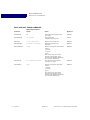
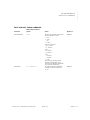
Verify which format you selected by observing the blink pattern of the Link LED. See
“Input Format” on page 14 for a description of these patterns.
5
To exit the input format adjustment mode, hold down the Menu button until the normal
operation mode LED blink pattern returns (about 3 seconds).
SATURATION
Use this mode to adjust the saturation setting for the converter.
HUE
In this mode, you can adjust the hue setting for the converter.
....................................................
RESTORING FACTORY DEFAULTS
This is the only adjustment mode that is shared by both the RGB- and SD-DVI Externally
Powered Converters. In this mode, you can reset the device to the state that the firmware
was in when it left the factory.
IMPORTANT!
Using this mode resets any settings that have been saved, and for the
RGB-DVI Converter, deletes all saved hosts!
To Restore Factory De faults
1
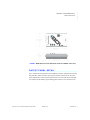
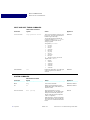
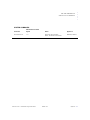
Press the Menu button.
When this mode is entered, the LED will be Steady Red.
2
To confirm you wish to restore factory defaults, press and hold the + button until the
LED changes to a pattern of blinking red.
3
To reconfirm you still would like to continue, press and hold the - button until the LED
changes to a pattern of fast blinking red.
4
Finally, if you are absolutely sure you want to continue, send your last confirmation by
pressing and holding the Menu button.
The converter performs the Restore Factory Defaults action and then restarts.
NOTE: Pressing the wrong button in any of the pre-restore states causes the
Restore Factory Defaults action to abort, taking the unit back to the normal
operating mode.
DVI Converters - Installation & Operation Guide
Edition 1.01
Operation 15