1
Network Installation
Windows (cont’d)
2. Press ∇ key until [Admin Setup] appears. Press
the Enter key.
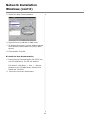
2 Connect the Ethernet Interface
3. Continue to Setup? displays. Press ENTER to
select Yes. The printer goes offline and Running
Setup displays. This will take about a minute.
4. The Setup Menu displays, press ∇ to select
Network Setup. Press ENTER.
5. Press ∇ to select Protocol Setup. Press ENTER.
6. Press ∇ to select TCP/IP Setup. Press ENTER.
7. Press ∇ to select Ethernet Setup. Press ENTER.
8. TCP/IP Ethernet displays. Select YES and press
ENTER. Enable AutoIP Config? displays. Select NO.
Press ENTER.
9. The default IP Address displays. Use ∆ or ∇ to
change each octet. Press ENTER to proceed to
the next octet or to leave the octet unchanged.
10. Subnet Mask displays. Repeat instructions in step
9.
11. TCP/IP bound to Ethernet displays. Press ENTER.
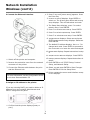
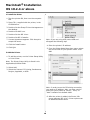
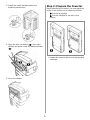
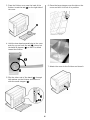
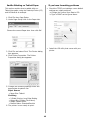
1. Switch off the printer and computer.
12. Gateway Address displays. Repeat instructions in
step 9.
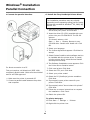
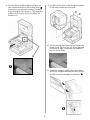
2. Remove the protective cover from the network
connector on the printer.
13.Press ENTER to exit TCP/IP Setup, Protocol
Setup, and Network Setup.
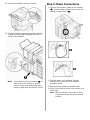
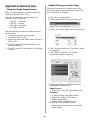
3. Connect the Ethernet cable between the print
and the Ethernet hub.
14.Select Yes and press ENTER to Save Changes.
Press ENTER to Exit the Setup Menu.
15.Printer restarts the server and initializes. Ready
to Print displays.
NOTE
For more information, see the Configuration Guide
on the User Documentation CD.
3 Assign an IP address to the printer
If you are not using DHCP, you need to obtain an IP
Address from your network Administrator and
enter it using the front panel:
1. Confirm that the printer displays [Ready to
print].
3