1
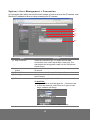
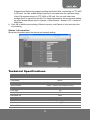
Name
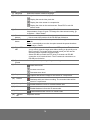
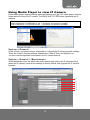
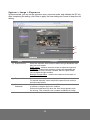
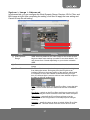
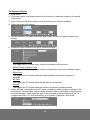
(1) Language
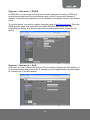
(2) Video screen
Function
Select the browser interface language.
Change the video screen display.
Display the actual video pixel size.
Display the video screen in compact size.
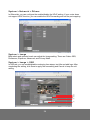
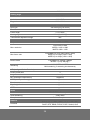
(3) Stream
(4) Direction
buttons
(5) Pan & Patrol
button
(6) Digital /RS485
(7) Speed
Control
(8) Zoom control
Display the video on the entire screen. Press ESC to exit full
screen mode.
Switch to view the video stream type. The IP camera can send multiple
video streams of up to 3 types. To change the video stream setting, go
to System > Video Stream.
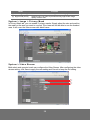
- Use to move the position of the view point while in zoom mode.
- Use to control the position of the RS-485 pan tilt device
Pan - automatically move the view point from left to right when in zoom
in mode.
Patrol - automatically move the view point around the preset locations
in Application > Patrol.
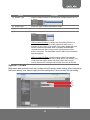
- Select Digital to control the IP camera ePTZ operation. This allows
you to closely view the target area without having to physically move
the IP camera. The image will be zoomed in and you can use the
direction control to pan the zoomed image.
- Select RS-485 to control the PTZ driver or scanner via RS-485
connection to I/O terminal block. The IP camera is mounted on an
RS-485 pan tilt device.
Set the speed when panning, tilting, or zooming.
Reset zoom level.
Increase zoom level.
Decrease zoom level.
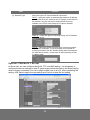
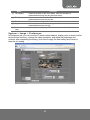
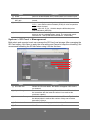
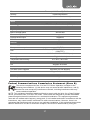
(9) Capture
(10)
Record
(11)
2-way talk
(12)
Mic
(13)
Sound
(14)
Volume
bar
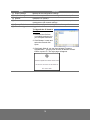
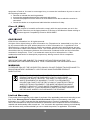
Capture and save the image on the screen in *.bmp format.
Start/stop audio and video recording. The recorded video will be
saved in *.mp4 format.
Enable/disable mic from IP camera browser side.
Enable/disable mic from the IP camera side.
Enable/disable audio from the IP camera side.
Adjust the volume.
14