1
Disney/Pixar elements © Disney/Pixar
Dear Parent,
At VTech®, we know that every year, children are asking to play video games at younger and
younger ages. At the same time, we understand the hesitation of most parents to expose their
children to the inappropriate content of many popular video games. How can parents responsibly
allow their children to play these games, and still educate and entertain them in a healthy, ageappropriate manner?
Our answer to this question is the V.Smile™ TV Learning System – a unique video game system
created especially for children aged 3 to 7. The V.Smile™ TV Learning System combines kid-friendly
design, age-appropriate curriculum, vivid graphics, and fun game-play into a unique experience
that children will love and parents can support. The V.Smile™ TV Learning System engages children
with two modes of play: the Learning Adventure - an exciting exploratory journey in which learning
concepts are seamlessly integrated, and the Learning Zone - a series of games designed to focus on
specific skills in a fun, engaging way. Both offer the child hours of learning fun.
As part of the V.Smile™ TV Learning System, VTech® offers a library of game Smartridges based on
popular children’s characters that engage and encourage your child to play and learn. The library
is organized into three levels of educational play – Early Learners (ages 3-5), Junior Thinkers (ages
4-6) and Master Minds (ages 6-8) – so that the educational content of the system grows with your
child.
At VTech®, we are proud to provide parents with a much-needed solution to the video game
dilemma, as well as another innovative way for children to learn while having fun. We thank you
for trusting VTech® with the important job of helping your child explore a new world of learning!
Sincerely,
Julia Fitzgerald
Vice President, Marketing
VTech Electronics, NA
INTRODUCTION
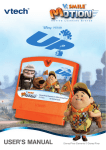
Carl Fredricksen always dreamed of a great adventure. He finally decides to
make his dream come true when he ties thousands of balloons to his house and
flies away to South America. He soon discovers he’s not alone as an 8-yearold Wilderness Explorer named Russell accidentally stowed away on the trip.
When they arrive, they discover a land stranger than anything they could’ve
imagined where the biggest danger comes from Carl’s childhood hero, explorer
Charles F. Muntz. When Muntz captures Russell, Carl will risk everything to
rescue him and bring them both safely home.
GETTING STARTED
Move the joystick up or down to choose the play
mode you want. Press the ENTER button to
confirm your selection.
1. Learning Adventure
In this play mode, you can join Carl, Russell,
Kevin, and Dug on a fantastic journey - just like
in the movie!
Adventure Play
introduction
STEP 1: Choose Your Play Mode
Play all four games in sequence
following the story.
Quick Play
Play any of the games
individually in any order.
. Adventure Play
Start the adventure from the beginning by choosing New Game or start from
the last place you played before exiting by choosing Continue Game. If this
is the first time you’ve played this SmartridgeTM, this screen will be skipped and
you’ll start from the beginning.
Continue Game
Start the adventure from the last place
you played before exiting the game.
New Game
Start the adventure from the
beginning.
. Quick Play
GETTING STARTED
In the Quick Play menu, choose any of the
games you’d like to play. Move the joystick to
select the game you want and press ENTER
to play.
. Bonus Games on the V.SmileTM Web Site
When you reach a certain score in Adventure
Play mode, you'll be rewarded with special gold
coins. You can save your score to the V.LinkTM
and then plug the V.LinkTM into your computer.
The gold coins can be used to unlock special
bonus games on the V.SmileTM Web Site.
How to Earn Gold Coins:
Gold Coin
Requested Score
1st gold coin
Earn a total score of 500
2nd gold coin
Earn a total score of 1300
3rd gold coin
Earn a total score of 1700
4th gold coin
Earn a total score of 2500
2. Learning Zone
Practice specific skills in the two games of the
Learning Zone. Move the joystick to select the
game you want and press ENTER to confirm
your choice.
3. Options
In the Options screen, you can turn the music
On or Off, and choose between Standard or
Unlimited chances in the games. Move the
joystick to select the option you want. Move the
cursor to the checkmark, then press Enter to
confirm your choices.
4. V.LinkTM Connection When you plug the V.LinkTM into the console,
a new selection – “V.Link Connection” - will
appear under the main menu. You can select it to
download your game score to the V.LinkTM. After
downloading your score, plug the V.LinkTM into
your computer and unlock some fun bonus games
on the V.SmileTM Web Site. Please don’t unplug
the V.LinkTM during the downloading process.
STEP 2: Choose Your Game Settings
1. Number of Players: Use the joystick to
move the cursor to Player and then move
the yellow selection box to choose one
player or two players. Note: Two-player
mode is not available when played on
the V.Smile Pocket™ or V.Smile Cyber
Pocket™. Press ENTER to confirm your
selection.
GETTING STARTED
(Only for consoles supporting the V.LinkTM accessory)
2. Level: Use the joystick to move the cursor
to Level and then move the yellow selection
box to choose Easy Level (only one star) or
Difficult Level (two stars). Press ENTER to
confirm your selection.
3. Controller Mode: If you are using the
V.Smile Plus console / Cyber Pocket, you
may use either the pen or the joystick to play
the Twisty Rocks game. Before entering the
game, use the joystick to move the cursor to
Control Setting and press ENTER to enter
the Control screen. Move the joystick to
choose Pen mode or Joystick mode. Press
ENTER to confirm your selection. To exit
the Control screen, move the cursor to the
checkmark and press Enter.
4. After confirming all of your game settings,
move the cursor to the checkmark, then
press Enter to start your adventure!
STEP 3: Start Your Game
FEATURES
For Learning Adventure games, please go to the
“Activities – Learning Adventure” section.
For Learning Zone games, please go to the “Activities – Learning Zone” section.
FEATURES
HELP Button
When you press the HELP button during a game,
the game will pause. A HELP icon will pop up and
give you instructions or a hint.
EXIT Button
When you press the EXIT button, the game will
pause. An EXIT icon will appear onscreen to
make sure you want to quit. Move the joystick left
to the
to leave the game or right to the
to
cancel the exit screen and keep playing. Press
the ENTER button to choose.
LEARNING ZONE Button
The LEARNING ZONE button is a shortcut that
takes you to the Learning Zone game selection
screen. When you press the LEARNING ZONE
button the game will pause. A window will pop
up to make sure you really want to quit. Move the
joystick left to the
to leave the game or right
to the
to cancel the Learning Zone screen
and keep playing. Press the ENTER button to
choose.
ACTIVITIES
Learning Adventure
Curriculum
Learning Adventure 1 – Journey to
Paradise Falls
Shape Matching
Learning Adventure 2 – Jungle Exploration
Patterns
Learning Adventure 3 – Go, Kevin, Go!
Counting
Subtraction
Learning Adventure 4 – Carl and Dug to
the Rescue
Colors
Learning Zone
Curriculum
Learning Zone 1 – Twisty Rocks
Picture Matching
Learning Zone 2 – Campfire Cookout
Addition
activities
Educational Curriculum
Counting
Status Bars
Throughout each game, status bars will be displayed on the screen to
communicate important information to the player such as the current question
or the player’s time, score, and energy.
- Question – The question that should be
answered.
- Energy – The life remaining for the current
player.
- Score – The points you have earned during
the current game.
- Time – How much time you have left in the
game.
Saving Game Status
ACTIVITIES
Your game status will be saved automatically inside the V.SmileTM system after
you reach a checkpoint or complete a game.
You can also save your record onto V.LinkTM (sold separately and subject to
availability) in the V.Link Connection screen under Main Menu.
Basic Operations
Move to the left
Move to the right
Move up
Move down
Red Button
Answer question
Yellow Button
Answer question
Blue Button
Answer question
Green Button
Answer question
Enter Button
Confirm selection
Special Operations
Move the joystick left and right continuously
to get rid of cloud in Journey to Paradise Falls (LA1)
Move the joystick
in a circle
Move the joystick in a circle
to turn the wheel in Carl and Dug to the Rescue (LA4)
to roast the marshmallows in Campfire Cookout (LZ2)
Enter Button
Press ENTER
to jump in Jungle Exploration (LA2)
to make Dug point when he sees an enemy dog in
Carl and Dug to the Rescue (LA4)
Journey to Paradise Falls
Game Play
Help Carl and Russell fly the house to South
America, avoiding all the obstacles along the
way. Collect the balloons that match the shapes
at the bottom of the screen.
activities
Learning Adventure
Curriculum: Shape Matching
Easy Level: Less obstacles; collect three
of the same shapes in each question
Difficult Level: More obstacles; collect
three different shapes in each question
Operations:
Control
Joystick Mode
Steer the house
Move the joystick to the left, right, up or down
Get out of a cloud
Move the joystick left and right
2-Player Mode:
- Player 1 plays the first stage, and Player 2 plays the second stage
Jungle Exploration
Game Play
Carl and Russell are exploring the jungle, and
Russell wants to take advantage of this opportunity
to discover some South American plants in their
natural environment. Help Carl and Russell avoid
the animals and obstacles along their journey.
When they stop to collect plant samples, choose
the plant or fruit that completes the pattern.
Curriculum: Patterns
Easy Level: Less obstacles; fill in one
missing plant sample in a simple pattern
Difficult Level: More obstacles; fill in
two missing plant samples in a more
complex pattern
ACTIVITIES
Operations:
Control
Joystick Mode
Move Carl or Russell left or right
Move the joystick left or right
Jump
Press the Enter button
Climb up or down trees / vines
Move the joystick up or down
Move the cursor to select the answer
Move the joystick left or right
Confirm your answer selection
Press the Enter button
2-Player Mode:
- Head-to-head cooperation along the jungle path
- Player 1 will act as Carl
- Player 2 controls Russell
- Players take turns filling in the patterns in the question area
Go, Kevin, Go!
Game Play
Carl, Russell, and Kevin are fleeing from Muntz’s
lair, but the dogs are in pursuit. Move Kevin
left or right to avoid the obstacles on the path.
When dogs block the way, count the dogs on
the screen and select the tennis ball with the
correct number. Then Carl will throw a tennis
ball to distract them.
Curriculum: Counting; Subtraction
Easy Level: Less obstacles; choose the
correct answer from three choices
Difficult Level: More obstacles; choose
the correct answer from four choices
Control
Joystick Mode
Move Kevin left or right
Move the joystick left or right
Move the cursor to select the answer
Move the joystick left or right
Confirm your answer selection
Press the Enter button
activities
Operations:
2-Player Mode:
- Players cooperate to advance
- Player 1 controls Kevin along the path while Player 2 answers the
questions
10
Carl and Dug to the Rescue
Game Play
Carl and Dug sneak onto Muntz’s blimp to rescue
their friends. Help them navigate through the
blimp by activating the devices that they will
need to advance. Press the color buttons in
the correct order to activate some devices. Be
careful to avoid the obstacles and watch out for
enemy dogs along the way.
Curriculum: Colors
Easy Level: Less obstacles; simple
sequence with one or two colors
ACTIVITIES
Difficult Level: More obstacles; more
complex sequence with three or four
colors
Operations:
Control
Joystick Mode
Move Carl or Dug left or right
Move the joystick left or right
Push the box
Move the joystick left
Activate the switch
Press the color buttons in the
correct order
Turn the wheel
Move the joystick in a circle
Make Dug point to distract an
enemy dog
Press the ENTER button when an
enemy dog approaches
2-Player Mode:
- Player 1 will act as Carl in Stage 1
- Player 2 controls Dug in Stage 2
11
Learning Zone
Twisty Rocks
Game Play
Russell and Dug are playing a game with the
Twisty Rocks. Help them find the rocks that match
the shapes or pictures in the question box.
Curriculum: Picture Matching
Easy Level: Find the rock that matches the shape; choose the correct
answer from three choices
Difficult Level: Find the rock that matches the picture; choose the
correct answer from four choices
Control
Joystick Mode
Pen Mode
Move the cursor to
select the answer
Move the joystick
left or right
Drag the pen along the
drawing pad
Confirm your
answer selection
Press the Enter
button
Drag the rock to the shape in
the question box and release
the pen
2-Player Mode:
activities
Operations:
- Players take turns playing the game
- Player 1 will act as Russell
- Player 2 controls Dug
12
Campfire Cookout
Game Play
Carl, Russell, and Dug are relaxing and roasting
marshmallows around the campfire. Help Carl
figure out how many marshmallows to roast for
Russell and Dug.
Curriculum: Addition; Counting
Easy Level: Visual aid allows player to
count the total number of marshmallows;
answer is between 2 and 10
Difficult Level: No visual aid; answer is
between 10 and 18
ACTIVITIES
Operations:
Control
Joystick Mode
Move the cursor to select the answer
Move the joystick left or right
Confirm your answer selection
Press the Enter button
Roast the marshmallows
Move the joystick in a circle
2-Player Mode:
- Players take turns playing the game
13
CARE & MAINTENANCE
WARNING
A very small percentage of the public, due to an existing condition, may
experience epileptic seizures or momentary loss of consciousness when
viewing certain types of flashing colors or patterns, especially on television.
While the V.SmileTM Learning System does not contribute to any additional risks,
we do recommend that parents supervise their children while they play video
games. If your child experiences dizziness, altered vision, disorientation, or
convulsions, discontinue use immediately and consult your physician. Please
note that focusing on a television screen at close range and handling a joystick
for a prolonged period of time may cause fatigue or discomfort. We recommend
that children take a 15-minute break for every hour of play.
TECHNICAL SUPPORT
If you have a problem that cannot be solved by using this manual, we encourage
you to visit us online or contact our Consumer Services Department with any
problems and/or suggestions that you might have. A support representative
will be happy to assist you.
Before requesting support, please be ready to provide or include the information
below:
.
.
.
care & maintenance / WARNING
1. Keep your V.SmileTM clean by wiping it with a slightly damp cloth. Never use
solvents or abrasives.
2. Keep the unit out of direct sunlight and away from direct source of heat.
3. Remove the batteries when not using it for an extended period of time
4. Avoid dropping it. Never try to dismantle it.
5. Always keep the V.SmileTM away from water.
The name of your product or model number. (The model number is typically
located on the back or bottom of your product.)
The actual problem you are experiencing.
The actions you took right before the problem.
Internet: www.vtechkids.com
Phone:1-800-521-2010 in the U.S. or 1-877-352-8697 in Canada
14
OTHER INFO
DISCLAIMER AND LIMITATION OF LIABILITY
VTech® Electronics North America, L.L.C. and its suppliers assume no
responsibility for any damage or loss resulting from the use of this handbook.
VTech® Electronics North America, L.L.C. and its suppliers assume no
responsibility for any loss or claims by third parties that may arise through the
use of this software. VTech® Electronics North America, L.L.C. and its suppliers
assume no responsibility for any damage or loss caused by deletion of data as
a result of malfunction, dead battery, or repairs. Be sure to make backup copies
of important data on other media to protect against data loss.
COMPANY: VTech® Electronics North America, L.L.C.
ADDRESS: 1155 West Dundee Rd, Suite 130, Arlington Heights, Il 60004 USA
TEL NO.: 1-800-521-2010 in the U.S. or 1-877-352-8697 in Canada
OTHER INFO
NOTE:
This equipment has been tested and found to comply with the limits for a Class
B digital device, pursuant to Part 15 of the FCC Rules. These limits are designed
to provide reasonable protection against harmful interference in a residential
installation. This equipment generates, uses and can radiate radio frequency
energy and, if not installed and used in accordance with the instructions, may
cause harmful interference to radio communications. However, there is no
guarantee that interference will not occur in a particular installation. If this
equipment does cause harmful interference to radio or television reception,
which can be determined by turning the equipment off and on, the user is
encouraged to try to correct the interference by one or more of the following
measures:
.
.
.
.
Reorient or relocate the receiving antenna.
Increase the separation between the equipment and receiver.
Connect the equipment into an outlet on a circuit different from that to
which the receiver is connected.
Consult the dealer or an experienced radio/TV technician for help.
Caution: Changes or modifications not expressly approved by the party
responsible for compliance could void the user’s authority to operate the
equipment.
15
© 2009 VTech
Printed in China
91-002088-759-000