1
3.3
Troubleshooting (FAQ)
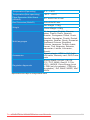
Problem
Power LED is not ON
The power LED lights white
blinking and there is no screen
image
Screen image is too light or dark
Possible Solution
• Press the button to check if the monitor is in the
ON mode.
• Check if the power cord is properly connected to the
monitor and the power outlet.
• Check if the monitor and the computer are in the
ON mode.
• Make sure the signal cable is properly connected
the monitor and the computer.
• Inspect the signal cable and make sure none of the
pins are bent.
• Connect the computer with another available
monitor to check if the computer is properly working.
• Adjust the Contrast and Brightness settings via
OSD.
Screen image is not centered or
sized properly
• Press the
button for two seconds to
automatically adjust the image.
• Adjust the H-Position or V-Position settings via
OSD.
Screen image bounces or a wave • Make sure the signal cable is properly connected to
pattern is present in the image
the monitor and the computer.
• Move electrical devices that may cause electrical
interference.
Screen image has color defects • Inspect the signal cable and make sure that none of
(white does not look white)
the pins are bent.
• Perform All Reset via OSD.
• Adjust the R/G/B color settings or select the Color
Temperature via OSD.
Screen image is blurry or fuzzy
• Press the
button for 2~4 seconds to
No sound or sound is low
automatically adjust the image (for VGA input only).
• Adjust the Phase and Clock settings via OSD.
• Ensure that the audio cable is properly connected to
the monitor and the computer.
• Adjust the volume settings of both your monitor and
computer.
• Ensure that the computer sound card driver is
properly installed and activated.
ASUS LEDfrom
Monitor
ML229H Series
Downloaded
ManualMonitor.com
Manuals
3-7