1
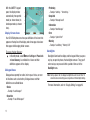
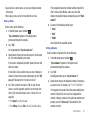
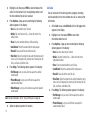
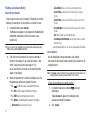
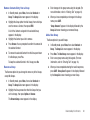
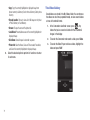
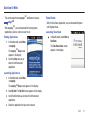
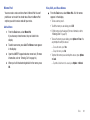
Camcorder Screen
Graphic
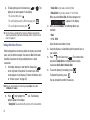
Pending
Saves and includes the new video in a new Video message.
Launches Video Player to view the new video.
Saves the new video.
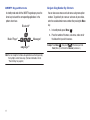
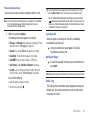
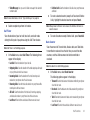
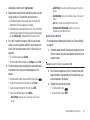
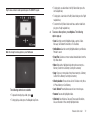
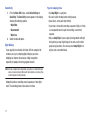
Camcorder Screen Icons
The following icons appear in the Camcorder screen when the
Icon Display Camcorder setting is set to On.
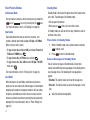
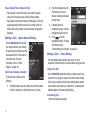
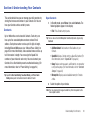
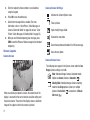
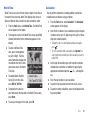
When you activate your phone’s camcorder, the first line of the
display is shows current camcorder setting icons. The center of
the display shows a viewfinder image of the subject at which the
camcorder is pointed.
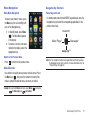
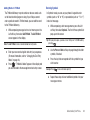
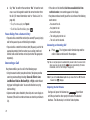
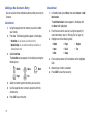
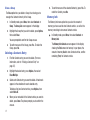
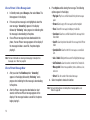
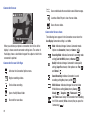
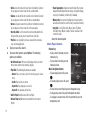
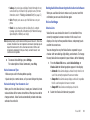
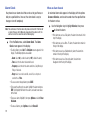
Camcorder Screen Soft Keys
Activates the Camcorder Options menu.
Begins recording a video.
Ends a video recording.
Opens the My Videos folder.
Discards the new video.
69
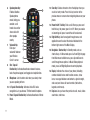
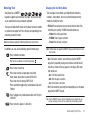
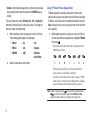
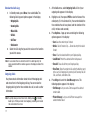
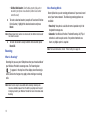
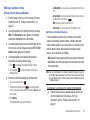
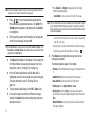
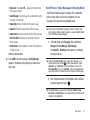
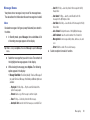
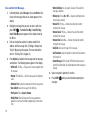
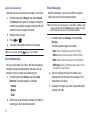
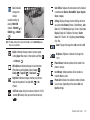
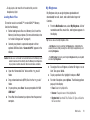
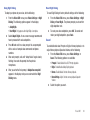
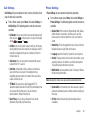
Mode: Indicates/changes Camera-Camcorder mode.
Options are Camcorder (shown) or Camera (
).
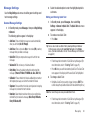
Recording Mode: Indicates Camcorder’s recording mode
setting [Limit for MMS (shown) or Normal (
)].
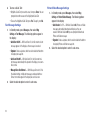
Quality: Indicates/changes Camcorder’s video quality
setting (Super Fine shown). Other options are: Fine ( )
and Normal ( ).
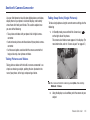
Sound Recording: Indicates Camcorder’s sound
recording setting: On (shown) or Off (
).
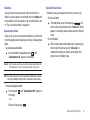
White Balance: Indicates/changes the current video
White Balance setting [Auto (shown), Sunny (
),
Cloudy (
), Tungsten (
), Fluorescent (
)].
Self Timer in use: Delays the Camcorder from recording
for 2/5/10 seconds (10 Sec. shown) after you press the
Camera key (
).