1
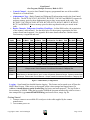
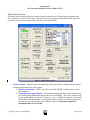
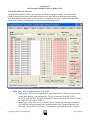
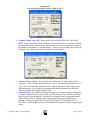
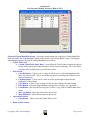
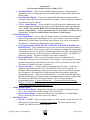
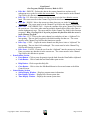
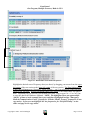
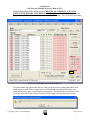
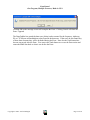
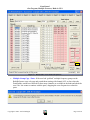
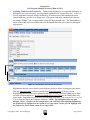
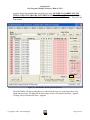
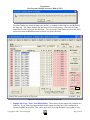
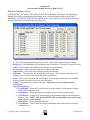
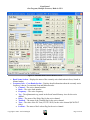
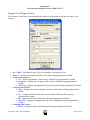
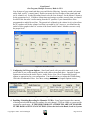
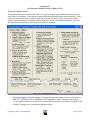
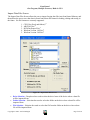
ScanControl One Program, Multiple Scanners, Made in USA • • • • Filename Entry – Data entry field that displays the selected Filename or allows entry of a Filename for importing. Data File Format – Radio button to select the source program of the file being imported. Selection applies a filename filter to the File Selection list box to only display files that have the proper extension to be imported. E.g. .mem for ARC250 files, .ws1 for WinScan Version 1, etc. File Radio Type – When appropriate you can select the radio type for which the file being imported was originally created. This means if you’re using ScanControl with a BC250D radio and want to import a WinScan 2.0 file that was created for use with a BC780XLT you would select that option. The ScanControl import process will then convert the data from the BC780XLT format to the BC250D format. Operation Controls o Disp All File Types Checkbox – Check to disable the filename filter for the selected file type and display all files in the folder. o Destination Bank Selection – Use to select destination bank when importing a TrunkTracker Fleetcall ASCII file containing a trunked radio system. o Import or Map CSV Button – Click to proceed with data file import. o Cancel Button - Click to cancel the data file import. * NOTE: When importing scanner data from any of these file formats some data elements may have to be defaulted due to changes or differences in the import file formats over time. In all cases the essential data such as frequencies, alpha tags, talkgroup IDs, bank settings, search range settings, etc. will be retained and converted. Individual data elements such as priority, lockout or beep alert may have to be defaulted. 1 Not available for PRO2052 or DMA Radios. 2 ScanControl Full Version Only, Non-DMA and DMA Radios 3 ARC250 Version 1.0 and 1.01 Only Copyright 2009 – 3D Technologies Page 79 of 86