1
Navigating in a Session
Pro Tools LE provides many ways to navigate in
a session, including using the mouse or entering
a memory location into one of the counters.
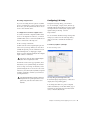
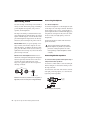
To navigate to a location in the Edit window:
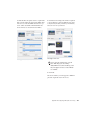
1 In the Options menu, make sure Link Time-
line and Edit Selection is enabled.
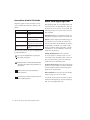
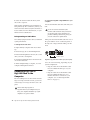
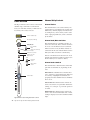
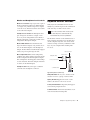
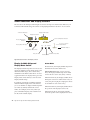
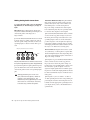
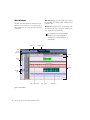
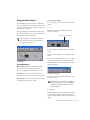
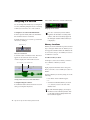
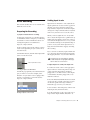
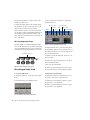
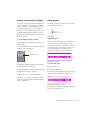
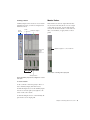
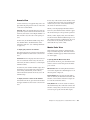
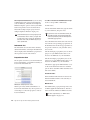
2 Enable the Selector tool at the top of the Edit
window by clicking it.
Selector tool
Edit tools in Edit window
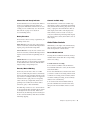
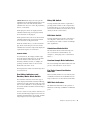
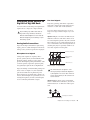
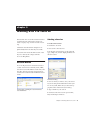
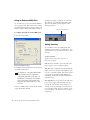
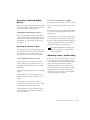
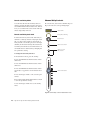
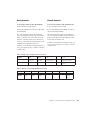
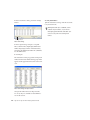
3 Click in a track or Timebase ruler. The cursor
appears at the selected location and the
counters display the current time location.
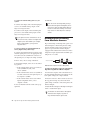
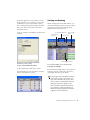
Click in a track or on a Timebase ruler
2 Press Enter (Windows) or Return (Macintosh).
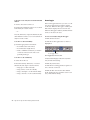
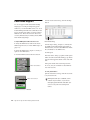
Navigating with the Counter
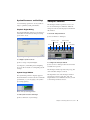
Press the * (asterisk) key on the numeric
keypad as an alternative to clicking in the
counter. (The cursor will always appear in
the Transport window’s Main Counter if it
is displayed.)
Memory Locations
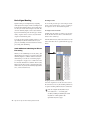
Memory Locations and markers provide another
way to navigate within sessions. Memory Locations appear as markers under the Timebase rulers. You can store up to 999 Memory Location s
or markers in a session.
To define a memory location:
1 Navigate to the location where you want to
store a marker or memory location.
– or –
Begin playback somewhere before the point
where you want to store a Memory Location or
marker.
2 Create a memory location by doing one of the
following:
• Press Enter on the numeric keypad.
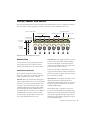
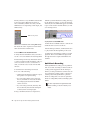
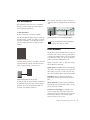
Clicking with the Selector tool in the Edit window
– or –
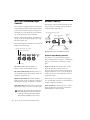
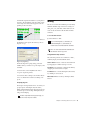
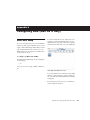
To navigate using the counters:
1 Click in the Main counter and enter a location
using your computer keyboard.
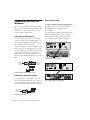
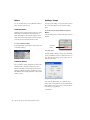
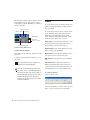
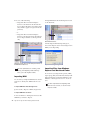
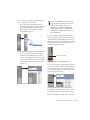
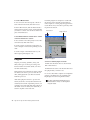
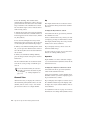
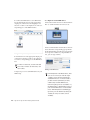
• Click the Add Marker/Memory Location
(“+”) button, located to the left of the
Markers ruler.
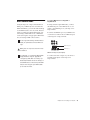
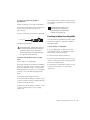
On some Windows laptops, you can press
Fn+Enter to create a memory location. This
is especially useful for laptops that do not
have a numeric keypad.
78
Digi 002 & Digi 002 Rack Getting Started Guide