1
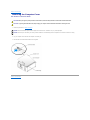
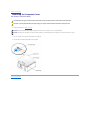
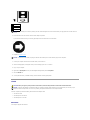
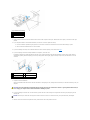
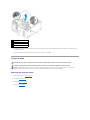
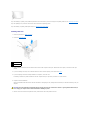
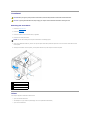
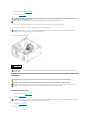
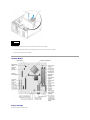
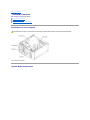
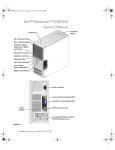
 NOTICE: Do not lift or carry the computer by the vents to avoid damage
to the computer.
NOTICE: Keep the vent area clean and dust-free to ensure that the
computer is adequately ventilated. Use only a dry cloth to clean the vent
area to avoid water damage to the computer.
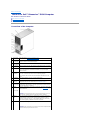
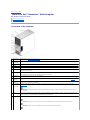
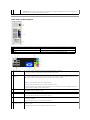
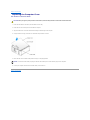
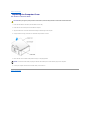
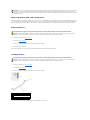
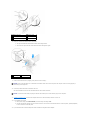
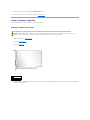
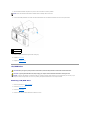
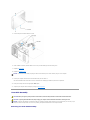
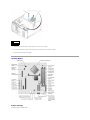
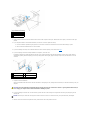
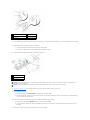
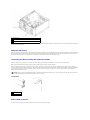
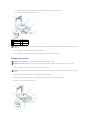
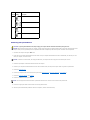
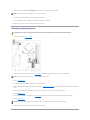
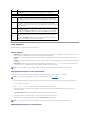
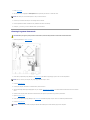
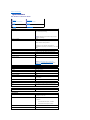
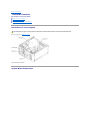
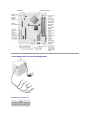
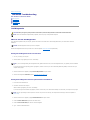
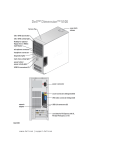
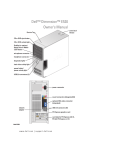
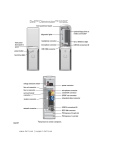
Back View of the Computer
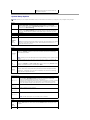
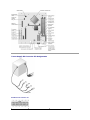
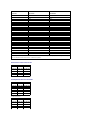
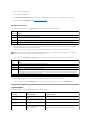
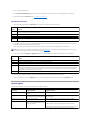
1 voltage selection switch (may not be available on all computers) See the safety instructions in the Product Information Guide for more information.
2 power connector
Insert the power cable.
3 back panel connectors
Plug USB, audio, and other devices into the appropriate connector.
4 card slots
Access connectors for any installed PCI and PCI Express cards.
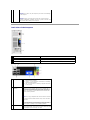
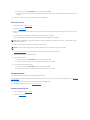
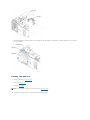
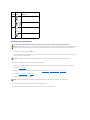
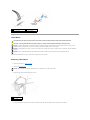
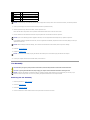
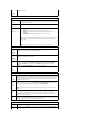
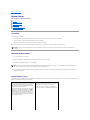
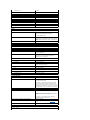
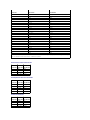
1
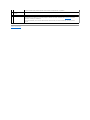
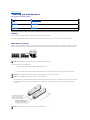
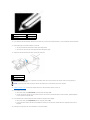
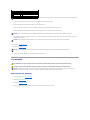
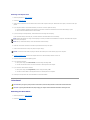
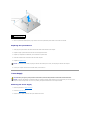
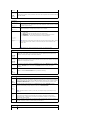
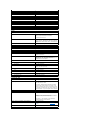
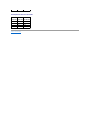
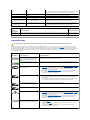
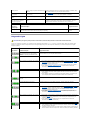
link integrity light
l
l
l
2
network adapter
connector
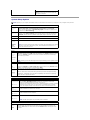
Green — A good connection exists between a 10-Mbps
network and the computer.
Orange — A good connection exists between a 100-Mbps
network and the computer.
Off — The computer is not detecting a physical connection
to the network.
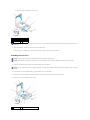
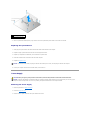
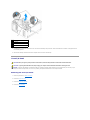
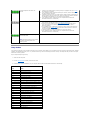
To attach your computer to a network or broadband device,
connect one end of a network cable to either a network jack or
your network or broadband device. Connect the other end of the
network cable to the network adapter connector on the back
panel of your computer. A click indicates that the network cable
has been securely attached.
NOTE: Do not plug a telephone cable into the network connector.
On computers with a network connector card, use the connector
on the card.
It is recommended that you use Category 5 wiring and connectors
for your network. If you must use Category 3 wiring, force the
network speed to 10 Mbps to ensure reliable operation.
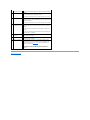
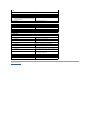
3
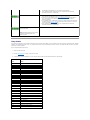
network activity light Flashes a yellow light when the computer is transmitting or
receiving network data. A high volume of network traffic may make
this light appear to be in a steady "on" state.