1
Installation
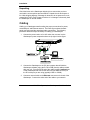
4. If you intend to configure the Gatekeeper remotely using the
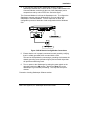
Gatekeeper Windows GUI, connect an RJ-11 phone cable between the
Command Modem connector (at the rear of the Gatekeeper) and a
receptacle served by a telco POTS line. See below figure.
The Command Modem is built into the Gatekeeper unit. To configure the
Gatekeeper remotely using its Windows GUI, you must call into the
Gatekeeper’s Command Modem. Once a connection is made, the
configuration process is identical to local configuration with the Windows
GUI.
Figure. GND & Remote Config Modem Connections
5. Ensure that the unit is properly connected to earth ground by verifying
that it is reliably grounded when mounted within a rack.
This can be accomplished by connecting a grounding wire between the
chassis grounding screw (see above figure) and a metallic object that
will provide an electrical ground.
6. Turn on power to the Gatekeeper by setting the power switch on the
right side panel to the ON position. Wait for the Boot LED on the
Gatekeeper to go off before proceeding. This may take a couple of
minutes.
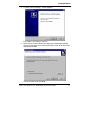
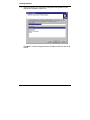
Proceed to Loading Gatekeeper Software section.
Multi-Tech Systems, Inc. Gatekeeper Quick Start Guide
9