1
Shake Folder Contents
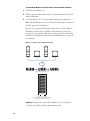
When Shake is installed, three icons appear in the Shake3 folder, shake, shkv, and shkqtv.
The shake icon represents the Shake application, and can be placed in the Dock. The shkv
icon represents the Shake Viewer application (the Flipbook player for all platforms). The
shkqtv icon represents the Shake Disk-Based Viewer application (the QuickTime Flipbook
player). You cannot launch shkv or shkqtv outside of Shake. When you create a standard or
disk-based Flipbook in Shake, Shake Viewer is automatically launched and the shkv or shkqtv
icon appears in the Dock.
The Shake Qmaster Client Tools (installed by default with the Easy Install) places a Shake
Qmaster icon in the Applications folder.
Serializing Shake 3
1
Double-click the shake icon (if starting Shake from the Dock icon, single-click).
2
In the Licensing dialog, enter your first and last name.
Note: Entering an organization is optional.
3
In the Serial Number field, enter the Shake 3 serial number printed on the front of this
document.
4
Click OK.
Registering Shake 3
The first time you start Shake 3, the application prompts you for registration information. By
default, the Me card information in your Address Book is automatically entered in the
appropriate fields.
To register Shake to a user other than the user listed in the Me card in your
Address Book:
1
Fill out the Name, Address, Organization, and Email address fields.
2
If you want information about Apple news and software updates sent to your email account,
select the checkbox.
3
If you want to review Apple’s Privacy Policy, click Privacy Policy.
4
When you are finished, click Register Now.
You are now ready to begin using Shake 3.
Note: If you decide to click the Register Later button, you will be prompted to register again
after opening the application five times.
8