1
ADJUSTMENTS
1
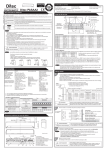
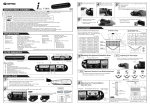
Area depth angle adjustment
3-4 Setting the area depth
Area adjustment tool
4th and 5th rows and
area width adjustment
1st to 3rd rows
adjustment
Depth angle
adjustment screw
A
Simultaneous C
adjustment
The detection area depth can be changed by
the area adjustment tool.
When adjusting the 1st to 3rd rows close to the door, follow 3-7 Installation mode.
*When 2 rows setting is selected, only the
presence detection area remains.
B
NOTE
3-5
1-1. Independent adjustment
1st to 3rd rows
Depth angle adjustment screw
for 1st to 3rd rows
The 5th, 4th, and 3rd rows can be eliminated by
combining dipswitches 7 and 8.
5 rows
4 rows
3 rows
2 rows
7 8
7 8
7 8
7 8
Always check the area according to the expected entry speed and determine the appropriate number
of rows.
When setting motion and motion / presence detection area sparately, make sure that there is no gap between
two areas.
OFF
ON
Setting the snow mode
Set this switch to ON, if the sensor is used in a region with snow.
Shallow
4th and 5th rows
Deep
Shallow
Depth angle adjustment screw
for 4th and 5th rows
Deep
3-6 Setting the immunity
9
9
OFF
ON
10
10
OFF
ON
16
16
Set this switch to ON, when less influence by the header vibration is required.
Red
Blue
Use the area adjustment tool (A) as shown above and
change the depth of the detection area by turning the depth
angle adjustment screw.
[m]
Use the area adjustment tool (B) as shown above and
change the depth of the detection area by turning the depth
angle adjustment screw.
[m]
[m]
Deep Shallow
[m]
3-7 Installation mode
Use this switch to ON when adjusting the presence detection area
close to the door face.
* During the installation mode, only the 1st row remain.
* Door open state
* Operation LED glows yellow.
Deep Shallow
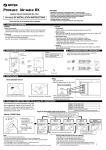
CHECKING
Check the operation according to the chart below.
Check the area position with Red LED of the Operation LED using a tool such as a reflecting mirror.
Make sure the detection area does not overlap with the door / header,otherwise ghosting / signal saturation
may occur.
Do not place any highly reflecting objects in the detection area, otherwise signal saturation may occur.
NOTE
NOTA
Entry
Power off
Outside of
detection
area
Entry into
4th or 5th row
Entry into
3rd row
Status
-
Stand-by
Motion
detection active
Motion/Presence
detection active
Operation LED
None
Green
OA-AXIS I
REFERENCE Area depth adjustment with INFRARED FINDER (Separately available)
White : COM.
Yellow : N.O.
Green : N.C.
White Str. : COM.
Yellow Str. : N.O.
Green Str. : N.C.
Entry into
2nd row
Orange
Entry into
1st row
Presence
detection
Red
Blinking Red
Output
Output from
1st to 3rd
rows *
OA-AXIS II
Output from
3rd to 5th
rows *
1. Turn the depth adjustment screw to the right (Deep) to place the area most away from the door.
2. Set INFRARED FINDER sensitivity to "H" (High) and place it on the floor as shown below.
Detection area
*The outputs from the 3rd row overlaps.
INFRARED FINDER
Detection area
3. Turn the depth adjustment screw to the left (Shallow) until the emitting area is placed at the position where
INFRARED FINDER is in the low detection status (Slow Red blinking).
INFORM BUILDING OWNER / OPERATOR OF THE FOLLOWING ITEMES
WARNING
1-2. Simultaneous adjustment
For the simultaneous adjustment of 1st to 5th rows, use the adjustment tool (C).
2
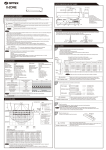
Width detection area adjustment
1st to 3rd rows
1-3
10 - 12
Eliminated
Eliminated
[m]
Front view
4th and 5th rows
1-3
NOTE
NOTA
10 - 12
Eliminated
1. When turning the power on, always walk-test the detection area to ensure proper operation.
2. Do not place any objects that move or emit light in the detection area. (e.g. Plant, illumination, etc.)
Eliminated
Narrow
Narrow
Wide
Wide
Width adjustment
screw (Left)
1
2
Width adjustment
screw (Right)
TROUBLESHOOTING
12
11
10
3
456 7 8 9
NOTE
The actual detection area may become smaller depending on the ambient light, the color / material of the object and
the floor as well as the entry speed of the object.
3
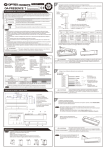
Dipswitch settings
Not applicable
1 2 3 4 5 6 7 8
9 10111213141516
1,2
3,4
5,6
7,8
9 10 11 to 15
16 :Sensitivity
:Presence detection timer
:Frequency
:Row adjustment
3-1 Setting the sensitivity
Normally set to "Middle". " Low" decreases the sensitivity and "High / S-High"
increases the sensitivity.
Low
1
3-2 Setting the presence detection timer
The 1st and 2nd rows have the presence detection function.
The presence detection timer can be selected from 4 settings.
NOTE
1. Always keep the detection window clean. If dirty, wipe the window lightly with a damp cloth.
(Do not use any cleaner or solvent.)
2. Do not wash the sensor with water.
3. Do not disassemble, rebuild or repair the sensor yourself, otherwise electric shock may occur.
4. When an operation LED blinks green, contact your installer or service engineer.
5. Always contact your installer or service engineer when changing the settings.
6. Do not paint the detection window.
2
15 sec.
3
4
High
1
1
2
2
Operation
LED
Door does not
open when a
person enters
the detection
area.
None
Door opens
when no one
is in the
detection area.
(Ghosting)
: Snow mode
: Immunity
: Not applicable
: Installation mode
Middle
Problem
Unstable
Unstable
S- High
1
4
3
4
3
3-3 Setting the frequency
6
5
6
5
6
5
Vibration of the header.
Set the sensitivity lower or the immunity to ON.
Water drops on the detection window.
Use the rain-cover (Separately available).
Or install in a place keeping the waterdrops off.
The detection area overlaps
with that of another sensor.
Check ADJUSTMENTS 3-3.
The detection area overlaps
with the door / header.
Adjust the detection area to "Deep" (Outside).
Wipe the detection window with a damp cloth.
(Do not use any cleaner or solvent.)
Set the sensitivity lower.
Set the snow mode to ON.
Remove the objects.
Wet floor.
The exhaust emission or fog penetrate into the detection area.
Check the installation condition referring to
INSTALLATION on the reverse side.
Red
or
Orange
Proper
Sudden change in the detection area.
Check ADJUSTMENTS 3-1 & 3-2.
If the problem still persists, hard-reset the
sensor.(Turn the power OFF and ON again.)
Check the wires and connector.
Twice
Green
blinking
The relay is reaching the end of its
life cycle.
Contact your installer or the sales engineer.
Slow
Green
blinking
Signal saturation
Remove highly reflecting objects from the
detection area. Or lower the sensitivity.
Or change the area angle.
The detection area overlaps with
the door / header.
Adjust the detection area to "Deep" (Outside).
Wrong wiring or connection failure.
Check the wires and connector.
4
6
Set to the stated voltage.
Check the wires and connector.
Check ADJUSTMENTS 1 & 2.
Set the sensitivity higher.
Set the presence detection timer longer.
It snows and pours.
Objects that move or emit light in the
detection area.
(Ex.Plant, illumination,etc.)
Setting 1 Setting 2 Setting 3 Setting 4
5
Power supply voltage.
Wrong wiring or connection failure.
Wrong detection area positioning.
Sensitivity is too low.
Short presence detection timer.
Dirty detection window.
Sensitivity is too high.
To enable the presence detection, do not enter the detection area for 10 seconds after setting the timer.
When using more than two sensors close to each other, set the different
frequency for each sensor by combining dipswitch 5 and 6.
Possible countermeasures
Reflecting objects in the detection area. Remove the objects.
Or reflecting light on the floor.
2
60 sec. 180 sec.
3
Possible cause
Door remains
open
Door remains
closed
Proper
Wrong wiring or connection failure.