1
Wifi
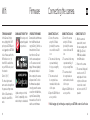
TURNING ON AND OFF
In the Camera Settings
menu, highlight the ‘WiFi’
option,press ACTION, and
select P and press ACTION.
In Live Preview, wait for the
WiFi indicator icon @ to
show WiFi is enabled then,
on your WiFi device, select
the network:
‘Ghost-S [000]’
The three digit network
name can be changed from
the general settings menu.
A Micro SD card must be
installed to allow WiFi to
work.
15
DOWNLOAD THE DRIFT APP
Shot setup, record,
capture & playback
on your device.
Update coming soon for full
Ghost S compatibility, check
website for up-to-date details.
Firmware
Connecting the camera
UPDATING THE FIRMWARE
Download the latest firmware
from the Drift website and
copy the Ghost_S.bin file to a
formatted micro SD card.
Insert the micro SD card
into the camera and power
on. The camera screen will
display ‘Firmware Updating’
as the update is installed.
Once complete, the camera
will power down. To check
the firmware has updated
correctly, power the camera
on and, from the Main Menu,
open the Camera Settings
menu and select ‘Version’ to
view the current firmware.
CONNECTING TO A PC
1. Connect the camera
using the USB cable
(provided); the camera
screen will show a USB
icon.
2. The camera’s folder may
open automatically;
if not, open using My
Computer.
3. The camera should
be recognised as a
removable disk; doubleclick to open.
4. Open the DCIM folder to
access your files.
CONNECTING TO A MAC
1. Connect the camera
using the USB cable
(provided); the camera
screen will show a USB
icon.
2. The camera’s folder may
open automatically; if
not, open using Finder.
3. The camera should
be recognised as an
external device; doubleclick to open.
4. Open the DCIM folder to
access your files.
CONNECTING TO A TV
1. While the camera is
powered off, connect
the camera using a mini
HDMI (Type C) to full
HDMI cable, available
from Drift retailers.
2. Power on the camera.
3. The camera’s display will
now show on the TV
and playback of video
or photos will show on
screen; video sound
will come out of the TV
speakers.
! While charging only (not through a computer), press ACTION to return to Live Preview
16















![[ Bedienungsanleitung ]](http://vs1.manualzilla.com/store/data/006735880_1-28334984de48ae2c5a8573c29f433271-150x150.png)