1
YOUR UNOFFICIAL KINDLE FIRE MANUAL
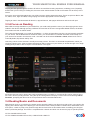
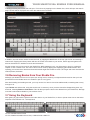
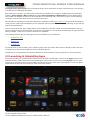
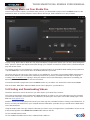
The second way of launching apps is via the main Newsstand screen; this displays all of your most recently-accessed
books, documents, games, apps and media files, making it pretty easy to track down commonly used items.
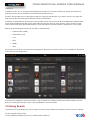
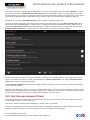
From time to time you will probably decide that you no longer wish to keep an app on your Kindle Fire. If this is the
case, you can uninstall it easily by opening the Apps screen, long-tapping the app icon and selecting Remove from
Device.
If you prefer to simply tidy up the Newsstand, however, rather than delete apps, tap and hold the items you’re unhappy
with and select Remove from Carousel, thereby hiding said book or app.
4.4 Suggested Apps for the Kindle Fire
In most cases you should be able to manage with the apps provided free as part of the operating system. However,
if you wish to take advantage of the various free apps in the Amazon App Store, there are several that you shouldn’t
miss.
•
Skype – use your existing Skype details to login and chat with friends. Voice and video chat are
unavailable, sadly.
•
Pulse – an amazing newsreader app which you can tailor to find updates based on your interests.
•
Evernote – the popular note-taking app is available for the Kindle Fire, as is a useful, more
stripped-down alternative, AK Notepad.
•
Read It Later – if you’ve ever come across an article on the web that you would like to read but
don’t have time for right now, this app will help you out.
•
Wi-Fi Analyzer – a top app for making sure you connect to the fastest Wi-Fi network in your
vicinity.
In addition to these, the usual Facebook, Twitter and LinkedIn social networking apps are available, along with alternative browsers, email clients and even eBook reading software and media players! Explore and you’ll find something
you like.
HTTP://MAKEUSEOF.COM
HTTP://WWW.CMCAWLEY.CO.UK, CHRISTIAN CAWLEY
16
share: