1
Point of View Mobii 5045- Android 4.2 Mobile Phone
English
Table of Contents
General notices for use............................................................................................................. 2
Disclaimer .................................................................................................................................. 2
Box Contents ............................................................................................................................. 2
1.0 Product basics..................................................................................................................... 3
1.1 Buttons and connections .................................................................................................... 3
1.2 SIM card ............................................................................................................................ 3
1.3 Storage card ...................................................................................................................... 4
1.4 Battery ............................................................................................................................... 4
1.5 Charging phone ................................................................................................................. 4
1.6 Switching your phone on or off ........................................................................................... 5
1.7 Entering your PIN............................................................................................................... 5
2.0 Getting started ..................................................................................................................... 6
2.1 The home screen ............................................................................................................... 6
2.2 Android lock screen ........................................................................................................... 7
2.3 The App drawer – bottom center icon ................................................................................ 8
2.4 Status notification area – top of the screen ........................................................................ 8
3.0 Basic setup ........................................................................................................................ 10
3.1 Changing operating language .......................................................................................... 10
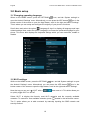
3.2 Wi-Fi settings ................................................................................................................... 10
3.3 Setting up mobile data (by APN) ...................................................................................... 11
3.3 Connecting your phone to a PC ....................................................................................... 13
4.0 Basic operation ................................................................................................................. 14
4.1 Calling, SMS and phonebook ........................................................................................... 14
4.2 Installing Apps ................................................................................................................. 14
4.3 Administer / remove apps ................................................................................................ 15
4.4 Add an account ................................................................................................................ 15
5.0 Frequently Asked Questions ............................................................................................ 16
1
English
Point of View Mobii 5045 - Android 4.2 Mobile Phone
General notices for use
-
-
This product is a highly advanced electronics device. Disassembly, customization or repairs without the
appropriate knowledge and pre-cautions can lead to dangerous situations with a chance of damaging the
product and serious injuries.
Avoid use in extreme conditions such as high and low temperatures, high humidity or moist
environments and around magnetic fields. Also avoid long-time exposure to sunlight.
Only use by the manufacturer permitted accessories to avoid damages to the product and possible
warranty loss.
Please follow the relevant local environmental regulations to deal with obsolete machines and
accessories.
Use a protective folder to avoid extreme physical shocks to the device (i.e. of dropping).
This product comes with a partially charged battery. Please make sure to fully charge the battery or have
the charger inserted before first use to avoid possible damage.
Disclaimer
-
-
The screenshots are for Android reference only. They may be made on a device with a different
resolution or hardware configuration than yours and therefore can be slightly different from the final
product.
The manufacturer takes no responsibility for loss of information or data caused by hardware or software
failure. The user is responsible for performing timely backups of important data.
All information and images used in this user manual are provided ‘as is’ and are subject to change
without notice.
The manufacturer accepts no liability for the information offered in this document.
Hereby, Point of View B.V., declares that this Tablet PC is in compliance with the essential requirements
and other relevant provisions of Directive 1999/5/EC. The declaration of conformity may be consulted at
www.pointofview-online.com/DoC/
Box Contents
-
Android phone
Device charger
Battery
USB Cable
Instruction manual
Headphone (optional)
MicroSD Card (optional)
Dear customer,
Thank you very much for your purchase of a POINT Of VIEW product.
This product comes with a 2 year hardware warranty. Warranty on the battery is only 6 months.
Please register your purchased product within 30 days on our website. By means of this registration, we can bring
you the best technical support. On our website you can also obtain more information about the warranty.
www.pointofview-online.com/club
If you have further questions, please contact the Point of View Service Center through the e-mail address:
[email protected]
2
Point of View Mobii 5045- Android 4.2 Mobile Phone
English
1.0 Product basics
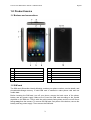
1.1 Buttons and connections
1
Volume +/-
7
Headphone
2
Front speaker
8
Micro USB
3
Front camera
9
Power on/off
4
Options button
10
Camera flash
5
Home button
11
Back Camera
6
Back button
12
Back speaker
1.2 SIM card
The SIM card (Subscriber Identity Module) contains your phone number, service details, and
phonebook/message memory. A valid SIM card is needed to make phone calls and use
mobile data.
Before inserting the SIM card, turn off your phone, remove the back cover of the phone,
battery and any power supply. Make sure to insert the SIM card according to the symbol
depicted on the SIM slot. That is with the gold contacts facing down and the cut-off corner
facing away from the camera. To remove the SIM card, first power of the device, remove the
battery and any power supply. Then remove the SIM card.
3
English
Point of View Mobii 5045 - Android 4.2 Mobile Phone
Warning: Damages could happen to your device or SIM card if the device is not switched off
when taking out the SIM card.
1.3 Storage card
A microSD card can be used to expand the phone’s storage. Use it to store your photos,
videos, music and applications. MicroSD cards up to 64 GB are supported. To insert a
microSD card, remove the back cover of the phone and insert the microSD card according to
the symbol next to the card slot. That is with the gold contacts facing down and the cut-off
corner towards the camera.
To remove the microSD card, simply slide the card out from its slot.
When you need to remove the storage card while the phone is on, unmount the storage card
first to prevent corrupting or damaging the files on the storage card. To unmount the microSD
card, on the HOME screen, press the OPTIONS
icon and tap ‘System settings’. Select
‘Storage’ and scroll down to ‘SD CARD’. Tab ‘Unmount SD card’ and ‘OK’ on the next popup.
Now remove the microSD card as described above.
1.4 Battery
This product comes with a partially charged, rechargeable battery. Please make sure to fully
charge the battery or have the charger inserted before first use to avoid possible damage.
Please use only original batteries and accessories that came with your phone or
replacements that we recommend. How long the battery can last before it needs recharging
depends on how you use your phone. Among these are the phone features and accessories
you use (for example, leaving your Bluetooth connection always on uses more power). Long
phone calls and frequent web browsing use up much battery. Also, consider your location:
poor signal strength from your mobile network and extreme temperature make the battery
work harder.
1.5 Charging phone
Connect the supplied USB cable between your phone and the charger and plug the charger
into an electrical outlet. As the battery is being charged, the notification LED shows a solid
red light. The light turns to solid green when the phone is fully charged.
When you charge the battery while the phone is on, the charging battery icon is displayed
in your phone’s status bar. After the battery has been fully charged, the charging battery icon
turns to a full battery icon
During charging, the battery, device and the charger can get hot. This is normal. Unplug the
charger from the AC electrical outlet and disconnect the wiring between the phone and the
charger after charging.
Attention: Charge the phone in a well-ventilated place in which the temperature is from 10℃ to +55℃. Use the charger provided by the manufacturer only. The use of an
4
Point of View Mobii 5045- Android 4.2 Mobile Phone
English
unconfirmed charger may lead to dangers and violation of the manufacturer's warranty. If the
temperature becomes too high or too low during charging, the device will automatically give a
warning and stop charging to avoid possible damage to the device or any other danger.
1.6 Switching your phone on or off
To start your device, press and hold the ‘Power button’ until the screen lights up. When you
start up the phone for the first time, you’ll be asked to set it up. Follow the instructions on
screen.
To shut down your device, press and hold the ‘Power button’ until the Power options menu
appears and tap ‘Power off’.
1.7 Entering your PIN
To avoid illegal use, the SIM card is encrypted with a PIN code (Personal Identification
Number) as protection. When this function is ON and you have already set a PIN code, you
need to type in the PIN code every time the phone is switched on in order to unlock the SIM
card and use the phone.
You can turn off the SIM PIN code in the settings menu. Yet in this situation, the SIM card
cannot prevent illegal use.
If you type in the wrong PIN code three times in a row, the SIM card will be locked. You now
need a PUK (PIN Unblocking Key) to unlock the SIM card again.
5
English
Point of View Mobii 5045 - Android 4.2 Mobile Phone
2.0 Getting started
2.1 The home screen
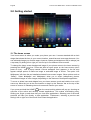
Your home screen is where you make your phone your own. It comes standard with a clock
widget that shows the time in your current location, search bar and some app shortcuts. You
can add and change your favorite apps, shortcuts, folders and widgets so they’re always just
a tap away. By sliding left or right you can find up to five different home screens.
To change the home screen background image of your phone return to the home screen by
pressing the HOME
icon. Press and hold an open space on the home screen (don’t
press an icon) - until a popup named ‘Choose wallpaper from’ appears. In the list may
appear multiple options to select an image or animated image of choice. The option ‘Live
Wallpapers’ will show the pre-installed animated home screen images. Other options such as
‘Gallery’, ‘Video Wallpaper’ and ‘Wallpapers’ allow you to select (widescreen) photos,
downloaded images or other images; depending on the features of that specific application.
To move or delete icons and widgets from your home screen, touch and hold the icon until it
comes up. Move the icon to the new location or drag it to the ‘Remove’ bar on the top of the
screen to remove it. Releasing the touch screen will confirm your action.
If you press and hold the HOME
icon the recent activity window will pop up, showing an
overview of the active and recently viewed applications. This makes multi-tasking easy.
Sliding your finger up and down lets you view more applications. Selecting one of the small
previews will take you directly to that application. Furthermore, selecting a preview and
sliding it left or right out of the list will force close the application.
6
Point of View Mobii 5045- Android 4.2 Mobile Phone
English
2.2 Android lock screen
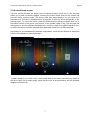
The lock screen prevents the device from unwanted operation when not in use and also
allows you to add convenient widgets. Pressing the Power button turns off the screen and
puts the device into lock mode. The device locks itself automatically if it is not used for a
specified time. This time is standard set to 30 seconds of inactivity, but is configurable in the
settings menu. To unlock the device, press the Power button to bring the screen back on. In
the bottom center of the screen you will see a lock symbol inside a ring. Tab and hold the
lock symbol to see the different possibilities for unlocking. Slide your finger towards an icon
to unlock the phone and start the application applicable to the icon you have selected.
Depending on your hardware and software configuration, there may be different or less quick
select icons available on your lock screen.
To add a widget to your lock screen, press either side of the screen and slide your finger to
the left or right. On an empty page, press the plus icon to be presented a list with possible
widgets to choose from.
7
English
Point of View Mobii 5045 - Android 4.2 Mobile Phone
2.3 The App drawer – bottom center icon
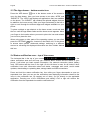
Press the ‘APP drawer’
icon in the bottom center of the screen to
open the App drawer. Here you have access to two tabs; ‘APPS’ and
‘WIDGETS’. The ‘APPS’ tab displays all applications that are available
on the phone. The ‘WIDGET’ tab contains the optional widgets that can
be added to the home screen. Slide your finger horizontally to the left or
right to scroll through the different apps and widgets available on your
phone.
To place a widget or app shortcut on the home screen, touch and hold
the icon until the App drawer fades and the home screen appears. Move
your finger to the location where you want to place the icon and release
your touch to place the icon.
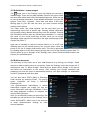
When using apps or other parts of the operating system you can often
press the OPTIONS
icon, located on the bottom left, of the phone
to access extra options. Advanced settings. switching to a different
account or refreshing the displayed information are often ‘hidden’ behind
this icon.
2.4 Status notification area – top of the screen
The horizontal bar in the top of your screen
is the
status notification area and will keep you informed about events and the status of your
phone. It will show you basic system information, like network connection status, battery
level, GPS status and the time on the right. On the left there is room for all kinds of other
notification icons with information about call status, messages and e-mail, social media
updates, downloading or uploading data, storage cards and USB connections.
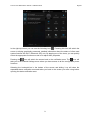
Press and hold the status notification bar, then slide your finger downwards to open an
expended view. Here you can see the notification area displaying information related to the
icons in the notification bar. By tapping one of them, you go directly to the applicable
application. Pressing one of the notifications and sliding it left or right will remove the
notification from the expanded view and the notification bar.
8
Point of View Mobii 5045- Android 4.2 Mobile Phone
English
. Pressing this icon will switch the
In the right top corner you can see the following icon:
screen to display graphically presented, detailed information about the status of often used
system features like Wi-Fi, Bluetooth, GPS, etc. By tapping one of the icons, you can quickly
select the appropriate functions on and off or adjust their properties
Pressing the
icon will switch the screen back to the notification area. The
icon will
take you to the Android Settings menu where you have access to all the configurable phone
functions.
Selecting the horizontal bar in the bottom of the screen and sliding it up will close the
expanded status notification area and takes you back to the screen you were using before
opening the status notification area.
9
English
Point of View Mobii 5045 - Android 4.2 Mobile Phone
3.0 Basic setup
3.1 Changing operating language
When on the HOME screen, press the OPTIONS
icon, and tab ‘System settings’ to
open the Android ‘Settings’ menu. Alternatively you can press the APP drawer
icon in the
bottom center of the screen to open the App drawer, scroll to the right and select ‘Settings’.
This is where you can setup and configure the majority of your phone’s functions.
Scroll down and select the option
‘Language & input’ to display all language and input
related settings. Next, select the option ‘Language’ to choose the preferred language for your
phone. This menu also displays the keyboard settings which you can customize, enable or
disable.
3.2 Wi-Fi settings
While on the HOME screen, press the OPTIONS
icon, and tab ‘System settings’ to open
the Android ‘Settings’ menu. Alternatively you can press the APP drawer
icon in the
bottom center of the screen to open the App drawer, scroll to the right and select ‘Settings’.
Near the top you can see ‘
Wi-Fi’ with a
to quickly toggle Wi-Fi on and off.
slider next to it. This slider allows you
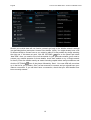
Select ‘Wi-Fi’ to display the formerly used Wi-Fi networks and the currently available
networks. To search for new available networks; press
located in the left bottom corner.
The + option allows you to add a network by manually inputting the SSID network and
security method.
10
Point of View Mobii 5045- Android 4.2 Mobile Phone
English
Whether manually added or automatically detected, you may need to fill in a password to be
accepted on the network. Please contact your system or network administrator for the correct
information.
Advanced network settings can be found by clicking the OPTIONS
icon.
Note that 3G communication will automatically be disabled when a Wi-Fi network is
connected.
3.3 Setting up mobile data (by APN)
When you start up your phone for the first time with a SIM card installed, the correct settings
for mobile data subscription are automatically recognized from your SIM card or sent to your
phone by SMS from your provider. Your phone will then be automatically setup correct.
On some networks or phones, it might happen that these settings are not recognized or sent
automatically, or mobile data may be switched off on your device. In this case you have to
set up your phone’s network settings yourself. First check if the mobile data connection is
switched on. While on the HOME screen, press the OPTIONS
icon, and tab ‘System
settings’ to open the Android Settings menu. Under ‘Wireless & Networks’, select ‘SIM
management’. When using multiple SIM cards, this is where you can setup which SIM card
to use for the different phone functions. Make sure ‘Data connection’ is on and set to the
relevant provider by tapping it and selecting the correct provider. If the data connection was
switched off, you will now most probably have a working connection.
If you still do not have a working data connection, go back to the Android Settings menu and
Under ‘Wireless & Networks’, select ‘More…’ and then ‘Mobile Networks’ in the newly
opened screen. Continue by selecting ‘Network operators’, select the applicable operator
followed by ’Choose automatically’. This will automatically select the correct network.
Alternatively, you can choose ‘Select manually’ to manually search for, and select the correct
network. Your mobile data should now be working.
11
English
Point of View Mobii 5045 - Android 4.2 Mobile Phone
Should your mobile data still not function correctly go back to the ‘Mobile network’ settings
(as described before) and select ‘Access Point Names’ (APN). You might already have a list
of different APNs to choose from so you might be able to fix the problem by simply selecting
the right one. If this does not work, click the OPTIONS
icon on the phone and select
‘New APN’. Here you need to fill out all the details for your particular network (you'll need to
contact your network operator for these details, check their website or try a Google search
for them). Enter the details exactly as stated including capital letters and punctuations and
click the OPTIONS
icon of the phone followed by ‘Save’. Your new APN will now show
up in the list for you to select. Give it a few moments to connect and you should have your
internet connection. If you still don't have a connection, check that your APN details have
been correctly entered.
12
Point of View Mobii 5045- Android 4.2 Mobile Phone
English
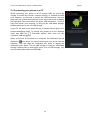
3.4 Connecting your phone to a PC
When connecting your phone to a PC through USB, no drivers are
needed to access the phone’s internal memory or inserted microSD
card. However, you do need to confirm the USB connection: click and
drag down the system information bar at the top of the screen to display
the notification area. Now select the option ‘USB connected - Touch to
copy files to/from your computer’ to bring up the ‘USB Mass Storage’
window asking you to turn on USB Storage.
If your PC still asks for the device drivers, it may be that the phone is in
Android debugging mode. To change this, please go to the ‘Settings’
menu and open the
‘Developer options’ item. Here you can
(un)check ‘USB debugging’.
When your phone is connected to a computer, the notification bar will
icon. When you want to disconnect your phone from the
display the
computer, click and drag the notification bar down to display the
notification area. Select ‘Turn off USB storage’ to bring the ‘USB Mass
Storage’ window back up and simply press ‘Turn off USB storage’. You
can now safely disconnect the USB cable.
13
English
Point of View Mobii 5045 - Android 4.2 Mobile Phone
4.0 Basic operation
4.1 Calling, SMS and phonebook
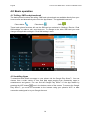
The basic phone functions like calling. SMS and a phonebook are available directly from your
home screen and alternatively also from the ‘App drawer’. The applicable icons are:
Phone dialer:
Phonebook:
SMS:
These basic phone functions will use the SIM card you selected in “Settings / Device / Dual
SIM settings” to make a call, send texts etc. To change to the other SIM card you must
change the applicable settings in ‘Dual SIM settings’ menu.
4.2 Installing Apps
To download and install new apps on your phone visit the Google Play Store™. You can
choose from a wide variety of free and paid apps ranging from productivity apps to
entertainment and games. You can find the Google Play Store™ in the App drawer by
pressing the APP drawer
icon in the bottom center of the screen. To access the Google
Play Store™, you must be connected to the Internet using your phone’s Wi-Fi or data
connection and signed in to your Google Account.
14
Point of View Mobii 5045- Android 4.2 Mobile Phone
English
4.3 Administer / remove apps
The
‘Apps’ item in the ‘Settings’ menu will display an overview of
installed apps. There are four tabs available (Scroll to the right to make
the other tabs visible) which filter the displayed apps list. Select an app
to view its detailed information. In the detailed information you have the
options ‘Force Stop’, ‘Uninstall’, ‘Clear data’ and ‘Move to SD card’.
Moving apps to your SD card can save you some internal storage
memory on the phone.
The ‘Clear cache’ and ‘Clear defaults’ can be used when you are
experiencing issues with a specific app. Clearing cached information
and (possibly wrong) default settings may solve the problem. Clearing
this information will also wipe any stored login information. I.e. clearing
the cache of your social media app will also force you to re-login
afterwards. Apps may also be removed in the apps content page of the
Google Play Store™.
Apps can be installed on both the internal memory or on a SD card.
Installing apps on the internal memory can, at some point, cause the
phone to run out of memory and become slow. This can be prevented
by installing apps on a SD card, keeping enough free room for the operating system itself. To
set this option up, go to ‘Storage’ in the ‘Settings’ menu, press ‘Preferred install location’ and
choose your preferred option.
4.4 Add an account
The best way to fully make use of your Android phone is by linking your Google / Gmail
account or other e-mail account to your device. Open the ‘Settings’ menu and choose the ‘+
Add account’ item. To add a Google / Gmail account, please select ‘Google’ in the pop-up
and follow the instructions on the screen. After entering your Google username and
password you have the option to automatically back-up your apps, settings (i.e. bookmarks
and Wi-Fi passwords) and other data.
You can also add a POP3, IMAP or Exchange
email account by selecting ‘Email’. The pop-up
option ‘Corporate’ will setup a ‘Microsoft
Exchange’ link.
Your system/network administrator or mobile
subscription supplier can supply you with the
server information and login credentials. Follow
the steps displayed on-screen to complete the
account linking process.
After you successfully linked your account(s) with
the tablet you will see them in the ‘Settings’ menu
under ‘ACCOUNTS’. Select one of the accounts
to setup synchronization settings for each
account separate.
15
English
Point of View Mobii 5045 - Android 4.2 Mobile Phone
5.0 Frequently Asked Questions
1) Is there a software update available for my phone?
All firmwares are posted on http://downloads.pointofview-online.com
2) I downloaded [app name] and it doesn’t work (properly)?
Some applications are specifically developed for tablets or big screen phones and
might not have support for Android devices with smaller screens. Try to update the
software or find a compatible alternative app. This incompatibility can also occur with
software written for previous Android versions.
3) How can I manually install an APK file?
By default, it is not possible to manually install APK files. To enable this you have to
enable the ‘Unknown sources’ setting. This can be found in the ‘Settings’ menu ->
‘Security’.
4) My battery is only lasting xx hours!
The operating time of the phone on one battery load depends very much on the
specific tasks that it has to perform. Wi-Fi, Bluetooth, GPS and other wireless
communication technologies are known to consume a lot of power. Also CPU
intensive applications such as games and HD video clips can use up the power of the
battery fast.
To maximize the duration of your battery, you can optimize the following settings:
- Choose a low or dynamic screen brightness
- A short press on the power button will directly place the phone in standby mode
- Download an ‘App killer’ to clear the memory from previous started apps
- Disable Wireless devices when not using them
- Remove USB devices (these use power as well)
- Avoid use/charging in extremely hot or cold environments
5) Can the phone charge through USB?
Yes, however it will charge quite slow due to the limited power the USB port
(500mAh) can supply. The charger can supply more power and will charge much
faster.
16