1
English
Point of View Mobii 5045 - Android 4.2 Mobile Phone
2.0 Getting started
2.1 The home screen
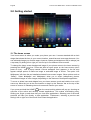
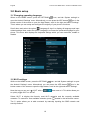
Your home screen is where you make your phone your own. It comes standard with a clock
widget that shows the time in your current location, search bar and some app shortcuts. You
can add and change your favorite apps, shortcuts, folders and widgets so they’re always just
a tap away. By sliding left or right you can find up to five different home screens.
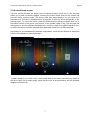
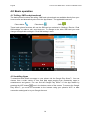
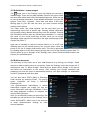
To change the home screen background image of your phone return to the home screen by
pressing the HOME
icon. Press and hold an open space on the home screen (don’t
press an icon) - until a popup named ‘Choose wallpaper from’ appears. In the list may
appear multiple options to select an image or animated image of choice. The option ‘Live
Wallpapers’ will show the pre-installed animated home screen images. Other options such as
‘Gallery’, ‘Video Wallpaper’ and ‘Wallpapers’ allow you to select (widescreen) photos,
downloaded images or other images; depending on the features of that specific application.
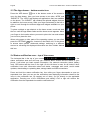
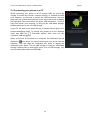
To move or delete icons and widgets from your home screen, touch and hold the icon until it
comes up. Move the icon to the new location or drag it to the ‘Remove’ bar on the top of the
screen to remove it. Releasing the touch screen will confirm your action.
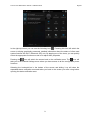
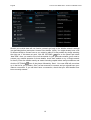
If you press and hold the HOME
icon the recent activity window will pop up, showing an
overview of the active and recently viewed applications. This makes multi-tasking easy.
Sliding your finger up and down lets you view more applications. Selecting one of the small
previews will take you directly to that application. Furthermore, selecting a preview and
sliding it left or right out of the list will force close the application.
6