1
2
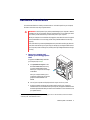
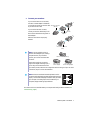
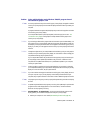
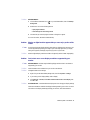
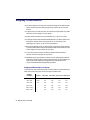
Choose a PCI slot
Most computers have different types of
expansion slots. Choose a PCI (not PCI
Express) slot for your graphics card. Your
card supports both 64-bit and 32-bit PCI
slots. Your system manual should identify
the location of each type of expansion slot in
your computer.
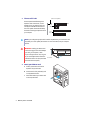
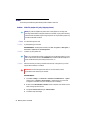
(Back of computer)
PCI
Express
slots
(×16)
(×1)
PCI
slots
(64-bit)
(32-bit)
Note: If you’re using a PCI graphics card in a 64-bit compatible slot, your choice of PCI slot
may affect your card or system performance. For more information, see your computer
manual.
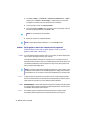
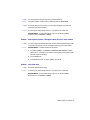
WARNING: Inserting your Matrox card
into the wrong type of slot could damage
your card, your computer, or both.
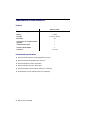
If you’re using a 32-bit PCI slot, only part
of your card’s edge connector should be
inserted into the PCI slot (the part closest
to the back of the computer).
3
4
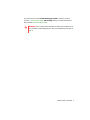
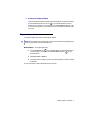
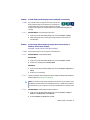
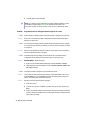
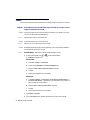
Insert your Matrox card
a
Position your Matrox card over the
expansion slot you’ve chosen.
b
Push the card in firmly and evenly until
it’s fully seated in the slot.
c
Secure the bracket of your Matrox card
to the computer frame.
Matrox PJ-4OLP – User Guide
32-bit
64-bit
PCI card