1
TS-10 Musician’s Manual
Section 12 — Sequencing/MIDI Applications
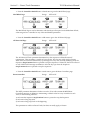
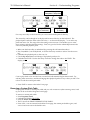
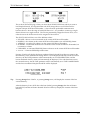
• You see that from the Seq/Song Tracks 1-6 or 7-12 pages, you can change what plays from the
TS-10 keyboard simply by selecting different tracks. You can layer tracks together by doubleclicking their soft buttons. You can adjust the mix, key range, transpose, etc. for any of the
tracks.
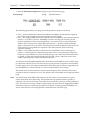
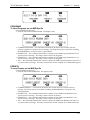
• Now create another sequence. (The TS-10 will ask you SAVE CHANGES TO <SEQ NAME>?
Answer *YES*.) Name this sequence MIDI-OUT-2. For the tracks of the new sequence, go
through the same procedure as before, but assigning different program numbers to the
external instruments. (Remember always to change programs from the TS-10’s Track MIDI
sub-page.)
• Again, you can play a different external instrument, or the TS-10 alone, or the TS-10 and an
external instrument, depending on which track(s) you select.
Now press Seqs/Songs and reselect the first sequence. (Again, the TS-10 will ask you SAVE
CHANGES TO <SEQ NAME>? Answer *YES*.) Notice when you select the new sequence that
all the external instruments connected to the TS-10 change to the proper program for that
sequence — each track sent out a program change on its MIDI channel when the sequence was
selected. Now select the second sequence again. Each external instrument again changes back to
the proper program.
Notice that you haven’t recorded anything on either of these sequences. They exist merely as
Track Templates, which serve two useful purposes when using the TS-10 as a system controller:
1) Every time you select a new sequence, each track can send a program change to an external
instrument. You can change the sound that every remote MIDI device in your rig is playing
with one press of a button. Also the same tracks will be selected or layered as when you last
saved the sequence.
2) When you select any track of a sequence, the TS-10 keyboard plays whatever program is on
that track, or sends on the track’s MIDI channel, or both. Select a different track and you have
a different configuration. From the Seq/Song Tracks 1-6 and 7-12 pages you select any
combination of local and/or MIDI sounds.
Of course you can record data on any of these sequences if you want. Whether you do or not,
they will still work as templates. You can play external instruments from the TS-10 or from their
own keyboards. You can have a track send a program change to a MIDI effects processor (like
the ENSONIQ DP/4); have it send program changes to a sampler (like the ASR-10) to load
sounds, or to a drum machine to change patterns, just by selecting a new sequence. No doubt
you will come up with some applications of your own, based on your equipment and your needs.
MULTI Mode — Receiving on up to 12 MIDI channels
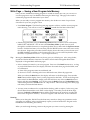
When you select MODE=MULTI on the MIDI Control Page, the 12 tracks of the current sequence
or song become like 12 “virtual instruments,” each receiving independently on its own MIDI
channel, but all sharing the same 32 voices and the same effects set-up.
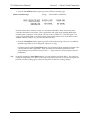
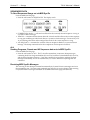
• Press MIDI Control. Set MODE=MULTI. The 12 tracks of the current sequence will now each
receive on its own MIDI channel, which you can select independently for each track.
• Create a new sequence. You might want to name this sequence *MULTI-IN, or something
similar, to indicate that it is specially set up as a multi-channel MIDI receiver.
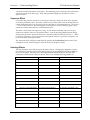
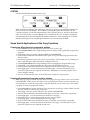
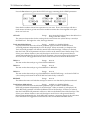
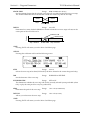
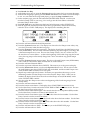
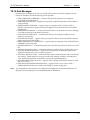
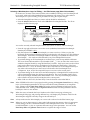
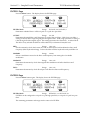
• Press Seq/Song Tracks 1-6. All the tracks except the first are still UNDEFINED. Select each of
the tracks, defining them and putting the current sound on them. Press 7-12 and do the same
for the 6 tracks there. Then press Seq/Song Tracks 1-6 again to return to the first 6 tracks.
3