1
ViewPad 7
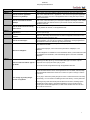
Frequently Asked Questions
CATEGORY
Applications
QUESTION
How do I read e-books?
ANSWERS
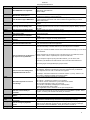
The installed Aldiko e-reader app allows you to download and read e-books. Simply run
the Aldiko app then select Download books. Select from a list of publishers to browse the
Aldiko Online Catalog. Tap on the book you want to download and then tap Download.
The downloaded book will appear in your bookshelf.
You may install additional e-reader apps from Android Market, including the B&N Nook,
Amazon Kindle and Kobo.
Applications
Can I run Java applications on my
tablet?
Applications
Your ViewPad7 comes with the Documents to Go application pre-installed. This program
supports Microsoft Office 2007 files (Word, Excel and PowerPoint) as well as PDF files.
How do I open MS Office or PDF
documents?
Applications
The ViewPad7 does not support Java.
How do I access additional settings
(Spare Parts) ?
Applications
How can I download or purchase
applications through my device?
Applications
How do I assign multiple phone
numbers to a single contact?
Applications
How do I create and use an email
signature?
Applications
How can I synchronize my device to
my Outlook?
Applications
Can I sync my Hotmail or AOL
contacts to my tablet?
Applications
How do I access e-mail?
Applications
How do I view pictures in my e-mail?
When you select your document in the File Browser, Documents to Go will open the file
automatically. Touch the menu button in Documents to Go and select Edit to edit your file.
You also can create new document. Choose a format, then click "Create New Document."
The Spare Parts app offers access to additional options not available in the default
Android Settings menu. You may download this app from Android Market or you can find
it online.
Please use the Android Market to browse for free and paid applications. You can find
Android Market by pressing All apps > Market.
To browse featured applications, simply scroll through the list in Android Market. You can
narrow your browsing to Apps or Games, or search for keywords. Select an app to read
detailed information, and click BUY or INSTALL to begin downloading. Download
progress will appear in the notification bar and apps will be installed automatically upon
download.
Open the Contacts application, select the individual contact, then press MENU > Edit.
The + icon allows you to add additional phone numbers.
You can also add other details like email, postal address and more by tapping the “add”
option for the corresponding detail.
Once you configure an e-mail signature, it will be added automatically to all outgoing emails. Setting up a signature is easy. In the GMail app, select Menu > More > Settings >
Signature. In the E-Mail app, select Menu > Account Settings > General settings >
Signature.
Use the Sync Tool which is installed on your PC the first time you connect your tablet by
USB. When you first connect, the computer will detect a CD-ROM with an auto run file.
Execute this program to install the required driver on your computer. When installation is
complete, the synchronization interface will pop up. Choose your language, and then
press Synchronization Tool to sync now or modify sync settings.
The Android operating system currently only supports synchronizing with Google
accounts. You may export your contacts from Hotmail, AOL or other mail service and then
import them to GMail. Please refer to your mail provider for details about exporting
contacts.
Use the GMail app to access a GMail account, or the E-mail app to access all other email accounts. You may need to refer to your e-mail service provider for the necessary
data to configure your account.
In GMail, tap the Show Pictures button that appears at the top of the message to display
embedded images. If images are attached but not embedded in the body of the e-mail,
the filename(s) and thumbnail image(s) will be shown at the bottom of the message,
along with options to Open or Save the images. If multiple large images are attached to
the e-mail, it may take a moment for the files to load.
In the standard e-mail application, thumbnail images will also appear with options to
Open or Save.
Applications
Open the Google Maps app from the Launcher, then choose Settings > Directions. Your
start point is automatically set to My Location, determined by GPS. Tap the icon next to
the input box to enter a different start point. Enter your destination in the End Point box or
How do I navigate with Google Maps?
tap the icon to choose an address from Contacts or select a Point on Map. Use the
buttons to select a mode of transportation and tap Go. Google Maps will display turn-byturn directions.
3