1
UK’s best selling phone brand†
Quick Set-up and User Guide
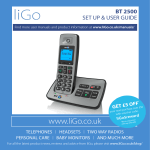
BT2000
Digital Cordless Phone
2
Important – please read first
• Only use the line cord, power supply and rechargeable batteries supplied with
your phone.
• Make sure that the power supply is connected to a known working socket.
• Connect your phone to the power supply and allow the batteries to charge for
24 hours before connecting the line cord to your telephone socket.
• To make sure you get the best range and reception from your handset, avoid
interference by placing the base unit away from large metal objects such as
fridge freezers and microwave ovens or electronic products such as computers
and TVs.
If you need some help, call us on 0800 145 6789* or go to www.bt.com/producthelp
Check box contents
3
Telephone line cord
(pre-installed)
Find
BT Zinc
Handset
Base
Mains power adaptor
(item code 066270)
2 x AAA Ni-MH 550 mAh
rechargeable batteries
(already in handset)
Contents for each additional handset (multipacks only)
Handset
Charger
Mains power adaptor
(item code 066270)
2 x AAA Ni-MH 550 mAh
rechargeable batteries
(already in handset)
IMPORTANT
Only use the mains power adaptors, cables and rechargeable batteries supplied in this box or this
product might not work. Any replacement rechargeable batteries must be of the same type.
BT accepts no responsibility for damage caused to your BT2000 if you use any other type of batteries.
If you need some help, call us on 0800 145 6789* or go to www.bt.com/producthelp
4
Quick set-up guide
Where to put your phone
• Place the base within
3 metres of a mains power
socket and 1.8 metres of a
phone socket so the cables
will reach.
• Make sure it’s at least a
metre away from other
electrical appliances to
avoid interference.
1 Plug in
1. Plug the mains
power adaptor into
the base, with the
cable clipped in the
groove provided.
1
• Don’t place the phone or
base in a bathroom or
other humid area.
• The product works by
sending radio signals
between the handset and
base. The strength of the
signal depends on where you
position the base. Putting it
as high as possible can help
give you the best signal.
IMPORTANT
• Don’t connect the phone line
to a phone socket until the
handset is fully charged.
2. Plug the other end
of the power adaptor
into the wall power
socket and switch on.
2
The phone line cord is pre-installed but don’t
plug the other end into the wall socket yet.
• The base station should
be plugged into the mains
power socket all the time.
If you need some help, call us on 0800 145 6789* or go to www.bt.com/producthelp
Quick set-up guide
2 Activate the batteries and
follow the Set-up wizard
1. Activate the batteries by pulling the plastic tab
away from the back of the handset.
Rechargeable batteries
already fitted
Remove this tab
and charge batteries
for 24 hours before use.
2. The handset will check for a link with the base
station, once found the screen will show Please set
the time and date. The set-up wizard will take you
through the steps for setting the time and date and
adding contacts.
Press the
button if you want to follow
button
the set-up wizard prompt or the
to continue to the next prompt until set-up
is complete.
Talk/Standby time
Under ideal conditions, the
handset batteries should give
up to 12 hours talk time or
120 hours standby on a single
charge. (This doesn’t mean you
can unplug the base or leave
the handset for this length of
time without charge).
Please note that new Ni-MH
rechargeable batteries don’t
reach full capacity until
they’ve been in normal use
for several days.
Battery low warning
The
icon will flash, you’ll
see the message Battery
Low in the display and hear a
warning beep every minute,
to indicate that you need to
recharge your handset before
you can use it.
You can remove the display
message by selecting Hide. If
the battery charge completely
runs out, the display will show
Batteries flat. Please
charge. You must recharge
the handset batteries before
you can use the handset. If the
charge completely runs out the
handset will switch off. Place
the handset on the base or
charger to charge.
If you need some help, call us on 0800 145 6789* or go to www.bt.com/producthelp
5
6
Quick set-up guide
Battery performance
• To keep the batteries in the
best condition, leave the
handset off the base for a
few hours at a time.
• Running the batteries right
down at least once a week
will help them last as long
as possible.
• After charging your handset
for the first time, subsequent
charging time for the
batteries is approximately
8 hours.
• The charge capacity of
rechargeable batteries will go
down over time, which will
reduce the talk and standby
time. Eventually they’ll need
replacing. For details on how
to get replacement batteries,
call the helpline on 0800
145 6789*.
3. Once set-up is complete your handset will display
Please check line cord, place the handset on the
base to charge until step 4.
4. After 24 hours, plug the phone line cord into the
phone wall socket.
IMPORTANT
Charge the handset batteries for 24 hours or your
phone might not work.
Set up your additional handsets (multipacks only)
1. For additional handsets and chargers: plug the
mains power adaptor into the back of the charger
and plug the other end into the mains wall socket
and switch on the power.
1
2. Activate the batteries as explained on page 5.
3. Place the handset on the charger to charge for
24 hours.
If you need some help, call us on 0800 145 6789* or go to www.bt.com/producthelp
Quick
Quick set-up
set-up guide
guide
If you ever need to remove the batteries, simply
slide open the battery compartment cover and
ease out the batteries.
3 Go!
Your BT2000 is now ready
for you to use
• For help setting the date and time, go to page 43.
• For instructions on making a call, go to page 17.
• For help personalising your phone’s settings, go to
page 35.
Or, you may find the answer in the Help section
on page 53 or see our online frequently asked
questions at www.bt.com/producthelp
Alternatively, call the Helpline on 0800 145 6789*.
* Calls made from within the UK mainland network are free. Mobile and
international call costs may vary.
Using your BT2000 on
a broadband line?
If so, you need to fit an ADSL
microfilter between the phone
line cord and the phone
socket. You can get BT
ADSL microfilters from
www.bt.com/shop
If you cannot find the answer
to your problem in this user
guide, then please call our free
Helpline on 0800 145 6789*.
Our dedicated advisors are
more likely to be able to help
you than the retailer where you
made your purchase.
If you need some help, call us on 0800 145 6789* or go to www.bt.com/producthelp
7
7
8
In this guide
Getting to know your phone
Handset buttons............................................. 10
Handset display/display icons.......................... 12
Finding your way around your phone............... 13
Menu map...................................................... 14
Base............................................................... 16
Using the phone
Switch the handset on or off............................ 17
Make an external call...................................... 17
Preparatory dialling........................................ 17
End a call....................................................... 17
Receive a call.................................................. 18
Call Waiting.................................................... 18
Mute.............................................................. 19
Incoming speech/Handsfree volume................ 19
Handsfree...................................................... 19
Make a handsfree call...................................... 19
Answer a call handsfree................................... 20
Switch to handsfree during a call..................... 20
Redial............................................................ 20
Voicemail (1571)............................................ 21
Do not disturb................................................ 21
Keypad lock.................................................... 22
Turn the handset ringer on or off...................... 22
Turn Eco mode on or off.................................. 23
Finding handset (paging)................................ 23
Contacts
Store a contact name and number................... 24
Character map................................................ 25
View/dial a contact......................................... 25
Edit a contact entry......................................... 26
Delete a contact entry..................................... 26
Delete all contacts.......................................... 27
View the contact memory status...................... 27
Copy a contact (only available if you have more
than one handset).......................................... 28
Copy all contacts (only available if you have more
than one handset).......................................... 29
Speed dial
Save a speed dial entry.................................... 30
Dial a speed dial entry..................................... 31
Edit a speed dial entry..................................... 31
Delete a speed dial entry................................. 31
Caller Display and the Calls list
Caller Display.................................................. 32
Calls list.......................................................... 32
View/dial an entry in the Calls list..................... 33
Save a Calls list entry to your contacts.............. 33
Delete an entry in the Calls list......................... 34
Delete the entire Calls list................................ 34
Settings
Set the handset ringtone for external
or internal calls............................................... 35
If you need some help, call us on 0800 145 6789* or go to www.bt.com/producthelp
In this guide
Set the handset ringer volume......................... 35
Turn the handset tones on or off...................... 36
Change the handset name............................... 37
Change the handset display contrast................ 37
Change the call settings.................................. 38
Set the base ringtone...................................... 38
Set the base ringer volume.............................. 39
Set a PBX access code..................................... 39
Change the system PIN................................... 40
Reset the handset or base settings................... 41
Reset the handset or base user data................. 42
Clock/Alarm
Set the time format (12 or 24 hour)................. 43
Set the time and date...................................... 43
Set an alarm .................................................. 44
Stopping the alarm when it goes off................. 44
BT Calling Features
Pre-stored numbers in the Calling
Features menu................................................ 45
Using Call Diversion......................................... 46
Using Ringback............................................... 46
Using Call Waiting .......................................... 47
Using Reminder call........................................ 47
Using Call Barring........................................... 48
Using Anonymous call reject............................ 48
Using additional handsets
Register an additional handset......................... 49
De-register a handset..................................... 50
Make an internal call between handsets........... 51
Transfer a call.................................................. 51
Hold a 3-way call............................................ 52
Help.............................................................. 53
General information
Safety information.......................................... 57
Cleaning......................................................... 58
Environmental................................................ 58
Product disposal instructions........................... 58
Guarantee...................................................... 59
Technical information...................................... 60
Connecting to a switchboard........................... 60
Recall (R)........................................................ 60
R&TTE............................................................ 60
Declaration of Conformance............................ 60
If you need some help, call us on 0800 145 6789* or go to www.bt.com/producthelp
9
10
Getting to know your phone
Handset buttons
Left option button
Press to enter the main menu, access sub menus and confirm
options shown on the display above the button.
Vol/Up
In standby, press to change the ringer volume.
In talk mode, press to increase the incoming speech volume.
In menu mode, press to scroll up through the options.
Contacts
Press to access your stored Contacts.
Talk/Handsfree
In standby mode, press to make and receive calls, see page 17.
In talk mode, press to switch handsfree on and off, see page 19.
Calls/Down
In standby, press to open and scroll through the Calls list, see page 32.
In talk mode, press to decrease the incoming speech volume.
In menu mode, press to scroll down through the options.
1 (Speed dial)
In standby, press and hold to dial BT 1571 or
your stored speed dial number, see page 21.
If you need some help, call us on 0800 145 6789* or go to www.bt.com/producthelp
Getting to know your phone
Right option button
Press to confirm the option displayed on the screen above the button,
to delete or go back to the previous screen.
ECO/R (Recall)
In standby, press to turn Eco mode on/off, see page 23.
R (Recall) for use with some BT Calling Features and when
connected to a switchboard/PBX.
End call/on or off
Press to end a call.
In standby, press and hold to switch the handset on or off, see page 17.
In menu mode, press to return to standby.
2-9 (Speed dial)
In standby, press and hold buttons 2-9
to dial a stored speed dial number, see page 30.
Press and hold to turn handset ringer on or off.
Press and hold to lock or unlock the keypad.
If you need some help, call us on 0800 145 6789* or go to www.bt.com/producthelp
11
12
Getting to know your phone
Handset display
Handset name
Handset display icons
Shows handset battery status.
Scrolls when the handset is charging.
Empty frame flashes when battery
needs recharging.
On – missed call in the Calls list*.
On - incoming call received.
On - outgoing call made.
On – Eco mode is on.
The keypad is locked.
On – alarm is set.
Flashing – alarm time has been reached.
Off – alarm off.
Handset ringer is switched off.
UnMute/Mute Indicates when Mute is on or off.
On – handsfree speaker on.
* You need Caller Display for this feature to work and you must subscribe to your network provider.
A fee may be payable. Find out more at www.bt.com/callingfeatures
If you need some help, call us on 0800 145 6789* or go to www.bt.com/producthelp
Getting to know your phone
Finding your way around your phone
Your BT2000 has an easy to use menu system.
Each menu has a list of options, which you can see on the menu map on the next page.
When the handset is switched on and at the home screen:
1. Select Menu by pressing the Left option button
to open the main menu.
2. Use the or button to scroll through the available menu options.
3. When the menu you want is displayed, press the Left option button
.
4. Use the or button to scroll through the available sub menu options.
.
When the sub menu you want is displayed, press the Left option button
Select Back by pressing the Right option button
.
To exit a menu and return to the home screen, press .
If no buttons are pressed for 30 seconds, the handset returns to the home
screen automatically
Left option button
Press to select the option
displayed on the screen above
the button or to confirm entry.
Right option button
Press to select the option
displayed on the screen above
the button or to go back a step.
Navigation buttons
Scroll up or down through
the menu options.
If you need some help, call us on 0800 145 6789* or go to www.bt.com/producthelp
13
14
Getting to know your phone
Menu map
Do Not Disturb
On
Off
Clock/Alarm
Alarm
Time and Date
Time Format
Speed dial list
Speed dial 1-9
Calling Features
Check Diversion
Cancel Ringback
Call Waiting
Reminder Call
Call Barring
Anon. Call Reject
Off
On Once
On Daily
Mon to Fri
Sat & Sun
12 hr
24 hr
If you need some help, call us on 0800 145 6789* or go to www.bt.com/producthelp
Getting to know your phone
Settings
Sounds
Ringing
External Ringtone
Internal Ringtone
Ringing Volume
Handset Tones
Keypad Tones
On
Off
Confirmation Tones
On
Off
Handset Name
Display Contrast
Call Settings
Level 1-5
Auto Answer
Auto End Call
Auto join calls
First Ring
Base Settings
Ringing
PBX Code
Software Version
Version:
Registration
Register Handset
De-register handset
On
Off
Change System PIN
Reset
Settings
Clear user data
Add new contact
Contacts menu
Calls menu
Save Number
Accessed by pressing
Edit Contact
Accessed by pressing
Delete Call
button
the
Delete Contact
button
the
Delete All
Copy contacts (only available if
more than one handset registered)
Memory Status
Delete all contacts
If you need some help, call us on 0800 145 6789* or go to www.bt.com/producthelp
15
16
Base
Find
Press to ring all registered handsets, helpful
for finding a missing handset, see page 23.
Also used during the registration process, see page 49.
Find
BT Zinc
Green In use light
On when there is power to the base.
Flashes when the line is in use or
registration is taking place.
Red charging light
Battery charging light. On when the
handset is in the base charging.
If you need some help, call us on 0800 145 6789* or go to www.bt.com/producthelp
Using the phone
To switch the handset off
1. Press and hold until the handset turns off.
To switch the handset on
1. Press and hold until the handset turns on.
Make an external call
1. Press .
2. When you hear the dial tone, enter the number.
Preparatory dialling
1. Enter the number first. If you make a mistake select
Del. by pressing the Right option button
to
delete the last digit.
2. Press to dial.
End a call
1. Press .
17
Call timer
Your handset will automatically
time your outgoing and
incoming calls. The handset
shows the length of time both
during and for a few seconds
after your call.
When you make a call, the
green In use light on the
base comes on.
Auto end
If auto end is set to On you
can end a call by placing the
handset back in the base.
If auto end is set to Off, you’ll
to end the call.
need to press
Auto end On is the default
setting. See page 38.
If you need some help, call us on 0800 145 6789* or go to www.bt.com/producthelp
18
Using the phone
Auto answer
If auto answer is set to On you
can answer a call by lifting the
handset off the base.
If auto answer is set to Off,
you’ll need to lift the handset
off the base and press
too.
Auto answer On is the default
setting. See page 38.
Receive a call
When you receive a call, the phone rings and the
display shows Incoming call and . If you’ve got a
caller display service, the display shows the caller’s
number if it’s available or the caller’s name if it
matches an entry stored in your contacts list.
1. Press to accept the call.
Call Waiting
To switch your call waiting
service on or off, see page 47.
Call Waiting
If you’ve got a call waiting service and it is switched
on, your phone will alert you to a second incoming
call if you’re already engaged on an external call.
1. You’ll hear the call waiting tone and if you also
have caller display the display will show the number
of the caller, or the name if it matches an entry in
your contacts.
2. Press
or select Switch by pressing
to
answer the new call and your first caller is put on hold.
3. Press
or select Switch by pressing
to
toggle between the two callers.
4. Press to hang up the current call.
5. If you hang up a current call, your phone will ring
back to reconnect you to your original call if that
caller is still connected.
Out of range warning
When the handset is out of
range of the base, the display
will show Searching for base…,
the backlight will turn up to
100% to indicate the alert
message and you will hear a
warning tone. You need to
move back within range of the
base station.
If you move out of range when
you’re on a call, you’ll lose your
connection. The handset will
automatically re-connect to
the base when you move back
within range.
If you need some help, call us on 0800 145 6789* or go to www.bt.com/producthelp
Using the phone
Mute
1. During a call, select Mute by pressing the Right
option button. The display shows Call muted and
your caller can’t hear you.
2. Select UnMute to return to your caller.
Incoming speech / Handsfree volume
1. Press or to increase or decrease the volume.
The first press will present the Call volume screen so
you can see the current volume level. Subsequent
presses will change the volume, you will hear the
volume level with each press.
Make a handsfree call
1. Enter the number then press twice. is
displayed. You hear your call over the handset
loudspeaker. Press to switch the call between
the earpiece and the loudspeaker.
2. Press to end the call.
During a call, you can talk to
someone nearby without your
caller hearing.
Mute can also be used to
silence a handset ringer when
an incoming call is received.
During a call, you can adjust
the handset incoming speech or
loudspeaker volume. There are
five levels. The default setting
is Level 3.
Handsfree
Handsfree lets you talk to your
caller without holding the
handset and means that other
people in the room can listen
to your conversation over
the loudspeaker.
During a handsfree call, press
or
to change the volume.
If you need some help, call us on 0800 145 6789* or go to www.bt.com/producthelp
19
20
Using the phone
Answer a call handsfree
When the phone rings:
1. Press after the call has been answered. The call is
transferred to the handset loudspeaker.
Switch to handsfree during a call
1. During a call, press to put the call on the
loudspeaker. To switch handsfree off and return the
call to the earpiece, press again.
Redial
Telephone numbers that you have called are saved
in the Calls list. There is not a separate redial list, all
calls are saved in the Calls list. The Calls list holds up
to 50 incoming (missed and answered) calls and
20 outgoing calls.
To redial a number, see ‘View/dial an entry in the
Calls list’ on page 33. You can also save a number
to your contacts, delete a number or delete all
numbers from the Calls list, see page 34.
If you need some help, call us on 0800 145 6789* or go to www.bt.com/producthelp
Using the phone
Voicemail (BT 1571)
1. If you have subscribed to BT Answer 1571 you can
press and hold
to listen to your messages.
Do not disturb
This feature allows calls to be presented silently with
minimal notification. When set to On, the base and
handset ringer volumes (on all handsets registered
to the base) will be set to Off. The handset backlight
will not come on when the phone rings and the only
tones that the handset will emit are the battery low
and out of range warnings. The base call screening
volume and message alert will also be set to Off.
Turn Do not disturb on or off
1. Select Menu, scroll to Do Not Disturb and
.
press
2. Press or to select On or Off then press
to save. The chosen setting will be displayed and
you will hear a confirmation tone.
When set to On, the idle screen
will display Do Not Disturb.
If you need some help, call us on 0800 145 6789* or go to www.bt.com/producthelp
21
22
Using the phone
You can lock the keypad so that
it can’t be used accidentally
while you’re carrying it around.
With the keypad locked, you
can still call the emergency
services on 999 and 112 using
preparatory dialling and you
can still answer incoming calls
and operate the in call features
as normal. When the call is
comes
ended, the
on again.
Keypad lock
To lock the keypad
1. Press and hold
for 2 seconds. The handset gives
a confirmation tone and Keypad locked is briefly
displayed before returning to the home screen, with
the icon displayed.
To unlock the keypad:
1. Press and hold
for 2 seconds. The handset gives
a confirmation tone and Keypad unlocked is briefly
displayed before returning to standby.
Turn the handset ringer on or off
1. Press and hold
for 2 seconds to turn the handset
ringer on or off. The display will briefly show Ringer
on or Ringer off before reverting to the standby
screen with the icon displayed if the ringer is off.
If you need some help, call us on 0800 145 6789* or go to www.bt.com/producthelp
Using the phone
Turn Eco mode on or off
With Eco mode on, the handset only uses the
transmission power it needs to communicate
with the base rather than full transmission power
all the time.
1. Long press
to turn Eco mode on or off. The
icon will then be displayed to indicate that Eco
mode is on, when not displayed, Eco mode is off.
Find handset (Paging)
You can ring a handset to help find it.
1. Press
on the base. All handsets registered to
the base will ring and the screen will show Base
searching for handsets for up to 2 minutes.
2. To stop the ringing, press
on the base again or
press on any handset.
The default setting is Eco
mode Off.
If you get an incoming call
while you’re paging a handset,
the incoming call takes priority.
If the handset ringer is switched
off on a handset, it will be
temporarily switched back on so
the handset can be found.
Paging calls can’t be answered
by a handset.
If you need some help, call us on 0800 145 6789* or go to www.bt.com/producthelp
23
24
Contacts
Entering names
Use the keypad letters to enter
names, e.g. to store Tom: Press
once to enter T. Press
three times to enter o. Press
once to enter m.
Writing tips
To delete the last digit/
character entered, select
by
pressing the
button.
to switch between
Press
text entry modes: sentence case
(Abc), upper case ABC), lower
case (abc) or numeric (123).
Press
to insert a space.
To enter a pause in a
contact number
When storing a number, press
and hold
in the place
where you want the pause.
To enter a recall in a
contact number
When storing a number, press
and hold
in the place
where you want the recall.
You can store up to 50 names and numbers in your
list of contacts. Names can be up to 14 characters
and numbers up to 24 digits. The handset will come
with some special numbers pre-stored. These will
include the BT Helpline, BT 118500, All handsets (if
you have more than two handsets registered) and a
list of the handsets registered to the base according
to their default name/number (e.g. Handset 2 or 3
etc) or name if you have stored one.
Store a contact name and number
1. From the home screen, press
.
2. Select Options by pressing
. Add new
contact will be displayed, press
.
3. Enter the new contact name using the keypad (see
note opposite for help) and press
.
4. Enter the phone number and press
.
The display will show Contact saved and you will
hear a confirmation tone.
5. If you only have one handset, the display will return
to the contacts list showing the new entry. If you
have more than one handset registered to the base
you will be prompted to Copy to other handsets?
and follow the display
If you wish to, press
instructions or see page 28.
If you need some help, call us on 0800 145 6789* or go to www.bt.com/producthelp
Contacts
Character map
1
2
3
4
5
6
7
8
9
0
& . , ‘ ? ! @ 1
a b c 2 à á â ã æ ç
d e f 3 è é ê ë ë
g h i 4 î ï ì í
j k l 5 £
m n o 6 ö ô ò ó õ ø ñ
p q r s 7 $ ß
t u v 8 ü ù ú û
w x y z 9
space 0 + £ $ # *
*
*
#
Changes text entry mode (sentence case, upper, lower
or numeric)
View/dial a contact
1. From the home screen, press
. The first entry
will be displayed.
2. Press or to scroll through and view the entries.
3. To dial an entry, press when the entry is
highlighted.
Searching alphabetically
Press the relevant keypad
button, e.g. to search for a
contact beginning with S, press
four times, then scroll
through the entries.
If you need some help, call us on 0800 145 6789* or go to www.bt.com/producthelp
25
26
Contacts
You cannot edit the special
contact entries that the
handset has pre-programmed
in memory.
When you delete an entry, it
will only be deleted on the
handset you are using. If you
have more than one handset
registered to the base you
will need to delete the entry
manually from each handset.
You cannot delete the special
contact entries that the handset
has pre-programmed in memory.
Edit a contact entry
1. From the home screen, press
.
2. Press or to scroll to the entry you want to edit
and select Options by pressing
.
3. Press to display Edit Contact and press
.
4. Edit the name by pressing or to move cursor
left or right and
to delete characters and use
the keypad to enter new ones, then press
.
5. Edit the number by pressing or to move cursor
left or right and
to delete characters and
use the keypad to enter new ones, then
.
press
6. The display will show Contact saved and you will
hear a confirmation tone. If there is more than one
handset registered to the base you will be given the
choice to copy the entry to other handsets.
Delete a contact entry
1. From the home screen, press
.
2. Press or to scroll to the entry you want to
delete and select Options by pressing
.
3. Press until Delete Contact is displayed and
.
press
4. Delete contact? is displayed, press
to
confirm. The display will show Contact deleted and
you will hear a confirmation tone.
If you need some help, call us on 0800 145 6789* or go to www.bt.com/producthelp
Contacts
Delete all contacts
1. From the home screen, press
. The first entry
will be displayed. Select Options by pressing
.
2. Press until Delete all contacts is displayed and
.
press
3. Delete all contacts? is displayed, press
to
confirm. The display will show All contacts deleted
and you will hear a confirmation tone.
View the contact memory status
1. From the home screen, press
. The first
entry will be displayed. Select Options by pressing
.
2. Press until Memory Status is displayed and
.
press
3. The display will show the total number of contacts
stored and the total amount of contacts that can be
stored, e.g. 22 contacts, (50 max.).
When you delete all contacts
they will only be deleted on the
handset you are using. If you
have more than one handset
registered to the base and wish
to delete all contacts from them
all, you will need to manually
follow the delete all contacts
procedure using each handset.
The delete all contacts feature
will not delete the special contact
entries that the handset has preprogrammed in the memory.
If you need some help, call us on 0800 145 6789* or go to www.bt.com/producthelp
27
28
Contacts
Copy a contact (only available if you have more
than one handset)
1. From the home screen, press
. The first entry
will be displayed.
2. Press or to scroll to the entry you want to
copy and select Options by pressing
.
3. Press until Copy contacts is displayed and
.
press
4. Copy only and the contact’s name will be displayed,
.
press
If you only have 2 handsets registered to the base:
The display will show Copying to and the handset
name/number you are copying to. Once the contact
has been copied successfully, the display will show
Copy complete and you will hear a confirmation tone.
If you have more than 2 handsets registered to
the base:
The display will show Copy to: All handsets. You have
the option to copy to all your handsets or to select an
individual handset using or to highlight your
choice, then press
. Once copying has been
successful you will hear a confirmation tone and the
display will show Copy complete.
If you need some help, call us on 0800 145 6789* or go to www.bt.com/producthelp
Contacts
Copy all contacts (only available if you have more
than one handset)
1. From the home screen, press
. The first entry will
be displayed, select Options by pressing
.
2. Press until Copy contacts is displayed and
.
press
3. Press to display Copy all contacts and
.
press
If you only have 2 handsets registered to the base:
The display will show Replace contacts list?
, the handset name/number you are
Press
copying to will be displayed. Once the contact has
been copied successfully, the display will show Copy
complete and you will hear a confirmation tone.
If you have more than 2 handsets registered
to the base:
Press or to highlight the handset you want
to copy to, then press
. The display will
show Replace contacts list? Press
, the
handset name/number you are copying to will be
displayed. Once copying has been successful, the
display will show Copy complete and you will hear a
confirmation tone.
If you need some help, call us on 0800 145 6789* or go to www.bt.com/producthelp
29
30
Speed dial
You can allocate a name and number to each of
to
. Button
is
the Speed dial buttons
pre-programmed with 1571 but you can delete
this and replace it with an entry of your choice.
Once a Speed dial entry has been stored you can
simply press and hold the Speed dial button to
automatically dial the number stored under it.
If you try to save a Speed
dial entry under a Speed dial
button that has already been
populated, the display will
show Replace number? and you
will hear an error tone. You can
either overwrite the existing
entry by pressing and holding
the same Speed dial button
or press and hold a different
Speed dial button.
If you try to save a Speed
dial entry under a Speed dial
button that has already been
populated, the display will
show Replace number? and you
will hear an error tone. You can
overwrite the existing entry by
pressing
.
Save a Speed dial entry
1. From the the home screen, enter the telephone
number you want to store.
2. Then, either:
Press and hold the Speed dial button
to
you want to store the number under. The display
will show Saved as speed dial X (x being the Speed
dial button) and you will hear a confirmation tone.
Or,
Select Options by pressing
. The display will
show Save as speed dial. Press
. Press
or to display the Speed dial button number you
want to save the entry under and press
.
The display will show Saved as speed dial X
(x being the Speed dial button) and you will hear
a confirmation tone.
If you need some help, call us on 0800 145 6789* or go to www.bt.com/producthelp
Speed dial
Dial a Speed dial entry
1. Press and hold the Speed dial button
to
under which the entry you want to dial is stored.
The number will be dialled automatically.
Edit a Speed dial entry
1. Select Menu by pressing
, scroll to Speed
dial list and press
. The first entry will be
displayed.
2. Press or to display the entry you want to edit
and select Options by pressing
.
3.Edit speed dial is displayed, press
.
4. Edit the number by selecting Del. to delete digits
to
and then enter the new digits. Press
save. You will hear a confirmation tone and Saved
as speed dial x will be displayed.
Delete a Speed dial entry
1. Select Menu by pressing
, scroll to Speed
dial list and press
. The first entry will be
displayed.
2. Press or to display the entry you want to
delete and select Options by pressing
.
3. Press to display Delete speed dial and
.
press
4. Delete speed dial x? is displayed, press
.
You will hear a confirmation tone and Speed dial x
deleted will be displayed.
If you need some help, call us on 0800 145 6789* or go to www.bt.com/producthelp
31
32
Caller Display and the Calls list
You’ll need to subscribe to
your network provider’s Caller
Display service for this feature
to work. You might have to pay
a fee. For more information on
BT Calling Features, call BT free
on 0800 800 150.
For the caller’s name to be
displayed, make sure you’ve
stored the full telephone
number in your contacts list,
including the dialling code.
There are some incoming
calls where a number is not
displayed and a network
message is recorded instead:
Unavailable = number is
unavailable
Withheld = number has
been withheld
International = international
number
Operator = call from
the operator
Payphone = call from
a payphone
Ringback = a ringback call
Caller Display
If you’ve subscribed to a Caller Display service,
you’ll be able to see your caller’s number on your
handset display (provided it’s not withheld) before
you answer a call. If your caller’s name is stored
in your contacts list and it matches the number
calling, you’ll see the caller’s name on the display
instead. If you haven’t subscribed to a Caller Display
service Incoming call will be displayed when you
receive a call.
Calls list
The Calls list holds up to 50 incoming (missed and
answered) calls and 20 outgoing calls. The date
and time of the call is also stored. If you haven’t
subscribed to a Caller Display service, No number will
be displayed in the Calls list for incoming calls but
the time and date will still be recorded.
Calls are listed in chronological order with the most
recently received/made call at the top of the list.
When the list is full and a new call is received/made,
the oldest entry will be deleted automatically. The
Calls list can hold numbers up to 24 digits and
names up to 14 characters.
If you need some help, call us on 0800 145 6789* or go to www.bt.com/producthelp
Caller Display and the Calls list
Missed call notification
The missed call icon will be displayed on the
home screen when incoming calls have been missed
and the number of missed calls will be shown
e.g. 10 new calls. You can clear the notification
by viewing the calls list on any handset registered
to the base. The icon will still be presented for
missed calls in the calls list so you can differentiate
between calls. See, “Calls list indicators”, opposite.
View/dial an entry in the Calls list
1. Press . The most recent entry is at the top of
the list. (If there are no entries Calls list empty will
be displayed.
2. Press or to scroll through and view the list.
3. To dial an entry, when the entry you want is
highlighted, press .
Calls list indicators
= outgoing call made
= incoming call received
= missed call
When the Calls list is open, press
to scroll from the newest
call to the oldest, or press
to scroll from the oldest call to
the newest.
Save a Calls list entry to your contacts
1. Press , then press or to scroll to the entry
you want and select Options by pressing
.
2. Save number is displayed, press
.
If you need some help, call us on 0800 145 6789* or go to www.bt.com/producthelp
33
34
Caller Display and the Calls list
If you need to edit the number
or name, press
or
to
move cursor left or right and
Del. to delete unwanted digits/
characters then use the keypad
to enter new ones.
3. Enter the new contact’s name using the keypad and
press
.
4. The number will be displayed, edit if necessary and
press
. Contact saved will be displayed and
you will hear a confirmation tone.
5. If you have more than one handset registered to the
base, the display will show Copy to all handsets? Press
if you wish to copy to your other handsets.
Delete an entry in the Calls list
1. Press , then press or to scroll to the entry
you want to delete and select Options by pressing
.
2. Press to display Delete call and press
.
Call deleted will be displayed and you will hear a
confirmation tone.
Delete the entire Calls list
1. Press , then display any entry and select Options
button.
by pressing the
2. Press until Delete all calls is displayed,
. Delete all calls? will be
then press
to delete and you will hear
displayed, press
a confirmation tone.
If you need some help, call us on 0800 145 6789* or go to www.bt.com/producthelp
Settings
35
Handset settings
Set the handset ringtone for external or
internal calls
1. Select Menu, scroll to Settings and press
.
2. Sounds is displayed, press
. Ringing is
.
displayed, press
3. External Ringtone is displayed, press
.
Or, press to display Internal Ringtone and then
. The current ringtone will be played.
press
4. Press or to hear the different ringtones and
press
to save your choice. Saved will be
displayed and you will hear a confirmation tone.
Set the handset ringer volume
1. Select Menu, scroll to Settings and press
2. Sounds is displayed, press
. Ringing is
.
displayed, press
3. Press until Ringing Volume is displayed and
.
press
Choose from 5 handset
ringtones. The default external
ringtone is Melody 1 and the
internal ringtone is Melody 2.
.
There are 5 handset ringer
volume levels plus Ringer Off.
The default setting is Level 3.
If you turn the ringer off, the
icon will be displayed on
the home screen.
As a quick way to turn the
handset ringer off, press and
.
hold
If you need some help, call us on 0800 145 6789* or go to www.bt.com/producthelp
36
Settings
There are two handset tones:
keypad tones and confirmation
tones. You can turn these on or
off, the default setting is On.
Keypad tones: when turned on,
you will hear a beep after each
button press.
Confirmation tones: when
turned on, you will hear a tone
after each successful action
or after an error has occurred.
This does not include the
battery charging tone when the
handset is placed on the base/
charger, low battery or out of
range warnings or tones used in
calls such as Call Waiting or Call
Intercept.
4. The current external ringtone will play at the
current volume. Use the or button to increase
or decrease the volume, or turn the ringer off.
You will see the volume level change on the display
or Ringer Off will be displayed if you turn the
ringer off.
5. Press
to save your choice. Saved will be
displayed and you will hear a confirmation tone.
Turn the handset tones on or off
1. Select Menu, scroll to Settings and press
.
2. Sounds is displayed, press
. Press until
Handset Tones is displayed and press
.
3. Keypad Tones is displayed, press
or press
to display Confirmation Tones and then press
.
4. Press or to select On or Off then press
to save. Saved will be displayed and you will hear a
confirmation tone (if set to on).
If you need some help, call us on 0800 145 6789* or go to www.bt.com/producthelp
Settings
Change the handset name
1. Select Menu, scroll to Settings and press
.
2. Sounds is displayed, press until Handset Name is
.
displayed and press
3. Edit the name by selecting Del. to delete the
characters, then enter the new name and press
to save. Saved will be displayed and you
will hear a confirmation tone.
A handset name can be a
maximum of 12 characters.
If you name your handset,
the handset number will be
removed, e.g. instead of saying
Kitchen 1 the name would just
be Kitchen.
Change the handset display contrast
1. Select Menu, scroll to Settings and press
.
2. Sounds is displayed, press until Display Contrast
.
is displayed and press
3. Press or to select the level you want, then
press
to save. Saved will be displayed and
you will hear a confirmation tone.
There are 5 contrast levels
to choose from. The default
setting is Level 3.
To revert back to the default
handset name (Handset x),
delete all the characters and
.
press
If you need some help, call us on 0800 145 6789* or go to www.bt.com/producthelp
37
38
Settings
The default setting for all call
settings is On.
If Auto answer is set to On you
can answer a call by lifting the
handset off the base. If it’s set
to Off, you’ll need to lift the
handset off the base and then
.
press
If Auto end is set to On you
can end a call by placing the
handset back in the base.
If Auto end is set to Off,
you’ll need to press
to end
the call.
With Auto join calls set to On
you can automatically join
an existing call from another
registered handset without
being invited to join the call,
to join.
you can simply press
With First ring set to Off, an
incoming external call will be
displayed visually before the
handset(s) start to ring for the
second burst of ringing.
Choose from 5 base ringtones.
The default base ringtone is
Melody 1.
Change the call settings
1. Select Menu, scroll to Settings and press
.
2. Sounds is displayed, press until Call Settings is
.
displayed and press
3. Auto Answer is displayed, press
or press
to display either Auto End Call, Auto join calls or
First Ring and then press
.
4. Press or to select On or Off then press
to save. Saved will be displayed and you will hear a
confirmation tone.
Base settings
Set the base ringtone
1. Select Menu, scroll to Settings and press
.
2. Sounds is displayed, press until Base Settings is
.
displayed and press
3. Ringing is displayed, press
. Ringtone is
.
displayed, press
4. The current ringtone will be played at the base.
Press or to hear the different ringtones and
press
to save your choice. Saved will be
displayed and you will hear a confirmation tone.
If you need some help, call us on 0800 145 6789* or go to www.bt.com/producthelp
Settings
Set the base ringer volume
1. Select Menu, scroll to Settings and press
.
2. Sounds is displayed, press until Base Settings
.
is displayed and press
3. Ringing is displayed, press
. Press to
display Ringing Volume, then press
.
4. The current base ringtone will play at the current
volume. Use the or button to increase or
decrease the volume, or turn the ringer off. You will
see the volume level change on the display or Ringer
Off will be displayed if you turn the ringer off.
5. Press
to save your choice. Saved will be
displayed and you will hear a confirmation tone.
Set a PBX access code
1. Select Menu, scroll to Settings and press
.
2. Sounds is displayed, press until Base Settings is
.
displayed and press
3. Press to display PBX Code and press
.
4. Enter the number you want (maximum of 4 digits)
and press
to save. Saved will be displayed
and you will hear a confirmation tone.
There are 5 base ringer volume
levels plus Ringer Off. The
default setting is Level 3.
If you’re connected to a
switchboard, you might
need to enter an access code
(e.g.9) before each number
is dialled. Your BT2000 can
store an access code which is
automatically dialled before
each number.
If you wish to revert to not
using a PBX access code, you
need to go into the PBX code
menu and delete all the digits
by selecting Del., then press
to save.
If you need some help, call us on 0800 145 6789* or go to www.bt.com/producthelp
39
40
Settings
The default system PIN is 0000.
You can change this to your
own preferred 4-digit code.
The system PIN is used when
changing certain settings and
for registration/de-registration.
If you make a mistake, select
Del. to delete a digit.
Change the system PIN
1. Select Menu, scroll to Settings and press
.
2. Sounds is displayed, press until Change System
PIN is displayed and press
.
3. If the current PIN is 0000, you will be prompted to
enter the new 4 digit PIN, then press
.
(Or, if the current PIN is not 0000,enter the old
.
(current) 4 digit PIN first and then press
Then follow the prompts and enter the new 4
digit PIN).
4. Enter the new 4 digit PIN again and press
.
The display will show New system PIN saved and you
will hear a confirmation tone.
If you need some help, call us on 0800 145 6789* or go to www.bt.com/producthelp
Settings
Reset the handset or base settings
1. Select Menu, scroll to Settings and press
.
2. Sounds is displayed, press until Reset is
.
displayed and press
3. Settings is displayed, press
. Handset
Settings is displayed, press
or press to
display Base Settings and then press
.
4. Reset <handset or base> settings? is displayed,
.
press
5. Resetting settings… is displayed while the reset
takes place. Once finished, <handset or base>
settings reset is displayed and you will hear a
confirmation tone.
If you reset the handset settings
all the handset settings will
return to their default settings,
e.g. the handset name, ringer
melody, all volume levels,
display and alarm settings.
If you need some help, call us on 0800 145 6789* or go to www.bt.com/producthelp
41
42
Settings
If you reset the base settings all
the base settings will return to
their default settings, e.g. the
base ringer melody, all volume
levels and PBX codes.
If you clear the base user data,
your calls list will be deleted.
If you clear the handset
user data, all your contacts
will be deleted.
Reset the handset or base user data
1. Select Menu, scroll to Settings and press
.
2. Sounds is displayed, press until Reset is
.
displayed and press
3. Settings is displayed, press to display Clear
user data and press
. Handset is displayed,
or press to display Base and then
press
.
press
4. If the system PIN is 0000 you will be prompted
to enter it, then press
. If not, you will
continue straight to step 5.
5. Clear <handset or base> user data? is displayed,
.
press
6. Clearing user data… is displayed. Once finished,
<handset or base> user data deleted is displayed
and you will hear a confirmation tone.
If you need some help, call us on 0800 145 6789* or go to www.bt.com/producthelp
Clock/Alarm
If you didn’t set the time and date when you first
set-up your phone then you will need to do so
before you can set an alarm. The clock will also be
displayed on the handset screen in idle mode.
Set the time format (12 or 24 hour)
1. Select Menu, scroll to Clock/Alarm and
.
press
2. Alarm is displayed, press until Time Format is
.
displayed and press
3. Press or to display 12 hour or 24 hour then
to save your choice. Saved will be
press
displayed and you will hear a confirmation tone.
Set the time and date
1. Select Menu, scroll to Clock/Alarm and
.
press
2. Alarm is displayed, press until Time and Date is
.
displayed and press
3. Enter the time using the keypad and press
.
4. Enter the date using the keypad and press
.
Saved will be displayed and you will hear a
confirmation tone.
43
If you have subscribed to a
Caller Display service the time
and month will be set when you
receive your first call but you
will still need to set the year.
The default setting is 12 hour.
You must enter the full date:
day, month and year.
if you need to move the
Use
cursor left and
to move the
cursor right.
The time is set in 24 hour format.
If you need some help, call us on 0800 145 6789* or go to www.bt.com/producthelp
44
Clock/Alarm
If you select Off and press
the display will show
Alarm off and you will hear a
confirmation tone.
When you’ve set an alarm, the
icon will appear on the idle
screen to confirm an alarm has
been set.
If an incoming call is received
while the alarm is going off,
the alarm notification will
immediately stop and the
incoming call will be shown
on the display. The alarm will
not resume.
Set an alarm
1. Select Menu, scroll to Clock/Alarm and
.
press
2. Alarm is displayed, press
.
3. Press or to display the alarm frequency you
want: Off, On Once, On Daily, Mon to Fri or Sat & Sun
.
and press
4. Enter the alarm time using the keypad and
.
press
5. Press or to hear and choose the alarm melody
you want, press
to confirm your choice.
6. You will hear a confirmation tone and the display will
briefly show Alarm on and the time you have set.
Stopping the alarm when it goes off
When the alarm goes off, the selected melody
will play at an ascending volume and the handset
backlight will flash. The display will show the alarm
time and also the message 10 min snooze?
To stop the alarm, press or
or .
To activate a ten minute snooze, press
or
any other button (except or ).
If you need some help, call us on 0800 145 6789* or go to www.bt.com/producthelp
BT Calling Features
You can easily access a number of BT Calling
Features using the Calling Features menu.
There are two empty entries in the menu where
ou can store your own numbers if you wish to.
Pre-stored numbers in the Calling Features menu
Call Diversion
Cancel Ringback
Call Waiting
Reminder Call
Call Barring
Anon. Call Reject
45
You need to subscribe to the
specific BT Calling Feature to
be able to use some of these
services. You might have to pay
a fee.
For more details on BT’s Calling
Features, go to www.bt.com/
callingfeatures, refer to the
user guide supplied when you
subscribed to the services of
your choice or call BT free on
0800 800 150.
If you’re not connected to the
BT network, some of these
features may not be available.
Call diversion services might
allow other divert options.
Please contact your telephone
network provider for details.
If you need some help, call us on 0800 145 6789* or go to www.bt.com/producthelp
46
BT Calling Features
Call Diversion will divert
incoming calls to another
number of your choice. You can
choose all calls to be diverted or
calls only to be diverted when
the line is busy.
When ‘Setup diversion’ is
selected, you will be prompted
to enter the number you wish
to divert calls to then press the
. Follow
left option key
the spoken instructions or listen
for confirmation/status.
With the ring back feature you
can get an automatic call back
from an engaged number.
No need to dial a busy number
over and over again. Just dial 5,
wait for a confirmation message
and hang up. Your phone will
keep trying the busy number
for up to 45 minutes.
Using Call Diversion: Set All Calls, When Busy
or When Unanswered
1. Select Menu, scroll to Calling Features and
.
press
2. Call Diversion is displayed, press
.
3. Press or to display either Divert all calls,
Divert when busy or Divert if unanswered and
.
press
4. Press or to display either: Setup diversion,
Cancel diversion or Check diversion and press
. Follow the spoken instructions or listen
for confirmation/status.
Using Ringback
1. Select Menu, scroll to Calling Features and
.
press
2. Press until Cancel Ringback is displayed,
.
press
3. Follow the spoken instructions or listen for
confirmation/status.
If you need some help, call us on 0800 145 6789* or go to www.bt.com/producthelp
BT Calling Features
Using Call Waiting
1. Select Menu, scroll to Calling Features and
.
press
2. Scroll to Call Waiting and press
.
3. Press or to display either Turn on Call
Waiting, Turn off Call Waiting or Check Call Waiting
.
and press
Follow the spoken instructions or listen for
confirmation/status.
Using Reminder call
1. Select Menu, scroll to Calling Features and
.
press
2. Press until Reminder Call is displayed,
.
press
3. Press or to display either: Set up Reminder
Call, Cancel Reminder Call or Check Reminder Call
and press
.
Follow the spoken instructions or listen for
confirmation/status.
Call Waiting lets you know if
another person is trying to call
you while you’re on another
call. If a second caller rings, you
will hear a beep in the handset
earpiece. If you’ve subscribed
to Caller Display, the display will
show the caller’s details as well.
Reminder call lets you book an
alarm call. Like an alarm clock,
except it lets you book an alarm
call days in advance. Set repeat
reminders every day or as a
one-off call to remind you of a
specific event.
When ‘Set up Reminder call’ is
selected, you will be prompted
to enter the time you wish to
receive the reminder call and
then press the left option key
. Follow the spoken
instructions or listen for
confirmation/status.
If you need some help, call us on 0800 145 6789* or go to www.bt.com/producthelp
47
48
BT Calling Features
If you selected Set up Call
Barring, you have the
following options:
Bar all outgoing calls, Bar
Int, Nat & Mobile calls, Bar Int
calls, Bar operator calls &
texts, Bar calls using * and
# or Bar premium rate calls.
If you selected Cancel Call
Barring, you have the
following options:
Cancel barring for all calls,
Cancel barring Int/Nat/Mob,
Cancel barring Int calls,
Cancel barring operator/
texts, Cancel barring* and
# calls or Cancel barring
premium rate.
Anonymous call reject
blocks calls from withheld or
anonymous numbers. If a caller
withholds their number, they
won’t be able to get through
to you.
Using Call Barring
1. Select Menu, scroll to Calling Features and
.
press
2. Press until Call Barring is displayed, press
.
3. Press or to display either: Set up Call Barring,
Cancel Call Barring or Check Call Barring and
. Depending on which option you
press
choose, select the next option you want or listen for
confirmation/status.
Using Anonymous Call Reject
1. Select Menu, scroll to Calling Features and
.
press
2. Press until Anonymous Call Reject is displayed,
.
press
3. Press or to display either: Turn on Call
Reject, Turn off Call Reject or Check Call Reject
to call. Follow the spoken
and press
instructions or listen for confirmation/status.
If you need some help, call us on 0800 145 6789* or go to www.bt.com/producthelp
Using additional handsets
If you’ve bought a BT2000 multiple pack, any
additional handsets come pre-registered to the
base. However, if you purchase an additional
handset separately, you must register it to your
BT2000 base before it can be used.
Register an additional handset
1. Select Menu, scroll to Settings and press
.
2. Press until Registration is displayed and
.
press
3. Register Handset is displayed, press
.
4. Press & hold find on base is displayed. Press and
button on the base for 5 seconds. The
hold the
green In use light on the base will start to flash.
5. Immediately, press
on the handset. The
handset will display Registering handset to indicate
the base is in registration mode. If the system PIN
is not 0000 then you will be prompted to enter it,
.
then press
6. Once registration is successful the handset will
show Handset x registered (with X being the
assigned handset number) and you will hear a
confirmation tone.
You can register up to five GAP
compliant handsets to your
BT2000 base to extend your
phone system without needing
to install telephone extension
sockets for each new phone.
If a handset becomes
un-registered it will need to be
registered to the base again.
Register handset? will be
displayed, press
then
follow the instructions starting
from point 4 opposite.
You have 2 minutes to complete
the registration process.
If registration isn’t successful
the first time, please try again
incase the base registration
period ran out of time.
If there are already five
handsets registered to the
base, the registration will fail.
You must de-register another
handset before you can register
the new one, see page 50.
If you need some help, call us on 0800 145 6789* or go to www.bt.com/producthelp
49
50
Using additional handsets
Registering another make of
handset to your BT2000 base
If you want to register another
make of handset (i.e. not a
BT2000 handset) to your
BT2000 base you will need
to follow the Registration
instructions that came with
the handset first and then
continue with the base part of
the registration procedure (as
shown in point 4 on page 64).
Please note that registering
other types of handset will only
provide limited compatibility
i.e. you may only be able to
make and receive calls on the
additional handset.
De-register a handset
1. Select Menu, scroll to Settings and press
.
2. Press until Registration is displayed and
.
press
3. Press to display De-register handset and
.
press
4. Press or to display the handset you wish to
de-register and press
.
5. If the system PIN is not 0000 then you will be
prompted to enter it, then press
. If it is
0000, you will continue straight to point 6.
6. The display will show De-registering handset and
once successful, you will hear a confirmation tone
and the display will confirm the handset has been
de-registered.
If you need some help, call us on 0800 145 6789* or go to www.bt.com/producthelp
Using additional handsets
Make an internal call between handsets
If you have more than one handset registered
to the base, you can make internal calls between
two handsets.
1. Press
, then press to scroll through and
display the handset you want to call, then press .
2. The receiving handset will ring and your handset
name will be presented on the screen. To answer
they need to press . If it is not answered after
30 seconds, you will see Handset not available on
your display.
3. Press to end the call.
Transfer a call
You can transfer an external call to another handset
registered to the base.
1. During a call, select Options by pressing the
button, then press to display Transfer call and
.
press
2. If you have one other handset it will ring, if you
have more than one other handset you can press
or to display the handset you want, then
press
and it will ring. Your external call will
be put on hold.
You can also choose All handsets
if you want to call all handsets
registered to the base. If a
handset answers, the handset
name will be displayed on your
screen.
If an external call is received
while an internal call is being
made, the handsets registered
to the base will display the
external call information and
you will hear the call waiting
tone in the handset earpiece.
You can also choose All handsets
if you want to call all handsets
registered to the base. If a
handset answers, the handset
name will be displayed on your
screen.
If the internal call is not
answered after 30 seconds
you will see Handset not
available on your display and
you will be returned to your
external caller.
If you need some help, call us on 0800 145 6789* or go to www.bt.com/producthelp
51
52
Using additional handsets
3. When the other handset answers you can announce
the call and then press to transfer the call.
Hold a 3-way call
Using your handset, you can hold a 3-way call
with two external callers. Or, you can hold a 3-way
call between 2 handsets, if you have more than 1
registered to your base and 1 external caller. Once
the 3-way call is in progress other handsets registered
to the base can join the call by pressing .
1. During a call, select Options by pressing
button. Multi call is displayed,
the
.
press
2. Either enter the number you want to call or press
and scroll to the number you want or the
internal handset you want and then press
to call. When the second call is answered, the first
external caller will be put on hold.
3. Select Join by pressing the
button and all
callers will be joined in a 3-way call.
If you need some help, call us on 0800 145 6789* or go to www.bt.com/producthelp
Help
53
Phone doesn’t work
• Have you activated the batteries correctly? See page 5.
• Check that the mains power is correctly connected.
No dial tone or line cord error message displayed on screen
• Is the telephone cord plugged into the base and phone wall socket?
• Check that the mains power is correctly connected.
• Only use the telephone cord supplied with the phone.
Can’t make or receive calls
• Check that the mains power is correctly connected.
• The batteries may need recharging.
• Has there been a power cut? If so, place the handset back on the base for ten
seconds and try again. If it still doesn’t work, disconnect the batteries and mains
power for ten minutes, then reconnect and try again.
You have a dial tone, but the phone won’t dial out
• If you’re connected to a switchboard, check whether you need to dial an
access code, see page 39.
•
•
•
•
Handset doesn’t ring
The ringer volume may be switched off, see page 35.
Check that the mains power is correctly connected.
Do Not Disturb may be switched on, see page 21.
Make sure the handset is registered to the base, see page 49.
If you need some help, call us on 0800 145 6789* or go to www.bt.com/producthelp
54
Help
No display
• The batteries may be flat, dead or incorrectly inserted.
• Recharge or replace the batteries.
•
•
•
•
Range icon flashes
Make sure the handset is registered to the base, see page 49.
Check that the mains power is correctly connected to the base.
Check that the handset is within range of the base.
If the batteries are low, place the handset on the base/charger to recharge.
You hear the busy tone when you press
• Make sure the handset is in range of the base.
• Another handset registered to your BT2000 base may be on the line and Auto
Join is switched off, please see page 38.
No Caller Display number/name displayed
• Have you subscribed to a Caller Display service from your network provider?
See page 32.
• The caller may have withheld their number.
• Network may not have the callers number information.
• An exact name/number match was not found in your contacts. Check that you’ve
stored the full STD dialling code.
If you need some help, call us on 0800 145 6789* or go to www.bt.com/producthelp
Help
Can’t register a handset to a base
• You can register up to five handsets to your BT2000 base and you can register
your BT2000 handset to up to four bases. Check that you’ve not exceeded the
limits.
• Check that you’ve entered the correct system PIN number (default PIN 0000).
• Check that you’re at least one metre away from other electrical equipment to
avoid interference when registering.
•
•
•
•
Base unit does not ring, but the lights are on
Have you connected the telephone line correctly?
Do Not Disturb may be switched on, see page 21.
Is the base ringer set to off?
You may have a faulty line or socket. Try using another socket or line.
If you are a BT customer then please call 0800 800 151 or your network provider
if you still have problems.
Buzzing noise on my phone or on other electrical equipment nearby
• Sometimes other electrical equipment can interfere with your BT2000 if it’s placed
too close. We recommend that you place your BT2000 at least one metre away
from electrical appliances or metal obstructions to avoid any risk of interference.
If you need some help, call us on 0800 145 6789* or go to www.bt.com/producthelp
55
56
Help
Customer Helpline
If you’re still having problems, call us on 0800 145 6789* or go to
www.bt.com/producthelp
General sales enquiries
• BT Residential lines – call 150. BT Business lines – call 152.
• For non BT line customers, call 0800 800 150 (residential) or 0800 800 152
(business).
• Additional handsets are available to purchase from the Helpdesk on
0800 145 6789*.
Billing enquiries
Please see the phone number shown on your BT bill.
If you need some help, call us on 0800 145 6789* or go to www.bt.com/producthelp
General information
Important
Safety information
This equipment is not designed for making emergency
phone calls when the power fails. Alternative
arrangements should be made for access to
emergency services.
• Only use the power supply suitable for the BT2000.
Using an unauthorised power supply will invalidate
your guarantee and may damage the phone. The item
code for the base mains power supply is 066270 . If
you’ve bought a multiple pack, the item code for the
charger mains power supply is 066270.
• Use only the approved rechargeable batteries supplied.
Spare rechargeable batteries are available from the
BT2000 Helpline on 0800 145 6789*.
• Don’t open the handset (except to replace the
handset batteries) or the base. This could expose you
to high voltages or other risks. Contact the Helpline
on 0800 145 6789* for all repairs.
• If the keypad is locked, it is still possible to make calls
to 999 and 112 emergency numbers by dialling the
number then pressing
.
• Radio signal transmitted between the handset and
base may cause interference to hearing aids.
• It is recommended that advice from a qualified
expert be sought before using this product in
the vicinity of emergency/intensive care medical
equipment.
• It is recommended that if you have a pacemaker
fitted you check with a medical expert before using
this product.
• Your product may interfere with other electrical
equipment, e.g. TV and radio sets, clock/alarms and
computers if placed too close.
• It is recommended that you place your product
at least one metre away from such appliances to
minimise any risk of interference.
This product is intended for connection to analogue
public switched telephone networks and private
switchboards in the United Kingdom.
Replacing the handset batteries
After a time, you might find that the handset batteries
run out of charge more quickly. This is a standard sign
of wear and the batteries will need replacing.
1. Open the battery compartment cover.
2. Lift the battery out and remove the batteries.
Replace with two new AAA Ni-MH 550mAh
rechargeable batteries.
3. Replace the battery compartment cover.
Caution
Don’t immerse batteries in water, throw them into a fire
or dispose of them with ordinary domestic refuse.
BT accepts no responsibility for damage caused to your
BT2000 by using any other types of batteries.
There is a risk of explosion if incorrect batteries are fitted.
If you need some help, call us on 0800 145 6789* or go to www.bt.com/producthelp
57
58
General information
• Never dispose of batteries in a fire. There is a serious
risk of explosion and/or the release of highly toxic
chemicals.
Cleaning
• Clean the handset and base (or charger) with a
damp (not wet) cloth, or an anti-static wipe.
Never use household polish as this will damage the
product. Never use a dry cloth as this may cause a
static shock.
Environmental
• Do not expose to direct sunlight.
• The handset may become warm when the batteries
are being charged or during prolonged periods of
use. This is normal. However, we recommend that to
avoid damage you do not place the product on any
surface susceptible to heat damage.
• Do not stand your product on carpets or other
surfaces which generate fibres, or place it in locations
preventing the free flow of air over its surfaces.
• Do not submerge any part of your product in water
and do not use it in damp or humid conditions, such
as bathrooms.
• Do not expose your product to fire, explosive or
other hazardous conditions.
• There is a slight chance your phone could be
damaged by an electrical storm. We recommend
that you unplug the power and telephone line cord
during an electrical storm.
Product disposal instructions
The symbol shown here and on the product
means that the product is classed as Electrical
or Electronic Equipment and should not be
disposed with other household or commercial
waste at the end of its working life.
The Waste of Electrical and Electronic Equipment
(WEEE) Directive (2002/96/EC) has been put in place
to recycle products using best available recovery and
recycling techniques to minimize the impact on the
environment, treat any hazardous substances and
avoid the increasing landfill.
Product disposal instructions for residential users
When you have no further use for this equipment,
please remove any batteries and dispose of them and
the product as per your local authority’s recycling
processes. For more information please contact your
local authority or the retailer where the product was
purchased.
Product disposal instructions for business users
Business users should contact their suppliers and check
the terms and conditions of the purchase contract
and ensure that this product is not mixed with other
commercial waste for disposal.
If you need some help, call us on 0800 145 6789* or go to www.bt.com/producthelp
General information
Guarantee
Your BT2000 is guaranteed for 12 months from the
date of purchase.
Subject to the terms listed below, the guarantee
will provide for the repair of, or at BT’s or its agent’s
discretion, the option to replace the BT2000 or any
component thereof, (other than batteries), which is
identified as faulty or below standard, or as a result of
inferior workmanship or materials. Products over 28
days old from the date of purchase may be replaced
with a refurbished or repaired product.
Guarantee conditions
• The guarantee shall only apply to defects that occur
within the 12 month guarantee period.
• Proof of purchase is provided.
• The equipment is returned to BT or its agent as
instructed.
• This guarantee doesn’t cover any faults or defects
caused by accidents, misuse, fair wear and tear,
neglect, tampering with the equipment, or any
attempt at adjustment or repair other than through
approved agents.
• This guarantee does not affect your statutory rights.
Within the 12 month guarantee period
Prior to returning your product, please read the Help
section beginning on page 53 or contact the BT2000
Helpline on 0800 145 6789*. Additional answers to
frequently asked questions are available from
www.bt.com/producthelp
In the unlikely event of a defect occurring, the helpdesk
will issue a Fault Reference Authorisation (FRA) number
and instructions for replacement or repair. Please note
you will need the FRA number before returning the
product. This does not affect your statutory rights.
Outside of the 12 month guarantee period
If your product needs repair after the guarantee
period has ended, the repair must meet the approval
requirements for connection to the telephone network.
We recommend that you contact BT’s recommended
repair agent Discount Communications on 0800 980
8999 or a local qualified repairer.
Returning your phone
If the Helpline is unable to remedy your problem they
will issue a Fault Reference Authorisation number and
ask you to return the product to your original place
of purchase. Where possible, pack the product in its
original packaging. Please remember to include all
parts, including the line cords, power supply units and
the original batteries.
If you need some help, call us on 0800 145 6789* or go to www.bt.com/producthelp
59
60
General information
Technical information
How many telephones can I have?
All items of telephone equipment have a Ringer
Equivalence Number (REN), which is used to calculate
the number of items which may be connected to any
one telephone line. Your BT2000 has a REN of 1. A total
REN of 4 is allowed. If the total REN of 4 is exceeded,
the telephones may not ring. With different telephone
types there is no guarantee of ringing, even when the
REN is less than 4.
Any additional handsets and chargers that you register
have a REN of 0.
Connecting to a switchboard
Switchboard compatibility
This telephone may be connected to most types of
switchboard, however in the event of any difficulties,
consult your switchboard Service Provider.
Recall (R)
Recall is used when connected to certain switchboards/
PBXs and some BT Calling Features, or those services
available via your network provider. The BT2000
supports time break recall but not earth loop recall.
R&TTE
This product is intended for use within the UK for
connection to the public telephone network and
compatible switchboards.
This equipment complies with the essential
requirements for the Radio Equipment and
Telecommunications Terminal Equipment Directive
(1999/5/EC).
Declaration of Conformance
Hereby, BT declares that this BT2000 is in compliance
with the essential requirements and other relevant
provisions of Directive 1999/5/EC.
If you would like a copy of the Declaration of
Conformance, please visit www.bt.com/producthelp
For your records
Date of purchase:
Place of purchase:
For guarantee purposes, proof of purchase is required,
so please keep your receipt.
Enter your base system PIN here:
[ / / / ]
If you need some help, call us on 0800 145 6789* or go to www.bt.com/producthelp
For a Better Future
We’re always looking to make our products last longer
and use less power, so we don’t have such a big impact
on the environment.
To find out about what we are doing, visit
bt.com/betterfuture
Offices worldwide
The services described in this publication are subject to availability
and may be modified from time to time. Services and equipment
are provided subject to British Telecommunications plc’s respective
standard conditions of contract. Nothing in this publication forms
any part of any contract.
© British Telecommunications plc 2012.
Registered Office: 81 Newgate Street, London EC1A 7AJ.
Registered in England No. 1800000.
Printed in China.
Designed by The Art & Design Partnership.
Available in other formats including braille, large print or audio CD.
If you would like a copy, please call 0800 145 6789*.
† UK’s No. 1 Phone Brand based on sales. Source GFK RT UK,
Landline Phone sales, Volume and Value Sales. Jan 2000-Aug 2012.
* Calls made from within the UK mainland network are free.
Mobile and international call costs may vary.
BT2000 (11/12) Issue 1