1
Business Name Search
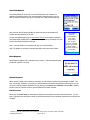
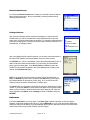
If you select the Business name search method, you will need to enter the first few
letters of the business name. After you press OK, you will be presented a list of
matching business names.
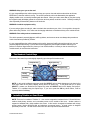
Picking a Business
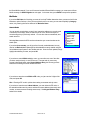
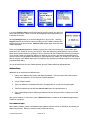
After you have selected a specific lowest level subcategory, or entered part of a
business name, you will be presented with a list of businesses that are near the
search point, or within the search area you specified. For searches conducted around
a point, the mileage (as the crow flies) from the point to the business is included. For
area searches, no mileage is shown.
Barbecue
KALS BARBECUE 1.36
mi
EL CAMINO
MONGOLIAN BBQ
2.33 mi
DAE SUNG BBQ 2.23
mi
BACK
OK
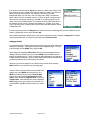
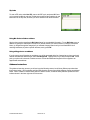
After you highlight and pick a specific business, you will see a screen that shows: a)
the name of the business, b) the street address, and c) the phone number.
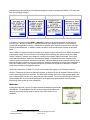
The OPTIONs are: 1) drive to the address, 2) save the business address for later, 3)
obtain a map around the business location, or 4) call it using your Boost Mobile
phone (requires a calling plan). If you Save for later, the address is sent to the
TeleNav servers so that it will appear in the recent addresses list, but first you will
need to use the Refresh list feature.
NOTE: If you enter Biz Finder from another function such as GPS Navigation, or
Maps, the OPTION key shown above is replaced with OK allowing you to employ
the business address for the function you are using. So, if you need to use Biz
Finder to make a call, enter it directly from the TeleNav menu.
The Call it feature is only present in the options list if the prior display shows a phone
number. If you choose Call it, the phone number will appear on your phone’s calling
screen, and you will have to press the Green Send key to place the call. When the
call is completed, press Menu, select Java Apps to return to TeleNav, and press
RESUME.
Preferences
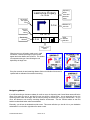
If you select Preferences, you can change; 1) the Route Type to fastest or shortest, or using or avoiding
highways; 2) adjust the speaker audio volume; 3) turn the Backlight on or off; 4) pick the number dialed when
using Voice Call to set an address; 5) set the displayed distance units to either feet and miles or kilometers and
meters; and 6) find out how to reach TeleNav customer support.
© TELEVIGATION 2003-5
PAGE 21 OF 32