1
SETUP
SETTING UP BUTTON MANAGER
Button Manager is a software program that works with the scanner driver to enable scanning from the machine.
To scan using the machine, Button Manager must be linked with the scan menu on the machine. Follow the steps
below to link Button Manager to scanner events.
When using AR-5516N/5520N, note that you need to connect to the scanner function using SC-Scan A previously
(see "CONNECTING TO AND DISCONNECTING FROM THE SCANNER FUNCTION USING SC-Scan A" in the
Operation Guide).
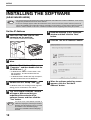
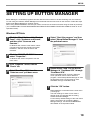
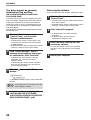
Windows XP/Vista
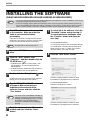
1
Click the "Start" button, click "Control
Panel", click "Hardware and Sound",
and then click "Scanners and
Cameras".
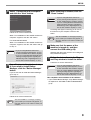
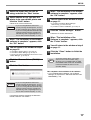
5
Select "Start this program" and then
select "Sharp Button Manager U" from
the pull-down menu.
6
Repeat Steps 4 and 5 to link Button
Manager to "ScanMenu SC2" through
"ScanMenu SC6".
In Windows XP, click the "start" button, select
"Control Panel" and click "Printers and Other
Hardware", and then click "Scanners and
Cameras".
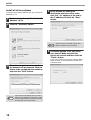
2
Click the "SHARP AR-XXXX" icon and
select "Properties".
In Windows XP, select "Properties" from the
"File" menu.
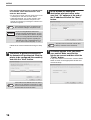
3
4
In the "Properties" screen, click the
"Events" tab.
Select "ScanMenu SC1" from the
"Select an event" pull-down menu.
Select "ScanMenu SC2" from the "Select an
event" pull-down menu. Select "Start this
program", select "Sharp Button Manager U" from
the pull-down menu. Do the same for each
ScanMenu through "ScanMenu SC6".
7
Click the "OK" button.
Button Manager is now linked to the scan menu
(1 through 6).
The scan settings for each of scan menu 1
through 6 can be changed with the setting
window of Button Manager.
For the factory default settings of the scan menu
and the procedures for configuring Button
Manager settings, see "BUTTON MANAGER
SETTINGS" in the Operation Guide.
19