1
HDTT-5000 Quickstart Guide
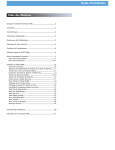
Table of Contents
Important Notice....................................................................................................2
Warnings and WEEE.............................................................................................3
Introduction..............................................................................................................4
Features...................................................................................................................5
Care and Maintenance.........................................................................................6
Operating Conditions............................................................................................6
Setup Guide & Parts Diagram............................................................................7
Rear Panel & Connections....................................................................................7
Top Panel & Functions.......................................................................................8-9
Preparing for Use................................................................................................10
Selecting Devices & Database Creation........................................................11
Firmware Options................................................................................................12
Technical Specifications......................................................................................13
Warranty Information.........................................................................................14
Important Notice
Before operating this unit, please verify that you have the latest firmware version available from our
website - http://www.cortex-pro.com. New versions of the HDTT-5000 firmware will include additional
features, bug fixes, and enhanced compatibility to guarantee optimum performance of your unit. There
are even Spanish and French language versions, to make operating the HDTT-5000 easier than ever!
Additionally, please download our FREE Cortex Database Creation Software, which allows you to create searchable databases of your entire music collection within minutes! This indispensable utility is
designed to save you time when preparing large storage devices to use with the HDTT-5000.
To find out what version of HDTT-5000 firmware you are running:
1. Power on the HDTT-5000 with NO DEVICES CONNECTED.
2. At the prompt that says ‘Insert Devices,’ press the INFO button.
3. The screen will display the version number of the currently installed HDTT-5000
firmware.
To upgrade your firmware to the newest version:
1. Using your PC, download the firmware update to the root directory of your USB storage device (X:\ where X is the letter of the drive). We recommend Internet Explorer.
2. Connect the USB storage device to the HDTT-5000.
3. Power on the HDTT-5000, and select the aforementioned device.
4. The unit will display the date/version of the new update, and will ask if you want to
update. Select ‘YES,’ and press enter.
5. The unit will go through a 8-step update procedure, after which the power will automatically shut down. When the unit is powered on again, you will be running the latest
firmware.
Warning: If the power is interrupted or the USB device is removed during this process, it can
damage the operating system of the unit. As well, it is advisable that the unit is not moved
during the update process to make sure that the process is uninterrupted.
For more detailed information about Firmware Updates, including screen shots, please
see the Firmware Updates section of the manual (page 12).
2
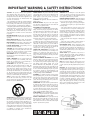
IMPORTANT WARNING & SAFETY INSTRUCTIONS
P L E A S E R E A D P R I O R TO O P E R AT I N G T H I S D E V I C E !
CAUTION: This product satisfies FCC regulations
when shielded cables and connectors are used to
connect the unit to other equipment. To prevent electromagnetic interference with electric appliances such
as radios and televisions, use shielded cables and
connectors for connections.
The exclamation point within an equilateral triangle
is intended to alert the user to the presence of important operating and maintenance (servicing) instructions in the literature accompanying the appliance.
The lightning flash with arrowhead symbol, within an
equilateral triangle, is intended to alert the user to
the presence of uninsulated "dangerous voltage"
within the product's enclosure that may be of sufficient magnitude to constitute a risk of electric shock
to persons.
READ INSTRUCTIONS: All the safety and operating
instructions should be read before the product is
operated.
RETAIN INSTRUCTIONS: The safety and operating
instructions should be retained for future reference.
HEED WARNINGS: All warnings on the product and
in the operating instructions should be adhered to.
FOLLOW INSTRUCTIONS: All operating and use
instructions should be followed.
CLEANING: The product should be cleaned only with
a polishing cloth or a soft dry cloth. Never clean with
furniture wax, benzine, insecticides or other volatile
liquids since they may corrode the cabinet.
ATTACHMENTS: Do not use attachments not recommended by the product manufacturer as they may
cause hazards.
WATER & MOISTURE: Do not use this product near
water, for example, near a bathtub, wash bowl,
kitchen sink, or laundry tub; in a wet basement; or
near a swimming pool; and the like.
ACCESSORIES: Do not place this product on an
unstable cart, stand, tripod, bracket, or table. The
product may fall, causing serious injury to a child or
adult, and serious damage to the product. Use only
with a cart, stand, tripod, bracket, or table recommended by the manufacturer, or sold with the product. Any mounting of the product should follow the
manufacturer's instructions, and should use a mounting
accessory recommended by the manufacturer.
CART: A product and cart combination should be
moved with care. Quick stops, excessive force, and
uneven surfaces may cause the product and cart combination to overturn. SEE FIGURE A.
VENTILATION: Slots and openings in the cabinet are
provided for ventilation and to ensure reliable operation of the product and to protect it from overheating, and these openings must not be blocked or covered. The openings should never be blocked by placing the product on a bed, sofa, rug, or other similar
surface. This product should not be placed in a builtin installation such as a bookcase or rack unless proper ventilation is provided or the manufacturer's
instructions have been adhered to.
POWER SOURCES: This product should be operated
only from the type of power source indicated on the
marking label. If you are not sure of the type of
power supply to your home, consult your product
dealer or local power company.
LOCATION: The appliance should be installed in a
stable location.
NON-USE PERIODS: The power cord of the appliance should be unplugged from the outlet when left
unused for a long period of time.
GROUNDING OR POLARIZATION:
- If this product is equipped with a polarized alternating current line plug (a plug having one blade
wider than the other), it will fit into the outlet only one
way. This is a safety feature. If you are unable to
insert the plug fully into the outlet, try reversing the
plug. If the plug should still fail to fit, contact your
electrician to replace your obsolete outlet. Do not
defeat the safety purpose of the polarized plug.
- If this product is equipped with a three-wire
grounding type plug, a plug having a third (grounding) pin, it will only fit into a grounding type power
outlet. This is a safety feature. If you are unable to
insert the plug into the outlet, contact your electrician
to replace your obsolete outlet. Do not defeat the
safety purpose of the grounding type plug.
POWER-CORD PROTECTION: Power-supply cords
should be routed so that they are not likely to be
walked on or pinched by items placed upon or
against them, paying particular attention to cords at
plugs, convenience receptacles, and the point where
they exit from the product.
OUTDOOR ANTENNA GROUNDING: If an outside
antenna or cable system is connected to the product,
be sure the antenna or cable system is grounded so
as to provide some protection against voltage surges
and built-up static charges. Article 810 of the
National Electrical Code, ANSI/NFPA 70, provides
information with regard to proper grounding of the
mast and supporting structure, grounding of the leadin wire to an antenna discharge unit, size of grounding conductors, location of antenna-discharge unit,
connection to grounding electrodes, and requirements
for the grounding electrode. SEE FIGURE B.
LIGHTNING: For added protection for this product
during a lightning storm, or when it is left unattended
and unused for long periods of time, unplug it from
the wall outlet and disconnect the antenna or cable
system. This will prevent damage to the product due
to lightning and power-line surges.
POWER LINES: An outside antenna system should not
be located in the vicinity of overhead power lines or
other electric light or power circuits, or where it can
fall into such power lines or circuits. When installing
an outside antenna system, extreme care should be
taken to keep from touching such power lines or circuits as contact with them might be fatal.
OVERLOADING: Do not overload wall outlets, extension cords, or integral convenience receptacles as this
can result in a risk of fire or electric shock.
OBJECT & LIQUID ENTRY: Never push objects of any
kind into this product through openings as they may
touch dangerous voltage points or short-out parts
that could result in a fire or electric shock. Never spill
liquid of any kind on the product.
SERVICING: Do not attempt to service this product
yourself as opening or removing covers may expose
you to dangerous voltage or other hazards. Refer all
servicing to qualified service personnel.
DAMAGE REQUIRING SERVICE: Unplug this product
from the wall outlet and refer servicing to qualified
service personnel under the following conditions:
- When the power-supply cord or plug is damaged.
- If liquid has been spilled, or objects have fallen
into the product.
- If the product has been exposed to rain or water.
- If the product does not operate normally by following the operating instructions. Adjust only those
controls that are covered by the operating instructions as an improper adjustment of other controls may
result in damage and will often require extensive
work by a qualified technician to restore the product
to its normal operation.
- If the product has been dropped or damaged in
any way.
- When the product exhibits a distinct change in
performance, this indicates a need for service.
REPLACEMENT PARTS: When replacement parts
are required, be sure the service technician has used
replacement parts specified by the manufacturer or
have the same characteristics as the original part.
Unauthorized substitutions may result in fire, electric
shock, or other hazards.
SAFETY CHECK: Upon completion of any service or
repairs to this product, ask the service technician to
perform safety checks to determine that the product
is in proper operating condition.
WALL OR CEILING MOUNTING: The product should
not be mounted to a wall or ceiling.
HEAT: The product should be situated away from
heat sources such as radiators, heat registers, stoves,
or other products (including amplifiers) that produce
heat.
DISPOSAL: This product shall not be treated as
household waste. Instead it shall be handed over to
the applicable collection point for the recycling of
electrical and electronic equipment. By ensuring this
product is disposed of correctly, you will help prevent
potential negative consequences for the environment
and human health, which could otherwise be caused
by inappropriate waste handling of this product. The
recycling of materials will help to conserve natural
resources. For more detailed information about recycling of this product, please contact your local city
office, your household waste disposal service or the
shop where you purchased the product.
3
HDTT-5000 Quickstart Guide
Foreword
Thank you for purchasing our Cortex HDTT-5000. We are confident that the Cortex platform of products will not only make your life easier through
the use of the latest advancements in cross-platform connectivity and sound reproduction but will raise the bar for DJ and pro audio products. With
the proper care & maintenance, your unit will likely provide years of reliable, uninterrupted service. All Cortex products are backed by a 1-year
limited warranty (see page 14).
Preparing for First Use
Please insure that you find these accessories included with the HDTT-5000:
RCA audio cable.....................................................................................................1
Power Cable............................................................................................................1
Quickstart Guide............................................................................................1
USB port protector cap.........................................................................................1
We Want You Listening For A Lifetime!
Dear Customer:
Selecting fine audio equipment such as the unit you
have just purchased is only the start of your musical enjoyment. Now it’s time to consider how you can maximize the
fun and excitment your equipment offers. This
Manufacturer and the Electronic Industries Association’s
Consumer Electronics Group want you to get the most out
of your equipment by playing it at a safe level.One that lets
the sound come through loud and clear without annoying
blaring or distortion-and, most importantly, without affecting
your sensitive hearing.
Sound can be deceiving. Over time your hearing “comfort level” adapts to higher volumes of sound. So whats
sounds “normal” can actually be loud and harmful to your
hearing. Guard against this by setting your equipment at a
safe level BEFORE your hearing adapts.
To establish a safe level:
- Start your volume control at a low setting.
- Slowly increase the sound until you can hear it
comfortably and clearly, and without distortion.
Once you have established a comfortable sound level:
- Set the dial and leave it there.
Taking a minute to do this now will help to prevent
hearing damage or loss in the future. After all, we want you
listening for a lifetime.
Used wisely, your new sound equipment will provide a
lifetime of fun and enjoyment. Since hearing damage from
loud noise is often undetectable until it is too late, This
Manufacturer and the Electronic Industries Association’s
Consumer Electronics Group recommend you avoid prolonged exposure to excessive noise. This list of sound levels is included for your protection.
Decibel
Level Example
30
40
50
60
70
80
Quiet library, soft whispers
Living room, refrigerator, bedroom away from traffic
Light traffic, normal conversation, quiet office
Air conditioner at 20 feet, sewing machine
Vacuum cleaner, hair dryer, noisy restaurant
Average city traffic, garbage disposals, alarm clock
at two feet
THE FOLLOWING NOISES CAN BE DANGEROUS
UNDER CONSTANT EXPOSURE
90
100
120
140
180
Subway, motorcycle, truck traffic, lawn mower
Garbage truck, chain saw, pneumatic drill
Rock band concert in front of speakers, thunderclap
Gunshot blast, jet plane
Rocket launching pad
Information courtesy of the Deafness Research Foundation.
4
HDTT-5000 Quickstart Guide
Features
The Cortex HDTT-5000 has been designed & engineered to provide digital music playback and manipulation features demanded by
professional users. The HDTT-5000 is designed to liberate DJs from the
issues associated with PC-based solutions, by eliminating the need for a
computer during performance. The HDTT-5000 also offers superior
portability and flexibility over that of a typical PC.
Jog Wheel
The extra large jog wheel is unique to HDTT-5000 as it provides
highly precise control for a variety of functions. With the Jog Wheel,
the user can search, pitch bend or even scratch just as if it were a
vinyl turntable! As well, this can provide an extremely powerful navigation tool for searching menus, changing parameters and selecting
music on your hard drive.
Pitch Control
High precision 100mm slide potentiometer for accurate adjustment of
speed.
• 0.05% pitch precision
In order to provide more precise pitch adjustment, the unit is able to
advance in increments of 0.05%. This aids in beatmatching between two
musical programs, with much finer pitch resolution than can be found on
most conventional professional CD players.
• Multiple pitch ranges
With pitch ranges of 4, 8, 16, and 24%, the pitch control’s minimum and
maximum values can be altered to augment or reduce the amount of
pitch adjustment to a musical program.
• Pitch ON/OFF
By pressing the PITCH + and PITCH - buttons simultaneously, this toggles
whether or not the unit will respond to changes via the PITCH CONTROL
slide. The Pitch ON/OFF feature also functions as a pitch reset, when it
is used to turn the pitch OFF.
Backlit LCD Display
The backlit 192x128 graphical LCD screen shows a variety of information, including track titles, times, pitch, setup options, waveforms, hot
starts, loops and search parameters. This display allows more extensive
visualization of parameters than a conventional CD player.
DSP Effects Processor
The HDTT-5000 provides a wealth of effect choices for whatever style of
DJ you are. Under the hood, the HDTT-5000 provides two effects groups,
each having a wide variety of creative uses. Group one consists of creative remix effects such as filter, echo, flange, pan and a sampler.
Group two consists of reverse, scratch, master tempo and key adjust. Any
effect from group one can be combined with group two to provide a
wealth of remix options for the creative DJ.
Cue Points/Hot Cue Storage
The HDTT-5000 allows you to set and store up to 4 different Hot Cue
“CUE POINTS” using buttons 1-4, as well as setting a traditional cue
point with the CUE button. As your music is playing, if you would like it to
jump to one of your set CUE POINTS, simply press that individual CUE
button and the music will jump instantly. This allows the DJ to either stutter cue or even re-sequence the program material in a creative fashion.
All “CUE POINTS” are automaticly stored on your hard drive when you
eject it.
Seamless Looping
For further creative options, the HDTT-5000 provides for seamless loops
for the DJ to use at any time. Loop In and Out points can be edited on
the fly, with no limit in time, length or position. Up to four loops can be
stored per song.
Cross-Platform USB Connectivity
The HDTT-5000 offers an unparalled level of connectivity with all driverless USB devices. The Cortex line of products are the first to offer the
ability to manipulate music stored on USB devices such as hard drives,
flash memory, optical drives, and personal music players, regardless of
platform. Through this innovation, DJs are able to consolidate the
amount of equipment and music needed during a performance. Even
more USB devices can be connected with the use of a compatible USB
hub.
CD Audio support
Despite the fact that a vast majority of people have access to USB storage devices or portable music players, the Cortex HDTT-5000 supports
the playback of CD Audio discs through a compatible USB external CDROM, CD-RW, DVD-ROM, or DVD-RW drive. This is particularly useful
for DJs making a gradual migration, or for playing CDs provided by
clients. Note that both sides can share one optical drive, but only one
track can be played at a time. For dual-deck CD functionality, simply
connect two USB optical drives.
Database-Driven Music Management
The entire line of Cortex Digital Music Players allows for the management of music collections via a database-driven system. Using this
method, the database can be queried based on a number of different
criteria. This allows DJs to search by artist, title, genre, album, or search
string. Using this method allows the DJ to find a specific music selection
within seconds. The database is saved to the storage device the music is
being drawn from, so that it can be used with any Cortex unit, whether
it’s in your personal rig or at a club! Cue Points that have been memorized using the HDTT-5000 are also stored along with the database
information on the active storage device. Once a Cue Point has been
stored, DJs have the ability to recall it each time that track is loaded.
iPod® Playlist Support
The HDTT-5000 supports iPod® Playlists, which can be created using
Apple iTunes™. When there are iPod® Playlists available to be
loaded, a menu option will appear in the main Search Options menu.
Storage Device Sharing
With the HDTT-5000, you don’t need to worry about having a storage
device for each unit. Through the Master/Slave device operation, you
can share one mass storage device across two units. As well, audio output
for both units is located on the rear of your Master unit, keeping cable
clutter to a minimum!
5
HDTT-5000 Quickstart Guide
Additional Information
Maintaining Storage Devices
When using writable storage devices, such as hard drives, and harddrive-based music players (iPod™, Zen™), certain maintenance might be
required. Because the Cortex units use streaming technology to manipulate more than one music file from one device simultaneously, hard drives
and hard-drive based units need to be defragmented regularly to
ensure the integrity of the streamed files.
Fragmentation refers to “the condition of a disk in which files are divided into pieces scattered around the disk. Fragmentation occurs naturally
when you use a disk frequently, creating, deleting, and modifying files.
At some point, the operating system needs to store parts of a file in noncontiguous clusters. This is entirely invisible to users, but it can slow down
the speed at which data is accessed because the disk drive must search
through different parts of the disk to put together a single file.”
Maintaining these storage devices must be done via your computer, and
should be performed whenever there has been a substantial change to
your music library (adding/deleting music). Note that failure to maintain
your storage devices might result in delayed access times and glitchy
audio playback.
• With Windows XP based machines
First, connect the storage device that you wish to defragment. If you are
connecting a hard-drive based music player, such as an Apple iPod or
Microsoft Zune, make sure to exit any applications that may be launched
on connection.
To load Disk Defragmenter, go to the Start menu, and find Disk
Defragmenter under Accessories/System Tools.
When Disk Defragmenter has been loaded, select the device to be
defragmented, and click the ‘Defragment’ button at the bottom of the
window.
For more information on defragmenting, consult the Windows Help guide.
• With Apple Macintosh Machines
According to Apple, provisions within the HFS file allocation system
diminish the need for any type of defragmentation. Because of this,
there is no software included in OSX to accomplish this. However, this
does not guarantee that defragmentation will not be necessary for
external storage devices and portable music players.
Cleaning the Unit
To clean the HDTT-5000, use only a dry soft cloth and/or compressed
air. If the unit is soiled with stubborn dirt, we suggest using a 2:1 solution of distilled water and 30% isopropyl alcohol. Avoid using harsh
cleaning chemicals such as benzene, paint thinner, bleach, or hydrochloric
acid, which will damage the unit.
Operating Conditions
For optimum performance, the temperature of the operating environment
should be between +5º C to +35º C (+41º F - +95º F). Failure to maintain proper operating temperature may result in difficulty reading the
LCD display, thermal overload, or system-wide instability. Avoid exposing the unit to direct sunlight.
When placing the unit in an installation, make sure that it is placed on a
stable surface, as far away from vibrations as possible. Even though the
Cortex is impervious to vibration, the storage devices (specifically hard
drive based ones) that are designed to be used in conjunction with it are
typically not. Also be sure not to place or use the player on heat generating sources, such as amplifiers or near spotlights.
Lawful Use of HDTT-5000
Neither Cortex nor its dealers assume responsibility for the use made of
the HDTT-5000. The user must ensure he/she has all relevant licenses
and consents in place (whether for copyright/public performance, performers rights, moral rights or otherwise) to allow the lawful use of the
HDTT-5000. This is likely to include licenses from organizations administering performance rights in audio recordings or consents from any other
relevant rights holders.
The Cortex line of units, although designed to streamline the process by
which DJs perform, is not designed as a tool to facilitate media piracy.
We urge that our users legitimately purchase the music they plan to use,
and support the artists.
For more information on Apple’s claims, see this article:
http://docs.info.apple.com/article.html?artnum=25668
Always Make Backups!
Due to the sometimes fragile state of PC components, we insist that you
make backups of the storage devices that you plan on using with the
Cortex. All hard drives (and hard-drive-based portable music players),
are prone to failure - they have moving parts inside. Instead of taking a
chance that your hard drive will last one more performance, one more
month, or one more year, it is a far more intelligent choice to back up
your data for the worst case scenario.
Neither Cortex nor your retailer will be held responsible for data loss
because of the lack of backups.
6
HDTT-5000 Operation Manual
Parts Diagram and Functions
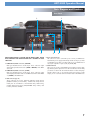
Rear Panel
3
MSD IN 3
1
3
MSD IN 4
2
NOTE-POWER BUTTON IS LOCATED ON THE FRONT PANEL. PLEASE
PRESS AND HOLD THE POWER BUTTON FOR 2 SECONDS TO BOOT
YOUR UNIT.
1. AUDIO OUT L/R RCA connectors, (MASTER)
RCA type unbalanced stereo audio output. These connectors output
audio signal generated from Side 1 (MAIN or MASTER) of the HDTT5000 unit.
2. AUDIO OUT L/R RCA connectors, (SLAVE)
RCA type unbalanced stereo audio output. These connectors output
audio signal generated from the second HDTT-5000 that is chain linked
or (SLAVED) to this HDTT-5000
5
4
4. Power Cord Connector
This connector is used to connect the power cord to your HDTT-5000.
Note that the power supply automaticaly switches as long as you have
a compatible power cable, you will be able to use your HDTT-5000 in
any region regardless of power (USA, UK, EURO, ETC)
5. Chain Link Ports
These ports are used to connect HDTT-5000’s together for device sharing and using audio outputs from one unit for both sides. The first thing
you must do is select if the unit will be the Master or Slave unit by flipping the switch to “M” or “S”. From the master unit you have 2 audio
outputs, one for each side. Connect all audio leads to this HDTT-5000.
3. USB connector (type A)
Theses connectors are used to attach the USB mass storage devices
(MSD) that contains your music library. Suitable mass storage devices
include, but are not limited to: external hard drives, flash memory,
portable digital music players, CD/DVD-ROM drives, memory card
readers, and active USB hubs.
7
18
19
11
16
3
17
6
HDTT-5000 Quickstart Guide
Parts Diagram and Functions
Top Panel
1
12
5
20
21
23
14
4
15
22
2
7
10
13
9
8
Power Button
(Press and hold.)
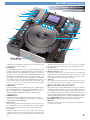
1. USB connector (type A)
This connector is used to attach the USB mass storage device that contains your music library. Suitable mass storage devices include, but are
not limited to: external hard drives, flash memory, digital music players, CD/DVD-ROM drives, memory card readers, and active USB hubs.
2. JOG MODE button/indicator
Each time this button is pressed, this button controls alternately whether
the JOG WHEEL functions as PITCH BEND or FF/REW. When the LED
indicator is lit, it indicates that the JOG WHEEL functions as FF/REW.
3. INFO button
After powering on the HDTT-5000 and before you choose a storage
device, pressing the info button will display which version of the operating system is currently installed, after you have chosen a storage
device pressing the INFO button will change the LCD DISPLAY to show
all of the attributes of the currently playing track.When the unit is in
SEARCH MODE, pressing INFO on a highlighted digital music file will
also show these attributes.
4. PLAY MODE button
When this button is pressed, the LCD DISPLAY will return to the state
that relates to playback. This means that the track name, time remaining (or elapsed), pitch percentage, and visual time indicators will be
displayed on the screen. This button can be used at any time.
5. SEARCH MODE button
When this button is pressed, the LCD DISPLAY will return to the state
that relates the search function of the unit. This means that track titles,
artist names, album names, genre classifications, playlists, file names, or
search criteria will be displayed on the screen. This button can be used
at any time, with the exception of when the unit is creating a database.
6. LCD DISPLAY panel
This blue-backlit display is a 192x128 LCD that displays information
such as track/waveform, folders, parameter adjustments and search
information. Contrast is available in the Edit menu.
7. PITCH ON/OFF indicator and PITCH BEND buttons
Pressing both PITCH BEND (+) and PITCH BEND (-) simultaneously toggles whether or not the unit will respond to changes made to the pitch
via the PITCH BEND buttons, PITCH CONTROL slide, and JOG WHEEL.
PITCH is engaged when the LED indicator is lit. Momentary adjustments
to PITCH can be made by pressing the PITCH BEND (+) or PITCH BEND
(-) button. The range of the PITCH CONTROL can be changed by holding the SHIFT and pressing the PITCH BEND (+) or PITCH BEND (-) button. The pitch range will be displayed in the lower right hand corner
of the LCD DISPLAY panel. If KEY ADJUST is enabled then these arrows
adjust KEY in +/-5 half steps.
8. PITCH CONTROL slide
This slide, when pushed towards the bottom of the unit (+), increases the
tempo of playback. When the slide is pushed towards the top of the
unit (-), the tempo of playback is decreased.
9. PLAY/PAUSE button/indicator
When the LED indicator which illuminates this button is lit solidly, it indicates that the unit is in PLAY mode. When the LED indicator is flashing,
it indicates that the unit is in PAUSE mode.
10. CUE button/indicator
When the LED indicator which illuminates this button is lit, it indicates
that there is a CUE POINT memorized.
11. NAVIGATOR keypad
These buttons allow the user to navigate through menus and features of
the HDTT-5000. Depending on the mode of the unit, the buttons may
serve different purposes.
8
18
19
11
16
3
17
6
HDTT-5000 Quickstart Guide
Parts Diagram and Functions
Top Panel
1
12
5
20
21
23
14
4
15
22
2
7
10
13
9
8
Power Button
(Press and hold.)
12. Shift Button
Holding down the SHIFT button extends the use of certain buttons on the
unit, by providing alternate functions.
13. JOG WHEEL
The JOG WHEEL controls many aspects of the unit, and can be used for
navigating through menus, searching through music and manipulation of
pitch. The behavior of the JOG WHEEL is dependent on the mode of
operation, as well as the status of the PITCH ON/OFF indicator and
JOG MODE. The JOG WHEEL is also touch sensitive allowing you to
press down on it to stop the music and/or manipulate your music like a
vinyl turntable would, an indicator on the LCD DISPLAY in the shape of
a record with a line to mark its position tracks the movement of the
wheel so you can view the exact location of the wheel for Cueing,
Scratching and/or Backspinning.
14. SINGLE button
When this button is pressed momentarily, the state of playback (SINGLE or CONTINUE) will be displayed on the LCD DISPLAY. To change
the state of playback, press the SINGLE button. The new state of
playback (SINGLE or CONTINUE) will then be displayed on the
LCD DISPLAY panel.
15. TIME MODE button
This button dictates how TIME will be displayed both visualy and
numericaly, pressing the TIME button toggles between two TIME modes
ELAPSED TIME and TIME REMAINING.
16. Effects button
This button engages the DSP menu. From this menu, DSP effects such as
filter, flange, echo, etc can be both engaged and edited. Any changes
that are made can be saved to the unit for recall at a later point.
17. Loops button
This button engages the loop menu. Up to 4 loops can be saved and
edited per song, and upon loop creation the in and out points can be
edited on the fly. Loops are automatically saved to the MSD for later
use.
18. Hot Cue button
This button engages the Hot Cue menu. Up to 4 hot cue’s are available
per song. Hot Cues are automatically saved to the MSD for later use.
19. Samples button
This button engages the samples menu. Up to 4 samples can be used.
20. Multifunction buttons (1-4)
Depending on which menu you are in, these buttons do everything from
engage loops to select parameters. These options are specific to each
menu-please read each section of the manual relating to the specific
menu in question to learn the function of each key.
21. Edit button
This button will engage the edit menu. From this menu the user can edit
low level functions of the unit, such as pitch range, device selection,
waveform creation and even the unit’s internal clock.
22. BPM/Key Adjust/Master Tempo/Reverse buttons
These buttons engage functions that change how the pitch is used. BPM
will display the Beats Per Minute of the track in real time, and reflect
any changes made on the pitch fader. Key adjust changes the key of
the song without changing the speed. Master Tempo changes the speed
without changing the pitch. Both Master Tempo and Key can be used in
combination with the BPM button as well. When Key Adjust is enabled
then the PITCH BEND buttons act to change KEY instead of acting as a
PITCH BEND. The Reverse button reverses the audio playback.
23. Wave button
Pressing this button cycles through Waveform times displayed on
screen-from 5-40 seconds.
9
HDTT-5000 Operation Manual
Preparing for Use/Master Slave opperation
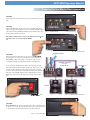
STEP ONE
Connect the Power Cord to the power outlet., found on the rear of the
unit.
MSD IN 3
STEP TWO
Connect the RCA audio outputs of the unit to a suitable audio mixer.
When connecting the unit, make sure you note that the MASTER outputs
carry audio from the MASTER or MAIN deck, and SLAVE outputs carry
audio from the SLAVE or AUX deck.
MSD IN 4
Fig 1.1 - Connect Power
Note: When in SLAVE mode the outputs of the SLAVE unit will not operate
instead all outputs are routed through the MASTER
unit.
MSD IN 3
MSD IN 4
Fig 1.2 - Connect Audio
CONNECT TO MIXER
STEP THREE
Connect your primary USB device to the port found to the right of
the rear panel. You may choose any driverless device that follows
FAT32, NTFS, or HFS+ file systems. You may also connect a powered (active) USB hub to augment the amount of available ports.
STANDARD USB CABLE
(Not Included)
SWITCH TO “M”
If you wish to link 2 HDTT-5000s together, select the unit you desire
to be Master, flip the Master/Slave switch to “M”, then power on. Do
the same for the unit that you wish to slave off the unit, only select
“S” on the Slave unit. Connect a standard USB cable to the chain link
OUT port on the MASTER and then to the chain link IN port on the
SLAVE. Then connect the audio outputs for both units to the Master
unit.
MASTER
Fig 1.3 - Connect USB
SWITCH TO “S”
SLAVE
Fig 1.4 - Master/Slave Connection
STEP FOUR
Press and Hold the Power button located in the center of the front panel
for about 1-2 seconds. The unit will take about 5-10 seconds to boot up
as well as detect any USB devices that are currently connected.
Fig 1.5 - Turn Power ON
10
HDTT-5000 Quickstart Guide
Selecting Devices & Database Creation
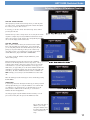
STEP ONE - DEVICE SELECTION
When prompted, select the desired storage device, on each side, that
you wish to access. Use the Navigator Keypad to advance through the
list of devices, and press Enter to select.
If necessary, you can also connect other USB storage devices without
powering down the unit.
Note that when you select a storage device on one side, the unit will be
required to complete any necessary Database Creation before being
able to select a device on the opposite side. During this time, the opposite screen will display “Wait for other side.”
Fig 2.1 - Select USB device for either
the MASTER or SLAVE units
STEP TWO - INDEXING
Once you have selected a device, the unit will search for a database of the music that exists on that device. If it is the first time
you are using that particular unit with the HDTT-5000, the unit will
prompt you to perform indexing, so that you can search for any
song within seconds. If you already have used the storage device
with the HDTT-5000, skip to STEP TWO - VERIFICATION.
If you wish to create the database using the HDTT-5000, select
‘YES’ from this prompt.
During the indexing procedure, the unit must create a database
based off of the ID3 tags that exist on the storage device. The speed
of this procedure directly relates to how many songs are stored on the
connected device. If you are using a hard drive over 20 gigs, or an
NTFS device, we suggest that you use the Cortex Database Creation PC
application to perform the indexing, as it will save time (especially with
a fast CPU). The Cortex Database Creation software is available for
FREE from http://www.cortex-pro.com in the HDTT-5000 section of the
site.
Fig 2.2 - Create Database by selecting ‘YES’
Once the indexing procedure has begun, it can be cancelled by pressing
the Info button.
VERIFICATION
If your storage device has already been indexed, you will be presented
with a prompt allowing you to verify the database. For each time that
you add files to your storage device, you will either have to use the
Verify function to add those files to the index, or use the Cortex
Database Creation PC application.
Fig 2.3 - Database Creation Screen
We strongly suggest using the Database Creation Software, as it can
process files at many times the speed of the HDTT-5000 itself.
Fig 2.4- Every time music is
added to your storage
device, the database must
be verified and updated in
order to index the new
songs.
11
HDTT-5000 Quickstart Guide
Firmware Updates
Section Sixteen: Firmware Updates
One of the most powerful features of the HDTT-5000 is the capability to
upgrade the internal software. This lends itself to the addition of new features and support, the optimization of current processes, and the capability to fix bugs as they arise.
Firmware updates will be issued periodically at
http://www.cortex-pro.com.
We suggest that you stay as current as possible with all updates in order
to insure the highest level of functionality and compatibility that Cortex has
to offer.
To check the version of firmware installed:
Fig 3.1 - Automatic detection of new firmware, option to update
1. Power on the HDTT-5000 with NO DEVICES CONNECTED.
2. At the prompt that says ‘Insert Devices,’ press the INFO button.
3. The screen will display the version number of the currently installed
HDTT-5000 firmware.
To update the firmware, follow these steps:
1. Using Internet Explorer or other web browser of your choice, download
the latest firmware upgrade from http://www.cortex-pro.com.
2. Place the file in the root directory of your external USB storage device.
Fig 3.2 - Updating the firmware in 8 stages
3. Connect the USB storage device to the HDTT-5000, and select it from
the Device Menu (during startup). Make sure your HDTT-5000 is connected to a stable power source, where there is no potential of the unit losing
power during update.
4. When the HDTT-5000 detects the firmware in the root directory of the
USB storage device, it will ask you if you want to apply the update. You
must answer YES. If the version of firmware on the storage device is the
same or older than what you have, it will be ignored.
5. When updating, the unit will go through 8 stages. This will take only a
few minutes. If the power is interrupted or the USB device is removed during this process, it can damage the operating system of the unit.
6. When the update is completed, the unit will shut itself down. You must
press power to restart the unit. Once the unit has booted up again, the
new software will take effect. You may then erase the firmware update
from your USB device at your convenience (it will not be detected again).
Fig 3.3 - Power shuts off completely when the update is complete
12
Other (Specifications)
Specifications
1. General
Type of unit.................................................Streaming Digital Audio Controller
Format compatibility.......................................................MP3, WAV, CD-Audio
MP3 format......................................8 kbps ~ 320 kbps, CBR/VBR, 44.1 kHz
WAV format....................................................................44.1 kHz, 16 bit stereo
Instant Start.........................................................................................<0.1 second
Pitch ranges.....................................................................................4, 8, 16, 24%
Pitch increment.....................................................................0.05% at 4 and 8%
.............................................................................................0.1% at 16 and 24%
Power...........................................................................AC 100~240V, 50/60 Hz
Power consumption....................................................................................12 watts
Operating environment temp................+5º C to +35º C (+41º F - +95º F)
Operating environment humidity..............................................................5-85%
Weight............................................................................................................10 lbs
.....................................................................................................................4.54 kgs
..............................................................3.25" H x 14.25" L x 12.25" W inches
................................................................................................83 x 362 x 311mm
2. Audio output section
Audio output................................................................................4 Channel (2x2)
Output level...................................................................1.2 V RMS (1 kHz, 0dB)
Output connectors............................................................Unbalanced RCA Type
Frequency response.....................................................................20 Hz - 22 kHz
S/N ratio..........................................................................................................90dB
Total harmonic distortion..........................................................................<0.05%
Should your Cortex product require warranty or non-warranty service in
the USA, or if you wish to purchase replacement parts, operating instructions, or accessories, please contact GCI Technologies at the phone number listed below:
732-346-0061
Do not, under any circumstance, ship your product to GCI without first
calling the Technical Support Deparment at the number listed above.
Failure to establish an RMA (Return Merchandise Authorization) number
prior to shipping your product will delay your repair indefinitely. GCI
reserves the right to refuse all packages that arrive without an RMA number.
3. USB interface section
Connector type........................................................................USB Type A and B
USB protocol support.....................1.0, 1.1 (Full Speed) and 2.0 (Hi-Speed)
Number of ports.....................................................................................................7
Maximum number of connected devices (via USB hub, sold separately)....
...............................................................................4 per device (Plus Keyboard)
File system support.......................................FAT32, NTFS, HFS+, CDFS, UDFS
4. Included Accessories
RCA audio cables...................................................................................................2
Power cable.............................................................................................................1
Operating instructions............................................................................................1
USB port protector cap.........................................................................................1
5. Replaceable Parts (order from GCI by part number if needed)
Power Cable................................................................................USA 093-458-R
........................................................................................Euroupe.093-323-R
...........................................................................UK.093-457-R.
USB port protector cap........................................................................003-807-R
Pitch control knob....................................................................................002-60-R
For warranty information, please refer to the warranty page included in
this manual.
Once an RMA number is established, your unit should be sent to the
address specified by your customer service representative, with the
RMA clearly written on the outer carton:
For support or repair outside of the USA, please visit the Cortex website at http://www.cortex-pro.com.
Published by GCI Technologies Corporation
Copyright © 2006 GCI Technologies Corp.
All rights reserved.
Features & specifications subject to change without notice.
GCI Technologies USA:
GCI Latin America and Carribean:
GCI United Kingdom LTD:
GCI France
GCI SA (Spain):
GCI GmbH (Germany):
+1 (732)346-0061
+1 (305)592-4746
+44 (0)87 087-00880
+ 33 1 69 79 97 72
+34 93 436 37 00
+49 8131 39171-0
13
USA Warranty Info
Cortex products are designed and manufactured to the highest standards in professional audio. With proper care and maintenance, your product will
provide years of reliable service. Please register your product online at http://www.cortex-pro.com
Limited Warranty:
In the USA, Cortex guarantees its products against defects in workmanship for the period of One (1) year* from the original date of purchase.
This limited warranty does not cover damage or failure caused by abuse, misuse, abnormal use, faulty installation, improper maintenance or any repairs
other than those provided by an authorized service center.
There are no obligations of liability on the part of GCI, Cortex, or any of its retailers for consequential damages arising out of or in connection with
the use or performance of the product or other indirect damages with respect to loss of property, revenues, profit, or costs of removal, installation, or
reinstallation. All implied warranties for GCI, including implied warranties for fitness, are limited in duration to One (1) year from the original date of
purchase, unless otherwise mandated by local statutes.
Returning Your Product for Service:
In the U.S.A., please call our helpful Customer Service Representatives at (732) 346-0061, and they will be happy to give you a Return Merchandise
Authorization (RMA) number and the address of an authorized service center closest to you.
After receiving an RMA, include a copy of the original sales receipt, with defective product and a description of the defect. Send by insured freight
to GCI Technologies Corporation, and use the address provided by your customer service representative. Your RMA must be written on the outside
of the package, or processing will be delayed indefinitely! GCI reserves the right to refuse all packages that arrive without an RMA number.
Service covered under warranty will be paid for by GCI and returned to you. For non-warrantied products, GCI will repair your unit after payment is
received. Repair charges do not include return freight.
Your warranty is valid only in the country where the unit has been purchased. Repairs performed outside of the country of purchase will be treated as
out-of-warranty.
For warranty service, you pay for shipping to GCI; we pay for return shipping within the Continental United States. Alaska, Hawaii, Puerto Rico,
Canada, Bahamas, and the Virgin Islands will be charged for freight.
Please allow 2-4 weeks for return of your product. Under normal circumstances your product will spend no more than 10 working days at GCI. We
are not responsible for shipping times.
For repairs and warranty information outside of the USA, please call the GCI affiliate closest to where you reside, listed on the specifications page of
this manual (page 28), or visit the Cortex website at http://www.cortex-pro.com.
* Unless otherwise mandated by local statutes.
For Your Records
Model Number of Product:
(HDC-500, HDC-1000, HDC-3000, HDTT-5000, DMIX-300)
Serial Number of Product:
found on rear panel of unit
Original Purchase Date:
Name of Retailer:
Please register your warranty online at http://www.cortex-pro.com
14