1
3 Connect the power cable and set the Power
switch to On. The Eleven Rack logo will appear.
As Eleven Rack warms up, check your guitar to
make sure that its volume is turned up.
Before you power on Eleven Rack, make sure
any connected amplifiers or powered monitors are turned off or muted.
4 When the name of the first Rig is displayed,
try playing your guitar. How’s it sound? You may
want to adjust the output volume of Eleven Rack
by turning the Volume knob on the front panel.
System Requirements and
Compatibility
To use Eleven Rack with Pro Tools, you need.
• One of the following:
• A qualified Mac or Windows computer
(when using Eleven Rack with
Pro Tools LE)
– or –
• A qualified Pro Tools|HDTM or M-Powered
system running Pro Tools HD 8.0.1 software or higher (when using Eleven Rack as
an external signal processing device)
• DVD drive for Installation disc
• Internet access for registration purposes
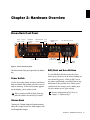
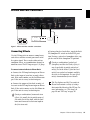
Volume knob (front panel)
5 You can browse through Eleven Rack’s various
preset sounds, called Rigs, by turning the Scroll
wheel.
We can only assure compatibility and provide
support for hardware and software it has tested
and approved.
For complete system requirements and a list of
qualified computers, operating systems, hard
drives, and third-party devices, refer to the latest
information on our website:
www.digidesign.com/compatibility
Scroll wheel (front panel)
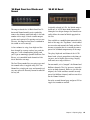
6 Try adjusting the lit Control Knobs to change
the featured amp or effects settings. You can see
what kind of control each knob is assigned to on
the display.
7 Try pressing the Effects Bypass buttons, like
Dist, Mod, Delay, and Rev, to toggle the various
effects on and off.
4
Eleven Rack User Guide
























































![Eleven Rack User Guide - akmedia.[bleep]digidesign.](http://vs1.manualzilla.com/store/data/006690951_2-4345bddf80403812cb9c07fcfb390e5c-150x150.png)