1
Installing Options
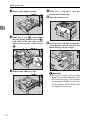
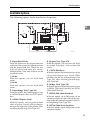
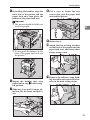
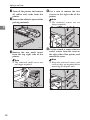
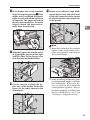
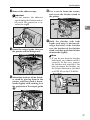
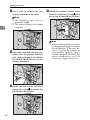
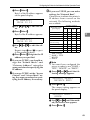
D Tilt the memory unit so that it is
thirty degrees perpendicular to
the slot (A
A), and push it forward
(B
B). It should click into place.
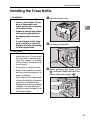
Installing Printer Hard Disk
Type 185
Important
❒ The hard disk can be damaged by
small amounts of static electricity.
Before touching it, ground yourself by touching something metal
to remove static electricity from
you.
2
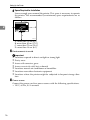
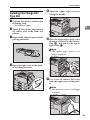
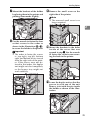
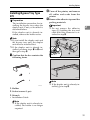
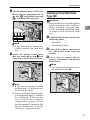
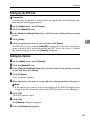
A Confirm that the box contains the
ZDEP110E
Note
❒ If the hard disk is already installed, remove the hard disk
first.
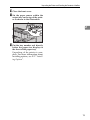
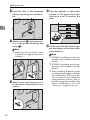
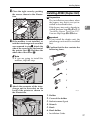
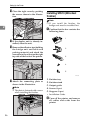
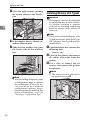
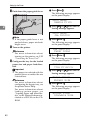
E Attach
the printer board cover
that was removed in step C, and
use a coin to fasten the six screws.
following items.
• Hard disk
• Installation Guide
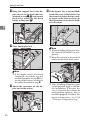
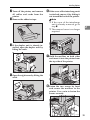
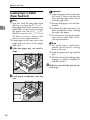
B Turn off the printer, and remove
all cables and cords from the
printer.
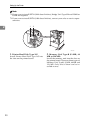
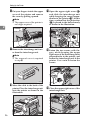
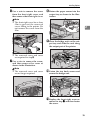
C Use
a coin to remove the six
screws, and remove the printer
board cover.
Note
❒ The removed cover and screws
are required in step G.
ZDEP101E
Note
❒ If you are now going to install
the hard disk, it is not necessary
to reattach the cover.
❒ After installing all options, print
a configuration page to confirm
the installation. If the new device is listed in the column of
configuration options, then it
has been properly installed. For
more information, see P.54
“Printing a Configuration Page”.
ZDEP100E
41