1
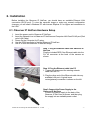
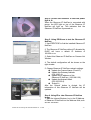
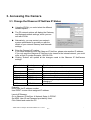
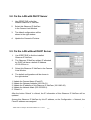
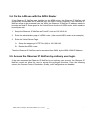
Step 4. Ensure the Observer IP NetCam power light is lit When the Observer IP NetCam is connected with power, the LED light on top of the Observer IP NetCam will light up. This indicates that the Observer IP NetCam is powered on. Step 5. Using IPEdit.exe to test the Observer IP NetCam 1. Use IPEDIT.EXE to find the installed Observer IP NetCam. 2. The Observer IP NetCam without IP allocated by DHCP will have a default IP Address of 169.254.xx.xx. 3. Select this Observer IP NetCam on Camera List Window. 4. The default configuration will be shown on the right window. 5. Change Observer IP NetCam network settings. Update the Camera Name (Fixed IP). Update the Gateway Address (192.168.0.1). Update the IP address of this Observer IP NetCam. (192.168.0.30). Update the Network Mask (255.255.255.0). ‘Submit’ it. After the ‘Submit’ button is clicked, the IP information of this Observer IP NetCam will be updated. Step 6. Using IE to view Observer IP NetCam image 1. Start the Internet Explorer, key in the IP Address of Observer IP NetCam into the Address field, such as 192.168.0.245. VIPN1100 Veo Europe IP Netcam Manual rev 1.2 EN -8 -