1
1 TPEditor Operation
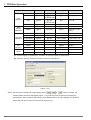
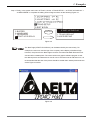
Current State 0 should be the greater than the setting range value of Current State 1, the setting range
value of Current State 1 should be the greater than the setting range value of Current State 2, and vise
versa.
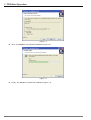
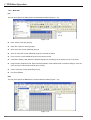
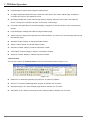
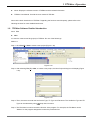
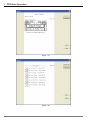
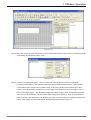
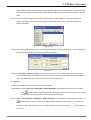
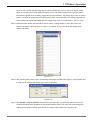
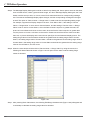
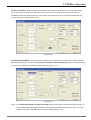
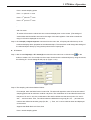
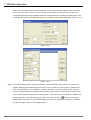
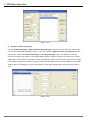
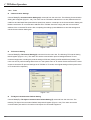
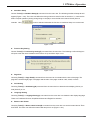
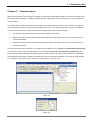
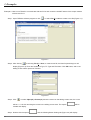
Step 4. When the users double click the field of “Device Value >= Range Value” by using the mouse, the
following All States Table tab shown in Figure 1-69 will open for the users to set the setting range
values of all states.
Figure 1-69
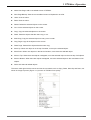
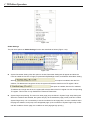
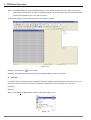
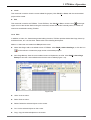
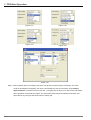
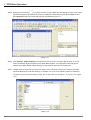
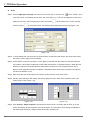
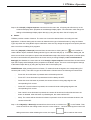
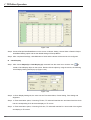
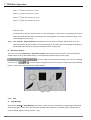
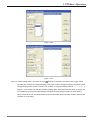
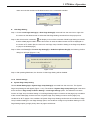
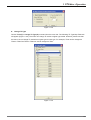
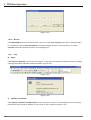
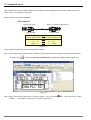
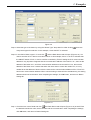
Step 5. After pressing Refer Value button, the following Edit Range Calculator tab (Figure 1-70) will appear and
it could help to calculate the setting range value for all states.
Figure 1-70
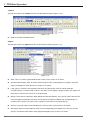
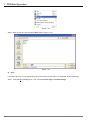
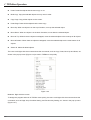
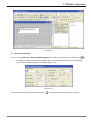
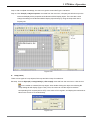
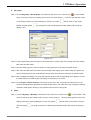
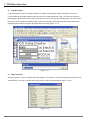
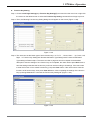
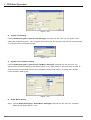
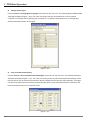
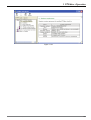
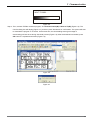
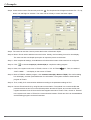
Step 6. Click View(V) > Object Inspector command from the menu bar, a Property tab will show up on the
screen and display all the properties of the Lamp object. The users also could change the settings of
the Lamp object directly by using the drop-down lists in Property tab.
■
Bitmap
There are two selections, Static Bitmap and Dynamic Bitmap.
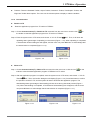
Static Bitmap: Choose Object(O) > Bitmap(B) > Static Bitmap(S) command from the menu bar or click the
icon
on the toolbar to import a Static Bitmap file to be the background picture on TP screen.
Currently, only the bmp format file could be read and imported.
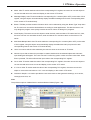
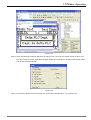
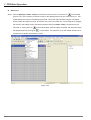
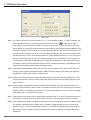
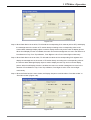
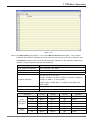
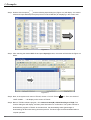
Step 1. After choose Object(O) > Bitmap(B) > Static Bitmap(S) command from the menu bar or click the icon
on the toolbar, move the mouse on the editing screen area, the cursor will be a +. Left click and
drag the mouse in the editing screen area. After releasing the mouse, the square
will be made on
the screen.
©
DELTA ELECTRONICS, INC. ALL RIGHTS RESERVED
1-39