1
98 Internet
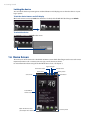
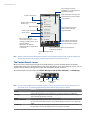
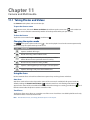
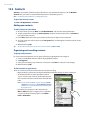
Using the Program Guide
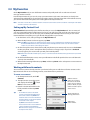
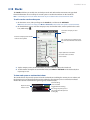
The Program Guide categorizes videos into channels so you can browse and watch related videos available on
YouTube. You can also add your favorite video channel in the Program Guide.
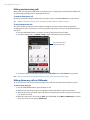
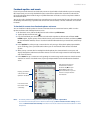
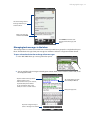
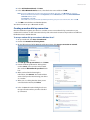
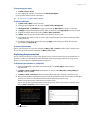
To add a new channel
1. Search the channel or video you want to add to the
Program Guide. See “Searching videos” for details.
2. In the search results list, tap
at the right side of the
video or channel to open the details screen.
3. Tap
, and then tap OK on the confirmation screen. The
channel you just subscribed to is shown when you tap
Program Guide.
Tip
You can also add a search result as a program channel.
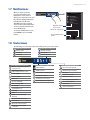
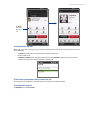
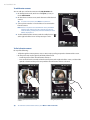
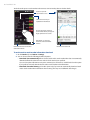
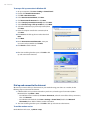
To change the program channel
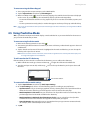
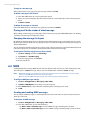
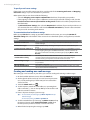
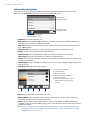
1. On the Videos screen, tap Program Guide at the top of the screen.
2. On the Program Guide, select a channel.
Tip You can scroll down to view more channels.
The video list refreshes to display the available videos for the selected channel.
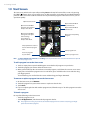
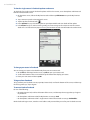
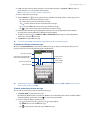
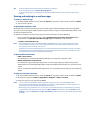
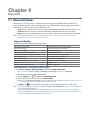
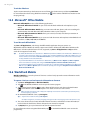
To delete a program channel
You can only delete channels that you have added to the Program Guide.
1. Tap Program Guide.
2. Scroll down to the channel that you want to delete, and then tap
3. On the confirmation screen, tap Yes.
.
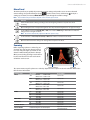
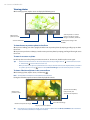
Watching videos
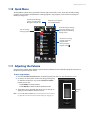
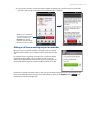
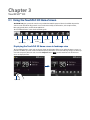
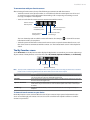
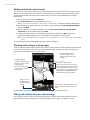
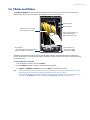
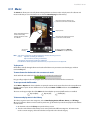
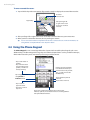
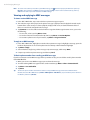
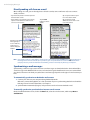
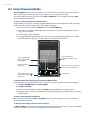
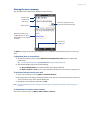
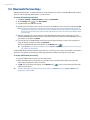
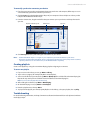
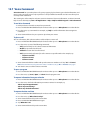
Tap a video on any YouTube screen, program guide channel, or search results list to launch the YouTube Video
Player.
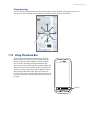
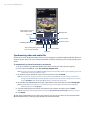
Drag to go forward or
backward in the video.
Download progress
Buffered video
Go back to the beginning
of the video.
Play/pause the video.
Depending on the quality
of downloaded videos you
selected, tap to view the
video in its actual size, in
expanded size, or in full
screen.
Stop the video playback.
Tip
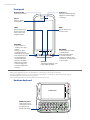
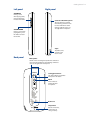
To adjust the volume, press the VOLUME UP and VOLUME DOWN buttons on the left panel of the device.