1
Crestron Touch The PC Driver
Software
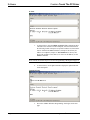
12. Save, compile, and load the project to the touchpanel.
13. The Touch the PC V2 is ready for operation.
Problem Solving
Troubleshooting
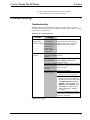
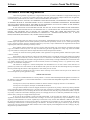
The table below and continued on the next page provides corrective action for
possible trouble situations. If further assistance is required, please contact a Crestron
customer service representative.
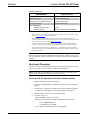
Touch the PC V2 Troubleshooting
POSSIBLE
CAUSE(S)
TROUBLE
CORRECTIVE ACTION
PC hangs or
Some PCs
displays a blue
(particularly with
screen upon reboot. Windows 95) can
have problems with
the "RunOnce"
process upon
loading a serial or
mouse driver.
Make sure that there are no more than
three mouse drivers (including the
Crestron Touch The PC V2 driver)
installed on the PC at one time.
There is no cursor
movement.
Uninstall then re-install Touch The PC
V2 driver.
Touch The PC V2
driver is not properly
installed.
Touch The PC V2
driver is disabled.
Right-click on system tray icon and
select Enabled. (Enabled will be
checked not X'ed.)
Non-Microsoft serial Disable the conflicting driver. (It may be
driver does not work necessary to uninstall & re-install Touch
with Touch The PC The PC V2 driver.)
V2 driver.
Touchpanel was not For Serial Configuration:
initialized properly. 1. Check that the Pad Properties
settings in VT Pro-e are correct.
2. Use the "RS-232 touch output"
command (touchout) to reserve the
RS-232 port for touch screen output type RS232 touchout and press
<ENTER>. Verify the setting - type
RS232 and press <ENTER>. This
should display “Current RS-232
Mode: TouchOutput.” * Reboot
touchpanel.
For Cresnet or Ethernet Configuration:
Check that the Pad Properties settings
in VT Pro-e are correct.
(continued on next page)
Programmer’s Guide – DOC. 5916B
Touch the PC Driver • 17