1
http://jdwxzlw.5d6d.com/?fromuser=华盛维修
17" Auto scan Colour Monitor
Chassis :V20
Service
Service
Service
V20 107E5
DDC/Power saving/MPR II/TCO
107E51/87
TABLE OF CONTENTS
Description
Horizontal frequencies
30 - 70 kHz
Description
Page
Important Safety Notice ------------------------------- 2
Technical Data ------------------------------------------ 3
Front control & OSD------------------------------------ 4
OSD menu tree------------------------------------------ 5
OSD Adjustments-----------------------------------6~12
Troubleshooting----------------------------------------12
Lock/Unlock, Factory mode, Burn in &
Service mode--------------------------------------------13
Warning and Notes ------------------------------------ 14
Mechanical Instructions ------------------------- 15~16
Wiring Diagram------------------------------------------17
Hex Data of DDC2B--------------------------------18 ~21
DDC Instructions -----------------------------------22~26
Electrical Adjustments --------------------------- 27~ 29
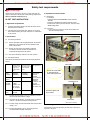
Safety test requirements (Hipot & Ground)------- 30
Page
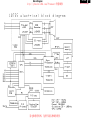
Block Diagram ------------------------------------------31
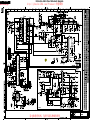
Video Panel (A) Schematic Diagram ---------------32
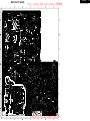
Video Panel C.B.A.(A) --------------------------------33
Main Panel-Deflection (B) Schematic Diagram --34
Main Panel C.B.A.(B,C)-------------------------------35
Power Supply (C) Schematic Diagram-------------36
Key Control Panel (D) Schematic Diagram -------37
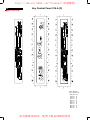
Key ControlPanel C.B.A. (D) ------------------------38
Repair Tips ----------------------------------------------39
Exploded View------------------------------------------40
Recommended parts list------------------------------41
Spare parts list------------------------------------- 42~44
Repair flow chart----------------------------------- 45~52
General Product Specification-------------------53~81
General Troubleshooting Guide----------------82~104
SAFETY NOTICE
ANY PERSON ATTEMPTING TO SERVICE THIS CHASSIS MUST FAMILIARIZE HIMSELF WITH THE CHASSIS
AND BE AWARE OF THE NECESSARY SAFETY PRECAUTIONS TO BE USED WHEN SERVICING ELECTRONIC
EQUIPMENT CONTAINING HIGH VOLTAGES.
CAUTION: USE A SEPARATE ISOLATION TRANSFORMER FOR THIS UNIT WHEN SERVICING.
REFER TO BACK COVER FOR IMPORTANT SAFETY GUIDELINES
Published by BCU Monitors
Printed in Taiwan
Copyright reserved
Subject to modification M Feb 15 2003
家电维修资料网,免费下载各种维修资料
GB 3138 106 10261
http://jdwxzlw.5d6d.com/?fromuser=华盛维修
2
IMPORTANT SAFETY NOTICE
V20 107E5
9 Go to cover page
Proper service and repair is important to the safe, reliable
operation of all PHILIPS Company** Equipment.
The service procedures recommended by PHILIPS and
described in this service manual are effective methods
of performing service operations. Some of these service
operations require the use of tools specially designed for
the purpose. The special tools should be used when and
as recommended.
It is important to note that this manual contains various
CAUTIONS and NOTICES which should be carefully
Read in order to minimize the risk of personal injury to
service personnel. The possibility exists that improper
Service methods may damage the equipment. It also is
important to understand that these CAUTIONS and
NOTICES ARE NOT EXHAUSTIVE. PHILIPS could not
possibly know, evaluate and advise the service trade of
all conceivable ways in which service might be done or of
the possible hazardous consequences of each way.
Consequently, PHILIPS has not undertaken any such broad
evaluation. Accordingly, a servicer who uses a service
procedure or tool which is not recommended by PHILIPS
must first satisfy himself thoroughly that
neither his safety nor the safe operation of the equipment
will be jeopardized by the service method selected.
FOR PRODUCTS CONTAINING LASER :
DANGER-
Invisible laser radiation when open.
AVOID DIRECT EXPOSURE TO BEAM.
CAUTION- Use of controls or adjustments or
performance of procedures other than
those specified herein may result in
hazardous radiation exposure.
CAUTION- The use of optical instruments with this
product will increase eye hazard.
TO ENSURE THE CONTINUED RELIABILITY OF THIS
PRODUCT, USE ONLY ORIGINAL MANUFACTURER'S
REPLACEMENT PARTS, WHICH ARE LISTED WITH THEIR
PART NUMBERS IN THE PARTS LIST SECTION OF THIS
SERVICE MANUAL.
* * Hereafter throughout this manual, PHILIPS Company
Will be referred to as PHILIPS.
WARNING
Critical components having special safety characteristics
are identified with a
by the Ref. No. in the parts list
and enclosed within a broken line* (where several critical
components are grouped in one area) along with the
safety symbol
on the schematics or exploded views.
Use of substitute replacement parts which do not have
the same specified safety characteristics may create
shock, fire, or other hazards.
Under no circumstances should the original design be
modified or altered without written permission from
PHILIPS. PHILIPS assumes no liability, express or
implied, arising out of any unauthorized modification
Of design.
Servicer assumes all liability.
* Broken Line
家电维修资料网,免费下载各种维修资料
http://jdwxzlw.5d6d.com/?fromuser=华盛维修
Technical Data
Technical Specification*
CRT
Size and deflection
Deflection angle
Dot pitch
Face treatment
Light transmission
Phosphor
Recommended display area
Maximum display area
Scanning
Horizontal scanning
Vertical scanning
Video
Video dot rate
3
9 Go to cover page
Data Storage
:17 inch/41cm, flat/square
: 90 degrees
: 0.27mm with black matrix
: Anti-glare, anti-static,
: 47%(PHL),46%(CPT),52%(LG),
53.5%(ORION)
: P22
: 12.0" x 9.0" / 306 x 230 mm
: 12.9" x 9.7" / 325 x 244 mm
: 30 - 70 KHz
: 50 - 160 Hz
: 108 Mhz
Factory preset modes:
This monitor has 8 factory-preset modes as indicated in the
following table :
Signal input level
: 0.7Vpp
Separate sync
Sync input signal
Sync polarities
: Separated sync. with TTL level
: Positive or negative
White Color Temperature
Chromaticity CIE coordinates:
at 9300 ok
x = 0.283 +/- 0.015 y = 0.297 +/- 0.015
at 6500 ok
x = 0.313 +/- 0.015 y = 0.329 +/- 0.015
at sRGB
x = 0.313 +/- 0.015 y = 0.329 +/- 0.015
Carton box
Size (with pedestal)
: 419(W)x383(H)x397(D)
Net weight
: 14 Kg
Power supply
: 90 - 264 VAC, 50/60 Hz
Power consumption
: 90 Watts Max.
Operating condition
Temperature
Relative Humidety
: 0 OC - 40 OC
: 10 % - 90 % (W/O condensation)
Storage condition
Temperature
Relative Humidity
: - 25 OC - 65 OC
: 5 % - 95 % (W/O condensation)
Sync polarity
Resolution
720 x 400
M02
VGA
VGA
H(KHz)
31.5
M03
VGA
640 x 480
640 x 480
31.47
43.3
85
M04
SVGA
800 x 600
46.9
75
+
M05
SVGA
800 x 600
53.674
85
+
+
M06
EVGA
EVGA
1080 x 960
60.0
60
+
+
1024 x 768
68.7
85
+
+
1280 x 1024
64.0
60
+
+
M01
M08
: 75 Ohms
: 4.7K Ohms
Frequen
Mode
M07
Input impedance
-Video
- Sync
V20 107E5
V(Hz)
70
60
H
-
V
+
+
Automatic Power Saving
If you have VESA's DPMS compliance display card or software installed
in your PC, the monitor can automatically reduce power consumption
when power saving function active. And if an input from keyboard,
mouse or other input devices is detected, the monitor will automatically
"wake up". The following table shows the power consumption and
signaling of this automatic power saving feature :
Power Management Definition
VESA's
mode
VIDEO H-SYNC V-SYNC POWER
USED
ON
Active
Yes
Yes
Tyical 64 w
OFF
Blanked
No
No
<1 w
POWER
LED
SAVING( % ) COLOR
0%
98 %
Green
Flashing
Green
This monitor is ENERGY STAR compliant.
As an ENERGY STAR Partner, PHILIPS has determined that
Pin assignment :
this product meets the ENERGY STAR guidelines for energy
efficiency
1
6
11
5
10
15
R
The 15-pin D-sub connector(male) of the signal cable :
Pin No.
1
2
3
4
5
6
7
8
Assignment
Pin No.
Red video input
Green video input
9
10
Blue video input
Identical outputconnected to pin 10
fground
Red video ground
Green video ground
11
ENERGY STAR is a U.S. registered mark. AS AN ENERGY STAR
PARTNER, DELL Computer Corporation HAS DETERMINED THAT
THIS PRODUCT MEETS THE ENERGY STAR GUIDELINES FOR
ENERGY EFFICIENCY.
Assignment
+5V DDC supply
Logic. Ground
Identical outputconnected to pin 10
12
Serial data line(SDA)
13
14
H.Sync /H + V
V.Sync(VCLK for DDC)
15
Data clock line(SCL)
Blue video ground
家电维修资料网,免费下载各种维修资料
http://jdwxzlw.5d6d.com/?fromuser=华盛维修
4
V20 107E5
9 Go to cover page
Front control & OSD
Rear view
Front View
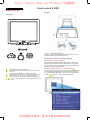
1. Power in - attach power cable here.
2. Video In - this is a cable which is already attached to your monitor.
Connect the other end of the cable to your PC.
Description of the On Screen Display
What is the On-Screen Display?
This is a feature in all Philips monitors which allows an end-user to
adjust screen performance of monitors directly though an on-screen
instruction window. The user interface provides user-friendliness and
ease-of-use when operating the monitor.
Power button switches your monitor on.
OK button which when pressed will take you to the OSD
controls
Contrast hotkey. When the "-" button is pressed,
the adjustment controls for the CONTRAST will show up.
Brightness hotkey. When the "+" button is pressed,
the adjustment controls for BRIGHTNESS will show up.
"-" and "+" buttons, are used for adjusting the OSD of your
monitor.
Basic and simple instruction on the control keys.
On the front controls of your monitor, once you press the
button, the
On Screen Display (OSD) Main Controls window will pop up and you
can now start making adjustments to your monitor's various features.
Use the
the keys to make your adjustments within.
家电维修资料网,免费下载各种维修资料
http://jdwxzlw.5d6d.com/?fromuser=华盛维修
OSD menu tree
V20 107E5
9 Go to cover page
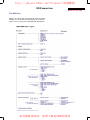
The OSD Tree
Below is an overall view of the structure of the On-Screen
Display. You can use this as reference when you want to
later on work your way around the different adjustments.
家电维修资料网,免费下载各种维修资料
5
http://jdwxzlw.5d6d.com/?fromuser=华盛维修
6
V20 107E5
9 Go to cover page
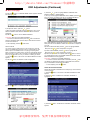
OSD Adjustments
LANGUAGE
The OSD Controls
The ON SCREEN DISPLAY shows its settings in one of five languages.
The default is English, but you can select French, Spanish, German, or
Italian.
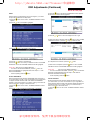
BRIGHTNESS
To adjust your screen's brightness, follow the steps below. Brightness is
the overall intensity of the light coming from the screen. A 50%
brightness is recommended.
1) Press the
appears.
button on the monitor. The BRIGHTNESS window
2) Press the
or
1) Press the
button on the monitor. The MAIN CONTROLS window
appears. LANGUAGE should be highlighted.
2) Press the
button again. The LANGUAGE window appears.
button to adjust the brightness.
3) When the brightness is adjusted to the level desired, stop pressing
the
or
button and after three seconds the BRIGHTNESS window
will disappear with the new adjustment saved.
Smart Help After the BRIGHTNESS window has disappeared, to
continue to the CONTRAST window, follow the steps under CONTRAST.
CONTRAST
To adjust your screen's contrast, follow the steps bellow. Contrast is the
difference between the light and dark areas on the screen. A 100%
contrast is recommended.
1) Press the
3) Press the
or
button until the desired language is highlighted.
button on the monitor. The CONTRAST window appears.
4) Press the
button to confirm your selection and return to MAIN
CONTROLS window. CLOSE MAIN CONTROLS will be highlighted...
Smart Help After returning to MAIN CONTROLS . . .
2) Press the
or
button to adjust the contrast.
3) When the contrast is adjusted to the level desired, stop pressing the
Button and after three seconds the CONTRAST window will
disappear with the new adjustment saved.
. . . to continue to INPUT SIGNAL SELECTION, press the button until
INPUT SIGNAL SELECTION is highlighted. Next, follow steps 3 - 5
under INPUT SIGNAL SELECTION.
. . . to exit completely, press the
button
Smart Help After the CONTRAST window has disappeared, to
continue to the MAIN CONTROLS, follow the steps under LANGUAGE
家电维修资料网,免费下载各种维修资料
http://jdwxzlw.5d6d.com/?fromuser=华盛维修
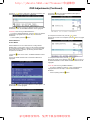
OSD Adjustments (Continued)
ZOOM
V20 107E5
7
9 Go to cover page
3) Press the
button. The ADJUST HORIZONTAL window appears.
ADJUST POSITION should be highlighted.
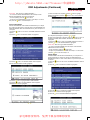
ZOOM increases or decreases the size of the images on your screen.
To adjust the ZOOM follow the steps below.
1) Press the
appears.
2) Press the
button on the monitor. The MAIN CONTROLS window
button until ZOOM is highlighted.
4) Press the
or
button to move the image to the left or right.
5) When the position is adjusted, press the
CONTROLS window, or press the
3) Press the
4) Press the
button. The ZOOM window appears.
or
button to adjust ZOOM.
5) Press the
button to confirm your selection and return to the MAIN
CONTROLS window. CLOSE MAIN CONTROLS will be highlighted.
Smart Help After returning to MAIN CONTROLS . . .
. . . to continue to ADJUST HORIZONTAL, press the button until
ADJUST HORIZONTAL is highlighted. Next, follow steps 3 - 7 under
ADJUST HORIZONTAL.
. . . to exit completely, press the
button
ADJUST HORIZONTAL
ADJUST POSITION under ADJUST HORIZONTAL shifts the image on
your screen either to the left or right. Use this feature if your image does
not appear centered. ADJUST SIZE under ADJUST HORIZONTAL
expands or controls the image on your screen, pushing it out toward the
left and right sides or pulling it in toward the center.
1) Press the
appears.
2) Press the
button to return to MAIN
to highlight ADJUST SIZE.
button on the monitor. The MAIN CONTROLS window
button until ADJUST HORIZONTAL is highlighted.
6) To adjust the horizontal size, press the
or
button.
7) When the size is adjusted, press the
button to return to MAIN
CONTROLS window. CLOSE MAIN CONTROLS will be highlighted.
Smart Help
After returning to MAIN CONTROLS . . .
. . . to continue to ADJUST VERTICAL, press the button until ADJUST
VERTICAL is highlighted. Next, start with step 3 under ADJUST
VERTICAL and follow the directions.
. . . to exit completely, press the
button
ADJUST VERTICAL
ADJUST POSITION under ADJUST VERTICAL shifts the image on
your screen either up or down. Use this feature if your image does not
appear centered. ADJUST SIZE under ADJUST VERTICAL expands or
controls the image on your screen, pushing it out toward the top or
bottom or pulling it in toward the center.
1) Press the
appears.
button on the monitor. The MAIN CONTROLS window
家电维修资料网,免费下载各种维修资料
http://jdwxzlw.5d6d.com/?fromuser=华盛维修
8
OSD Adjustments (Continued)
V20 107E5
9 Go to cover page
2) Press the
button until ADJUST VERTICAL is highlighted.
2) Press the
button until ADJUST SHAPE is highlighted.
3) Press the
button. The ADJUST VERTICAL window appears.
ADJUST POSITION should be highlighted.
3) Press the
button. The ADJUST SHAPE window appears.
ADJUST SIDE CURVE should be highlighted.
4) Press the
4) Press the
button. The SIDE CURVE window appears.
PINCUSHION should be highlighted.
or
button to move the image up or down.
5) When the position is adjusted, press the
button to return to MAIN
CONTROLS window, or press the button to highlight ADJUST SIZE.
5) To adjust the pincushion, press the
or
button.
6) When the pincushion is adjusted, press the
6) To adjust the vertical size, press the
or
button.
BALANCED or press the
window.
button to highlight
button to return to the ADJUST SHAPE
7) When the size is adjusted, press the
button to return to MAIN
CONTROLS window. CLOSE MAIN CONTROLS will be highlighted.
Smart Help After returning to MAIN CONTROLS . . .
. . . to continue to ADJUST SHAPE, press the button until ADJUST
SHAPE is highlighted. Next, start with step 3 under ADJUST SHAPE
and follow the directions.
. . . to exit completely, press the
button
ADJUST SHAPE
ADJUST SIDE CURVE
ADJUST SIDE CURVE under ADJUST SHAPE allows you to adjust two
of the five preset options. These two options are PINCUSHION and
BALANCED pincushion. Note: use these features only when the picture
is not square.
1) Press the
appears.
button on the monitor. The MAIN CONTROLS window
7) To adjust the balanced pincushion, press the
or
button.
8) When the balanced pincushion is adjusted, press the
button to
return to the ADJUST SHAPE window. BACK TO MAIN WINDOWS will
be highlighted.
9) Press the
button to return to the MAIN CONTROLS window, or
press the button until ADJUST SIDE ANGLES is highlighted.
家电维修资料网,免费下载各种维修资料
http://jdwxzlw.5d6d.com/?fromuser=华盛维修
OSD Adjustments (Continued)
V20 107E5
9 Go to cover page
Smart Help After returning to MAIN CONTROLS . . .
7) When the trapezoid is adjusted, press the
...to continue to ADJUST SIDE ANGLES, start with step 5 under
ADJUST SIDE ANGLES and follow the directions.
PARALLELOGRAM or press the
SHAPE window.
...to exit completely, press the
button twice.
9
button to highlight
button to return to the ADJUST
...to adjust only the BALANCED pincushion, follow steps 1 - 4 above,
then press the button, and follow steps 7 - 9.
ADJUST SIDE ANGLES
ADJUST SIDE ANGLES under ADJUST SHAPE allows you to adjust
two of the five preset options. These two options are TRAPEZOID and
PARALLELOGRAM. Note: use these features only when the picture is
not square.
1) Press the
appears.
2) Press the
button on the monitor. The MAIN CONTROLS window
button until ADJUST SHAPE is highlighted.
8) To adjust the parallelogram, press the
or
button.
9) When the parallelogram is adjusted, press the
button to return to
the ADJUST SHAPE window. BACK TO MAIN WINDOWS will be
highlighted.
10) Press the
button to return to the MAIN CONTROLS window, or
press the button until ROTATE IMAGE is highlighted.
Smart Help After returning to MAIN CONTROLS . . .
...to continue to ROTATE IMAGE, start with step 5 under ROTATE
IMAGE and follow the directions.
...to exit completely, press the
button twice.
...to adjust only the PARALLELOGRAM, follow steps 1 - 4 above, then
press the
button, and follow steps 7 -9
ROTATE IMAGE
ROTATE IMAGE under ADJUST SHAPE allows you to adjust one of
the five preset options. These two options are PINCUSHION and
BALANCED pincushion. Note: use this feature only when the picture is
not square.
3) Press the
button. The ADJUST SHAPE window appears.
ADJUST SIDE CURVE should be highlighted.
4) Press the
1) Press the
appears.
2) Press the
button on the monitor. The MAIN CONTROLS window
button until ADJUST SHAPE is highlighted.
button to highlight ADJUST SIDE ANGLES.
5) Press the
button. The SIDE ANGLES window appears.
TRAPEZOID should be highlighted.
3) Press the
button. The ADJUST SHAPE window appears.
ADJUST SIDE CURVE should be highlighted.
4) Press the
6) To adjust the trapezoid, press the
or
arrow until ROTATE IMAGE is highlighted.
button.
家电维修资料网,免费下载各种维修资料
http://jdwxzlw.5d6d.com/?fromuser=华盛维修
10
OSD Adjustments (Continued)
V20 107E5
9 Go to cover page
5) Press the
button. The ROTATE IMAGE window appears. ROTATE
should be highlighted.
4) Press the or button to highlight 9300K for GENERAL USE,
6500K for GAMES, or USER PRESET.
5) Once you have highlighted GENERAL USE or GAMES, press the
button to confirm you selection and return to the MAIN CONTROLS
window. CLOSE MAIN CONTROLS will be highlighted.
6) To adjust the rotation, press the
or
button.
7) When the rotation is adjusted, press the
button to return to the
ADJUST SHAPE window. BACK TO MAIN CONTROLS should be
highlighted.
8) Press the
button to return to MAIN CONTROLS.
Smart Help After returning to MAIN CONTROLS . . .
. . . to continue to ADJUST COLOR, press the button until ADJUST
COLOR is highlighted. Next, start with step 3 under ADJUST COLOR
and follow the directions.
...to exit completely, press the
button twice.
6a) If USER PRESET is highlighted, press the button to highlight RED.
Next, press the LEFT CURSOR or RIGHT CURSOR button to adjust the
color red.
ADJUST COLOR
6b) When finished with RED, press the
Your monitor has two preset options you can choose from. The first
option is for GENERAL USE, which is fine for most applications. The
second option is for GAMES, which is for playing computer games.
When you select one of these options, the monitor automatically adjusts
itself to that option. There is also a third option, USER PRESET, which
allows you to adjust the colors on your screen to a setting you desire.
Next, press the
1) Press the
appears.
2) Press the
button on the monitor. The MAIN CONTROLS window
Next, press the
or
button to highlight GREEN.
button to adjust the color green.
6c) When finished GREEN, press the
button to highlight BLUE.
button to adjust the color blue.
6d) When all adjustments are complete, press the
button to confirm
your adjustments and return to the MAIN CONTROLS window. CLOSE
MAIN CONTROLS will be highlighted.
Smart Help
button until ADJUST COLOR is highlighted.
or
After returning to MAIN CONTROLS. . .
. . . to continue to RESET TO FACTORY SETTINGS, press the button
until RESET TO FACTORY SETTINGS is highlighted. Next, start with
step 3 under RESET TO FACTORY SETTINGS.
. . . to exit completely, press the
button.
RESET TO FACTORY SETTINGS
RESET TO FACTORY SETTINGS returns everything in all the windows
to factory presets.
1) Press the
appears.
2) Press the
highlighted.
3) Press the
button on the monitor. The MAIN CONTROLS window
button until RESET TO FACTORY SETTINGS is
button. The ADJUST COLOR window appears.
3) Press the
appears.
button. The RESET TO FACTORY SETTINGS window
家电维修资料网,免费下载各种维修资料
http://jdwxzlw.5d6d.com/?fromuser=华盛维修
OSD Adjustments (Continued)
4) Press the or button to select YES or NO. NO is the default. YES
returns all settings to their original factory adjustments.
V20 107E5
11
9 Go to cover page
4) Press the
button. The ADJUST MOIRE window appears.
HORIZONTAL will be highlighted.
5) Press the
button to confirm your selection and return to the MAIN
CONTROLS window. CLOSE MAIN CONTROLS will be highlighted.
Smart Help After returning to MAIN CONTROLS . . .
. . . to continue to EXTRA CONTROLS, press the button until EXTRA
CONTROLS is highlighted. Next, start with step 3 under EXTRA
CONTROLS.
. . . to exit completely, press the
button.
5) To adjust the horizontal moire, press the
or
button.
6) When the horizontal moire is adjusted, press the
VERTICAL.
button to highlight
EXTRA CONTROLS
ADJUST MOIRE
EXTRA CONTROLS is a set of three features, including ADJUST
MOIRE. Moire is a fringe pattern arising from the interference between
two superimposed line patterns. To adjust your moire, follow the steps
below. Note: Use only if necessary. By activating ADJUST MOIRE,
sharpness can be affected.
1) Press the
appears.
button on the monitor. The MAIN CONTROLS window
2) Press the DOWN CURSOR button until EXTRA CONTROLS is
highlighted.
7) To adjust the vertical moire, press the
or
button.
8) When the vertical moire is adjusted, press the
button to return to
the EXTRA CONTROLS window. BACK TO MAIN CONTROLS will be
highlighted.
Smart Help After returning to MAIN CONTROLS . . .
. . . to continue to DEGAUSS, press the button until DEGAUSS is
highlighted. Next, start with step 3 under EXTRA CONTROLS,
DEGAUSS.
. . . to exit completely, press the
button.
3) Press the
button. The EXTRA CONTROLS window appears. will
ADJUST MOIRE will be highlighted.
家电维修资料网,免费下载各种维修资料
http://jdwxzlw.5d6d.com/?fromuser=华盛维修
12
V20 107E5
9 Go to cover page
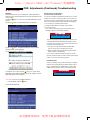
OSD Adjustments (Continued), Troubleshooting
DEGAUSS
Monitor Specific Troubleshooting
EXTRA CONTROLS is a set of three features, including DEGAUSS.
Degaussing removes electromagnetic build up that may distort the color
on your screen.
Self-Test Feature Check (STFC)
1) Press the
appears.
2) Press the
button on the monitor. The MAIN CONTROLS window
button until EXTRA CONTROLS is highlighted.
Your monitor provides a self-test feature that allows you to check
whether your monitor is functioning properly. If your monitor and
computer are properly connected but the monitor screen remains
dark, run the monitor self-test by performing the following steps:
1. Turn off both your computer and the monitor.
2. Unplug the video cable from the back of the computer.
3. Turn on the monitor.
If the monitor is functioning properly, you will see a OSD
message as shown in the following illustration:
ATTENTION
CHECK SIGNAL CABLE
This box also appears during normal system operation if the
video cable becomes disconnected or damaged. This box
will remain on for one minute, go off five seconds, then on for
one minute, and will repeat cycle.
3) Press the
button. The EXTRA CONTROLS window appears.
ADJUST MOIRE will be highlighted.
4) Press the button until DEGAUSS is highlighted.
1. Turn off your monitor and reconnect the video cable;
then turn on both your computer and the monitor.
2. While in self-test mode, the LED remains green and the
pattern remains on and stationary.
If your monitor screen still remains dark after you use the
previous procedure, check your video controller and computer
system; your monitor is functioning properly.
NO SIGNAL INPUT
If there is something wrong with the input signal, a message
appears on the screen although the power indicator LED is
still on. The message may indicate that the monitor is NO
SIGNAL INPUT or that you need to check the signal cable.
5) To degauss your screen, press the
button. Your screen will be
degaussed, then the MAIN CONTROLS window will reappear. CLOSE
MAIN CONTROLS will be highlighted.
ATTENTION
NO SIGNAL INPUT
Smart Help After returning to MAIN CONTROLS . . .
. . . to exit completely, press the
button.
CLOSE MAIN CONTROLS
家电维修资料网,免费下载各种维修资料
http://jdwxzlw.5d6d.com/?fromuser=华盛维修
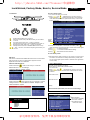
Lock/Unlock, Factory Mode, Burn In, Service Mode
V20 107E5
13
9 Go to cover page
To access factory mode
1. Turn off monitor (don't turn off PC)
2. Press '"
" and "
" simultaneously on the front control
panel,then press "
",wait till the OSD menu with characters
V20 107E5 V0.20 20021217 (below OSD menu)" come on the
screen of monitor.
FrontControl
Power button switches your monitor on.
OK button which when pressed will take you to the OSD
controls
Contrast hotkey. When the "-" button is pressed,
the adjustment controls for the CONTRAST will show up.
Brightness hotkey. When the "+" button is pressed,
the adjustment controls for BRIGHTNESS will show up.
"-" and "+" buttons, are used for adjusting the OSD of your
monitor.
Factory
Mode
Indicator
MODEL SELECT
V20 107E5 V0.20 20021217
3. If OSD menu disappears on the screen of monitor, press "
"
again (anytime), then the OSD menu comes on the screen again.
4. Using "
" : to select OSD menu.
5. Using "
" : to increase or decrease the setting.
6. Using "
" to access/confirm the selection.
To leave factory mode
OSD Lock
OSD lock is a feature which disables the OSD controls. It can be used
when the monitor is set up for demonstration purposes or when
adjustment of the OSD is not desirable.
Switch on OSD lock feature:
Press and hold the
button continuously for 15 seconds.
Release the button when the message
"CONTROL MENU IS LOCKED" appears.
7. After alignment of factory mode, turn off monitor (if you do not turn
off monitor, the OSD menu is always at the factory mode), then
turn on monitor again (at this moment, the OSD menu goes back
to user mode).
To access BURN IN mode
First of all, monitor displays an image.
1. Disconnect the video cable (interface cable).
2. Turn off monitor
3. Press '"
" and "
" simultaneously on the front control
panel,then the BURN IN mode comes on the screen of monitor
as below.
50 seconds around
Switch off OSD lock feature:
5 seconds around
Press and hold the
button continuously for 15 seconds or until the
message window "CONTROL MENU IS LOCKED" disappears, and
"MAIN CONTROLS" appears.
repeatly
4. Reconnect the video cable, then return to normal image.
SERVICE MODE (Indication-Factory mode)
------------------------>
00010
Default setting of MODEL SELECT (Do not change it.)
MODEL SELECT
107E5
ORION
107E5
NORMAL
RESERVE
RESERVE
RESERVE
SWDDC
MODEL SELECT
V20 107E5 V0.20 20021217
家电维修资料网,免费下载各种维修资料
00010: stands for
1. using 10 hours already.
2. turn on/off 10 times.
3. using several hours
+ turn on/off monitor.
http://jdwxzlw.5d6d.com/?fromuser=华盛维修
V20 107E5
14
X
Go to cover page
Warning and Notes
Warnings
Notes
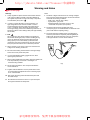
1. Safety regulations require that the unit should be returned
in its original condition and that components identical to
the original components are used. The safety components
are indicated by the symbol
.
1. The direct voltages and waveforms are average voltages.
They have been measured using the Service test software
and under the following conditions :
- Mode : 640 * 480 (31.5kHz / 60Hz)
- Signal pattern : grey scale
- Adjust brightness and contrast control for the
mechanical mid-position (click position)
2. In order to prevent damage to ICs and transistors, all
high-voltage flash-overs must be avoided. In order to
prevent damage to the picture tube, the method shown
in Fig. 1 should be used to discharge the picture tube.
Use a high-voltage probe and a multimeter (position DC-V).
Discharge until the meter reading is 0 V (after approximately
30 seconds).
3. ESD
All ICs and many other semiconductors are sensitive to
electrostatic discharges (ESD). Careless handling during
repair can drastically shorten their life. Make sure that
during repair you are connected by a pulse band with
resistance to the same potential as the ground of the unit.
Keep components and tools also at this same potential.
4. When repairing a unit, always connect it to the AC Power
voltage via an isolating transformer.
2. The picture tube panel has printed spark gaps.
Each spark gap is connected between an electrode of the
picture tube and the Aquadag coating.
3. The semiconductors indicated in the circuit diagram(s)
and in the parts lists are completely interchangeable per
position with the semiconductors in the unit, irrespective
of the type indication on these semiconductors.
V
5. Be careful when taking measurements in the high-voltage
section and on the picture tube panel.
6. It is recommended that saferty goggles be worn when
replacing the picture tube.
7. When making adjustments,use plastic rather than metal tools.
This will prevent any short-circuit or the danger of a
circuit becoming unstable.
Fig.1
8. Never replace modules or other components while the
unit is switched on.
9. Together with the defleciton unit, the picture tube is used
as an integrated unit. Adjustment of this unit during repair
is not recommended.
10. After repair, the wiring should be fastened in place with
the cable clamps.
11. All units that are returned for service or repair must pass
the original manufactures safety tests.
家电维修资料网,免费下载各种维修资料
Mechanical Instructions
V20 107E5
15
9 Go to cover page
http://jdwxzlw.5d6d.com/?fromuser=华盛维修
0. General
To be able to perform measurements and repairs on the "circuit
boards", these unit should placed in the service position first.
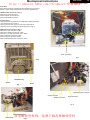
1.Remove the rear cover in Fig. 1.
-Remove 2 screws as shown
-Remove back cover as shown
-Remove pedestal as shown
2. Video panel
- Disconnect the wire between metal shield of Video panel and
CRT neck as shown in Fig. 2.
- Disconnect the CRT ground "1703" from Video panel.
- Remove screw grounding and grounding wire in Fig. 3.
===============>
3.Main board connector in Fig. 4
-Disconnect york wire from "1601"
-Disconnect rotation connector "1401"
-Disconnect control board connector "1803"
-Remove Screw for fixed I/F cable
-Remove signal connector "1802"
-Remove degaussing wire connector "1103"
screw - grounding
Fig. 3
Clip
Pedestal ass'y
Screw
Screw
Fig. 1
Degaussing wire connector
Control connector
Signal connector
Rotation connector
Fig. 4
家电维修资料网,免费下载各种维修资料
CRT grouding wirel
Video Panel
Fig. 2
http://jdwxzlw.5d6d.com/?fromuser=华盛维修
16
Mechanical Instructions
V20 107E5
Go to cover page
4. Main panel with Bottom Tray
-Remove 2 screws for disconnect the Bottom tray as Fig. 5.
-Pull the bottom tray on press right and left side clip from fig. 6
to fig. 7.
=======>
5. SERVICE POSITION
Reconnect connectors, some wires and panels (chassis),
service position can be available for DC/AC measurement
as shown in Fig. 8.
Pull-up
Fig. 7
Screw
Fig. 5
Video panel
Press CLIP
Main panel
Front control
panel
Fig. 8 SERVICE POSITION
Fig. 6
家电维修资料网,免费下载各种维修资料
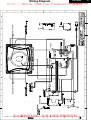
Wiring Diagram
V20 107E5
17
9 Go to cover page
http://jdwxzlw.5d6d.com/?fromuser=华盛维修
家电维修资料网,免费下载各种维修资料
http://jdwxzlw.5d6d.com/?fromuser=华盛维修
18
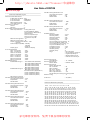
Hex Data of DDC2B
V20 107E5
Go to cover page
**********************************************************************
107E5 Orion Tube EDID log file
**********************************************************************
Vendor/Product Identification
ID Manufacturer Name : PHL
ID Product Code
: 000D(HEX.)
ID Serial Number
: 4D2 (HEX.)
Week of Manufacture : 42
Year of Manufacture
: 2002
EDID Version, Revision
Version
: 1
Revision
: 3
Basic Display Parameters/Features
Video Input Definition : Analog Video Input
0.700V/0.000V (0.70Vpp)
without Blank-to-Black Setup
Separate Sync
without Composite Sync
without Sync on Green
no Serration required
Maximum H Image Size : 31
Maximum V Image Size : 23
Display Transfer Characteristic : 2.98
(gamma)
Feature Support (DPMS): Standby
Suspend
Active Off
Display Type
: RGB color display
Color Characteristics
Red X coordinate
: 0.645
Red Y coordinate
: 0.322
Green X coordinate
: 0.278
Green Y coordinate
: 0.602
Blue X coordinate
: 0.142
Blue Y coordinate
: 0.06
White X coordinate
: 0.283
White Y coordinate
: 0.297
Established Timings
Established Timings I : 720 x 400 @70Hz (IBM,VGA)
640 x 480 @60Hz (IBM,VGA)
640 x 480 @72Hz (VESA)
640 x 480 @75Hz (VESA)
800 x 600 @60Hz (VESA)
Established Timings II : 800 x 600 @72Hz (VESA)
800 x 600 @75Hz (VESA)
832 x 624 @75Hz (Apple,Mac II)
1024 x 768 @60Hz (VESA)
1024 x 768 @70Hz (VESA)
1024 x 768 @75Hz (VESA)
Manufacturer's timings :
Standard Timing Identification #1
Horizontal active pixels : 640
Aspect Ratio
: 4:3
Refresh Rate
: 85
Standard Timing Identification #6
Horizontal active pixels
Aspect Ratio
Refresh Rate
Standard Timing Identification #2
Horizontal active pixels : 800
Aspect Ratio
: 4:3
Refresh Rate
: 85
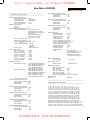
0: 00 1: ff 2: ff 3: ff 4: ff 5: ff 6: ff 7: 00
8: 41 9: 0c 10: 0d 11: 00 12: d2 13: 04 14: 00 15: 00
16: 2a 17: 0c 18: 01 19: 03 20: 08 21: 1f 22: 17 23: c6
24: e8 25: 24 26: 58 27: a5 28: 52 29: 47 30: 9a 31: 24
32: 0f 33: 48 34: 4c 35: ad 36: ee 37: 00 38: 31 39: 59
40: 45 41: 59 42: 61 43: 59 44: 81 45: 80 46: 31 47: 68
48: 45 49: 68 50: 81 51: 40 52: 71 53: 4f 54: d6 55: 09
56: 80 57: a0 58: 20 59: 5e 60: 63 61: 10 62: 10 63: 60
64: 52 65: 08 66: 32 67: e6 68: 10 69: 00 70: 00 71: 1a
72: 00 73: 00 74: 00 75: ff 76: 00 77: 20 78: 54 79: 59
80: 20 81: 20 82: 31 83: 32 84: 33 85: 34 86: 35 87: 36
88: 0a 89: 20 90: 00 91: 00 92: 00 93: fc 94: 00 95: 50
96: 48 97: 49 98: 4c 99: 49 100: 50 101: 53 102: 20 103: 31
104: 30 105: 37 106: 45 107: 35 108: 00 109: 00 110: 00 111: fd
112: 00 113: 32 114: a0 115: 1e 116: 47 117: 0b 118: 00 119: 0a
120: 20 121: 20 122: 20 123: 20 124: 20 125: 20 126: 00 127: 99
Address 78&79 factory code:
Brazil
HC(48h,43h)
Chungli
TY(54h,59h)
Juarez
YA(59h,41h)
Shenzshen
CX(43h,58h)
Suzhou
BZ(42h,5Ah)
Szombathely HD(48h,44h)
Standard Timing Identification #3
Horizontal active pixels : 1024
Aspect Ratio
: 4:3
Refresh Rate
: 85
Standard Timing Identification #4
Horizontal active pixels
Aspect Ratio
Refresh Rate
: 1280
: 5:4
: 60
Standard Timing Identification #5
Horizontal active pixels
Aspect Ratio
Refresh Rate
: 640
: 4:3
: 100
: 800
: 4:3
: 100
Standard Timing Identification #7
Horizontal active pixels
Aspect Ratio
Refresh Rate
: 1280
: 4:3
: 60
Standard Timing Identification #8
Horizontal active pixels
Aspect Ratio
Refresh Rate
: 1152
: 4:3
: 75
Detailed Timing #1
Pixel Clock (MHz)
: 25.18
H Active (pixels)
: 640
H Blanking (pixels)
: 160
V Active (lines)
: 350
V Blanking (lines)
: 99
H Sync Offset (F Porch) (pixels): 16
H Sync Pulse Width (pixels): 96
V Sync Offset (F Porch) (lines) : 37
V Sync Pulse Width (lines) : 2
H Image Size (mm)
: 306
V Image Size (mm)
: 230
H Border (pixels)
: 0
V Border (lines)
: 0
Flags
: Non-interlaced
: Normal Display, No stereo
: Digital Separate sync.
: Negative Vertical Sync.
: Positive Horizontal Sync.
Monitor Descriptor #2
Serial Number
: TY 123456
Monitor Descriptor #3
Monitor Name
: PHILIPS 107E5
Monitor Descriptor #4
Monitor Range Limits
Min. Vt rate Hz
: 50
Max. Vt rate Hz
: 160
Min. Horiz. rate kHz
: 30
Max. Horiz. rate kHz
: 71
Max. Supported Pixel
: 110
No secondary GTF timing formula supported.
Extension Flag
: 0
Check sum
: 99 (HEX.)
**********************************************************************
107E5 Orion EDID data (128 bytes)
**********************************************************************
家电维修资料网,免费下载各种维修资料
http://jdwxzlw.5d6d.com/?fromuser=华盛维修
Hex Data of DDC2B
V20 107E5
19
Go to cover page
**********************************************************************
107E5 LG Tube EDID log file
**********************************************************************
Vendor/Product Identification
ID Manufacturer Name : PHL
ID Product Code
: 000D (HEX.)
ID Serial Number
: 4D2 (HEX.)
Week of Manufacture
: 42
Year of Manufacture
: 2002
EDID Version, Revision
Version
: 1
Revision
: 3
Basic Display Parameters/Features
Video Input Definition : Analog Video Input
0.700V/0.000V (0.70Vpp)
without Blank-to-Black Setup
Separate Sync
without Composite Sync
without Sync on Green
no Serration required
Maximum H Image Size : 31
Maximum V Image Size : 23
Display Transfer Characteristic : 2.83
(gamma)
Feature Support (DPMS) : Standby
Suspend
Active Off
Display Type
: RGB color display
Color Characteristics
Red X coordinate
: 0.632
Red Y coordinate
: 0.33
Green X coordinate
: 0.273
Green Y coordinate
: 0.605
Blue X coordinate
: 0.142
Blue Y coordinate
: 0.063
White X coordinate
: 0.283
White Y coordinate
: 0.297
Standard Timing Identification #6
Horizontal active pixels : 800
Aspect Ratio
: 4:3
Refresh Rate
: 100
Monitor Descriptor #2
Serial Number
: TY 123456
Established Timings
Established Timings I
Monitor Descriptor #3
Monitor Name
: PHILIPS 107E5
Established Timings II
: 720 x 400 @70Hz (IBM,VGA)
640 x 480 @60Hz (IBM,VGA)
640 x 480 @72Hz (VESA)
640 x 480 @75Hz (VESA)
800 x 600 @60Hz (VESA)
: 800 x 600 @72Hz (VESA)
800 x 600 @75Hz (VESA)
832 x 624 @75Hz (Apple,Mac II)
1024 x 768 @60Hz (VESA)
1024 x 768 @70Hz (VESA)
1024 x 768 @75Hz (VESA)
Manufacturer's timings :
Standard Timing Identification #1
Horizontal active pixels : 640
Aspect Ratio
: 4:3
Refresh Rate
: 85
Standard Timing Identification #2
Horizontal active pixels : 800
Aspect Ratio
: 4:3
Refresh Rate
: 85
Standard Timing Identification #3
Horizontal active pixels : 1024
Aspect Ratio
: 4:3
Refresh Rate
: 85
Standard Timing Identification #4
Horizontal active pixels : 1280
Aspect Ratio
: 5:4
Refresh Rate
: 60
Standard Timing Identification #5
Horizontal active pixels : 640
Aspect Ratio
: 4:3
Refresh Rate
: 100
Standard Timing Identification #7
Horizontal active pixels : 1280
Aspect Ratio
: 4:3
Refresh Rate
: 60
Standard Timing Identification #8
Horizontal active pixels : 1152
Aspect Ratio
: 4:3
Refresh Rate
: 75
Detailed Timing #1
Pixel Clock (MHz)
: 25.18
H Active (pixels)
: 640
H Blanking (pixels)
: 160
V Active (lines)
: 350
V Blanking (lines)
: 99
H Sync Offset (F Porch) (pixels): 16
H Sync Pulse Width (pixels): 96
V Sync Offset (F Porch) (lines) : 37
V Sync Pulse Width (lines): 2
H Image Size (mm)
: 306
V Image Size (mm)
: 230
H Border (pixels)
: 0
V Border (lines)
: 0
Flags
: Non-interlaced
: Normal Display, No stereo
: Digital Separate sync.
: Negative Vertical Sync.
: Positive Horizontal Sync.
Monitor Descriptor #4
Monitor Range Limits
Min. Vt rate Hz
: 50
Max. Vt rate Hz
: 160
Min. Horiz. rate kHz
: 30
Max. Horiz. rate kHz
: 71
Max. Supported Pixel
: 110
No secondary GTF timing formula supported.
Extension Flag
: 0
Check sum
: ED(HEX)
**********************************************************************
107E5 LG EDID data (128 bytes)
**********************************************************************
0: 00 1: ff 2: ff 3: ff 4: ff 5: ff 6: ff 7: 00
8: 41 9: 0c 10: 0d 11: 00 12: d2 13: 04 14: 00 15: 00
16: 2a 17: 0c 18: 01 19: 03 20: 08 21: 1f 22: 17 23: b7
24: e8 25: e0 26: 58 27: a1 28: 54 29: 46 30: 9b 31: 24
32: 10 33: 48 34: 4c 35: ad 36: ee 37: 00 38: 31 39: 59
40: 45 41: 59 42: 61 43: 59 44: 81 45: 80 46: 31 47: 68
48: 45 49: 68 50: 81 51: 40 52: 71 53: 4f 54: d6 55: 09
56: 80 57: a0 58: 20 59: 5e 60: 63 61: 10 62: 10 63: 60
64: 52 65: 08 66: 32 67: e6 68: 10 69: 00 70: 00 71: 1a
72: 00 73: 00 74: 00 75: ff 76: 00 77: 20 78: 54 79: 59
80: 20 81: 20 82: 31 83: 32 84: 33 85: 34 86: 35 87: 36
88: 0a 89: 20 90: 00 91: 00 92: 00 93: fc 94: 00 95: 50
96: 48 97: 49 98: 4c 99: 49 100: 50 101: 53 102: 20 103: 31
104: 30 105: 37 106: 45 107: 35 108: 00 109: 00 110: 00 111: fd
112: 00 113: 32 114: a0 115: 1e 116: 47 117: 0b 118: 00 119: 0a
120: 20 121: 20 122: 20 123: 20 124: 20 125: 20 126: 00 127: ed
家电维修资料网,免费下载各种维修资料
http://jdwxzlw.5d6d.com/?fromuser=华盛维修
20
Hex Data of DDC2B
V20 107E5
Go to cover page
**********************************************************************
107E5 CPT Tube EDID log file
**********************************************************************
Vendor/Product Identification
ID Manufacturer Name : PHL
ID Product Code
: 000D(HEX.)
ID Serial Number
: 4D2 (HEX.)
Week of Manufacture : 42
Year of Manufacture
: 2002
EDID Version, Revision
Version
: 1
Revision
: 3
Basic Display Parameters/Features
Video Input Definition : Analog Video Input
0.700V/0.000V (0.70Vpp)
without Blank-to-Black Setup
Separate Sync
without Composite Sync
without Sync on Green
no Serration required
Maximum H Image Size : 31
Maximum V Image Size : 23
Display Transfer Characteristic : 2.86
(gamma)
Feature Support (DPMS): Standby
Suspend
Active Off
Display Type
: RGB color display
Color Characteristics
Red X coordinate
: 0.62
Red Y coordinate
: 0.345
Green X coordinate
: 0.29
Green Y coordinate
: 0.61
Blue X coordinate
: 0.155
Blue Y coordinate
: 0.065
White X coordinate
: 0.283
White Y coordinate
: 0.297
Established Timings
Established Timings I : 720 x 400 @70Hz (IBM,VGA)
640 x 480 @60Hz (IBM,VGA)
640 x 480 @72Hz (VESA)
640 x 480 @75Hz (VESA)
800 x 600 @60Hz (VESA)
Established Timings II : 800 x 600 @72Hz (VESA)
800 x 600 @75Hz (VESA)
832 x 624 @75Hz (Apple,Mac II)
1024 x 768 @60Hz (VESA)
1024 x 768 @70Hz (VESA)
1024 x 768 @75Hz (VESA)
Manufacturer's timings :
Standard Timing Identification #1
Horizontal active pixels : 640
Aspect Ratio
: 4:3
Refresh Rate
: 85
Standard Timing Identification #2
Horizontal active pixels : 800
Aspect Ratio
: 4:3
Refresh Rate
: 85
Standard Timing Identification #3
Horizontal active pixels : 1024
Aspect Ratio
: 4:3
Refresh Rate
: 85
Standard Timing Identification #4
Horizontal active pixels
Aspect Ratio
Refresh Rate
: 1280
: 5:4
: 60
Standard Timing Identification #5
Horizontal active pixels
Aspect Ratio
Refresh Rate
: 640
: 4:3
: 100
Standard Timing Identification #6
Horizontal active pixels
Aspect Ratio
Refresh Rate
: 800
: 4:3
: 100
Standard Timing Identification #7
Horizontal active pixels
Aspect Ratio
Refresh Rate
: 1280
: 4:3
: 60
Standard Timing Identification #8
Horizontal active pixels
Aspect Ratio
Refresh Rate
: 1152
: 4:3
: 75
Detailed Timing #1
Pixel Clock (MHz)
: 25.18
H Active (pixels)
: 640
H Blanking (pixels)
: 160
V Active (lines)
: 350
V Blanking (lines)
: 99
H Sync Offset (F Porch) (pixels): 16
H Sync Pulse Width (pixels): 96
V Sync Offset (F Porch) (lines) : 37
V Sync Pulse Width (lines) : 2
H Image Size (mm)
: 306
V Image Size (mm)
: 230
H Border (pixels)
: 0
V Border (lines)
: 0
Flags
: Non-interlaced
: Normal Display, No stereo
: Digital Separate sync.
: Negative Vertical Sync.
: Positive Horizontal Sync.
Monitor Descriptor #2
Serial Number
: TY 123456
Monitor Descriptor #3
Monitor Name
: PHILIPS 107E5
Monitor Descriptor #4
Monitor Range Limits
Min. Vt rate Hz
: 50
Max. Vt rate Hz
: 160
Min. Horiz. rate kHz
: 30
Max. Horiz. rate kHz
: 71
Max. Supported Pixel
: 110
No secondary GTF timing formula supported.
Extension Flag
: 0
Check sum
: 4C (HEX.)
**********************************************************************
107E5 CPT EDID data (128 bytes)
**********************************************************************
0: 00 1: ff 2: ff 3: ff 4: ff 5: ff 6: ff 7: 00
8: 41 9: 0c 10: 0d 11: 00 12: d2 13: 04 14: 00 15: 00
16: 2a 17: 0c 18: 01 19: 03 20: 08 21: 1f 22: 17 23: ba
24: e8 25: d5 26: f8 27: 9e 28: 58 29: 4a 30: 9c 31: 27
32: 10 33: 48 34: 4c 35: ad 36: ee 37: 00 38: 31 39: 59
40: 45 41: 59 42: 61 43: 59 44: 81 45: 80 46: 31 47: 68
48: 45 49: 68 50: 81 51: 40 52: 71 53: 4f 54: d6 55: 09
56: 80 57: a0 58: 20 59: 5e 60: 63 61: 10 62: 10 63: 60
64: 52 65: 08 66: 32 67: e6 68: 10 69: 00 70: 00 71: 1a
72: 00 73: 00 74: 00 75: ff 76: 00 77: 20 78: 54 79: 59
80: 20 81: 20 82: 31 83: 32 84: 33 85: 34 86: 35 87: 36
88: 0a 89: 20 90: 00 91: 00 92: 00 93: fc 94: 00 95: 50
96: 48 97: 49 98: 4c 99: 49 100: 50 101: 53 102: 20 103: 31
104: 30 105: 37 106: 45 107: 35 108: 00 109: 00 110: 00 111: fd
112: 00 113: 32 114: a0 115: 1e 116: 47 117: 0b 118: 00 119: 0a
120: 20 121: 20 122: 20 123: 20 124: 20 125: 20 126: 00 127: 4c
家电维修资料网,免费下载各种维修资料
http://jdwxzlw.5d6d.com/?fromuser=华盛维修
Hex Data of DDC2B (Continued)
V20 107E5
21
Go to cover page
**********************************************************************
107E5 Philips Tube EDID log file
**********************************************************************
Vendor/Product Identification
ID Manufacturer Name
: PHL
ID Product Code
: 000D (HEX.)
ID Serial Number
: 4D2 (HEX.)
Week of Manufacture
: 42
Year of Manufacture
: 2002
Standard Timing Identification #6
Horizontal active pixels : 800
Aspect Ratio
: 4:3
Refresh Rate
: 100
EDID Version, Revision
Version
: 1
Revision
: 3
Basic Display Parameters/Features
Video Input Definition
: Analog Video Input
0.700V/0.000V (0.70Vpp)
without Blank-to-Black Setup
Separate Sync
without Composite Sync
without Sync on Green
no Serration required
Maximum H Image Size : 31
Maximum V Image Size : 23
Display Transfer Characteristic : 2.87
(gamma)
Feature Support (DPMS) : Standby
Suspend
Active Off
Display Type
: RGB color display
Color Characteristics
Red X coordinate
: 0.62
Red Y coordinate
: 0.345
Green X coordinate
: 0.29
Green Y coordinate
: 0.61
Blue X coordinate
: 0.15
Blue Y coordinate
: 0.065
White X coordinate
: 0.283
White Y coordinate
: 0.297
Standard Timing Identification #8
Horizontal active pixels : 1152
Aspect Ratio
: 4:3
Refresh Rate
: 75
Established Timings
Established Timings I
: 720 x 400 @70Hz (IBM,VGA)
640 x 480 @60Hz (IBM,VGA)
640 x 480 @72Hz (VESA)
640 x 480 @75Hz (VESA)
800 x 600 @60Hz (VESA)
Established Timings II
: 800 x 600 @72Hz (VESA)
800 x 600 @75Hz (VESA)
832 x 624 @75Hz (Apple,Mac II)
1024 x 768 @60Hz (VESA)
1024 x 768 @70Hz (VESA)
1024 x 768 @75Hz (VESA)
Manufacturer's timings :
Standard Timing Identification #1
Horizontal active pixels : 640
Aspect Ratio
: 4:3
Refresh Rate
: 85
Standard Timing Identification #2
Horizontal active pixels : 800
Aspect Ratio
: 4:3
Refresh Rate
: 85
Standard Timing Identification #3
Horizontal active pixels
Aspect Ratio
Refresh Rate
: 1024
: 4:3
: 85
Standard Timing Identification #4
Horizontal active pixels
Aspect Ratio
Refresh Rate
: 1280
: 5:4
: 60
Standard Timing Identification #5
Horizontal active pixels : 640
Aspect Ratio
: 4:3
Refresh Rate
: 100
Standard Timing Identification #7
Horizontal active pixels : 1280
Aspect Ratio
: 4:3
Refresh Rate
: 60
Detailed Timing #1
Pixel Clock (MHz)
: 25.18
H Active (pixels)
: 640
H Blanking (pixels)
: 160
V Active (lines)
: 350
V Blanking (lines)
: 99
H Sync Offset (F Porch) (pixels): 16
H Sync Pulse Width (pixels): 96
V Sync Offset (F Porch) (lines) : 37
V Sync Pulse Width (lines): 2
H Image Size (mm)
: 306
V Image Size (mm)
: 230
H Border (pixels)
: 0
V Border (lines)
: 0
Flags
: Non-interlaced
: Normal Display, No stereo
: Digital Separate sync.
: Negative Vertical Sync.
: Positive Horizontal Sync.
Monitor Descriptor #2
Serial Number
: TY 123456
Monitor Descriptor #3
Monitor Name
: PHILIPS 107E5
Monitor Descriptor #4
Monitor Range Limits
Min. Vt rate Hz
: 50
Max. Vt rate Hz
: 160
Min. Horiz. rate kHz
: 30
Max. Horiz. rate kHz
: 71
Max. Supported Pixel
: 110
No secondary GTF timing formula supported.
Extension Flag
: 0
Check sum
: 7B (HEX.)
**********************************************************************
107E5 PHI EDID data (128 bytes)
**********************************************************************
0: 00 1: ff 2: ff 3: ff 4: ff 5: ff 6: ff 7: 00
8: 41 9: 0c 10: 0d 11: 00 12: d2 13: 04 14: 00 15: 00
16: 2a 17: 0c 18: 01 19: 03 20: 08 21: 1f 22: 17 23: bb
24: e8 25: e5 26: b8 27: 9e 28: 59 29: 4a 30: 9c 31: 26
32: 10 33: 48 34: 4c 35: ad 36: ee 37: 00 38: 31 39: 59
40: 45 41: 59 42: 61 43: 59 44: 81 45: 80 46: 31 47: 68
48: 45 49: 68 50: 81 51: 40 52: 71 53: 4f 54: d6 55: 09
56: 80 57: a0 58: 20 59: 5e 60: 63 61: 10 62: 10 63: 60
64: 52 65: 08 66: 32 67: e6 68: 10 69: 00 70: 00 71: 1a
72: 00 73: 00 74: 00 75: ff 76: 00 77: 20 78: 54 79: 59
80: 20 81: 20 82: 31 83: 32 84: 33 85: 34 86: 35 87: 36
88: 0a 89: 20 90: 00 91: 00 92: 00 93: fc 94: 00 95: 50
96: 48 97: 49 98: 4c 99: 49 100: 50 101: 53 102: 20 103: 31
104: 30 105: 37 106: 45 107: 35 108: 00 109: 00 110: 00 111: fd
112: 00 113: 32 114: a0 115: 1e 116: 47 117: 0b 118: 00 119: 0a
120: 20 121: 20 122: 20 123: 20 124: 20 125: 20 126: 00 127: 7b
家电维修资料网,免费下载各种维修资料
http://jdwxzlw.5d6d.com/?fromuser=华盛维修
22
DDC Instructions
V20 107E5
Go to cover page
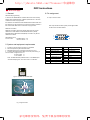
1. General
3. Pin assignment
DDC Data Re-programming
In case the main EEPROM with Software DDC which store all factory
settings were replaced because a defect,repaired monitor the serial
numbers have to be re-programmed.
A. 15-pin D-Sub Connector
It is advised to re-soldered the main EEPROM with Software DDC from
the old board onto the new board if circuit board have been replaced, in
this case the DDC data does not need to be re-programmed.
The 15-pin D-sub connector (male) of the signal cable
on the 3rd row for DDC feature :
Additional information
Additional information about DDC (Display Data Channel) may be
obtained from Video Electronics Standards Association (VESA).
Extended Display Identification Data(EDID) information may be also
obtained from VESA.
1
6
11
DDC EDID structure
For the monitor
: Standard Version 3.0
Structure Version 1.2
5
10
15
2. System and equipment requirements
1. An i486 (or above) personal computer or compatible.
2. Microsoft operation system Windows 95/98.
3. EDID301.EXE program (3138 106 10103) shown as Fig. 1
4. Software DDC Alignment kits (4822 310 11184) shown as Fig. 2.
The kit contents: a. Alignment box x1
b. Printer cable x1
c. D-Sub cable x1
Note: The EDID301.EXE (Release Version 1.58, 20000818)is a
windows-based program, which cannot be run in MS-DOS.
Pin No.
Assignment
Pin No.
2
Red video input
Green video input
9
10
3
4
Blue video input
Ground
11
5
6
for selftest(PC ground)
Red video ground
Green video ground
Blue video ground
1
7
8
Assignment
DDC 5V
Sync. Ground
Ground
12
Bi-directional data(SDA)
13
14
H.Sync
V.Sync(VCLK)
15
Data clock line(SCL)
EDID301.EXE
Ver:1.58
Figure 1 Diskette with EDID301.EXE
DC 8V~12V
Power indicator
To Monitor
To Printer
Video Card
Fig. 2 Alignment Kits
家电维修资料网,免费下载各种维修资料
http://jdwxzlw.5d6d.com/?fromuser=华盛维修
DDC Instructions (Continued)
4. Configuration and procedure
There is no Hardware DDC (DDC IC) anymore. Main EEPROM stores
all factory settings and DDC data (EDID code) which is so called
Software DDC. The following section describes the connection and
procedure for Software DDC application. The main EEPROM can be reprobrammed by enabling "factory memory data write" function on the
DDC program (EDID301.EXE).
V20 107E5
23
X
Go to cover page
3. At the submenu, type the letter of your computer's floppy disk drive
followed by :EDID301 (for example, A:\EDID301, as shown in Fig. 5).
Fig. 5
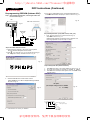
*** INITIALIZE ALIGNMENT BOX ***
In order to avoid that monitor entering power saving mode due to
sync will cut off by alignment box, it is necessary to initialize
alignment box before re-programming DDC Data. Following steps
show you the procedures and connection.
4. Click OK button. The main menu appears (as shown in Fig. 6).
This is for initialize alignment box.
Fig. 6
Step 1: Supply 8~12V DC power source to the Alignment box by
plugging a DC power cord or using batteries.
Step 2: Connecting printer cable and video cable of monitor as
shown in Fig.3.
PC
To printer port (LTP1)
To video card
Fig. 3
Rear view of the monitor
DC Power
8~12 V
Note 1: If the connection is improper, you will see the following error
message (as shown in Fig. 7) before entering the main menu.
Meanwhile, the (read EDID) function will be disable. At this time,
please make sure all cables are connected correctly and fixedly,
and the procedure has been performed properly.
~
Printer
Port
Fig. 7
To
Monitor
To PC
Video cable
Step 3: Installation of EDID301.EXE
Method 1: Start on DDC program
Start Microsoft Windows.
1. Insert the disk containing EDID301.EXE program into floppy disk
drive.
2. Click
, choose Run at start menu of Windows 95/98 as
shown in Fig. 4.
Method 2: After create a shortcut of EDID301.EXE
: Double click EDID301 icon
(as shown in Fig. 8) which is
on the screen of Windows Wallpaper.
Bring up main menu of EDID301 as shown in Fig. 9.
This is for initialize alignment box.
1
Fig. 8
Fig. 4
Fig. 9
Note 2: During the loading, EDID301 will verify the EDID data which just
loaded from monitor before proceed any further function, once
the data structure of EDID can not be recognized, the following
error message will appear on the screen as below. Please
confirm following steps to avoid this message.
1. The data structure of EDID was incorrect.
2. DDC IC that you are trying to load data is empty.
3. Wrong communication channel has set at configuration setup
windows.
4. Cables loosed or poor contact of connection.
家电维修资料网,免费下载各种维修资料
http://jdwxzlw.5d6d.com/?fromuser=华盛维修
24
DDC Instructions (Continued)
V20 107E5
Go to cover page
Re-programming EEPROM (Software DDC)
Step 1: After initialize alignment box, connecting all cables and
box as shown in Fig. 10
PC
4. Click
icon (Read EDID function) to read DDC EDID data from
monitor. The EDID codes will display on screen as shown in Fig. 13.
Fig. 13
Rear view of the monitor
To printer port (LTP1)
To video card
Fig. 10
DC Power
8~12 V
~
Step 3: Modify DDC data (verify EDID version, week, year)
1.
Video cable
Printer
Port
To
Monitor
Click
(new function) icon from the tool bar, bring up
Step 1 of 9 as shown in Fig. 14 .
EDID301 DDC application provides the function selection and
text change (select & fill out) from Step 1 to Step 9.
To PC
Step 2: Read DDC data from monitor
Fig. 14
1-1 Click the left key of Mouse, or hit any key on the keyboard,
then the characters disappear from the screen.
1-2 Click
icon as shown if Fig. 11 from the tool bar to bring up
the "Configuration Setup" windows as shown in Fig. 12.
Fig. 11
Step 4: Modify DDC data (Monitor Serial No.)
1.
2.
3.
Select the DDC2B as the communication channel.
Select "Enable" & fill out "F0" for Mapped EDID page address
as shown in Fig. 12.
------>
2.
Click Next till the Step 7 of 9 window appears as shown in Fig. 15.
Fill out the new Serial No. (for example, TY 503960, TY 123456).
Click Next till the last step window appears, then click Finish to exit
the Step window.
two space
Fig. 12
(for example: change it from TY 503960
to TY 123456)
Definition of Serial Number (barcode format)
T Y 0 0 02 41 0 0 0 0 0 1
Serial Number (U.S.A: 8 digit)
(Others regions: 6 digit)
Week
Year
3.
Click OK button to confirm your selection.
TY Code
TY----Chungli
CX----Dong Guan
HD----Hungary
BZ----Suzhou
家电维修资料网,免费下载各种维修资料
Fig. 15
http://jdwxzlw.5d6d.com/?fromuser=华盛维修
DDC Instructions (Continued)
Step 5: **Configuration Setup & Enter Factory Mode **
for "write EDID data"
1.
Click
icon from the tool bar to bring up the Configuration Setup
windows again. Then, select "Software DDC only" as shown in
Fig. 16. Click "OK".
Fig. 16
V20 107E5
25
Go to cover page
Step 6: Write DDC data
1. Click
(Write EDID) icon from the tool bar to write DDC data.
Bring up "Writing 0%~100%, ready" a progressing bar on the left
down corner.
2. Click
(Read EDID) to confirm it.
Step 7: Confirm Serial Number in User Mode
1. Press the
button to turn off the monitor. Press the
again to turn on the monitor.
2. Press the
button to bring up the OSD Main Menu.
3. Press the
button to select Extra Controls, press the
button to confirm your selection.
4. Confirm the Serial Number "123456" is updated
as shown in Fig. 18.
button
If you do not select "Software DDC only", when you execute
"write EDID", it will bring up an error message as below.
Fig. 18
To access factory mode
1. Turn off monitor (don't turn off PC)
2. Press "
" and "
" simultaneously on the front control
panel,then press "
",wait till the OSD menu with characters
V20 107E5 V0.20 20021217 (below OSD menu)" come on the
screen of monitor.
Step 8: Save DDC data
Sometimes, you may need to save DDC data as a text file for using
in other IC chip. To save DDC data, follow the steps below:
1. Click
(Save) icon (or click "file"-> "save as") from the tool bar
and give a file name as shown in Fig. 19.
The file type is EDID301 file (*.ddc) which can be open in WordPad.
By using WordPad, the texts of DDC data & table (128 bytes, hex
code) can be modified. If DDC TEXTS & HEX Table are completely
correct, it can be saved as .ddc flie to re-load it into EEPROM for
DDC Data application.
Fig. 17
Fig. 19
Factory
Mode
Indicator
MODEL SELECT
107E5 V20
V20 107E5 V0.20 20021217
If OSD menu disappears on the screen of monitor, press "
"
again (anytime), then the OSD menu comes on the screen again.
2.
Click Save.
If you do not access "Factory mode", when you execute
"write EDID", it will bring up an error message as below.
家电维修资料网,免费下载各种维修资料
http://jdwxzlw.5d6d.com/?fromuser=华盛维修
26
V20 107E5
Go to cover page
DDC Instructions (Continued)
Step 9: Load DDC data
1.
2.
3.
4.
5.
Click
from the tool bar.
Select the file you want to open as shown in Fig. 20.
Click Open.
Access "Factory Mode" and enable "Software DDC only" as shown
in Fig. 17 & Fig. 16.
Write EDID (click
).
Note 2 : In Factory Mode: Read/Write DDC data
Before Read/Write EDID code, please confirm that the
Software DDC only was enabled as shown in Fig. 23.
Fig. 20
107E5 V20.DDC
107E5 V20.DDC
Step 10: Exit DDC program
Pull down the File menu and select Exit as shown in Fig. 21.
(EDID Tool 3.01)
Fig. 21
Note1 : In User Mode: Read DDC data only
Before read EDID code, please confirm that the Software
DDC only was disabled as shown in Fig. 22.
Fig. 22
If you do not disable "Software DDC only", when you execute
"read EDID", it will bring up an error message as below.
家电维修资料网,免费下载各种维修资料
Fig. 23
http://jdwxzlw.5d6d.com/?fromuser=华盛维修
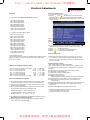
Electrical Adjustments
0. General
1. This monitor has 8 factory-preset modes as below.
720 x 400 31.5 kHz/70 Hz
640 x 480 31.5 kHz/60 Hz
640 x 480 43.3 kHz/85 Hz
800 x 600 46.9 kHz/75 Hz
800 x 600 53.6 kHz/85 Hz
1280 x 960 60.0 kHz/60 Hz
1024 x 768 68.7 kHz/85 Hz
1280 x 1024 64.0kHz/60Hz
V20 107E5
27
Go to cover page
5. To access factory mode
5.1 Turn off monitor (don't turn off PC)
5.2 Press '"
" and "
" simultaneously on the front control
panel,then press "
",wait till the OSD menu with characters
M32 107E/T4P V1.23 20020426 (below OSD menu)" come on the
screen of monitor.
1.1 14 factory-preload modes as below
640 x 350 31.5 kHz/70 Hz
640 x 350 37.9 kHz/85 Hz
640 x 480 37.5 kHz/75 Hz
640 x 480 37.9 kHz/72.8 Hz
640 x 480 50.6 kHz/100 Hz
720 x 400 37.9 kHz/85 Hz
800 x 600 37.90kHz/60Hz
800 x 600 48.1 kHz/72 Hz
800 x 600 63.9 kHz/100 Hz
832 x 624 49.7 kHz/75 Hz
1024 x 768 48.4 kHz/60 Hz
1024 x 768 56.5 kHz/70 Hz
1152 x 864 67.5 kHz/75 Hz
1024x768 60.0 kHz/75 Hz
Factory
Mode
Indicator
V20 107E5 V0.20 20021217
5.3 If OSD menu disappears on the screen of monitor, press "
"
again (anytime), then the OSD menu comes on the screen again.
5.4 Using "
" : to select OSD menu.
5.5 Using "
" : to increase or decrease the setting.
5.6 Using "
" to access/confirm the selection.
To leave factory mode
2. AC/DC Measurement:
The measurements for AC waveform and DC figure is based on 640 x
480 31.5 kHz/60 Hz resolution mode with test pattern "gray scale".
Power input: 110V AC
3.Monitor the following auxiliary voltages.
+5V source across 7153 Pin out and GND
+5V
+6.1V source across C2154
+6.1V
+12V source across C2155
+12.9V
-12V source across C2156
-12.7V
+50V source across C2152
+50V
-190V source across C2630
-173V
+83V source across C2153 ( + to Gnd)
+76V
MODEL SELECT
+/- 0.25 VDC
+/- 0.3 VDC
+/- 1.0 VDC
+/- 1.0 VDC
+/- 1.0 VDC
+/- 10.0 VDC
+/- 2.0 VDC
4. General conditions for alignment
4.1 During all alignments, supply a distortion free AC mains voltage
to set via an isolating transformer with low internal impedance.
4.2 Align in pre-warmed condition, at least 30 minutes warm-up with
nominal picture brightness.
4.3 Purity, geometry and subsequent alignments should be carried
out in magnetic cage with correct magnetic field.
Northern hemisphere : H=0, V=450 mG, Z=0
Southern hemisphere : H=0, V=-500 mG, Z=0
Equatorial Support
: H=0, V=0
mG, Z=0
5.7 After alignment of factory mode, turn off monitor (if you do not
turn off monitor, the OSD menu is always at the factory mode),
then turn on monitor again (at this moment, the OSD menu goes
back to user mode).
6. Picture geometry setting
- Apply a video signal with cross-hatch pattern.
- Apply a video signal in the 1024 x 768 with 68.7 kHz/85 Hz mode.
- Set contrast control at Max. position, and brightness control in the
mid-point.
6.4 Alignment of horizontal geometry and vertical geometry
6.4.1 Adjust the H-width to 306 mm
6.4.2 Adjust the H-phase to center position.
6.4.3 Adjust V-size to 230mm.
6.4.4 Adjust V-Position to center.
Adjust/Trapezoid/pincushion/balance pincushion/paralleogram
2
6.4.5 Adjust picture tilt via I C BUS for correct top/bottom lines.
2
6.4.6 Adjust the top and bottom corner by I C to get optimum
corner geometry.
2
6.4.7 Adjust the parallelogram by I CBUS to get optimum vertical line.
2
6.4.8 Adjust the balance pincushion by I C BUS to get optimum
vertical line.
6.4.9 Adjust the trapezoid to get optimum vertical line.
6.5 Adjust size/centering/trapezium/pincushion/parallelogram
2
of all other preset modes via I C bus.
(to repeat from step 6.4.1 to step 6.4.9)
4.4 All voltages are to be measured or applied with respect to ground.
Note: Do not use heatsink as ground.
4.5 Adjust brightness controls to center position except for contrast
control which should be set to MAX.
家电维修资料网,免费下载各种维修资料
http://jdwxzlw.5d6d.com/?fromuser=华盛维修
28
V20 107E5
9 Go to cover page
Electrical Adjustments (Continued)
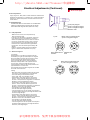
7. Alignment of Vg2 cut-off point, white tracking
Equipment : 1. Video Test Generator-801GC (Quantum Data)
2. Color-analyzer (Minolta CA-100)
VG2 [(screen), at the bottom of the L.O.T.].
7.1 Apply a video signal in the 1024 x 768 with 68.7 kHz/85 Hz mode,
select the "full white pattern" (sizes 306 x 230 mm).
* Use color-analyzer (Minolta CA-100) to adjust R/G/B cutoff and
gain.
OSD R/G/B cut-off and R/G/B gain can be accessed (for Philips
CRT), with initial data:
o
9300 K
2
R cutoff = 50%, R gain = 73% (I C)
2
G cutoff = 50%, G gain = 73% (I C)
2
B cutoff = 50%, B gain = 73% (I C)
o
6500 K
2
R cutoff = 50%, R gain = 71% (I C)
2
G cutoff = 50%, G gain = 71% (I C)
2
B cutoff = 50%, B gain = 71% (I C)
2
Brightness = 50%, Sub-Contrast = 86%, ABL = 63% (I C)
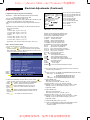
Step 1: To access factory mode
- Turn off monitor (don't turn off PC)
- Press "
" and "
" simultaneously on the front control
panel,then press "
",wait till the OSD menu with characters
V20 107E5 V0.20 20021217 (below OSD menu)" comes on the
screen of monitor as shown in Fig. 2.1.
Factory
Mode
Indicator
MODEL SELECT
V20 107E5 V0.20 20021217
Fig. 2.1
- If OSD menu disappears on the screen of monitor, press "
"
again (anytime), then the OSD menu comes on the screen again.
- Using "
" to select M 32 107E/T4P V1.23 20020426.
- Press "
" button to access/confirm the selection.
Bring up the "function adjustment" as shown in Fig. 2.2.
- Press '"
" button for function selection as shown in
Fig. 2.2.
- Press "
" button to access/confirm each item selection
(The cursor indicator will be changed from yellow colour to
red colour.)
- Using "
" : to increase or decrease the value.
9300 BIAS R G B
GAIN R G B (for ref. 164,173,133,216,188,194)
6500 BIAS R G B
GAIN R G B (for ref. 158,177,136,208,148,132)
SRGB BIAS R G B
GAIN R G B (for ref. 161,178,137,182,132,118)
(for ref. 127,255,190)
SRGB (
)
OSD
V (OFF GAIN LINBAL FOCUS)
(for ref. 127,255,140,140)
CORNER(T B) EHT ( H V )
(for ref. 188,190,83,105)
PINCOR(T B S W) B+
(for ref. 112,124,125,236,124)
ABL SUB (
)
(for ref. 129,220,100,194)
LIN ( H V)
(for ref. 88,34)
RANGE (
)
(for ref. 127,255)
EXIT
152
Fig. 2.2
(for example: 152 is value of "BIAS R")
BIAS R G B : R(red) G(green) B(blue) cutoff
GAIN R G B : R(red) G(green) B(blue) gain
OSD contrast : OSD window contrast
V OFFSET : Vertical raster center
V GAIN
: Vertical size center
VLIN BAL : Vertical Linearity Balance
V FOCUS : Vertical Focus adiustment
T CORNER: Corner Correctionof TOP
B CORNER: Corner Correctionof BOTTOM
EHT H
: Horizontal Size compensation
EHT V
: Vertical Size compensation
Pincor T : Top corner asymmetry correction
Pincor B :Bottom corner asymmetry correction
Pincor S : Pincushion S-correction
Pincor W : Pincushion W-correction
B+ : High voltage adjustment
ABL
: Auto brightness Limitation
SUB
: Sub Contrast allowance range
SUB
: Sub Brigntness allowance range
SUB
: Horizontal size range adjustment range
HLIN
: Horizontal Linearity
V LIN
: Vertical Linearity
RANGE
: Zoom range
RANGE
: User Horizontal size adjustment range
7.2 Connect the video input, set brightness control at center, and
contrast control at maximum
7.3
set R,G,B cut-off at 127 9300k and 6500K(EEPROM preload value)
R,G,B gain at 185 9300k and
180 6500K(EEPROM preload value)
ABL
at 160 9300k (EEPROM preload value)
SUB-CON at 220 9300k (EEPROM preload value)
7.4 Adjust 9300K color:
With color analyzer CA 100,
set R,G,B cut-off x=0.283, y=0.297, Y=0.10
7.5 Set R,G,B gain Y= 41+/- 1FL, x=0.283, y=0.297
7.6 Repeat 7.4,7.5 until RGB three guns get x=0.283, y=0.297,
readings on low Y=0.10+/-0.05FL and high Y=41+/-1FL
brightness of 9300.
7.7 Adjust 6500K color:
With color analyzer CA 100,
set R,G,B cut-off x=0.313, y=0.329, Y=0.10
7.8 Set R,G,B gain Y= 36+/- 1FL, x=0.313, y=0.329
7.9 Repeat 7.7,7.8 until RGB three guns get x=0.313, y=0.329,
readings on low Y=0.10+/-0.05FL and high Y=36+/-1FL
brightness of 6500.
7.10 Adjust SUB-CON to get Y=41+/-1FL.
7.11 Apply full white pattern of 9300 mode, adjust ABL to reach
30 +/- 1FL(at 9300 high brightness of R/G/B gain,
contrast at 100%)
家电维修资料网,免费下载各种维修资料
http://jdwxzlw.5d6d.com/?fromuser=华盛维修
Electrical Adjustments (Continued)
V20 107E5
29
Go to cover page
8. Focus adjustment
Apply a signal of " ME " pattern. at 68.7 kHz/85 Hz mode set the
brightness to mid-position , contrast to max - position and adjust
the focus for optimal sharpness in the area within 2/3 from the
screen center.
9. Loading DDC code
The DDC HEX data should be written into the EEPROM
(7802) by EDID301.EXE Program(3138 106 10103)
and software DDC Alignment kits (4822 310 11184).
2-pole purity magnet
6-pole convergence magnet
4-pole convergence magnet
Deflection Yoke
10. Purity adjustment
- Make sure the monitor is not exposed to any
external magnetic field.
- Produce a full red pattern on the screen, adjust the
purity magnet rings on the PCM assy (on CRT) to
obtain a complete field of the color red. This is done
by moving the two tabs (2-pole) in such a manner
that they advance in an opposite direction but at
the same time to obtain the same angle between
the two tabs, which should be approximately 180
degree.
- Check by full green pattern and full blue pattern
again to observe their respective color purity.
11. Static convergence
Introduction
Slight deviation in the static convergence can be
corrected by using two permanent pairs of magnets
which are fitted around the neck of the CRT. These
are the 4-pole magnet and the 6-pole magnet.
The 4-pole magnet move the outermost electron
beams (R and B) parallel in the opposite direction
from the other. The 6-pole magnet moves the
outermost electron beam (R, B and G) parallel in the
opposite direction from the other.
The magnetic field of the above magnets do not affect
the center of the CRT neck.
Setting
- Before the static convergence setting can be made,
the monitor must be switched on for 30 minutes.
- The focus setting must be made correctly.
- Signal: 640 * 480, 31.5 kHz/60 Hz mode.
- Set the tabs of the 4-pole magnet in the neutral
position. This is when the tabs are opposite one
another. In this position the magnets do not affect the
deflection of the R and B electron beams.
- Set the tabs of the 6-pole magnet in the neutral
position. This is when the tabs are opposite one
another. In this position the magnets do not affect the
deflection of the R, B, and G electron beams.
- First set the 4-pole magnet optimally.
- Then set the 6-pole magnet optimally.
- If the convergence is not now optimal, then adjust to
the optimal setting with the 4-pole magnet and then with
the 6- Pole magnet again.
- Set the tabs of the 6-pole magnet in the neutral
position. This is when the tabs are opposite one
another. In this position the magnets do not affect the
deflection of the R, B, and G electron beams.
- First set the 4-pole magnet optimally.
- Then set the 6-pole magnet optimally.
- If the convergence is not now optimal, then adjust to
the optimal setting with the 4-pole magnet and then
with the 6- pole magnet again.
4-pole
Beam motion producced by the
4-pole convergence magnet
S
S
N
B
G
R
N
B
S
N
R
N
S
Magnetic flux
lines
Beam displacement
direction
6-pole
G
Beam motion producced by the
6- pole convergence magnet
N
N
S
S
S
B
G
N
N
R
B
G
R
N
S
家电维修资料网,免费下载各种维修资料
S
N
S
http://jdwxzlw.5d6d.com/?fromuser=华盛维修
Safety test requirements
V20 107E5
30
Go to cover page
All units that are returned for service or repair must pass the
original manufactures safety tests. Safety testing requires both
Hipot and Ground Continuity testing.
HI-POT TEST INSTRUCTION
1. Application requirements
1.1 All mains operated products must pass the Hi-Pot test as
described in this instruction.
1.2 This test must be performed again after the covers have
been refitted following the repair, inspection or modification
of the product.
3. Equipments and Connection
3.1. Equipments
For example :
- ChenHwa 9032 PROGRAMMABLE AUTO SAFETY
TESTER
- ChenHwa 510B Digital Grounding Continuity Tester
- ChenHwa 901 (AC Hi-pot test), 902 (AC, DC Hi-pot test)
Withstanding Tester
3.2. Connection
* Turn on the power switch of monitor before Hipot and
Ground Continuity testing.
Clip
2. Test method
2.1 Connecting conditions
2.1.1 The test specified must be applied between the parallelblade plug of the mainscord and all accessible metal
parts of the product.
Clip
2.1.2 Before carrying out the test, reliable conductive
connections must be ensured and thereafter be
maintained throughout the test period.
2.1.3 The mains switch(es) must be in the "ON" position.
2.2 Test Requirements
All products should be HiPot and Ground Continuity tested as
follows:
Condition
Test
voltage
HiPot Test for
products where
the mains input
range is Full
range(or 220V
AC)
HiPot Test for
products where
the mains input is
110V AC(USA
type)
2820VDC
(2000VAC)
1700VDC
(1200VAC)
Test time 3 seconds
(min.)
1 second
Trip
current
(Tester)
set at 100 uA
for Max.
limitation; set
at 0.1 uA for
Min. limitation
5 mA
Ramp
time
set at 2
seconds
(ChenHwa 9032 tester)
Ground Continuity
Test requirement
Test current:
25A,AC
Test time:
3 seconds(min.)
Resistance
required:
<=0.09+R ohm,
R is the
resistance of
the mains cord.
Video cable
Connect the "video cable"
or "grounding screw"
to the CLIP on your tester.
Grounding screw
Connect the power cord
to the monitor.
2.2.1 The test with AC voltage is only for production purpose,
Service center shall use DC voltage.
2.2.2 The minimum test duration for Quality Control Inspector
must be 1 minute.No breakdown during the test.
2.2.3 The test voltage must be maintained within the specified
voltage + 5%.
2.2.4 The grounding blade or pin of mains plug must be
conducted with accessible metal parts.
Power outlet
(Rear view of monitor)
4. Recording
Hipot and Ground Continuity testing records have to be kept for
a period of 10 years.
家电维修资料网,免费下载各种维修资料
Block Diagram
http://jdwxzlw.5d6d.com/?fromuser=华盛维修
家电维修资料网,免费下载各种维修资料
V20 107E5
9 Go to cover page
31
32
Video Panel Schematic diagram
V20 107E5
http://jdwxzlw.5d6d.com/?fromuser=华盛维修
9 Go to cover page
A
0.9
1.4
1.2
A2
A3
1.7
54.8
A5
54.3
A6
55.1
4.2
1.5
A1
A4
1.3
1.5
1.7
1.5
1.7
3.8
1.7
2
5
1.9
5.9
5
-65.9
53.7
47.8
49.3
家电维修资料网,免费下载各种维修资料
176.9
Video Panel C.B.A.(A)
V20 107E5
http://jdwxzlw.5d6d.com/?fromuser=华盛维修
GRID BOARD
REF LABEL SIDE
____ ___ ______
1301 A1 B
1703 B1 B
1711 B1 B
1712 A1 B
1715 B1 B
2301 A1 B
2302 A1 B
2303 A1 B
2304 A1 B
2305 A2 B
2306 A2 B
2307 A2 B
2308 C1 B
2309 A1 B
2310 A1 B
2311 A1 B
2312 A2 B
2313 A1 B
2314 C2 B
2315 C2 B
2316 C2 B
2317 B1 B
2318 B2 B
2319 C1 B
2702 A2 B
2703 B2 B
2704 C2 B
2708 B2 B
2709 A2 B
2710 C1 B
2711 B2 B
2712 A1 B
2713 B2 B
2714 B1 B
2715 B1 B
2716 A1 B
2717 A2 B
2718 C2 B
3301 A1 B
3302 A1 B
3303 A1 B
3304 A1 B
3305 A1 B
3306 A1 B
3307 A1 B
3308 A1 B
3309 A2 B
3310 A1 B
3311 A2 B
3312 A2 B
3313 C1 B
3314 C1 B
3315 A1 B
3316 C1 B
3317 A2 B
3318 A2 B
3319 A2 B
3320 C1 B
3321 C2 B
3701 B2 B
3702 B2 B
3703 C2 B
3704 A2 B
3705 A2 B
3706 B2 B
3707 B2 B
3708 B2 B
3709 C2 B
3710 C1 B
3711 B1 B
3712
3713
3714
3715
4701
5301
5302
5303
5304
5702
5703
5704
5705
5706
5707
5708
5709
6314
6701
6702
6703
6704
6705
6706
6707
6708
6709
6710
6711
6712
6713
6714
7301
7701
7702
8701
9311
9312
9711
9712
9714
9715
9716
9717
A1
C1
A2
C1
B2
A2
A2
A2
A2
B2
B2
A2
B2
B1
A1
C2
C1
C1
B2
B2
B2
B2
C2
B2
C2
B2
C1
C1
C1
A1
A1
C1
A1
A2
C2
C1
C1
A2
A1
A2
C2
C1
C2
C2
B
B
B
B
B
B
B
B
B
B
B
B
B
B
B
B
B
B
B
B
B
B
B
B
B
B
B
B
B
B
B
B
B
B
B
B
B
B
B
B
B
B
B
B
家电维修资料网,免费下载各种维修资料
7301-5
7301-6
7301-7
7701-9
9 Go to cover page
7701-7
7701-6
33
34
Deflection- Main Panel Schematic diagram
V20 107E5
http://jdwxzlw.5d6d.com/?fromuser=华盛维修
9 Go to cover page
B
3.8
B11
132.6
B2
B3
5
26.9
5
B1
-2.7
6.2
2.7
3.8
28
28
26.9
B10
5.1 B9
7.8
28
28
B13
4.2
2.8
2.8
B8
3.4
B4
B5
60.7
72.2
7.8
3.4
B7
5
2.8
1.8
4.7
3.7
B12
2.3
27
3.7 B6
5.3
5.3 B14
B15
50.4
131.6
1
4.9
4.6
38
B16
2.1
5
2
25
138.8
138.7
2.4
12.6
B17
12.5
1.2
1.2
-12
1.2
8.2
3.8
B18
82.2
4.3
5.8
2.4
家电维修资料网,免费下载各种维修资料
7.5
Main Panel C.B.A.(B)
V20 107E5
http://jdwxzlw.5d6d.com/?fromuser=华盛维修
家电维修资料网,免费下载各种维修资料
9 Go to cover page
35
36
Deflection- Main Panel ( Map & Waveform)
V20 107E5
http://jdwxzlw.5d6d.com/?fromuser=华盛维修
9 Go to cover page
B
GRID BOARD
REF LABEL SIDE
____ ___ ____
1101 F1 B
1102 G1 B
1103 E2 B
1105 E1 B
1109 C1 B
1112 D1 B
1113 E1 B
1114 E1 B
1401 G6 B
1601 B3 B
1801 G6 B
1802 F6 B
1803 G6 B
2101 G2 B
2103 E1 B
2104 F1 B
2105 F2 B
2106 E2 B
2107 F3 B
2108 F3 B
2109 F2 B
2110 G3 B
2111 G2 B
2112 E3 B
2113 G2 B
2114 E1 B
2115 F2 B
2152 E4 B
2153 F4 B
2154 G4 B
2155 F4 B
2156 G4 B
2157 F5 B
2158 G4 B
2159 F5 B
2160 G5 B
2161 G5 B
2162 G4 B
2163 G6 B
2164 G5 B
2165 G5 B
2166 G4 B
2401 C5 B
2402 B5 B
2403 B5 B
2404 B5 B
2405 C5 B
2406 C4 B
2408 B4 B
2409 G5 B
2410 E5 B
2501 E7 B
2502 E7 B
2503 E7 B
2504 F7 B
2505 E6 B
2506 E6 B
2507 E6 B
2509 E6 B
2510 E6 B
2511 E5 B
2512 E6 B
2513 D7 B
2514 D7 B
2515 D6 B
2516 D6 B
2517 D6 B
2518 D6 B
2519 E5 B
2520 E5 B
2521 E6 B
2601 A4 B
2602 A5 B
2603
2604
2605
2606
2607
2608
2609
2610
2611
2612
2613
2614
2615
2616
2617
2618
2619
2620
2621
2622
2623
2624
2625
2626
2627
2628
2629
2630
2631
2632
2633
2634
2635
2636
2637
2801
2802
2803
2804
2805
2806
2807
2808
2809
2810
2811
2812
3101
3102
3103
3104
3105
3106
3107
3108
3109
3110
3111
3112
3113
3114
3115
3116
3117
3152
3153
3154
3155
3156
3157
3158
3159
3160
3161
3162
3163
A4
D2
A4
A4
A2
A2
E3
A2
B3
D2
D2
A3
B3
D2
C3
C3
C3
C2
C3
D3
C2
A1
A1
D3
D3
E2
D3
D1
C1
D3
C3
A5
A4
C1
E7
G7
G7
G7
G7
F6
F6
F7
F7
F7
F6
G6
G6
G2
G1
F2
G2
G2
G2
F2
F2
F2
G2
G2
G3
G2
E1
F1
E1
F3
F4
F4
G5
G5
G5
F5
F5
G4
G4
F5
F5
G4
B
B
B
B
B
B
B
B
B
B
B
B
B
B
B
B
B
B
B
B
B
B
B
B
B
B
B
B
B
B
B
B
B
B
B
B
B
B
B
B
B
B
B
B
B
B
B
B
B
B
B
B
B
B
B
B
B
B
B
B
B
B
B
B
B
B
B
B
B
B
B
B
B
B
B
B
3164
3165
3401
3402
3403
3404
3405
3406
3407
3408
3409
3410
3411
3412
3413
3414
3415
3416
3501
3502
3503
3504
3505
3506
3507
3508
3509
3510
3511
3512
3513
3514
3515
3516
3517
3518
3519
3520
3521
3522
3523
3524
3525
3526
3601
3602
3603
3604
3605
3606
3607
3608
3609
3610
3611
3612
3613
3614
3615
3616
3617
3618
3619
3620
3621
3622
3623
3624
3625
3626
3627
3628
3629
3630
3631
3632
F5
G4
D4
B5
B4
C4
G6
C4
B4
C4
C4
C4
G7
G5
G5
G6
D4
F5
F5
E5
E4
F5
F5
F5
E7
E7
E7
E6
E4
E6
E6
E6
E5
E6
E6
E5
E5
E7
D7
E7
D7
E6
E6
E4
D5
D5
A4
A4
B4
B4
A3
A2
A4
A4
A4
E5
A5
A4
A4
C1
B3
E4
C4
C4
D4
C2
C3
C4
C4
D3
C4
D4
C3
C4
C4
E3
B
B
B
B
B
B
B
B
B
B
B
B
B
B
B
B
B
B
B
B
B
B
B
B
B
B
B
B
B
B
B
B
B
B
B
B
B
B
B
B
B
B
B
B
B
B
B
B
B
B
B
B
B
B
B
B
B
B
B
B
B
B
B
B
B
B
B
B
B
B
B
B
B
B
B
B
3633
3634
3635
3636
3637
3638
3639
3640
3641
3642
3643
3644
3645
3646
3647
3648
3649
3650
3651
3652
3653
3654
3655
3656
3657
3658
3659
3660
3801
3802
3803
3804
3805
3806
3807
3808
3809
3810
3811
3812
3813
3814
3816
3817
3818
3819
3820
3821
3822
3823
3824
3825
4101
4401
4601
4602
4603
4604
5101
5102
5103
5151
5152
5153
5154
5155
5156
5157
5501
5601
5602
5603
5604
5605
5606
5607
E3
D3
D2
D2
E2
C1
D1
D2
C1
C2
B1
C1
E5
E4
D1
E5
E5
E5
D5
E5
E5
D2
D3
D3
C3
F7
E7
E7
G7
G7
G7
G6
F7
G7
F7
F7
F7
F7
F7
F6
F6
F6
F6
F6
F6
G6
G6
G5
G5
F6
F6
G6
F3
B5
B1
D1
D2
C3
F1
F3
F2
E3
E4
F4
G4
E3
F3
F4
D5
B4
A3
B3
A2
A2
C1
A4
B
B
B
B
B
B
B
B
B
B
B
B
B
B
B
B
B
B
B
B
B
B
B
B
B
B
B
B
B
B
B
B
B
B
B
B
B
B
B
B
B
B
B
B
B
B
B
B
B
B
B
B
B
B
B
B
B
B
B
B
B
B
B
B
B
B
B
B
B
B
B
B
B
B
B
B
5608
5609
5610
5611
5612
5613
5614
5615
5616
6101
6102
6103
6104
6105
6106
6151
6152
6153
6154
6155
6156
6157
6158
6159
6160
6161
6162
6163
6401
6402
6501
6502
6503
6504
6505
6506
6507
6508
6509
6510
6601
6602
6603
6604
6605
6606
6607
6608
6609
6610
6611
6612
6613
6614
6615
6801
6802
6803
6804
6805
7101
7102
7103
7105
7151
7152
7153
7154
7155
7401
7402
7403
7404
7501
7502
7503
B3
C2
C2
E3
A1
A2
D2
D4
D5
F1
F3
G2
G2
G3
E2
E4
F4
F4
F4
G4
G4
G5
G4
G5
G4
G4
G4
F6
B5
F5
E5
F6
F5
F5
F5
D7
E6
E5
E6
D5
A4
B4
A3
B1
A3
D3
D3
C3
D3
C3
D2
B1
D1
D3
E4
F6
F6
F6
F6
E6
F3
G2
E1
G3
G5
G4
G5
G4
G5
B5
G5
G6
G6
E6
F5
E5
B
B
B
B
B
B
B
B
B
B
B
B
B
B
B
B
B
B
B
B
B
B
B
B
B
B
B
B
B
B
B
B
B
B
B
B
B
B
B
B
B
B
B
B
B
B
B
B
B
B
B
B
B
B
B
B
B
B
B
B
B
B
B
B
B
B
B
B
B
B
B
B
B
B
B
B
7601
7602
7603
7604
7605
7606
7607
7608
7609
7610
7611
7612
7613
7614
7615
7616
7617
7801
7802
7803
8501
8602
9102
9111
9112
9113
9114
9115
9116
9117
9118
9119
9120
9121
9122
9123
9124
9125
9128
9129
9130
9131
9132
9133
9134
9411
9414
9415
9501
9511
9512
9514
9516
9517
9518
9520
9611
9612
9613
9615
9616
9617
9618
9619
9620
9621
9622
9623
9624
9625
9626
9627
9628
9630
9631
9634
A4
A4
A4
A4
A1
B4
C3
D3
C3
C4
D4
C4
E3
D3
D2
D1
E7
F7
G7
G5
E4
A1
F5
E3
G4
G4
F1
G5
F5
F4
F5
E5
G4
F2
E4
E4
F4
D4
E5
E5
G4
E4
D5
D4
F5
D5
G6
B5
E5
D5
D7
E5
D7
D7
E5
E5
D1
D1
D5
D4
E7
A1
A1
D1
C1
E3
D4
D5
A2
A5
C4
E4
D4
E4
D1
D1
B
B
B
B
B
B
B
B
B
B
B
B
B
B
B
B
B
B
B
B
B
B
B
B
B
B
B
B
B
B
B
B
B
B
B
B
B
B
B
B
B
B
B
B
B
B
B
B
B
B
B
B
B
B
B
B
B
B
B
B
B
B
B
B
B
B
B
B
B
B
B
B
B
B
B
B
9635
9636
9637
9638
9639
9640
9641
9642
9811
9812
9813
9814
9815
9816
9817
A5
A3
A3
B2
B2
D5
D4
D5
F6
G6
F7
G7
G7
G7
G6
B
B
B
B
B
B
B
B
B
B
B
B
B
B
B
7401-2
7401-5
7502-B
7501-12
7501-26
5604
7501-1
7501-17
7501-28
7615-G
7501-3
7501-11
家电维修资料网,免费下载各种维修资料
7501-22
7501-24
7501-32
7603-E
7615-D
7801-8
http://jdwxzlw.5d6d.com/?fromuser=华盛维修
Key Control Schematic diagram
V20 107E5
37
Go to cover page
1
2
A
3
1
4
2
A
C
SB: 57231 x28
PB: 57241
A
A
F1 C3
F2 C3
F3 C3
F4 D3
1891 D1
1892 D1
1893 D2
1894 D2
1895 D3
3891 D1
3892 D1
3893 D1
3894 D2
6891 C3
8899 C3
B
C
C
B
B
D
D
OK
Left
8899
JFE3309V
F1
4
F2
3
F3
2
F4
1
POWER
LF
Right
TO MAIN BD 1803
C
4
1
3
1892
1
3
1893
1 [R] 3
1894
1
1895
2
2
2
2
2
4
4
4
4
D
C
E
F
[R]
3894
47K
3893
1/2W
18K
3892
1/2W
D
3891
1/2W
F
1
3
1891
6891
3
L-34GD
E
12K
Alle rechten voorbehouden. Verveelvuldiging, geheel ofAll rights reserved. Reproduction in whole or in parts
is prohibited without the written consent of the copyright
gedeeltelijk, is niet toegestaan dan met schriftelijke
owner.
toestemming van de auteursrechthebbende.
6
3
CONTROL PCB
B
5
G
G
E
E
H
H
[R] STANDS FOR COMPONENT RESERVED.
1
2
3
I
I
CHN TYT12-
SETNAME
V20 107E5
CLASS_NO
--------
1
CONTROL BOARD
J
2002-12-13 3
NAMERoland/Ivy Su
CHECK
1
SUPERS.
DATE 2002-11-29
2
J
3138 178 6456
107E51/87
1
A4
130 1
KONINKLIJKE PHILIPS ELECTRONICS N.V. 2000
C
3
4
5
家电维修资料网,免费下载各种维修资料
6
http://jdwxzlw.5d6d.com/?fromuser=华盛维修
38
V20 107E5
Go to cover page
Key Control Panel C.B.A.(C)
GRID BOARD
REF LABEL SIDE
____ ____ _____
1891 M1 B
1892 K1 B
1893 H1 B
1894 F1 B
1895 C1 B
3891 L1 B
3892 K1 B
3893 J1 B
3894 E1 B
6891 B1 B
8899 G1 B
家电维修资料网,免费下载各种维修资料
http://jdwxzlw.5d6d.com/?fromuser=华盛维修
Repair Tips
0. Warning
All ICs and many other semi-conductors are susceptible to
electrostatic discharges (ESD). Careless handling during
repair can reduce life drastically. When repairing, make sure
that you are connected with the same potential as the mass
of the unit via a wrist wrap with resistance. Keep components
and tools also at the same potential !
1. Servicing of SMDs (Surface Mounted Devices)
1.1 General cautions on handling and storage
- Oxidation on the terminals of SMDs results in poor soldering.
Do not handle SMDs with bare hands.
- Avoid using storage places that are sensitive to oxidation
such as places with sulphur or chlorine gas, direct sunlight,
high temperatures or a high degree of humidity. The
capacitance or resistance value of the SMDs may be
affected by this.
- Rough handling of circuit boards containing SMDs may
cause damage to the components as well as the circuit
boards. Circuit boards containing SMDs should never be
bent or flexed. Different circuit board materials expand and
contract at different rates when heated or cooled and the
components and/or solder connections may be damaged
due to the stress. Never rub or scrape chip components as
this may cause the value of the component to change.
Similarly, do not slide the circuit board across any surface.
1.2 Removal of SMDs
- Heat the solder (for 2-3 seconds) at each terminal of the
chip. By means of litz wire and a slight horizontal force,
small components can be removed with the soldering iron.
They can also be removed with a solder sucker (see Fig.
1A)
Fig. 1 DISMOUNTING
SOLDERING
IRON
VACUUM PISTON
4822 395 10159
e.g. WELLER
SOLDER TIP PT -H7
A
SOLDERING
IRON
SOLDER WICK
4822 321 40042
e.g. A PAIR OF TWEEZERS
HEATING
HEATING
B
SOLDERING
IRON
SOLDER WICK
V20 107E5
Go to cover page
preferably be equipped with a thermal control (soldering
o
temperature: 225 to 250 C).
- The chip, once removed, must never be reused.
1.4 Attachment of SMDs
- Locate the SMD on the solder lands by means of tweezers
and solder the component on one side. Ensure that the
component is positioned correctly on the solder lands (see
Fig.2A).
- Next complete the soldering of the terminals of the
component (see Fiq. 2B).
Fig. 2 MOUNTING
e.g. A PAIR OF TWEEZERS
A
SOLDER
0.5 - 0.8 mm
SOLDERING
IRON
PRESURE
SOLDERING TIME
SOLDER
< 3 sec/side
0.5 - 0.8 mm
PRESURE
SOLDERING
IRON
- When soldering the SMD terminals, do not touch them
directly with the soldering iron. The soldering should be
done as quickly as possible, care must be taken to avoid
damage to the terminals of the SMDs themselves.
- Keep the SMD's body in contact with the printed board when
soldering.
- The soldering iron to be used (approx. 30 W ) should
preferably be equipped with a thermal control (soldering
o
temperature: 225 to 250 C).
- Soldering should not be done outside the solder land.
- Soldering flux (of rosin) may be used, but should not be
acidic.
- After soldering, let the SMD cool down gradually at room
temperature.
- The quantity of solder must be proportional to the size of the
solder land. If the quantity is too great, the SMD might
crack or the solder lands might be torn loose from the
printed board (see Fig. 3).
C
1.3 Caution on removal
- When handling the soldering.iron. use suitable pressure and
be careful.
- When removing the chip, do not use undue force with the
pair of tweezers.
- The soldering iron to be used (approx. 30 W) should
B
2. Caution when attaching SMDs
Fig. 3 Examples
- While holding the SMD with a pair of tweezers, take it off
gently using the soldering iron's heat applied to each
terminal (see Fig. 1 B).
- Remove the excess solder on the solder lands by means of
litz wire or a solder sucker (see Fig. 1C).
39
RIGHT
SOLDERING
IRON
家电维修资料网,免费下载各种维修资料
http://jdwxzlw.5d6d.com/?fromuser=华盛维修
40
Exploded view
V20 107E5
Go to cover page
1050 9301 879 80323
17"CRT M41EHN323X160/G372B
1 3138 127 53221
FRONT CABINET ASSY
4
3138 127 53211
CHIN ASSY
5007
3138 188 76421
COIL CORNER TDC304A
1051
3138 178 64871
MB-1 ASSY(PHL)
1052 3138 178 64781
VIDEO PCB ASSY(PHL)
1162
3138 188 76531
I/F CABLE
3
3138 127 53211
PEDESTAL ASSY
42
3138 104 59461
BACK COVER
家电维修资料网,免费下载各种维修资料
http://jdwxzlw.5d6d.com/?fromuser=华盛维修
Recommended Parts List
V20 107E5
41
Go to cover page
Recommended parts list of 107E51/87
0001
0003
0004
0042
0450
0451
0452
0454
0601
1102
1103
1161
1162
1801
5007
5156
5608
5609
5610
5706
6101
6605
7101
7102
7105
7155
7153
7301
7401
7501
7601
7604
7605
7608
7609
7621
7702
7801
313812753221
313812753211
313812753231
313810459461
313810661791
313810661801
313810661811
313810656581
313811704781
242208600208
242213207402
243807098118
313818876531
243854300061
313818876421
313818874321
313817877941
313816877381
313818876431
243853598058
932215736682
932214457687
932217457687
935267356112
932214014667
932208697676
932208234676
932219292682
933922940682
932219219682
934003960126
931101054687
934040790127
932217995687
932219384687
933984890682
932216674682
823827444331
FRONT CABINET ASSY
PEDESTAL ASSY
CHIN ASSY
BACK COVER
CARTON
CUSHION - TOP
CUSHION - BTM
PE BAG
E-D.F.U. ASSY
FUSE 5X20 HT 4A /250V IEC
RELAY 1P 12V 10/80A SDT -SS L
MAINSCORD(220V)-1.5M-CM30
CORD SUB-D 15/1M45/6+7 PIN G
RES XTL 12MHZ 30P HC49U B
COILCORNER TDC304A
TFM SMT LAYER SRW35EC-T84V11
LINEARITY COIL
DAF XFMR(SRW16EC-T119V3)
TFM LOT LAYER 11MM WIRE
IND FXD BEAD EMI 1MHZ 80R R
BRIGE GBU4K
DIO RECDMV32
FET POW SSS7N60B
IC TEA1507P/N1
PHOTOCOUPLER TCET1103G 4P
IC TL431ACZ-AP
IC L78L05ACZ
IC LM1237DQA/NA
IC TDA8172
IC TDA9112A
TRANS BSN254A
TRA POW TIP122(ST00)
TRA POW BU4522AF
FET POW IRF630B (FSC0)
FET POW IRFS640B
IC LM358N
IC LM2480NA
CPU,IC6148-K420PH-61A(with code)
家电维修资料网,免费下载各种维修资料
http://jdwxzlw.5d6d.com/?fromuser=华盛维修
Spare Parts List
V20 107E5
42
Go to cover page
Parts List
CTV : 107E51/87
0001
0003
0004
0042
313812753221
313812753211
313812753231
313810459461
FRONT CABINET ASSY
PEDESTAL ASSY
CHIN ASSY
BACK COVER
1050
930187980323 CRTM41EHN323X160/G372BV
(LGPD)
Various
0450
0451
0452
0454
0601
313810661791
313810661801
313810661811
313810656581
313811704781
CARTON
CUSHION - TOP
CUSHION - BTM
PE BAG
E-D.F.U. ASSY
Accessories
1161
1162
243807098118
313818876531
MAINS CORD(220V)-1.5M
Cord SUB-D 15/1M45/6+7pin
1051 MB-1 ASSY(313817864871)
1051
1052
1053
1102
1103
1106
1252
1253
1253
1254
1255
1256
2101
2103
2104
2105
2107
2108
2109
2110
2111
2112
2115
2152
2153
2154
2155
2156
2157
2158
2159
2160
2161
2162
2163
2164
2165
2166
2401
2402
2403
2404
2405
2406
2408
2409
2410
2501
2502
2503
2504
2505
2506
313817864871 MB-1 ASSY (PHL)
313817864781 VIDEO PCB ASSY (PHL)
313817864561 CONTROL PCB ASSY
242208600208 FUSE 5X20 HT 4A /250V IEC
242213207402 RELAY 1P 12V 10/80A SDT -SS L
243812800183 SWITCH
313817864281 power T/R ASSY(7101)
313817864291 HOR. T/R ASSY
313817862891 POWER TRANS ASSY
313817864301 VERT IC ASSY(7401)
313817864471 TRANS IRF630B ASSY(7615)
313817864481 TRANS IRF640B ASSY(7609)
203831000006
202055490163
202055490163
203803524003
203830250229
202055890555
203830250099
203803527303
203830250151
202055490158
203831000009
203803511606
203803521705
203803513205
203803521217
203803511222
203830150151
225260808011
202055790153
202202000716
203830250089
203803521306
203803511503
203803521207
203801750221
203803521701
203803511222
203803521504
202055290807
203803511222
202055290807
203830250093
203830250098
203801750222
203830250221
202055290794
203830250212
203830250089
203830150173
203830250089
203803513504
CAP MPP 275V S 220N PM10 B
CERSAF NSB 250V S 2N2 PM20 B
CERSAF NSB 250V S 2N2 PM20 B
ELCAP LP 400V S 100U PM20 B
CAP MPOL 250V S 10N PM5 A
CERHDT RR 1KV S 470P PM10 A
CAP MPOL 100V S 470N PM10 A
ELCAP KM 25V S 47U PM20 A
CAP MPOL 100V S 27N PM5 A
CERSAF CD 250V S 2N2 PM20 B
CAP MPP 275V S 47N PM10 B
ELCAP REA 63V S 220U PM20 B
ELCAP GS 100V S 47U PM20 B
ELCAP RGA 16V S 1000U PM20 B
ELCAP GS 16V S 1000U PM20 B
ELCAP REA 16V S 470U PM20 A
CAP PP PPN 100V S 10N PM2 A
CER2 DC X7R 500V S 100P PM10 A
CER2 DC B 500V S 2N2 PM10 A
ELCAP GS 10V S 4700U PM20 B
CAP MPOL 100V S 10N PM10 A
ELCAP GS 25V S 47U PM20 A
ELCAP REA 50V S 4U7 PM20 A
ELCAP GS 16V S 100U PM20 A
ELCAP RE 50V S 1U PM20 R
ELCAP GS 100V S 4U7 PM20 A
ELCAP REA 16V S 470U PM20 A
ELCAP GS 50V S 47U PM20 A
CER2 DC B 50V S 1N PM10 A
ELCAP REA 16V S 470U PM20 A
CER2 DC B 50V S 1N PM10 A
CAP MPOL 100V S 22N PM10 A
CAP MPOL 100V S 330N PM10 A
ELCAP RE 50V S 2U2 PM20 R
CAP MPOL 100V S 15N PM5 A
CER2 DC B 50V S 100P PM10 A
CAP MPOL 100V S 100N PM5 A
CAP MPOL 100V S 10N PM10 A
CAP PP PPN 100V S 1N PM5 A
CAP MPOL 100V S 10N PM10 A
ELCAP RGA 50V S 4U7 PM20 A
2507
2509
2510
2511
2512
2513
2514
2515
2516
2517
2518
2519
2520
2521
2601
2602
2603
2604
2605
2606
2607
2608
2609
2610
2611
2612
2613
2614
2615
2617
2618
2619
2620
2622
2623
2624
2625
2626
2627
2628
2629
2630
2631
2632
2634
2635
2636
2637
2801
2802
2803
2804
2805
2806
2807
2808
2809
2810
2811
2812
3401
3402
3403
3404
3405
3406
3407
3408
3409
3410
3411
3412
3413
3414
3415
3416
3501
3502
3503
3504
3505
3506
3507
3508
3509
3510
3511
3512
3513
3514
3516
203803511503
203803527201
225232512472
203830250095
202055290794
203803521207
225279508453
203830250121
203830250099
203803527201
203803527701
202055290607
203801750221
225232626104
225279508453
203803513803
203803521701
203830200153
203830250095
225232512471
203830250121
222237590634
203803511606
203830100163
203830250089
203830150111
203830150111
203803523601
225232626104
225260808021
203830100425
203830100304
202055890604
203801750221
203801750221
202055790142
225264133527
203803511503
203803527201
225260114416
202202000792
203803513903
203830250095
203830100224
203803521303
203830250095
203830150301
225232512104
203803521201
203803521207
202055290594
202055290594
202055290598
202055290807
203801750222
203801750222
203801750222
225279508453
225279508453
225279508453
212211000304
212211000385
212211000365
212211000365
212211000317
212211000298
212211000341
212211000306
212211000305
212261200062
213810113822
213810113222
213810113103
213810113102
212211000372
213810113103
213810113272
212211000397
231291516203
213810113222
213810113823
213810113101
213810113479
213810113471
212211000373
213810113472
213810113681
213810113183
213810113152
213810113273
212211000374
3517
3518
3519
3520
3521
3522
3523
3524
3525
3526
3601
3602
3603
3604
3605
3606
3607
3608
3609
3610
3611
3612
3613
3614
3615
3616
3617
3618
3619
3620
3621
3622
3626
3627
3628
3629
3630
3631
3632
3633
3634
3635
3636
3637
3638
3639
3640
3641
3642
3643
3644
3645
3646
3647
3648
3649
3650
3651
3652
3653
3654
3656
3657
RST MFLM MF1/2WS A 2R2 PM1 A 3658
RST MFLM MF1/2WS A 12K PM1 A 3659
RST MFLM MF1/2WS A 2K2 PM1 A 3660
RST MFLM MF1/2WS A 2K2 PM1 A 3801
RST MFLM MF1/2WS A 15R PM1 A 3802
RST MFLM MF1/2WS A 1R PM1 A 3803
RST MFLM MF1/2WS A 270R PM1 A3804
RST MFLM MF1/2WS A 2R7 PM1 A 3805
RST MFLM MF1/2WS A 2R4 PM1 A 3806
NTC DC TTC-501 S 500R PM5 A 3807
RST CRB CFR-12 A 8K2 PM5 A 3808
RST CRB CFR-12 A 2K2 PM5 A 3809
RST CRB CFR-12 A 10K PM5 A 3810
3811
RST CRB CFR-12 A 1K PM5 A
RST MFLM MF1/2WS A 3K9 PM1 A 3812
RST CRB CFR-12 A 10K PM5 A 3813
RST CRB CFR-12 A 2K7 PM5 A 3814
RST MFLM MF1/2WS A 36K PM1 A 3816
RST MFLM MBB0207 A 62K PM1 A 3817
RST CRB CFR-12 A 2K2 PM5 A 3818
RST CRB CFR-12 A 82K PM5 A 3819
RST CRB CFR-12 A 100R PM5 A 3820
RST CRB CFR-12 A 47R PM5 A 3821
RST CRB CFR-12 A 470R PM5 A 3822
RST MFLM MF1/2WS A 4K3 PM1 A 3823
RST CRB CFR-12 A 4K7 PM5 A 3824
RST CRB CFR-12 A 680R PM5 A 3825
ELCAP REA 50V S 4U7 PM20 A
ELCAP KM 16V S 47U PM20 A
CER2 ML X7R 50V S 4N7 PM10 A
CAP MPOL 100V S 100N PM10 A
CER2 DC B 50V S 100P PM10 A
ELCAP GS 16V S 100U PM20 A
CER2 DC Y5V 50V 100N P8020 A
CAP MPOL 100V S 150N PM10 A
CAP MPOL 100V S 470N PM10 A
ELCAP KM 16V S 47U PM20 A
ELCAP KM 100V S 4U7 PM20 A
CER1 DC NP0 50V S 220P PM5 A
ELCAP RE 50V S 1U PM20 R
CER2 ML X7R 100V S 100N PM10 A
CER2 DC Y5V 50V 100N P8020 A
ELCAP RGA 160V S 10U PM20 B
ELCAP GS 100V S 4U7 PM20 A
CAP MPOL 250V S 68N PM10 B
CAP MPOL 100V S 100N PM10 A
CER2 ML X7R 50V S 470P PM10 A
CAP MPOL 100V S 150N PM10 A
CAP PP-MPOL 2KV5 S 4N7 PM5 B
ELCAP REA 63V S 220U PM20 B
CAP PP PPN 630V S 5N6 PM5 B
CAP MPOL 100V S 10N PM10 A
CAP PP PPN 250V S 4N7 PM5 A
CAP PP PPN 250V S 4N7 PM5 A
ELCAP BP BP 63V S 3U3 PM10 B
CER2 ML X7R 100V S 100N PM10 A
CER2 DC X7R 500V S 1N PM10 A
CAP MPP MPSA 400V S 270N PM5 B
CAP MPP MPS 250V S 560N PM5 B
CERHDT RR 2KV S 100P PM10 A
ELCAP RE 50V S 1U PM20 R
ELCAP RE 50V S 1U PM20 R
CER2 DC B 500V S 100P PM10 A
CER2 DC Z5U 1KV S 5N6 PM20 B
ELCAP REA 50V S 4U7 PM20 A
ELCAP KM 16V S 47U PM20 A
CER2 DC X7R 1KV S 470P PM10 A
ELCAP GS 250V S 33U PM20 B
ELCAP RGA 250V S 10U PM20 B
CAP MPOL 100V S 100N PM10 A
CAP MPP MPS 250V S 220N PM5 B
ELCAP GS 25V S 10U PM20 A
CAP MPOL 100V S 100N PM10 A
CAP PP PPN 250V S 10N PM5 A
CER2 ML X7R 50V S 100N PM10 A
ELCAP GS 16V S 10U PM20 A
ELCAP GS 16V S 100U PM20 A
CER1 DC NP0 50V S 22P PM5 A
CER1 DC NP0 50V S 22P PM5 A
CER1 DC NP0 50V S 47P PM5 A
CER2 DC B 50V S 1N PM10 A
ELCAP RE 50V S 2U2 PM20 R
ELCAP RE 50V S 2U2 PM20 R
ELCAP RE 50V S 2U2 PM20 R
CER2 DC Y5V 50V 100N P8020 A
CER2 DC Y5V 50V 100N P8020 A
CER2 DC Y5V 50V 100N P8020 A
213810113102
213810113102
213810113104
213810113272
213810113569
213810113569
212211000453
231291511004
231291515103
213810113108
212211000352
213810113101
213810113103
213810113229
212010592158
212010592167
213810500226
212211000315
212211000369
212211000387
212211000393
213810113102
213810113102
213810113223
212211000368
212020200019
213810500402
212211000312
213810113101
212211000312
212211000319
232224213104
213810113473
213810113103
213810113223
213810113473
213810113103
213810113103
213811273152
212020200002
213810113101
213810113223
213810500202
212010593619
213811273184
212020200015
213810113182
213810113473
232224213475
232224213434
213810113102
213810113472
213810113472
213810113274
231291512204
231291512204
231291512204
231291512204
212211000392
212211000383
213811273475
213810113154
213810113154
213810113103
213810113683
213810113184
213810113332
213810113472
213810113472
213810113472
213810113101
213810113101
213810113101
213810113101
213810113561
213810113122
213810113152
213810113472
213810113472
213810113472
213810113109
213810113101
213810113101
213810113561
212211000392
213810113123
213810113473
213810113472
213810113472
213810113222
RST CRB CFR-12 A 1K PM5 A
RST CRB CFR-12 A 1K PM5 A
RST CRB CFR-12 A 100K PM5 A
RST CRB CFR-12 A 2K7 PM5 A
RST CRB CFR-12 A 56R PM5 A
RST CRB CFR-12 A 56R PM5 A
RST MFLM MF1/2WS A 14K PM1 A
RST MFLM MBB0207 A 100K PM1 A
RST MFLM MBB0207 A 51K PM1 A
RST CRB CFR-12 A 1R PM5 A
RST MFLM MF1/2WS A 680R PM1 A
RST CRB CFR-12 A 100R PM5 A
RST CRB CFR-12 A 10K PM5 A
RST CRB CFR-12 A 22R PM5 A
RST MOX 2W RSS S 180R PM5 B
RST MOX 2W RSS S 8K2 PM5 B
RST MOX 5W RSS S 1R5 PM5 B
RST MFLM MF1/2WS A 10R PM1 A
RST MFLM MF1/2WS A 3K3 PM1 A
RST MFLM MF1/2WS A 15K PM1 A
RST MFLM MF1/2WS A 24K PM1 A
RST CRB CFR-12 A 1K PM5 A
RST CRB CFR-12 A 1K PM5 A
RST CRB CFR-12 A 22K PM5 A
RST MFLM MF1/2WS A 3K PM1 A
RST FUSE RFU1/3 A 10R PM5 A
RST MOX 2W RSS S 390R PM5 B
RST MFLM MF1/2WS A 5R6 PM1 A
RST CRB CFR-12 A 100R PM5 A
RST MFLM MF1/2WS A 5R6 PM1 A
RST MFLM MF1/2WS A 20R PM1 A
RST MGL VR37 A 100K PM5 A
RST CRB CFR-12 A 47K PM5 A
RST CRB CFR-12 A 10K PM5 A
RST CRB CFR-12 A 22K PM5 A
RST CRB CFR-12 A 47K PM5 A
RST CRB CFR-12 A 10K PM5 A
RST CRB CFR-12 A 10K PM5 A
RST CRB CFR-25 A 1K5 PM5 A
RST FUSE RFS1/2 A 2R2 PM5 A
RST CRB CFR-12 A 100R PM5 A
RST CRB CFR-12 A 22K PM5 A
RST MOX 2W RSS S R47 PM5 B
RST MOX 2W RSS S 1K5 PM5 B
RST CRB CFR-25 A 180K PM5 A
RST FUSE RFU1/3 A 1R PM5 A
RST CRB CFR-12 A 1K8 PM5 A
RST CRB CFR-12 A 47K PM5 A
RST MGL VR37 A 4M7 PM5 A
RST MGL VR37 A 430K PM5 A
RST CRB CFR-12 A 1K PM5 A
RST CRB CFR-12 A 4K7 PM5 A
RST CRB CFR-12 A 4K7 PM5 A
RST CRB CFR-12 A 270K PM5 A
RST MFLM MBB0207 A 220K PM1 A
RST MFLM MBB0207 A 220K PM1 A
RST MFLM MBB0207 A 220K PM1 A
RST MFLM MBB0207 A 220K PM1 A
RST MFLM MF1/2WS A 22K PM1 A
RST MFLM MF1/2WS A 10K PM1 A
RST CRB CFR-25 A 4M7 PM5 A
RST CRB CFR-12 A 150K PM5 A
RST CRB CFR-12 A 150K PM5 A
RST CRB CFR-12 A 10K PM5 A
RST CRB CFR-12 A 68K PM5 A
RST CRB CFR-12 A 180K PM5 A
RST CRB CFR-12 A 3K3 PM5 A
RST CRB CFR-12 A 4K7 PM5 A
RST CRB CFR-12 A 4K7 PM5 A
RST CRB CFR-12 A 4K7 PM5 A
RST CRB CFR-12 A 100R PM5 A
RST CRB CFR-12 A 100R PM5 A
RST CRB CFR-12 A 100R PM5 A
RST CRB CFR-12 A 100R PM5 A
RST CRB CFR-12 A 560R PM5 A
RST CRB CFR-12 A 1K2 PM5 A
RST CRB CFR-12 A 1K5 PM5 A
RST CRB CFR-12 A 4K7 PM5 A
RST CRB CFR-12 A 4K7 PM5 A
RST CRB CFR-12 A 4K7 PM5 A
RST CRB CFR-12 A 10R PM5 A
RST CRB CFR-12 A 100R PM5 A
RST CRB CFR-12 A 100R PM5 A
RST CRB CFR-12 A 560R PM5 A
RST MFLM MF1/2WS A 22K PM1 A
RST CRB CFR-12 A 12K PM5 A
RST CRB CFR-12 A 47K PM5 A
RST CRB CFR-12 A 4K7 PM5 A
RST CRB CFR-12 A 4K7 PM5 A
RST CRB CFR-12 A 2K2 PM5 A
RST CRB CFR-12 A 18K PM5 A
RST CRB CFR-12 A 1K5 PM5 A
RST CRB CFR-12 A 27K PM5 A
RST MFLM MF1/2WS A 4K7 PM1 A
家电维修资料网,免费下载各种维修资料
http://jdwxzlw.5d6d.com/?fromuser=华盛维修
Spare Parts List (Continued)
V20 107E5
43
Go to cover page
5101
5102
5103
5151
5152
5153
5154
5155
5156
5157
5501
5601
5602
5603
5604
5605
5606
5607
5608
5609
5610
5611
5612
5614
5616
313818876471
313816872631
313816872631
242253600038
313816872631
242253600036
242253600036
242253600036
313818876561
243853598058
313816872631
313812875441
313816872631
313816872631
313816872631
313816872631
242253600037
313818876481
313817877941
313816877381
313818876431
823827444561
243853598058
243853598058
243853598058
FIL MAINS 16MH 1A2 163Y1R2
BEAD COIL
BEAD COIL
IND FXD TSL0808 S 22U PM10 A
BEAD COIL
IND FXD TSL0808 S 100U PM10 A
IND FXD TSL0808 S 100U PM10 A
IND FXD TSL0808 S 100U PM10 A
TFM SMT LAYER SRW35EC-T84V
IND FXD BEAD EMI 100MHZ 80R A
BEAD COIL
DRIVER XFORM
BEAD COIL
BEAD COIL
BEAD COIL
BEAD COIL
IND FXD TSL0808 S 3700U PM5 A
COI CHOKE130UH 173MOHM Dr14
LINEARITY COIL
DAF XFMR (SRW16EC-T119V003)
TFM LOT LAYER 11MM WIRE
180 UH CHOKE
IND FXD BEAD EMI 100MHZ 80R A
IND FXD BEAD EMI 100MHZ 80R A
IND FXD BEAD EMI 100MHZ 80R A
6101
6102
6103
6104
6105
6106
6151
6152
6153
6154
6155
6156
6157
6158
6159
6160
6161
6162
6401
6402
6501
6502
6503
6504
6505
6506
6507
6508
6509
6510
6601
6602
6603
6606
6607
6609
6610
6611
6612
6613
6614
6615
6801
6802
6803
6804
6805
932215736682
933783720673
933751660673
932210411673
932210411673
933083990133
932211574682
933497950673
933730980133
933957760673
932210346673
933751660673
933166850133
933751660673
932210411673
932210411673
933117760133
933751660673
932210346673
933083990133
932210411673
932210411673
933083990133
932210411673
933712640673
932210411673
933751660673
933083990133
932210411673
933189210133
933083990133
932210346673
932210346673
933189210133
933189210133
933497950673
933497950673
933929870683
933751650683
933497950673
933751660673
932210411673
933957760673
933712640673
932203213673
932203216673
932203213673
BRIDGE GBU4K
(PAJI) B
DIO REC RGP10M
A (GI00) A
DIO REC RGP10D
A (GI00) A
DIO SIG 1SS133
A (RHM0) A
DIO SIG 1SS133
A (RHM0) A
DIO SIG 1N4148
A (PHSE) A
DIO REC 31DF4-FC5 (NIEC0 B
DIO REC RGP10J
A (GI00) A
DIO REC BYV36C
A (PHSE) A
DIO REC SB140
A (GI00) A
DIO REC SBYV27-200 A (GI00) A
DIO REC RGP10D
A (GI00) A
DIO REG BZX79-B8V2 A (PHSE) A
DIO REC RGP10D
A (GI00) A
DIO SIG 1SS133
A (RHM0) A
DIO SIG 1SS133
A (RHM0) A
DIO REG BZX79-C7V5 A (PHSE) A
DIO REC RGP10D
A (GI00) A
DIO REC SBYV27-200 A (GI00) A
DIO SIG 1N4148
A (PHSE) A
DIO SIG 1SS133
A (RHM0) A
DIO SIG 1SS133
A (RHM0) A
DIO SIG 1N4148
A (PHSE) A
DIO SIG 1SS133
A (RHM0) A
DIO REG BZX55-B5V6 A (VISH) A
DIO SIG 1SS133
A (RHM0) A
DIO REC RGP10D
A (GI00) A
DIO SIG 1N4148
A (PHSE) A
DIO SIG 1SS133
A (RHM0) A
DIO SIG BAV21
A (PHSE) A
DIO SIG 1N4148
A (PHSE) A
DIO REC SBYV27-200 A (GI00) A
DIO REC SBYV27-200 A (GI00) A
DIO SIG BAV21
A (PHSE) A
DIO SIG BAV21
A (PHSE) A
DIO REC RGP10J
A (GI00) A
DIO REC RGP10J
A (GI00) A
DIO REC EGP30G
A (GI00) R
DIO REC RGP15K
A (GI00) R
DIO REC RGP10J
A (GI00) A
DIO REC RGP10D
A (GI00) A
DIO SIG 1SS133
A (RHM0) A
DIO REC SB140
A (GI00) A
DIO REG BZX55-B5V6 A (VISH) A
DIO REG MTZJ5.6B A (RHM0) A
DIO REG MTZJ12C A (RHM0) A
DIO REG MTZJ5.6B A (RHM0) A
7102
7103
7105
7151
7152
7153
7154
7155
7402
7403
7404
7501
7502
7503
7601
7602
7603
7606
7608
7611
7612
7613
7614
7616
7617
7801
7802
7803
8113
8501
8602
935267356112
933953420676
932214014667
933953420676
933826850126
932208234676
932209011673
932208697676
932209011673
933567130126
933567120126
932219219682
932214472676
932210142676
934003960126
932209011673
932210142676
933953420676
932217995687
932209011673
932209011673
933953420676
933179570126
934025870126
932209011673
823827444331
932212662682
932209011673
313818876211
313818875991
313818876261
IC TEA1507P/N1
(PHSE) L
TRA SIG TBC338-40 (TOSJ) A
OPT CP TCET1103(G) (VISH) L
TRA SIG TBC338-40 (TOSJ) A
THYRIS BT169B
(PHSE) A
IC L78L05ACZ
(ST00) A
TRA SIG BC548C
(KEC0) A
IC TL431ACZ-AP
S (ST00) A
TRA SIG BC548C
(KEC0) A
TRA SIG BC517
(PHSE) A
TRA SIG BC516
(PHSE) A
IC TDA9112A
(ST00) L
TRA SIG BF423
(KEC0) A
TRA SIG BC558C
(KEC0) A
FET SIG BSN254A
(PHSE) A
TRA SIG BC548C
(KEC0) A
TRA SIG BC558C
(KEC0) A
TRA SIG TBC338-40 (TOSJ) A
FET POW IRF630B
(FSC0) L
TRA SIG BC548C
(KEC0) A
TRA SIG BC548C
(KEC0) A
TRA SIG TBC338-40 (TOSJ) A
TRA SIG BC328-40
(PHSE) A
TRA SIG MPSA44
(PHSE) A
TRA SIG BC548C
(KEC0) A
CPU IC 6148-K420PH-61A
IC M24C16-BN6
(ST00) L
TRA SIG BC548C
(KEC0) A
CBLE FAST/110/RING TERM AWG18
CBLE OE 12/250/12 OE AWG24KING
CBLE OE/805/OE BENT AWG22
1052 Video PCB ASSY(313817864781)(PHL)
2301
2302
2303
2304
2305
2306
2307
2308
2309
2310
2311
2312
2313
2314
2315
2316
2317
2318
2319
2702
2703
2704
2708
2709
2710
2711
2712
2713
2714
2715
2716
2717
2718
225232512104
225232512104
225232512104
225232512104
203830150173
203830250111
203803527501
202055290606
203801750222
202055290591
202055290591
202203100143
202055290591
225232512104
225232512104
225232512104
225232626104
225232626104
225232626104
225232512104
203803527701
203803513702
203803522801
242254945382
203830250089
203803522801
242254945382
203803522801
242254945382
225232512104
202055790686
225261216226
225232626104
3315
3316
3317
3318
3319
3320
3321
3701
3702
3703
3704
3705
3706
3707
3708
3709
3710
3711
3712
3713
3714
3715
5301
5302
5303
5304
5702
5703
5704
5705
5706
5707
5708
5709
CER2 ML X7R 50V S 100N PM10 A
CER2 ML X7R 50V S 100N PM10 A
CER2 ML X7R 50V S 100N PM10 A
CER2 ML X7R 50V S 100N PM10 A
CAP PP PPN 100V S 1N PM5 A
CAP MPOL 100V S 56N PM10 A
6314
ELCAP KM 50V S 10U PM20 A
6701
CER1 DC NP0 50V S 180P PM5 A
6702
ELCAP RE 50V S 2U2 PM20 R
6703
CER1 DC NP0 50V S 12P PM5 A
6704
CER1 DC NP0 50V S 12P PM5 A
6705
ELCAP KM 10V S 470U PM20 A
6706
CER1 DC NP0 50V S 12P PM5 A
6707
CER2 ML X7R 50V S 100N PM10 A
6708
CER2 ML X7R 50V S 100N PM10 A
6709
CER2 ML X7R 50V S 100N PM10 A
6710
CER2 ML X7R 100V S 100N PM10 A
6711
CER2 ML X7R 100V S 100N PM10 A
6712
CER2 ML X7R 100V S 100N PM10 A
6713
CER2 ML X7R 50V S 100N PM10 A
6714
ELCAP KM 100V S 4U7 PM20 A
ELCAP RGA 100V S 10U PM20 A
ELCAP BP NK 160V S 1U PM20 A
SURGE PROTECT SGP-201M-DRF A
CAP MPOL 100V S 10N PM10 A
ELCAP BP NK 160V S 1U PM20 A
SURGE PROTECT SGP-201M-DRF A
7301
ELCAP BP NK 160V S 1U PM20 A
SURGE PROTECT SGP-201M-DRF A 7702
CER2 ML X7R 50V S 100N PM10 A
CER2 DC B 500V S 330P PM10 A
CER2 DC Y5P 2KV S 2N2 PM10 B
1053
CER2 ML X7R 100V S 100N PM10 A
213810113182
213810113102
213810113101
213810113101
213810113101
213810113479
213810113479
213810113101
212211000328
213810113274
213810113121
212211000328
213810113274
213810113101
212211000328
213810113274
212211000361
212211000325
212010590825
213810113102
213810113101
213810113339
RST CRB CFR-12 A 1K8 PM5 A
RST CRB CFR-12 A 1K PM5 A
RST CRB CFR-12 A 100R PM5 A
RST CRB CFR-12 A 100R PM5 A
RST CRB CFR-12 A 100R PM5 A
RST CRB CFR-12 A 47R PM5 A
RST CRB CFR-12 A 47R PM5 A
RST CRB CFR-12 A 100R PM5 A
RST MFLM MF1/2WS A 82R PM1 A
RST CRB CFR-12 A 270K PM5 A
RST CRB CFR-12 A 120R PM5 A
RST MFLM MF1/2WS A 82R PM1 A
RST CRB CFR-12 A 270K PM5 A
RST CRB CFR-12 A 100R PM5 A
RST MFLM MF1/2WS A 82R PM1 A
RST CRB CFR-12 A 270K PM5 A
RST MFLM MF1/2WS A 1K5 PM1 A
RST MFLM MF1/2WS A 47R PM1 A
RST MOX 1W RSS A 15K PM5 A
RST CRB CFR-12 A 1K PM5 A
RST CRB CFR-12 A 100R PM5 A
RST CRB CFR-12 A 33R PM5 A
313816872621
242254942026
242254942026
242254942026
242253597608
823827444551
823827444551
313817874201
243853598058
313816872621
242253597608
313816872621
BEAD COIL (BF30TA-2.5X3X1B)
IND FXD BEAD EMI 100MHZ 50R A
IND FXD BEAD EMI 100MHZ 50R A
IND FXD BEAD EMI 100MHZ 50R A
IND FXD SPT0305 A 1U8 PM10 R
0.56 UH HF CHOKE
0.56 UH HF CHOKE
COIL 0.68UH PM10
IND FXD BEAD EMI 100MHZ 80R A
BEAD COIL (BF30TA-2.5X3X1B)
IND FXD SPT0305 A 1U8 PM10 R
BEAD COIL (BF30TA-2.5X3X1B)
932210411673
932210412673
932210412673
932210412673
932210412673
933189210133
932210412673
933189210133
932210412673
933189210133
932210411673
932210411673
933751660673
933957760673
933117810133
DIO SIG 1SS133
A (RHM0) A
DIO SIG 1SS244
A (RHM0) A
DIO SIG 1SS244
A (RHM0) A
DIO SIG 1SS244
A (RHM0) A
DIO SIG 1SS244
A (RHM0) A
DIO SIG BAV21
A (PHSE) A
DIO SIG 1SS244
A (RHM0) A
DIO SIG BAV21
A (PHSE) A
DIO SIG 1SS244
A (RHM0) A
DIO SIG BAV21
A (PHSE) A
DIO SIG 1SS133
A (RHM0) A
DIO SIG 1SS133
A (RHM0) A
DIO REC RGP10D
A (GI00) A
DIO REC SB140
A (GI00) A
DIO REG BZX79-C12 A (PHSE) A
932219292682
932216674682
IC LM1237DQA/NA
(NSC0) L
IC LM2480NA
(NSC0) L
CONTROL PCB ASSY
1053 313817864561 CONTROL PCB ASSY
3301
3302
3303
3304
3305
3306
3307
3308
3309
3310
3311
3312
3313
3314
213810113759
213810113759
213810113759
213810113151
213810113151
213810113151
213810113472
213810113103
213810113472
213810113472
213810113479
213810113479
213810113103
213810113472
RST CRB CFR-12
RST CRB CFR-12
RST CRB CFR-12
RST CRB CFR-12
RST CRB CFR-12
RST CRB CFR-12
RST CRB CFR-12
RST CRB CFR-12
RST CRB CFR-12
RST CRB CFR-12
RST CRB CFR-12
RST CRB CFR-12
RST CRB CFR-12
RST CRB CFR-12
A 75R PM5 A
A 75R PM5 A
A 75R PM5 A
A 150R PM5 A
A 150R PM5 A
A 150R PM5 A
A 4K7 PM5 A
A 10K PM5 A
A 4K7 PM5 A
A 4K7 PM5 A
A 47R PM5 A
A 47R PM5 A
A 10K PM5 A
A 4K7 PM5 A
3891
3892
3893
212211000385
212211000389
212211000401
RST MFLM MF1/2WS A 12K PM1 A
RST MFLM MF1/2WS A 18K PM1 A
RST MFLM MF1/2WS A 47K PM1 A
5007
313818876421
COIL CORNER TDC304 A
6891
932218424682
LED VS L-34GD
家电维修资料网,免费下载各种维修资料
(KIEL) B
http://jdwxzlw.5d6d.com/?fromuser=华盛维修
44
Spare parts list(Different List)
V20 107E5
Go to cover page
Item
863900013531(107E51/87)
863900012714(107E51/00)
12NC
12NC
Description
Description
1050
930190740323 CRT M41LFQ903X39(LA) (LGPD) B
1050
930191170323 CRT M41LFQ903X39(LA)M (LGPD) B
1050
823827444381 CRT M41KXU100XX084(SNP)
1050
930190323323 CRT M41EHN323X160/G372BF (LGPD
1050
932217270682 CRT M41AGE83X46C(PLD) (CPT0) B
1051 313817864871 MB-1 ASSY (PHL)
1051
313817864511 MAIN PCB ASSY (LG)
1051
313817864521 MAIN PCB ASSY(ORI)
1051
313817864531 MAIN PCB ASSY(PHL)
1051
313817864541 MAIN PCB ASSY(CPT)
1052 313817864781 V/B ASSY
1052
313817864551 VB ASSY (LG,CPT,OR)
1052
313817864771 VB ASSY(PHL)
1050 930187980323 CRT M41EHN323X160/G372BV (LGPD
1050 930190277323 CRT M41EHN323X160/G372LV (LGPD
Item
863900012714(107E51/00)
863900013525(107E51/74)
12NC
12NC
Description
Description
0201 313811576451 RATING LABEL
313811577021 RATING LABEL
0450 313810661791 CARTON
313810661981 CARTON
1161
243807098118 MAINSCORD (220V)-1.5M -CM3000
313811875011 MAINSCORD UL 10A 1M5 DET PDS
1161
313817874701 MAIN CORD (1.5M. EUROPEAN)
313812876251 MAINS CORD
863900012713(107E50/00)
863900012714(107E51/00)
Item
12NC
Description
12NC
1050 930190710323 CRT M41LFQ903X39(LU) (LGPD) B
Description
930190740323 CRT M41LFQ903X39(LA) (LGPD) B
1050 930191180323 CRT M41LFQ903X39(LU)M (LGPD) B
930191170323 CRT M41LFQ903X39(LA)M (LGPD) B
1050 823827444621 CRT M41KXU100XX084(SNTP)
823827444381 CRT M41KXU100XX084(SNP)
1050 930190325323 CRT M41EHN323X160/P372BF (LGPD 930190323323 CRT M41EHN323X160/G372BF (LGPD
1050
932217270682 CRT M41AGE83X46C(PLD) (CPT0) B
1051 313817865411 MB-1 ASSY (LG)
313817864511 MAIN PCB ASSY (LG)
1051 313817865421 MB-2 ASSY (ORI)
313817864521 MAIN PCB ASSY(ORI)
1051 313817865431 MB-3 ASSY (PHL)
313817864531 MAIN PCB ASSY(PHL)
1051
313817864541 MAIN PCB ASSY(CPT)
0001 313812753461 FRONT CABINET ASSY
313812753221 FRONT CABINET ASSY
0004 313812753471 CHIN ASSY
313812753231 CHIN ASSY
0042 313810460121 BACK COVER
313810459461 BACK COVER
0201 313811577301 RATING LABEL
313811576451 RATING LABEL
0450 313810662171 CARTON
313810661791 CARTON
0213
313811576551 LABEL-EEPROM (CPT)
3617 213810500402 RST MOX 2W RSS S 390R PM5 B
213810500402 RST MOX 2W RSS S 390R PM5 B
7610 933737040676 TRA SIG TBC547C
933237790126 TRA SIG BC547C
7610 933237790126 TRA SIG BC547C
(TOSJ) A
(PHSE) A
933737040676 TRA SIG TBC547C
(PHSE) A
(TOSJ) A
5007 313818876411 COIL CORNER TDC304
313818876421 COIL CORNER TDC304 A
5007 313818876391 COI DEGAUS 62-0209-02
313818876401 COI DEGAUS 62-0209-03
8055 313818876251 CBLE EARTH 462/272
313818876251 CBLE EARTH 462/272
8055 313818876281 CBLE EARTH
313818876281 CBLE EARTH
462/272 107E5
462/272 107E5
0041 313810460091 FRONT CABINET
313810459421 FRONT CABINET
0045 313810460101 CHIN
313810459431 CHIN
0022 313810460131 TRAY
313810459441 TRAY
家电维修资料网,免费下载各种维修资料
http://jdwxzlw.5d6d.com/?fromuser=华盛维修
Repair Flow Chart
45
V20 107E5
9 Go to cover page
A. Power Supply Failure
1. Sympton :
no startup sound
LED light off
check 7102 pin8
Ok
100V<pin8<380V
check 7102
pin1 > 2V
NO
check
1101/6101/
7101/2106
Ok
check 7102
pin 5=2.4V
NO
Ok
replace 7102
check
6165/3107/
3105/7101
NO
check
7105/3125
3112/6105
check
replace 7102
2. Sympton :
hicup mode with
startup sound or
blinking LED
Turn power off
check the resistance for
all output voltages+50,
76,12,-12,+6,+5,
check 6151~6158 short?
check 7102
pin 1 < 13.5V
check 7105
open circuit
No
OVP possibly active
check 6104
OK
check 7102
pin 5
No
OCP possibly active
check 3105
3106~3109,7101,6103
Ok
replace 5156
NO
check
pin6>8V
6102
No
check
7155/7152/7154
check 7102
pin6 output ?
Ok
replace 5156
7102 pin4 DEMAG
possibly active
short 7154 pinC
Ok
check CPU pin 17
and 7803emitter
家电维修资料网,免费下载各种维修资料
OK
http://jdwxzlw.5d6d.com/?fromuser=华盛维修
46
Repair Flow Chart (Continued)
V20 107E5
9 Go to cover page
rough check for R,G, B
1. video input= 0.7V
2. 7301video output =2.5V
3. 7701 video output > 35Vpp
B.Video
Repair Flow
check blanking
7501 pin3
Ok
1.Sympton :
(with wite pattern)
no picture
green LED on
check heater
= + 6.3V
check
EHT=25KV
Ok
check
VG1 < -150V
No
No
check
R,G,B output
30<2713<80
30<2711<80
30<2708<80
Ok
check Xray prot.
7501 pin25
check
VG2 > 450V
check blanking
7501 pin3
Ok
2.Sympton :
no video (or dim),
only raster with/without retrace line
green LED on
check Vg1
Vg1 = -30V
check 7301 pin22
Ok
2V< ABL < 5V
check 7301
Pin24 HFLB
check
7501 pin16
No
check 7301
Pin1 CLBL
Ok
turn down Vg2
check cathod
+83V,3759
check 7301
pin 6,7,9
input swing
check 7701
pin 6, 7,9
input swing
check 7701
pin 1,2,3
output swing
No
Ok
replace IF
cable
replace 7701
No
replace 7301
家电维修资料网,免费下载各种维修资料
http://jdwxzlw.5d6d.com/?fromuser=华盛维修
Repair Flow Chart (Continued)
V20 107E5
9 Go to cover page
C. Horizontal deflection
output repair flow :
1. Sympton :
without
H-deflection.
check Hsync
7606 base
check
180V
replace 5610
2. Sympton :
East /West
corr.
3. Sympton :
H-linearity
(full freq. range)
check Hsync
7503 base
check 2639
parabola
exist
check Hsync
7501 pin10
check Hsync
7603 drain
Ok
No
check
6602,7601,7602
refer 7501 check list
or replace 7501
enter factory mode
check linearity data
in eeprom
4. Sympton :
Rotation
check
7403,7404
5. Sympton :
H_dc shift
check
1603
6. Sympton :
Focus
enter OSD
function
disable morier
check Hsync
7501 pin6
Ok
No
check
7602 ~ 7604
parabola exist
check 7501
Pin24
parabola exist
refer 7501
check list
check
3619
7606
check
3620
check cpu
7801
pin 28,29,30
replace 5608
check 7402
check
3413
check cpu
7801 pin4
control range
check
7501 pin 32
check
5609
check
3651
check
7616collector
47
家电维修资料网,免费下载各种维修资料
http://jdwxzlw.5d6d.com/?fromuser=华盛维修
48
V20 107E5
9 Go to cover page
D. Vertical Deflection Failure
Sympton :
one horizontal line
V_size is abnormal
too large/small
Repair Flow Chart (Continued)
basic check
+12/-12V
check
3402,3403
3415
good
Ok
check
6401
good?
No
No
check
7401
check
7401
check
3412,3411
Ok
Ok
check 7501
Pin13,pin14 ramp
exist ?
No
check
7501
家电维修资料网,免费下载各种维修资料
http://jdwxzlw.5d6d.com/?fromuser=华盛维修
Repair Flow Chart (Continued)
E. CPU
check list
Basic Check
check cpu pin6= 5V
pin9/pin8=12MhZ
pin7=gnd
31. H-EHT
H size compensation for
the load variance
36,37,38(Q3,Q2,Q1)
S-cap switch
33,34,40,41
Hsync / Vsync
check Q1-Q2
Pin36~38
low : 0
hi :1
check sync.
Hsync_in=pin40
Vsync_in=pin41
Hsync_out=pin34
Vsync_out=pin33
18. Blanking
(mute)
check pin18
normal : low
change timing : Hi
20, 27,22 P.S.
LED
pin 27 STBY
pin 22 OFF
23. Degauss
5, Reset
V20 107E5
9 Go to cover page
70K S-CAPACITOR SWITCH TABLE
Hor. Freq.(KHz)
< 27.00
27.50-33.24
33.24-36.51
36.51-42.38
42.38-45.07
45.07-53.10
53.10-58.25
58.25-61.89
61.89-66.00
> 66.00
Q1
Q2
0
0
1
1
0
0
0
1
1
1
0
0
1
1
0
1
1
0
0
1
1 . Normal
Fhout=Fhin
Fvout=Fvin
2. Self test
Hout=48Khz
Fvout=72Hz
3.sync out of rang
Fhin>72.8kHz,<28kHz
Fvin>168Hz, <45Hz
power saving
normal
standby
off
pin27 pin22
hi
hi
low
hi
low
low
check
active=hi
no active=low
check
from 5V to 0V
49
check
2801 / 3801
家电维修资料网,免费下载各种维修资料
Q3
0
0
0
0
1
1
1
1
1
1
http://jdwxzlw.5d6d.com/?fromuser=华盛维修
50
V20 107E5
9 Go to cover page
Repair Flow Chart (Continued)
check
output from 0V to 5V
4. Rotation
check
output from 0V to 5V
30. ABL-CON
check key
Enter,Up,Down,Left,Right keys
21,29 Keypad
check 3811, 2812
3825~3820
check pin24
1.no H/V sync & IF cable pin5 floating
- show msg.
2.H/V sync exist & IF cable pin5 to ground
- normal
3.H/V sync non-exist & IF cable pin5 to gnd -power saving
4.After 1802&1803 pressed on, then power on
(1106) with IFcable pin5
-factory mode
24. Selftest
5.After 1802&1803 pressed on, then power on
(1106) without IFcable pin5
-burn in mode
25,26. DDC bus
check idle status
sda=pin25=hi
scl=pin26=hi
check
6802,6803
10,11. IIC bus
check idle status
Sda=pin10=hi
Scl=pin11=hi
check
7802 M24C16
7501 TDA9112a
7301 TDAlm1237
12, VCLK
EEPROM
check 7802 pin 7
Low : write enable
Hi
: write disable
28. H-linearity
check
output from 0V to 5V
家电维修资料网,免费下载各种维修资料
http://jdwxzlw.5d6d.com/?fromuser=华盛维修
Repair Flow Chart (Continued)
Basic check
Vcc > 9V
during startup
F. TDA9112a
Check List
12. HFLB
(from H.defl)
25. Xray
(from LOT)
14.15.16,28
B+ control
9 Go to cover page
Pin12
CLBL=hi
Pin3= Hunlock = floating
Pin5 = Hpll2 = 0V
pin6 = HDRV = floating
pin8 = BDRV = flaoating
Pin23 = Vout2 = floating
pin16 = CLBL= Hi
a pin14 amplify pin5 and it compare to pin4
b. Pin15 generate the saw_tooth wave
c. Pin16 input voltage for the square output waveform
d. Pin28 pwm output to 7601 & 7602 base
26. HDRV
to H_deflection.
7601 base
24.EWDRV
to H_deflection
east/west control
7602 base
differential input
to 7401 pin 1, 7
23 Vout
51
Vcc=pin29=12V
gnd =pin27=0v
if no exist
if active
V20 107E5
1,2
Vsync,Hsync
the input sync from
cpu pin 40,41
3. V-BLK
Vertical blank will be activated = hi
1.pin5 = softstart pll2 = 0V
2.pin3 = pll1 is unlock in searching mode
3.pin12 = HFLB no exist
4.pin25 = Xray once actived
5.pin29 = Vcc < 9V
家电维修资料网,免费下载各种维修资料
inhibit pin28 output
if pin14 is pulled to
ground by 7613,7614
http://jdwxzlw.5d6d.com/?fromuser=华盛维修
52
V20 107E5
9 Go to cover page
3. Hunlock
30. IIC scl = hi
31 IIC sda = hi
18 EHT_compen.
Repair Flow Chart (Continued)
Hunlock pin is floating while pll1(pin9) is
unlock in searching mode
the initial sequence of IIC IC
7501,7301
compensate for the V_size
owing the load variation
19,20,22
VAGC,VREF,VCAP
Pin19 determin the AGC
Pin20,pin22 determin frequency
4,6,8,9
Hpll1,Hbuf,Href, Hcap
Pin9 determin the
pll1 loop filter
pin 4,6,8 H-Freq
working range
5. PLL2
17 EHT_compen.
32. Focus
50Hz< freq. <160Hz
30K<freq.<71KHz
1.compare the HFLB and control the phase of HDRV
2.softstart
compensate for the H_size owing the load variation
to 7616 for the V dynamic focus
家电维修资料网,免费下载各种维修资料
http://jdwxzlw.5d6d.com/?fromuser=华盛维修
GENERAL PRODUCT SPECIFICATION
V20 107E5
9 Go to cover page
17" 107E5 ;70KHz General Specification (Sheet 590)
=====================================================
FEATURES / BENEFITS
- EXTREMELY HIGH MTBF (OVER 75K HRS, EXCLUDING CRT)
- PROFESSIONAL LOOK, WITH NON-FLAMMABLE CABINET (94V-0)
- USER'S CONTROLS
. FRONT MOUNTED CONTROLS FOR EASY ACCESS
- BETTER DISPLAY PERFORMANCE
. FINER CRT DOT PITCH (0.27 MM)
. FULL SCREEN SIZE APPLICATION
. REAL MULTI-FREQ.
- POWER SAVING MANAGEMENT SYSTEM
- MAXIMIZED CONTAINER LOADING
- VESA DDC2B
- LOW EMISSION MPRII / TCO99/TCO95 (Optional)
17" V20 107E5-70K CMTR
2002-12-13
8639 000 13531
TYPE
: 107E51/87
BRAND : PHILIPS
29
Roland
590
53
1
2002-12-13
家电维修资料网,免费下载各种维修资料
http://jdwxzlw.5d6d.com/?fromuser=华盛维修
54
9
V20 107E5
Go to cover page
GENERAL PRODUCT SPECIFICATION
INDEX
=========
1.0
Introduction
2.0
2.1
General description
General condition
3.0
3.1
3.1.1
3.1.2
3.1.3
3.2
3.2.1
3.2.2
3.3
3.4
3.5
3.6
3.6.1
3.6.2
3.7
3.8
3.9
3.10
3.11
Electrical characteristics
Signal interface
Input requirements
Signals input
Factory preset modes
Timing requirements
Horizontal scanning
Vertical scanning
Power supply
Power saving management system
CRT description
RGB amplifier
Video amplifier
Brightness and Contrast
Variation of image size
Degaussing
Phosphor protection
Low emission requirements (MPRII/TCO99/TCO95)
Display data channel : DDC2B (VESA STANDARD)
4.0
4.1
4.2
4.3
4.4
4.5
4.6
4.7
4.8
4.9
4.10
4.11
4.12
4.13
4.14
4.15
Display
Display resolution
Image size
Image centering deviation
Picture shift control range
Picture tilt
Geometrical distortion
Image non-linearity
Mis-covergence
Focus check
Luminance uniformity
White color adjustment
Color tracking on full white pattern
Purity
Moir
Blemish
17" V20 107E5-70K CMTR
2002-12-13
8639 000 13531
TYPE
: 107E51/87
BRAND : PHILIPS
29
Roland
590
2
2002-12-13
家电维修资料网,免费下载各种维修资料
http://jdwxzlw.5d6d.com/?fromuser=华盛维修
GENERAL PRODUCT SPECIFICATION
5.0
5.1
5.2
5.2.1
5.2.2
5.3
Mechanical characteristics
User controls ( at front)
Connector and cables
Power Cord
Signal Cable
Tilt and swivel base
6.0
6.1
6.1.1
6.1.2
6.2
6.2.1
6.3
6.3.1
6.3.2
Environmental characteristics
Susceptibility of display to external environment
Operation limits
Transportation packages
Display disturbance from external environment
ESD disturbances
Display disturbance to external environment
Ionizetic radiation
EMI/EMS
7.0
7.1
7.2
7.3
7.4
Safety tests
Dielectric strength
Resistance for protective earthing
Leakage current
Grounding
8.0
8.1
8.2
8.3
Certifications
Safety
EMI
Fulfil approbation requirements
9.0
9.1
Reliability
Mean time between failures
V20 107E5
9 Go to cover page
10.0 Quality assurance requirements
10.1 Acceptance test
11.0 Service ability
17" V20 107E5-70K CMTR
2002-12-13
8639 000 13531
TYPE
: 107E51/87
BRAND : PHILIPS
29
Roland
590
55
3
2002-12-13
家电维修资料网,免费下载各种维修资料
http://jdwxzlw.5d6d.com/?fromuser=华盛维修
56
9
V20 107E5
Go to cover page
GENERAL PRODUCT SPECIFICATION
1.0
Introduction
This document is related to the 17" AUTOSCAN (VGA above and Max. resolution
1280X1024 by 60HZ refresh) color monitor for world-wide destination.
2.0
General description
The AUTOSCAN analog color monitor is specified as a display peripheral within an IBM
PC, PS/2 ,VGA and advance VGA compatible system.
The AUTOSCAN analog color monitor is to operate at horizontal line rates between
30 to 70 KHz and refreshment rate between 50 to 160 Hz, can be applied to all
RGB analog computers within this scanning frequencies.
The AUTOSCAN analog color monitor is intended to be a finished product, basically a
display device mounted inside a plastic enclosure which provides the aesthetic
mechanical, ergonomic and safety requirements.
2.1
General condition
The unit will produce a usable image after switching-on, measurements are to be carried
out with a full stabilized set after 30 minutes warm-up at room temperature of 25 C.
Repetitive power on/off cycles are allowed though should be avoided within 4 sec.
3.0
Electrical characteristics
3.1
Signal interface
The AUTOSCAN analog color display has an analog video interface to operates at a
multi-frequencies timing in several display modes.
3.1.1
Input requirements
A. Input signals
Video : Analog level
Sync.
: Separated sync. with TTL level
Polarity : Positive or negative
B. Signal input level
Video : 0.7 Vp-p 75 ohms (for individual of R,G and B signals must not
deviate 0.015 Vp-p from each other for balance of white pattern)
Sync : TTL level
(between 0 and 0.6 V to be considered as low level ,between 2.3 and 5.0 V as
high level)
C. Impedance
Video : Terminated with 75 ohms
Sync : Terminated with 4.7K ohms pull down resistors.
17" V20 107E5-70K CMTR
2002-12-13
8639 000 13531
TYPE
: 107E51/87
BRAND : PHILIPS
29
Roland
590
6
2002-12-13
家电维修资料网,免费下载各种维修资料
http://jdwxzlw.5d6d.com/?fromuser=华盛维修
GENERAL PRODUCT SPECIFICATION
3.1.2
V20 107E5
9 Go to cover page
Signals input
The input video signals are applied to the display device through a video cable which is
fixed to the monitor (standard cable length 1.45M ).
Video input cable :
15 pin D-shell male connector type AMP 211350-1(3 rows) or equivalent, with pin
assignment as follows :
Pin assignment of 15P D-SUB connector
Pin nbr.
P1
P2
P3
P4
P5
P6
P7
P8
P9
P10
P11
P12
P13
P14
P15
3.1.3
Assignment
Red video input
Green video input
Blue video input
GND
For selftest (PC Ground)
Red video ground
Green video ground
Blue video ground
DDC 5V
Sync ground
GND
Bi-directional Data (SDA)
H SYNC
V SYNC (VCLK)
Data clock (SCL)
Factory preset modes:
Factory preset modes : 8
Resolution
1. 720 x 400
2. 640 x 480
3. 640 x 480
4. 800 x 600
5. 800 x 600
6. 1280x 960
7. 1024 x 768
8. 1280 x 1024
H. freq.
31.5
31.47
43.3
46.9
53.674
60
68.7
64.0
KHz
KHz
KHz
KHz
KHz
KHz
KHz
KHz
V. freq.
H.
V.
70Hz (VGA)
60Hz (VGA)
85Hz (VESA)
75Hz (VESA)
85Hz (VESA)
60Hz
85Hz (VESA)
60Hz (VESA)
+
+
+
+
+
+
+
+
+
+
+
17" V20 107E5-70K CMTR
2002-12-13
8639 000 13531
TYPE
: 107E51/87
BRAND : PHILIPS
29
Roland
590
57
5
2002-12-13
家电维修资料网,免费下载各种维修资料
http://jdwxzlw.5d6d.com/?fromuser=华盛维修
58
9
V20 107E5
Go to cover page
GENERAL PRODUCT SPECIFICATION
Factory preload modes : 14
Resolution
9. 640 x 350
10. 640 x 350
11. 640 x 480
12. 640 x 480
13 640 x 480
14. 720 x 400
15. 800 x 600
16. 800 x 600
17. 800 x 600
18 .832 x 624
19.1024x 468
20.1024x 768
21.1152x 864
22.1024x 768
3.2
H. freq.
31.5
37.9
37.5
37.9
50.6
37.9
37.9
48.1
63.9
49.7
48.4
56.5
67.5
60.0
V. freq.
KHz
70Hz
KHz
85Hz
KHz
75Hz
KHz 72.8Hz
KHz 100Hz
KHz
85Hz
KHz
60Hz
KHz
72Hz
KHz 100Hz
KHz
75Hz
KHz
60Hz
KHz
70Hz
KHz
75Hz
KHz
75Hz
Timing requirements
The AUTOSCAN color monitor must be capable of displaying standard resolutions within
the vertical(refresh) frequency range of 50 to 160 Hz and horizontal scan range of
30 - 70 KHz.
17" V20 107E5-70K CMTR
2002-12-13
8639 000 13531
TYPE
: 107E51/87
BRAND : PHILIPS
29
Roland
590
6
2002-12-13
家电维修资料网,免费下载各种维修资料
http://jdwxzlw.5d6d.com/?fromuser=华盛维修
GENERAL PRODUCT SPECIFICATION
V20 107E5
9 Go to cover page
TIMING FOR 107E5 70K COLOR MONITOR
REFERENCE PATTERN GENERATOR : CHROMA 2135
* According VESA version 1.0 release 0.6p
Factory preset modes
TABLE 1: 31.469 KHz/70.087 Hz, 720 X 400, pixel=28.325 MHz
Horizontal
Frame border
Total size
Display size
Rear porch
Sync width
Sync.polarity
Vertical
= 0
Frame border
= 31.774 us Total size
= 25.422 us Display size
= 1.907 us Rear porch
= 3.813 us Sync width
= Sync.polarity
= 0
= 14.268 ms
= 12.711 ms
= 1.112 ms
= 0.064 ms
= +
TABLE 2: 31.469KHz/59.940 Hz, 640 X 480, pixel=25.175 MHz
Horizontal
Frame border
Total size
Display size
Rear porch
Sync width
Sync.polarity
Vertical
= 0
= 31.778 us
= 25.422 us
= 1.907 us
= 3.813 us
= -
Frame border
Total size
Display size
Rear porch
Sync width
Sync.polarity
= 0
= 16.683 ms
= 15.253 ms
= 1.049 ms
= 0.064 ms
= -
TABLE 3: 43.269KHz/85.008 Hz, 640 X 480, pixel=36.000 MHz
Horizontal
Frame border
Total size
Display size
Rear porch
Sync width
Sync.polarity
Vertical
= 0
= 23.111 us
= 17.778 us
= 2.222 us
= 1.556 us
=
-
Frame border
Total size
Display size
Rear porch
Sync width
Sync.polarity
= 0
= 11.764 ms
= 11.093 ms
= 0.578 ms
= 0.069 ms
=
-
TABLE 4: 46.875 KHz/75 Hz, 800 X 600, pixel=49.500 MHz
Horizontal
Frame border
Total size
Display size
Rear porch
Sync width
Sync.polarity
Vertical
= 0
Frame border = 0
= 21.333 us Total size
= 13.333 ms
= 16.162 us Display size = 12.800 ms
= 3.232 us Rear porch
= 0.448 ms
= 1.616 us
Sync width = 0.064 ms
= +
Sync.polarity = +
17" V20 107E5-70K CMTR
2002-12-13
8639 000 13531
TYPE
: 107E51/87
BRAND : PHILIPS
29
Roland
590
59
7
2002-12-13
家电维修资料网,免费下载各种维修资料
http://jdwxzlw.5d6d.com/?fromuser=华盛维修
60
9
V20 107E5
Go to cover page
GENERAL PRODUCT SPECIFICATION
TABLE 5: 53.674 KHz/85.061 Hz, 800 X 600, pixel=56.250 MHz
Horizontal
Frame border
Total size
Display size
Rear porch
Sync width
Sync.polarity
= 0
= 18.631
= 14.222
= 2.702
= 1.138
= +
Vertical
Frame border
us Total size
us Display size
us Rear porch
us Sync width
Sync.polarity
= 0
= 11.756 ms
= 11.179 ms
= 0.503 ms
= 0.056 ms
= +
TABLE 6 : 60.0 KHz/60 Hz, 1280 X 960, pixel= 108MHz
Horizontal
Frame border
Total size
Display size
Rear porch
Sync width
Sync.polarity
= 0
= 16,667
= 11.852
= 2.889
= 1.037
= +
Vertical
Frame border
us Total size
us Display size
us Rear porch
us Sync width
Sync.polarity
= 0
= 16.667 ms
= 16.000 ms
= 0.600 ms
= 0.050 ms
= +
TABLE 7: 63.981 KHz/60 Hz, 1280 X 1024, pixel=108 MHz
Horizontal
Frame border
Total size
Display size
Rear porch
Sync width
Sync.polarity
= 0
= 15.630
= 11.852
= 2.296
= 1.037
= +
Vertical
Frame border
us Total size
us Display size
us Rear porch
us Sync width
Sync.polarity
= 0
= 16.661 ms
= 16.005 ms
= 0.594 ms
= 0.047 ms
= +
TABLE 8: 68.677 KHz/85 Hz, 1024 X 768, pixel=94.500 MHz
Horizontal
Frame border
Total size
Display size
Rear porch
Sync width
Sync.polarity
= 0
= 14.561
= 10.836
= 2.201
= 1.016
= +
Vertical
Frame border
us Total size
us Display size
us Rear porch
us Sync width
Sync.polarity
= 0
= 11.765 ms
= 11.183 ms
= 0.524 ms
= 0.044 ms
= +
17" V20 107E5-70K CMTR
2002-12-13
8639 000 13531
TYPE
: 107E51/87
BRAND : PHILIPS
29
Roland
590
8
2002-12-13
家电维修资料网,免费下载各种维修资料
http://jdwxzlw.5d6d.com/?fromuser=华盛维修
GENERAL PRODUCT SPECIFICATION
V20 107E5
9 Go to cover page
Factory preload modes
TABLE 9: 31.469KHz/70.087 Hz, 640 X 350, pixel=25.175MHz
Horizontal
Frame border
Total size
Display size
Rear porch
Sync width
Sync.polarity
Vertical
= 0
Frame border
= 31.778 us Total size
= 25.422 us Display size
= 1.907 us Rear porch
= 3.813 us Sync width
= +
Sync.polarity
= 0
= 14.268 ms
= 11.122 ms
= 1.907 ms
= 0.064 ms
= -
TABLE 10: 37.861KHz/85.08 Hz, 640 X 350, pixel=31.5MHz
Horizontal
Frame border
Total size
Display size
Rear porch
Sync width
Sync.polarity
Vertical
= 0
= 26.413 us
= 20.317 us
= 3.048 us
= 2.032 us
= +
Frame border
Total size
Display size
Rear porch
Sync width
Sync.polarity
= 0
= 11.754 ms
= 9.244 ms
= 1.585 ms
= 0.079 ms
= -
TABLE 11: 37.5KHz/75 Hz, 640 X 480, pixel=31.5MHz
Horizontal
Frame border
Total size
Display size
Rear porch
Sync width
Sync.polarity
Vertical
= 0
= 26.667 us
= 20.317 us
= 3.810 us
= 2.032 us
=
-
Frame border
Total size
Display size
Rear porch
Sync width
Sync.polarity
= 0
= 13.333 ms
= 12.8 ms
= 0.427 ms
= 0.08 ms
=
-
TABLE 12: 37.861KHz/72.809 Hz, 640 X 480, pixel=31.5MHz
Horizontal
Frame border
Total size
Display size
Rear porch
Sync width
Sync.polarity
Vertical
= 0
Frame border = 0
= 26.413 us Total size
= 13.735 ms
= 20.317 us Display size = 12.678 ms
= 4.064 us Rear porch
= 0.739 ms
= 1.270 us
Sync width = 0.079 ms
= Sync.polarity = -
17" V20 107E5-70K CMTR
2002-12-13
8639 000 13531
TYPE
: 107E51/87
BRAND : PHILIPS
29
Roland
590
61
9
2002-12-13
家电维修资料网,免费下载各种维修资料
http://jdwxzlw.5d6d.com/?fromuser=华盛维修
62
9
V20 107E5
Go to cover page
GENERAL PRODUCT SPECIFICATION
TABLE 13: 50.625 KHz/100.049 Hz, 640 X 480, pixel=40.5MHz
Horizontal
Frame border
Total size
Display size
Rear porch
Sync width
Sync.polarity
Vertical
= 0
= 19.752
= 15.802
= 1.975
= 1.580
= -
Frame border
us Total size
us Display size
us Rear porch
us Sync width
Sync.polarity
= 0
= 9.995 ms
= 9.481 ms
= 0.435 ms
= 0.059 ms
= -
TABLE 14: 37.927 KHz/85.039 Hz, 720 X 400, pixel=35.5 MHz
Horizontal
Frame border
Total size
Display size
Rear porch
Sync width
Sync.polarity
Vertical
= 0
= 26.366
= 20.282
= 3.042
= 2.028
= -
Frame border
us Total size
us Display size
us Rear porch
us Sync width
Sync.polarity
= 0
= 11.759 ms
= 10.546 ms
= 1.107 ms
= 0.079 ms
= +
TABLE 15: 37.879 KHz/60.317 Hz, 800 X 600, pixel=40MHz
Horizontal
Frame border
Total size
Display size
Rear porch
Sync width
Sync.polarity
Vertical
= 0
= 26.400
= 20.000
= 2.200
= 3.200
= +
Frame border
us Total size
us Display size
us Rear porch
us Sync width
Sync.polarity
= 0
= 16.579 ms
= 15.840 ms
= 0.607 ms
= 0.106 ms
= +
TABLE 16: 48.077 KHz/72.188 Hz, 800 X 600, pixel=50MHz
Horizontal
Frame border
Total size
Display size
Rear porch
Sync width
Sync.polarity
Vertical
= 0
Frame border
= 20.800 us Total size
= 16.000 us Display size
= 1.280 us Rear porch
= 2.400 us Sync width
=
+
Sync.polarity
= 0
= 13.853 ms
= 12.480 ms
= 0.478 ms
= 0.125 ms
= +
17" V20 107E5-70K CMTR
2002-12-13
8639 000 13531
TYPE
: 107E51/87
BRAND : PHILIPS
29
Roland
590
10
2002-12-13
家电维修资料网,免费下载各种维修资料
http://jdwxzlw.5d6d.com/?fromuser=华盛维修
GENERAL PRODUCT SPECIFICATION
V20 107E5
9 Go to cover page
TABLE 17: 63.92KHz/100 Hz, 800 X 600, pixel=67.5MHz
Horizontal
Frame border
Total size
Display size
Rear porch
Sync width
Sync.polarity
Vertical
= 0
Frame border = 0
= 15.644 us
Total size
= 9.997 ms
= 11.852 us
Display size = 9.387 ms
= 2.370 us
Rear porch
= 0.548 ms
= 0.948 us
Sync width
= 0.047 ms
= +
Sync.polarity = +
TABLE 18: 49.714KHz/74.534 Hz, 832 X 624, pixel=57.27MHz
Horizontal
Frame border
Total size
Display size
Rear porch
Sync width
Sync.polarity
Vertical
= 0
= 20.115 us
= 14.528 us
= 3.911 us
= 1.118 us
=
-
Frame border
Total size
Display size
Rear porch
Sync width
Sync.polarity
= 0
= 13.417 ms
= 12.552 ms
= 0.784 ms
= 0.060 ms
=
-
TABLE 19: 48.363 KHz/60.004 Hz, 1024 X 768, pixel=65MHz
Horizontal
Frame border
Total size
Display size
Rear porch
Sync width
Sync.polarity
Vertical
= 0
Frame border = 0
= 20.677 us Total size
= 16.666 ms
= 15.754 us Display size = 15.880 ms
= 2.462 us Rear porch
= 0.600 ms
= 2.092 us
Sync width = 0.124 ms
= Sync.polarity = -
TABLE 20: 56.476KHz/70.069 Hz, 1024 X 768, pixel=75MHz
Horizontal
Frame border
Total size
Display size
Rear porch
Sync width
Sync.polarity
= 0
= 17.707
= 13.653
= 1.920
= 1.813
= -
Vertical
Frame border
us Total size
us Display size
us Rear porch
us Sync width
Sync.polarity
= 0
= 14.272 ms
= 13.599 ms
= 0.513 ms
= 0.106 ms
= -
17" V20 107E5-70K CMTR
2002-12-13
8639 000 13531
TYPE
: 107E51/87
BRAND : PHILIPS
29
Roland
590
63
11
2002-12-13
家电维修资料网,免费下载各种维修资料
http://jdwxzlw.5d6d.com/?fromuser=华盛维修
64
9
V20 107E5
Go to cover page
GENERAL PRODUCT SPECIFICATION
TABLE 21: 67.5 KHz/75Hz, 1152 X 864, pixel=108MHz
Horizontal
Frame border
Total size
Display size
Rear porch
Sync width
Sync.polarity
Vertical
= 0
= 14.815
= 10.667
= 2.370
= 1.185
= +
Frame border
us Total size
us Display size
us Rear porch
us Sync width
Sync.polarity
= 0
= 13.333 ms
= 12.8 ms
= 0.474 ms
= 0.044 ms
= +
TABLE 22: 60.03 KHz/75 Hz, 1024 X 768, pixel=78.750 MHz
Horizontal
Frame border
Total size
Display size
Rear porch
Sync width
Sync.polarity
Vertical
= 0
= 16.660
= 13.003
= 2.235
= 1.219
= +
Frame border
us Total size
us Display size
us Rear porch
us Sync width
Sync.polarity
= 0
= 13.328 ms
= 12.795 ms
= 0.466 ms
= 0.050 ms
= +
17" V20 107E5-70K CMTR
2002-12-13
8639 000 13531
TYPE
: 107E51/87
BRAND : PHILIPS
29
Roland
590
12
2002-12-13
家电维修资料网,免费下载各种维修资料
http://jdwxzlw.5d6d.com/?fromuser=华盛维修
GENERAL PRODUCT SPECIFICATION
3.2.1
Horizontal scanning
Scanning frequency
H-shift range
3.2.2
Vertical scanning
: 50 - 160 Hz
: 10 mm min. (for preset modes only)
Power supply
The display device maintains the specified performance in the range described as bellows :
Type
Mains current
Mains Voltage
Mains freq.
120V version
1.0A Max.
90 - 132 VAC
60 +/1 3 Hz
230V version
0.6A Max.
198 - 264 VAC
50+/- 3 Hz
Full Range
1.5A Max.
90 - 264 VAC
47-63 Hz
Power consumption : 75 Watts Max.
Power cord length : 1.45M
Power cord type
: 3 leads plug power cord
With protective earth plug or IBM Hooded
3.4
Power saving management system
Signal
Compliance
H-Sync V-Sync Video
Requirement
On
Active
Mandatory
Off
Inactive Active
Off
Active
Off
Active
Active
Power
75w
Blanked Mandatory
1w
Inactive Blanked Mandatory
1w
Inactive Inactive Blanked Mandatory
1w
Remark: Transition time from ON to any power saving mode will have 5 seconds delay.
3.5
CRT Description
This display unit employs a high resolution CRT complying with the following
specifications :
Dimensions
Pitch
Deflection angle
Light transmission
Face treatment
Implosion protection
EHT
Visible screen area
CRT Source
: 17 inches flat/square screen
: 0.27mm dotted with black matrix
: 90 degrees
: 47%(PH),46%(CPT),52(LG) (dark glass)
: Anti-glare, anti-static
: By P-Mini-rim-band.
: 25.0 1 KV (Ib=0)
: 327.2 mm x 245.44mm
: PHILIPS tube, CPT tube, LG tube,SDI
17" V20 107E5-70K CMTR
2002-12-13
8639 000 13531
TYPE
: 107E51/87
BRAND : PHILIPS
29
Roland
590
65
9 Go to cover page
: 30 - 70 KHz
: 10 mm Min. (for preset modes only)
Scanning frequency
V-shift range
3.3
V20 107E5
13
2002-12-13
家电维修资料网,免费下载各种维修资料
http://jdwxzlw.5d6d.com/?fromuser=华盛维修
66
9
V20 107E5
Go to cover page
GENERAL PRODUCT SPECIFICATION
3.6
RGB Amplifier
3.6.1
Video amplifiers
Dot Rate
Over / undershoot
: 108 MHz
: 15% Max.
(Transient response)
: 5% Max.(pulses of 0.70H)
: 5% Max.
Sag
Black level shift
3.6.2
Brightness and Contrast
Reference mode 68.7 KHZ/85 HZ full white pattern.
DISPLAY LIGHT OUTPUT
Brightness
Light output
(full white)
Contrast
Minimum
Minimum
Center
Maximum
not visible
30+/- 5 FL.
100mmx100mm block
Brightness at center and contrast at maximum light output is 41+/-6 FL.
sRGB : When sRGB is selected, the light output (Full white pattern) will be 23 +/- 3 FL
regardless of main contrast and brightness controls. Adjusting contrast or brightness will
auto exit sRGB setting and go to 6500K.
3.6.3
Raster light output
Apply 68.7KHz/85Hz mode with no video pattern, set brightness at center click(50%)
and contrast control at minimum
The light output on the screen center should < 0.2FL.
3.7
Variation of image size ( For preset modes only )
Due to brightness change
: 1.0 % max
(Set brightness control at center click(50%), turn contrast control from Min. to Max.)
Due to aging
(25 C, 300 hrs)
Due to mains voltage
variation ( 10% )
3.8
: 1.0 %
: 1.0 %
Degaussing
An automatic degaussing circuit is provided which requires no intervention.
The degaussing activated at the time of switch on or switch on again after switching off
degaussing circuits for longer than 30 minutes.
3.9
Phosphor protection
The display device is sufficiently protected against the burning of phosphors in case of
repetitive power cycling or absence of horizontal deflection.
17" V20 107E5-70K CMTR
2002-12-13
8639 000 13531
TYPE
: 107E51/87
BRAND : PHILIPS
29
Roland
590
14
2002-12-13
家电维修资料网,免费下载各种维修资料
http://jdwxzlw.5d6d.com/?fromuser=华盛维修
GENERAL PRODUCT SPECIFICATION
3.10
V20 107E5
9 Go to cover page
Low emission requirements.(MPRII/TCO99/TCO95)
-------------------------------------------------------------Items
Band I
ELF (rms)
Band II
VLF (rms)
Alternating Electric MPRII < 25 V/M MPRII < 2.5 V/M
Field
TCO < 10 V/M TCO < 1.0 V/M
Magnetic Field
MPRII < 250 nT
TCO < 200 nT
Electrostatic
Potential
MPRII < 25 nT
TCO <25 nT
<+/- 500 V
Band I : 5 to 2K HZ.
Band II : 2K to 400K HZ.
Test procedure according to low emission and E.S.P. test method.
3.11
Display data channel : DDC2B (VESA STANDARD)
The DDC HEX Data (refer sheet 190) should be written into the
DDC IC (24LC21 or equivalent)
DDC1
Software
DDC2B
V
Hardware
4.0
Display image (CRT facing east)
The monitor is aligned in a magnetic cage having the
components :
Northern Hemisphere : H = 0, V = 450 mG, Z = 0
Southern Hemisphere : H = 0, V = -500 mG, Z = 0
Equatorial Support : H = 0, V =
0 mG, Z = 0
following magnetic field
Conditions for visual testing, unless otherwise stated:
Input video signal
- 700 mVpp cross hatch
Brightness control
- center position
Contrast control
- maximum position
4.1
Display resolutions
See 3.1.3
4.2
Image size (For preset modes only)
The dimensions of guaranteed display area to be measured along the picture center of
horizontal and vertical axis of the screen as listed below: (preset modes only, refer
to fig. 1)
17" V20 107E5-70K CMTR
2002-12-13
8639 000 13531
TYPE
: 107E51/87
BRAND : PHILIPS
29
Roland
590
67
15
2002-12-13
家电维修资料网,免费下载各种维修资料
http://jdwxzlw.5d6d.com/?fromuser=华盛维修
68
9
V20 107E5
Go to cover page
GENERAL PRODUCT SPECIFICATION
Width
Height
4.3
: 306 +/- 3 mm
: 230 +/- 3 mm
Image centering deviation (For preset modes only)
With respect to fig. 2, the target relationships are the following :
|A- B| <= 5 mm
|C- D| ,= 5 mm
Note : This centering is adjustable by the end-user.
4.4
Picture shift control range (For preset modes only)
H-shift range : 10 mm min.
V-shift range : 10 mm min.
4.5
Picture tilt
With respect to Fig. 3, Tilt to be measured on extremes of center line from bezel.
|A- B|
4.6
: <= 2 mm
Geometrical distortions (For preset modes only)
It is acceptable that pincushion, trapezoid, rhomboid, rotation and various waves
distortions must remain within the limits of tolerance as in fig. 4,
where A = B = 2.0 mm.
C = D = 2.0 mm.
The waviness of any vertical or horizontal shall be less than 1.0 mm over a 50 mm
distance.
4.7
Image non-linearity pattern with
12 equal blocks along horizontal axis,
9 equal blocks along vertical axis. (see Fig. 1) (For preset modes only)
H: 12 % (for VGA mode <45KHz), others modes <10%
V: 10% for all modes
Deviation of Two adjacent block:
H: 8 % (for VGA mode <45KHz), others modes <6%
V: 6% for all modes
H. non-linearity =
V. non-linearity =
X. Max. - X. min.
X. Max.
Y. Max. - Y. min.
Y. Max.
x 100%
x 100%
17" V20 107E5-70K CMTR
2002-12-13
8639 000 13531
TYPE
: 107E51/87
BRAND : PHILIPS
29
Roland
590
16
2002-12-13
家电维修资料网,免费下载各种维修资料
http://jdwxzlw.5d6d.com/?fromuser=华盛维修
GENERAL PRODUCT SPECIFICATION
4.8
V20 107E5
9 Go to cover page
Mis-convergence
The maximum convergence error to be measured on a white spot or white display line to
represents the maximum distance between the energy centers of any two primary colors.
(See Fig. 6) For VGA mode <45KHz Zone B: 0.4mm.
CONVERGENCE SPEC.
4.9
Zones
0.27 mm CRT
Zone C
0.15 mm
Zone A
0.25
mm
Zone B
0.35
mm
Focus check ( 68.7 KHZ / 85 HZ )
Adjust brightness control to center click and contrast control to get 25 FL at full white
pattern , then generate me characters to cover entire of the picture the characters should
be clearly identified in all display area. (See Fig. 7)
4.10
Luminance uniformity
condition : With full white pattern, set contrast control at maximum position
and brightness control at center click position.
The center of the display is 30 FL+/-5. , the Max. deviation of the screen
should not exceed 25% .
4.11
White color adjustment
Based on the 1931 CIE chromatic
diagram (x,y)
coordinates of white display on screen center should be:
For 9300 K
For 6500 K
For sRGB
X
Y
X
Y
X
Y
= 0.283
= 0.297
= 0.313
= 0.329
= 0.313
= 0.329
0.015 (+/- 0.018 for B grade CRT of PH)
0.015 (+/- 0.018 for B grade CRT of PH)
0.015 (+/- 0.018 for B grade CRT of PH)
0.015 (+/- 0.018 for B grade CRT of PH)
0.015 (+/- 0.018 for B grade CRT of PH)
0.015 (+/- 0.018 for B grade CRT of PH)
Check conditions :
Set brightness control at center click position and contrast at maximum position.
4.12
Color tracking on full white pattern
To adjust the luminance output from 3 to 30 FL. By turning the contrast control
(brightness control at center click position), the color co-ordinates should not deviate
more than the following tolerance when compare to display center:
X= X (center) 0.015
Y= Y (center) 0.015
17" V20 107E5-70K CMTR
2002-12-13
8639 000 13531
TYPE
: 107E51/87
BRAND : PHILIPS
29
Roland
590
69
17
2002-12-13
家电维修资料网,免费下载各种维修资料
http://jdwxzlw.5d6d.com/?fromuser=华盛维修
70
9
V20 107E5
Go to cover page
4.13
GENERAL PRODUCT SPECIFICATION
Purity
Test patterns : Full white / Red / Green / Blue.
Conditions : As stated in item 4.0, the purity must be checked under specific
destinations of earth magnetic environments and the monitor to be well
degaussed.
After warming-up time of 30 min. , no color stains may occur in above four patterns.
4.14
Moir
Condition: Displaying a full white pattern, at any preset mode , the display size to be set
as Fig.1
The clouding effect must not rise to disturbing levels in anywhere of the screen with
luminance setting from 15 to 30 FL.
4.15
Blemish
Blemish shall be in accordance with CRT specification.
5.0
Mechanical characteristics
5.1
User controls
- Power ON/OFF switch
- 5 Key digital user control
5.2
Connectors and cables
5.2.1 Power cord type :3 leads plugable power cord
with protective earthed plug or IBM Hooded
Length
: 1.45 m +/- 50 mm (exc. connector)
Safety requirements : See following.
Approval
Countries
Mains plug
Germany
VDE
Switzerland
-Belgium
CEBEC
Sweden
SEMKO
Finland
EI
Norway
NEMKO
Denmark
DEMKO
Italy
OVE
Netherlands KEMA
U.K.
ASTA
U.S.A.
UL
Canada
CSA
Australia
SAA
Wire
Connector
VDE
VDE
SVE
SVE
--SEMKO SEMKO
-EI
NEMKO -DEMKO DEMKO
-OVE
KEMA
KEMA
HAR
ASTA
UL
UL
CSA
CSA
SAA
SAA
17" V20 107E5-70K CMTR
2002-12-13
8639 000 13531
TYPE
: 107E51/87
BRAND : PHILIPS
29
Roland
590
18
2002-12-13
家电维修资料网,免费下载各种维修资料
http://jdwxzlw.5d6d.com/?fromuser=华盛维修
GENERAL PRODUCT SPECIFICATION
5.2.2
V20 107E5
9 Go to cover page
Signal cable
Length of video
: 1.45 m +/- 50 mm flying with 15 pin PS/2
D-shell socket
5.3
Tilt and swivel base
Tilt angle
: 5 forward and 15 backward
Swivel rotation
: 90 leftward or rightward
6.0
Environmental characteristics
The following sections to define the interference and susceptibility condition limits that
might occur between external environment and the display device.
6.1
Susceptibility of display to external environment
6.1.1
(A) Operating limits
Temperature
: 0C to 40C
Humidity
: 10 to 90% (W/O condensation)
Air pressure
: 700 ~ 1100 mbar
( B) Non-operating limits (storage)
Temperature
: -25C to 65C
Humidity
: 5 to 95 % (W/O condensation)
Altitude
: 300 to 1100 mbar
6.1.2
Transportation packages
A) Carton box
A-1 Size (with pedestal)
496(W)495(H)518(D)
A-2 Carton paper : double wall AB flute corrugate
board, color brown
Bursting
: 19.3 kg/cm 2 min
Compression : 600 kg min
B) Transportation conditions
B-1 Container loading (separated pedestal)
Container size
Q'ty
40'
20'
W/ pallet
Yes
Layers
4
Sets per layer
4
Sets per block
16
Blocks per container 24
Total sets
384
No
4
4
16
24
384
W/ pallet
Yes
4
4
16
10
160
No
4
4
16
10
160
B-2 Transportation standards
17" V20 107E5-70K CMTR
2002-12-13
8639 000 13531
TYPE
: 107E51/87
BRAND : PHILIPS
29
Roland
590
71
19
2002-12-13
家电维修资料网,免费下载各种维修资料
http://jdwxzlw.5d6d.com/?fromuser=华盛维修
72
9
V20 107E5
Go to cover page
GENERAL PRODUCT SPECIFICATION
TRANSPORTATION TEST OF BU-MONITORS
TEST ITEM
1. PACKAGED TEST:
1.1 Packaged random vibra. test
1.2 Drop test
l
l
l
l
1.3 Cold drop test
(Only for reference)
STANDARD
REFERENCE
TEST CONDITION
l
l
l
Ref. ASTMD-4169
5~200 Hz, 0.73 Grms,
30 MIN/ AXIS, 3 AXES.,
Gross weight drop height:
9.53~18.59 kg 76 cm
Sequence: 1C-3E-6F, 10 drops,
NSTA
NSTA
-10 C for 16 hours, recovery time after cold
test: (during 5 minutes)
Gross weight drop height:
9.53~18.59 kg 61cm
Sequence: 1C-3F, 4drops,
1 set: C345-F4-F5-F3,
1 set: C261-F2-F6-F1
2. UN-PACKAGED VIBRATION TEST:
2.1 Operating random vibra. test
l 5~500Hz, 0.25 Grms,
l 30 min/axis 3 axes.
l Frequency: (Hz): 5,350,500
G^2/ Hz: 0.001, 0.0001, 0.00005
2.2 Shock test (half sine)
a. 120G, <3 msec, 6 shocks
l G value measurement filter: 330Hz
l Exclude CRT impurity
UN-D1400
NSTA
Ref. OEM spec.
Ref. OEM spec.
6.2
Display disturbances from external environment
6.2.1
ESD Disturbances
According to EN50082-1 (also refer to IEC801-2 for detail).
6.3
Display disturbances to external environment
The disturbances induced by the display and tolerated by the environment
are defined as
follows :
6.3.1
Ionizetic radiation
17" V20 107E5-70K CMTR
2002-12-13
8639 000 13531
TYPE
: 107E51/87
BRAND : PHILIPS
29
Roland
590
20
2002-12-13
家电维修资料网,免费下载各种维修资料
http://jdwxzlw.5d6d.com/?fromuser=华盛维修
GENERAL PRODUCT SPECIFICATION
V20 107E5
9 Go to cover page
6.3.2
EMI/EMS
Can comply with FCC part 15,DOC C108.8 and EN55022.
EMS EN61000-4-3 (80% 1KHz AM modulation) Picture jitter 2mm.
7.0
Safety tests
7.1
Dielectric strength (Hi-pot test)
According to IEC950, UL1950 and CSA 22.2 No 950
7.2
Resistance for protective earthing
According to IEC950
7.3
Leakage current
According to IEC950, UL1950 and CSA22.2 No. 950
7.4
Grounding
According to IEC950, UL1950 and CSA22.2 No. 950
8.0
Certifications
8.1
Safety
The monitors comply with the following safety standards:
- IEC950
- UL1950
- DHHS 21 CFR, subchapter J
- CSA-22.2 NO. 950
- GERMANY ZH1/618(GS),ISO9241-3,-8
8.2
EMI (Electromagnetic Interference)
The monitor comply with the following EMI standards :
- EN55022
- FCC Part 15
- DOC C108.8
8.3
Fulfil approbation requirements
Destination basis, set can fulfil following requirements:
Countries
Safety
Germany
Sweden
Norway
Denmark
Finland
Spain
UK
U.S.A.
Canada
Japan
TUV,GS
SEMKO
NEMKO
DEMKO
FIMKO
HOMOLOGATION
BEAB
UL , DHHS
CSA
----
EMI
CE
------------CE
CE
FCC
DOC
VCCI
17" V20 107E5-70K CMTR
2002-12-13
8639 000 13531
TYPE
: 107E51/87
BRAND : PHILIPS
29
Roland
590
73
21
2002-12-13
家电维修资料网,免费下载各种维修资料
http://jdwxzlw.5d6d.com/?fromuser=华盛维修
74
9
V20 107E5
Go to cover page
GENERAL PRODUCT SPECIFICATION
9.0
Reliability
9.1
Mean time between failures
MTBF to be calculated according to Military standard
MIL-HDBK-217C.
MTBF 75,000 Hours (Excluding CRT)
TOTAL HRS (POWER ON) X TOTAL SETS
PRACTICE of MTBF = ------------------------------------------------------NBR. OF FAILURE SETS
10.0
Quality assurance requirements
10.1
Acceptance test
According to MIL-STD-105D level II,
AQL
: 0.4 (Major)
: 1.0 (Minor)
Customer acceptance : UAW 0377/40
criteria
11.0
Service ability
The service ability of this monitor should fulfil the requirements which are prescribed in
UAW-0346 and
must be checked with the check list UAT - 0361
17" V20 107E5-70K CMTR
2002-12-13
8639 000 13531
TYPE
: 107E51/87
BRAND : PHILIPS
29
Roland
590
22
2002-12-13
家电维修资料网,免费下载各种维修资料
http://jdwxzlw.5d6d.com/?fromuser=华盛维修
GENERAL PRODUCT SPECIFICATION
FIG-1 IMAGE DIMENSION
17" V20 107E5-70K CMTR
2002-12-13
8639 000 13531
29
Roland
590
23
2002-12-13
家电维修资料网,免费下载各种维修资料
233 mm
227 mm
230 mm
9 Go to cover page
303 mm
306 mm
309 mm
TYPE
: 107E51/87
BRAND : PHILIPS
75
V20 107E5
http://jdwxzlw.5d6d.com/?fromuser=华盛维修
9
V20 107E5
Go to cover page
GENERAL PRODUCT SPECIFICATION
C
B
A
D
306 mm
|A-B| AND |C-D| < 5 mm
FIG-2 IMAGE CENTERING
17" V20 107E5-70K CMTR
2002-12-13
8639 000 13531
TYPE
: 107E51/87
BRAND : PHILIPS
29
Roland
590
24
2002-12-13
家电维修资料网,免费下载各种维修资料
230 mm
76
http://jdwxzlw.5d6d.com/?fromuser=华盛维修
GENERAL PRODUCT SPECIFICATION
V20 107E5
9 Go to cover page
B
A
306 mm
A-B
< 2 mm
FIG-3 IMAGE ROTATION
17" V20 107E5-70K CMTR
2002-12-13
8639 000 13531
TYPE
: 107E51/87
BRAND : PHILIPS
29
Roland
590
77
25
2002-12-13
家电维修资料网,免费下载各种维修资料
http://jdwxzlw.5d6d.com/?fromuser=华盛维修
9
V20 107E5
Go to cover page
GENERAL PRODUCT SPECIFICATION
D
A
C
B
306 mm
A=B=C=D < 2.0 mm
FIG-4 IMAGE GEOMETRY
17" V20 107E5-70K CMTR
2002-12-13
8639 000 13531
TYPE
: 107E51/87
BRAND : PHILIPS
29
Roland
590
26
2002-12-13
家电维修资料网,免费下载各种维修资料
230 mm
78
http://jdwxzlw.5d6d.com/?fromuser=华盛维修
GENERAL PRODUCT SPECIFICATION
V20 107E5
9 Go to cover page
100 mm
230 mm
100 mm
ZONE B
ZONE A
306 mm
FIG-5 CONTRAST AND BRIGHTNESS
MEASUREMENT AREA
17" V20 107E5-70K CMTR
2002-12-13
8639 000 13531
TYPE
: 107E51/87
BRAND : PHILIPS
29
Roland
590
79
27
2002-12-13
家电维修资料网,免费下载各种维修资料
http://jdwxzlw.5d6d.com/?fromuser=华盛维修
9
V20 107E5
Go to cover page
GENERAL PRODUCT SPECIFICATION
ZONE B
ZONE A
230 mm
80
ZONE C
306 mm
FIG-6 MISCONVERGENCE
17" V20 107E5-70K CMTR
2002-12-13
8639 000 13531
TYPE
: 107E51/87
BRAND : PHILIPS
29
Roland
590
28
2002-12-13
家电维修资料网,免费下载各种维修资料
http://jdwxzlw.5d6d.com/?fromuser=华盛维修
GENERAL PRODUCT SPECIFICATION
V20 107E5
9 Go to cover page
Figure 7
Focus check character
17" V20 107E5-70K CMTR
2002-12-13
8639 000 13531
TYPE
: 107E51/87
BRAND : PHILIPS
29
Roland
590
81
29
2002-12-13
家电维修资料网,免费下载各种维修资料