1
Using Your Phone’s Scheduler
Adding an Event to the Scheduler
Your Scheduler helps organize your time and reminds you of
important events.
To add an event:
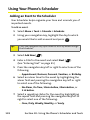
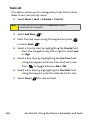
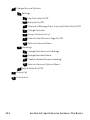
1. Select Menu > Tools > Calendar > Scheduler.
2. Using your navigation key, highlight the day to which
you would like to add an event and press
Tip:
MENU
OK
.
Press the navigation key up or down to scroll by week through
the Scheduler.
3. Select Add New (
).
4. Enter a title for the event and select Next (
).
(See “Entering Text” on page 51.)
5. Press the navigation key left or right to select one of the
following:
䡲 Appointment, Business, Personal, Vacation, or Birthday.
6. Select an alarm time for the event by highlighting the
alarm field and pressing the navigation key left or right
to select one of the following:
䡲 No Alarm, On Time, 10min before, 30min before, or
1 Hr before.
7. Select a repeating status for the event by highlighting
the repeat field and pressing the navigation key left or
right to select one of the following:
䡲 Once, Daily, Weekly, Monthly, or Yearly.
128
Section 2G: Using the Phone’s Scheduler and Tools